
To record a PowerPoint presentation with audio, open the Record tab, select Record > From Beginning, then select the record button and talk through your slides. Select Stop when you finish, play it back, then export it with File > Export > Create a Video so anyone can watch it without PowerPoint.
This guide follows Microsoft’s own steps for Windows and Mac, covers what to check before you hit record, and shows a self-paced alternative for when you need to know people listened, not just that they pressed play.
How to record a PowerPoint presentation with audio on Windows
These steps follow Microsoft’s guide, Record a slide show with narration and slide timings (checked 19 November 2026), for Microsoft 365.
- Open the Record tab. If you cannot see it on an older version, go to File > Options > Customize Ribbon and tick the Recording tab.
- Choose where to start. Select Record, then choose From Beginning, or From Current Slide to start part way through.
- Check your microphone and camera. In the recording window, use the microphone and camera buttons to turn them on or off. Teleprompter view turns your speaker notes into text at the top of the screen while you record.
- Mulai merekam. Select the round record button. A short countdown runs, then PowerPoint records your voice, your slide timings and any laser pointer, pen or highlighter marks.
- Pause or stop. Use Pause for a break and Stop when you finish. Narration does not record during slide transitions, so let each transition finish before you speak.
- Review and redo. Select Play to check the recording. To redo a slide, clear its recording with the delete option and record it again.
How to record a PowerPoint presentation with audio on a Mac
PowerPoint for Mac opens a Recording Studio for the same job.
- On the Record tab, select Record > From Beginning or From Current Slide.
- In the Recording Studio, select the record button to start, and use the camera button to turn your camera off for audio only.
- To retake a slide, use the trash can to remove its recording and record it again.
- Press Esc to end the recording.
- To clear recordings later, use Clear Recording on the Record tab.
Microsoft notes that PowerPoint for the web does not support recording a slide show, so use the desktop app on Windows or Mac.
How to turn your recording into a video
A recorded deck still needs PowerPoint to play. Exporting it as a video means anyone can watch it on any device. Microsoft’s guide to turning your presentation into a video (checked 19 November 2026) lists these steps for Windows.
- Save your presentation, then select File > Export > Create a Video.
- Pick a quality: Ultra HD (4K), Full HD (1080p), HD (720p) or Standard (480p).
- Choose Use Recorded Timings and Narrations, so your voice and timings come with it.
- Select Create Video, then save it as an MPEG-4 Video (.mp4) or Windows Media Video (.wmv).
A long deck can take a while to export; you can keep working in PowerPoint while it does. On a Mac, use Record > Export to video.
Where it stops for a live or remote audience
A recorded PowerPoint is a one-way broadcast. People can press play, skip to the end or leave it running in another tab, and you have no way to tell which.
For training, onboarding or a lesson people watch in their own time, that gap matters. You do not know who reached the end, who got the key point wrong or who had a question. You find out later, if at all.
The fix: keep your voice, keep your slides, and add a few questions people answer as they go.
A self-paced version people answer as they go, with AhaSlides
AhaSlides is an all-in-one engagement platform for teams and classrooms. Instead of a video, you can share your deck as a self-paced presentation: people open a link on their phone or laptop, move through your slides in their own time and answer questions along the way. The report shows how everyone did.
Dua cara cepat untuk memulai:
- Unggah deck Anda. Unggah file PowerPoint Anda ke AhaSlides, let AI add questions between your slides (Pembuat PowerPoint berbasis AI), then share it as a self-paced session with the steps below.
- Presenting live instead? Keep PowerPoint and add the free AhaSlides add-in: install it, pick your live slides and present.
Step 1: Import your deck. In AhaSlides, select Import and upload your .pptx file. Choose Import as editable slides (Beta) to keep your text, formatting and animations editable. Complex elements may come in as images (panduan impor(diperiksa pada 19 November 2026).
Step 2: Add questions between your slides. After each key section, add a quick Pick Answer, True or False or Rating Scale slide.
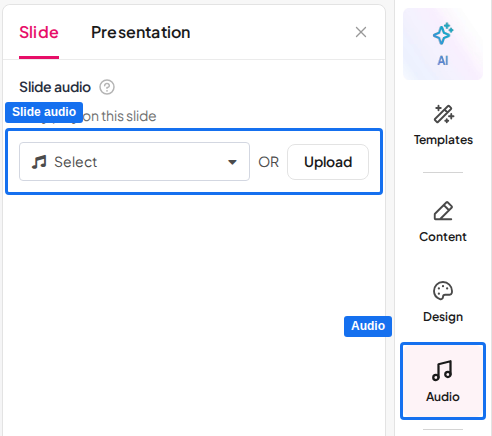
Step 3: Add your voice. Open the Audio tab, choose the Slide sub-tab and upload an MP3 of your narration for that slide (up to 15 MB). Turn on Playable on audience’s devices so people hear it on their own screen. Slide audio is available on paid plans (slide audio guide(diperiksa pada 19 November 2026).
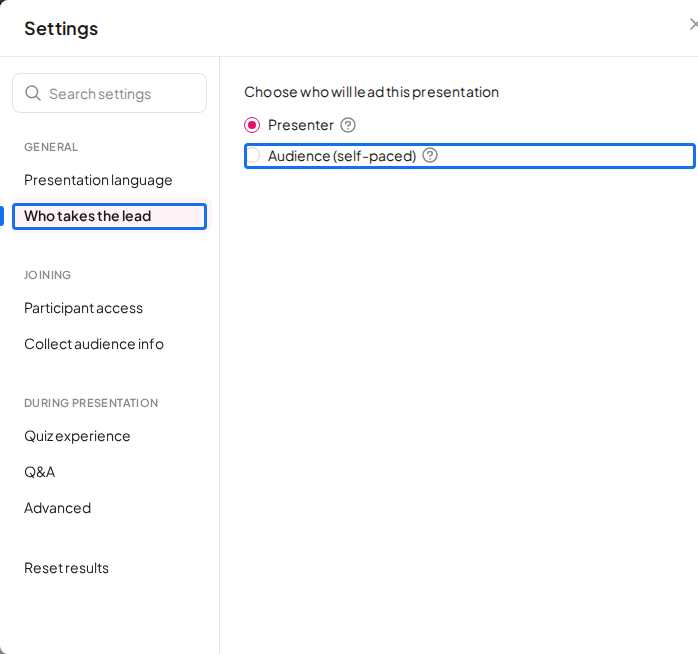
Step 4: Turn on self-paced mode. Open Settings, select Who takes the lead and choose Audience (self-paced) (self-paced guide(diperiksa pada 19 November 2026).
Step 5: Share the link. Set the presentation to public, then share its link. People join whenever suits them, and a leaderboard keeps a running score across everyone who plays.
Want to see one first? The Learn at Your Own Pace template is a 14-slide self-paced check-in on asynchronous learning, with picture-choice, Pick Answer and True or False questions, a confidence check and a reflection. Swap in your own content and narration.

There is a free plan to try AhaSlides. Lihat AhaSlides di harga untuk mengetahui apa saja yang termasuk dalam setiap paket.
5 ideas for a recorded presentation people answer
- Onboarding walkthrough. Narrate your company’s welcome deck and add a True or False question after each policy section.
- Pelatihan penyegaran tentang kepatuhan. Record the rule once, then ask a Pick Answer question that shows whether people can apply it.
- Pembelajaran terbalik. Students hear your explanation at home and answer three questions before class, so you start class knowing where they struggled.
- Product update for a remote team. Narrate what changed and end with an Open Ended slide: “What will this change for your work?”
- Pemeriksaan kepercayaan. Finish with a Rating Scale: “How ready do you feel to use this?” Low scores tell you who needs a follow-up call.
FAQ (Pertanyaan Umum)
Why is my PowerPoint not letting me record audio?
Usually because of the microphone or the version. Check that your computer has the right microphone selected and that PowerPoint has permission to use it. PowerPoint for the web cannot record, and an older desktop version may need the Recording tab turned on under File > Options > Customize Ribbon.
How do you record your voice while presenting a PowerPoint?
Use the Record tab: select Record > From Beginning, select the record button and present as normal. PowerPoint saves your narration and timings with each slide, and you can export the result as a video.
Can people watch a recorded PowerPoint without PowerPoint?
Yes, once you export it. File > Export > Create a Video saves it as an .mp4 or .wmv file that plays on most devices without PowerPoint.
Can I check whether people listened to my recorded presentation?
Not with a video file. To check, share it as a self-paced AhaSlides presentation with questions between the slides, then open the report to see how everyone answered.
Jadikan dek ini interaktif.
A static deck shows your slides but collects nothing back: no answers, no questions, no sign of who followed.
New to this? Read the full guide on Cara membuat PowerPoint interaktif.
Share your next recording as a self-paced AhaSlides presentation and see what people took in.