Skip to content
Claim this template

Free course template · US federal

Office ergonomics

A ready-made course, live deck and two surveys for office and remote/hybrid employees. 20 minutes, 7 lessons, 8-question final check. Last reviewed 8 October 2026; not legal advice.

Claim the templatePreview the courseDownload SCORM for your LMS

Free. No credit card. Edit everything.

Play a game from the course

Office ergonomics: try 3 questions

Three questions from this course. Pick an answer, then see why.

Play the game

Game not loading? Open it in a new tab (opens in a new tab)

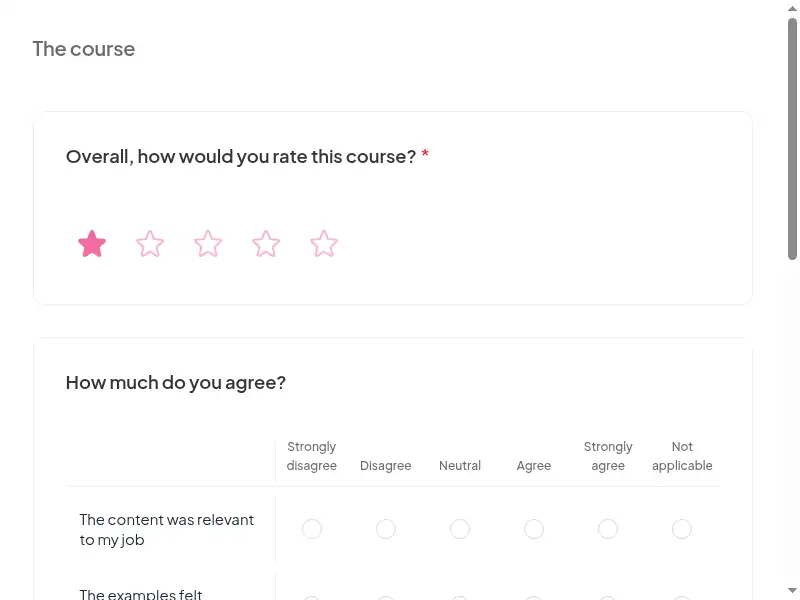
Three pieces that work together

Learners sign in, so every finish and score is recorded. 4 fields to fill in with your details.
Claim the template
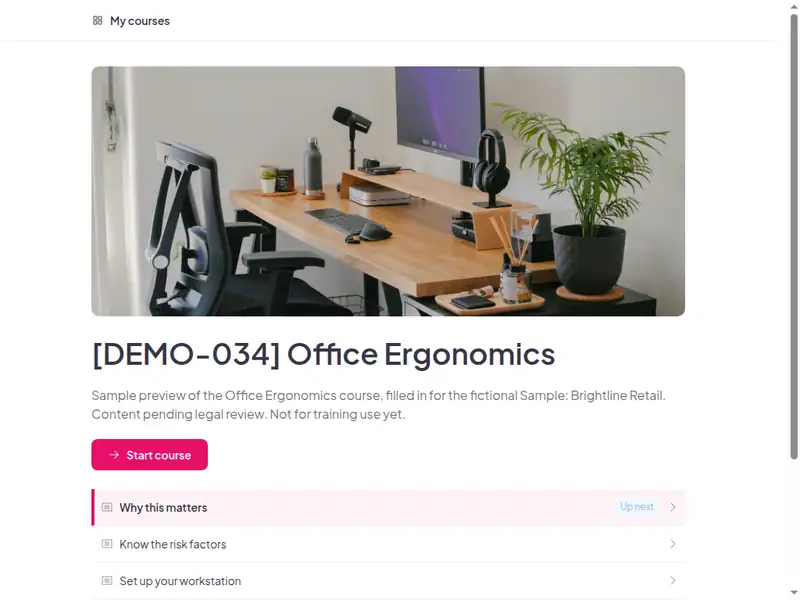
The Office ergonomics course as a learner first sees it

7 lessons, about 20 minutes

Minutes are an estimate.

  • Lesson 1: Why this matters · 3 min

    Recognise early signs of musculoskeletal discomfort (MSDs) and why to report early.

  • Lesson 2: Know the risk factors · 3 min

    Identify ergonomic risk factors: awkward posture, repetition, contact stress, static load.

  • Lesson 3: Set up your workstation · 5 min

    Adjust chair, desk, monitor, keyboard and mouse to a neutral posture.

  • Lesson 4: Move more · 2 min

    Build micro-breaks, movement and eye rest into the workday.

  • Lesson 5: Your workplace · 2 min

    Request an ergonomic assessment or equipment.

  • Lesson 6: When things go wrong · 2 min

    What would you do?

  • Lesson 7: Final assessment · 3 min

    8 questions, 80% to pass. The result is saved to the learner's record.

Claim the template

Inside this course

Taken from the course itself.

Sample questions, with answers

  1. Your fingers tingle most afternoons. What is the best first step?

    • Tell someone and adjust your setup early
    • Wait to see if it gets worse
    • Ignore it, as it comes and goes
    • Keep working the same way and tell no one

    Answer: Tell someone and adjust your setup early. Early signs are easiest to fix. Report them and change your setup before they turn into an injury. A clinician can say what is causing them.

    Lesson 1: Why this matters

  2. Which of these is an example of contact stress?

    • Typing for two hours without a break
    • Resting your wrist on a hard desk edge
    • Looking at a screen with glare
    • Holding the phone with your shoulder

    Answer: Resting your wrist on a hard desk edge. Contact stress is pressure from a hard surface or edge on part of your body. Typing without a break is repetition and static posture, glare is a lighting problem, and holding a phone with your shoulder is awkward posture.

    Lesson 2: Know the risk factors

  3. You work from a laptop all day. Which change helps your neck most?

    • Lower the laptop screen as far as it goes
    • Rest the laptop on your lap
    • Raise the laptop and use an external keyboard
    • Sit closer to the screen

    Answer: Raise the laptop and use an external keyboard. A raised screen, with its top at or slightly below eye level, and a separate keyboard let your neck and your wrists stay in a neutral position.

    Lesson 3: Set up your workstation

A scenario from "When things go wrong"

Hybrid worker: after two weeks at a new home desk, neck pain and numb fingers; manager is busy with a deadline.

Best response: Adjust setup, take breaks, report symptoms and request assessment , see a clinician if persistent.

Weaker responses: Wait until it's bad; Take painkillers and push through.

Legal basis

Best practice (OSHA eTool: Computer Workstations; NIOSH guidance); California 8 CCR §5110 where applicable.

Common questions

Yes. Claiming the template and editing it are free.

The course itself is self-paced and online, and the live deck lets you add a live session. Whether online delivery meets your local rules depends on the law that applies to you, so check the rules that apply to you or ask your own counsel.

At hire + when workstation changes (incl. move to home office) + annual refresher best practice.

Office and remote/hybrid employees who use computers for much of the day; call centres, admin, finance, IT.

Record completion in your own LMS or record system, so you can show who finished the course and when. Check the retention period that applies to you in the rules that apply to you.

Your own details, each highlighted inside the course:
  • ERGO assessment request process
  • Equipment request and budget
  • Remote work ERGO policy
  • LMS or record system
Then edit anything else you like: wording, scenarios, your logo.
Visit the help centre (opens in a new tab)