.svg)
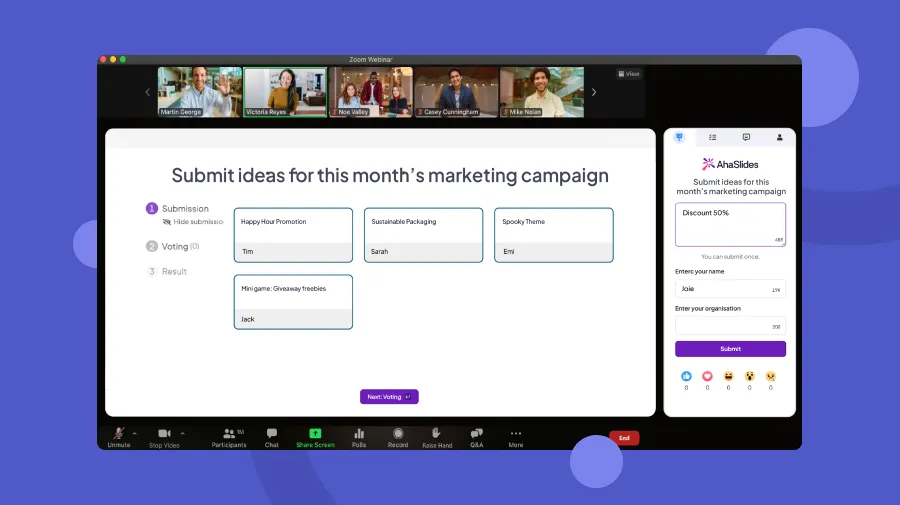
Add AhaSlides as an app inside Teams meetings and channels for live polls, quizzes, and Q&A. Participants take part without ever leaving Teams. Works for both live sessions and async channel-based check-ins.
The AhaSlides integration for Microsoft Teams runs as an in-meeting app inside Teams calls and channels. Participants engage without leaving Teams—no link sharing or tab switching needed.
1. Install the AhaSlides app from the Microsoft Teams App Store.
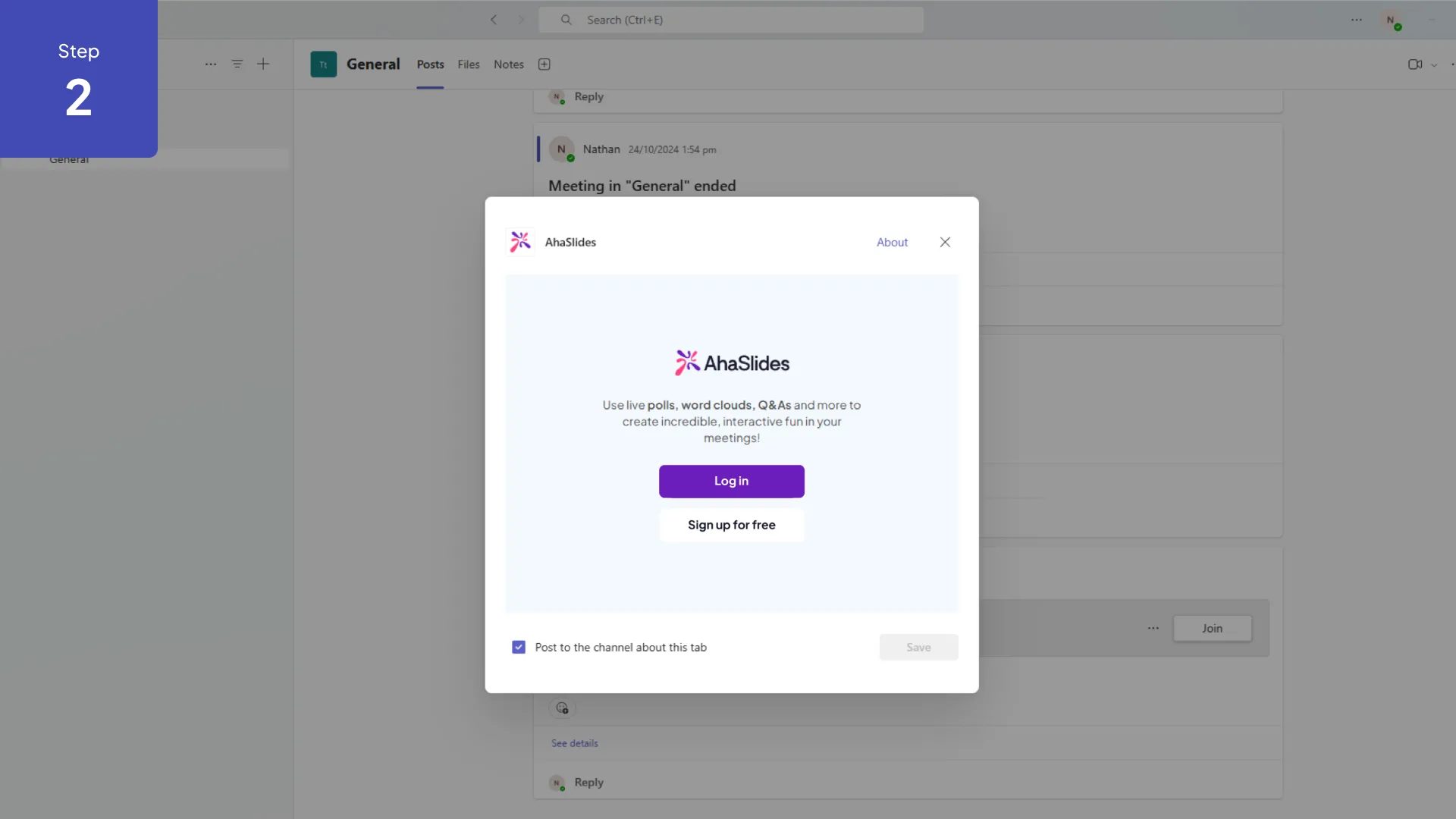
2. Add AhaSlides to a meeting or channel from the Apps panel.
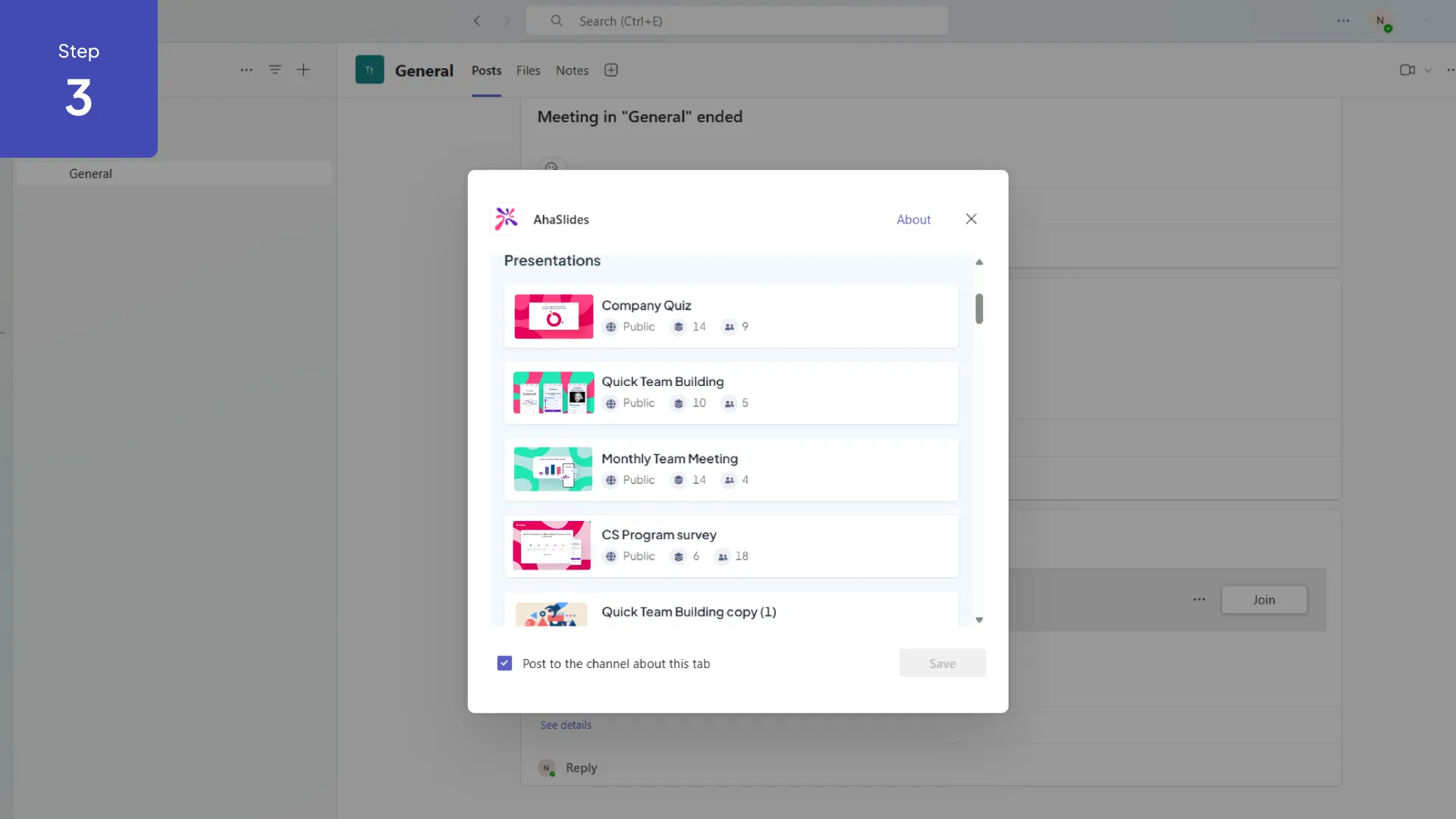
3. Start a session or launch a previously created presentation.
4. Participants see and interact with AhaSlides activities directly inside Teams.
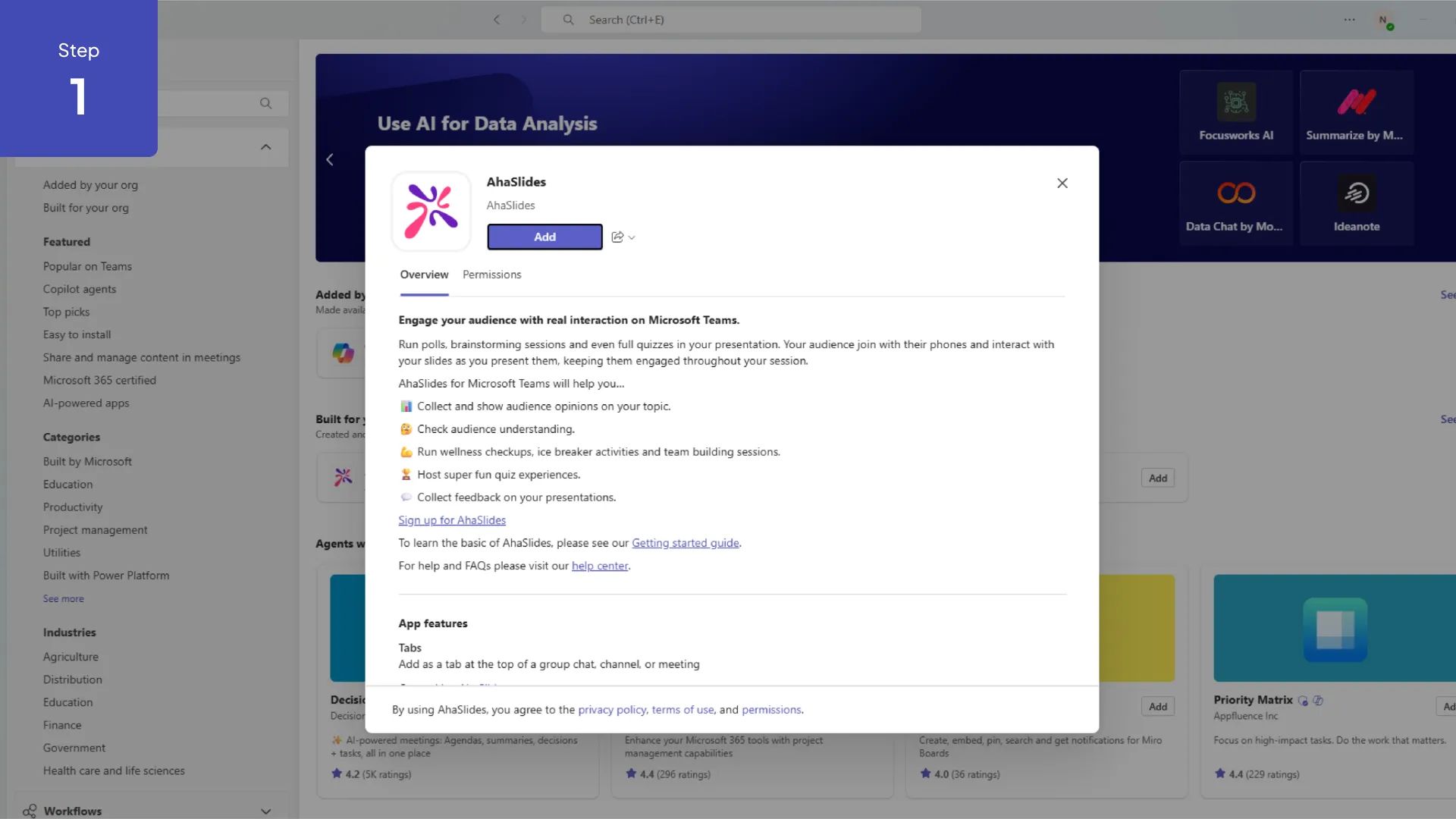
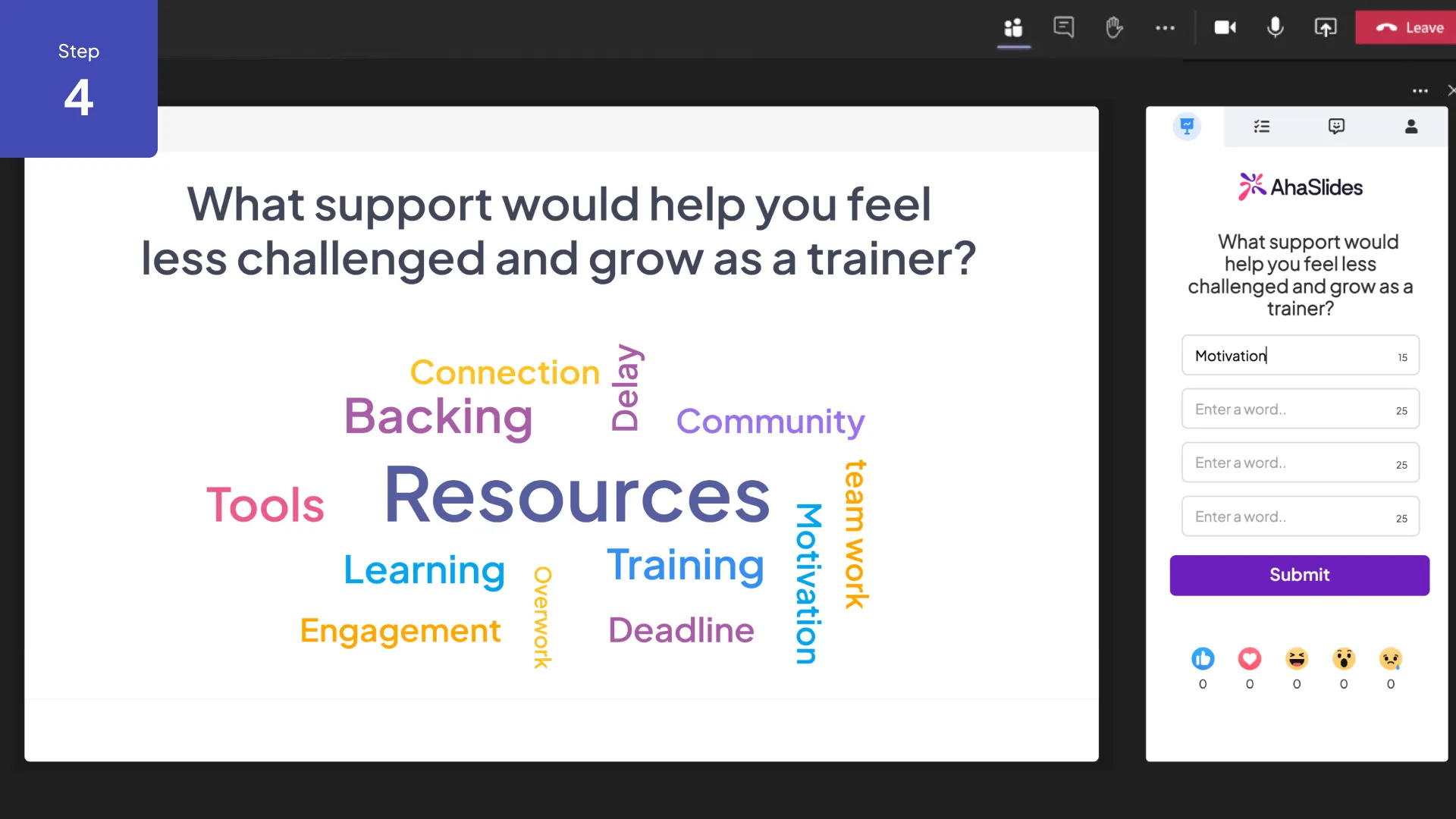
1. In Microsoft Teams, click Apps in the left sidebar and search for AhaSlides.
2. Click Add and authorize with your AhaSlides account.
3. To use in a meeting, open the meeting, click + to add a tab, and select AhaSlides.
4. Launch a presentation from the tab and start interacting with your audience.
In-Meeting Interactivity
Run polls, quizzes, and word clouds without participants leaving the Teams window. Everyone stays on the same screen.
Channel Engagement
Add AhaSlides as a channel tab to run async polls and collect team feedback outside of live meetings.
Enterprise-Ready
Works within your organization's Microsoft 365 security and compliance setup. Admins can deploy to the whole org via Teams admin policies.
All Activity Types
Polls, quizzes, open-ended questions, word clouds, Q&A, and more—all supported inside Teams.
%20(1).svg)