Skip to content
Claim this template

Free course template · Global

Safe use of AI and digital tools in clinical practice

A ready-made course, live deck and two surveys for clinicians. AhaSlides tracks progress, completion and scores for you. 40 minutes, 6 lessons. Last reviewed 21 October 2026; not legal advice.

Claim the templatePreview the courseDownload SCORM for your LMS

Free. No credit card. Edit everything.

Course outline at a glance

  • Use electronic records and secure messaging so that the record stays complete and patient information stays protected
  • Flashcards
  • Quiz
  • Sorting activity

  • Check and correct AI scribe output before it enters the record, and treat decision-support output as advice you independently review
  • Step-by-step
  • Accordion
  • Quiz
  • Tabs
  • Scenario

  • Keep patient data out of unapproved AI tools and report digital safety problems through the right route
  • Process
  • Quiz
  • Sorting activity
  • Multi-select quiz

  • Run a safe remote consultation: introductions, consent, identity checks, knowing when to switch to face-to-face, clear notes
  • Step-by-step
  • Quiz
  • Flashcards
  • Scenario

  • Protect clinical accounts, shared workstations and mobile devices
  • Accordion
  • Quiz
  • Scenario

  • Final assessment
  • Completion
  • Quiz

Try some questions from the course

Question 1 of 3

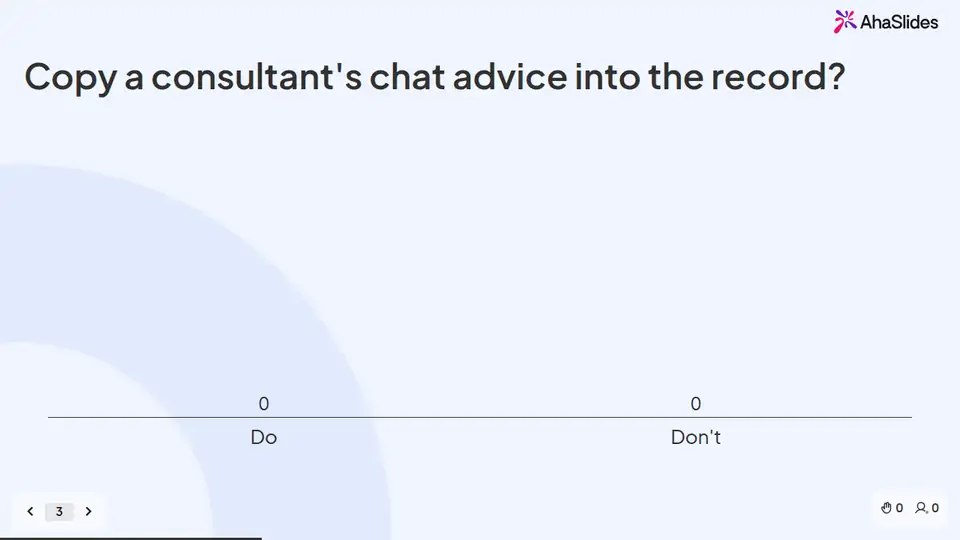
A consultant gives you advice about a patient by approved instant message. What should happen to that advice?


Messaging is no substitute for the record. Advice received by message is added to the medical record and the original deleted.

Lesson 1, Electronic records and secure messaging, teaches this. See the outline

Question 2 of 3

Which is a clinical hazard named in NHS England guidance on AI scribes?


The guidance names missing critical information, incorrect information or context, and delayed outputs as clinical hazards.

Lesson 2, AI scribes and decision support: the limits, teaches this. See the outline

Question 3 of 3

You want an AI tool to tidy up a discharge letter that names the patient. What do you check first?


Approved tools have been through clinical safety and data protection checks. NHS England's scribe guidance is not meant for staff using unauthorised apps on their own.

Lesson 3, Patient data in AI tools, teaches this. See the outline

Learners earn a certificate

Your organisation

Certificate of completion

This certifies that

Alex Morgan

has completed

Safe use of AI and digital tools in clinical practice

Completed on12 October 2026
Sample certificate with a placeholder learner name.

Style 1 of 6: Teal humanist

Everyone who finishes gets a certificate with their name, the course title and the completion date. Add your own logo, colours and signer.

Three pieces that work together

Learners prepare on their own, you answer questions live, and the surveys tell you what stuck. 18 fields to fill in with your own policy, contacts and locations; each one is highlighted inside the course.
Claim the template
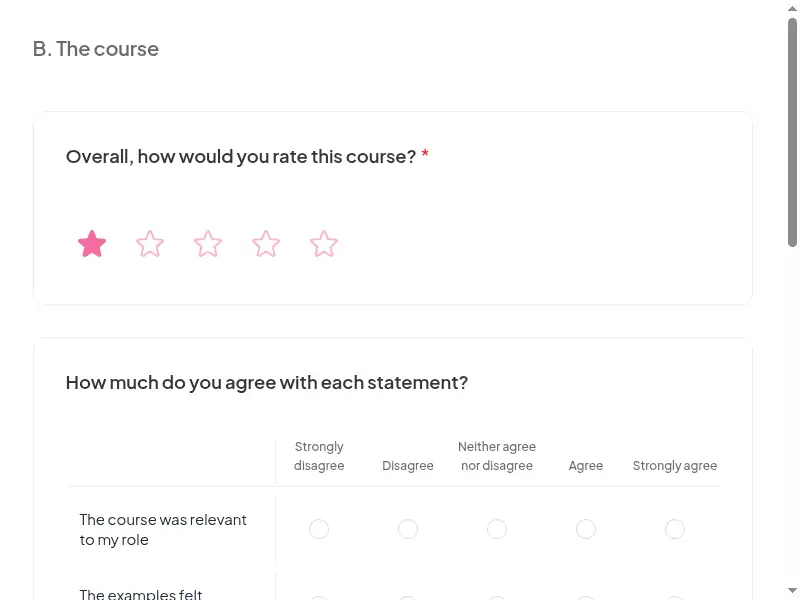
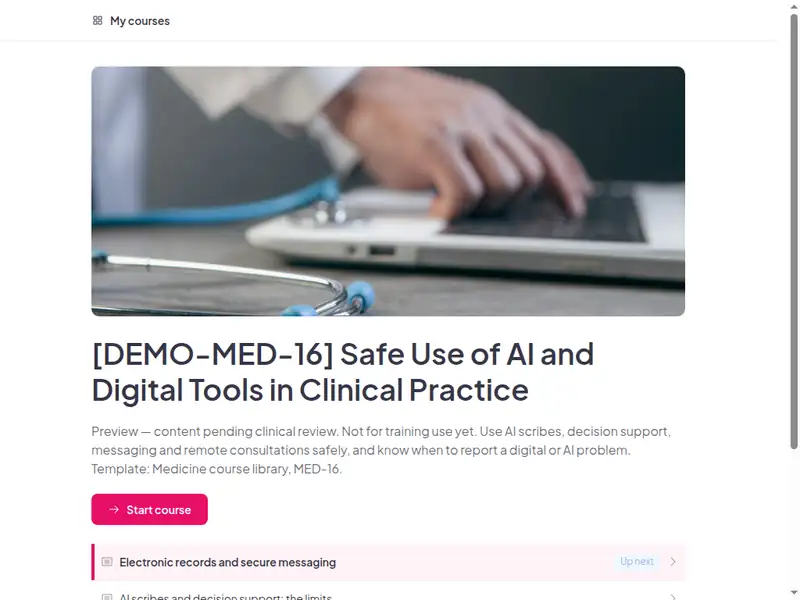
The Safe use of AI and digital tools in clinical practice course as a learner first sees it

Completion is tracked for you

Learners sign in to take the course, so every start, finish and score is recorded in AhaSlides. No spreadsheet to keep.

  • Who has finished

    See who has not started, who is in progress and who has completed the course.

  • Every score

    Each learner's answers to the quizzes and activities in the course.

  • What landed

    Survey results show what people took away, and the 30-day check-in shows whether they use it.

Claim the template

6 lessons, about 40 minutes

What learners can do at the end of each lesson. Minutes are an estimate.

  • Lesson 1: Electronic records and secure messaging · 7 min

    Use electronic records and secure messaging so that the record stays complete and patient information stays protected.

  • Lesson 2: AI scribes and decision support: the limits · 9 min

    Check and correct AI scribe output before it enters the record, and treat decision-support output as advice you independently review.

  • Lesson 3: Patient data in AI tools · 7 min

    Keep patient data out of unapproved AI tools and report digital safety problems through the right route.

  • Lesson 4: Telehealth basics · 7 min

    Run a safe remote consultation: introductions, consent, identity checks, knowing when to switch to face-to-face, clear notes.

  • Lesson 5: Device and account security in clinical areas · 5 min

    Protect clinical accounts, shared workstations and mobile devices.

  • Lesson 6: Final assessment · 5 min

    Final assessment · Completion

Claim the template

Common questions

Yes. The course, the live deck and both surveys are free. Claiming the template into your AhaSlides account is free too.

Yes. The course is self-paced and online, and the live deck lets you add a live session in the room or online.

At induction, when a new digital or AI tool goes live, and as an annual update (organisation policy).

Clinicians, healthcare assistants, ward clerks and clinic administrators who use electronic records, secure messaging, AI scribes, decision support or video consultations.

Record completion in your own LMS or record system, so you can show who finished the course and when.

Yes, everything. Change the wording, swap scenarios for ones from your workplace, add your logo, or remove parts that don't apply.

Your own details, each highlighted inside the course:
  • The secure messaging tools staff may use for patient information
  • What identifiers may be sent, retention and deletion rules
  • How clinical images are taken, stored and shared
  • AI tools approved, and what each is approved for
  • The patient script or leaflet and how patients can decline the scribe
  • How to override and document disagreement with an alert
  • Clinical safety officer or digital safety team
  • Local incident system for digital and AI problems
  • National medical device reporting route outside the UK
  • How to confirm identity and location on remote calls
  • What to do when red flags appear during a remote consultation
  • Login, smartcard and screen-lock rules
  • Lost device, locked account
  • LMS or record system
  • Live session URL
  • Course URL
  • Educator contact
Then edit anything else you like: wording, scenarios, your logo.
Visit the help centre (opens in a new tab)