
To create a poll in Slack, you can post a question and ask people to vote with emoji reactions, or use a poll app that adds answer buttons, anonymous answers and a results report. This guide shows how to create a poll in Slack both ways, plus how to send a survey you have already built, so you can pick the one that fits your question.
Most teams already talk in Slack all day. When you need a quick answer from everyone, such as a date for the team lunch, a choice between two designs or how a project is going, a meeting or a separate form takes more time. Asking in the channel people already have open is simpler for everyone, and the best engagement tool is the one that fits into the way people already work.
Method 1: Make a poll in Slack with emoji reactions
Slack has no poll button of its own. Slack's help centre suggests an informal poll with emoji reactions, or a polling app from the Slack Marketplace. The emoji way takes a minute:
- Write your question in the channel.
- Give each option its own emoji, for example 1️⃣ Tuesday, 2️⃣ Wednesday, 3️⃣ Thursday.
- Send the message, then add each emoji as a reaction yourself so people only have to click.
- Count the reactions when you are ready to decide.
This works well for small, low-stakes choices. It has limits, though:
- Everyone can see who voted for what, so it is not anonymous.
- People can add new emojis and vote more than once.
- There is no report. Once the message moves up the channel, the results are hard to find.
When the answers matter, or you want honest ones, use a poll app instead.
Method 2: How to run a poll in Slack med AhaSlides forum Slack
AhaSlides is an all-in-one engagement platform for teams and classrooms. Its Slack app lets you build a poll inside Slack and post it to a channel, where people answer with buttons. Every answer lands in your AhaSlides report, so you keep the results after the conversation moves on. It works on every AhaSlides plan, including Free.
Step 1: Add the app and sign in once
Åbne AhaSlides forum Slack installationsside. It opens Slack's own install screen, where you pick your workspace and allow the app. Then type /ahaslides in any channel, press Forbinde med AhaSlides and approve. Only the person who posts polls signs in. The people answering do not need an AhaSlides konto.
Step 2: Create the poll
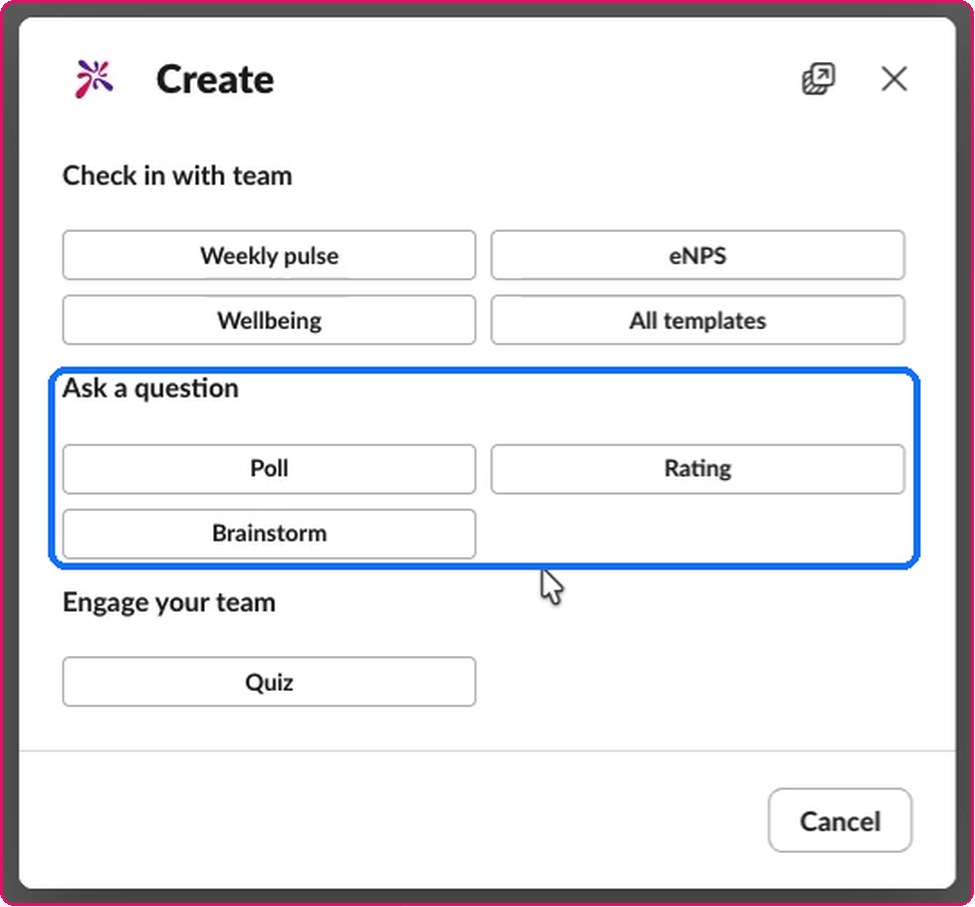
Type /ahaslides create. The Create window opens. Under Stil et spørgsmål, vælg Nakke. The same window also has Rating og brainstorm, en Quiz, and ready-made check-ins such as a weekly pulse or eNPS.
Pick the channel to post in (you can pick several), add an optional message, then write your question and the options, one per line. Want more than one question? Press + Add question to turn it into a short survey.
Step 3: Choose anonymous answers and who sees the results
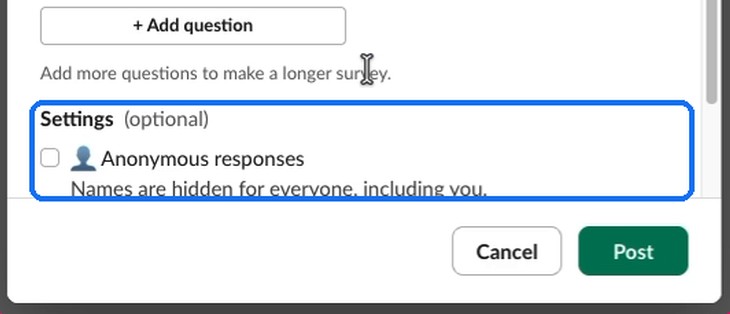
Under Indstillinger, kryds Anonyme svar to hide names for everyone, including you. You can also choose whether the results show to everyone who answers or only to you. Then press Indlæg.
One thing to check first: the app posts straight away in public channels. For a private channel, type /invite @AhaSlides in that channel first. If you forget, the app tells you, shows the command and keeps your draft.
Step 4: Watch the answers come in
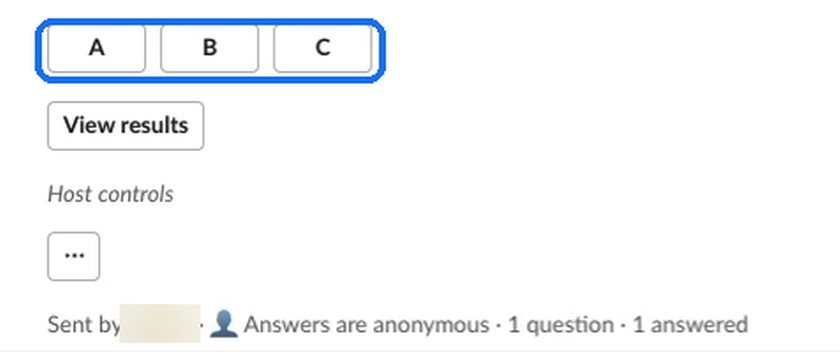
The poll appears in the channel with a button for each option. People click once to answer, and only they see the confirmation, so the channel stays clear. As the host, use the ... button to view the results, end answering or open the poll in AhaSlides for den fulde rapport.
Method 3: Send a survey or presentation you already have
If you have already built a survey or presentation in AhaSlides, you do not need to rebuild it. Type /ahaslides run and the Run AhaSlides in Slack window opens. Choose Kortlægge or Præsentation, then pick it from the list or paste its survey link or presentation ID.
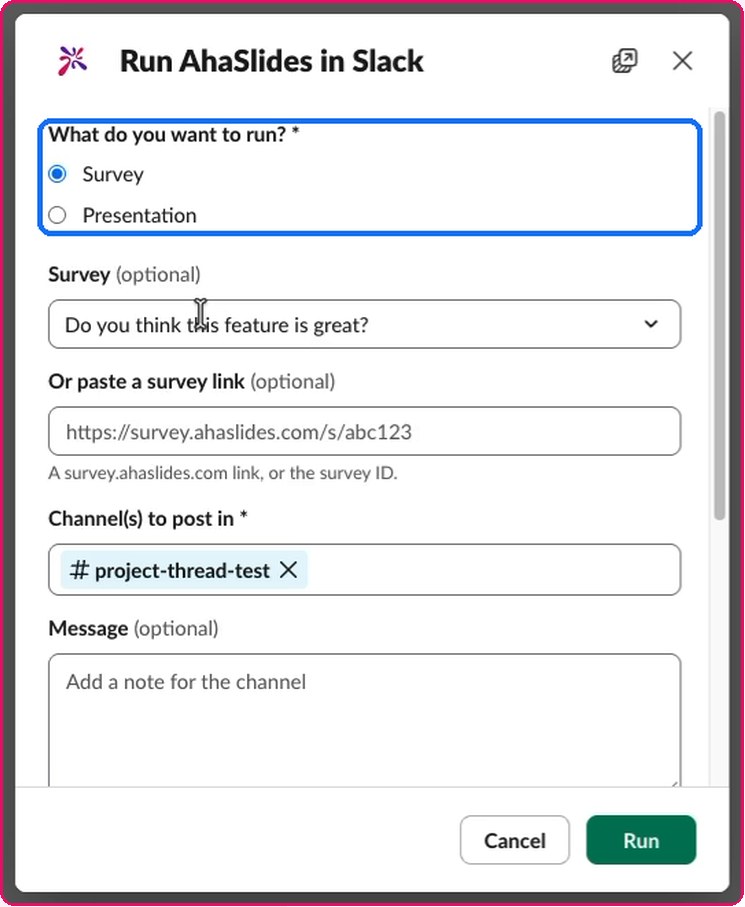
Pick the channel, add a message, choose anonymous answers and who sees the results. A survey goes out when you press Kør. A presentation shows a preview first, then you press Indlæg. Every answer lands in that survey's or presentation's AhaSlides report, next to the rest of its results.
Which way should you use?
- A quick, casual choice (lunch, a meeting time): emoji reactions are enough.
- Ærlig feedback (how a project is going, a team check-in): an anonymous poll, so people answer what they think rather than what looks good.
- Results you need to keep or share: a poll app with a report, so the answers do not disappear with the message.
- Something fun for the team: a short quiz in the channel, made from the same Create window.
Tips for a poll people answer
- Spørg én ting. "Which day suits you for the review?" gets clearer answers than a question with two parts.
- Keep options short and distinct. Three or four clear options are easier to pick from than a long list.
- Sig hvorfor du spørger. One line in the optional message ("We will book the room on Friday") tells people their answer changes something.
- Del resultatet. Tell people what you decided. People answer the next poll when they saw the last one go somewhere.
Running a regular team check-in in Slack? Our post on IT security pulse checks in Slack shows one way to use short polls for a recurring topic.
Ofte stillede spørgsmål
Can you do an anonymous poll in Slack?
Not with emoji reactions, because everyone can see who reacted. With a poll app such as AhaSlides forum Slack, kryds Anonyme svar before you post, and names are hidden for everyone, including you.
Er Slack have a built-in poll feature?
Nej. Slack suggests emoji reactions for an informal poll, or a polling app from the Slack Marketplace for anything more.
Do people need an account to answer a Slack afstemning?
Nej. Med AhaSlides forum Slack, only the host signs in. Everyone else answers with the buttons in Slack.
Is AhaSlides forum Slack gratis?
Yes. It works on every AhaSlides plan, including Free.
Can I post one poll to several channels?
Yes. In the Create window, pick more than one channel before you post.
Can I run a quiz in Slack?
Ja. Skriv /ahaslides create Og vælg Quiz under Engage your team. People answer with buttons, and you see the results in your AhaSlides indberette.
Ready to ask your team? Tilføj AhaSlides til Slack and post your first poll today. The help article walks through every step and setting.