
You can play games in PowerPoint two ways. Build one in PowerPoint alone with hyperlinks and animation triggers, where one person clicks and everyone else watches. Or add the AhaSlides add-in, so everyone answers on their phone and the scores appear on your slide. Below are 20 games that work either way.
Games are more than a warm-up. In a study of test-enhanced learning by Roediger and Karpicke, students who were tested on a passage recalled 56% of it a week later, against 42% for students who reread it. A quiz game is that kind of test, with a scoreboard.
How to make a game in PowerPoint (the PowerPoint-only way)
Most PowerPoint games are built from two tools: links that jump to another slide, and triggers that reveal an answer when you click it.
Step 1: build a board with links
- Make a menu slide with a box for each question, for example "Films 100".
- Make one slide per question, then select the box on the menu slide that should open it.
- On Windows, go to Кірістіру > Сілтеме > Осы құжатқа орналастыру and pick the question slide. On a Mac, go to Кірістіру > Сілтеме (or press Cmd+K), open the Бұл құжат tab and pick the slide.
- On each question slide, add a "Back to board" button and link it to the menu slide the same way.
Step 2: reveal answers with a trigger
- Add your answer boxes, plus a "Correct!" shape.
- Select the shape, go to the Анимациялар tab and add an entrance effect such as Келіңіздер.
- таңдау Trigger > On Click of and pick the right answer box. Windows and Mac both have this option.
Step 3: stop stray clicks from skipping slides
Бару Слайд-шоу > Слайд-шоуды орнату (the same on Windows and Mac) and choose Browsed at a kiosk. In this mode, clicking a slide does not move to the next one, so the game moves only through your links and triggers. Press Esc to leave the show.
For a ready-made board, our Jeopardy PowerPoint үлгісі walks through the full build.
Where a PowerPoint-only game stops
A home-made game works for a small group sitting near the screen. Past that, it runs into limits.
- One person plays for everyone. Whoever shouts first answers, and the quieter half of the group stays out of it.
- You keep score by hand. Someone counts points on a whiteboard and settles the arguments.
- Remote players watch. People on a video call can see the board, but they cannot click it.
- Nothing is saved. You do not learn who struggled with which question, or which round people liked.
The game is better when everyone plays at once. That takes everyone's phone, not only your mouse.
The live way: play PowerPoint games with the AhaSlides қондырма
AhaSlides is an all-in-one engagement platform for teams and classrooms. Every player joins on their own phone, so the whole group plays at once: a quiz with a live leaderboard, a duck race anyone can win, or an escape room where players race to crack the door code.
Бастаудың екі жылдам жолы:
- Дестеңізді жүктеңіз. PowerPoint файлыңызды келесіге жүктеңіз AhaSlides және жасанды интеллектке сауалнамалар мен викторина сұрақтарын қосуға мүмкіндік беріңіз, сонда ол қайта басталмай интерактивті сессияға айналады (PowerPoint жасаушы жасанды интеллект).
- Немесе PowerPoint бағдарламасында көрсете беріңіз. Тегін қосыңыз AhaSlides қондырма және өзіңіздің слайдтарыңыздың арасына тірі слайдтарды қойыңыз. Төменде үш қадам қажет.
Step 1: install it. PowerPoint бағдарламасында келесіге өтіңіз: Home > Add-ins > More Add-ins (in PowerPoint for the web, Кірістіру > Қосымшалар), search "AhaSlides" and click қосу.
Step 2: add your game slides. Sign in, choose your AhaSlides презентация Презентацияны таңдау, қажетті слайдтарды белгілеп, түймесін басыңыз Слайдтарды қосыңыз. PowerPoint for the web adds one slide at a time.
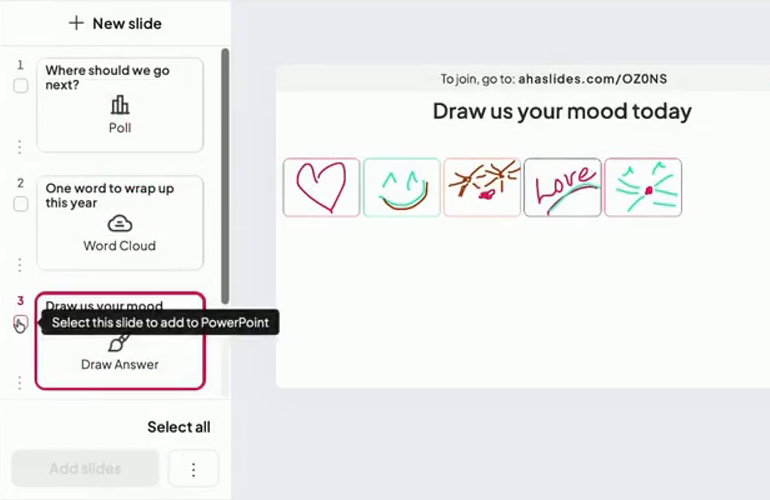
Step 3: present as normal. Start Slide Show. The join link and QR code show at the top of each live slide (press Q to show or hide the join panel), and players answer on their phones with no download.

The AhaSlides help guide to the add-in әрбір параметрді қамтиды.
A game template to start from
Our team built Office Games Showdown for exactly this. It has 12 slides of quick games: a Minute to Win It spinner wheel, Two Truths and a Lie, quiz questions, true or false, an office bingo word cloud, Pictionary on phones and a leaderboard. It works for a team meeting as well as a party.
20 PowerPoint games to play with a group
Each game names the slide type that runs it live. The ones marked "PowerPoint only" also work with the link and trigger method above.
Round 1: quiz and brain games
Set 1: quiz games
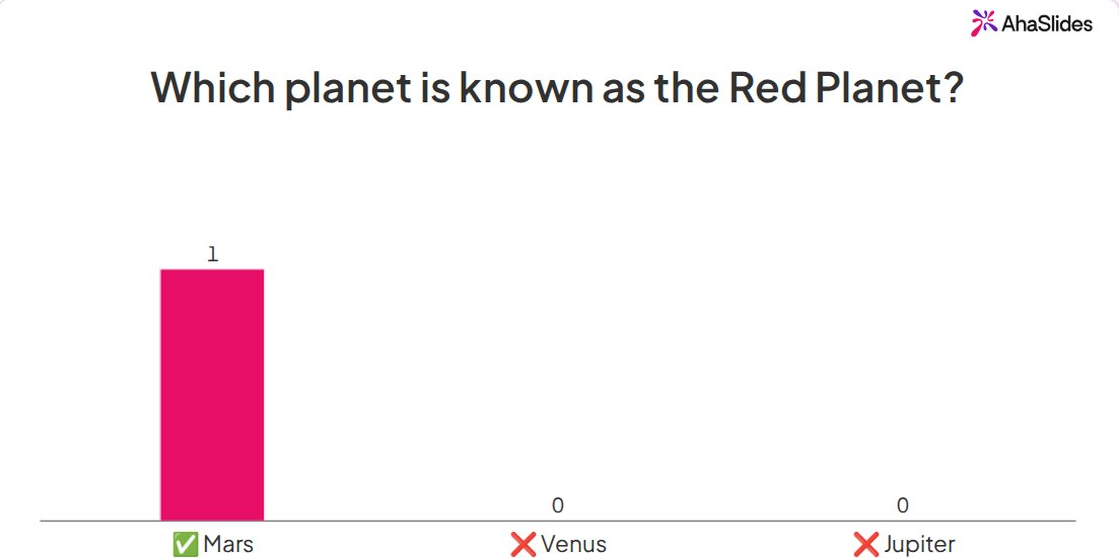
- Classic trivia quiz. Four answer options per question, points for speed, and a leaderboard after every few questions. Use Pick Answer. PowerPoint only: yes, with triggers.
- Jeopardy board. Categories across the top, points down the side, teams pick a square. PowerPoint only: yes, with links. Live, each square opens a Pick Answer question everyone answers.
- Picture round. Show a zoomed-in photo of an object, a logo or a place and ask what it is. Use Pick Answer with picture options.
- True or false sprint. Ten fast statements, 15 seconds each. Use True or False.
- Who wants to be a millionaire. Questions get harder and points climb. Give each team one "ask the audience" lifeline: run a quick Poll and show the split. PowerPoint only: yes, with links.
Set 2: brain games
- Match the pairs. Match capitals to countries, terms to definitions or products to prices. Use Match Pairs. PowerPoint only: works as a memory game, with each card a shape that disappears on click.
- Put it in order. Sort film releases by year, or the steps of a process. Use Correct Order.
- Sort it out. Drag items into the right group, such as "fruit or vegetable" or "risk or no risk". Use Categorise.
- Екі шындық және бір өтірік. One player writes three statements and the group votes on the lie. Use Pick Answer with picture options, or a Poll.
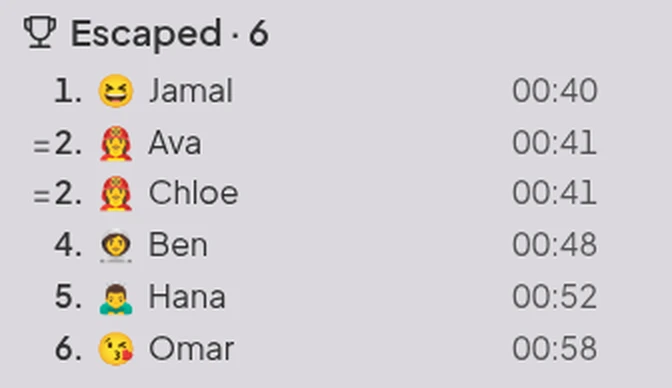
- Қашу бөлмесі. Players search rooms for clues on their own phones, then enter the final door code to escape, and the board ranks everyone by escape time. Build it with Қашықтан бөлме in AhaSlides, with 2 to 6 rooms per game.
Біздің таңдауымыз: the picture round. Nobody needs to know the topic to play, so newcomers score as often as experts.
Round 2: party and team games
Set 3: party games
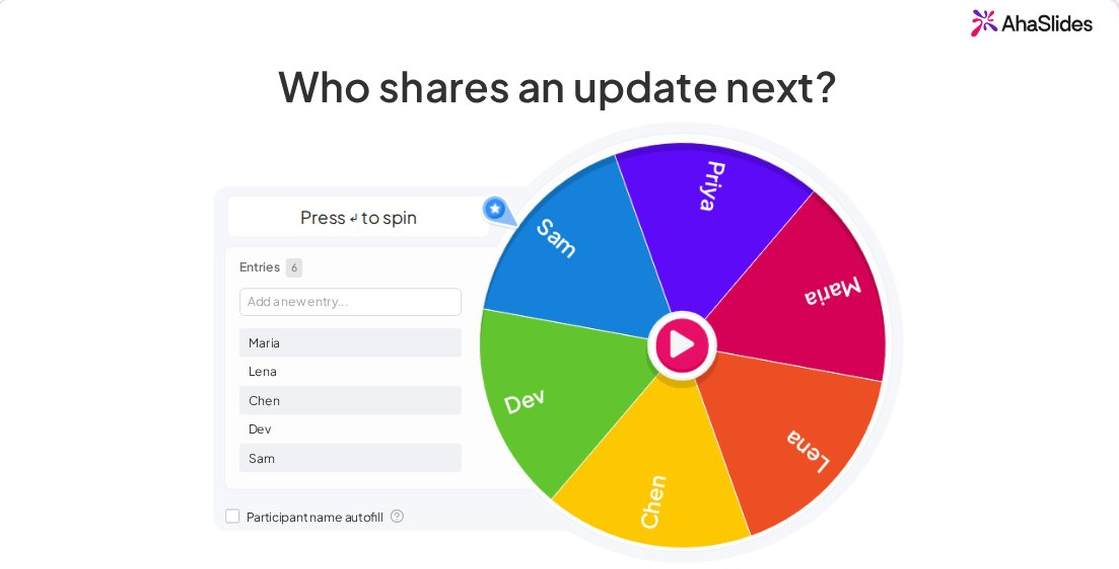
- Дөңгелекті айналдырыңыз. Put names, forfeits or topics on a wheel and spin to see who or what is next. Use the Айналмалы доңғалақ. Our guide to the PowerPoint бағдарламасындағы айналмалы дөңгелек covers the build-it-yourself version.
- Pictionary on phones. Give a word and a time limit, and every drawing appears on the slide. Use Draw Answer.
- Word association. Say a word and ask for the first thing that comes to mind. Use Word Cloud, and the biggest word wins.
- Knockout vote. Best biscuit, best film, best idea from the workshop: options face off in pairs until one wins. Use Tournament Bracket.
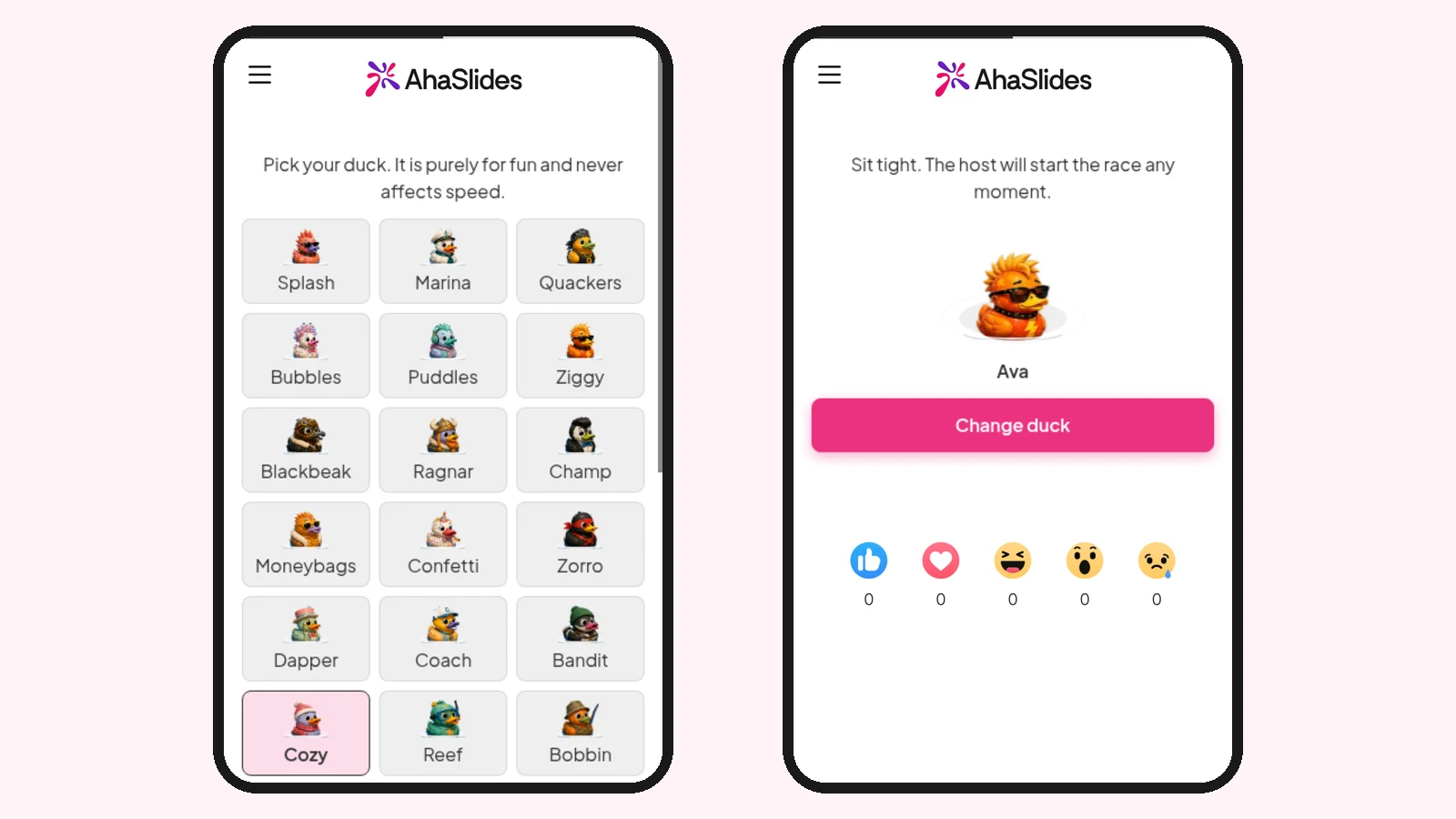
- Duck race. Everyone who joins gets a duck, and a pure-luck race picks the winner, so a newcomer has the same chance as the quiz champion. Use Үйрек жарысы for a prize draw or to pick who goes first.
Set 4: icebreaker games
- Would you rather. Give two options, such as "no meetings on Friday or free lunch on Monday", and let the group vote before anyone explains. Use a Poll.
- Caption this. Show a photo and ask everyone to write a caption, then vote on the best. Use Open Ended, then a Poll.
- Guess who. Everyone writes one surprising fact about themselves. Read the facts aloud and ask the group whose each one is. Use Open Ended, then Pick Answer.
- Rate it. Rate the office snacks, the meeting room or last night's film from 1 to 5. Use Rating Scale.
- Emoji charades. Show a row of emoji that spell out a film or a song and ask for the title. Use Pick Answer or Open Ended.
Біздің таңдауымыз: spin the wheel. It takes a minute to set up, and it settles "who goes next" fairly.
Tips to make your PowerPoint game work
- Сұрақтарды қысқа етіп қойыңыз. A question people read in five seconds keeps the pace up. Save the detail for the answer reveal.
- Оңай және қатты етіп араластырыңыз. Start with two easy questions so everyone scores early, then raise the difficulty.
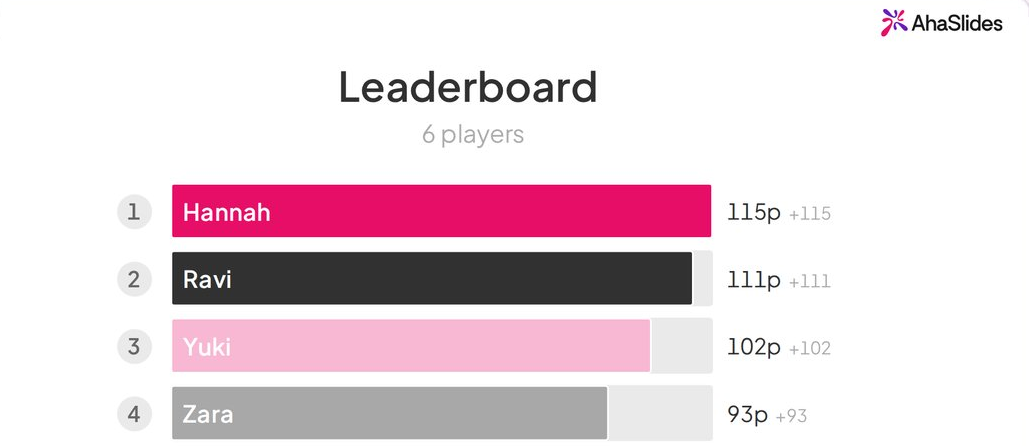
- Show the scores often. A leaderboard every five questions keeps the middle of the table trying.
- End on a recap round. Roediger and Karpicke found that being tested beat rereading a week later, so a short quiz on what you just covered helps it stick.
Want more formats that work in any tool? See our list of интерактивті презентация ойындары. Hosting a social evening instead? Our Түнгі PowerPoint идеялары have topics for that, and the Christmas PowerPoint template post has festive games ready for December.
Жиі Қойылатын Сұрақтар
How do you create a game on PowerPoint?
Use links and triggers. Link boxes on a menu slide to question slides (Кірістіру > Сілтеме), add a trigger animation that reveals the right answer on click, and set the show to Browsed at a kiosk so clicks only follow your links.
Can you make PowerPoint games interactive?
Yes, with an add-in. The AhaSlides add-in adds live quiz, poll, word cloud and spinner wheel slides to your deck, and players answer on their phones during Slide Show.
How do you make a quiz game in PowerPoint?
Make one slide per question with four answer boxes, and use Animations > Trigger > On Click of to show "Correct!" when the right box is clicked. Our guide on how to turn a PowerPoint into a quiz has both the trigger method and the live method.
How do you make a Jeopardy game in PowerPoint?
Build a board slide with a box per category and points value, link each box to its question slide, and add a link back to the board. The Jeopardy template post linked in the how-to above has a free board.
What games can you play on PowerPoint?
Trivia, Jeopardy, Who wants to be a millionaire, memory and matching games, picture rounds and spinner wheel games all work. With live slides, you can add drawing, voting and word games, a duck race and an escape room that everyone plays at once.
Бұл колоданы интерактивті етіңіз
A game deck people only watch keeps them as spectators. Add a quiz, a vote and a spinner wheel, and the whole group plays.
For the full method, read our guide on интерактивті PowerPoint қалай жасауға болады.
Host your PowerPoint games on AhaSlides Тегін
Keep your deck, add the games, and let everyone play from their phones.