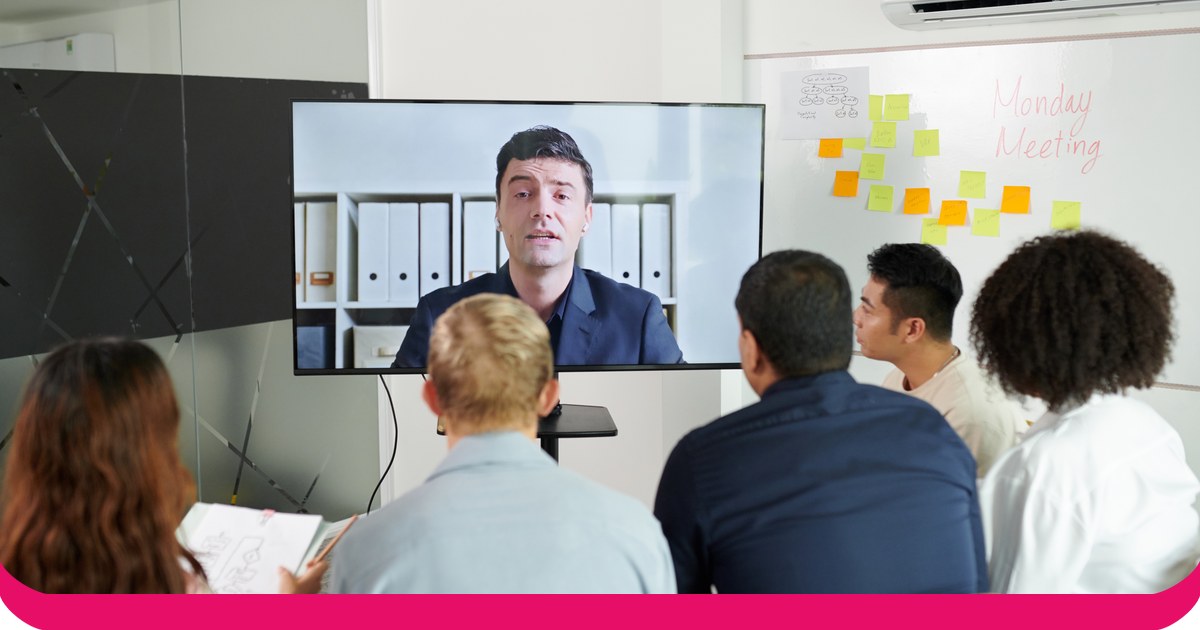
An audience response system lets the people in front of you answer your questions live, and shows the results on your slides. For PowerPoint, there are two kinds: clicker systems with handsets and a USB receiver, and phone-based add-ins where people answer on their own devices.
We compared eight systems that work with PowerPoint on how people answer, which versions of PowerPoint they run on, their free plans and their lowest prices. Almost every detail comes from each vendor’s own website or help centre, and prices are as listed on 19 November 2026. One disclosure first: AhaSlides is our product, and we say plainly where another system is the better fit.
Clickers or phones: which kind do you need?
Clicker systems give each person a small handset. Answers go to a receiver plugged into the presenter’s computer. Clickers suit lecture halls where phones are banned or not everyone has one. The cost is the hardware: someone buys, charges, hands out and collects the handsets.
Phone-based add-ins put the question on a slide with a QR code or a short link. People join in their browser, with no app to install, and results update on screen as they answer. They suit training, meetings, events and classes where people already carry a phone, and they let you ask open questions that a clicker’s buttons can’t handle, such as word clouds and written Q&A.
If you’re choosing for a university that already owns clickers, look at PointSolutions or iClicker. For almost anyone else, a phone add-in needs no hardware to buy or hand out.
Audience response systems for PowerPoint at a glance
| 시스템 | How people answer | PowerPoint: Windows / Mac / web | 무료 계획 | Lowest paid price |
|---|---|---|---|---|
| AhaSlides | Phones, by QR code or link | 네 / 네 / 네 | 가능 최대 50 명의 라이브 참가자 | $ 7.95 월 매년 청구됨 |
| Poll Everywhere | Phones and web | 네 / 네 / 네 | 가능 Audience of up to 40 | $ 10 월 연간 $ 120 청구 |
| Mentimeter | Phones and web | 예 / 예 / 아니오 | 가능 | $11.99 a month per presenter 매년 청구됨 |
| Slido | Phones, by code, QR code or link | 예 / 예 / 아니오 | 가능 | 월 15유로부터 매년 지불 |
| 베복스 | Phones and web | 예 / 예 / 아니오 | 가능 최대 100 명 | $ 11.95 월 연간 $ 143.40 청구 |
| ClassPoint | Any device, no app | Yes / No / No Windows add-in only | 가능 한 학급당 학생 25명 | USD 8 a month USD 96 billed annually |
| PointSolutions | Clickers or phones | 예 / 예 / 아니오 | 목록에 없음 | 미공개 Bought per institution |
| 아이클리커 | Remotes, phones or web | No add-in Runs alongside your slides | 강사에게는 무료입니다. | Students from $4.99 Six months, attendance only |
Sources: each vendor’s own pricing and help pages, linked in the sections below, checked 19 November 2026.
The 8 systems, one by one
1. AhaSlides
AhaSlides 는 팀과 교실을 위한 올인원 참여 플랫폼입니다. PowerPoint 추가 기능 adds polls, quizzes, word clouds, Q&A and rating scales to your existing deck, and people answer on their phones.
- PowerPoint versions: Microsoft 365 and PowerPoint 2024, 2021 and 2019 on Windows and Mac, plus PowerPoint for the web, per the AhaSlides 도움말 센터PowerPoint 2016 및 이전 버전은 지원되지 않습니다.
- 무료 요금제: yes. You can engage up to 50 participants live, with unlimited presentations (AhaSlides 가격).
- Lowest paid plan: Essential, from $7.95 a month billed yearly (AhaSlides 가격).
- 최상의 : trainers, teachers and team leads who want more than polls in the same deck, with no hardware.
2. Poll Everywhere
Poll Everywhere’s PowerPoint add-in, Poll Everywhere 2.0, installs from the Microsoft 365 add-ins store with no separate download and works on Windows and macOS, according to its 도움말 센터. 그 PowerPoint page adds that you can use it on the web too.
- 무료 요금제: Intro, for audiences of up to 40, with PowerPoint integration included (Poll Everywhere 계획).
- Lowest paid plan: Present, $10 a month, billed annually at $120 a year for one seat.
- 최상의 : universities and companies that already use it for polling.
3. Mentimeter
Mentimeter’s add-in works with its live presentations and is available on all plans. Its 도움말 센터 lists Windows (version 2111 or later) and Mac (16.55 or later), and says PowerPoint Online is not supported.
- 무료 요금제: yes (Mentimeter 계획).
- Lowest paid plan: Basic, $11.99 per presenter a month, billed yearly.
- 최상의 : teams already on Mentimeter who present from PowerPoint on Windows or Mac.
4. Slido
Slido for PowerPoint is a free integration that you download from Slido의 사이트 and install on the computer you present from. Slido lists Windows 10 22H2 or later with PowerPoint 2016 or newer, and macOS 12 or later with PowerPoint 2019 or newer. PowerPoint Online isn’t supported.
- 무료 요금제: yes, free to start.
- Lowest paid plan: from €15 a month, paid annually (Slido 사업용).
- 최상의 : Q&A in company meetings. Our Slido 추가 기능 가이드 설정 방법을 다룹니다.
5. 베복스
The Vevox PowerPoint add-in installs from Microsoft AppSource and needs Office version 2208 or later on Windows, or 16.64 or later on Mac. Vevox says Office on the web is currently not supported.
- 무료 요금제: one user, up to 100 participants (Vevox business pricing).
- Lowest paid plan: Starter, $11.95 a month, or $143.40 billed annually, for up to 250 participants.
- 최상의 : larger free audiences who only need multiple choice polls, quizzes and Q&A.
6. ClassPoint
ClassPoint runs inside PowerPoint after you install it on Windows 10 with Office 2013 or higher. It isn’t compatible with macOS.
- 무료 요금제: Basic, with up to 25 students per class and 3 classes (ClassPoint 가격).
- Lowest paid plan: Pro, USD 8 a month or USD 96 billed annually.
- 최상의 : teachers on Windows who want quick quizzes inside PowerPoint.
7. PointSolutions (formerly TurningPoint)
TurningPoint is now PointSolutions, sold by Echo360. It supports both clickers and mobile devices, and its PowerPoint polling mode lets instructors build polling slides in PowerPoint through the PointSolutions Desktop app on Windows or Mac. Echo360’s 시스템 요구 사항 say PowerPoint on the web is not supported.
- 무료 요금제: 나열된 항목 없음.
- 가격: not published on Echo360’s PointSolutions page. Participant subscriptions and clickers are sold through Echo360, with options set per institution.
- 최상의 : campuses that already run TurningPoint clickers.
8. 아이클릭커
아이클리커 lets students answer on a phone, on the web or with an iClicker remote, with the iClicker Base as the receiver for remotes. Its 통합 페이지 lists LMS connections rather than a PowerPoint add-in, so you run iClicker Cloud alongside your slides.
- 무료 요금제: “always free for instructors to use” (iClicker pricing). Students pay.
- Student price: iClicker Pulse, for attendance only, from $4.99 for six months; iClicker Pro from $15.99 for six months.
- 최상의 : colleges where students already have an iClicker subscription.
Why PowerPoint alone isn’t an audience response system
PowerPoint can show a question, but it can’t collect answers. The closest you’ll get on your own is a show of hands typed into a chart:
- 질문 슬라이드를 추가하세요. Write the question and two to four answer options.
- Insert a chart on the next slide. Go to Insert, then Chart, and pick a bar chart.
- Count hands. Ask for a show of hands for each option and count them.
- Type in the numbers. Right-click the chart, choose Edit Data and enter the counts, so the bars update.
It works for a small group, but it stops quickly. Counting takes time, people see how others vote before they raise a hand, nothing is anonymous and nothing is saved for later. A response system fixes all of that: everyone answers at once, privately, and you keep the results.
How to run a live poll in PowerPoint with AhaSlides
AhaSlides is an all-in-one engagement platform for teams and classrooms. For an audience response system, that means everyone answers on their own phone at the same time, privately, and the results build on your slide.
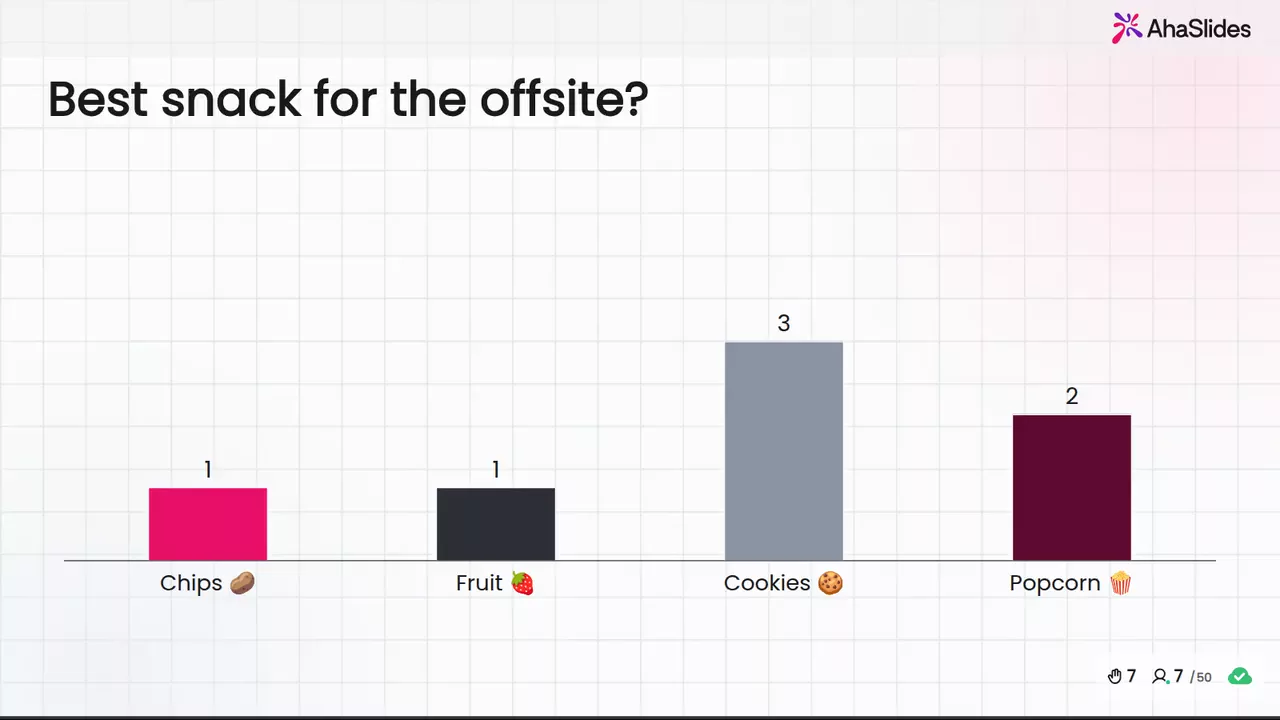
시작하는 두 가지 빠른 방법:
- 덱을 업로드하세요. 파워포인트 파일을 업로드하세요 AhaSlides AI가 설문조사와 퀴즈 문제를 추가할 수 있도록 하여 처음부터 다시 시작하지 않고도 상호작용적인 세션을 만들 수 있도록 합니다.AI 파워포인트 제작기).
- 아니면 파워포인트로 계속 발표하세요. 무료를 추가하세요 AhaSlides 추가 기능 그리고 실제 슬라이드를 여러분의 슬라이드 사이에 삽입하세요. 아래의 세 단계를 따르면 됩니다.
Here's the phone-based way, start to finish:
- 설치하고 로그인하세요. PowerPoint에서 홈, 추가 기능, 추가 기능을 차례로 클릭합니다. 웹용 PowerPoint에서는 삽입, 추가 기능, 추가 기능을 차례로 클릭합니다. 검색창에 다음을 입력하세요. AhaSlides'추가'를 클릭한 다음, 계정으로 로그인하세요. AhaSlides 계정을 만들거나 무료 계정을 만드세요.
- Build your questions and add them. In AhaSlides, add a poll, a word cloud or a rating scale, or start from a template. Then, in the add-in, choose your presentation, tick the slides you want and click Add slides. On PowerPoint for the web, slides go in one at a time.
- 선물. Start the slideshow. Each AhaSlides slide shows a link and QR code, people join on their phones, and their answers appear on the slide as they come in.
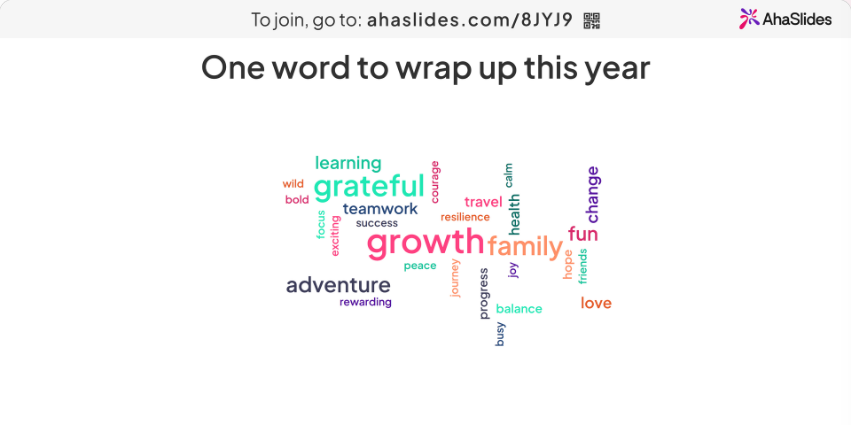
Start with a ready template
This End of Lesson Review template is a short set of feedback questions for the end of a session. Copy it, change the questions, and add it to the last slides of your deck.
5 ways to use an audience response system in PowerPoint
- Check understanding mid-lecture. One multiple choice question after each key point shows whether to move on or explain again.
- Collect questions without a queue. Open an anonymous Q&A so people ask what they’d never put a hand up for.
- Run a quiz round in training. A short scored quiz at the end of a module shows what people remember, not just what you covered.
- Warm up a meeting. Start with a word cloud (“one word for this quarter?”) so everyone has answered something before the agenda.
- Get feedback before people leave. A rating scale and one open question on the last slide give you feedback while everyone is still in the room.
FAQ
What is an audience response?
It’s an answer the audience gives to a presenter’s question during a session, collected with clickers or phones and shown as live results. An audience response system is the tool that collects those answers and puts them on screen.
What are the key benefits of audience response systems?
Everyone answers, not just the confident few. Answers can be anonymous. You see straight away what people understood, and you keep the results for later. Our guide to 교실 대응 시스템 goes deeper on the classroom side.
How do you get an audience engaged?
Ask them something early and often. A quick poll or word cloud in the first five minutes, a question after each section and a Q&A that anyone can post to anonymously all give people a reason to join in.
What are some effective tools for audience engagement?
For PowerPoint, phone-based add-ins such as AhaSlides, Poll Everywhere, Mentimeter, Slido and Vevox, or clicker systems such as PointSolutions and iClicker. Our 파워포인트를 활용한 실시간 질의응답 guide shows one of those in action.
이 덱을 상호작용형으로 만드세요
인터랙티브 파워포인트 제작 가이드 어떤 프레젠테이션 자료에서든 사람들이 답변하고, 투표하고, 질문할 수 있도록 하는 방법을 보여줍니다. 또는 처음부터 시작해 보세요. 템플릿 라이브러리에서 무료 스타터 덱을 이용해 보세요. 그리고 다음 프레젠테이션에 추가하세요.
관련 독서
- Kahoot 파워포인트에서 스포이드를 추가하는 방법 및 무료 대안
- Slido add-in for PowerPoint: how to install and use it
- AhaSlides 온라인 투표 작성기
Hear from everyone in your next presentation
Add live polls, quizzes and Q&A to the PowerPoint deck you already have. No clickers to hand out: people answer on their phones, free for up to 50 live participants.