
넣어 Kahoot in PowerPoint, install the Kahoot! for PowerPoint add-in from the Insert tab, add a blank slide, sign in and paste your kahoot’s share link. It needs a paid Kahoot plan. If you want a quiz in your deck for free, the AhaSlides add-in for PowerPoint is available on its free plan.
We checked every Kahoot and Microsoft detail below on their own pages on 19 November 2026. One disclosure first: AhaSlides is our product. We cover the Kahoot route in full, then show where our add-in is the better fit and where it isn’t.
시작하기 전에 필요한 것
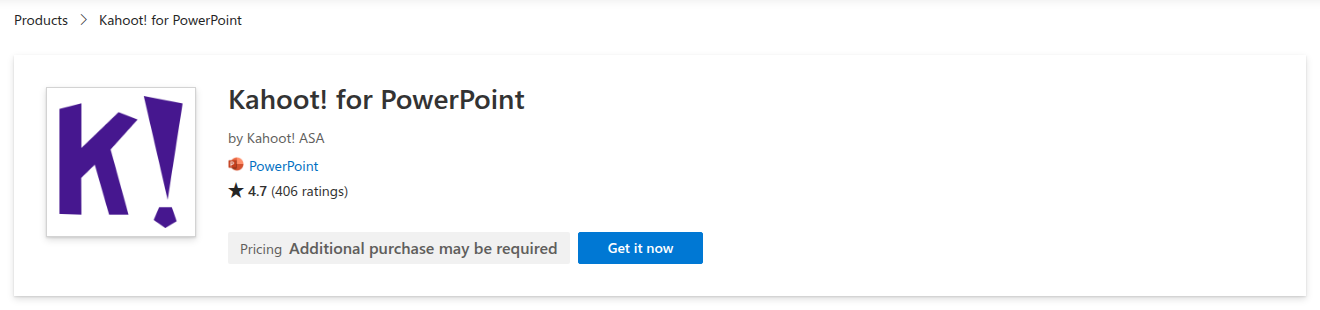
The add-in is called Kahoot! for PowerPoint. It is made by Kahoot! ASA and listed on 마이크로소프트 마켓플레이스, where it has 4.7 stars from 406 ratings.
- 유료 Kahoot 계획. The Marketplace listing says the add-in “requires a subscription to Kahoot! 360 Standard, Kahoot! 360 Presenter, Kahoot! 360 Pro, or selected plans for educators”. Kahoot현재 business pricing page lists PowerPoint integration on all five Pro plans. The cheapest is Pro Start at $15 a month ($180 billed annually) for up to 50 participants.
- A current version of PowerPoint. Kahoot의 도움말 asks you to sign in to an installed Office app with an active Office 365 subscription and use a current version of PowerPoint 2019.
- A kahoot that already exists. The add-in doesn’t build questions inside PowerPoint. You make the kahoot on Kahoot first, then link it to a slide.
If you teach, the listing only says “selected plans for educators”, so check your school plan with Kahoot before you count on it.
추가하는 방법 Kahoot to PowerPoint, step by step
Steps 2 to 7 follow Kahoot’s own help article.
- 추가 기능을 설치하세요. In PowerPoint, open the Insert tab and choose Get Add-ins. Search for Kahoot 추가합니다.
- Add a blank slide. Kahoot warns that slides from a template can break the size of the embedded kahoot, so start from a blank one.
- Open the add-in on that slide. Go to Insert, then My Add-ins, and choose Kahoot!. Sign in to your Kahoot account on the slide.
- 당신의 복사 kahoot'의 링크입니다. In a browser, open create.kahoot.it, find the kahoot and use its Share button. Copy the share link, or use the Microsoft PowerPoint button in the share options. For a private kahoot in your library, copy the kahoot’s URL instead.
- Paste the link and click “Add kahoot". The slide now holds your game.
- Present as usual. When you reach that slide in Slide Show, you host the kahoot from inside PowerPoint. Players join on their own devices.
- 결과를 확인하십시오. After the session, the report sits under Reports in your Kahoot 계정입니다.
이용 방법 Kahoot with PowerPoint without the add-in
No paid plan? You still have two options, each with a catch.
호스트 kahoot 브라우저 탭에서. Present your slides, then switch to the browser when it’s quiz time and host the kahoot there. It works on any Kahoot plan, but you leave your slideshow for the game and come back afterwards. On Kahoot’s free plan for work, Kahoot! 360 Express, sessions last up to 15 minutes for up to 15 participants, according to its 가격 결정 페이지.
Bring your slides into a kahoot. Kahoot sync a PowerPoint deck from OneDrive 에 kahoot, so you present everything from Kahoot instead. It runs on the web only, each slide counts as a question towards the 200-question limit, and audio, video and animations don’t come across.
어디에 Kahoot route stops
The add-in does what it promises. The friction is around it:
- Free plans don’t get you the add-in. Kahoot lists PowerPoint integration on its paid Pro plans, so a free account means switching windows or rebuilding the deck in Kahoot.
- Two places to prepare. Questions live in Kahoot and slides live in PowerPoint, so every change means a trip to create.kahoot.안건.
- It’s built for quizzes first. That’s ideal for a game round. For a quick opinion poll or a word cloud between slides, you’re still building a kahoot.
If any of those slow you down, there is a PowerPoint add-in that runs on a free plan.
The free alternative: the AhaSlides PowerPoint용 추가 기능
AhaSlides is an all-in-one engagement platform for teams and classrooms. Its add-in puts quizzes, polls, word clouds and Q&A on your slides, and your audience answers on their phones while you stay in Slide Show, on every plan including the free one (AhaSlides 가격).

시작하는 두 가지 빠른 방법:
- 덱을 업로드하세요. 파워포인트 파일을 업로드하세요 AhaSlides and let AI add quiz questions and polls through it, without starting again (AI 파워포인트 제작기).
- 아니면 파워포인트로 계속 발표하세요. 무료를 추가하세요 AhaSlides 추가 기능 and put a quiz slide where you want a game round. It takes three steps, below.
You keep the deck you’ve already built and add the interactive slides where you want them. It works in Microsoft 365 and PowerPoint 2024, 2021 and 2019, on Windows, Mac and PowerPoint for the web, according to the AhaSlides 도움말 센터. PowerPoint 2016 and earlier aren’t supported.
설정 방법
- 설치하고 로그인하세요. In PowerPoint, go to Home, then Add-ins, then More Add-ins. On PowerPoint for the web, it's Insert, then Add-ins, then More Add-ins. Search for AhaSlides, click Add, then log in with your AhaSlides account, or create a free one.
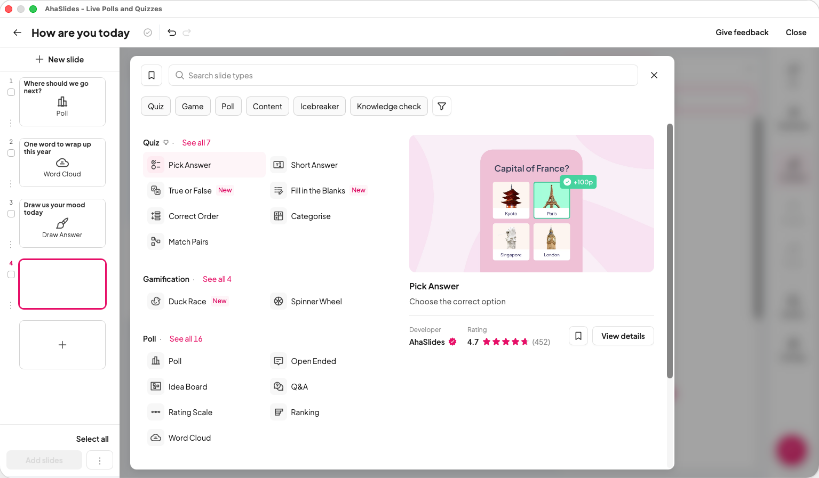
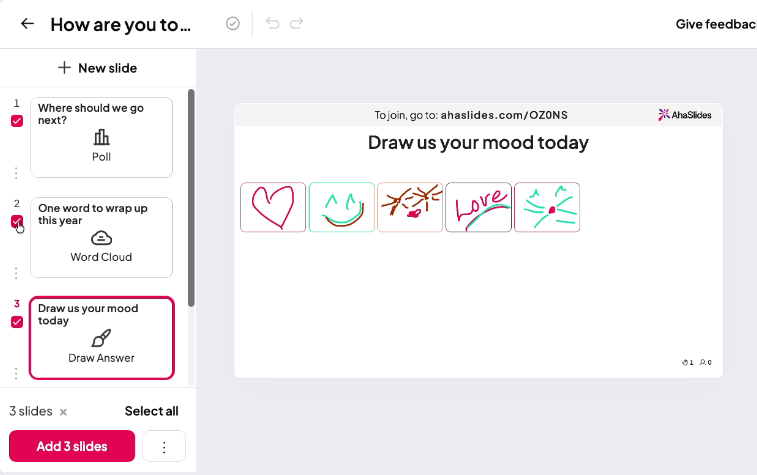
- Build your quiz and add it. In AhaSlides, use a Pick Answer slide for multiple choice and turn on the leaderboard for a game feel, or start from a template. Then, in the add-in, select your presentation, tick the slides you want and click Add slides. On PowerPoint for the web, slides go in one at a time.
- 선물. Start the slideshow as usual. Each AhaSlides slide shows a QR code and link, people join on their phones, and the results appear on your slide as they answer.
Start with a ready quiz
No time to write questions? This 40-question General Knowledge Quiz template is free to copy, edit and add to your deck. Some templates go past the free plan’s limits, so you may need to trim the questions or use a paid plan to present all 40.
Kahoot add-in and AhaSlides add-in side by side
| Kahoot! for PowerPoint | AhaSlides 추가 기능 | |
|---|---|---|
| On a free plan | No, it needs a paid Kahoot 계획 | 가능 최대 50 명의 라이브 참가자 |
| 가장 낮은 유료 플랜 | Pro Start, $15 a month $180 billed annually, up to 50 participants | Essential, from $7.95 a month 매년 청구됨 |
| Where you build questions | In Kahoot, then link the kahoot to a slide | In AhaSlides, then add the slides to your deck |
| 활동 | Quizzes, true or false, type answer, puzzles, polls, word clouds, open-ended and brainstorm | Quizzes, polls, word clouds, Q&A, rating scales and more |
| PowerPoint needed | Office 365 subscription and a current version of PowerPoint 2019 | Microsoft 365 or PowerPoint 2024, 2021 or 2019, on Windows, Mac or the web |
| Microsoft Marketplace rating | 4.7 from 406 ratings | 4.8 from 463 ratings |
출처 : Kahoot 가격은 Kahoot가격 페이지, AhaSlides 가격은 AhaSlides 가격, ratings from Microsoft Marketplace, all checked 19 November 2026.
Both add-ins have their place. If your team already pays for Kahoot and lives on its game library, its add-in is the natural choice. If you want quizzes, polls and Q&A in PowerPoint without a paid plan, start with AhaSlides.
5 ways to use a quiz inside your PowerPoint
- Open a class with a recap. Three quick questions on last lesson’s topic show you what stuck before you build on it.
- Break up a long training deck. Drop a two-question check after each section, so you see what landed before you move on.
- Run a team meeting warm-up. A five-question round on company news or this month’s wins gets everyone talking before the agenda.
- Test a new policy. After a compliance or safety section, ask the questions that matter and see which answers trip people up.
- Finish with a leaderboard. End a workshop or event on a final quiz so people leave on a high, and you can see who took in the most.
Want more question ideas? Our guide to an 파워포인트로 만든 인터랙티브 퀴즈 walks through building one from scratch.
FAQ
Is there a Microsoft version of Kahoot?
No, Microsoft doesn’t make Kahoot. 그만큼 Kahoot! for PowerPoint add-in is made by Kahoot! ASA and listed on Microsoft Marketplace. Other add-ins, including AhaSlides, also run live quizzes inside PowerPoint.
Can I do a quiz in PowerPoint?
Yes, with an add-in. PowerPoint on its own can show questions and reveal answers with animations, but it can’t collect answers from people’s phones or show live results. An add-in such as AhaSlides or Kahoot! for PowerPoint adds that.
어떻게 만드나요? Kahoot 프레젠테이션?
만들기 kahoot on Kahoot, then link it to a blank PowerPoint slide with the Kahoot add-in, as in the steps above. You can also sync a PowerPoint deck from OneDrive into a kahoot and present it from Kahoot.
Can I host a Kahoot 무료로?
네, 제한은 있지만요. Kahoot’s free plan for work, Kahoot! 360 Express, hosts 15-minute sessions for up to 15 participants. The PowerPoint add-in needs a paid plan. If you’re comparing quiz tools, see our list of Kahoot 대안.
이 덱을 상호작용형으로 만드세요
인터랙티브 파워포인트 제작 가이드 어떤 프레젠테이션 자료에서든 사람들이 답변하고, 투표하고, 질문할 수 있도록 하는 방법을 보여줍니다. 또는 처음부터 시작해 보세요. 템플릿 라이브러리에서 무료 스타터 덱을 이용해 보세요. 그리고 다음 프레젠테이션에 추가하세요.
관련 독서
Run your next quiz inside PowerPoint
Add live quizzes, polls and Q&A to the deck you already have, and see every answer on your slide. The AhaSlides add-in is free for up to 50 live participants.