
네! Mentimeter works inside PowerPoint. Its free add-in from Microsoft AppSource adds slides from one Mentimeter presentation to your deck, in the PowerPoint desktop app on Windows or Mac with a Microsoft 365 account. It doesn’t work in PowerPoint for the web, and you edit the slides in Mentimeter, not in PowerPoint.
Your engagement tool shouldn’t become another platform you have to manage. Here is how the Mentimeter add-in works, where it gets in the way, and how the AhaSlides Slido add-ins compare. All Mentimeter, Slido AhaSlides facts below were checked on 19 November 2026.
이용 방법 Mentimeter in PowerPoint, step by step
Mentimeter의 도움말 센터 sets out what you need: an Office 365 account and PowerPoint version 2111 or later on Windows, or 16.55 or later on Mac, plus an internet connection. The add-in works on the Free, Basic, Pro and Enterprise plans, and only with Menti Live presentations.
- Build your Menti first. Make your poll, word cloud or quiz in Mentimeter. The add-in only adds slides that already exist there.
- 추가 기능을 설치하세요. In PowerPoint, go to Home > My Add-ins > More Add-ins, search for Mentimeter 추가합니다.
- Log in and choose a Menti. Open the add-in, log in to Mentimeter and pick the presentation you want.
- Add the slides. Click a slide, then Add Menti slides. Each one appears as its own PowerPoint slide.
- 선물. Start the slideshow. People join with the QR code or the code on the slide, and results update on the slide.
사용 Mentimeter without the add-in
You can go the other way and bring PowerPoint into Mentimeter. Mentimeter imports PPT, PPTX, Keynote and PDF files up to 60 MB and 200 slides, and the imported slides become images. Importing is available on Basic, Pro and Enterprise, not the Free plan, according to Mentimeter’s import help article. You then present from Mentimeter, not PowerPoint, so the animations in your deck don’t come with it.
어디에 Mentimeter in PowerPoint stops
The add-in works well for a presenter who builds everything in Mentimeter. It gets in the way when your deck lives in PowerPoint and Mentimeter is only one part of it. Per Mentimeter’s help centre:
- Desktop app only. It doesn’t run in PowerPoint for the web or PowerPoint Live, so a deck in a shared browser session can’t show the Menti slides.
- One Menti per file. All Menti slides in a PowerPoint file have to come from the same Mentimeter presentation. Switching to another Menti with Replace this slide removes the slides you added from the first one.
- 편집 Mentimeter, not PowerPoint. To change a question, you click Open Menti to edit, switch to the browser, then come back.
- Hotkeys don’t work in the add-in while you present.
- Shared decks need copies. On Free and Basic plans, a colleague who presents your deck has to copy your Menti, and the results don’t copy with it.
The free plan changed recently. According to Mentimeter의 도움말 센터, free accounts created after 4 November 2026 can present to any number of participants, but after a session you can only view a limited number of results until you upgrade. Free accounts created before that date keep a cap of 50 participants a month. Paid plans start at Basic, $11.99 per presenter a month billed yearly, then Pro at $24.99 (Mentimeter 계획(2026년 11월 19일 확인됨).
The alternative: the AhaSlides PowerPoint 추가 기능
AhaSlides is an all-in-one engagement platform for teams and classrooms. Like Mentimeter, it lets everyone answer from their phone while you present, with the results live on your slide.
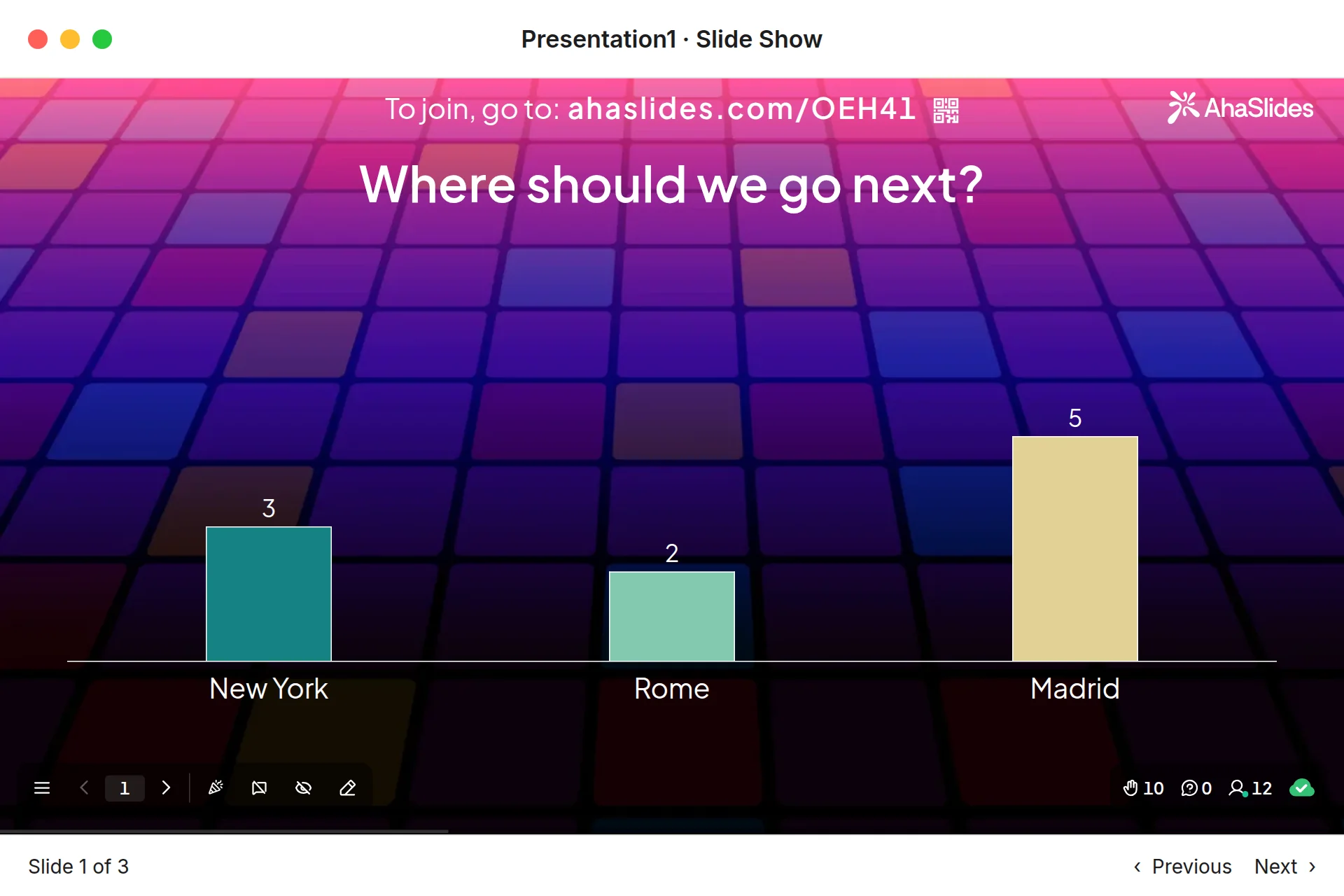
시작하는 두 가지 빠른 방법:
- 덱을 업로드하세요. 파워포인트 파일을 업로드하세요 AhaSlides AI가 설문조사와 퀴즈 문제를 추가할 수 있도록 하여 처음부터 다시 시작하지 않고도 상호작용적인 세션을 만들 수 있도록 합니다.AI 파워포인트 제작기).
- 아니면 파워포인트로 계속 발표하세요. 무료를 추가하세요 AhaSlides 추가 기능 그리고 실제 슬라이드를 여러분의 슬라이드 사이에 삽입하세요. 아래의 세 단계를 따르면 됩니다.
에 비해 Mentimeter's add-in, three differences matter when your deck lives in PowerPoint:
- It runs in PowerPoint for the web too, as well as Microsoft 365 and PowerPoint 2024, 2021 and 2019 on Windows and Mac (AhaSlides 도움말 센터).
- You can start a new slide from the add-in. Click + New slide and pick a Poll, Word Cloud, Q&A, Rating Scale or quiz slide, or use Select presentation to pick a deck you already made in AhaSlides.
- It works on every AhaSlides 계획, including free, which lets you engage up to 50 participants live with unlimited presentations per month (AhaSlides 가격).
It takes three steps: in PowerPoint, go to 홈 > 추가 기능 > 더 많은 추가 기능, 검색 AhaSlides 클릭 추가; sign in and add your slides; then present as normal. People join with the QR code or link on the slide, and you press Q to show the join details again.
How the three PowerPoint add-ins compare
| 제품 특장점 | Mentimeter | AhaSlides | Slido |
|---|---|---|---|
| 설치 방법 | Office add-in store (AppSource) | Microsoft Marketplace add-in | 별도 다운로드 Slido |
| PowerPoint on Windows and Mac | Yes, version 2111+ on Windows, 16.55+ on Mac | Yes, Microsoft 365 or PowerPoint 2019 and later | Yes, PowerPoint 2016+ on Windows, 2019+ on Mac |
| 웹용 파워포인트 | 아니 | 가능 | 아니 |
| 무료 계획 | Any number of participants, limited results after a session (accounts created after 4 Nov 2026) | Up to 50 live participants, unlimited presentations a month | 100 participants, 3 polls and 1 quiz per slido (Slido community, October 2025) |
Slido’s free limits were stated by Slido staff in its 커뮤니티 포럼, in October 2025; its pricing page doesn’t list them. Slido’s PowerPoint requirements come from its PowerPoint polling page. For a closer look at Slido’s version, read our Slido PowerPoint용 추가 기능 guide. If you are weighing up a full switch, our 비어 있는 Mentimeter 대안 post compares free limits across more tools.
Try it with a ready deck
This free pulse check template has polls, word clouds and rating scales you can drop into a team meeting. Copy it, edit the questions, then add the slides to PowerPoint with the add-in.
5 ways to use a live slide in your PowerPoint
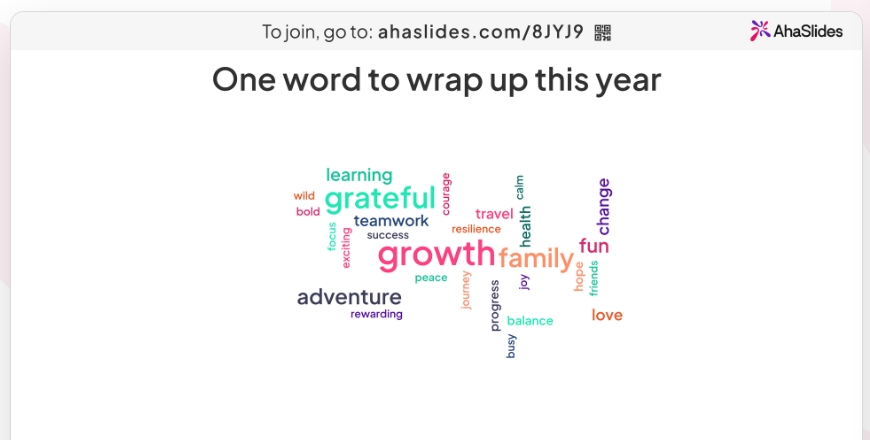
- Open with a word cloud. Ask “One word for how this week went”. Answers people give more often appear larger, so the mood of the group is clear at a glance. See how it works on the 단어 구름 페이지를 확인하시기 바랍니다.
- Check understanding mid-deck. Drop a two-option poll after a dense section. If half the votes go the wrong way, you know to slow down before moving on.
- Take questions as you go. A Q&A slide collects questions throughout the talk, and people can upvote the ones they want answered most.
- 이 플랜을 평가해 주세요. A Rating Scale slide on “How confident are you in this plan?” gives you a number to track from one meeting to the next.
- End with a scored round. A short quiz with a leaderboard (press L to show it) wraps up a training session. For more formats, see our 파워포인트 게임 ideas, or our guide to adding a live poll to PowerPoint.
FAQ
이다 Mentimeter 파워포인트 추가 기능 무료인가요?Yes. The add-in itself is free and works on Mentimeter’s Free plan. On free accounts created after 4 November 2026, you can present to any number of participants but see limited results afterwards. Paid plans start at $11.99 per presenter a month, billed yearly (checked 19 November 2026).
어떻게 사용합니까 Mentimeter in PowerPoint without the add-in?Import your deck into Mentimeter instead. On a paid plan, Mentimeter imports PPT, PPTX, Keynote and PDF files as images, and you present from Mentimeter.
가요 Mentimeter work with PowerPoint on Mac?Yes, in PowerPoint for Mac version 16.55 or later with an Office 365 account. It doesn’t work in PowerPoint for the web.
Can you embed Mentimeter in PowerPoint?Yes, with the add-in. It places each Menti slide in your deck as its own slide, and all of them must come from the same Mentimeter 표시.
무료 버전이 있나요? Mentimeter?예. Mentimeter’s Free plan includes the PowerPoint add-in. New free accounts have no participant cap but a limit on the results you can view after a session (checked 19 November 2026). AhaSlides’ free plan lets you engage up to 50 participants live, with unlimited presentations per month.
For more ways to get people taking part across a whole deck, read our guide on 인터랙티브 파워포인트 만드는 방법.
이 덱을 상호작용형으로 만드세요
Static slides give people nothing to do, so attention drifts and you only learn what they thought once the meeting is over. Our guide on 인터랙티브 파워포인트 만드는 방법 walks through 10 ways to fix that.