
Krótka odpowiedź: to turn a PowerPoint into a quiz, add a question slide after each section of the deck you already have. In PowerPoint alone, link each answer to a “correct” or “try again” slide. To have everyone answer on their phone and get scored, add live quiz slides with the AhaSlides add-in, or import the deck into AhaSlides.
If your training session or lesson is already built, making it interactive shouldn’t mean building it again. This guide starts from the deck you have: first the PowerPoint-only method, then two ways to add live quiz slides without redoing your slides. Starting from a blank deck instead? Our guide to making an interactive quiz on PowerPoint obejmuje to.
How to turn a PowerPoint into a quiz with PowerPoint alone
Plain PowerPoint has no quiz feature, but links and animations get you a working self-check quiz. Microsoft’s own guide to making a quiz in PowerPoint uses the same building blocks, and its support pages cover slide links oraz przyciski akcji (sprawdzono 19 listopada 2026).
1. Choose your checkpoints
Go through the deck and mark the end of each section. Those are your quiz points: one or two questions each, about what you just covered. Five checkpoints in a 45 minute session keep people with you without turning the session into an exam.
2. Add a question slide at each checkpoint
Insert a new slide after the section (Home > New Slide). Put the question in the title and each answer option in its own text box or shape, so each one can carry a link.
3. Link each answer to a feedback slide
Add two slides after the question: one that says “Correct” and explains why, and one that says “Not quite” with a hint. Then select an answer and add a link:
- Windows: Insert > Link > Insert Link (lub Ctrl+K), wybierz Miejsce w tym dokumencie and pick the feedback slide.
- Mac: Wstaw > Link (lub Cmd+K), otwórz Ten dokument tab and pick the feedback slide.
On each feedback slide, add a button from Insert > Shapes, pod Przyciski akcji at the bottom of the menu, and in the Action Settings box that opens set Hiperłącze do the next content slide, or back to the question for another try. In Slide Show, click the answer itself: a click anywhere else moves to the next slide.
4. Or reveal the answer on click
For a quicker version, skip the feedback slides. Put the correct answer in a text box on the question slide and give it an Pojawić się animacja ustawiona na Na kliknięcie. Ask the question, let people call out, then click to reveal.
5. Use Microsoft Forms if you have a work or school account
Microsoft Forms can put a quiz on a slide that people answer on their own devices. In the desktop app, go to Insert > Forms i wybierz New Quiz dla My forms. In PowerPoint for the web, Home > Add-ins > Forms inserts a quiz you have already made in Forms, from its link. Microsoft lists the desktop route for Office 365 Education and Microsoft 365 Apps for business customers on a PC (version 1807 or later), the web route needs a work or school account, and an admin can turn Forms off (Wsparcie Microsoft, sprawdzono 19 listopada 2026).
Where the PowerPoint-only quiz stops
The questions do their job. What you get back from them is thin:
- One answer per question. Whoever clicks answers for everyone, so you never learn who knew it and who didn’t.
- Brak zapisów. Once you move on, the answers are gone. You can’t see which section needs another pass.
- No scores. Turning it into a competition means a tally on a whiteboard.
- Forms has limits. It needs a work or school account, and you read the responses in Forms, not on your slide.
You built the deck to teach. You should be able to see what people took in, without a rebuild.
The live way: add quiz slides to the deck you already have
AhaSlides is an all-in-one engagement platform for teams and classrooms. It turns each checkpoint into a question everyone answers on their phone, so you see who took it in and who needs another pass, with scores kept for you.

Dwa szybkie sposoby na początek:
- Prześlij swoją talię. Prześlij swój plik PowerPoint do AhaSlides i pozwól sztucznej inteligencji dodawać za jego pomocą pytania testowe i ankiety, bez konieczności ponownego rozpoczynania pracy (Twórca programu PowerPoint ze sztuczną inteligencją).
- Lub kontynuuj prezentację w programie PowerPoint. Dodaj bezpłatnie AhaSlides dodatek and put a quiz slide at each checkpoint, in three steps.
Keep presenting from PowerPoint with the add-in
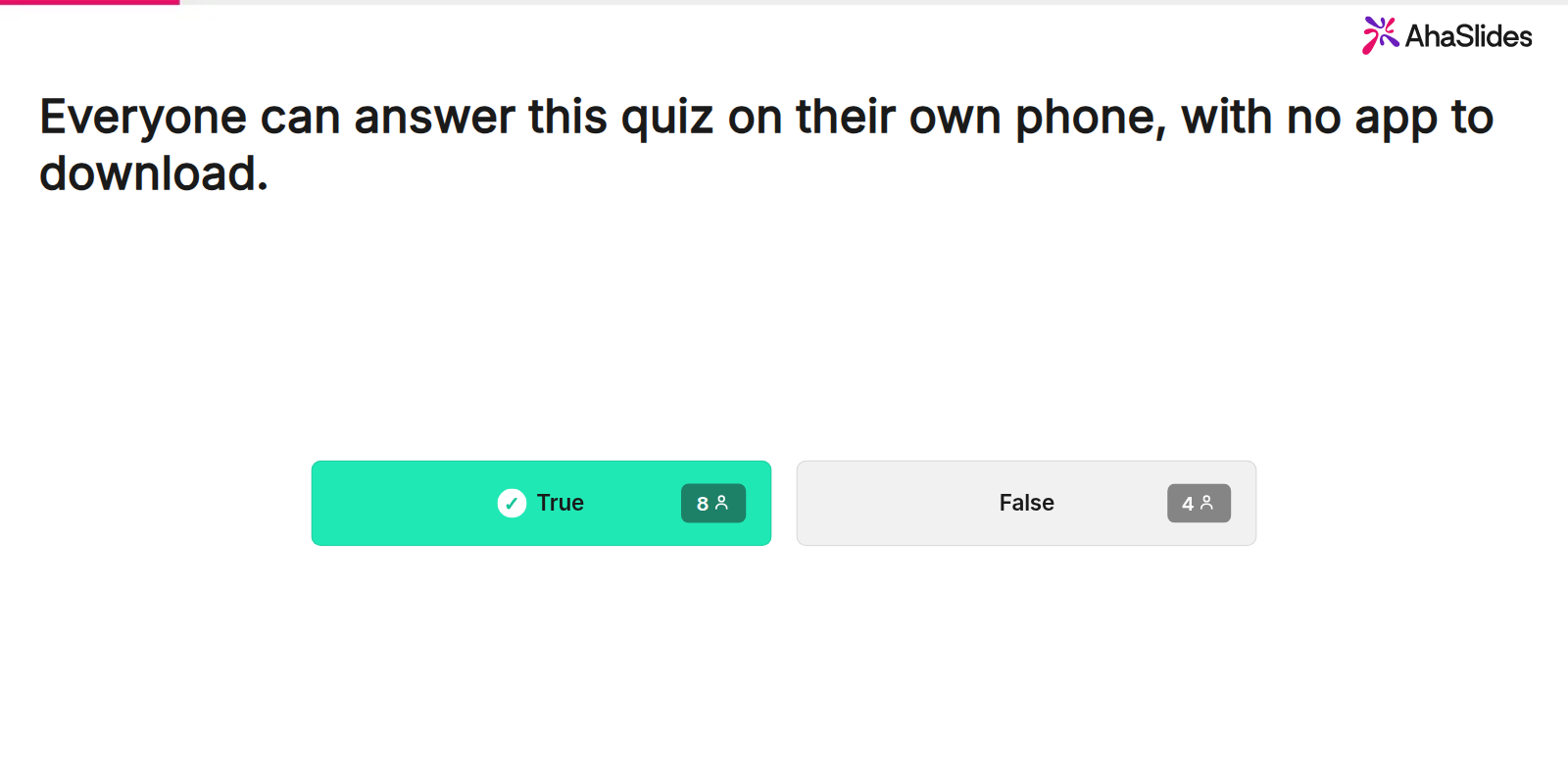
1. Write your questions in AhaSlides. Make one quiz slide per question: Wybierz odpowiedź (multiple choice) or Prawda czy fałsz suit a checkpoint. To start from a ready-made set, the Quick Quiz Starter for PowerPoint template below is a 14-slide quiz with True or False, Pick Answer, Short Answer, Correct Order and Match Pairs questions, two leaderboards and a closing poll. Swap its questions for your own.
2. Install the add-in and add your quiz slides. W programie PowerPoint przejdź do Strona główna > Dodatkiwybierz Więcej dodatków, Szukaj AhaSlides i dodaj go (w programie PowerPoint dla sieci Web: Wstaw > Dodatki) Jest wymieniony jako AhaSlides Live Polls and Quizzes.
Insert a blank slide after the section and select it. In the add-in, sign in, open your AhaSlides presentation, tick the quiz slide for this checkpoint (the picker labels it Quiz: Pick Answer) and click the add button, which shows how many slides you have ticked. The quiz goes on the slide you are on. Repeat at each checkpoint; your own slides stay exactly as they were.
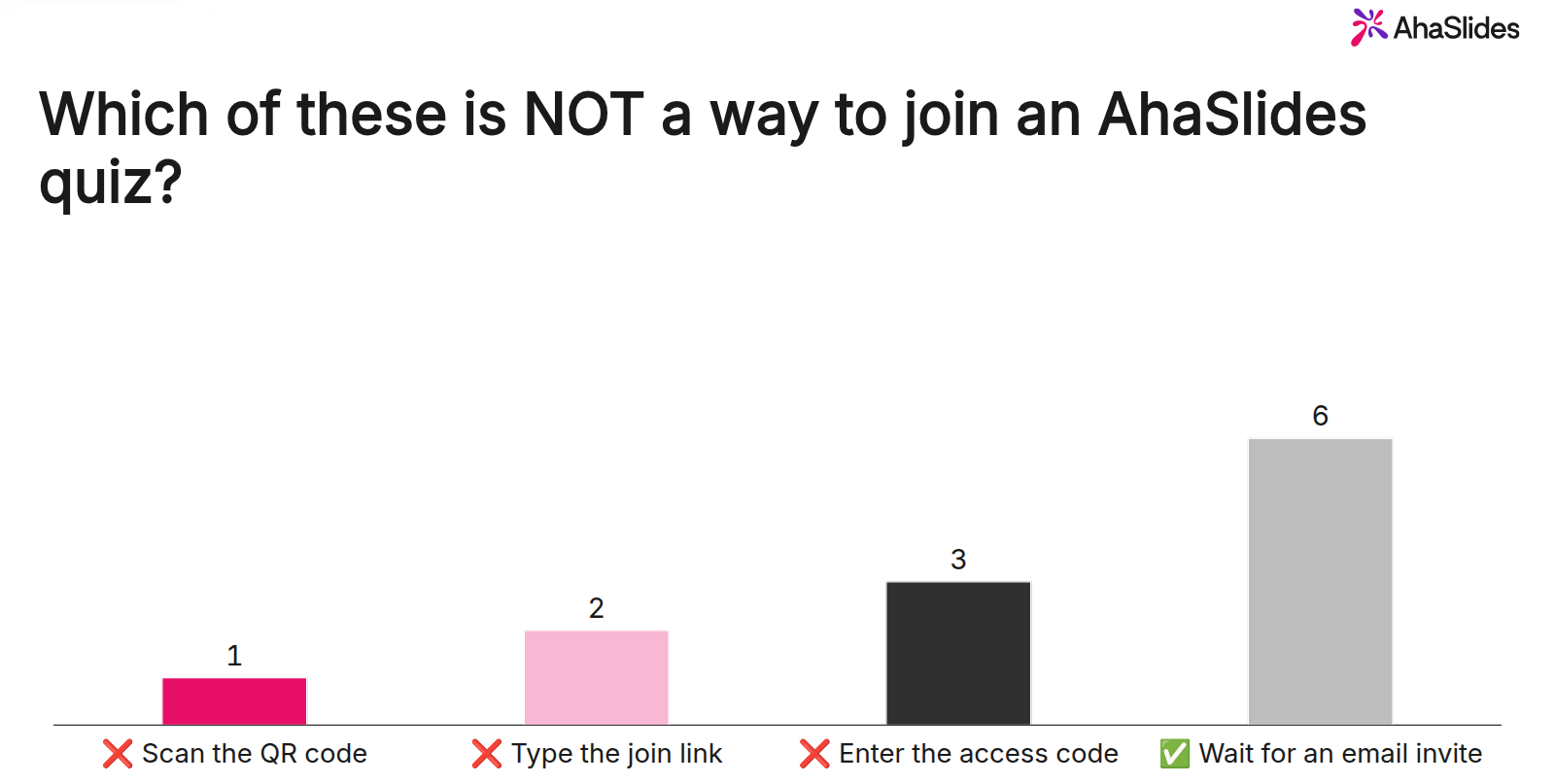
3. Present and show the scores. Rozpocznij pokaz slajdów i naciśnij Q to show the QR code and join link; people join once for the whole deck. When time is up on a question, the results show how many people picked each answer, with the correct one marked.
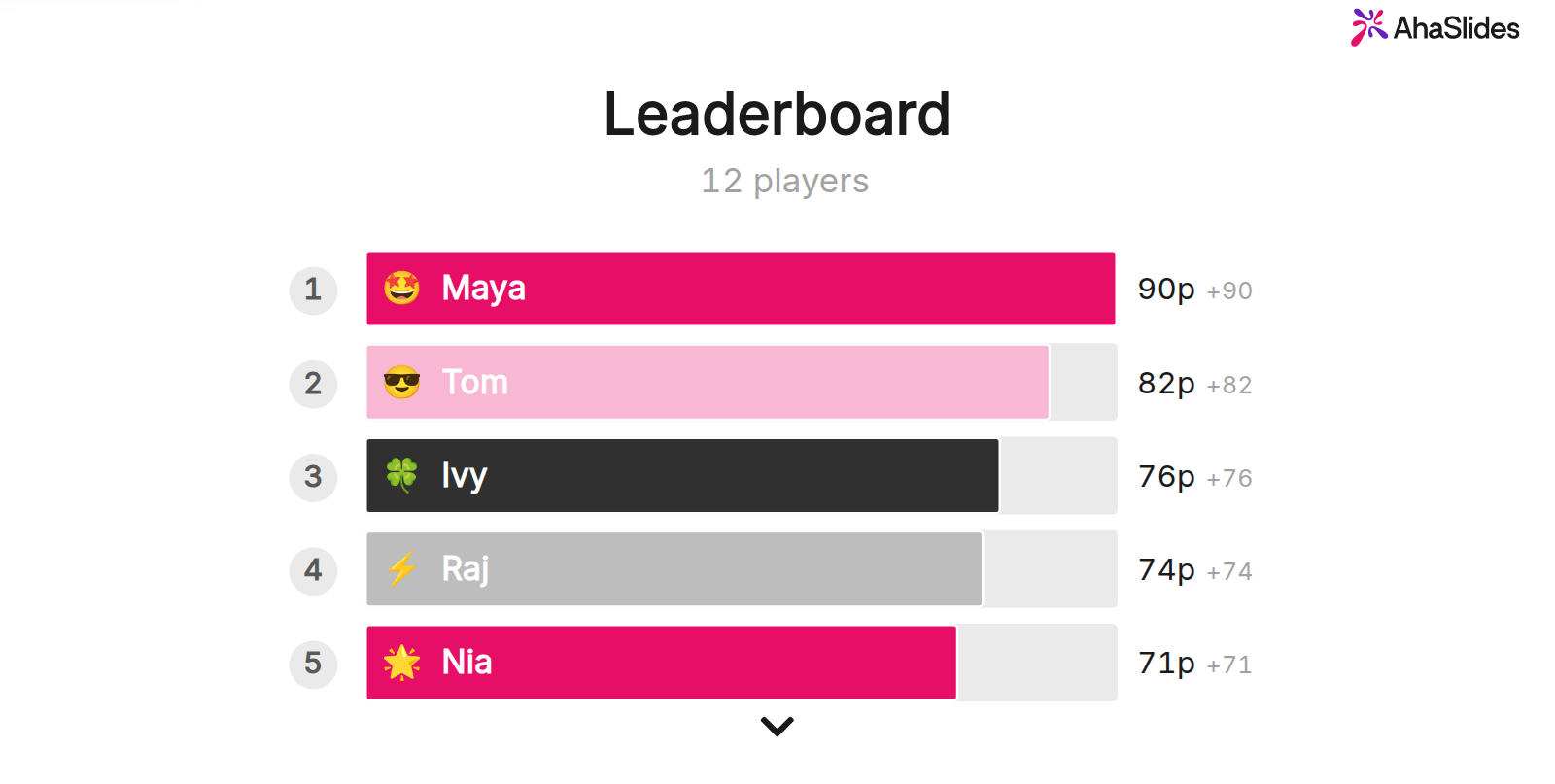
Naciśnij przycisk L for the leaderboard at any point, or end the deck on a leaderboard slide. Before you present to a new group, open the add-in menu and click Resetuj wyniki so earlier answers are cleared.
Or upload the deck to AhaSlides and let AI suggest questions
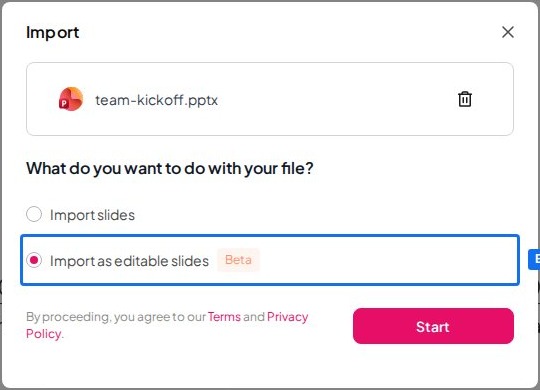
1. Import your file. Na Moje prezentacje deska rozdzielcza w AhaSlideskliknij import and choose your .pptx file (up to 50 MB and 200 slides).
2. Keep it editable. Dodaj Import as editable slides (Beta) i kliknij Rozpocznij. Text, shapes, layout, formatting and animations come across as normal AhaSlides slides. Complex elements may come in as images, and some Morph effects don’t come across, so look through each slide afterwards.
3. Add the questions. When the import finishes, the import card shows Add interactive polls or quizzes. Kliknij Dodaj and the AI assistant adds about 2 to 8 interactive slides, such as polls and quizzes, spread through your deck. It doesn’t edit, reorder or delete your imported slides. The row appears only if the AI assistant is available on your account. Read every question and answer it writes before you present.
4. Present from AhaSlides. Run the deck from AhaSlides; people join with the QR code and answer on their phones, as with the add-in.
An editable import is a copy of your file, so edit the .pptx first and import when it is final: changes you make to the original afterwards may not carry across. Our editable PowerPoint import post has the details.
Kędy? Choose the add-in when the file has to stay a PowerPoint deck, for a shared template or a brand master. Choose the upload when you are happy to present from AhaSlides and want a first set of questions written for you.
5 ways to use quiz slides in a deck you already have
- Section checks in training. One Pick Answer question after each module shows who is following before you move on.
- Przed i po. Ask the same three questions at the start and the end of a session, then compare the results to see what people learned.
- Compliance refreshers. Turn the dense policy slides into True or False checks, so people have to think about each rule.
- Exit tickets in class. End a lesson with two questions; the results tell you where to start next time.
- All-hands recaps. A short quiz on the numbers you just shared, with the leaderboard on the last slide.
Want a game format instead? Our Szablon programu PowerPoint Jeopardy guide builds a scored board with the same add-in, and jak dodać ankietę do programu PowerPoint covers questions with no right answer. AhaSlides" twórca quizów online page lists every quiz slide type and setting.
Pytania, które ludzie zadają
How do you create a multiple choice quiz in PowerPoint?
Put the question in the slide title and each answer in its own shape, then link each shape to a “correct” or “try again” slide with Wstaw > Link > Umieść w tym dokumencie. For a multiple choice quiz that everyone answers on their phone, add a Pick Answer slide with the AhaSlides dodać.
Can I make a quiz on Google Slides?
Yes. The linked-answer method works the same way: select an answer, go to Wstaw > Link and pick a slide in the presentation. AhaSlides posiada również Google Slides add-on for live quiz slides.
How do I create an interactive poll in PowerPoint?
Add a Poll slide with the AhaSlides add-in, using the same steps as a quiz slide above. A poll has no correct answer and no points, so it suits opinions and check-ins.
How do you create a quiz using Microsoft?
Use Microsoft Forms: create a quiz at forms.office.com, or in PowerPoint go to Insert > Forms i wybierz New Quiz. Inserting it into a slide needs a work or school Microsoft 365 account.
Uczyń tę talię interaktywną
W przypadku statycznego zestawu nie widać, kto obserwuje Twoją stronę, a kto przestał, dopóki nie jest za późno, żeby cokolwiek z tym zrobić.
Nowość? Nasz przewodnik po jak zrobić interaktywną prezentację PowerPoint przeprowadza krok po kroku przez każdy typ slajdu.
Host your PowerPoint quiz on AhaSlides
Keep the slides you have, add a question at each checkpoint, and let the scores add up while you teach. Sign up free and add your first quiz slide to PowerPoint today.