
A pune un Kahoot in PowerPoint, install the Kahoot! for PowerPoint add-in from the Insert tab, add a blank slide, sign in and paste your kahoot’s share link. It needs a paid Kahoot plan. If you want a quiz in your deck for free, the AhaSlides add-in for PowerPoint is available on its free plan.
We checked every Kahoot and Microsoft detail below on their own pages on 19 November 2026. One disclosure first: AhaSlides is our product. We cover the Kahoot route in full, then show where our add-in is the better fit and where it isn’t.
Ce ai nevoie înainte de a începe
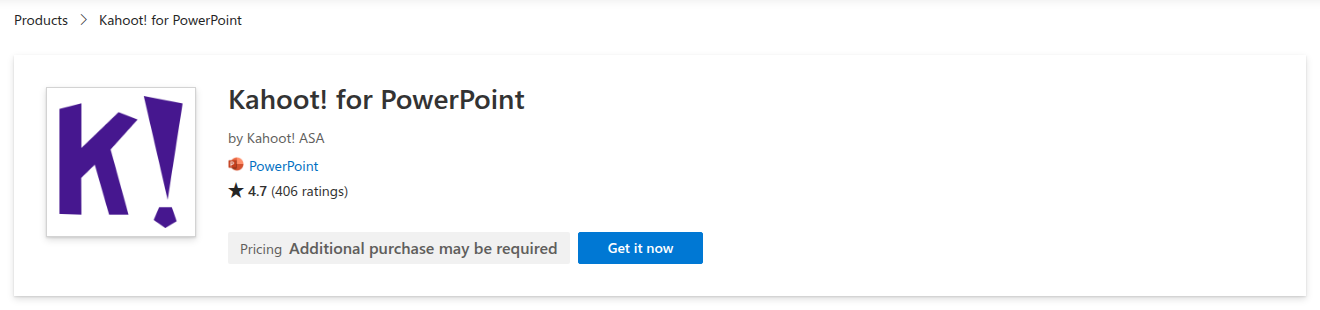
The add-in is called Kahoot! for PowerPoint. It is made by Kahoot! ASA and listed on Microsoft Marketplace, where it has 4.7 stars from 406 ratings.
- O plătită Kahoot plan. The Marketplace listing says the add-in “requires a subscription to Kahoot! 360 Standard, Kahoot! 360 Presenter, Kahoot! 360 Pro, or selected plans for educators”. Kahooteste curent business pricing page lists PowerPoint integration on all five Pro plans. The cheapest is Pro Start at $15 a month ($180 billed annually) for up to 50 participants.
- A current version of PowerPoint. Kahoot'S articol de ajutor asks you to sign in to an installed Office app with an active Office 365 subscription and use a current version of PowerPoint 2019.
- A kahoot that already exists. The add-in doesn’t build questions inside PowerPoint. You make the kahoot on Kahoot first, then link it to a slide.
If you teach, the listing only says “selected plans for educators”, so check your school plan with Kahoot before you count on it.
Cum se adaugă un Kahoot to PowerPoint, step by step
Steps 2 to 7 follow Kahoot’s own help article.
- Instalați programul de completare. In PowerPoint, open the Insert tab and choose Get Add-ins. Search for Kahoot și adăugați-l.
- Add a blank slide. Kahoot warns that slides from a template can break the size of the embedded kahoot, so start from a blank one.
- Open the add-in on that slide. Go to Insert, then My Add-ins, and choose Kahoot!. Sign in to your Kahoot account on the slide.
- Copiați-vă kahootlinkul lui. In a browser, open create.kahoot.it, find the kahoot and use its Share button. Copy the share link, or use the Microsoft PowerPoint button in the share options. For a private kahoot in your library, copy the kahoot’s URL instead.
- Paste the link and click “Add kahoot". The slide now holds your game.
- Present as usual. When you reach that slide in Slide Show, you host the kahoot from inside PowerPoint. Players join on their own devices.
- Verificați rezultatele. After the session, the report sits under Reports in your Kahoot cont.
Cum să utilizați Kahoot with PowerPoint without the add-in
No paid plan? You still have two options, each with a catch.
Găzduiește kahoot într-o filă de browser. Present your slides, then switch to the browser when it’s quiz time and host the kahoot there. It works on any Kahoot plan, but you leave your slideshow for the game and come back afterwards. On Kahoot’s free plan for work, Kahoot! 360 Express, sessions last up to 15 minutes for up to 15 participants, according to its pagina de prețuri.
Bring your slides into a kahoot. Kahoot poate să sync a PowerPoint deck from OneDrive într-o kahoot, so you present everything from Kahoot instead. It runs on the web only, each slide counts as a question towards the 200-question limit, and audio, video and animations don’t come across.
Unde Kahoot route stops
The add-in does what it promises. The friction is around it:
- Free plans don’t get you the add-in. Kahoot lists PowerPoint integration on its paid Pro plans, so a free account means switching windows or rebuilding the deck in Kahoot.
- Two places to prepare. Questions live in Kahoot and slides live in PowerPoint, so every change means a trip to create.kahoot.Articol.
- It’s built for quizzes first. That’s ideal for a game round. For a quick opinion poll or a word cloud between slides, you’re still building a kahoot.
If any of those slow you down, there is a PowerPoint add-in that runs on a free plan.
The free alternative: the AhaSlides supliment pentru PowerPoint
AhaSlides is an all-in-one engagement platform for teams and classrooms. Its add-in puts quizzes, polls, word clouds and Q&A on your slides, and your audience answers on their phones while you stay in Slide Show, on every plan including the free one (AhaSlides de stabilire a prețurilor).
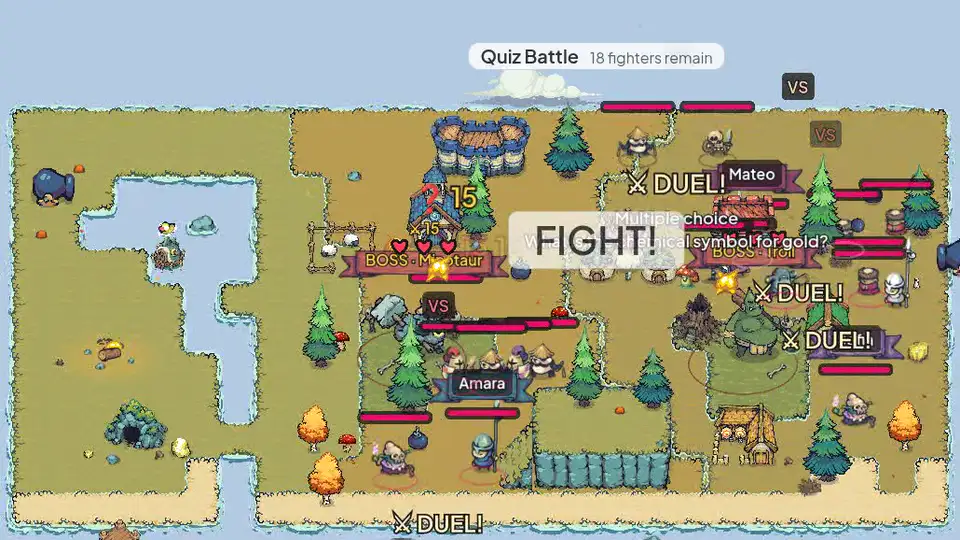
Două modalități rapide de a începe:
- Încarcă-ți pachetul de cărți. Încărcați fișierul PowerPoint pe AhaSlides and let AI add quiz questions and polls through it, without starting again (Creator de PowerPoint cu inteligență artificială).
- Sau continuați să prezentați în PowerPoint. Adăugați gratuit AhaSlides adauga la and put a quiz slide where you want a game round. It takes three steps, below.
You keep the deck you’ve already built and add the interactive slides where you want them. It works in Microsoft 365 and PowerPoint 2024, 2021 and 2019, on Windows, Mac and PowerPoint for the web, according to the AhaSlides centru de ajutorPowerPoint 2016 și versiunile anterioare nu sunt acceptate.
Cum să o configurați
- Instalați-l și conectați-vă. În PowerPoint, accesați Pornire, apoi Programe de completare, apoi Mai multe programe de completare. În PowerPoint pentru web, este Inserare, apoi Programe de completare, apoi Mai multe programe de completare. Căutați AhaSlides, faceți clic pe Adăugare, apoi conectați-vă cu AhaSlides cont sau creați unul gratuit.
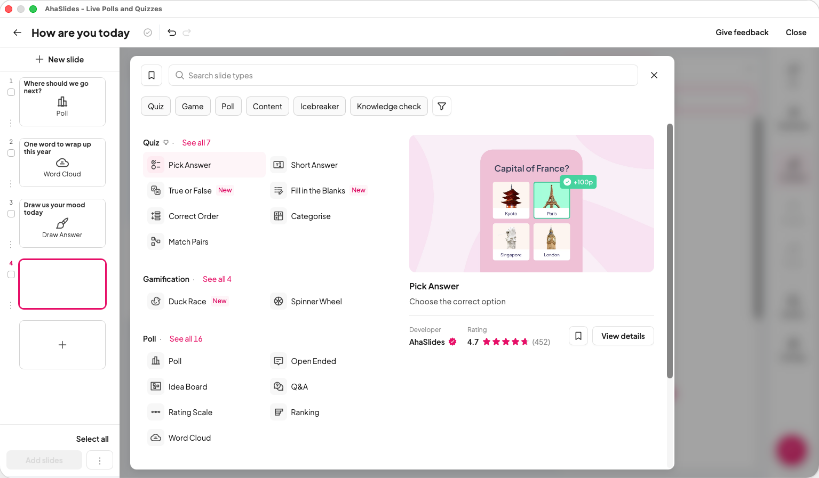
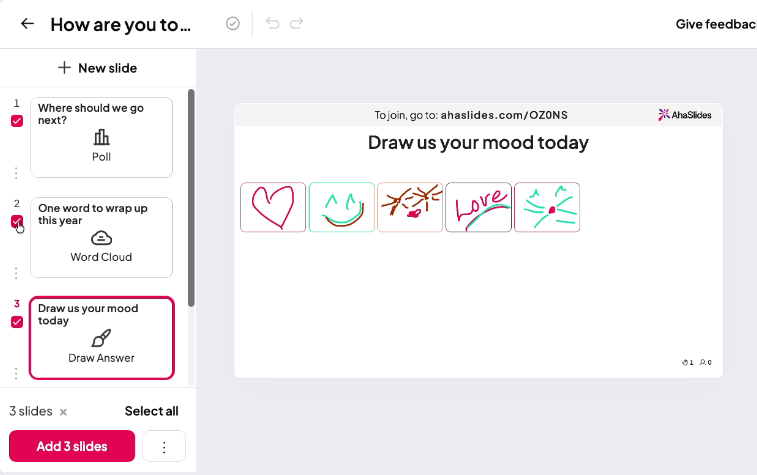
- Build your quiz and add it. In AhaSlides, use a Pick Answer slide for multiple choice and turn on the leaderboard for a game feel, or start from a template. Then, in the add-in, select your presentation, tick the slides you want and click Add slides. On PowerPoint for the web, slides go in one at a time.
- Prezent. Start the slideshow as usual. Each AhaSlides slide shows a QR code and link, people join on their phones, and the results appear on your slide as they answer.
Start with a ready quiz
No time to write questions? This 40-question General Knowledge Quiz template is free to copy, edit and add to your deck. Some templates go past the free plan’s limits, so you may need to trim the questions or use a paid plan to present all 40.
Kahoot add-in and AhaSlides add-in side by side
| Kahoot! for PowerPoint | AhaSlides adauga la | |
|---|---|---|
| On a free plan | No, it needs a paid Kahoot plan | Da Până la 50 participanți live |
| Cel mai puțin plătit plan | Pro Start, $15 a month $180 billed annually, up to 50 participants | Essential, from $7.95 a month Facturat anual |
| Where you build questions | In Kahoot, then link the kahoot to a slide | In AhaSlides, then add the slides to your deck |
| Activitati | Quizzes, true or false, type answer, puzzles, polls, word clouds, open-ended and brainstorm | Quizzes, polls, word clouds, Q&A, rating scales and more |
| PowerPoint needed | Office 365 subscription and a current version of PowerPoint 2019 | Microsoft 365 or PowerPoint 2024, 2021 or 2019, on Windows, Mac or the web |
| Microsoft Marketplace rating | 4.7 from 406 ratings | 4.8 from 463 ratings |
Surse: Kahoot prices from Kahootpagina de prețuri a, AhaSlides prices from AhaSlides de stabilire a prețurilor, ratings from Microsoft Marketplace, all checked 19 November 2026.
Both add-ins have their place. If your team already pays for Kahoot and lives on its game library, its add-in is the natural choice. If you want quizzes, polls and Q&A in PowerPoint without a paid plan, start with AhaSlides.
5 ways to use a quiz inside your PowerPoint
- Open a class with a recap. Three quick questions on last lesson’s topic show you what stuck before you build on it.
- Break up a long training deck. Drop a two-question check after each section, so you see what landed before you move on.
- Run a team meeting warm-up. A five-question round on company news or this month’s wins gets everyone talking before the agenda.
- Test a new policy. After a compliance or safety section, ask the questions that matter and see which answers trip people up.
- Finish with a leaderboard. End a workshop or event on a final quiz so people leave on a high, and you can see who took in the most.
Want more question ideas? Our guide to an chestionar interactiv în PowerPoint walks through building one from scratch.
FAQ
Is there a Microsoft version of Kahoot?
No, Microsoft doesn’t make Kahoot. Kahoot! for PowerPoint add-in is made by Kahoot! ASA and listed on Microsoft Marketplace. Other add-ins, including AhaSlides, also run live quizzes inside PowerPoint.
Can I do a quiz in PowerPoint?
Yes, with an add-in. PowerPoint on its own can show questions and reveal answers with animations, but it can’t collect answers from people’s phones or show live results. An add-in such as AhaSlides or Kahoot! for PowerPoint adds that.
Cum fac un Kahoot presentation?
Creați kahoot on Kahoot, then link it to a blank PowerPoint slide with the Kahoot add-in, as in the steps above. You can also sync a PowerPoint deck from OneDrive into a kahoot and present it from Kahoot.
Pot găzdui un/o Kahoot gratuit?
Da, cu limite. Kahoot’s free plan for work, Kahoot! 360 Express, hosts 15-minute sessions for up to 15 participants. The PowerPoint add-in needs a paid plan. If you’re comparing quiz tools, see our list of Kahoot alternative.
Fă acest pachet interactiv
Gama de Ghid pentru realizarea unei prezentări PowerPoint interactive arată cum să-i faci pe oameni să răspundă, să voteze și să pună întrebări în orice pachet. Sau să începi de la un pachet de început gratuit în biblioteca noastră de șabloane și adăugați-l la următoarea prezentare.
Citire conexă
- Best audience response systems for PowerPoint, compared
- Cum să creezi un test interactiv pe PowerPoint
- AhaSlides creator de chestionare online
Run your next quiz inside PowerPoint
Add live quizzes, polls and Q&A to the deck you already have, and see every answer on your slide. The AhaSlides add-in is free for up to 50 live participants.