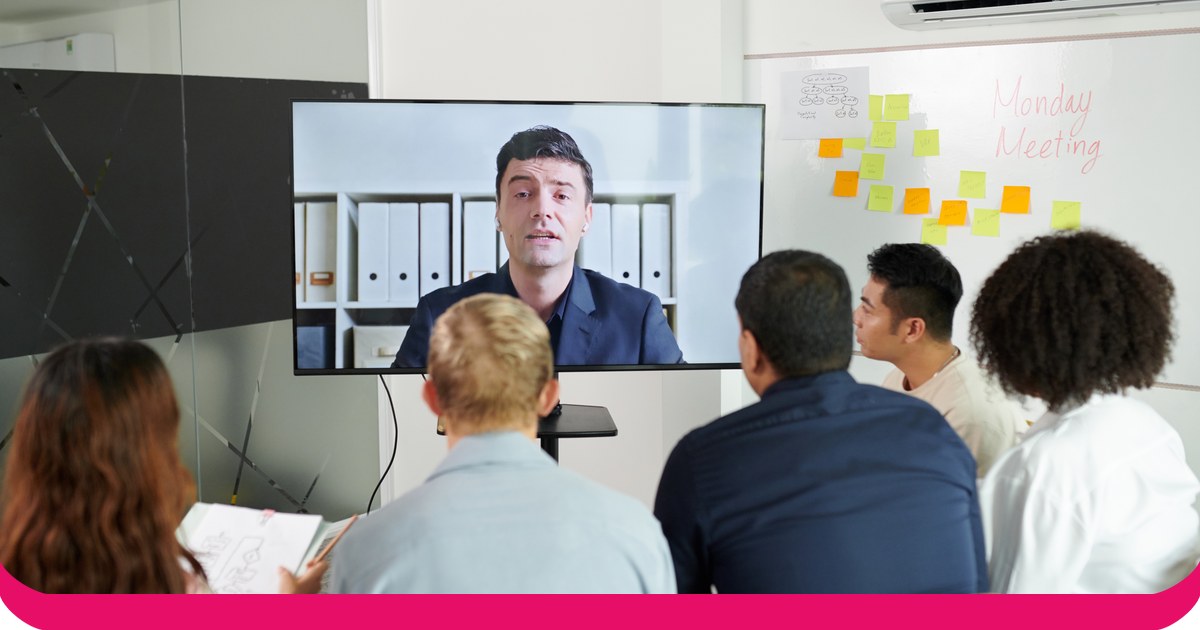
An audience response system lets the people in front of you answer your questions live, and shows the results on your slides. For PowerPoint, there are two kinds: clicker systems with handsets and a USB receiver, and phone-based add-ins where people answer on their own devices.
We compared eight systems that work with PowerPoint on how people answer, which versions of PowerPoint they run on, their free plans and their lowest prices. Almost every detail comes from each vendor’s own website or help centre, and prices are as listed on 19 November 2026. One disclosure first: AhaSlides is our product, and we say plainly where another system is the better fit.
Clickers or phones: which kind do you need?
Clicker systems give each person a small handset. Answers go to a receiver plugged into the presenter’s computer. Clickers suit lecture halls where phones are banned or not everyone has one. The cost is the hardware: someone buys, charges, hands out and collects the handsets.
Phone-based add-ins put the question on a slide with a QR code or a short link. People join in their browser, with no app to install, and results update on screen as they answer. They suit training, meetings, events and classes where people already carry a phone, and they let you ask open questions that a clicker’s buttons can’t handle, such as word clouds and written Q&A.
If you’re choosing for a university that already owns clickers, look at PointSolutions or iClicker. For almost anyone else, a phone add-in needs no hardware to buy or hand out.
Audience response systems for PowerPoint at a glance
| Sistema | How people answer | PowerPoint: Windows / Mac / web | Libreng plano | Lowest paid price |
|---|---|---|---|---|
| AhaSlides | Phones, by QR code or link | Oo / Oo / Oo | Oo Hanggang sa 50 live na mga kalahok | $ 7.95 isang buwan Sinisingil taon-taon |
| Poll Everywhere | Phones and web | Oo / Oo / Oo | Oo Audience of up to 40 | $ 10 isang buwan $ 120 na singil taun-taon |
| Mentimeter | Phones and web | Oo / Oo / Hindi | Oo | $11.99 a month per presenter Sinisingil taon-taon |
| Slido | Phones, by code, QR code or link | Oo / Oo / Hindi | Oo | Mula €15 kada buwan Binabayaran taun-taon |
| Vevox | Phones and web | Oo / Oo / Hindi | Oo Hanggang sa 100 mga kalahok | $ 11.95 isang buwan $ 143.40 na singil taun-taon |
| ClassPoint | Any device, no app | Yes / No / No Windows add-in only | Oo 25 estudyante bawat klase | USD 8 a month USD 96 billed annually |
| PointSolutions | Clickers or phones | Oo / Oo / Hindi | Walang nakalista | Hindi nai-publish Bought per institution |
| iClicker | Remotes, phones or web | No add-in Runs alongside your slides | Free for instructors | Students from $4.99 Six months, attendance only |
Sources: each vendor’s own pricing and help pages, linked in the sections below, checked 19 November 2026.
The 8 systems, one by one
1. AhaSlides
AhaSlides ay isang all-in-one na plataporma para sa pakikipag-ugnayan para sa mga pangkat at silid-aralan. Nito Add-in na PowerPoint adds polls, quizzes, word clouds, Q&A and rating scales to your existing deck, and people answer on their phones.
- PowerPoint versions: Microsoft 365 and PowerPoint 2024, 2021 and 2019 on Windows and Mac, plus PowerPoint for the web, per the AhaSlides help centerHindi sinusuportahan ang PowerPoint 2016 at mga mas luma.
- Libreng plano: yes. You can engage up to 50 participants live, with unlimited presentations (AhaSlides pagpepresyo).
- Lowest paid plan: Essential, from $7.95 a month billed yearly (AhaSlides pagpepresyo).
- Pinakamahusay para sa: trainers, teachers and team leads who want more than polls in the same deck, with no hardware.
2. Poll Everywhere
Poll Everywhere’s PowerPoint add-in, Poll Everywhere 2.0, installs from the Microsoft 365 add-ins store with no separate download and works on Windows and macOS, according to its help center. Nito PowerPoint page adds that you can use it on the web too.
- Libreng plano: Intro, for audiences of up to 40, with PowerPoint integration included (Poll Everywhere mga plano).
- Lowest paid plan: Present, $10 a month, billed annually at $120 a year for one seat.
- Pinakamahusay para sa: universities and companies that already use it for polling.
3. Mentimeter
Mentimeter’s add-in works with its live presentations and is available on all plans. Its help center lists Windows (version 2111 or later) and Mac (16.55 or later), and says PowerPoint Online is not supported.
- Libreng plano: yes (Mentimeter mga plano).
- Lowest paid plan: Basic, $11.99 per presenter a month, billed yearly.
- Pinakamahusay para sa: teams already on Mentimeter who present from PowerPoint on Windows or Mac.
4. Slido
Slido for PowerPoint is a free integration that you download from Slido's site and install on the computer you present from. Slido lists Windows 10 22H2 or later with PowerPoint 2016 or newer, and macOS 12 or later with PowerPoint 2019 or newer. PowerPoint Online isn’t supported.
- Libreng plano: yes, free to start.
- Lowest paid plan: from €15 a month, paid annually (Slido para sa negosyo).
- Pinakamahusay para sa: Q&A in company meetings. Our Slido gabay sa pagdaragdag covers the setup.
5. Vevox
Ang Vevox PowerPoint add-in installs from Microsoft AppSource and needs Office version 2208 or later on Windows, or 16.64 or later on Mac. Vevox says Office on the web is currently not supported.
- Libreng plano: one user, up to 100 participants (Vevox business pricing).
- Lowest paid plan: Starter, $11.95 a month, or $143.40 billed annually, for up to 250 participants.
- Pinakamahusay para sa: larger free audiences who only need multiple choice polls, quizzes and Q&A.
6. ClassPoint
ClassPoint runs inside PowerPoint after you install it on Windows 10 with Office 2013 or higher. It isn’t compatible with macOS.
- Libreng plano: Basic, with up to 25 students per class and 3 classes (ClassPoint pagpepresyo).
- Lowest paid plan: Pro, USD 8 a month or USD 96 billed annually.
- Pinakamahusay para sa: teachers on Windows who want quick quizzes inside PowerPoint.
7. PointSolutions (formerly TurningPoint)
TurningPoint is now PointSolutions, sold by Echo360. It supports both clickers and mobile devices, and its PowerPoint polling mode lets instructors build polling slides in PowerPoint through the PointSolutions Desktop app on Windows or Mac. Echo360’s Pangangailangan sa System say PowerPoint on the web is not supported.
- Libreng plano: none listed.
- presyo: not published on Echo360’s PointSolutions page. Participant subscriptions and clickers are sold through Echo360, with options set per institution.
- Pinakamahusay para sa: campuses that already run TurningPoint clickers.
8. iClicker
iClicker lets students answer on a phone, on the web or with an iClicker remote, with the iClicker Base as the receiver for remotes. Its pahina ng mga integrasyon lists LMS connections rather than a PowerPoint add-in, so you run iClicker Cloud alongside your slides.
- Libreng plano: “always free for instructors to use” (iClicker pricing). Students pay.
- Student price: iClicker Pulse, for attendance only, from $4.99 for six months; iClicker Pro from $15.99 for six months.
- Pinakamahusay para sa: colleges where students already have an iClicker subscription.
Why PowerPoint alone isn’t an audience response system
PowerPoint can show a question, but it can’t collect answers. The closest you’ll get on your own is a show of hands typed into a chart:
- Magdagdag ng slide ng tanong. Write the question and two to four answer options.
- Insert a chart on the next slide. Go to Insert, then Chart, and pick a bar chart.
- Count hands. Ask for a show of hands for each option and count them.
- Type in the numbers. Right-click the chart, choose Edit Data and enter the counts, so the bars update.
It works for a small group, but it stops quickly. Counting takes time, people see how others vote before they raise a hand, nothing is anonymous and nothing is saved for later. A response system fixes all of that: everyone answers at once, privately, and you keep the results.
How to run a live poll in PowerPoint with AhaSlides
AhaSlides is an all-in-one engagement platform for teams and classrooms. For an audience response system, that means everyone answers on their own phone at the same time, privately, and the results build on your slide.
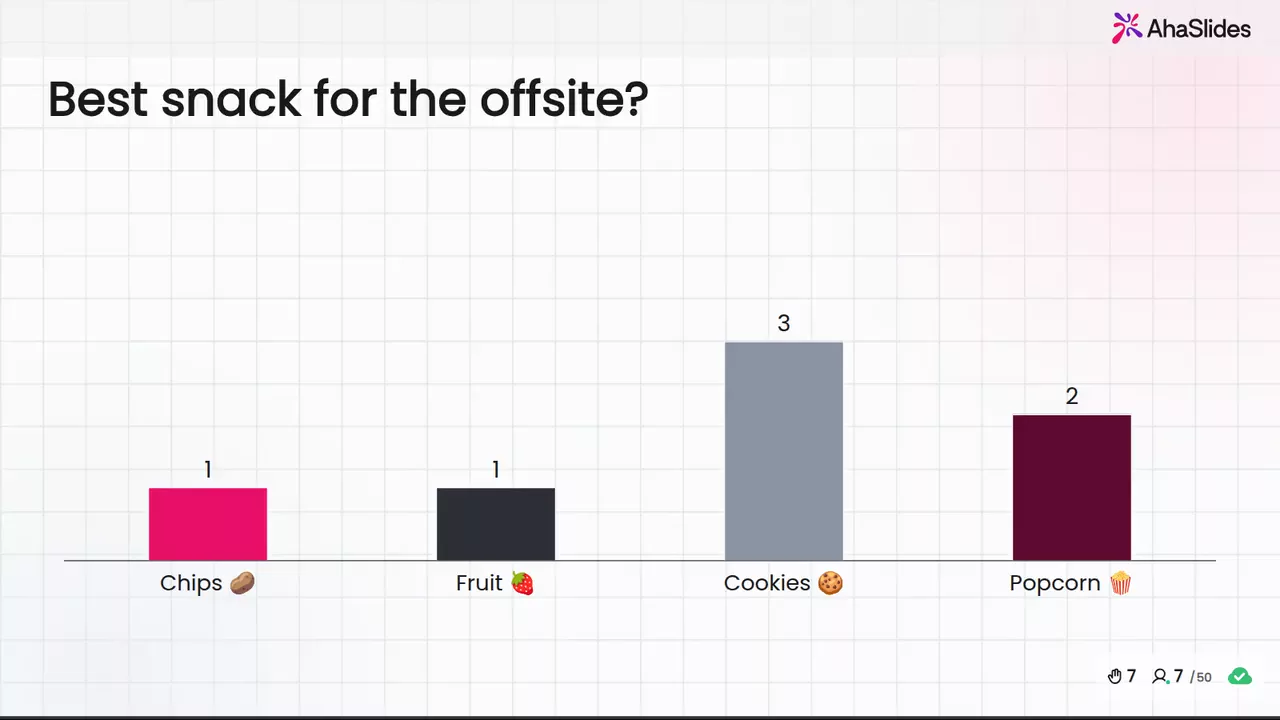
Dalawang mabilis na paraan para magsimula:
- I-upload ang iyong deck. I-upload ang iyong PowerPoint file sa AhaSlides at hayaan ang AI na magdagdag ng mga poll at quiz questions sa pamamagitan nito, para maging isang interactive session ito nang hindi na muling magsisimula (Gumagawa ng AI PowerPoint).
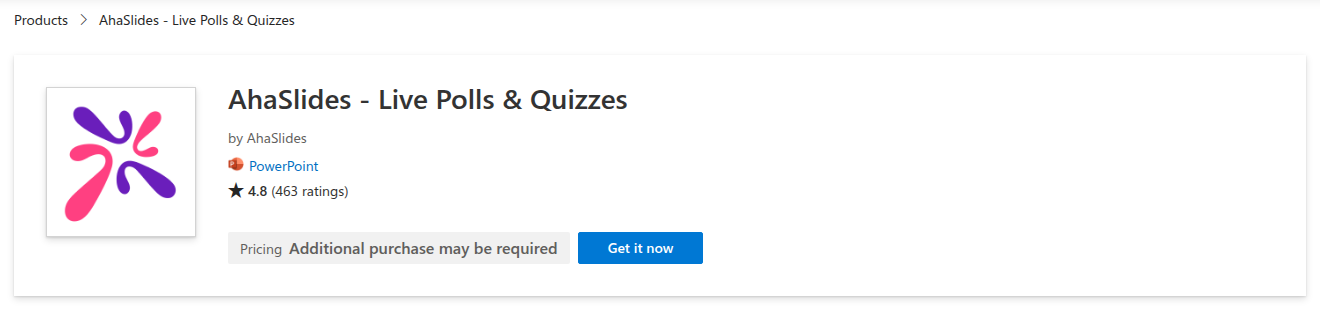
- O kaya naman ay magpatuloy sa pagpepresent sa PowerPoint. Idagdag ang libre AhaSlides add-in at maglagay ng mga live na slide sa pagitan ng sarili mo. Ito ay may tatlong hakbang, sa ibaba.
Here's the phone-based way, start to finish:
- I-install ito at mag-sign in. Sa PowerPoint, pumunta sa Home, pagkatapos ay sa Add-ins, pagkatapos ay sa More Add-ins. Sa PowerPoint para sa web, ito ay Insert, pagkatapos ay sa Add-ins, pagkatapos ay sa More Add-ins. Hanapin ang AhaSlides, i-click ang Magdagdag, pagkatapos ay mag-log in gamit ang iyong AhaSlides account, o gumawa ng libre.
- Build your questions and add them. In AhaSlides, add a poll, a word cloud or a rating scale, or start from a template. Then, in the add-in, choose your presentation, tick the slides you want and click Add slides. On PowerPoint for the web, slides go in one at a time.
- Ipakita. Start the slideshow. Each AhaSlides slide shows a link and QR code, people join on their phones, and their answers appear on the slide as they come in.
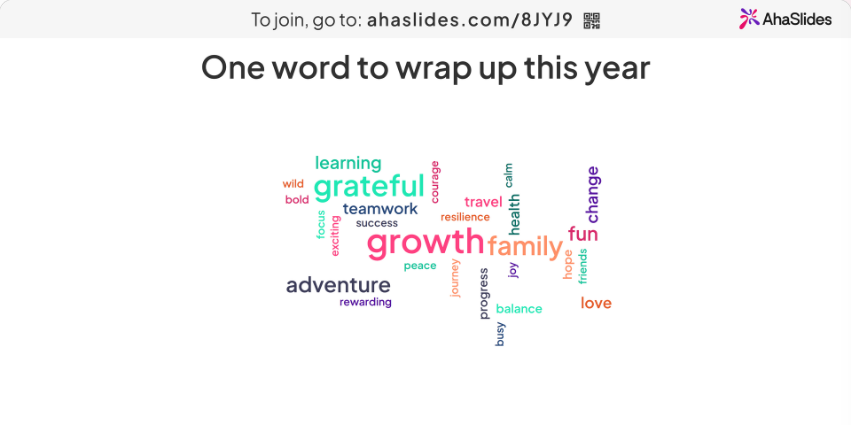
Start with a ready template
This End of Lesson Review template is a short set of feedback questions for the end of a session. Copy it, change the questions, and add it to the last slides of your deck.
5 ways to use an audience response system in PowerPoint
- Check understanding mid-lecture. One multiple choice question after each key point shows whether to move on or explain again.
- Collect questions without a queue. Open an anonymous Q&A so people ask what they’d never put a hand up for.
- Run a quiz round in training. A short scored quiz at the end of a module shows what people remember, not just what you covered.
- Warm up a meeting. Start with a word cloud (“one word for this quarter?”) so everyone has answered something before the agenda.
- Get feedback before people leave. A rating scale and one open question on the last slide give you feedback while everyone is still in the room.
FAQ
What is an audience response?
It’s an answer the audience gives to a presenter’s question during a session, collected with clickers or phones and shown as live results. An audience response system is the tool that collects those answers and puts them on screen.
What are the key benefits of audience response systems?
Everyone answers, not just the confident few. Answers can be anonymous. You see straight away what people understood, and you keep the results for later. Our guide to sistema ng pagtugon sa silid-aralan goes deeper on the classroom side.
How do you get an audience engaged?
Ask them something early and often. A quick poll or word cloud in the first five minutes, a question after each section and a Q&A that anyone can post to anonymously all give people a reason to join in.
What are some effective tools for audience engagement?
For PowerPoint, phone-based add-ins such as AhaSlides, Poll Everywhere, Mentimeter, Slido and Vevox, or clicker systems such as PointSolutions and iClicker. Our live na Tanong at Sagot sa PowerPoint guide shows one of those in action.
Gawing interactive ang deck na ito
Ang aming gabay sa paggawa ng interactive na PowerPoint nagpapakita kung paano mapasagot, maboboto, at makapagtanong ang mga tao sa anumang deck. O magsimula sa isang libreng starter deck sa aming template library at idagdag ito sa iyong susunod na presentasyon.
Kaugnay na pagbabasa
- Kahoot sa PowerPoint: paano magdagdag ng isa, at isang libreng alternatibo
- Slido add-in for PowerPoint: how to install and use it
- AhaSlides online poll maker
Hear from everyone in your next presentation
Add live polls, quizzes and Q&A to the PowerPoint deck you already have. No clickers to hand out: people answer on their phones, free for up to 50 live participants.