
To add a QR code in PowerPoint, make the code with a free generator (or the QR4Office add-in), then insert it as a picture: Insert, фотографії, Цей пристрій. That works for a link. If you want people to scan and then vote or ask questions on your slides, use the join QR code from the AhaSlides add-in instead.
Below you'll find both ways, step by step, and how to pick the right one for your session.
The PowerPoint-only way: insert a QR code as a picture
PowerPoint has no QR code button of its own, so you make the code first and then add it to a slide.
Step 1: Make the QR code
Виберіть один із цих:
- A QR code generator website. Paste your link, download the code as a PNG or SVG and save it.
- The QR4Office add-in. It's listed in the Microsoft add-in store. In PowerPoint, on the Home вкладка, клацніть Add-ins, То Більше надбудов, і шукайте QR4Office. Type your link, then click Insert to put the code straight on your slide.
- Microsoft 365 Copilot Chat. Microsoft's support page explains how to ask Copilot Chat for a QR code that points to a link, which you can then copy or download (Microsoft Support, перевірено у листопаді 2026 р.).
- Your browser. Microsoft Edge and Google Chrome can both create a QR code for the page you have open.
Step 2: Insert it on your slide
- Windows: відкрити Insert вкладка, клацніть фотографії, То Цей пристрій, and pick the file.
- Mac: відкрити Insert вкладка, клацніть фотографії, То Picture from File (the wording varies by PowerPoint version).
- PowerPoint for the web: відкрити Insert вкладка, клацніть фотографії, То Цей пристрій.
Step 3: Make it easy to scan
- Make it big. People at the back need to scan it too, so give the code a good share of the slide.
- Keep the contrast high. A dark code on a white background scans best. Leave a white margin around it.
- Add the link as text. Some people prefer to type it, so put a short link under the code.
- Перевірте це. Scan the code from your phone across the room before the session starts.
Де зупиняється для живої аудиторії
A QR code in PowerPoint opens a link, and that's where it ends:
- Nothing comes back to your slide. If the link opens a form or survey, the answers stay in that tool. Your audience can't see them on screen.
- You switch apps. To show results, you leave your slideshow and open another window.
- One code per link. Every activity needs its own code, so people scan again and again.
- You can't see who's joined. There's no count of people ready to take part.
If the QR code is there so people can take part, use one that brings them into your slides.
The live way: the join QR code in the AhaSlides надбудова
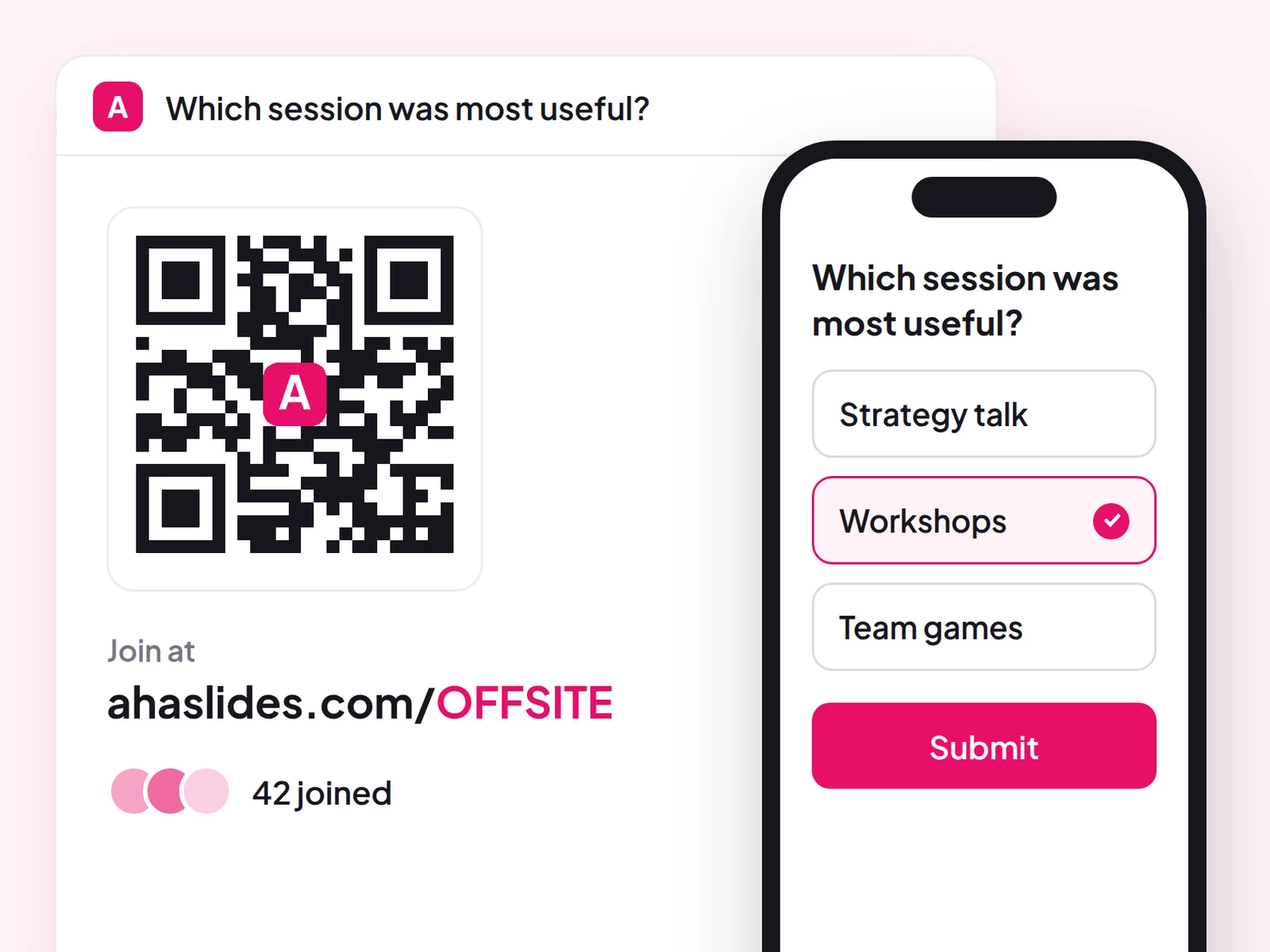
AhaSlides is an all-in-one engagement platform for teams and classrooms. Every presentation has one join QR code, so people scan once with their phone camera and stay in for every poll and quiz, with no app and no account.
Два швидких способи почати:
- Завантажте свою колоду. Завантажте свій файл PowerPoint до AhaSlides і дозволити штучному інтелекту додавати опитування та запитання вікторин через нього, щоб сеанс перетворився на інтерактивний, без необхідності починати його знову (Конструктор PowerPoint зі штучним інтелектом).
- Або продовжуйте презентацію в PowerPoint. Додайте безкоштовне AhaSlides надбудова і розміщуйте живі слайди між своїми власними. Це займає три кроки, описані нижче.
Step 1: Find your QR code and put it in your deck
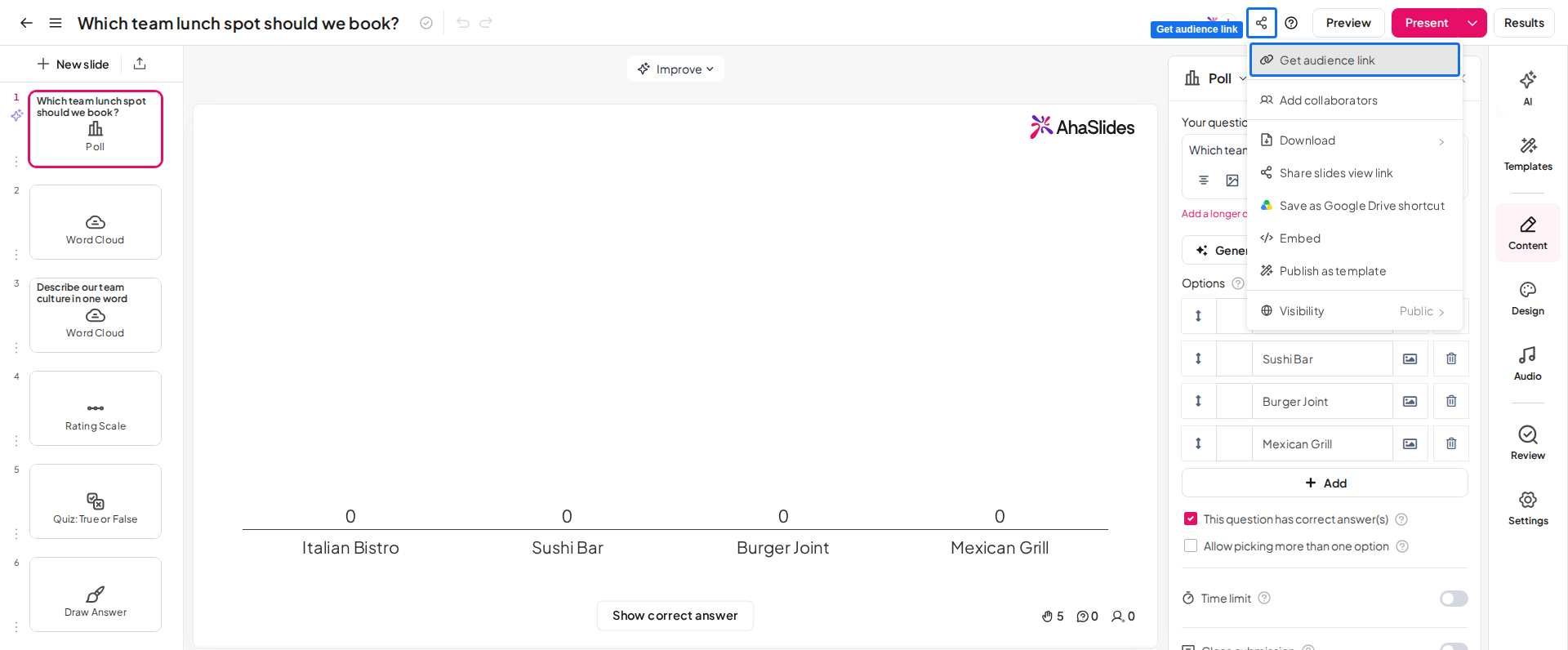
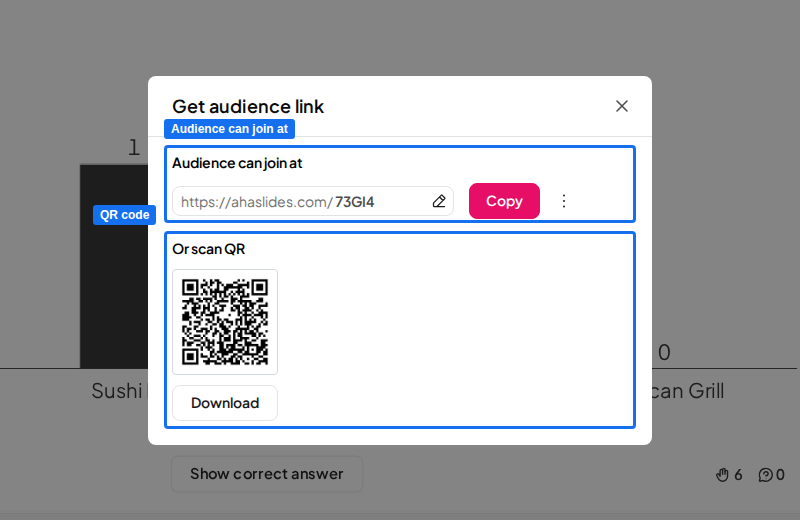
Перейдіть на вкладку AhaSlides редактор, натисніть ділитися презентацією, І вибирай Get audience link. You'll see the join link and the QR code for the whole presentation.
The QR code stays the same, even if you change the short access code. You can print it or put it on an agenda slide before the session.
Then choose how it gets into your deck. You have three options:
- Download it as an image. In Get audience link, Натисніть Завантажити. You get a PNG file that you insert like any picture (Insert, фотографії).
- Add a QR Code slide. In AhaSlides, додайте а QR-код slide at the start of your presentation, then add it to PowerPoint with the add-in.
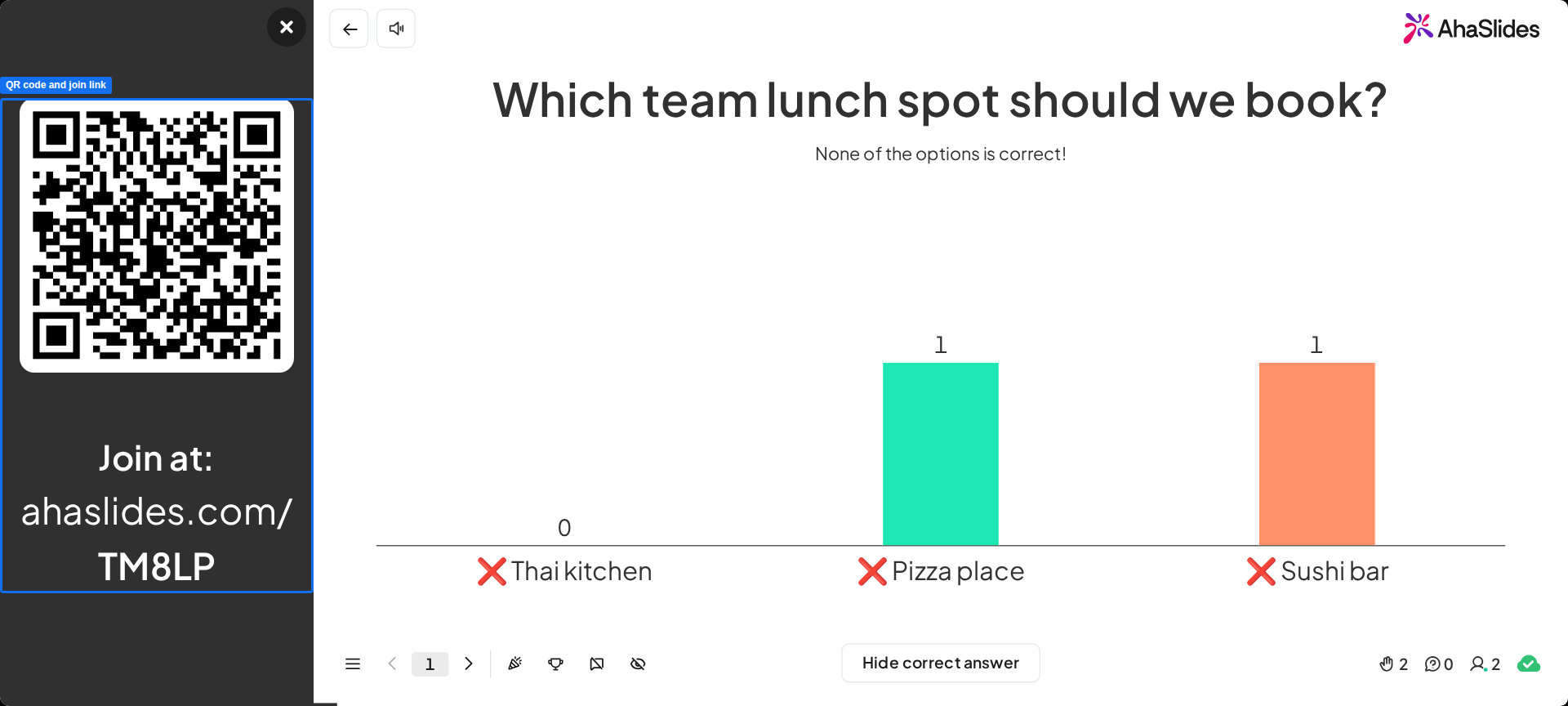
- Show the join panel while you present. Преса Q на AhaSlides slide in your slideshow to show or hide the panel with the QR code and join link. This works in the PowerPoint add-in too.
Step 2: Add your interactive slides
In PowerPoint, click Add-ins на Home tab (or the Insert tab in PowerPoint for the web), then Більше надбудов, шукати AhaSlides і натисніть кнопку додавати. Sign in, click Виберіть презентацію, позначте потрібні слайди та натисніть Додайте слайди. Stretch the add-in window to fill the PowerPoint slide, so the QR code isn't cropped.
Step 3: Present
Start your slideshow. People scan the code, and their answers appear on your slide as they vote. When you move to the next interactive slide, it shows up on their phones without another scan.
Почати з шаблону
The Online Webinar template has a quiz, a poll and a leaderboard. Copy it, change the questions and add the slides to your PowerPoint deck.
5 ideas for a QR code in your PowerPoint
- A welcome slide. Put the join QR code up while people arrive, with a quick question like "How's your week going?".
- A check-in poll in training. Ask what people already know about the topic, then pitch the session at the right level.
- A quiz to close a class. Five questions and a leaderboard show you what students remember.
- Questions during a talk. Let people send questions anonymously from the same QR code. Our guide to Запитання та відповіді в прямому ефірі в PowerPoint показує, як.
- An icebreaker at a meeting. Try one of these PowerPoint icebreakers as the first slide after the QR code.
FAQ
Does Microsoft have a QR code generator?
Yes, a few. Microsoft 365 Copilot Chat can generate a QR code for a link, and Microsoft Edge can make one for the page you're on. Inside PowerPoint, the QR4Office add-in creates one and inserts it on your slide.
Can ChatGPT generate QR codes?
Sometimes. ChatGPT can make a QR code image on some plans and settings, but it isn't reliable for this. A QR code generator or the QR4Office add-in gives you a file you can download and insert in seconds. Whatever you use, scan the code with your own phone before you present.
Is Google's QR code free?
Yes. Google Chrome's built-in QR code for a page costs nothing and needs no sign-up. It links to the page you have open, so save the image and insert it in PowerPoint as a picture.
Зробіть цю колоду інтерактивною
Опитування, вікторини та сесії запитань і відповідей перетворюють розмову на щось, у чому люди беруть участь. Наш посібник з як зробити інтерактивну презентацію PowerPoint проведе вас через це, а стартова колода надасть вам слайди, готові до додавання.
Keep building your deck: add a quiz with our інтерактивна вікторина в PowerPoint guide, or see what you can ask with the AhaSlides виробник онлайн-опитувань.
Turn a QR code into a live poll
додавати AhaSlides to your PowerPoint deck and people scan once to vote, answer quizzes and ask questions from their phones.