Skip to content
Claim this template

Free course template · Global

Copilot at work: Safe, effective use of your office-suite AI assistant

A ready-made course, live deck and two surveys for all staff licensed for copilot or copilot chat. 40 minutes, 6 lessons. Last reviewed 21 October 2026; not legal advice.

Claim the templatePreview the courseDownload SCORM for your LMS

Free. No credit card. Edit everything.

Play a game from the course

Copilot at work: Safe, effective use of your office-suite AI assistant: try 3 questions

Three questions from this course. Pick an answer, then see why.

Play the game

Game not loading? Open it in a new tab (opens in a new tab)

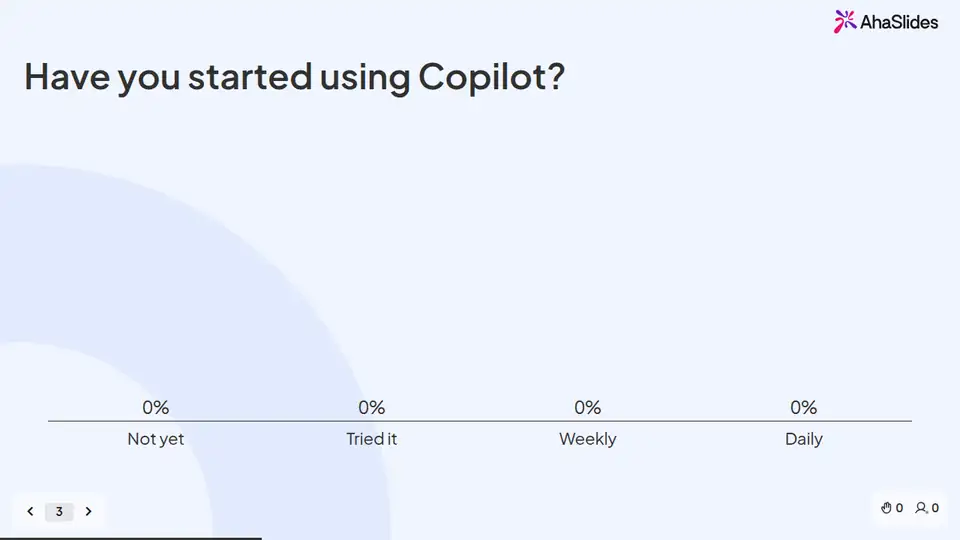
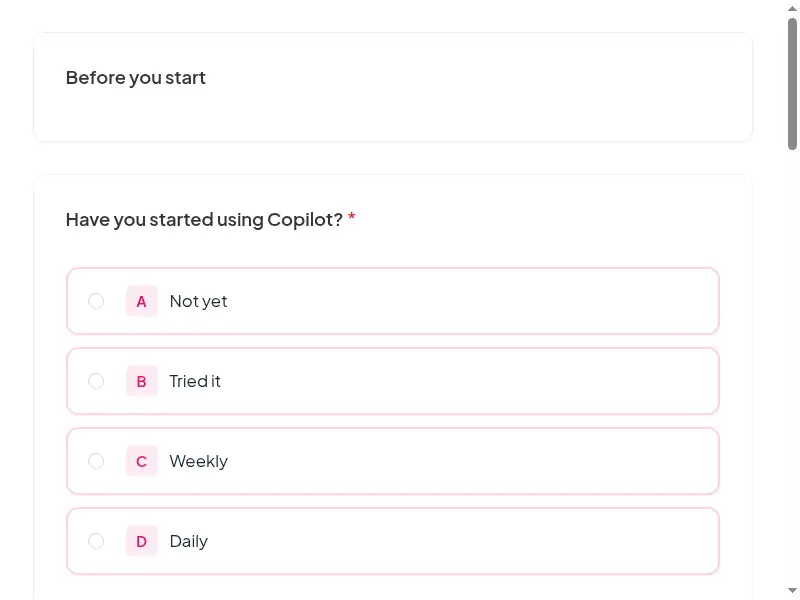
Three pieces that work together

Learners sign in, so every finish and score is recorded. 8 fields to fill in with your details.
Claim the template
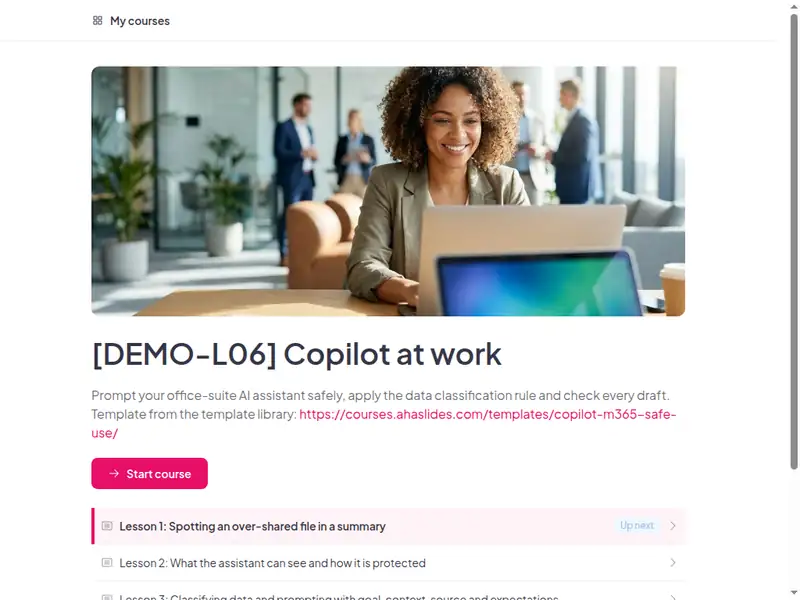
The Copilot at work: Safe, effective use of your office-suite AI assistant course as a learner first sees it

6 lessons, about 40 minutes

Minutes are an estimate.

  • Lesson 1: Spotting an over-shared file in a summary · 8 min

    Before you begin · An invented story · What went wrong?

  • Lesson 2: What the assistant can see and how it is protected · 8 min

    Grounding · True or false? · Check

  • Lesson 3: Classifying data and prompting with goal, context, source, expectations · 8 min

    Traffic-light rule · Prompt framework · Classify and prompt

  • Lesson 4: Handling confidential files, missed decisions and consumer accounts · 8 min

    Scenario · Scenario · Scenario

  • Lesson 5: Reporting over-sharing and getting help · 5 min

    Report path · Which tool for which task

  • Lesson 6: Final assessment and AI use acknowledgement · 3 min

    Practice

Claim the template

Inside this course

Taken from the course itself.

By the end, learners can

  • Write prompts using goal, context, source and expectations
  • Explain grounding and why the assistant can only see what you can see
  • Apply the data classification rule before referencing internal files
  • Review and take responsibility for every draft before it is sent or relied on
  • Choose between chat, in-app assistant, notebooks and agents for a task

Sample questions, with answers

  1. What is the best explanation for the salary table appearing in Lena's summary?

    • The assistant hacked a protected file
    • The sharing on the file was too wide
    • Lena asked a forbidden question
    • The summary was random

    Answer: The sharing on the file was too wide. The file had been shared more widely than intended, so the assistant could use it. The assistant did not break into anything and Lena did not do anything wrong by asking. Check your own setup against the vendor's documentation.

    Lesson 1: Spotting an over-shared file in a summary

  2. A red file is…

    • Fine if you remove names
    • Fine in a private chat
    • Not referenced unless approved
    • Fine on a laptop

    Answer: Not referenced unless approved. Not referenced unless approved. Removing names does not change its classification, and private chats or laptops do not make it safe.

    Lesson 3: Classifying data and prompting with goal, context, source, expectations

  3. A summary of a long thread omits a decision. What should you do?

    • Send it as it is
    • Check the source and add the decision
    • Blame the tool
    • Shorten the thread

    Answer: Check the source and add the decision. Check the source and add the decision. Sending as is, blaming the tool or shortening the thread leaves the gap in place.

    Lesson 4: Handling confidential files, missed decisions and consumer accounts

A scenario from "Handling confidential files, missed decisions and consumer accounts"

You need a summary of a file marked confidential.

Best response: Check the rule, use only approved sources, or ask the owner.

Weaker responses: Summarise it anyway; Copy it to a personal folder; Ask a colleague to do it quietly.

Related articles

An article from the AhaSlides blog that uses this course.

Common questions

Yes. Claiming the template and editing it are free.

Yes. The course is self-paced and online, and the live deck lets you add a live session in the room or online.

At licence roll-out, at onboarding for licensed roles, and as a refresher after feature changes.

All staff licensed for Copilot or Copilot Chat in the office suite.

Record completion in your own LMS or record system, so you can show who finished the course and when.

Your own details, each highlighted inside the course:
  • Copilot data protection link
  • Data classification policy link
  • Copilot report contact
  • AI help contact
  • Approved AI tools
  • LMS or record system
Then edit anything else you like: wording, scenarios, your logo.
Visit the help centre (opens in a new tab)