
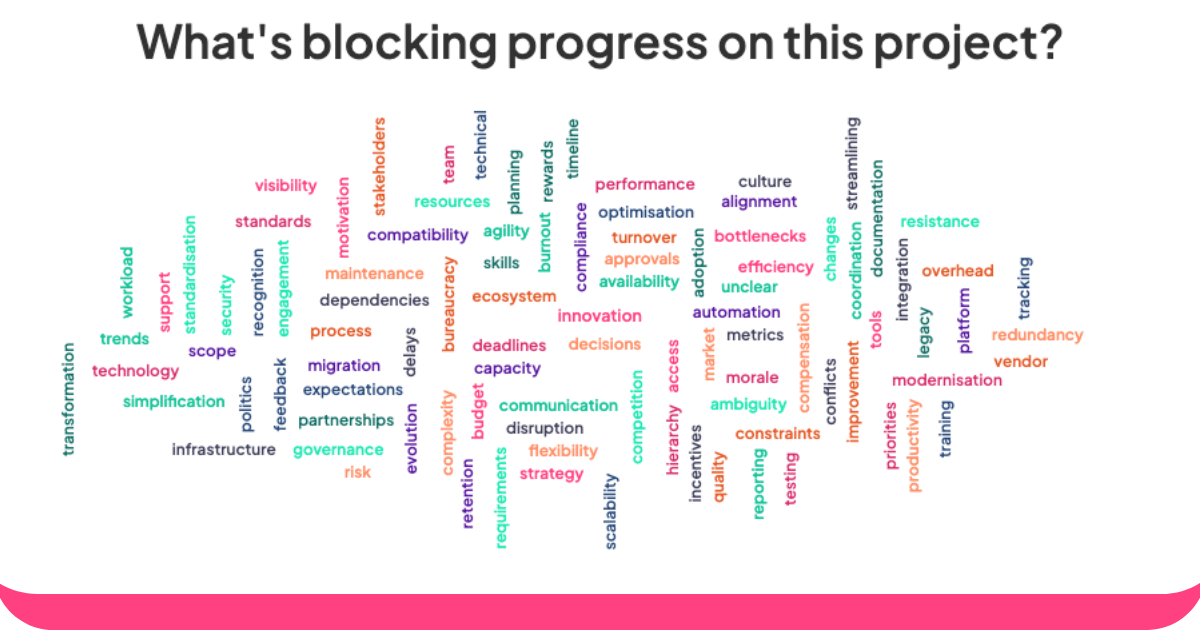
Live-Wortwolkengeneratoren sind wie Zauberspiegel für Gruppengedanken. Sie verwandeln das Gesagte in lebendige, farbenfrohe Bilder, wobei die beliebtesten Wörter beim Auftauchen größer und deutlicher werden.
Whether you’re a teacher getting students to share ideas, a manager brainstorming with your team, or an event host trying to get the crowd engaged, these tools give everyone a chance to speak up and actually be heard.
This is where AhaSlides comes in. People just type in their responses on their phones, and you get instant visual feedback that updates in real time as more thoughts come in.
Here's how to create word clouds using AhaSlides word cloud maker:
- Stelle eine Frage. Set up a word cloud on AhaSlides. Share the room code at the top of the cloud with your audience.
- Get your answers. Your audience enters the room code into the browser on their phones. They join your live word cloud and can submit their own responses with their phones.
So hosten Sie eine Live-Wortwolke: 6 einfache Schritte
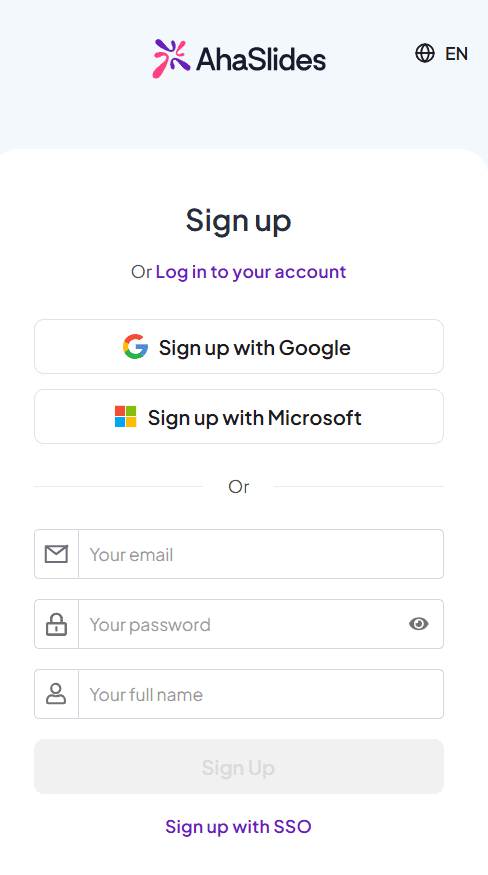
Schritt 1: Erstellen Sie Ihr Konto
Zurück Nach diesen Link um ein Konto zu eröffnen.
Schritt 2: Erstellen Sie eine Präsentation
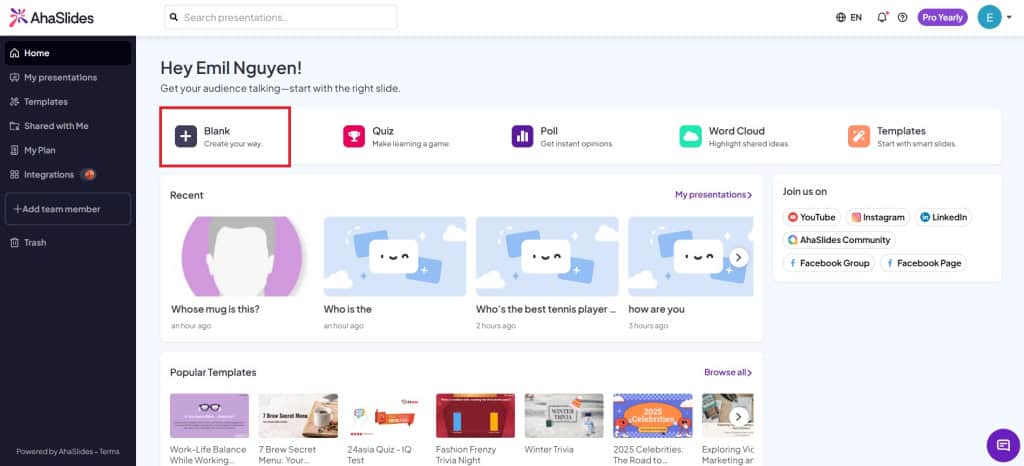
Klicken Sie auf der Registerkarte „Start“ auf „Leer“, um eine neue Präsentation zu erstellen.
Step 3: Create a Word Cloud slide
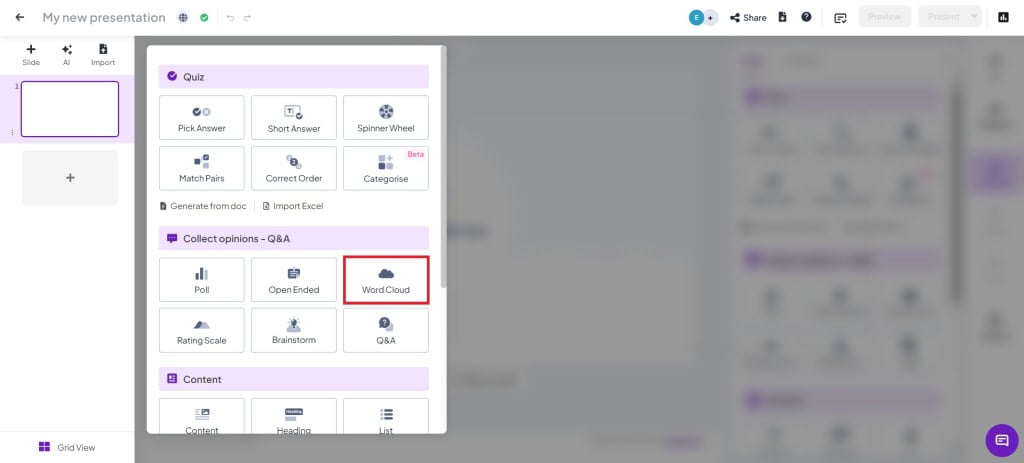
Klicken Sie in Ihrer Präsentation auf den Folientyp „Wortwolke“, um eine zu erstellen.
Schritt 4: Frage eingeben und Einstellungen ändern
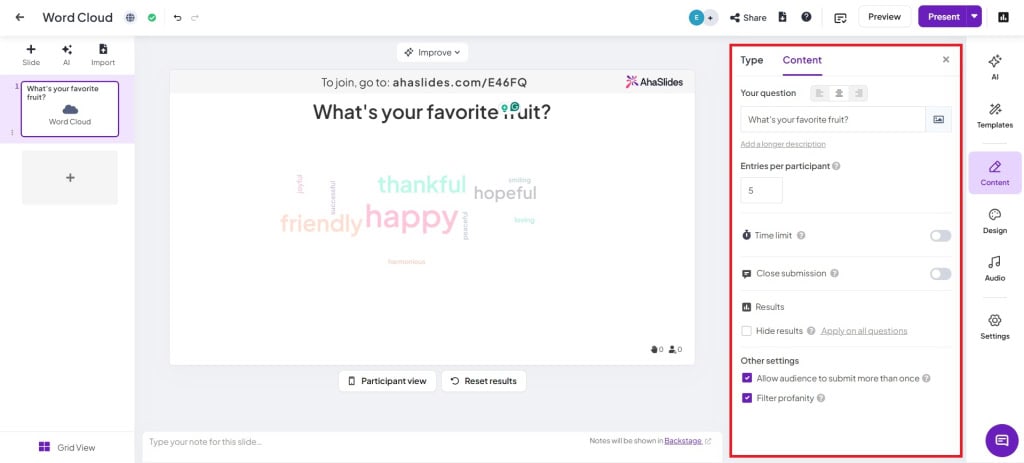
- Einträge pro Teilnehmer: Ändern Sie die Anzahl der Antworten, die eine Person übermitteln kann (bis zu 10 Einträge).
- Zeitlimit: Aktivieren Sie diese Einstellung, wenn die Teilnehmer ihre Antworten innerhalb einer bestimmten Zeit übermitteln sollen.
- Übermittlung schließen: Manually turn on submission during the presentation.
- Ergebnisse ausblenden: Submissions will automatically be hidden to prevent voting bias.
- Erlauben Sie dem Publikum, mehr als einmal einzureichen: Turn off if you want the audience to only submit once.
- Obszönitäten filtern: Filtern Sie alle unangemessenen Wörter aus dem Publikum heraus.
Schritt 5: Zeigen Sie dem Publikum den Präsentationscode
Show your audience your room's QR code or join code (next to the / symbol). The audience can join on their phone by scanning the QR code.
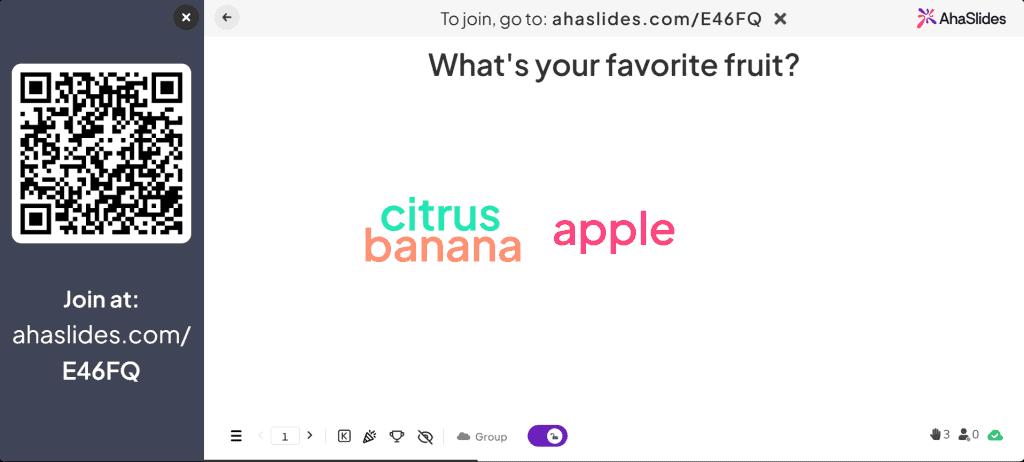
Schritt 6: Präsentieren!
Simply click present and go live! The audience's answers will be displayed live on the presentation.
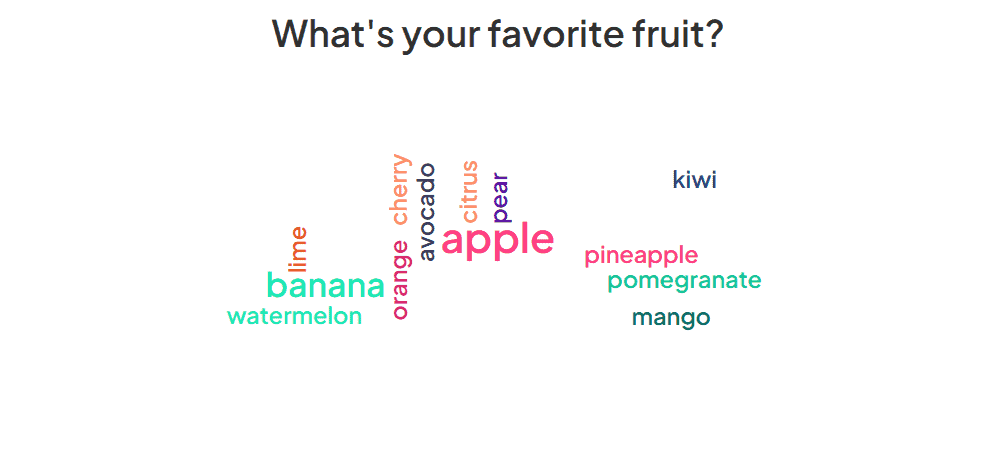
Wortwolkenaktivitäten
Word clouds are one of the most vielseitig Werkzeuge in Ihrem Arsenal. Sie können in einer Reihe von verschiedenen Bereichen verwendet werden, um eine Reihe verschiedener Reaktionen von einem Live-Publikum (oder nicht live) hervorzurufen.
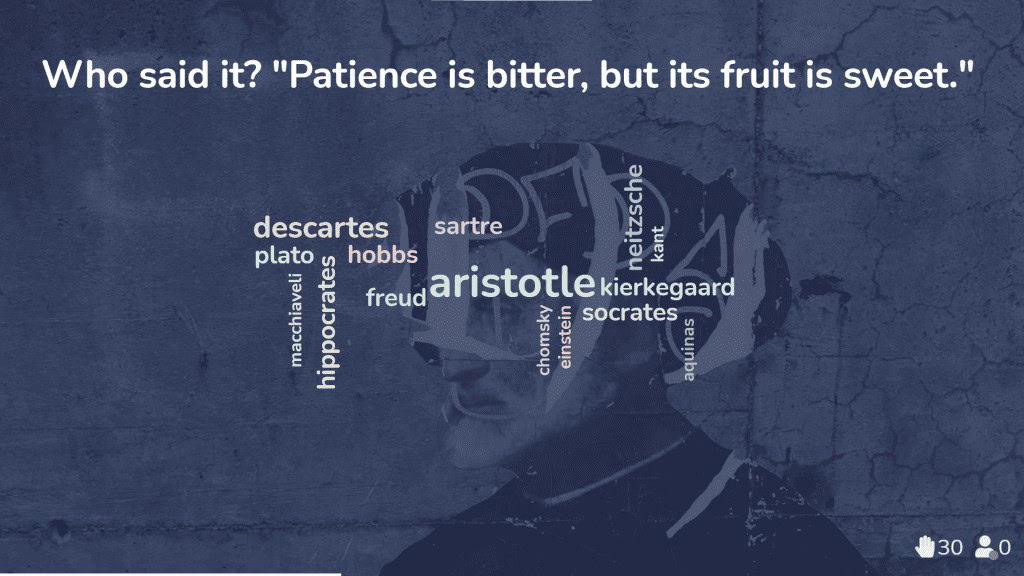
1. Imagine you're a teacher trying to das Verständnis der Schüler überprüfen of a topic you've just taught. You can offer up a word cloud where students give one-word responses.
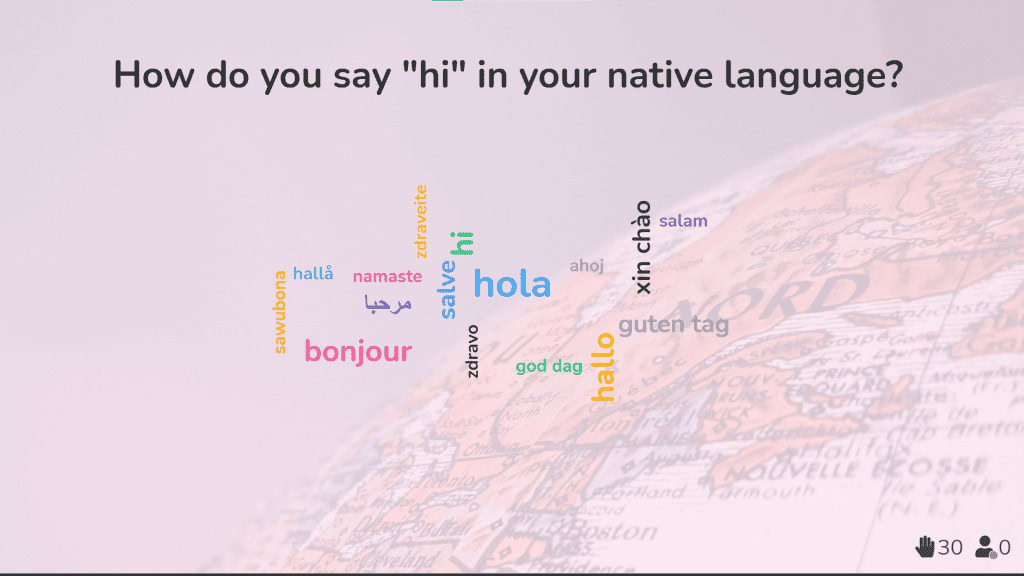
2. As a corporate trainer working with international teams, live word clouds help break down cultural and language barriers and get everyone feeling connected from the start.
3. As a team leader in a remote or hybrid work setup, the live word cloud is a fantastic way for your team to show appreciation for one another and give morale a nice boost.
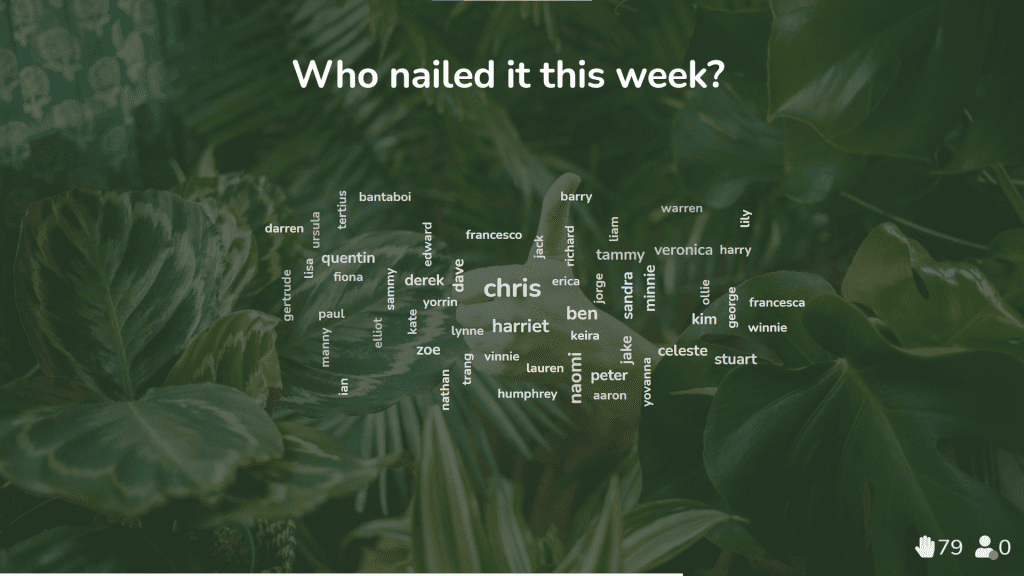
Holen Sie sich einige Word Cloud-Vorlagen
Entdecken Sie unsere Word Cloud-Vorlagen and engage people better.