

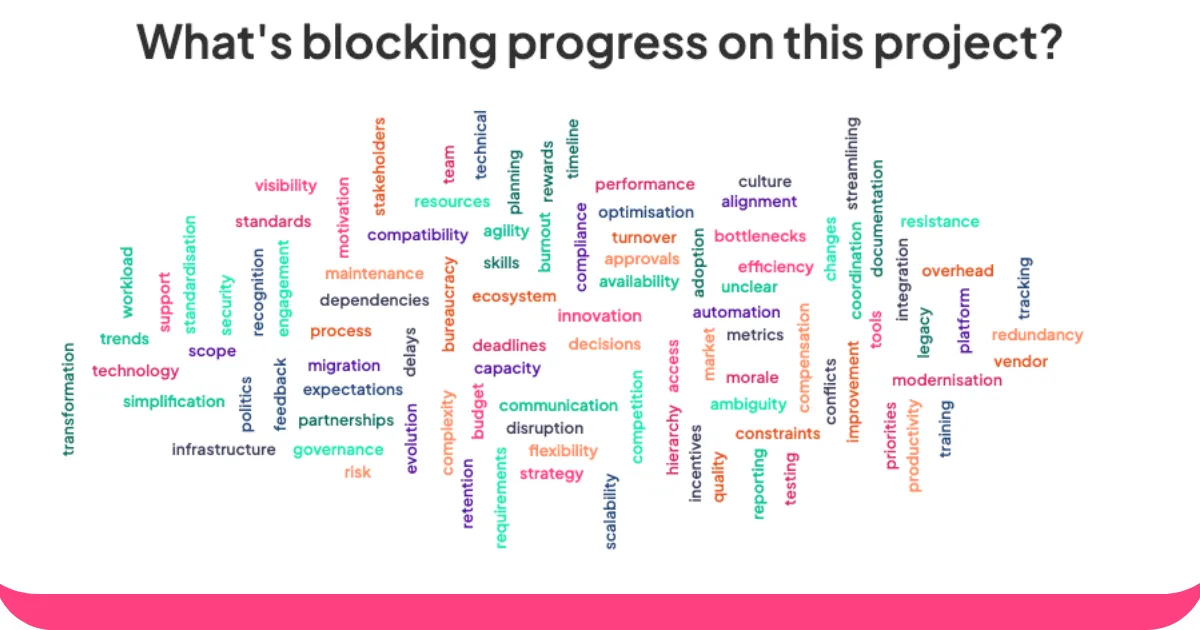
लाइव वर्ड क्लाउड जनरेटर समूह के विचारों के लिए जादुई दर्पण की तरह हैं। वे हर किसी की कही गई बातों को जीवंत, रंगीन दृश्यों में बदल देते हैं, जिसमें सबसे लोकप्रिय शब्द पॉप अप होते ही बड़े और बोल्ड हो जाते हैं।
चाहे आप एक शिक्षक हों जो छात्रों को अपने विचार साझा करने के लिए प्रेरित कर रहे हों, एक प्रबंधक हों जो अपनी टीम के साथ विचार-मंथन कर रहे हों, या एक कार्यक्रम के आयोजक हों जो दर्शकों को शामिल करने की कोशिश कर रहे हों, ये उपकरण हर किसी को बोलने और वास्तव में सुने जाने का मौका देते हैं।
यहीं पर AhaSlides काम आता है। लोग बस अपने फोन पर अपनी प्रतिक्रियाएं टाइप करते हैं, और आपको तुरंत दृश्य प्रतिक्रिया मिलती है जो अधिक विचार आने पर वास्तविक समय में अपडेट होती रहती है।
यहां बताया गया है कि AhaSlides वर्ड क्लाउड मेकर का उपयोग करके वर्ड क्लाउड कैसे बनाएं:
- प्रश्न पूछें। AhaSlides पर एक वर्ड क्लाउड बनाएं। क्लाउड के शीर्ष पर मौजूद रूम कोड को अपने दर्शकों के साथ साझा करें।
- अपने उत्तर प्राप्त करें। आपके दर्शक अपने फोन के ब्राउज़र में रूम कोड डालते हैं। वे आपके लाइव वर्ड क्लाउड में शामिल हो जाते हैं और अपने फोन से ही अपनी प्रतिक्रियाएँ सबमिट कर सकते हैं।
लाइव वर्ड क्लाउड होस्ट कैसे करें: 6 सरल चरण
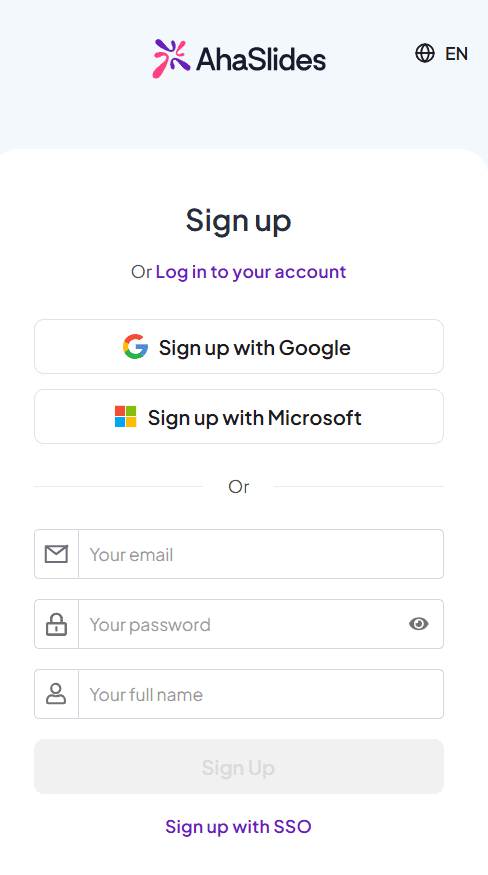
चरण 1: अपना खाता बनाएँ
इस लिंक एक खाते के लिए साइन अप करने के लिए.
चरण 2: एक प्रस्तुति बनाएं
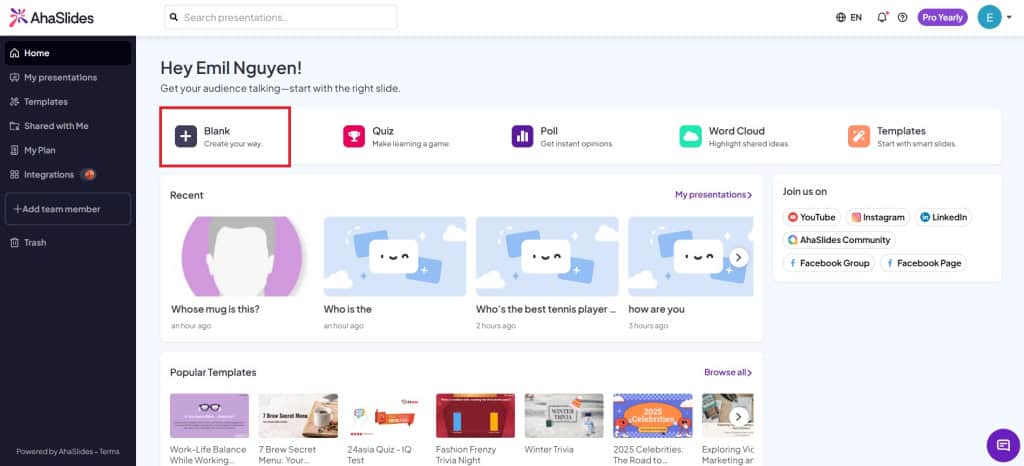
होम टैब पर, नया प्रेजेंटेशन बनाने के लिए "रिक्त" पर क्लिक करें।
चरण 3: वर्ड क्लाउड स्लाइड बनाएं
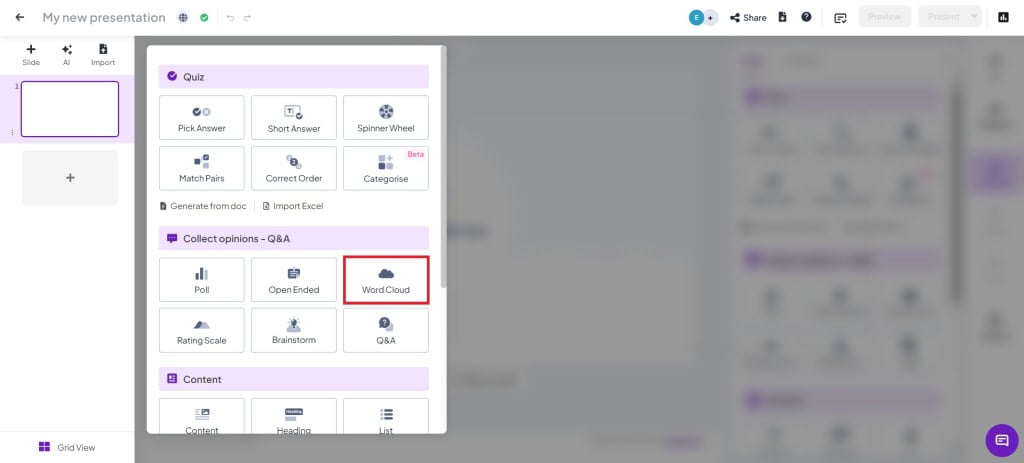
अपनी प्रस्तुति में, एक स्लाइड बनाने के लिए "वर्ड क्लाउड" स्लाइड प्रकार पर क्लिक करें।
चरण 4: प्रश्न लिखें और सेटिंग बदलें
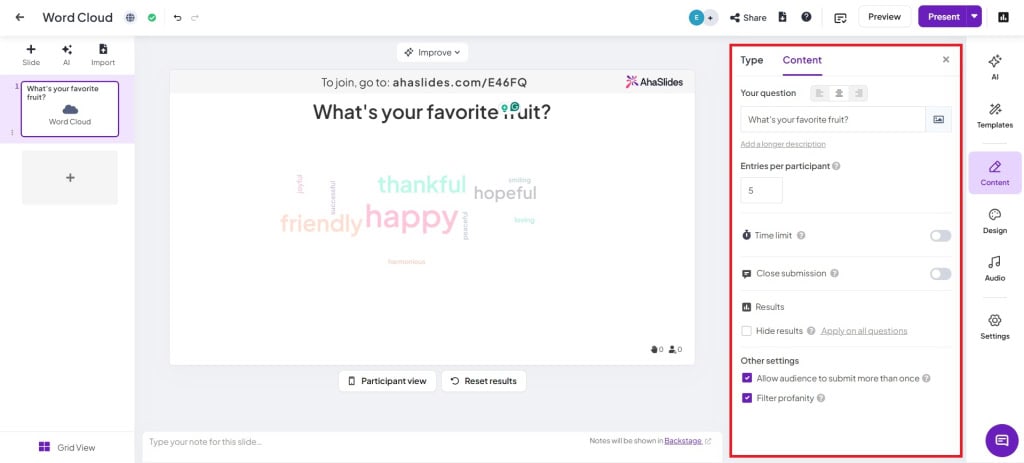
- प्रति प्रतिभागी प्रविष्टियाँ: किसी व्यक्ति द्वारा उत्तर प्रस्तुत करने की संख्या में परिवर्तन करें (अधिकतम 10 प्रविष्टियाँ)।
- समय सीमायदि आप चाहते हैं कि प्रतिभागी निर्धारित समय के भीतर अपने उत्तर प्रस्तुत करें तो यह सेटिंग चालू करें।
- सबमिशन बंद करें: प्रस्तुति के दौरान सबमिशन को मैन्युअल रूप से चालू करें।
- परिणाम छिपाएँमतदान में पक्षपात को रोकने के लिए प्रस्तुतियाँ स्वचालित रूप से छिपा दी जाएंगी।
- दर्शकों को एक से अधिक बार सबमिट करने दें: यदि आप चाहते हैं कि दर्शक केवल एक बार ही सबमिट करें, तो इसे बंद कर दें।
- अपवित्रता फ़िल्टर करेंश्रोताओं में से किसी भी अनुचित शब्द को निकाल दें।
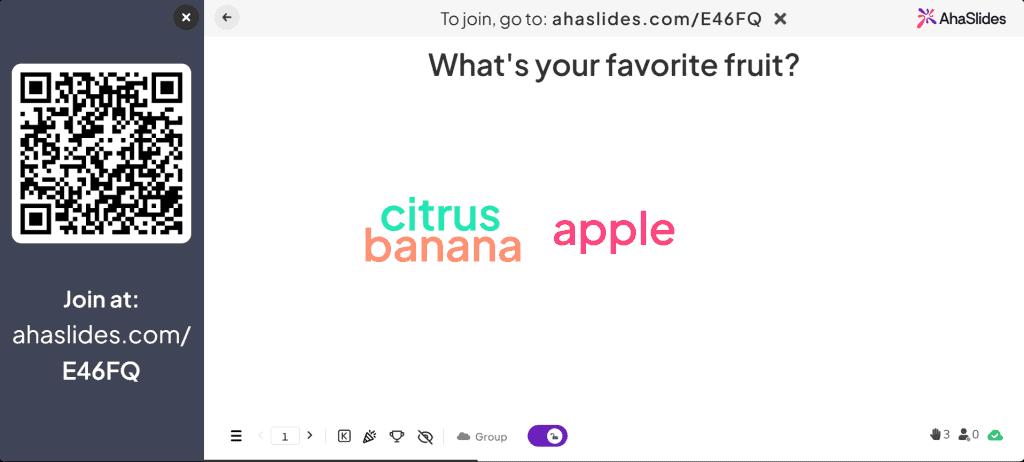
चरण 5: दर्शकों को प्रेजेंटेशन कोड दिखाएं
अपने दर्शकों को अपने कमरे का क्यूआर कोड या जॉइन कोड (जो / चिह्न के बगल में है) दिखाएं। दर्शक क्यूआर कोड को स्कैन करके अपने फोन से जुड़ सकते हैं।
चरण 6: प्रस्तुत करें!
बस प्रेजेंट पर क्लिक करें और लाइव हो जाएं! दर्शकों के जवाब प्रेजेंटेशन पर लाइव प्रदर्शित होंगे।
शब्द बादल गतिविधियाँ
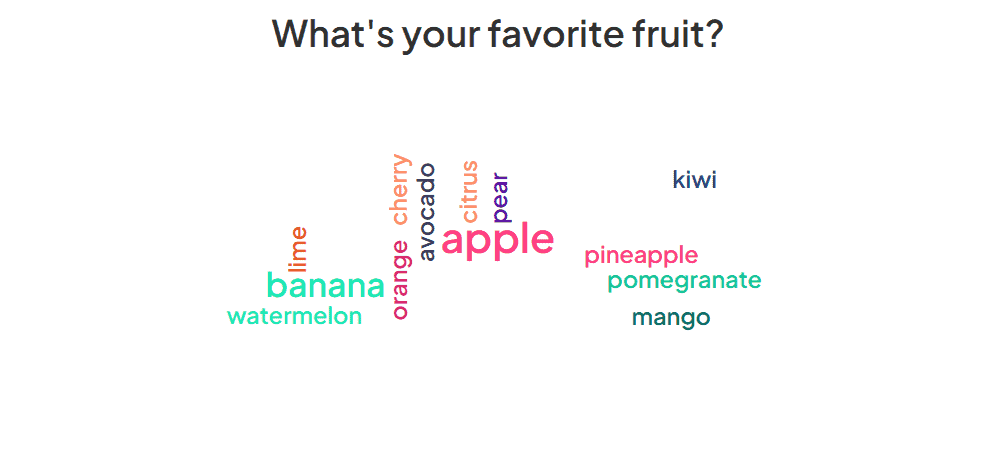
वर्ड क्लाउड सबसे लोकप्रिय तकनीकों में से एक है। बहुमुखी आपके शस्त्रागार में उपकरण। लाइव (या लाइव नहीं) दर्शकों से अलग-अलग प्रतिक्रियाओं का एक समूह प्राप्त करने के लिए उनका उपयोग विभिन्न क्षेत्रों के एक समूह में किया जा सकता है।
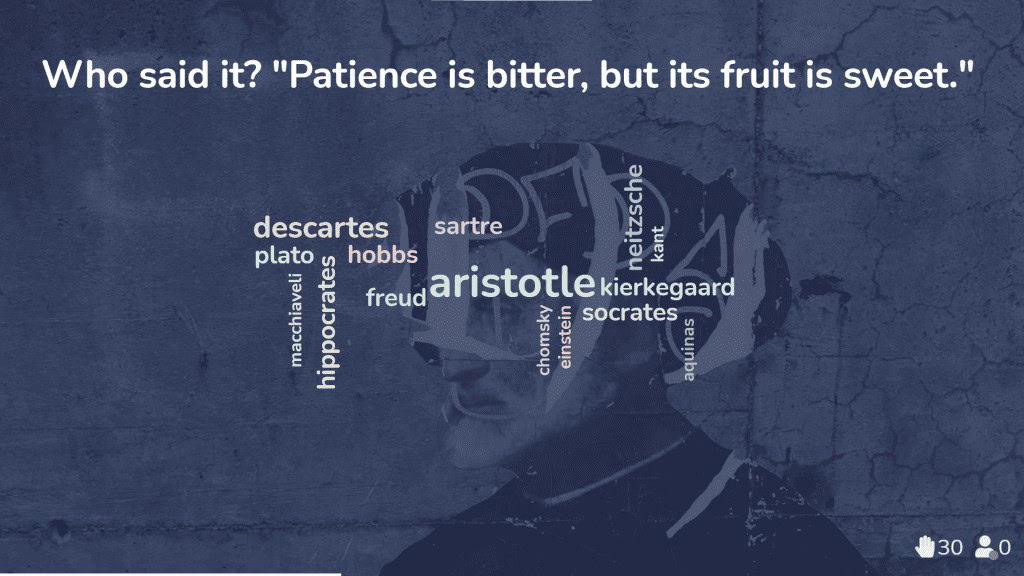
1. कल्पना कीजिए कि आप एक शिक्षक हैं जो कोशिश कर रहे हैं... छात्रों की समझ की जाँच करें आपने अभी जिस विषय को पढ़ाया है, उससे संबंधित प्रश्न पूछ सकते हैं। आप एक वर्ड क्लाउड प्रस्तुत कर सकते हैं जहाँ छात्र एक-एक शब्द में उत्तर दे सकते हैं।
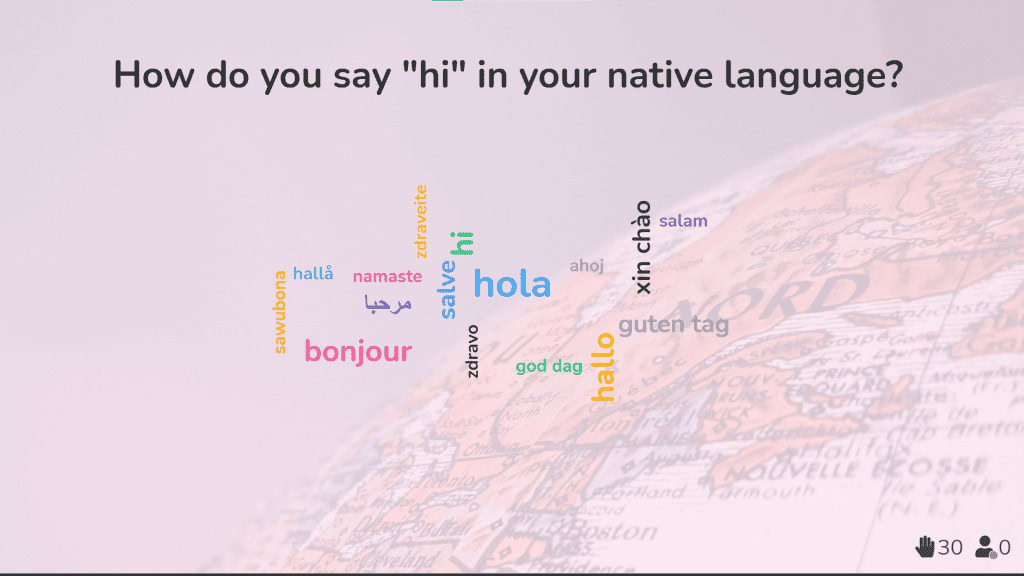
2. अंतरराष्ट्रीय टीमों के साथ काम करने वाले एक कॉर्पोरेट प्रशिक्षक के रूप में, लाइव वर्ड क्लाउड सांस्कृतिक और भाषा संबंधी बाधाओं को तोड़ने में मदद करते हैं और सभी को शुरुआत से ही जुड़ाव महसूस कराते हैं।
3. रिमोट या हाइब्रिड वर्क सेटअप में टीम लीडर के रूप में, लाइव वर्ड क्लाउड आपकी टीम के लिए एक-दूसरे के प्रति सराहना दिखाने और मनोबल को बढ़ाने का एक शानदार तरीका है।
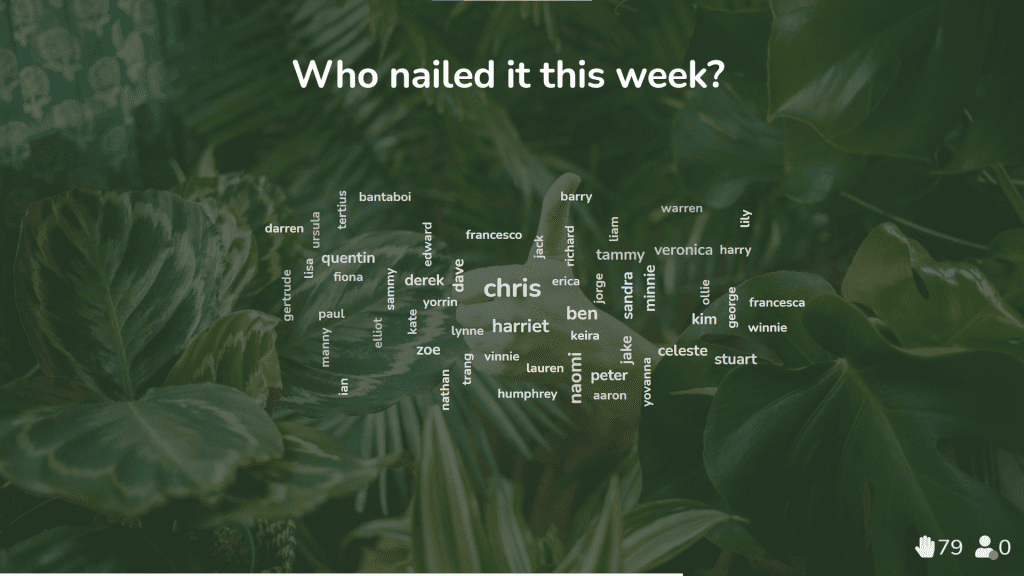
कुछ वर्ड क्लाउड टेम्पलेट्स प्राप्त करें
हमारी खोज करो वर्ड क्लाउड टेम्प्लेट और लोगों को बेहतर ढंग से शामिल करें।