
लगाने के लिए ए Kahoot in PowerPoint, install the Kahoot! for PowerPoint add-in from the Insert tab, add a blank slide, sign in and paste your kahoot’s share link. It needs a paid Kahoot plan. If you want a quiz in your deck for free, the AhaSlides add-in for PowerPoint is available on its free plan.
We checked every Kahoot and Microsoft detail below on their own pages on 19 November 2026. One disclosure first: AhaSlides is our product. We cover the Kahoot route in full, then show where our add-in is the better fit and where it isn’t.
शुरू करने से पहले आपको क्या चाहिए
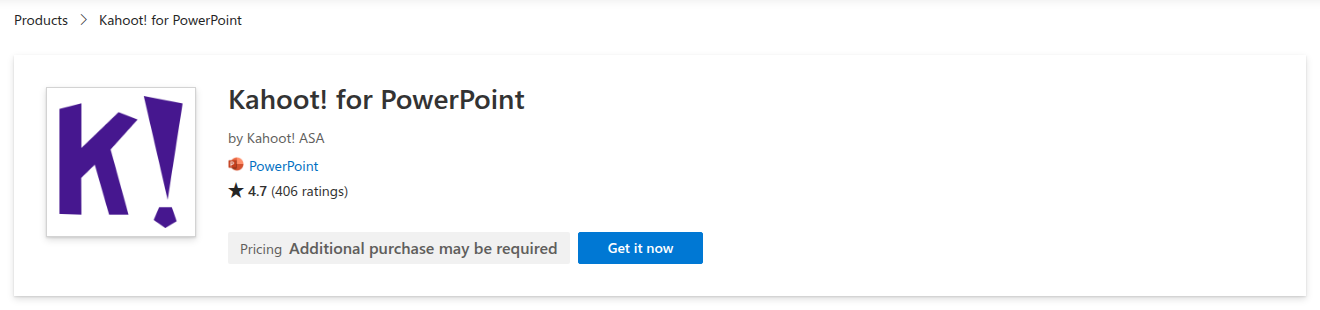
The add-in is called Kahoot! for PowerPoint. It is made by Kahoot! ASA and listed on माइक्रोसॉफ्ट मार्केटप्लेस, where it has 4.7 stars from 406 ratings.
- एक भुगतान Kahoot योजना है। The Marketplace listing says the add-in “requires a subscription to Kahoot! 360 Standard, Kahoot! 360 Presenter, Kahoot! 360 Pro, or selected plans for educators”. Kahootवर्तमान है business pricing page lists PowerPoint integration on all five Pro plans. The cheapest is Pro Start at $15 a month ($180 billed annually) for up to 50 participants.
- A current version of PowerPoint. Kahootहै मदद लेख asks you to sign in to an installed Office app with an active Office 365 subscription and use a current version of PowerPoint 2019.
- A kahoot that already exists. The add-in doesn’t build questions inside PowerPoint. You make the kahoot on Kahoot first, then link it to a slide.
If you teach, the listing only says “selected plans for educators”, so check your school plan with Kahoot before you count on it.
कैसे जोड़ें Kahoot to PowerPoint, step by step
Steps 2 to 7 follow Kahoot’s own help article.
- ऐड-इन इंस्टॉल करें। In PowerPoint, open the Insert tab and choose Get Add-ins. Search for Kahoot और इसे जोड़ें।
- Add a blank slide. Kahoot warns that slides from a template can break the size of the embedded kahoot, so start from a blank one.
- Open the add-in on that slide. Go to Insert, then My Add-ins, and choose Kahoot!. Sign in to your Kahoot account on the slide.
- अपनी कॉपी करें kahoot’s link. In a browser, open create.kahoot.it, find the kahoot and use its Share button. Copy the share link, or use the Microsoft PowerPoint button in the share options. For a private kahoot in your library, copy the kahoot’s URL instead.
- Paste the link and click “Add kahoot". The slide now holds your game.
- Present as usual. When you reach that slide in Slide Show, you host the kahoot from inside PowerPoint. Players join on their own devices.
- परिणामों की जाँच करें। After the session, the report sits under Reports in your Kahoot खाते.
इसका उपयोग कैसे करें: Kahoot with PowerPoint without the add-in
No paid plan? You still have two options, each with a catch.
होस्ट करें kahoot ब्राउज़र टैब में। Present your slides, then switch to the browser when it’s quiz time and host the kahoot there. It works on any Kahoot plan, but you leave your slideshow for the game and come back afterwards. On Kahoot’s free plan for work, Kahoot! 360 Express, sessions last up to 15 minutes for up to 15 participants, according to its मूल्य निर्धारण पृष्ठ.
Bring your slides into a kahoot. Kahoot कर सकते हैं sync a PowerPoint deck from OneDrive एक में kahoot, so you present everything from Kahoot instead. It runs on the web only, each slide counts as a question towards the 200-question limit, and audio, video and animations don’t come across.
जहां Kahoot मार्ग रुकता है
The add-in does what it promises. The friction is around it:
- Free plans don’t get you the add-in. Kahoot lists PowerPoint integration on its paid Pro plans, so a free account means switching windows or rebuilding the deck in Kahoot.
- Two places to prepare. Questions live in Kahoot and slides live in PowerPoint, so every change means a trip to create.kahoot.Item।
- It’s built for quizzes first. That’s ideal for a game round. For a quick opinion poll or a word cloud between slides, you’re still building a kahoot.
If any of those slow you down, there is a PowerPoint add-in that runs on a free plan.
The free alternative: the AhaSlides पावरपॉइंट के लिए ऐड-इन
AhaSlides is an all-in-one engagement platform for teams and classrooms. Its add-in puts quizzes, polls, word clouds and Q&A on your slides, and your audience answers on their phones while you stay in Slide Show, on every plan including the free one (AhaSlides कीमत निर्धारण).

शुरू करने के दो आसान तरीके:
- अपना डेक अपलोड करें। अपनी पावरपॉइंट फ़ाइल अपलोड करें AhaSlides और एआई को बिना दोबारा शुरू किए, इसके माध्यम से क्विज़ प्रश्न और पोल जोड़ने दें।एआई पॉवरपॉइंट मेकर).
- या फिर पावरपॉइंट में ही प्रेजेंटेशन देते रहें। मुफ़्त जोड़ें AhaSlides जोड़ने में and put a quiz slide where you want a game round. It takes three steps, below.
You keep the deck you’ve already built and add the interactive slides where you want them. It works in Microsoft 365 and PowerPoint 2024, 2021 and 2019, on Windows, Mac and PowerPoint for the web, according to the AhaSlides सहायता केंद्रPowerPoint 2016 और उससे पहले के संस्करण समर्थित नहीं हैं।
इसे कैसे स्थापित किया जाए
- इसे इंस्टॉल करें और साइन इन करें। पॉवरपॉइंट में, होम पर जाएं, फिर ऐड-इन्स पर जाएं, फिर मोर ऐड-इन्स पर जाएं। वेब पॉवरपॉइंट में, इन्सर्ट पर जाएं, फिर ऐड-इन्स पर जाएं, फिर मोर ऐड-इन्स पर जाएं। खोजें AhaSlidesऐड पर क्लिक करें, फिर अपने अकाउंट से लॉग इन करें। AhaSlides खाता बनाएं, या एक निःशुल्क खाता बनाएं।
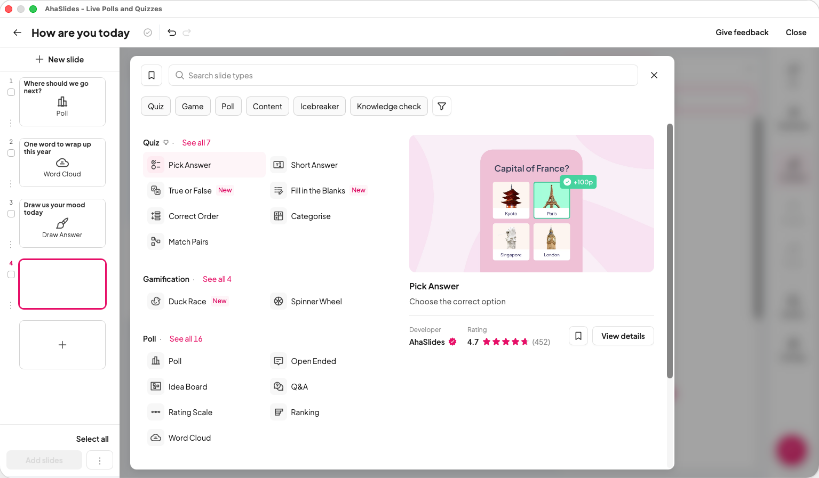
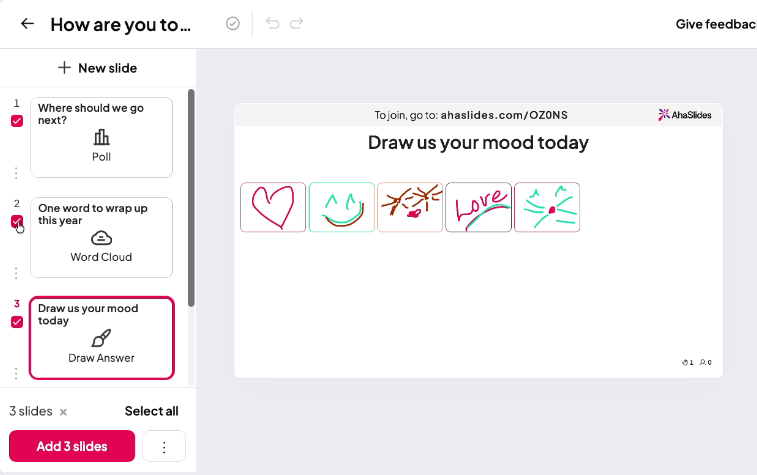
- Build your quiz and add it. In AhaSlides, use a Pick Answer slide for multiple choice and turn on the leaderboard for a game feel, or start from a template. Then, in the add-in, select your presentation, tick the slides you want and click Add slides. On PowerPoint for the web, slides go in one at a time.
- वर्तमान। Start the slideshow as usual. Each AhaSlides slide shows a QR code and link, people join on their phones, and the results appear on your slide as they answer.
Start with a ready quiz
No time to write questions? This 40-question General Knowledge Quiz template is free to copy, edit and add to your deck. Some templates go past the free plan’s limits, so you may need to trim the questions or use a paid plan to present all 40.
Kahoot add-in and AhaSlides add-in side by side
| Kahoot! for PowerPoint | AhaSlides जोड़ने में | |
|---|---|---|
| On a free plan | No, it needs a paid Kahoot योजना | हाँ 50 जीवित प्रतिभागियों तक |
| सबसे कम भुगतान वाली योजना | Pro Start, $15 a month $180 billed annually, up to 50 participants | Essential, from $7.95 a month वार्षिक बिल भेजा गया |
| Where you build questions | In Kahoot, then link the kahoot to a slide | In AhaSlides, then add the slides to your deck |
| क्रियाएँ | Quizzes, true or false, type answer, puzzles, polls, word clouds, open-ended and brainstorm | Quizzes, polls, word clouds, Q&A, rating scales and more |
| PowerPoint needed | Office 365 subscription and a current version of PowerPoint 2019 | Microsoft 365 or PowerPoint 2024, 2021 or 2019, on Windows, Mac or the web |
| Microsoft Marketplace rating | 4.7 from 406 ratings | 4.8 from 463 ratings |
सूत्रों का कहना है: Kahoot कीमतें Kahootमूल्य निर्धारण पृष्ठ, AhaSlides कीमतें AhaSlides कीमत निर्धारण, ratings from Microsoft Marketplace, all checked 19 November 2026.
Both add-ins have their place. If your team already pays for Kahoot and lives on its game library, its add-in is the natural choice. If you want quizzes, polls and Q&A in PowerPoint without a paid plan, start with AhaSlides.
5 ways to use a quiz inside your PowerPoint
- Open a class with a recap. Three quick questions on last lesson’s topic show you what stuck before you build on it.
- Break up a long training deck. Drop a two-question check after each section, so you see what landed before you move on.
- Run a team meeting warm-up. A five-question round on company news or this month’s wins gets everyone talking before the agenda.
- Test a new policy. After a compliance or safety section, ask the questions that matter and see which answers trip people up.
- Finish with a leaderboard. End a workshop or event on a final quiz so people leave on a high, and you can see who took in the most.
Want more question ideas? Our guide to an पॉवरपॉइंट में इंटरैक्टिव क्विज़ walks through building one from scratch.
सामान्य प्रश्न
Is there a Microsoft version of Kahoot?
No, Microsoft doesn’t make Kahoot। Kahoot! for PowerPoint add-in is made by Kahoot! ASA and listed on Microsoft Marketplace. Other add-ins, including AhaSlides, also run live quizzes inside PowerPoint.
Can I do a quiz in PowerPoint?
Yes, with an add-in. PowerPoint on its own can show questions and reveal answers with animations, but it can’t collect answers from people’s phones or show live results. An add-in such as AhaSlides or Kahoot! for PowerPoint adds that.
मैं एक कैसे बना सकता हूँ Kahoot presentation?
बनाएं kahoot on Kahoot, then link it to a blank PowerPoint slide with the Kahoot add-in, as in the steps above. You can also sync a PowerPoint deck from OneDrive into a kahoot and present it from Kahoot.
Can I host a Kahoot मुफ्त का?
हां, कुछ सीमाओं के साथ। Kahoot’s free plan for work, Kahoot! 360 Express, hosts 15-minute sessions for up to 15 participants. The PowerPoint add-in needs a paid plan. If you’re comparing quiz tools, see our list of Kahoot विकल्प.
इस डेक को इंटरैक्टिव बनाएं
हमारे इंटरेक्टिव पॉवरपॉइंट बनाने के लिए गाइड यह दिखाता है कि किसी भी प्रस्तुति में लोगों को उत्तर देने, वोट करने और प्रश्न पूछने के लिए कैसे प्रेरित किया जाए। या फिर किसी एक से शुरुआत करें। हमारे टेम्प्लेट लाइब्रेरी में निःशुल्क स्टार्टर डेक उपलब्ध है। और इसे अपनी अगली प्रस्तुति में शामिल करें।
संबंधित पढ़ने
- Best audience response systems for PowerPoint, compared
- पॉवरपॉइंट पर इंटरैक्टिव क्विज़ कैसे बनाएं
- AhaSlides ऑनलाइन प्रश्नोत्तरी निर्माता
Run your next quiz inside PowerPoint
Add live quizzes, polls and Q&A to the deck you already have, and see every answer on your slide. The AhaSlides add-in is free for up to 50 live participants.