
PowerPoint Presenter View shows your speaker notes, the next slide and a timer on your own screen while the audience sees only the current slide. To use it, connect a second display, tick Gunakan Tampilan Presenter on the Slide Show tab, then press F5 di Windows atau ⌘+Shift+Return pada Mac.
Every menu name and shortcut below comes from Microsoft’s Presenter View help, which we checked on 19 November 2026. One disclosure: AhaSlides is our product, and the tips at the end show how to add a live poll with our PowerPoint add-in. Everything before that works in PowerPoint alone.
What Presenter View shows you
On your screen, Presenter View gives you:
- The current slide, large, with the slide selanjut nya Selain itu.
- Your speaker notes, with buttons to make the text bigger or smaller.
- Sebuah pengatur waktu you can pause and reset, and the current time.
- Pen and laser pointer tools, to draw on the slide or point at it.
- See All Slides, to jump straight to any slide.
- zoom, to enlarge part of a slide for the room.
- Layar hitam, to blank the display while you talk.
The audience sees none of this. They see the slide, full screen. If your notes are thin, our guide on cara menambahkan catatan ke PowerPoint covers writing and formatting them.
How to use Presenter View in PowerPoint
Di Windows
- Connect your laptop to the projector or second screen. Press Windows+P Dan pilihlah Memperpanjang, not Duplicate, so the two screens show different things.
- Di PowerPoint, buka Slide Show tab and tick Gunakan Tampilan Presenter.
- Dalam majalah Memantau list next to it, choose the screen the audience will see.
- Pilih Dari awal, atau tekan F5. To start from the slide you’re on, press Shift + F5.
You can also press Alt + F5 to start straight in Presenter View.
Di Mac
- Connect the second screen. In Pengaturan sistem > menampilkan, make sure the screens are not mirrored.
- Di PowerPoint, buka Slide Show Tab dan pilih Tampilan Presenter.
- To start from the first slide, press ⌘+Shift+Return. From the current slide, press ⌘+Return. Opsi+Kembali starts Presenter View directly.
With only one monitor
You can rehearse in Presenter View on a single screen. On Windows, press Alt + F5. During a normal slide show you can also use the control bar in the bottom-left corner and choose Show Presenter View.
This is useful for practice, and for presenting over a video call when you share one window and keep Presenter View on your own screen.
Swap which screen shows what
If your notes appear on the projector, swap the screens. On Windows, select Tampilan Pengaturan at the top of Presenter View, then Tukar Tampilan Penyaji dan Peragaan Slide. On a Mac, select Swap Displays at the top of the view.
Turn Presenter View off
On Windows, clear Gunakan Tampilan Presenter on the Slide Show tab. On a Mac, choose Use Slide Show instead of Presenter View. The audience screen and yours will then show the same slide show.
Presenter View shortcuts
| Untuk melakukan ini | Windows | Mac |
|---|---|---|
| Start in Presenter View | Alt + F5 | Opsi+Kembali |
| Start from the first slide | F5 | ⌘+Shift+Return |
| Start from the current slide | Shift + F5 | ⌘+Return |
| Black screen, and back | B or full stop | B or full stop |
| White screen, and back | W or comma | W or comma |
| Go to slide number | Number, then Enter | Number, then Return |
| Pena | Ctrl + P | ⌘+P |
| Laser penunjuk | Ctrl + L | ⌘ + L |
| End the slide show | Esc | Esc |
Media Esc at any point to end the slide show and go back to editing.
When Presenter View doesn’t show
Most problems come from the display settings, not PowerPoint.
- Both screens show the same thing. Your computer is mirroring. On Windows, press Windows+P and pick Extend. On a Mac, turn off mirroring in Displays.
- Your notes are on the projector. Use Swap Presenter View and Slide Show (Windows) or Swap Displays (Mac).
- It’s not offered at all. Check that Use Presenter View is ticked, and that you’re in the desktop app. Microsoft says you need PowerPoint for Windows or Mac to use Presenter View; in PowerPoint for the web, you present from Slide Show > Dari awal sebagai gantinya.
Where Presenter View stops for a live audience
Presenter View is built for you, not for the room. It tells you what’s next, how long you’ve been talking and what you meant to say. It can’t tell you whether anyone is following.
That matters most in the middle of a talk. You can see the clock, but not the attention. The audience can see your slides, but can’t answer them. The tools in your session shouldn’t get between you and the people in front of you, so the fix should live inside the deck you’re already presenting, not in another app you have to switch to.
Make the slides talk back: the AhaSlides add-in
AhaSlides is an all-in-one engagement platform for teams and classrooms. It adds live polls, quizzes, rating scales and Q&A as slides inside the deck you present with Presenter View, and your audience's answers appear on your slide.
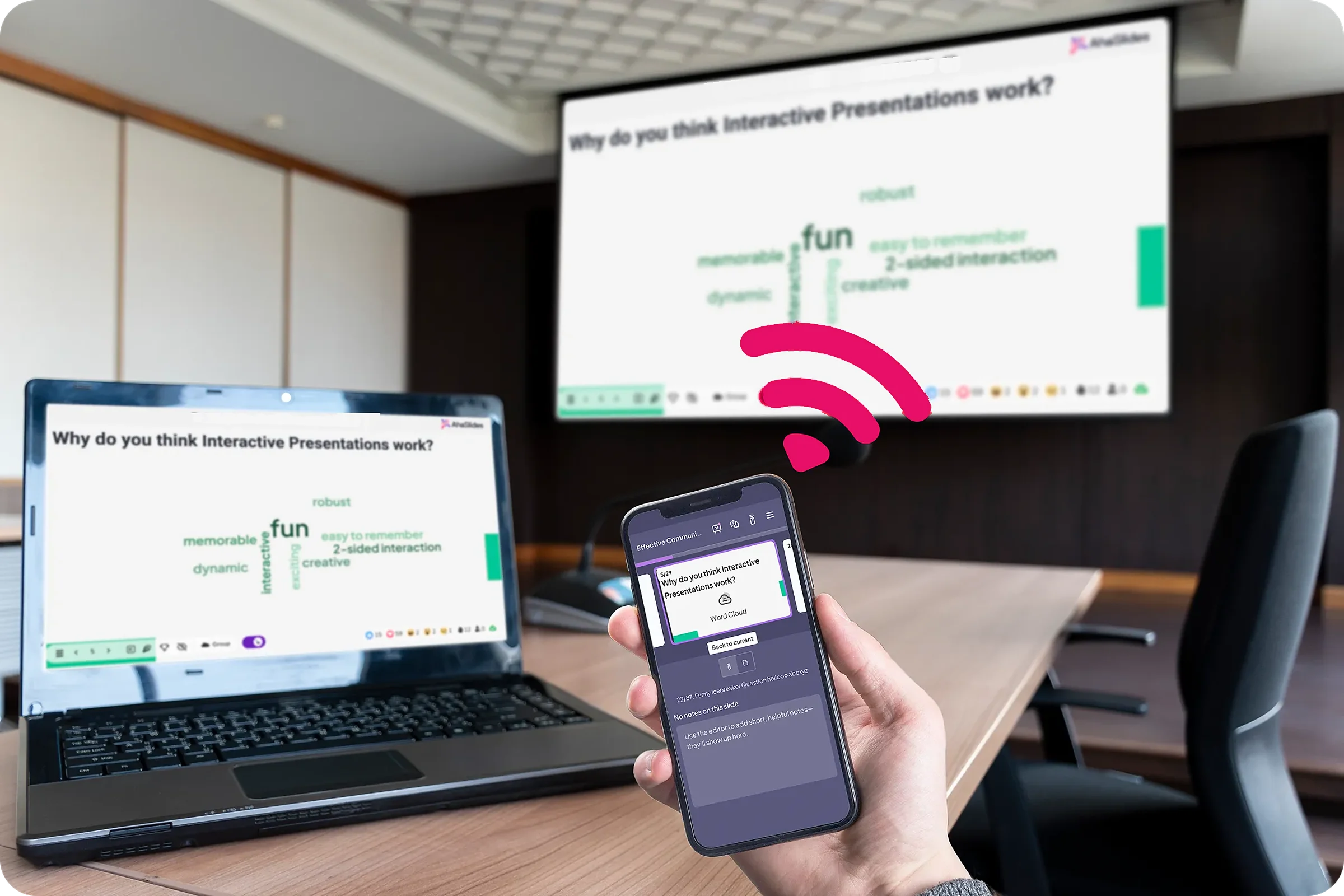
Dua cara cepat untuk memulai:
- Unggah deck Anda. Unggah file PowerPoint Anda ke AhaSlides dan biarkan AI menambahkan jajak pendapat dan pertanyaan kuis di dalamnya, sehingga menjadi sesi interaktif tanpa perlu memulai dari awal lagi.Pembuat PowerPoint berbasis AI).
- Atau tetaplah melakukan presentasi menggunakan PowerPoint. Tambahkan yang gratis AhaSlides add-in dan sisipkan slide langsung di antara slide Anda sendiri. Prosesnya terdiri dari tiga langkah, seperti di bawah ini.

The add-in is listed on Microsoft Marketplace as AhaSlides - Live Polls & Quizzes. It’s available on every AhaSlides plan, including the free one, and works in installed Microsoft 365, PowerPoint 2024, 2021 and 2019 (AhaSlides pusat bantuan(diperiksa pada 19 November 2026).
- Install it and log in. On the Home tab, select Tambahan > Add-in Lainnya, pencarian untuk AhaSlides dan klik Add. On an older Mac build, use Menyisipkan > Dapatkan Add-in. Then log in.
- Add your slides. Pilih AhaSlides presentation that holds your interactive slides, tick the ones you want and click Tambahkan slide. Each one goes on its own PowerPoint slide.
- Menyajikan. Pada AhaSlides slide, press Q to show or hide the QR code and join link. People join once for the whole deck.

A rating scale like this works well at the end of a talk: it takes a minute, and you leave with feedback on each part of the session instead of a guess. The template below has it, plus polls and open questions.
6 tips for presenting with Presenter View
- Write notes as prompts, not a script. Three or four short cues per slide are easier to glance at than paragraphs. Increase the notes text size before you start.
- Start the timer when you start talking. Pause it if you’re interrupted, so it shows your real speaking time.
- Use Black screen to pull eyes back to you. Media B for a black screen and press it again to return. W gives a white screen.
- Jump, don’t click through. Type a slide number and press Enter to go to it, or use See All Slides. It’s quicker than paging back through ten slides to answer a question.
- Plan one moment where people answer. Letakkan a jajak pendapat langsung or quick quiz where attention usually dips, around the middle. Our guide to membuat PowerPoint interaktif shows the options, and a live Q&A in PowerPoint collects questions as you go.
- Rehearse with it on. Use Alt+F5 on one screen to practise exactly what you’ll see on the day. If you’re new to building decks, start with our step-by-step guide on how to create a PowerPoint presentation.
FAQ (Pertanyaan Umum)
How do I present a PowerPoint without showing the notes to the audience?
Use Presenter View with two screens set to extend, not mirror. Your notes appear only on your screen. If they show on the projector, use Swap Presenter View and Slide Show (Windows) or Swap Displays (Mac).
How do I get PowerPoint back to normal view?
Media Esc to end the slide show. If you’re in a different view while editing, select Normal on the View tab.
What are the different types of views in PowerPoint?
Normal, Outline View, Slide Sorter, Notes Page and Reading View on the View tab, plus Slide Show and Presenter View for presenting. Presenter View is the one built to show your notes privately while you present.
How can I see my speaker notes while presenting with one monitor?
Media Alt + F5 on Windows to open Presenter View on one screen, or choose Show Presenter View from the slide show control bar. On a video call, share only the slide show window so your notes stay private.
Jadikan dek ini interaktif.
Mitra Panduan membuat PowerPoint interaktif Menunjukkan cara agar orang menjawab, memberikan suara, dan mengajukan pertanyaan di dek apa pun. Atau mulai dari sebuah dek pemula gratis di perpustakaan templat kami dan tambahkan ke presentasi Anda berikutnya.
Want to hear back from your audience in your next talk?
Add live polls, rating scales and Q&A to the deck you present with Presenter View, and see every answer on your slide. The AhaSlides add-in for PowerPoint is free to start.