
PowerPoint can show a Q&A slide, but it can't collect questions on its own. For a live PowerPoint Q&A, add a Q&A slide with the free AhaSlides add-in: people scan a QR code, type questions on their phones (anonymously if you allow it) and upvote the ones they want answered, all inside your deck.
That's the short version. Below you'll find the PowerPoint-only way first, where it stops working with a live audience, and then the live way, step by step.
Why a Q&A slide often gets silence
You finish the talk, put up "Any questions?" and wait. Two people ask something, usually the most confident ones, and everyone else packs up. The questions were there. People just didn't want to raise a hand in front of colleagues, or they thought of their question 10 minutes ago and let it go.
The best question in a session often comes from the person who hates to raise their hand. A Q&A that lets people type, ask anonymously and vote gives that question somewhere to go.
The PowerPoint-only way: make a Q&A slide
If you only need a slide that invites questions, PowerPoint does this well.
- Lägg till bilden. På Hem fliken, klicka ny bild och plocka Endast titel or Section Header layout.
- Write a real prompt. Instead of "Any questions?", try something people can answer, such as "What would you like me to explain again?" or "What's one thing you'd change about this plan?".
- Ge det utrymme. Keep the slide clean: the prompt, your name and a way to reach you after the session.
- Collect written questions (optional). With a Microsoft 365 work or school account, you can add a Microsoft Forms form to a slide: in the desktop app, open Insertoch sedan Blanketter, and create or pick a form. In PowerPoint for the web, the Forms add-in is under Hemoch sedan Tillägg. People open the form link to send a question. You can also share a Forms link in the Teams chat.
On a Mac, the steps are the same: Hem flik, ny bild, then choose a layout. The Forms option depends on your Microsoft 365 account and PowerPoint version, so check the Insert tab first.
Där det stannar för en livepublik
A PowerPoint slide can ask for questions, but it can't do the next part:
- No questions from phones on screen. People can't send a question that appears on your slide as they type it.
- Ingen omröstning. You can't see which questions most people want answered, so you guess.
- No easy anonymity. Hands, microphones and chat messages all come with a name attached.
- No moderation. A Forms list or chat thread shows everything, off-topic messages included, and lives outside your deck.
That's the gap the AhaSlides add-in fills.
The live way: a Q&A slide with the AhaSlides tillägg
AhaSlides is an all-in-one engagement platform for teams and classrooms. For a Q&A, that means a question box on everyone's phone: people ask without a name, vote for the best questions and the list builds on your slide.
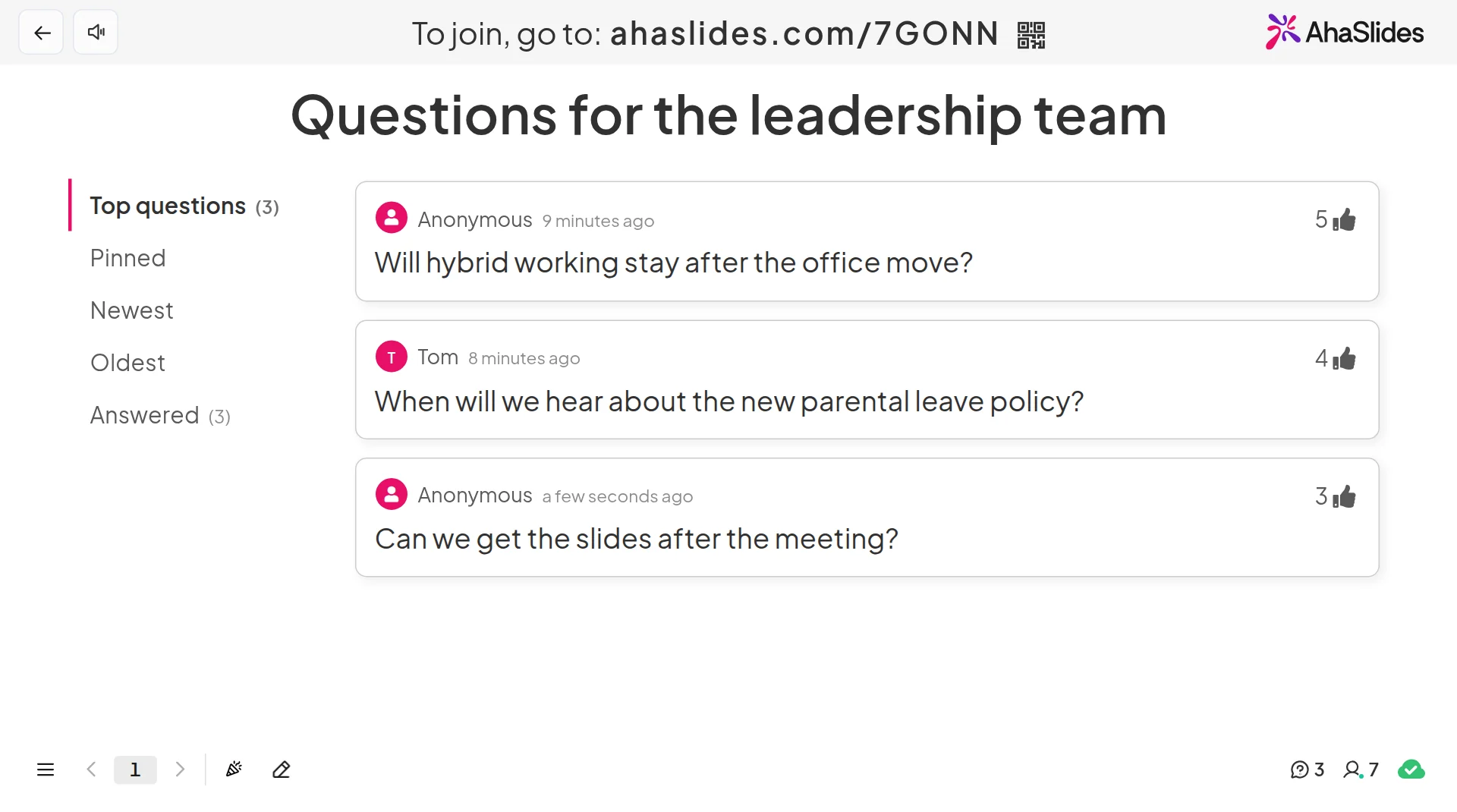
Två snabba sätt att komma igång:
- Ladda upp din kortlek. Ladda upp din PowerPoint-fil till AhaSlides och låt AI lägga till omröstningar och frågesportfrågor genom det, så att det blir en interaktiv session utan att börja om (AI PowerPoint-skapare).
- Eller fortsätt presentera i PowerPoint. Lägg till det gratis AhaSlides tillägg and put a Q&A slide where you want questions. It takes three steps, below.
Step 1: Make the Q&A slide and choose its settings
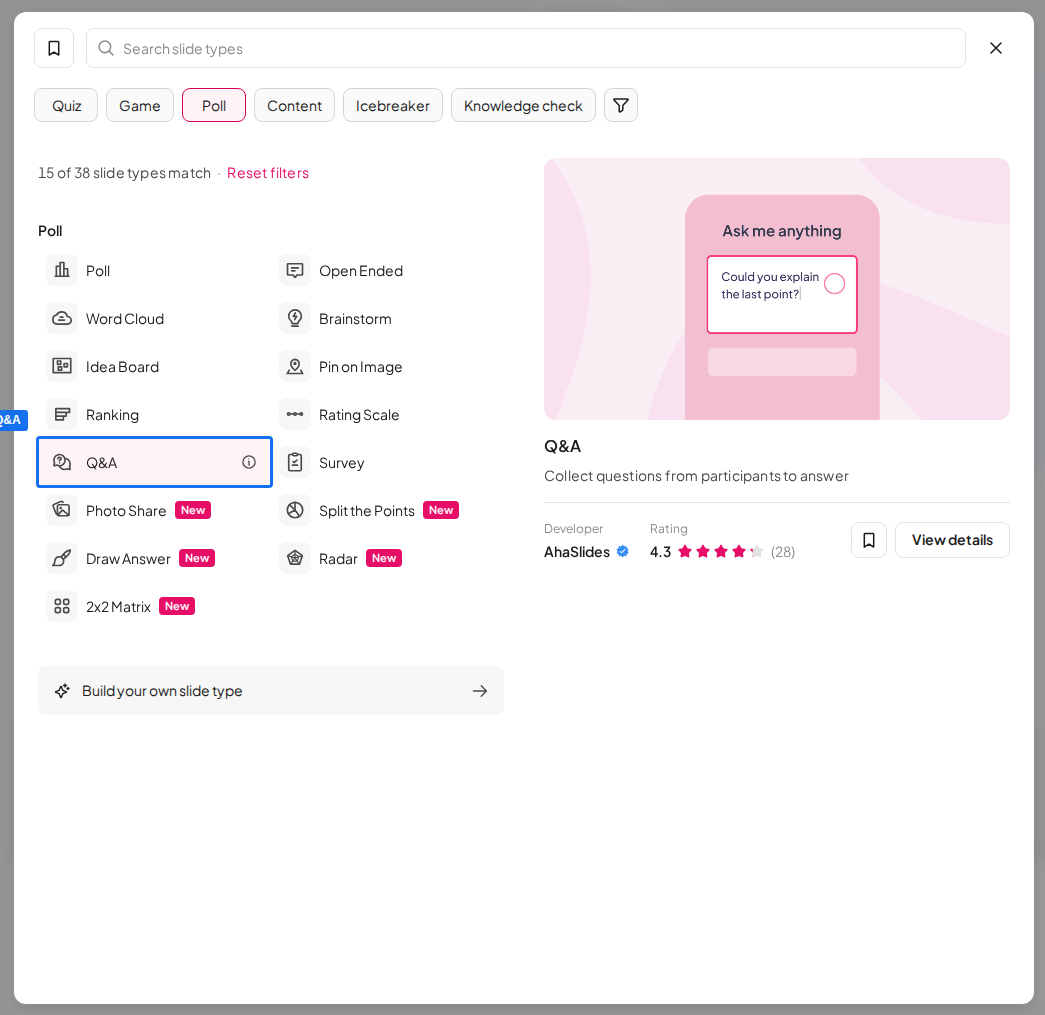
Logga in AhaSlides, open a presentation, click Ny bild och plocka Frågor och svar. Type a heading that invites questions, for example "What would you like to ask the leadership team?".
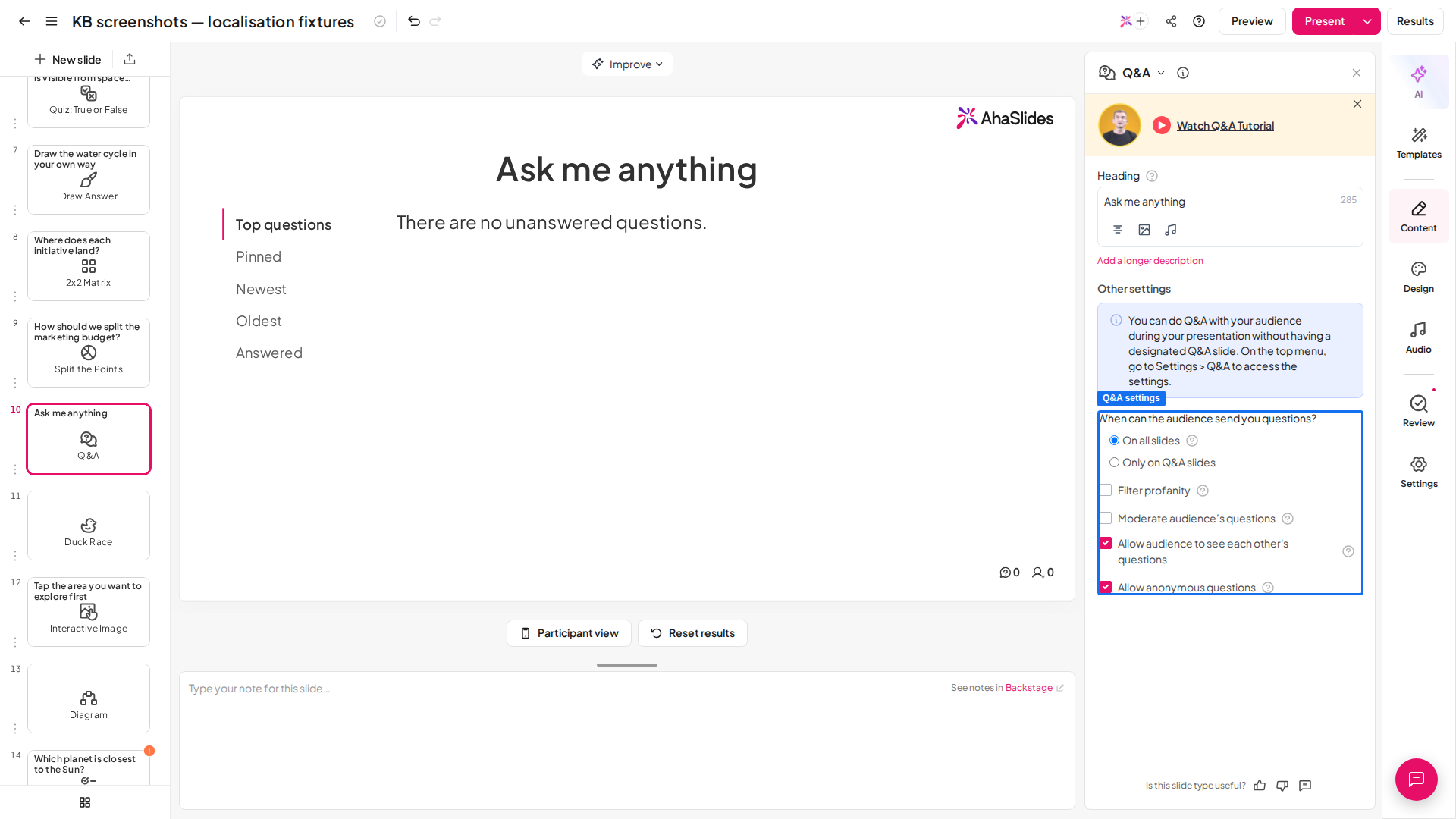
Then choose how it works. In the slide's Innehåll panel, under the Q&A settings, choose how the Q&A should work:
- Allow anonymous questions. The name field becomes optional, so people can ask without saying who they are.
- Allow audience to see each other's questions. Everyone sees the list on their phone and can upvote.
- Moderate audience's questions. Each question waits as Pending until you approve it. Moderation isn't on every plan.
- Filter profanity. Blocks questions with offensive language before they show.
To take questions throughout the talk, not only on the Q&A slide, open Inställningar, hitta When can the audience send you questions? och plocka On all slides. This option isn't on every plan either.
Step 2: Add the slide to PowerPoint
I PowerPoint, på Hem fliken, klicka Tilläggoch sedan Fler tillägg. Söka efter AhaSlides och klicka Lägg tillI PowerPoint för webben finns samma knapp på Insert tab. On older Mac builds, look for Insertoch sedan Skaffa tillägg.
Logga in, klicka Välj presentation next to your deck, tick the Q&A slide and click Lägg till bilder. On the web you add one slide at a time with Lägg till bild. Stretch the add-in window to fill the PowerPoint slide.
Step 3: Present and answer
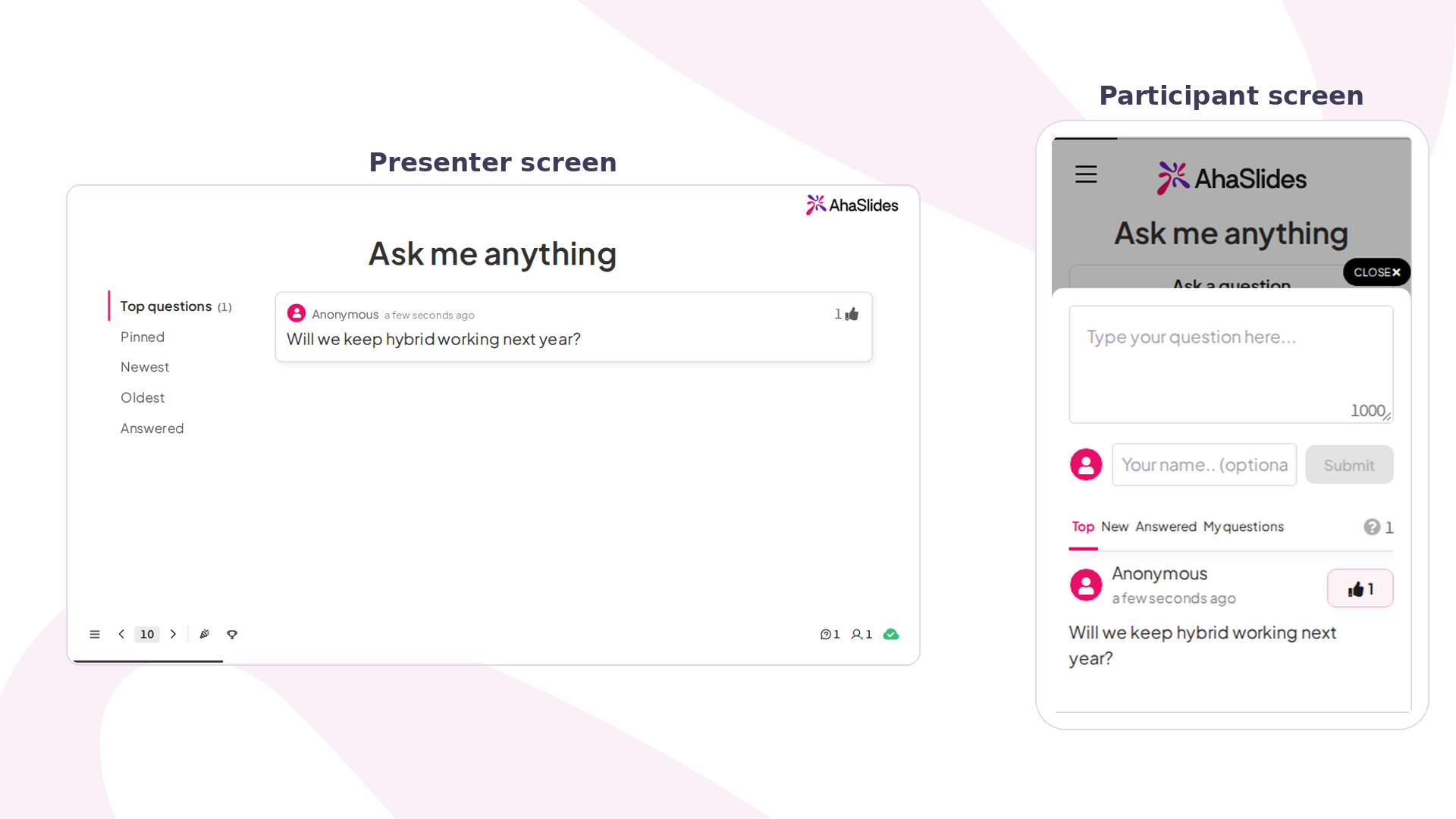
Start your slideshow. When you reach the Q&A slide, press Q to show the join QR code and link. People scan it, tap Ställ en fråga and type. Each question can be up to 1,000 characters long.
Questions sort by ★★★★ by default, so the most upvoted ones sit first. Click a question and choose Svar to move it to the Answered list, or nål one to keep it at the top. If a colleague is moderating, they can approve questions from their own device through the Fjärrstyrning link in Backstage.
Börja från en mall
The Town Hall Live template includes a Q&A slide for questions to the leadership team. Copy it, change the questions and add the slides to your deck with the add-in.
6 ideas for a live Q&A in PowerPoint
- All-hands and town halls. Turn on anonymous questions and moderation, and let a colleague approve questions while the leader answers the top-voted ones.
- Träningspass. Put the Q&A on all slides so learners ask the moment something isn't clear, then clear the queue at each break.
- Lectures and classes. Students who'd never put a hand up will type a question. Keep it anonymous, then answer the top three before you move on.
- Webinarier. Upvotes show you which questions most people care about, so a 10-minute Q&A covers what matters.
- Project kick-offs. Ask "What worries you about this plan?" and leave the slide up while the team adds and votes.
- Before the talk. Open the Q&A slide while people arrive and ask what they hope to learn. Use the top questions to steer your talk.
For more ways to involve people, read our guide to audience response systems for PowerPoint, eller jämföra bästa fråge- och svar-apparna för presentationer.
FAQ
How do you create a Q&A in PowerPoint?
Add a slide with a clear prompt (Home, New Slide), then add a live Q&A slide with an add-in. PowerPoint on its own can show a "questions" slide but can't collect questions; the AhaSlides add-in lets people send and upvote questions from their phones while you present.
Can you give an example of a Q&A slide in PowerPoint?
Yes: a heading with a specific prompt, which works better than "Any questions?". For example: "What would you like me to explain again?", "What's one risk we haven't covered?" or "What would you like to ask the leadership team?". Add how people can reach you after the session.
Hur fungerar Mentimeter work with PowerPoint?
Through its own add-in. Mentimeter's PowerPoint add-in lets you sign in and show a Mentimeter presentation inside your deck (Mentimeter help centre, checked November 2026). AhaSlides works the same way with its own add-in, and its Q&A slide includes anonymous questions and upvotes.
Gör den här kortleken interaktiv
Omröstningar, frågesporter och frågor förvandlar ett föredrag till något som folk deltar i. Vår guide om hur man skapar en interaktiv PowerPoint guidar dig igenom det, och startpaketet ger dig bilderna som är redo att läggas till.
Want more ways to bring people in? See how to add a QR code to PowerPoint so people join from their phones, try the Slido tillägg för PowerPoint, eller ta reda på mer om anonymous Q&A on AhaSlides.
Take questions from everyone, not only the confident few
Add a live Q&A to your next PowerPoint deck. People ask from their phones, anonymously if you like, and vote on what you answer first.