
To embed a YouTube video in PowerPoint, copy the video’s link from YouTube, go to Insert > Video > Online Video (Online Movie on a Mac), paste the link and select Insert. The video plays from YouTube inside your slide during Slide Show, so you need an internet connection when you present.
That is the whole trick. The rest of this guide covers the exact clicks on Windows, Mac and the web, the limits Microsoft lists, and the step most presenters skip: finding out whether anyone took the video in.
How to embed a YouTube video in PowerPoint on Windows
These steps follow Microsoft’s own guide, Insert a video from YouTube or another site (checked 19 November 2026), for Microsoft 365 and recent versions of PowerPoint.
- Kopyahin ang link. Open the video on YouTube in your browser and copy the page address from the address bar.
- Pick the slide. In PowerPoint, select the slide where the video should go.
- Open Online Video. On the Insert tab, select Video > Online Video.
- Paste and insert. Paste the link into the box and select Insert. PowerPoint adds a video frame you can move and resize like any picture.
Press F5 or select Slide Show to test it as your audience will see it. On the desktop app you can also select the Play button on the video in Normal view.
How to embed a YouTube video in PowerPoint on a Mac
On a Mac the menu name is different, and the version matters.
- Copy the YouTube link from your browser.
- In PowerPoint, select the slide.
- On the Insert tab, in the Media group, select Video > Online Movie.
- Paste the link and select Insert.
Microsoft lists online video for Microsoft 365 for Mac and PowerPoint 2024 and 2021 for Mac. Its guide says earlier Mac versions do not support inserting an online video, so an older copy of PowerPoint will not show the Online Movie option.
How to embed a YouTube video in PowerPoint for the web
PowerPoint in a browser works the same way: on the Insert tab, in the Media group, select Online Video, paste the link and insert it. As on the desktop, the video plays when you present in Slide Show.
Five things to know before you present
Microsoft’s guide lists a few limits that catch people out on the day.
- You need the internet. An online video streams from YouTube. Microsoft says you must be connected to the internet for it to play.
- Not every video can be embedded. The video owner can block embedding. If the insert fails, check the video’s sharing options on YouTube.
- No trimming. Playback tools such as Trim, Fade and Bookmarks work on video files from your computer, not on online videos.
- It plays on a click. YouTube and Vimeo videos play in the click sequence by default, so plan your clicks around the video.
- The provider’s terms apply. Using an online video is subject to the site’s terms of use and privacy policy.
If the venue’s Wi-Fi is a risk, insert a video file instead: on Windows select Insert > Video > This Device and pick a file you made or have the rights to use. Microsoft’s guide to inserting and playing a video file recommends .mp4 files encoded with H.264 video and AAC audio.
Kung saan ito humihinto para sa isang live na madla
A YouTube video in PowerPoint plays well. What it cannot do is tell you anything back.
When the video ends, you do not know who followed it, who drifted off at minute two, or which point nobody understood. You find out a week later, when the same question comes up again, or not at all. For a lesson, a training session or an all-hands update, that gap is the part that matters.
The fix is small: follow the video with one or two quick questions everyone answers on their phones. You see the results in seconds, and a question straight after the video gives people a reason to follow it closely.
The live way: add a quiz slide after the video with the AhaSlides add-in
AhaSlides is an all-in-one engagement platform for teams and classrooms. Put two or three quick questions straight after the video, and everyone answers on their phone, so you see who followed it as the answers arrive.
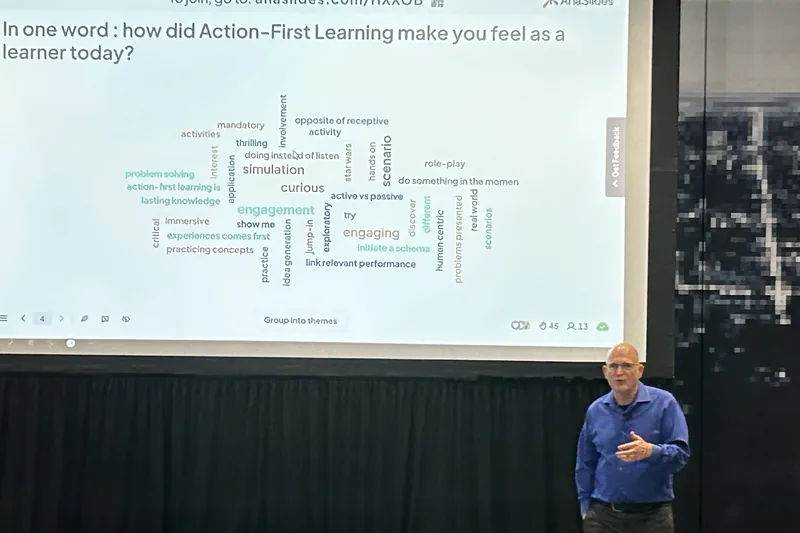
Dalawang mabilis na paraan para magsimula:
- I-upload ang iyong deck. I-upload ang iyong PowerPoint file sa AhaSlides and let AI add polls and quiz questions through it (Gumagawa ng AI PowerPoint), then add your video back as a YouTube slide in AhaSlides, next to the questions.
- O kaya naman ay magpatuloy sa pagpepresent sa PowerPoint. Idagdag ang libre AhaSlides add-in at maglagay ng mga live na slide sa pagitan ng sarili mo. Ito ay may tatlong hakbang, sa ibaba.
- I-install at mag-log in. In PowerPoint, go to Home > Add-ins > More Add-ins (Insert > Add-ins in PowerPoint for the web), search for AhaSlides, select Add, then log in or create a free account.
- Add your quiz after the video. Write two or three Pick Answer or True or False questions on the video in AhaSlides. In the add-in, select your presentation, tick the quiz slides and select Add slides, straight after the video slide.
- Naroon gaya ng dati. In Slide Show, press Q to show the join QR code. People scan it to join. Answers appear live on the slide, and pressing L shows the leaderboard. These steps follow the AhaSlides gabay sa pagdaragdag (sinuri noong ika-19 ng Nobyembre 2026).
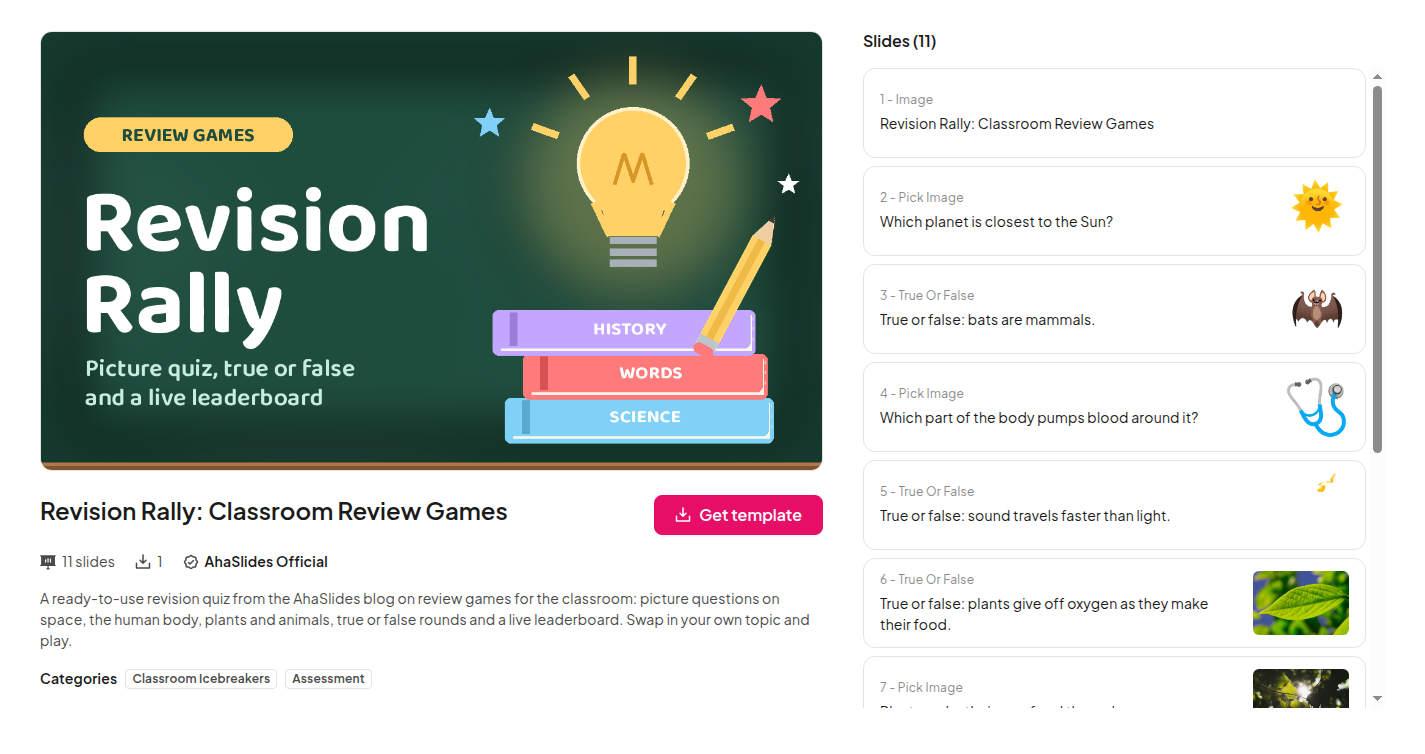
Want a head start? The Revision Rally template is a ready-made review quiz with true or false rounds and a live leaderboard. Swap in questions about your video and add it to your deck.
Prefer to present from AhaSlides mismo?
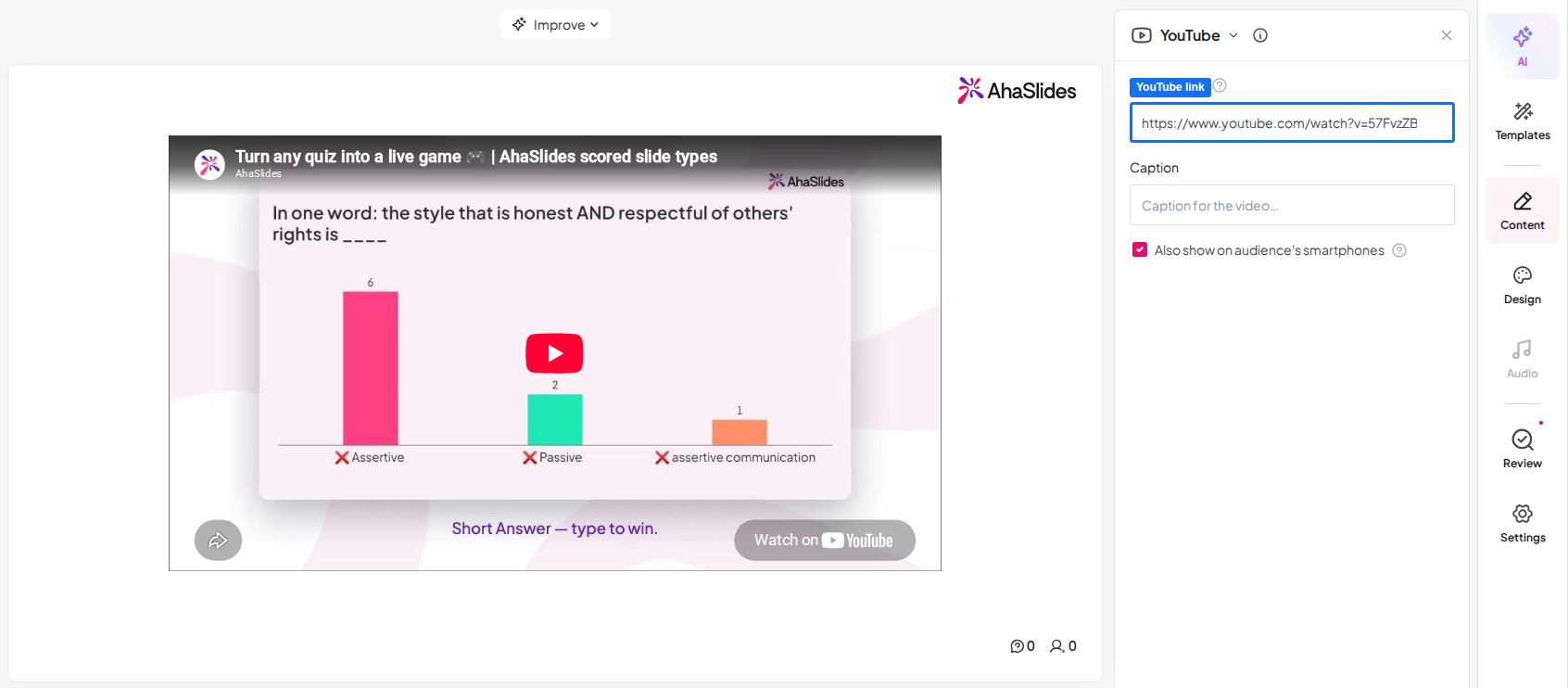
You can also build the whole session in AhaSlides. Its YouTube slide plays a video from a link, and the Also show on audience’s smartphones option puts it on people’s phones too. Put your quiz slides straight after it.
There is a free plan to try all of this. See AhaSlides pagpepresyo para sa kung ano ang kasama sa bawat plano.
5 quick questions to put after a video
Pick one or two. A short check after the video beats a long quiz at the end.
- The main point. A Pick Answer question on the one idea the video exists to teach. If half the people get it wrong, replay that part.
- Ang mito. A True or False question on a common misconception the video corrects.
- Isang salita. A Word Cloud: “Sum up the video in one word.” The biggest words show what people took away.
- Pagsusuri ng kumpiyansa. A Rating Scale: “How ready do you feel to try this?” Low scores tell you where to slow down.
- What’s still unclear. An Open Ended question: “What would you still like to ask?” Answer the top two before you move on.
FAQ
Can a YouTube video in PowerPoint play without internet?
No. An embedded YouTube video streams from YouTube, and Microsoft says you need an internet connection for it to play. To present offline, insert a video file from your computer instead (Insert > Video > This Device on Windows), using a file you made or have the rights to use.
How do I make an embedded video play automatically?
For a video file, select it, open the Playback tab and set Start to Automatically. For a YouTube video, Microsoft’s guide says it plays in the click sequence by default, so it starts on your next click.
Why can’t I embed a YouTube video in PowerPoint?
Usually for one of three reasons: the video’s owner has turned off embedding, your copy of PowerPoint for Mac is older than PowerPoint 2021, or you are offline. Check each in that order.
Can I see who watched the video?
Not in PowerPoint. To check, add a quiz slide after the video with the AhaSlides add-in. Everyone answers on their phone and you see the results on the slide straight away.
Gawing interactive ang deck na ito
Ipinapakita ng isang static deck ang mga slide mo pero wala itong nakukuhang pabalik: walang sagot, walang tanong, walang senyales kung sino ang sumunod.
Bago ka rito? Basahin ang buong gabay sa Paano gumawa ng interactive na PowerPoint.
Add a quick quiz slide after your next video and see what people took in.