
To create a PowerPoint presentation, open PowerPoint, choose New and pick Blank Presentation or a template. Add slides from Home > New Slide, type into the placeholders, insert pictures from the Insert tab, then save. Press F5 to present. The steps are the same on Windows and Mac; only a few shortcuts change.
This guide follows Microsoft’s own instructions, що ми перевірили 19 листопада 2026 року. Одне розкриття інформації: AhaSlides is our product. The last step shows how to add a live poll with our free PowerPoint add-in. Everything before it works in PowerPoint alone.
Before you open PowerPoint: plan in three lines
Most weak decks go wrong before the first slide. Write down three things first:
- Хто в кімнаті?, and what they already know.
- The one thing they should remember, in a single sentence.
- Three to five points that support it. Each point becomes a section of slides.
That outline is your structure. Our guide on як написати презентацію goes deeper if you want to draft the talk before you design it.
How to create a PowerPoint presentation in PowerPoint alone
These steps work in PowerPoint for Microsoft 365, PowerPoint 2024, 2021 and 2019, on Windows and Mac. Where the two differ, both are given.
1. Почніть нову презентацію
Open PowerPoint and select Нові, Вибирати Пуста презентація to start from scratch, or pick one of the templates for a ready-made design. If PowerPoint is already open, press Ctrl + N на Windows або ⌘+N на Mac.
A template saves time if you’re new to design. A blank deck gives you more control. Either is fine for a first presentation.
2. Виберіть тему
Відкрийте Дизайн tab and click a theme. Themes set the fonts, colours and backgrounds for every slide at once. The Варіантів next to them swap the colour palette without changing the layout.
Pick one theme and keep it. Mixing styles across slides is the fastest way to make a deck look unfinished.
3. Add slides and choose a layout
на Home вкладка, виберіть Новий слайд. Ярлик є Ctrl + M на Windows і ⌘+Shift+N on a Mac. To change how a slide is arranged, select макет on the Home tab and pick Title and Content, Two Content, Section Header or another option.
Build one slide per idea. If a slide needs two headings, it’s two slides.
4. Add your text
Click inside a placeholder and type. Keep the text short: a headline that makes a point (“Sales rose 12% after the price change”) works harder than a label (“Q3 sales”). Put the detail in what you say, not on the screen.
For body text, aim for 24 pt or larger so the back row can read it. The default fonts in your theme are a safe choice.
5. Insert pictures, charts and icons
Відкрийте Insert . фотографії adds a photo from your computer or from stock images, Графік builds a chart you can edit, іконки adds simple symbols, and SmartArt turns a list into a diagram. A single strong image beside a short headline usually beats a slide full of bullets.
If you subscribe to Microsoft 365, the Пропозиції щодо дизайну button on the Design tab (called Designer in older versions) offers ready-made layouts for whatever you’ve put on the slide.
6. Add transitions and animations, sparingly
Команда Переходи tab controls how one slide moves to the next. The Анімації tab controls how items on a slide appear. Choose one subtle transition, such as Fade, and apply it to all slides. Use animation only to reveal points one at a time when that helps you tell the story.
7. Write speaker notes
Натисніть примітки at the bottom of the window to open the notes pane under each slide, and type what you plan to say. When you present with a second screen, you see these notes and the audience doesn’t. Our guide on як додати нотатки до PowerPoint covers formatting and printing them.
8. Репетируй
на слайд-шоу вкладка, виберіть Репетируйте з тренером. PowerPoint’s Speaker Coach listens while you run through the deck and reports on your pace, filler words and whether you’re reading from the slides. Час репетиції on the same tab records how long you spend on each slide.
9. Save and present
Преса Ctrl + S (Windows) або ⌘ + S (Mac) and save as a .pptx file. To present from the first slide, press F5 на Windows або ⌘+Shift+Enter on a Mac, or select З початку on the Slide Show tab.
If you have a second screen and Використання режиму доповідача is ticked on the Slide Show tab, PowerPoint shows Presenter View: your notes, a timer and the next slide on your laptop, the slides on the big screen. Our PowerPoint presenter view guide walks through every control.
Де PowerPoint зупиняється для живої аудиторії
PowerPoint is excellent at showing things. It has no way to hear back from the room.
- You can’t ask everyone at once. A show of hands mostly tells you what the most confident people think.
- Questions arrive at the end, if at all. People hold back what they’re unsure of rather than interrupt.
- You don’t know whether people understood the point until it’s too late to explain it again.
A deck already takes hours to build. Making it interactive shouldn’t mean building it again somewhere else. That’s why the last step in this guide is one live poll, added inside the deck you just made.
Step 10: add one live poll before you present
AhaSlides is an all-in-one engagement platform for teams and classrooms. For a first deck, that means one poll your whole audience answers on their phones, so you hear from everyone while you present.
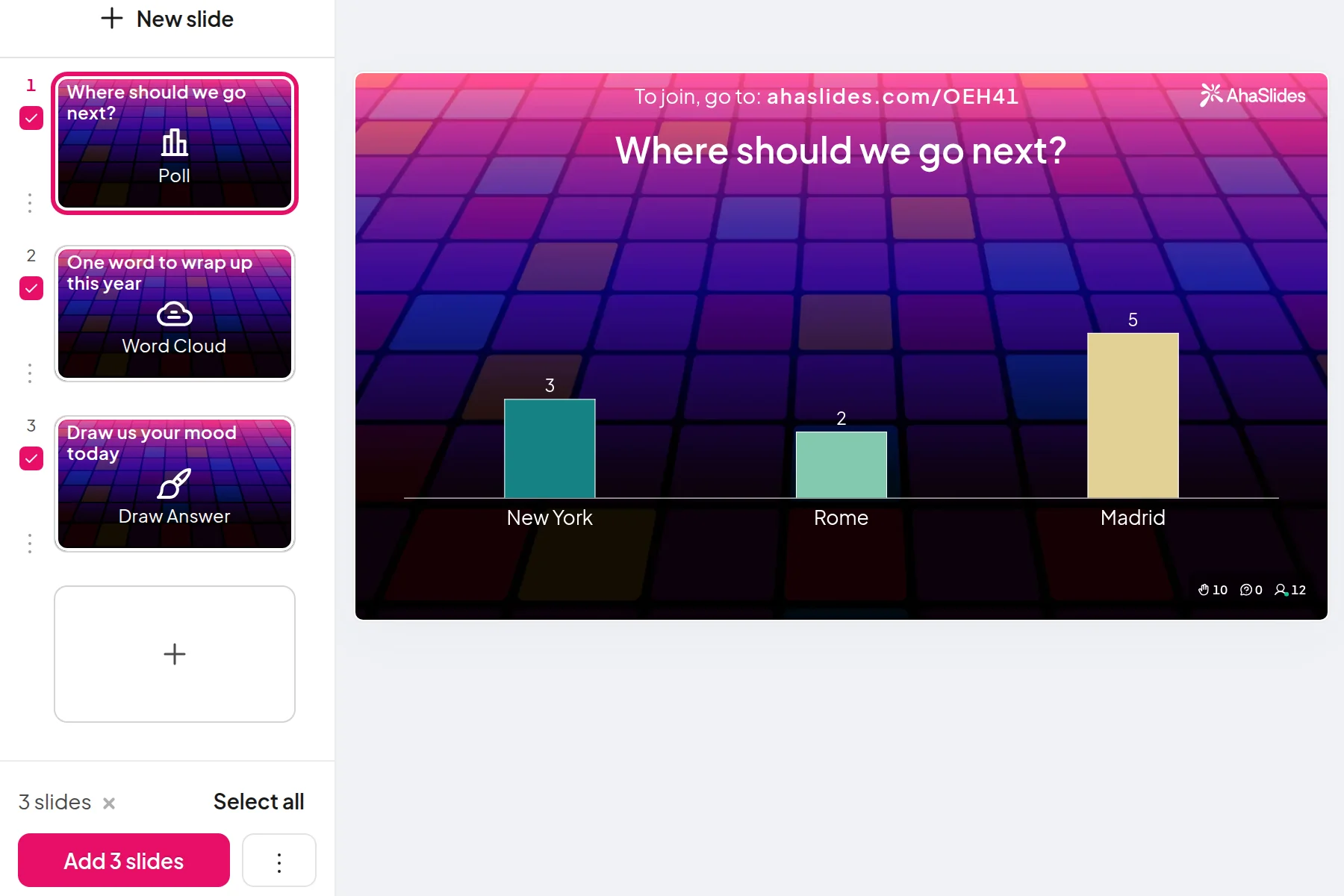
Два швидких способи почати:
- Завантажте свою колоду. Завантажте свій файл PowerPoint до AhaSlides і дозволити штучному інтелекту додавати опитування та запитання вікторин через нього, щоб сеанс перетворився на інтерактивний, без необхідності починати його знову (Конструктор PowerPoint зі штучним інтелектом).
- Або продовжуйте презентацію в PowerPoint. Додайте безкоштовне AhaSlides надбудова і розміщуйте живі слайди між своїми власними. Це займає три кроки, описані нижче.
The add-in is on every AhaSlides plan, including the free one, and works in installed Microsoft 365, PowerPoint 2024, 2021 and 2019, and in PowerPoint for the web (AhaSlides довідковий центр, перевірено 19 листопада 2026 р.).
- Встановіть його та увійдіть. на Home вкладка, виберіть Add-ins, То Більше надбудов (in PowerPoint for the web, use the Insert tab; on an older Mac build, Insert > Отримати надбудови). Пошук AhaSlides, Натисніть додавати, потім натисніть кнопку Увійтиабо Зареєструватися if you're new.
- Add your poll. Натисніть Виберіть презентацію поруч з AhaSlides presentation that holds your poll, or start from the template below. On desktop, tick the poll slide and click Додайте слайди; on the web, select the slide and click Додати слайд.
- Present as normal. When you reach the poll, press Q to show the QR code and join link. People scan, answer, and the bars grow on screen.
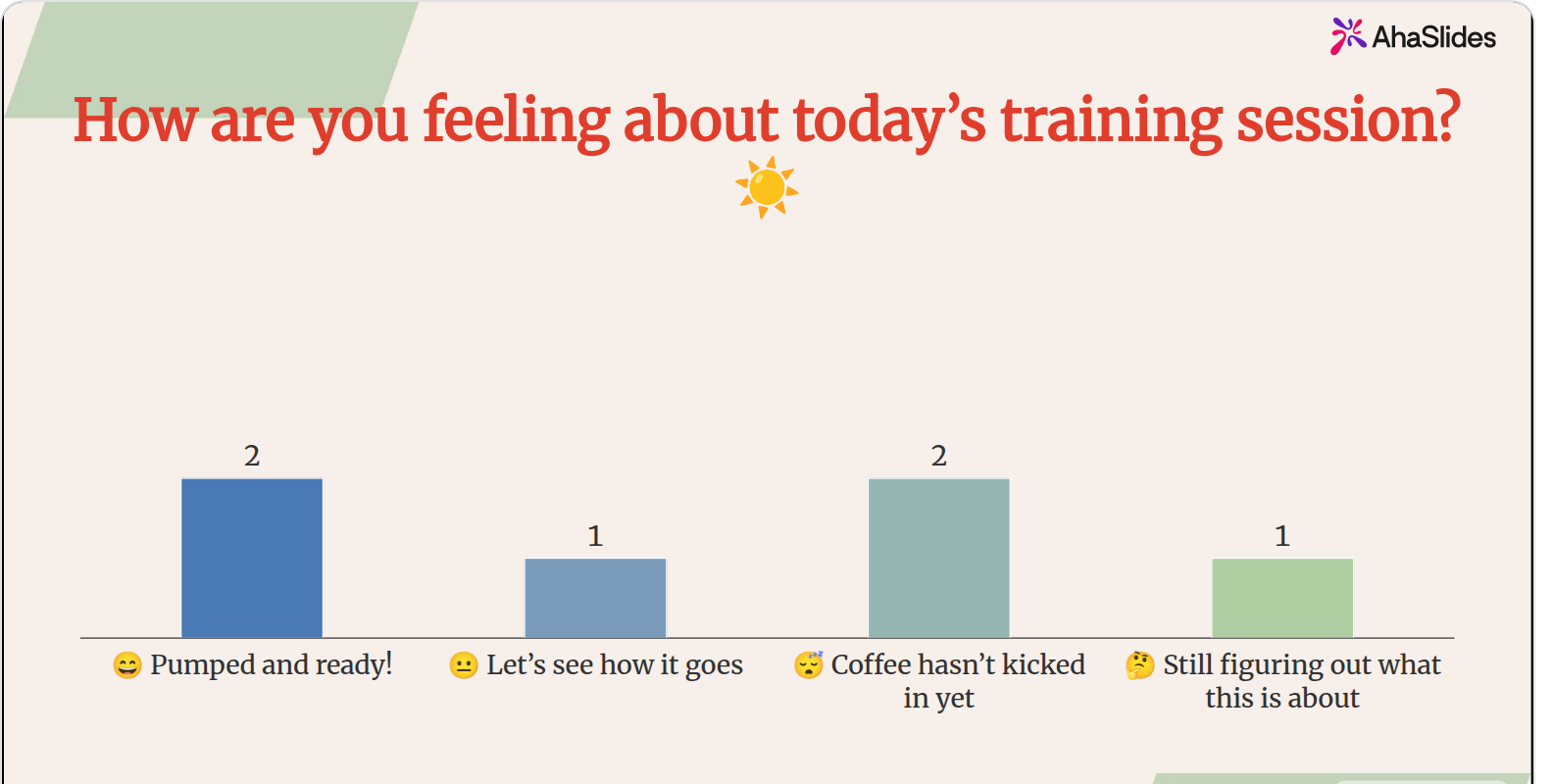
A mood check like the one above is an easy first poll. It takes 20 seconds, everyone answers, and you learn whether to speed up or slow down before you’ve said much at all.
5 ways to use a live slide in your first presentation
- Open with a mood or expectations poll. “How are you feeling about today?” or “What do you want from this session?” Everyone answers, including the people who’d never speak first. Our list of PowerPoint: ключові моменти has more openers.
- Ask a question you’ll answer later. Run a quick poll on a claim, present your evidence, then show the result again. The change in the room is the point.
- Перевірте розуміння на півдорозі. One multiple-choice question after your hardest section tells you whether to move on. Our Інтернет-вікторини has the question types.
- Collect questions as you go. A Q&A slide lets people send questions during the talk, anonymously if you allow it, so you’re not met with silence at the end.
- Close with a quick rating. Ask people to rate how useful the session was, so you know what to change next time.
FAQ
How do you make a good PowerPoint presentation?
Start with one message and build every slide around it. Keep one idea per slide, use short headlines that make a point, choose one theme, and rehearse out loud. Adding one moment where the audience answers keeps attention through the middle.
What is the best font to use in PowerPoint?
A clean sans serif at 24 pt or larger for body text. The fonts in your chosen theme are the safest choice because they’re designed to work together. Avoid decorative fonts for anything people need to read quickly.
How do you add transitions in PowerPoint?
Select a slide, open the Переходи tab and click a transition. To use the same one throughout, click Apply To All. Subtle options such as Fade suit most talks.
What are the different PowerPoint views?
PowerPoint has Normal, Outline View, Slide Sorter, Notes Page and Reading View on the вид tab. Normal is where you build slides, Slide Sorter helps you reorder them, and Slide Show and Presenter View are for presenting.
Зробіть цю колоду інтерактивною
Команда посібник зі створення інтерактивної презентації PowerPoint показує, як змусити людей відповідати, голосувати та ставити запитання в будь-якій колоді. Або почніть з безкоштовна стартова колода в нашій бібліотеці шаблонів і додайте це до вашої наступної презентації.
Ready to make your next deck two-way?
Add live polls, quizzes and Q&A to the deck you just built, and see every answer on your slide. The AhaSlides Надбудова для PowerPoint безкоштовна для початку.