Skip to content
Claim this template

Free course template · Global

Passwords, passkeys and multi-factor authentication for staff

A ready-made course, live deck and two surveys for all employees. 30 minutes, 6 lessons. Last reviewed 21 October 2026; not legal advice.

Claim the templatePreview the courseDownload SCORM for your LMS

Free. No credit card. Edit everything.

Play a game from the course

Passwords, passkeys and multi-factor authentication for staff: try 3 questions

Three questions from this course. Pick an answer, then see why.

Play the game

Game not loading? Open it in a new tab (opens in a new tab)

Three pieces that work together

Learners sign in, so every finish and score is recorded. 8 fields to fill in with your details.
Claim the template
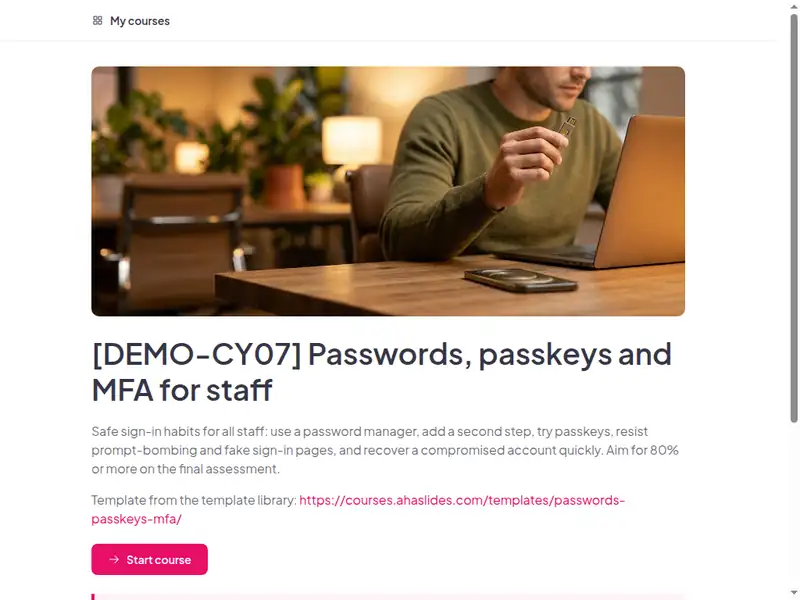
The Passwords, passkeys and multi-factor authentication for staff course as a learner first sees it

6 lessons, about 30 minutes

Minutes are an estimate.

  • Lesson 1: Why accounts are the target · 6 min

    Before you begin · One name, many doors · What went wrong?

  • Lesson 2: Strong, unique sign-ins · 5 min

    What works · Manager habits · Check

  • Lesson 3: Multi-factor and passkeys · 5 min

    Second steps · Passkeys · Try it

  • Lesson 4: Fake sign-in pages · 5 min

    Spot the page · Try it · What to do

  • Lesson 5: Grey areas: sharing, shortcuts and recovery · 5 min

    Tempting shortcuts · What would you do? · Check

  • Lesson 6: Your account checklist and the final assessment · 4 min

    Next steps · Practice

Claim the template

Inside this course

Taken from the course itself.

By the end, learners can

  • Create and manage strong, unique sign-ins with a password manager
  • Explain multi-factor authentication and why some methods are stronger
  • Use passkeys where the organisation offers them
  • Recognise and resist prompt-bombing and fake sign-in pages
  • Recover and report a compromised account quickly

Sample questions, with answers

  1. Kwame's work email was opened by someone using his gym app password. What was the main cause?

    • Reusing a password across sites
    • A slow computer
    • A strong password
    • A long username

    Answer: Reusing a password across sites. One breach elsewhere opened a door at work because the password was reused.

    Lesson 1: Why accounts are the target

  2. Why do attackers send many approval requests?

    • They hope you approve one to stop the noise
    • They are testing your phone
    • They want to help you
    • The system is broken

    Answer: They hope you approve one to stop the noise. This is called prompt-bombing. Never approve a request you did not start.

    Lesson 3: Multi-factor and passkeys

  3. You think your account is compromised. What is the first step?

    • Change your password and report it
    • Wait a day
    • Tell a friend
    • Delete your emails

    Answer: Change your password and report it. Change it from a device you trust and report at once. Follow your organisation's incident steps. The sooner the team knows, the more they can do.

    Lesson 5: Grey areas: sharing, shortcuts and recovery

A scenario from "Multi-factor and passkeys"

Your phone shows repeated sign-in approval requests at 11pm.

Best response: Deny all, change your password and report it your incident report route.

Weaker responses: Approve one to stop them; Ignore; Ask a colleague to approve.

Common questions

Yes. Claiming the template and editing it are free.

Yes. The course is self-paced and online, and the live deck lets you add a live session in the room or online.

At onboarding, at an MFA roll-out and in the annual refresher.

All employees with company accounts; a help desk variant is a note; run by L&D with IT.

Record completion in your own LMS or record system, so you can show who finished the course and when.

Your own details, each highlighted inside the course:
  • Who staff ask about security questions
  • The route for reporting a security incident or suspected breach, and the time limit that applies
  • Link to the list of approved tools and services
  • Link to the next course in your security awareness path
  • Where course completions are recorded
  • Link to the self-paced course
Then edit anything else you like: wording, scenarios, your logo.
Visit the help centre (opens in a new tab)