Skip to content
Claim this template

Free course template · US federal

Remote work & mobile device security

A ready-made course, live deck and two surveys for remote and hybrid employees. 25 minutes, 6 lessons, 10-question final check. Last reviewed 8 October 2026; not legal advice.

Claim the templatePreview the courseDownload SCORM for your LMS

Free. No credit card. Edit everything.

Play a game from the course

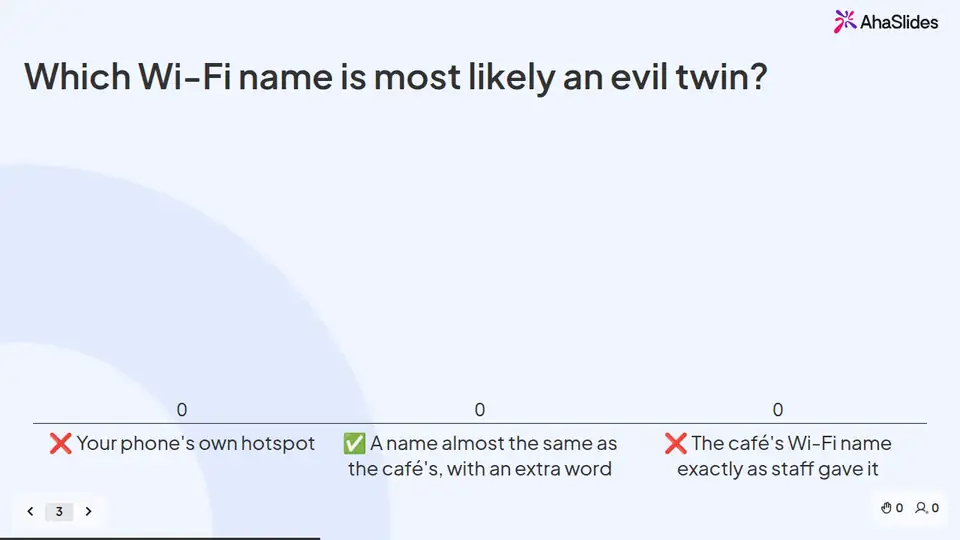
Remote work & mobile device security: try 3 questions

Three questions from this course. Pick an answer, then see why.

Play the game

Game not loading? Open it in a new tab (opens in a new tab)

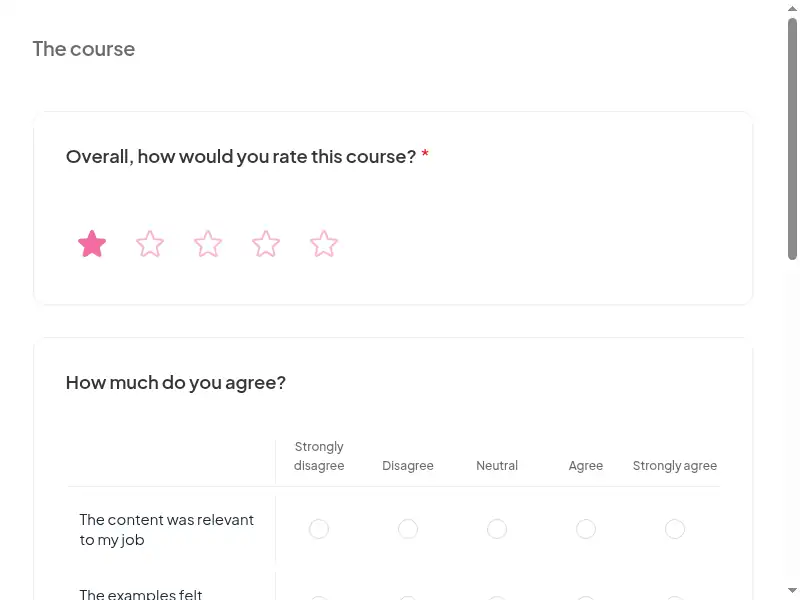
Three pieces that work together

Learners sign in, so every finish and score is recorded. 7 fields to fill in with your details.
Claim the template
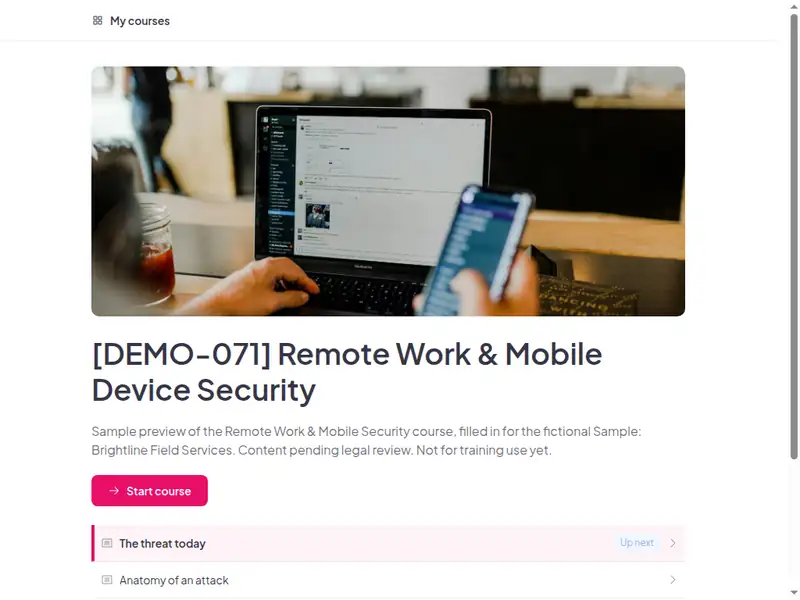
The Remote work & mobile device security course as a learner first sees it

6 lessons, about 25 minutes

Minutes are an estimate.

  • Lesson 1: The threat today · 4 min

    Explain why remote and mobile work expand the attack surface.

  • Lesson 2: Anatomy of an attack · 2 min

    Describe how attacks target home networks, public Wi-Fi and phones.

  • Lesson 3: Spot the red flags · 4 min

    Spot red flags: fake Wi-Fi, malicious apps, smishing, shoulder surfing.

  • Lesson 4: Protect yourself · 7 min

    Secure home setup, devices and travel.

  • Lesson 5: Respond & report · 4 min

    Report lost/stolen devices and suspected compromise immediately.

  • Lesson 6: Final assessment · 4 min

    10 questions, 80% to pass. The result is saved to the learner's record.

Claim the template

Inside this course

Taken from the course itself.

Sample questions, with answers

  1. Why does working from a café or home add risk for the company?

    • The networks, screens and devices around you are outside the company's control
    • Remote workers are less careful by nature
    • Home internet is always slower
    • Cafés block work apps

    Answer: The networks, screens and devices around you are outside the company's control. Outside the office, the network, the screen and the unattended laptop are all part of the attack surface, and the company cannot control them.

    Lesson 1: The threat today

  2. Which step of the attack chain happens right after a password or token is stolen?

    • The attacker installs updates on your phone
    • The attacker opens cloud apps with it
    • Your company changes your password automatically
    • Nothing, tokens cannot be used

    Answer: The attacker opens cloud apps with it. A stolen password or token gives the attacker access to cloud apps, which is how data is copied or ransomware is started.

    Lesson 2: Anatomy of an attack

  3. You see a text telling you to install a VPN profile from a short link. What do you do?

    • Tap it, it is probably IT
    • Forward it to colleagues
    • Do not tap it and check with IT through a known channel
    • Reply with your password

    Answer: Do not tap it and check with IT through a known channel. Short links in unexpected texts are a classic smishing trick. Check with IT through a channel you already trust.

    Lesson 4: Protect yourself

A scenario from "Respond & report"

Field sales rep realises she entered credentials on a hotel Wi-Fi "login page" that asked for her work email password.

Best response: Disconnect, report, reset.

Weaker responses: Wait until back home; Just clear browser history.

Legal basis

Best practice; NIST SP 800-46 Rev. 2 (telework security), NIST SP 800-124 Rev. 2 (mobile device management, 2023); supports FTC Safeguards 314.4(e), PCI DSS 12.6.3.2, HIPAA 164.310(b)-(d).

Common questions

Yes. Claiming the template and editing it are free.

The course itself is self-paced and online, and the live deck lets you add a live session. Whether online delivery meets your local rules depends on the law that applies to you, so check the rules that apply to you or ask your own counsel.

At hire / before remote access is granted + annually.

Remote and hybrid employees, field sales, travelling staff and anyone using phones/laptops for work (company-owned or BYOD).

Record completion in your own LMS or record system, so you can show who finished the course and when. Check the retention period that applies to you in the rules that apply to you.

Your own details, each highlighted inside the course:
  • Vpn instructions
  • Mdm enrolment guide
  • Byod policy link
  • Travel device policy
  • Lost device report window
  • Security hotline
  • LMS or record system
Then edit anything else you like: wording, scenarios, your logo.
Visit the help centre (opens in a new tab)