

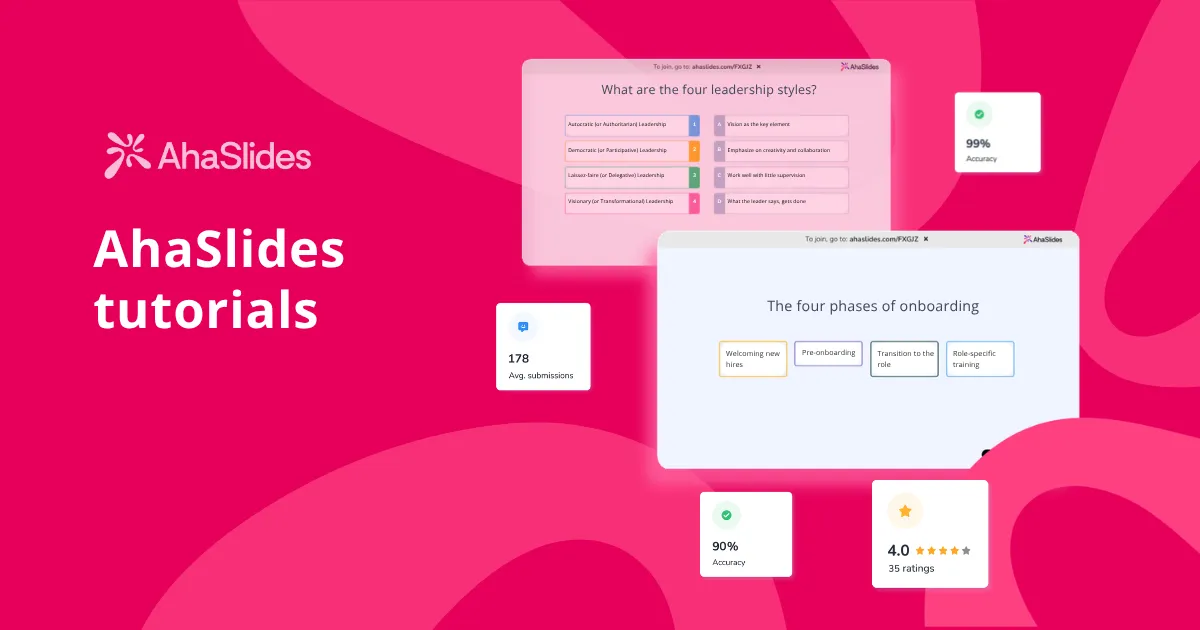
Sekiranya anda baru mengenali AhaSlides, atau anda telah menggunakan kami selama bertahun-tahun tetapi sudah lama tidak mencuba menu ini, panduan ini adalah panduan yang kami harapkan wujud. Produk ini telah berkembang pesat dalam tempoh dua belas bulan yang lalu, dan kini kami menghantar 30+ jenis slaid — dan kami masih menambah yang baharu hampir setiap bulan — merangkumi segala-galanya daripada tinjauan langsung dan kuiz kepada tinjauan penuh, gambar rajah, penyematan imej dan papan sumbang saran, sehinggalah tinjauan peruntukan mata, matriks pendapat dan perlumbaan itik pemenang rawak.
Tetapi senarai ciri tidak membantu. Aliran kerja membantu. Jadi kami mengatur tutorial ini seperti cara seseorang merancang sesi: sebelum, semasa, dan selepas. Bagi setiap fasa, kami akan menunjukkan kepada anda jenis slaid yang perlu dicapai dan cara memasangnya dengan baik.
Peta pantas: jenis slaid yang berfungsi - muat turun lembaran curang di sini.
Sebelum sesi: persediaan yang membuahkan hasil
Latihan interaktif terbaik yang kami lihat bermula sebelum sesiapa sahaja menyertai panggilan. Dua jenis slaid menjadikan bahagian ini lebih mudah.
Slaid Tinjauan: kumpulkan pra-kerja tanpa mengejar orang
Slaid Tinjauan merupakan salah satu tambahan baharu kepada AhaSlides, dan ia secara senyap-senyap menjadi salah satu ciri yang paling banyak digunakan untuk pasukan L&D. Ia membolehkan anda membina borang berbilang soalan yang berjalan pelbagai soalan sekaligusAnda boleh mencampurkan jenis soalan dalam satu tinjauan: aneka pilihan, teks terbuka, skala penilaian, kedudukan. Ia tinjauan sebenar, bukan satu tinjauan pendapat yang direka-reka.
Cara menggunakannya AhaSlides cara
- Pada pembentangan, pilih jenis slaid Tinjauan
- Cipta Tinjauan baharu dengan maksimum 3 hingga 5 soalan: kebiasaan mereka dengan topik tersebut, soalan utama mereka, apa yang mereka harap dapat pelajari
- Terbitkan Tinjauan dan pautkannya dengan pembentangan
- Apabila anda membentangkan sesi langsung dan beralih ke slaid ini, peserta akan melihat borang pada peranti mereka untuk mengisinya
Kita telah melihat tinjauan pra-sesi mengubah pembukaan latihan daripada sesi terbuka kepada detik-detik "Saya telah membaca respons anda dan inilah yang akan kami fokuskan". Itu sahaja sudah mengubah keseluruhan suasana di dalam bilik.
Pembukaan: pecahkan ais
Dua minit pertama sesi menetapkan nada emosi untuk enam puluh minit berikutnya. Tiga jenis slaid melakukannya dengan baik.
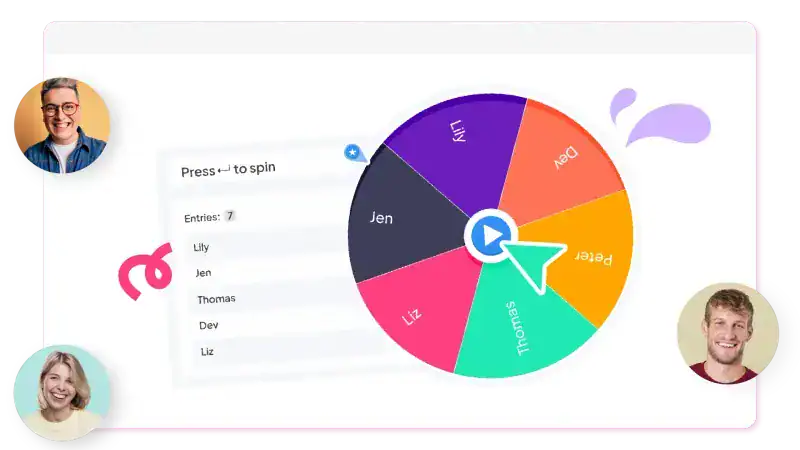
Roda Pemutar: pastikan semua orang berjaga-jaga
Masukkan nama peserta ke dalam roda, putarkannya, dan minta sesiapa sahaja yang terkena roda itu untuk berkongsi sesuatu. Keacakan adalah inti patinya. Semua orang tahu mereka mungkin terpilih, jadi semua orang akan sentiasa hadir.
Contoh yang baik
- Latihan korporat: "Apakah perkara paling mengejutkan tentang peranan anda yang tidak dapat diteka oleh seseorang di luar pasukan anda?"
- Onboarding: "Apakah satu alat yang anda tidak boleh hidup tanpanya dalam pekerjaan terakhir anda?"
Awan Kata: timbulkan suasana bilik dalam 30 saat
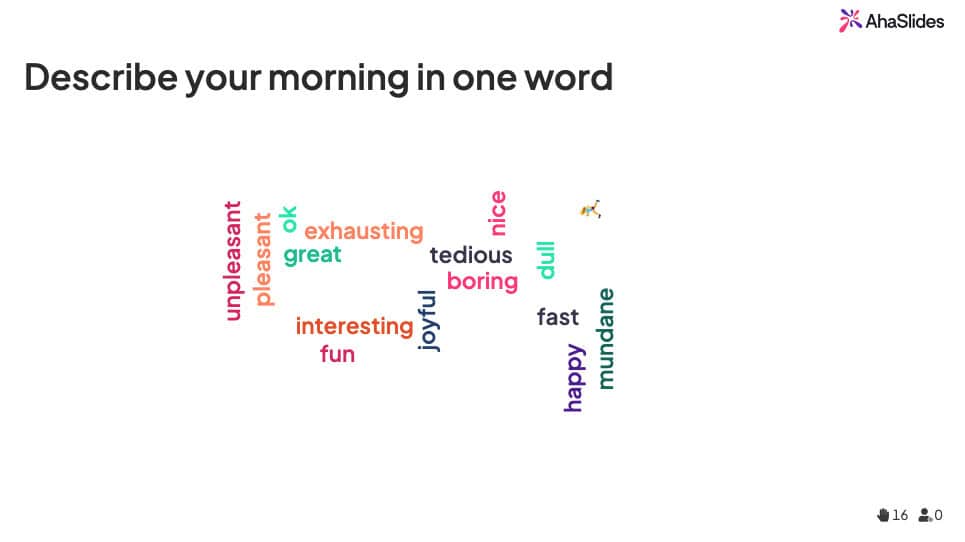
Awan Perkataan meminta satu atau dua perkataan dan mengembangkannya menjadi visual di mana lebih besar = lebih popular. Pembuka kegemaran kami untuk kumpulan yang lebih besar daripada 15 orang. Bacalah dengan kuat semasa ia berkembang; perkataan yang muncul biasanya memberitahu anda dengan tepat di mana untuk memfokuskan tenaga anda.
Undian: mulakan undian dengan pantas
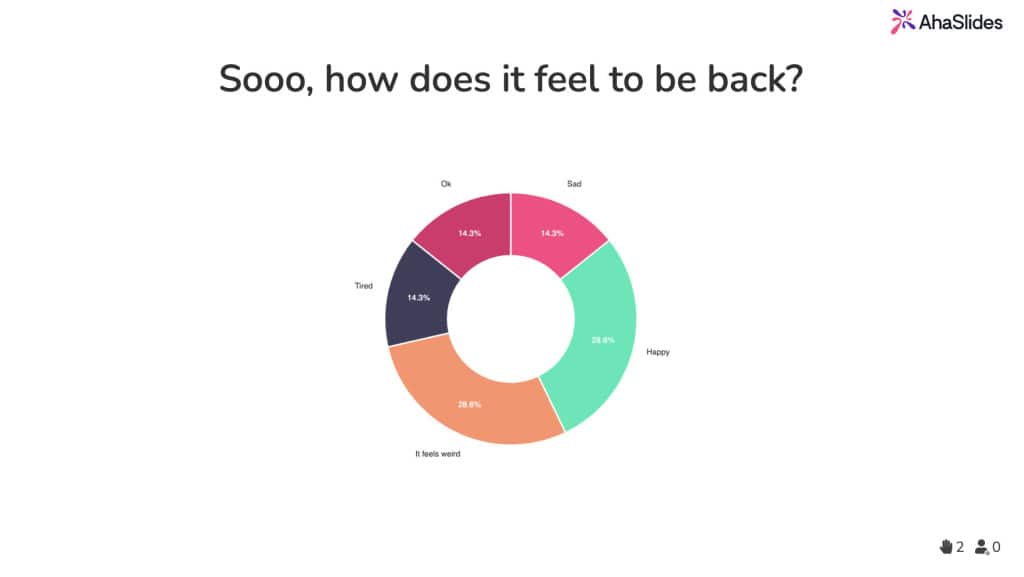
Undian adalah pilihan yang paling berkesan. Aneka pilihan, dipaparkan sebagai bar, donat atau carta pai. Gunakannya apabila anda mahukan ya/tidak yang cepat, pemeriksaan suhu atau undian antara pilihan tertentu.
Contoh tinjauan pendapat pembukaan
- "Apakah tahap pengalaman anda dengan [topik]? Pemula / Sedikit pengalaman / Agak berpengalaman / Pakar"
- "Bagaimana perasaan anda tentang latihan ini? Teruja / Ingin tahu / Ragu-ragu / Hanya ingin mendapatkan sijil" (pilih pilihan yang jujur, anda akan mendapat jawapan yang lebih jujur)
Perlumbaan Itik: pilih pemenang secara rawak (dan dapatkan ketawa)
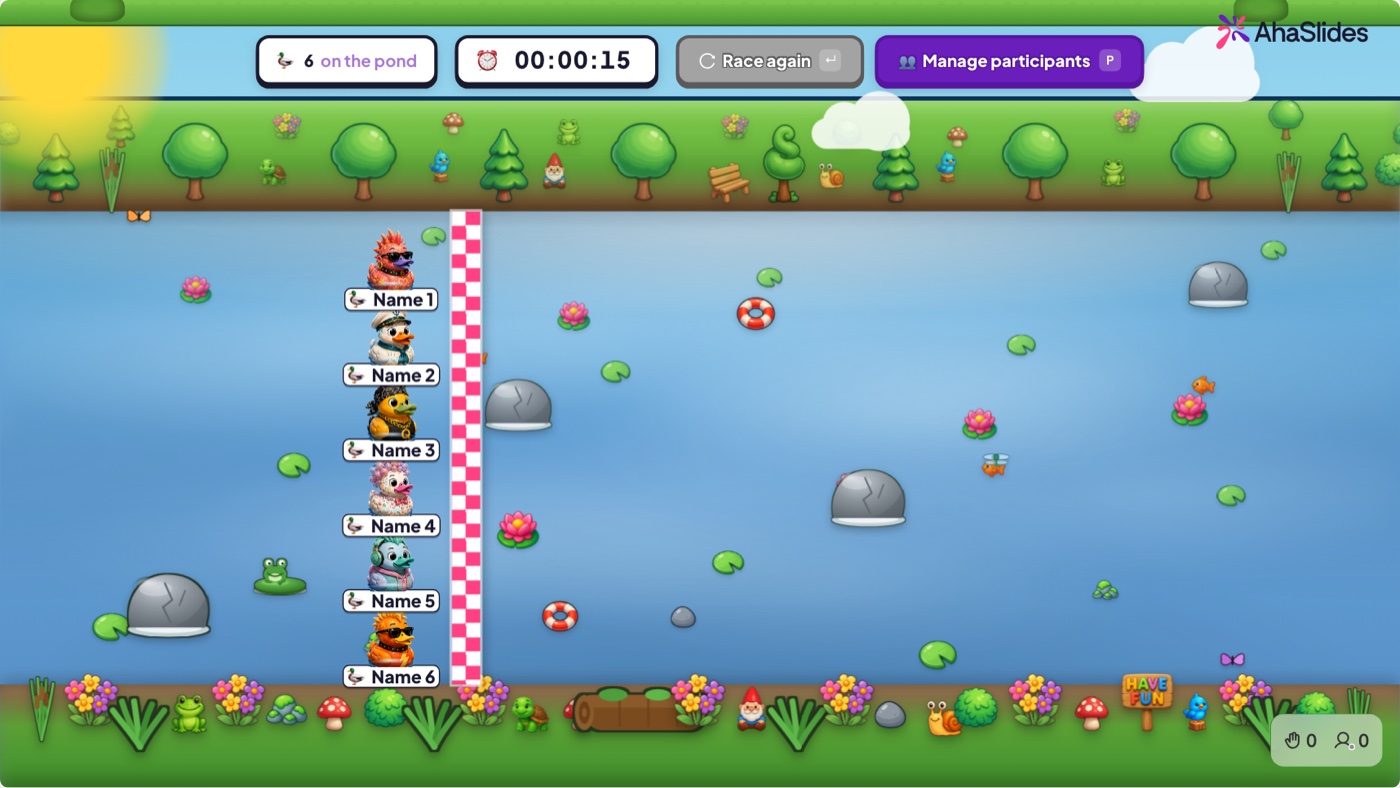
Perlumbaan Itik ialah cara yang paling menyeronokkan dan lucu untuk memecahkan kekusutan, mengagihkan tugasan, memberikan hadiah atau sekadar mencari pemenang secara rawak. Semua orang mendapat seekor itik, itik berlumba, dan pemenangnya diundi semata-mata berdasarkan nasib — tiada skor, tiada kemahiran, hanya sedikit kekacauan bersama untuk menghangatkan bilik.
Kongsi Foto: dinding foto secara langsung
Perkongsian Foto menjemput penonton untuk menghantar foto terus dari telefon mereka ke dinding yang dikongsi. Ia merupakan pembuka yang menarik — "tunjukkan kepada kami meja anda, pemandangan anda atau haiwan peliharaan anda" — dan sama bergunanya pada pertengahan sesi untuk mengambil gambar papan putih, prototaip atau contoh dunia sebenar supaya foto semua orang dipaparkan di skrin sekaligus.
Pengajaran: simpan mereka bersama anda
Inilah inti pati sesi ini. Lima jenis slaid melakukan sebahagian besar kerja berat di sini.
Kuiz: Pilih Jawapan untuk semakan pengetahuan klasik
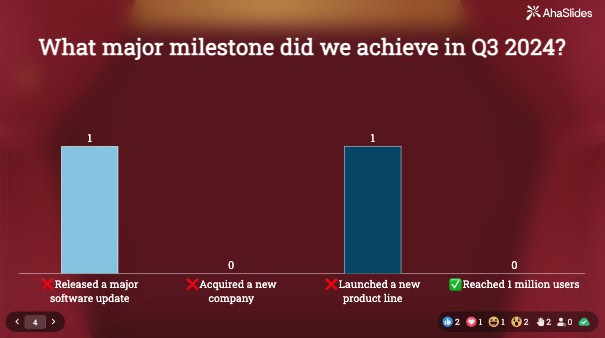
Kuiz standard. Aneka pilihan, had masa (15 hingga 30 saat sesuai), mata, papan pendahulu. Umumkan papan pendahulu pada permulaan dan penglibatan kekal lebih tinggi sepanjang proses.
Kuiz: Padankan Pasangan untuk perbendaharaan kata dan konsep
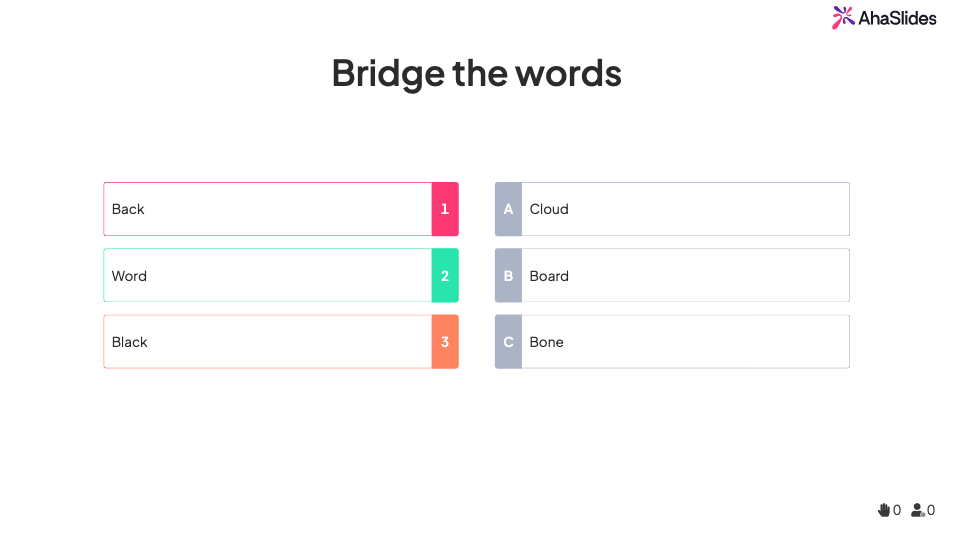
Seret item dalam lajur A untuk memadankan item dalam lajur B. Sesuai untuk istilah dan definisi, produk dan ciri, masalah dan penyelesaian, jabatan dan tanggungjawab.
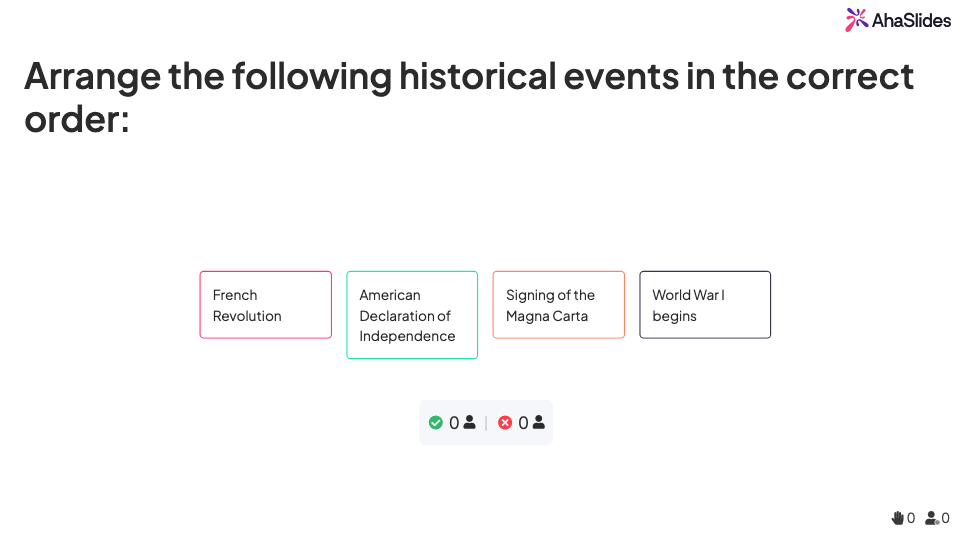
Kuiz: Susunan proses dan aliran kerja yang betul
Seret item ke dalam urutan yang betul. Jika anda sedang mengajar mana-mana jenis proses (langkah-langkah onboarding, SOP, aliran kerja jualan, susunan peristiwa bersejarah), inilah slaidnya.
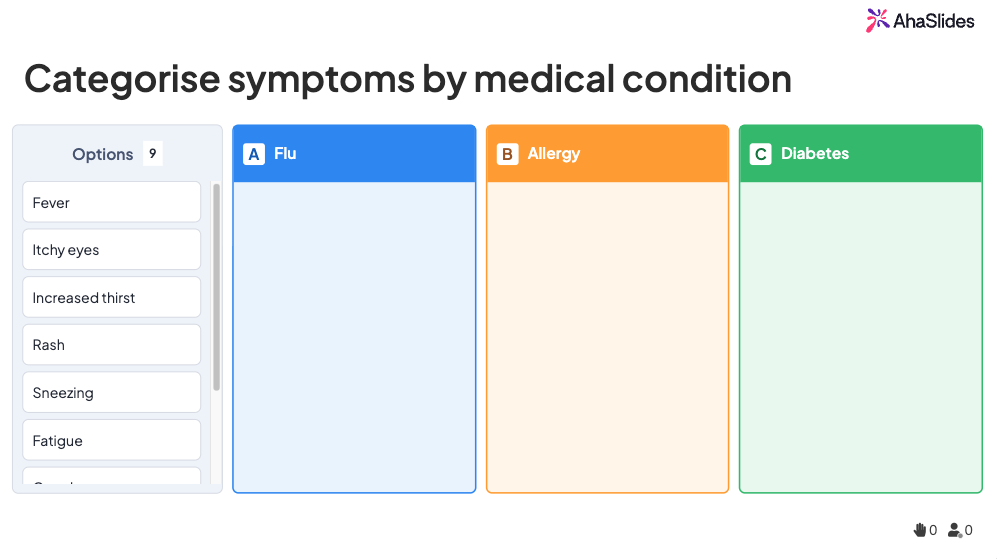
Kuiz: Kategorikan untuk kemahiran pengelasan
Peserta menyusun item ke dalam kelompok yang betul. Gunakannya untuk: perbelanjaan yang mana termasuk dalam kategori bajet yang mana, simptom yang mana berkaitan dengan keadaan yang mana, tugas yang mana tergolong dalam peranan yang mana. Ia merupakan cara yang bijak untuk mengajar proses membuat keputusan, bukan sekadar fakta.
Slaid gambar rajah: tunjukkan bagaimana sesuatu perkara berhubung kait
Slaid Diagram merupakan salah satu slaid terbaru kami dan antara yang paling kurang digunakan. Ia membolehkan anda membina dan membentangkan struktur visual: carta alir, hierarki, peta proses, struktur organisasi, gambar rajah sistem. Daripada menerangkan cara sesuatu berfungsi dalam perkataan, anda menunjukkannya.
Di mana ia bersinar untuk L&D
- Latihan pematuhan: gambarkan aliran kerja kelulusan dan laluan peningkatan
- Onboarding: tunjukkan carta organisasi, perjalanan pelanggan atau seni bina produk
- Latihan proses: gambarkan SOP sebagai carta alir dan bukannya dinding teks
Gambar rajah tersebut berada dalam slaid, jadi anda tidak memerlukan pautan Miro atau Lucidchart yang berasingan untuk mengganggu aliran pembentangan anda.
Pin pada Imej: soalan "tunjukkan saya di mana"
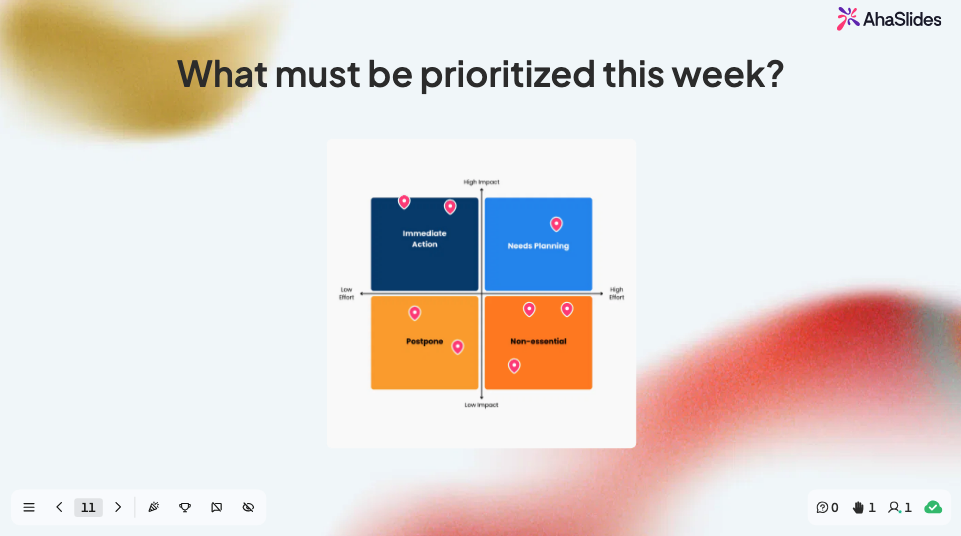
Muat naik imej. Peserta meletakkan pin padanya. Anda dapat melihat semua pin secara langsung pada skrin penyampai. Ia kedengaran mudah, dan memang begitu, tetapi ia menyelesaikan masalah pengajaran tertentu dengan sangat baik.
Kes penggunaan yang berfungsi
- Latihan perisian: "Sematkan tempat anda akan klik untuk memulakan projek baharu"
- Pengaktifan jualan: "Sematkan bahagian dek promosi ini yang membuatkan anda kehilangannya"
- Kajian UX: "Sematkan bahagian skrin ini yang paling mengelirukan"
- Pendidikan: "Sematkan negara tempat Revolusi Perindustrian bermula"
Apabila 30 orang menjatuhkan pin di tempat yang sama dan salah, itu adalah jurang pembelajaran yang anda tidak dapat lihat dengan cara lain.
Kuiz: Jawapan Ringkas untuk ingatan terbuka
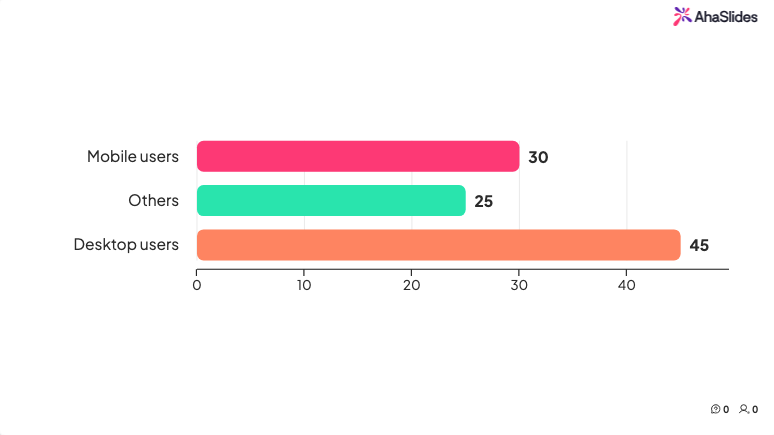
Jawapan Pendek ialah slaid kuiz tanpa pilihan — peserta menaip jawapan mereka dan ia dipadankan dengan jawapan yang betul, jadi mereka perlu mengingatnya semula dan bukannya mengecamnya. Ia merupakan pemeriksaan pengetahuan yang lebih sukar dan jujur berbanding aneka pilihan. Pastikan jawapan yang diterima pendek dan tambahkan beberapa ejaan yang masuk akal supaya jawapan yang hampir salah masih mendapat markah.
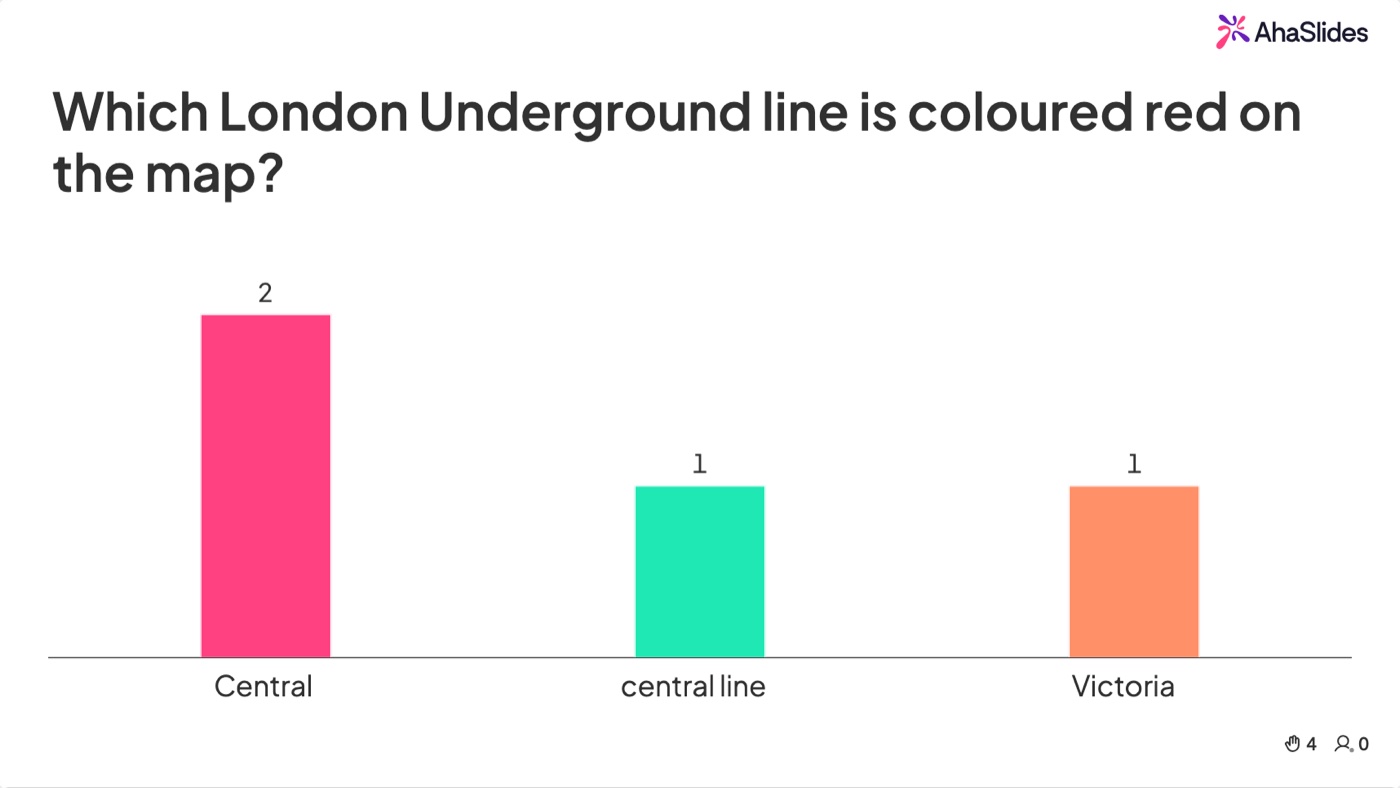
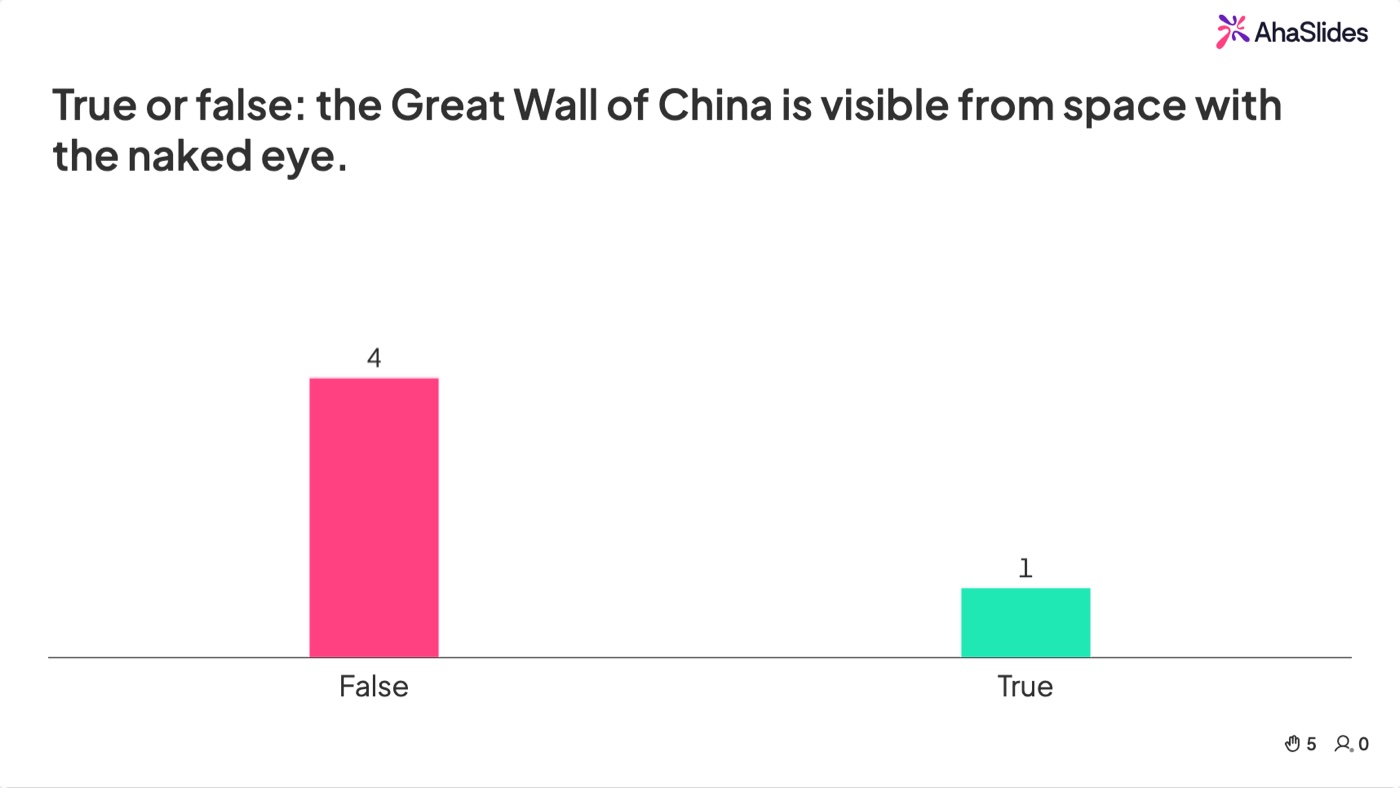
Kuiz: Benar atau Salah untuk pusingan tembakan pantas
Benar atau Salah ialah salah satu format kuiz terbaharu kami, dan ia sangat bagus untuk mengekalkan rentak. Peserta meleret beberapa pernyataan dan memanggil setiap satu benar atau salah mengikut masa, sambil memberi markah. Dengan hanya dua pilihan setiap kali, tiada siapa yang terhenti pada soalan yang sukar — sesuai untuk memecahkan mitos lebih awal atau semakan pantas "sejauh manakah anda mengetahui perkara ini?".
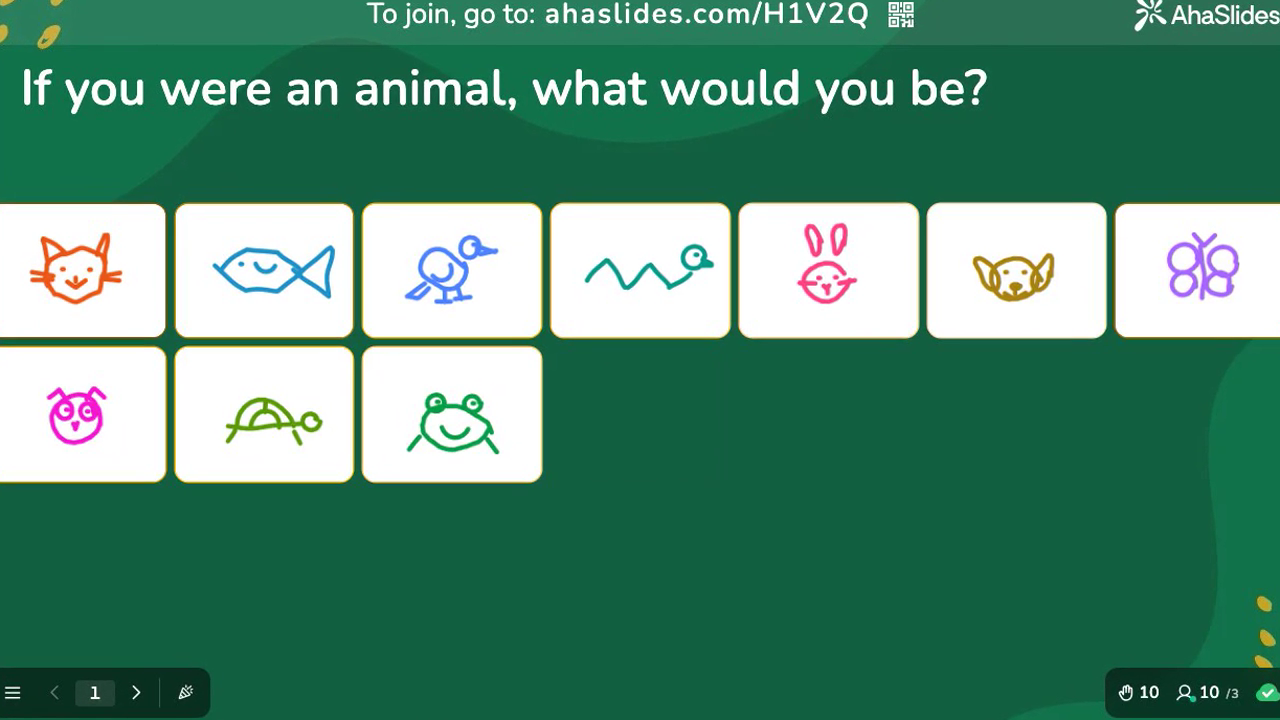
Lukis Jawapan: biarkan mereka melakarnya
Dengan Draw Answer, peserta melukis respons mereka pada telefon mereka dan menghantarnya ke skrin yang dikongsi — sesuai untuk apa sahaja yang dijelaskan oleh gambar lebih pantas daripada perkataan, seperti melakar aliran kerja, menanda gambar rajah atau menunjukkan cara mereka menyelesaikan sesuatu. Ia merupakan format yang lebih baharu yang masih dilancarkan, jadi bukanya pada telefon anda sendiri untuk menyemaknya sebelum anda membuat pembentangan.
Imej Interaktif: terokai mengikut rentak mereka sendiri
Imej Interaktif membolehkan anda menyematkan nota pada tempat tertentu pada imej; peserta kemudian mengetik setiap pin untuk membacanya pada peranti mereka sendiri, mengikut masa mereka sendiri. Oleh kerana ia mengikut rentak kendiri, ia sesuai dengan visual terperinci — tangkapan skrin beranotasi, gambar rajah berlabel, gambar produk — yang memberi ganjaran kepada pandangan yang lebih dekat berbanding panduan langsung.
Perbincangan: ungkapkan apa yang mereka fikirkan
Di pertengahan sesi, anda ingin membuka sesi. Tetapi "ada soalan?" hampir tidak pernah mendapat soalan yang sebenar. Tiga jenis slaid ini ada.
Papan Idea: nota lekit digital
Papan Idea membolehkan peserta menghantar idea pendek yang muncul sebagai nota lekit pada kanvas kongsi, kemudian mengumpulkan dan mengundi idea tersebut. (Terdapat juga slaid Brainstorm yang lebih ringan, jika anda hanya mahukan nota lekit dan mengundi tanpa langkah pengumpulan.) Mereka boleh menyukai sumbangan masing-masing, yang akan memunculkan idea terkuat secara semula jadi.
Sesuai untuk
- Retrospektif: "Apa yang berkesan? Apa yang tidak? Apa yang patut kita cuba?"
- Penyelesaian masalah: "Bagaimanakah kita boleh [menyelesaikan cabaran ini]?"
- Bengkel strategi: "Apakah satu perkara yang harus kita hentikan?"
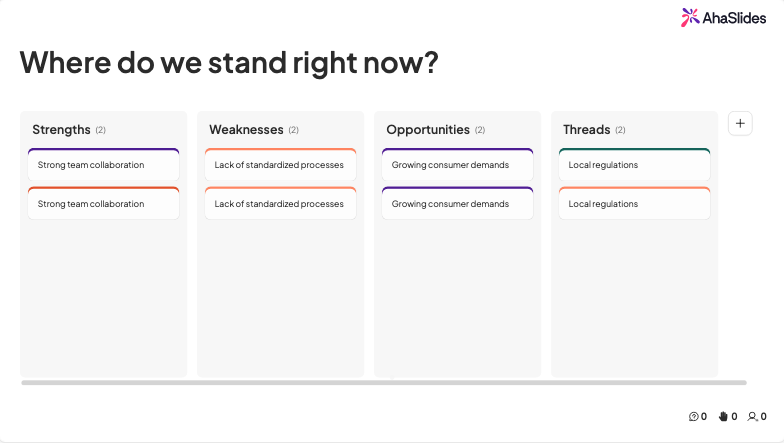
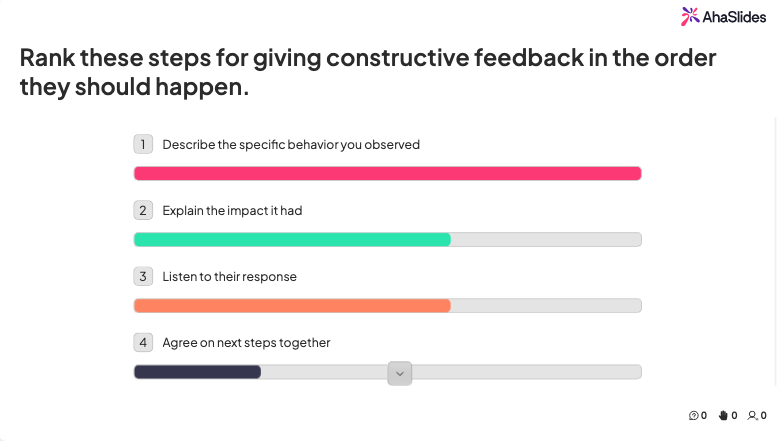
Kedudukan: keutamaan daya
Slaid Kedudukan memberikan peserta senarai dan meminta mereka menyeret item mengikut urutan keutamaan. Keputusan diagregatkan menjadi satu senarai kedudukan merentasi seluruh kumpulan. Ia merupakan cara terpantas untuk mendapatkan persetujuan dalam bilik tentang perkara yang paling penting.
Bila hendak menggunakannya
- "Pangkatkan 5 perkara yang menyusahkan pelanggan ini daripada yang paling mendesak kepada yang paling tidak mendesak"
- "Pangkatkan topik latihan ini mengikut perkara yang paling anda ingin bincangkan seterusnya"
- "Pangkatkan ciri-ciri ini yang paling membantu kerja harian anda"
Apabila Tinjauan pendapat mengatakan "pilih satu," Ranking mengatakan "pilih semua mengikut susunan." Itu penting apabila anda memerlukan keutamaan yang sebenar.
Soal Jawab: tanpa nama, undian positif, tiada kesunyian yang janggal
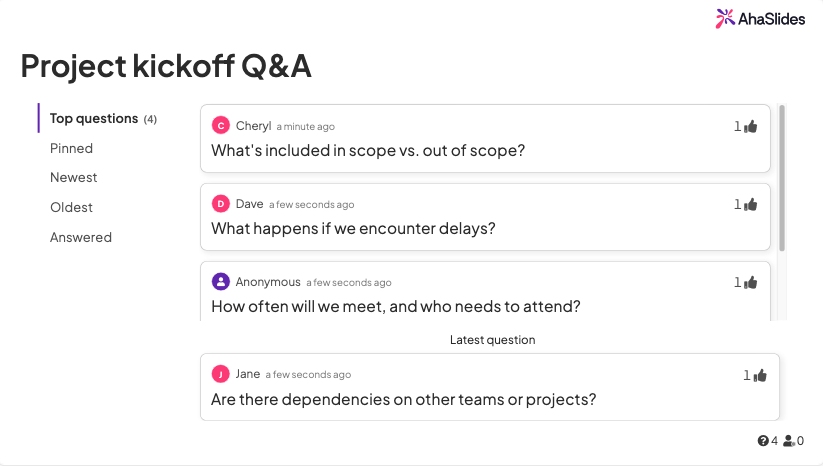
Buka slaid Soal Jawab pada permulaan sesi anda dan biarkan ia terbuka. Peserta boleh menghantar soalan pada bila-bila masa dari telefon mereka, secara anonim jika mereka mahu. Peserta lain boleh mengundi, jadi soalan yang paling mendesak akan dipaparkan di bahagian atas.
Cara kami menggunakan Soal Jawab
- Bukanya sebelum sesi bermula dan beritahu orang ramai bahawa mereka boleh menghantar pada bila-bila masa
- Jawab 2 hingga 3 soalan undian teratas pada titik rehat yang dirancang
- Tandakan soalan sebagai "dijawab" supaya senarai langsung kekal bersih
Terbuka: jawapan dengan kata-kata mereka sendiri
Slaid Open Ended mengumpul respons teks bebas dan memaparkannya di skrin sebaik sahaja ia tiba. Di mana Tinjauan pendapat memasukkan orang ke dalam pilihan yang ditetapkan, Open Ended membolehkan mereka menyatakan dengan tepat apa yang mereka fikirkan — sesuai untuk "apakah cabaran terbesar anda dengan ini?" atau "apa yang akan menjadikan proses ini lebih baik?". Baca beberapa dengan kuat semasa ia tiba untuk memastikan perbualan terus berjalan.
Matriks 2x2: idea peta pada dua paksi
Matriks 2x2 meminta peserta untuk memplot item terhadap dua paksi — usaha melawan impak, kesegeraan melawan kepentingan, kos melawan nilai — dan penempatan kumpulan membina peta kongsi secara langsung. Ia merupakan cara terpantas untuk menukar perdebatan samar-samar kepada gambaran yang boleh ditunjukkan dan diutamakan oleh semua orang.
Bahagikan Mata: paksa pertukaran sebenar
Split the Points memberi setiap peserta sejumlah mata untuk diagihkan mengikut pilihan yang mereka suka. Oleh kerana mereka tidak boleh menyokong semuanya, anda mendapat pemahaman yang lebih tepat tentang keutamaan berbanding sekadar mengangkat tangan — sesuai untuk membahagikan bajet, menimbang ciri-ciri atau memutuskan ke mana masa pasukan harus dihabiskan.
Selepas sesi: maklum balas yang sebenarnya berguna
Borang maklum balas e-mel mencapai kadar respons 10 hingga 20%. Maklum balas dalam sesi mencapai 70 hingga 90%. Masa adalah segalanya.
Skala Penilaian: maklum balas dalam sesi yang pantas
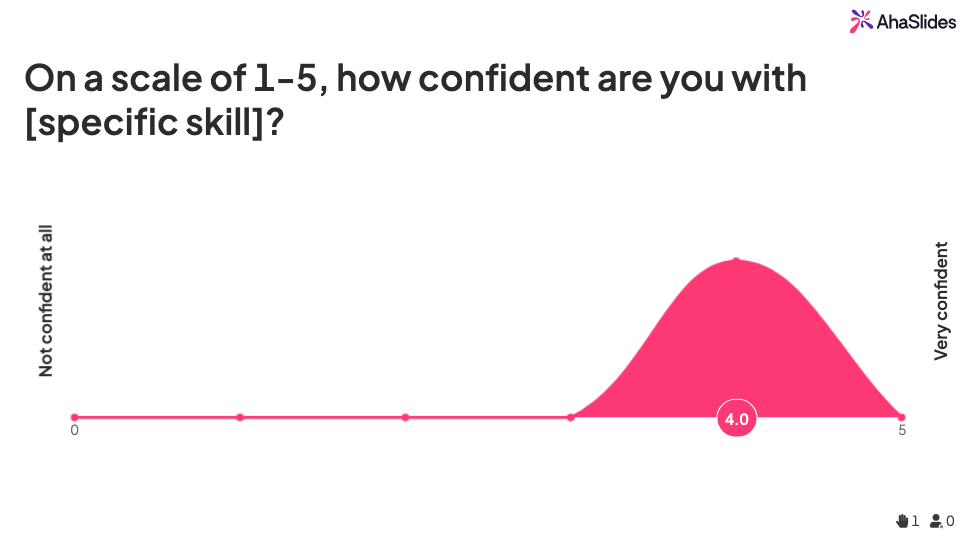
Dalam 3 hingga 5 minit terakhir sesi anda, masukkan slaid Skala Penilaian. 1 hingga 5, 1 hingga 10, atau wajah tersenyum. Pastikan ia hanya mempunyai 2 hingga 3 soalan maksimum. Seluruh bilik akan memberi respons semasa pengalaman masih baharu.
Tiga soalan yang sentiasa berkesan
- "Sejauh manakah sesi ini relevan dengan kerja anda?" (1 hingga 5)
- "Sejauh manakah anda berkemungkinan untuk mengaplikasikan apa yang telah anda pelajari minggu ini?" (1 hingga 10)
- "Sejauh manakah anda mungkin akan mengesyorkan latihan ini kepada rakan sekerja?" (gaya NPS 0 hingga 10)
Slaid tinjauan: maklum balas yang lebih panjang yang mereka bawa bersama mereka
Untuk maklum balas yang lebih mendalam, arahkan peserta ke Tinjauan pada akhir sesi. Tidak seperti Skala Penilaian, Tinjauan adalah bentuk berbilang soalan yang dijalankan pada satu slaid pada peranti peserta. Memandangkan ia boleh berlaku sejurus selepas pembentangan anda, penonton akan lebih cenderung untuk mengambilnya, sekali gus meningkatkan kadar tindakbalas.
Apa yang perlu dimasukkan dalam tinjauan pasca sesi
- Teks terbuka: "Apakah satu perkara yang akan anda lakukan secara berbeza hasil daripada sesi ini?"
- Teks terbuka: "Apakah satu topik yang anda harap kami bincangkan dengan lebih mendalam?"
- Penilaian: "Nilaikan topik sesi seterusnya ini mengikut apa yang anda dapati paling berguna"
Laporan & Analisis: resit
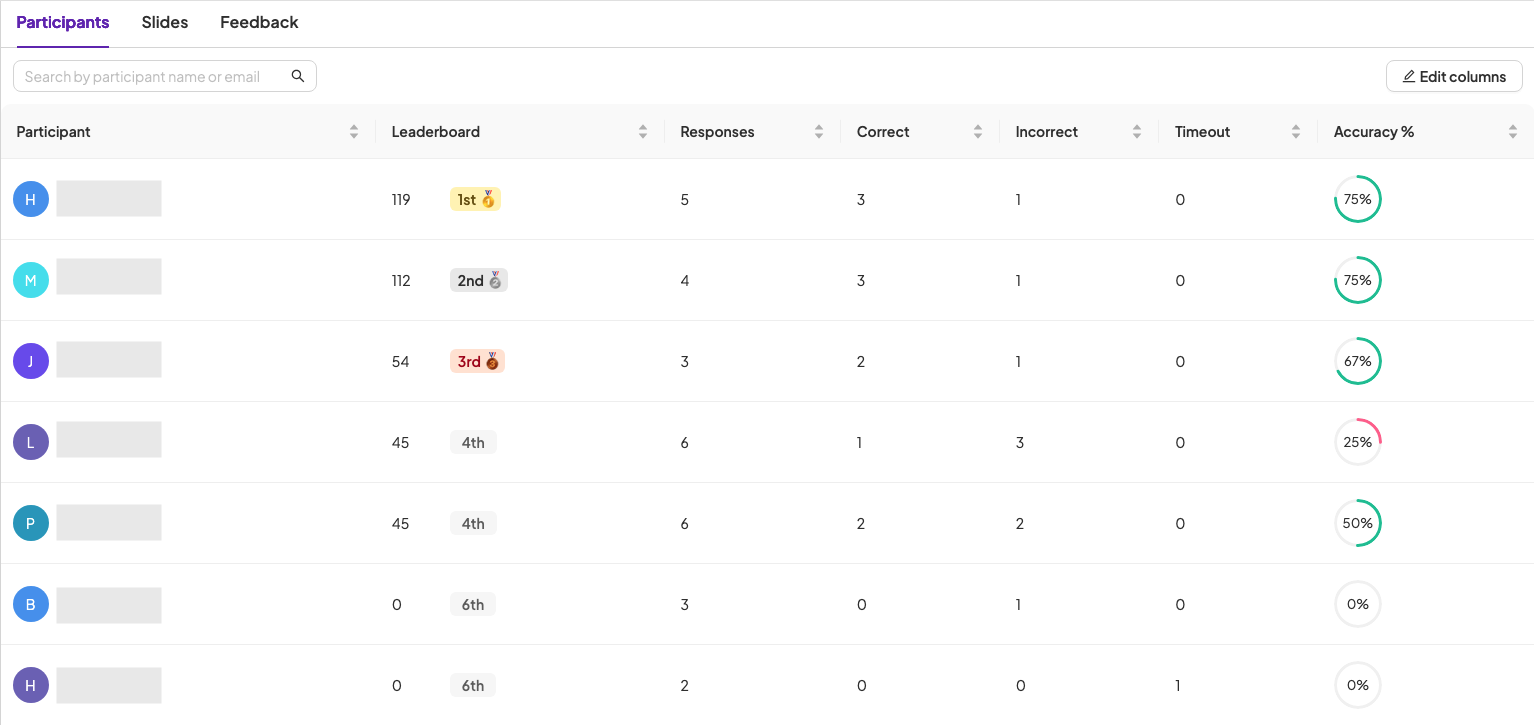
Setiap sesi yang anda jalankan menjana laporan: kadar penglibatan, keputusan tinjauan pendapat, skor kuiz, aktiviti Soal Jawab, respons individu. Bagi pemimpin L&D yang mewajarkan bajet latihan, inilah data yang menjelaskannya. "Penglibatan secara purata 87% merentasi 14 sesi suku tahun ini" memberikan kesan yang berbeza daripada "orang ramai nampaknya menyukainya".
Petua daripada AhaSlides pasukan
Beberapa tabiat kecil yang kami amalkan selepas menonton beribu-ribu sesi:
Gunakan AI Slides Maker untuk mendraf, kemudian sesuaikan
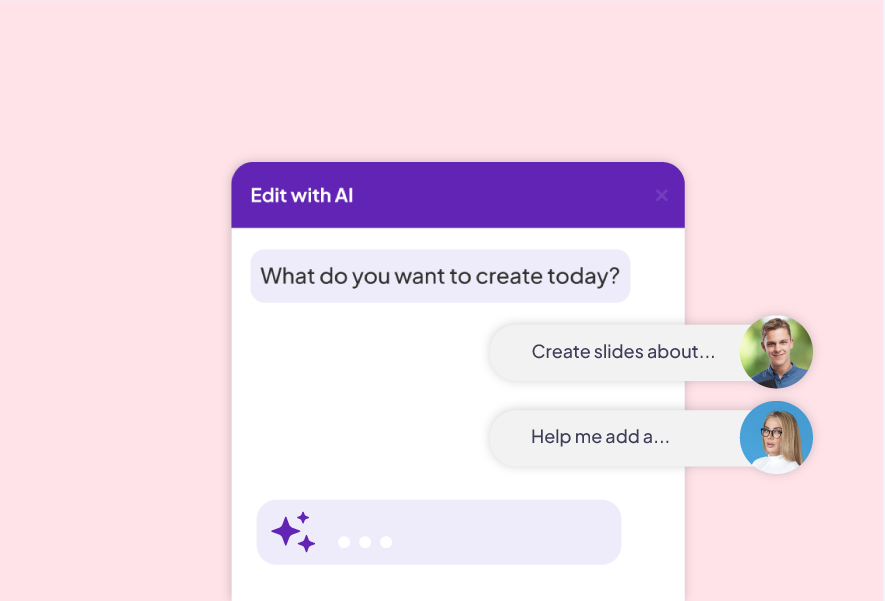
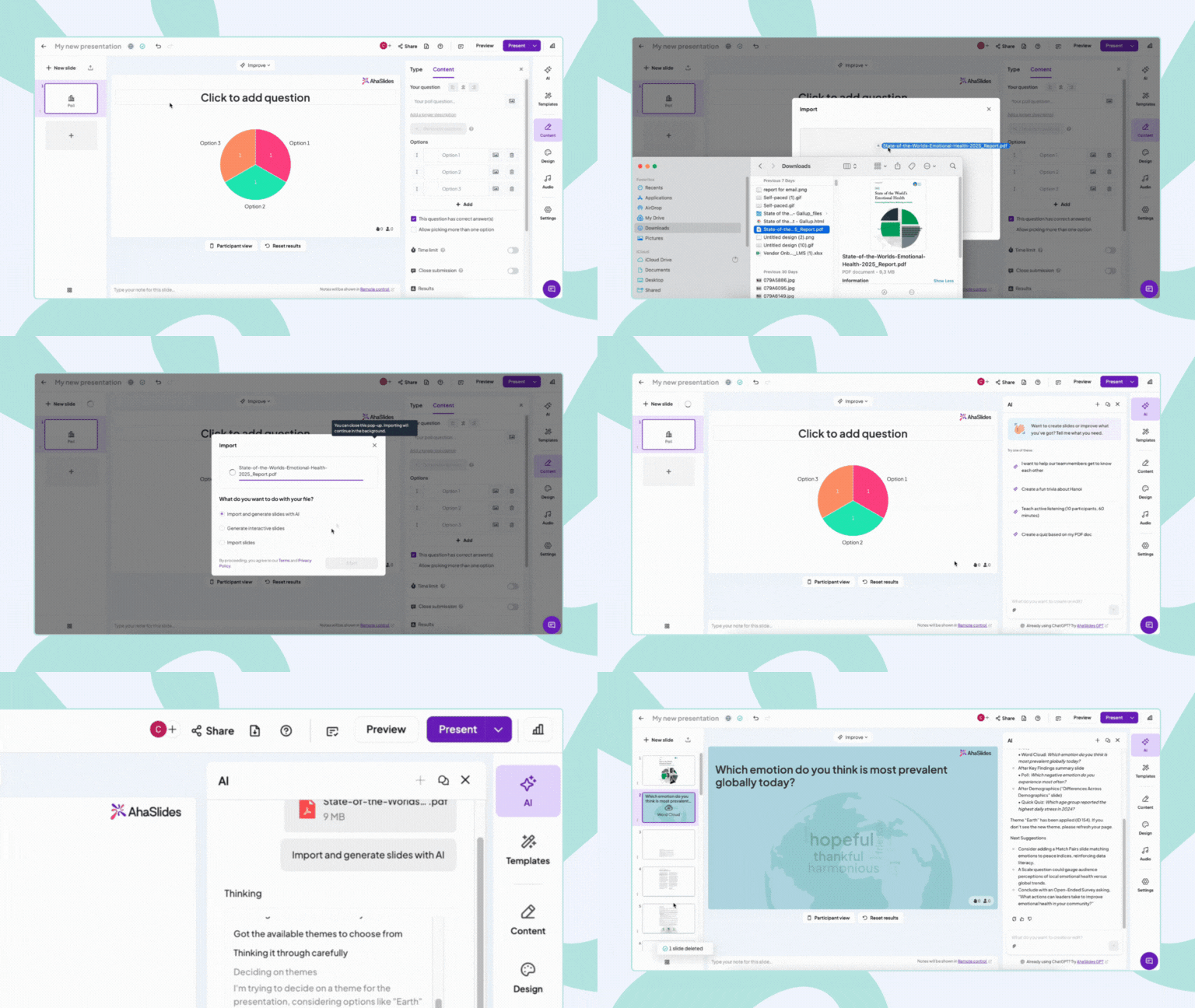
Masukkan topik atau dokumen anda ke dalam Pembuat Slaid AI kami dan anda akan mendapat dek interaktif penuh dalam masa kurang seminit. Ia tidak sempurna pikselnya, tetapi ia adalah titik permulaan yang menjimatkan masa sejam. Anggap ia sebagai draf, bukan akhir.
Jangan terlalu berinteraksi
Untuk sesi 60 minit, 5 hingga 7 momen interaktif adalah titik terbaik. Lebih daripada itu, anda sentiasa bertukar konteks. Kurang daripada itu, orang ramai akan hanyut.
Pasangkan Alat Kawalan Jauh/Backstage dengan tablet
Ciri Alat Kawalan Jauh atau Belakang Pentas kami membolehkan anda memajukan slaid dari telefon atau tablet anda. Ini kedengaran remeh. Ia tidak. Kebebasan untuk berjalan di sekitar bilik (atau bersiar-siar dari kamera web anda dalam sesi hibrid) mengubah seluruh tenaga anda sebagai penyampai.
Import PPT sedia ada anda
Jika anda sudah mempunyai dek PowerPoint, importnya sebagai slaid yang boleh diedit, ubah apa sahaja yang anda perlukan dan tambahkan slaid interaktif di tempat yang sepatutnya. Jangan bina semula. Kebanyakan pengguna tegar kami bermula dengan cara ini.
Kesilapan biasa yang perlu dielakkan
Melangkau keputusan
Keputusan tinjauan pendapat bukanlah slaid peralihan. Berhenti seketika, bacakannya, dan berikan reaksi terhadapnya. "Menarik, 60% daripada anda berkata X. Mari kita luangkan dua minit tambahan untuk itu." Itulah langkah penglibatan.
Terlupa untuk menguji di telefon
Buka sesi anda di telefon anda sendiri sebelum peserta menyertai. Lihat pengalaman kod penyertaan seperti yang dilakukan oleh pelajar. Ujian selama dua puluh saat menghalang kesilapan "mengapa jawapan saya tidak muncul".
Menguburkan kod penyertaan
Kod penyertaan kecil di sudut = penyertaan yang rendah. Besarkan, kekalkan di skrin, ulangi dengan kuat. Jangan anggap orang yang menyertai lewat telah melihatnya.
Bermula
Mendaftar di ahaslides.comLayari pustaka templat, pilih dek yang hampir dengan kes penggunaan anda, tukar kandungan anda dan jalankannya. Mulakan secara kecil-kecilan. Satu Undian. Satu Kuiz. Bina dari situ.
Jika anda membina kurikulum latihan penuh dan bukannya satu sesi sahaja, lihatlah AhaSlides Pembina Kursus Dalam Talian, yang menggabungkan jenis slaid interaktif yang sama ini ke dalam pelajaran mengikut rentak kendiri yang boleh diselesaikan oleh pelajar mengikut masa mereka sendiri.