
PowerPoint has no poll slide of its own. The quickest free way is an add-in: install AhaSlides from Home > Add-ins, add a Poll slide and present as normal. People vote on their phones by QR code or link, and the results build on your slide. On some Microsoft 365 plans, Microsoft Forms is the built-in alternative.
If your deck is already built, adding a poll shouldn’t mean building it again. Below are both routes, step by step, with what each one can and can’t do in front of a live audience.
The PowerPoint-only way: Microsoft Forms
Microsoft lets some accounts put a form or quiz on a slide. According to 微軟支援頁面 (checked 19 November 2026), inserting a form works for Office 365 Education and Microsoft 365 Apps for business customers, in PowerPoint for Microsoft 365 version 1807 or later on a PC, or in PowerPoint for the web.
- Sign in with your work or school account and open the slide where the poll belongs.
- Click Insert > Forms. A Forms panel docks on the right. In PowerPoint for the web, go to Home > Add-ins > Forms instead.
- Make or pick your form. Under My forms, select New Form and add a single choice question, or hover over an existing form and click Insert.
- 當下。 The form is embedded in the slide. On the web you can choose the Present for interactive meetings view.
- Check the answers in Forms. Responses collect at forms.office.com, under the View responses tab.
If Forms is missing from the Insert tab, your administrator may have turned it off for your organisation.
No Microsoft 365 business or education account? The fallback is a plain slide with the question and lettered options, and a show of hands.
現場觀眾的停留點
Both PowerPoint-only routes work for a small group in one room. They stop in the same places:
- Not everyone has Forms in PowerPoint. It depends on the Microsoft 365 plan, so a deck that works on your work laptop may not work on a client’s or a conference PC.
- The results live somewhere else. Answers collect in Forms, under View responses. To show the totals, you leave the slideshow and open Forms, which breaks the flow at the moment people want to see the result.
- A show of hands isn’t anonymous. People look around before they vote, so the loudest view sets the result. Remote attendees can’t raise a hand you can count, and nothing is recorded once the slide moves on.
- Fewer formats. A plain slide has no word cloud, rating scale or open answer wall.
That is the gap an add-in fills: the poll runs inside the slideshow and the result appears on the slide the moment people vote.
The live way: add a poll with the AhaSlides PowerPoint 插件
AhaSlides is an all-in-one engagement platform for teams and classrooms. With it, everyone votes from their phone and the results build on your slide, so you hear from the whole group, not only the loudest few.
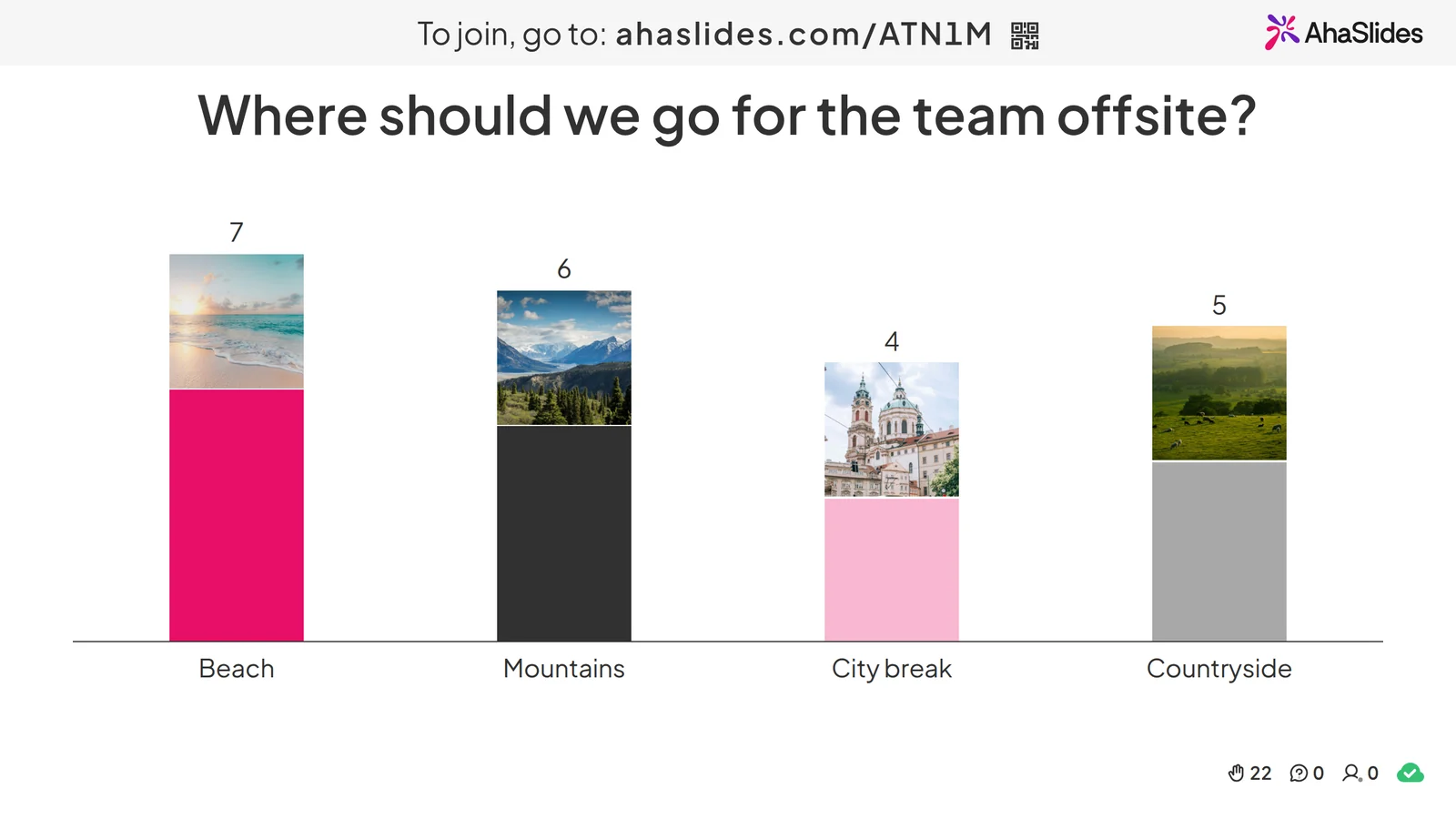
兩種快速入門的方法:
- 上傳你的牌組。 將您的 PowerPoint 檔案上傳至 AhaSlides 並讓 AI 透過它添加投票和測驗問題,從而將其變成一個互動式會話,而無需重新開始(AI PowerPoint 製作器).
- 或繼續用 PowerPoint 做簡報。 新增免費 AhaSlides 添加 並在您自己的幻燈片之間插入動態幻燈片。以下三個步驟即可完成。
Step 1: install the add-in and sign in
在 PowerPoint 中,前往 Home > Add-ins > More Add-ins, 搜索 ”AhaSlides“然後點擊 新增. On older Mac versions, use Insert > Get Add-ins; in PowerPoint for the web, Insert > Add-ins > More Add-ins. Once installed, AhaSlides sits under My Add-ins.
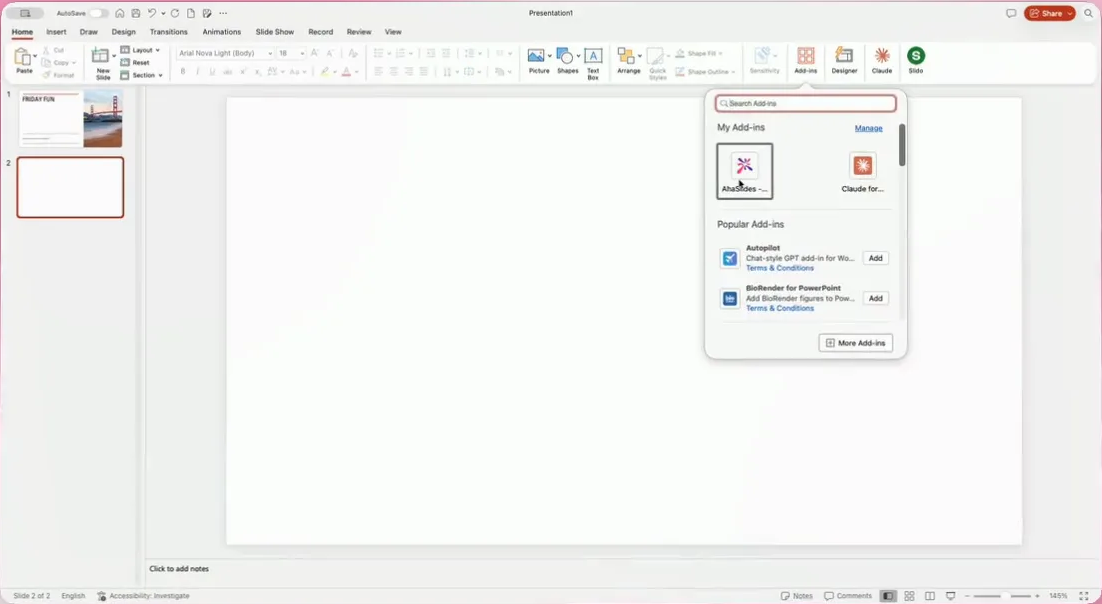
Open the add-in and sign in with your AhaSlides account, or sign up for a free one in the browser window that opens. Then click 連結.
Step 2: add a Poll slide
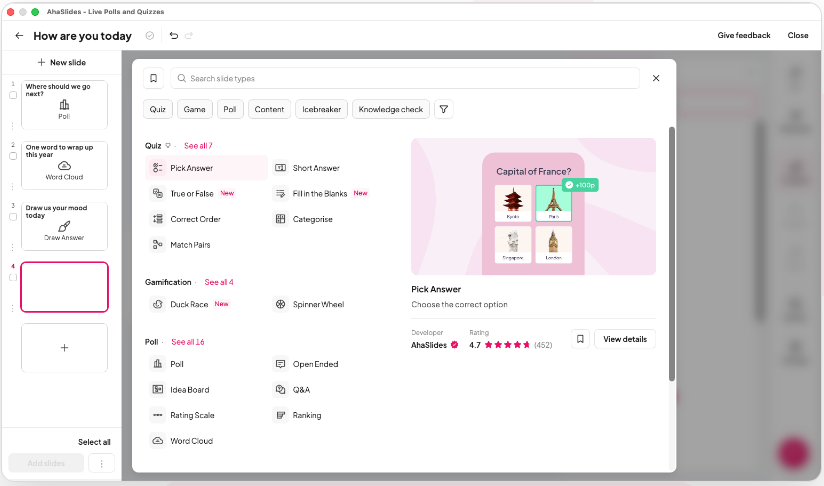
點擊 + New slide in the add-in and pick 輪詢 from the Poll group. The same list has Word Cloud, Rating Scale, Open Ended, Q&A and more if you want a different format.
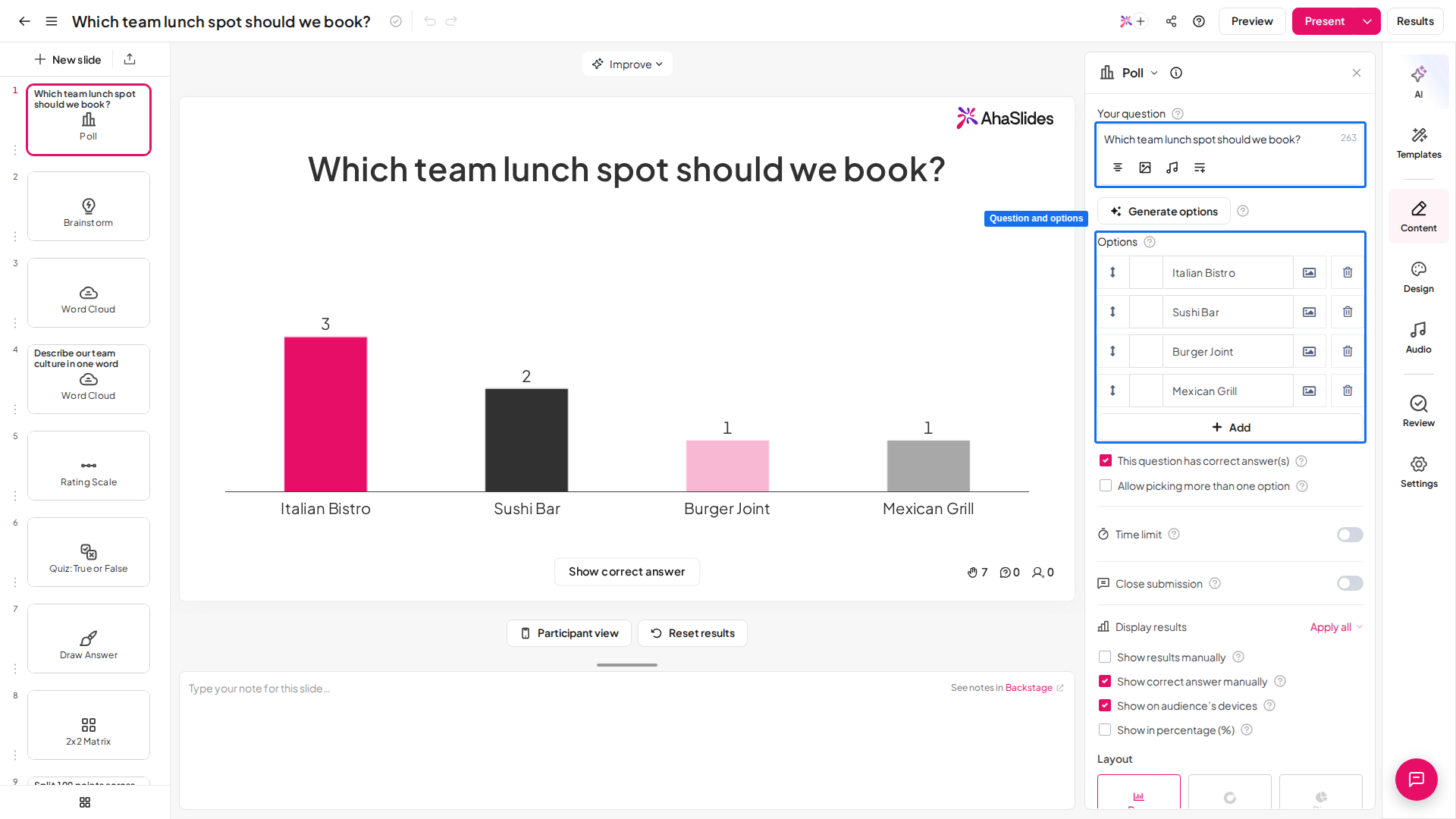
Type your question and the options. This is the Poll slide in the AhaSlides editor: the question and answer options sit in the panel on the right, and the chart on the left fills with votes during the session.
Already built your poll in AhaSlides? 選擇 選擇簡報勾選您想要的投影片,然後點擊 新增幻燈片. In PowerPoint for the web, you add one slide at a time.
Step 3: present and let people vote
Start your slideshow as normal. The poll slide shows a QR code and a join link, and people vote on their phones with no app to download. Press Q to bring up the join panel again, and the code stays the same for the whole deck. Votes appear on the slide as they come in, right inside PowerPoint.
Running it again? To run the same deck again, use 重置結果 in the add-in menu. If a slide doesn’t refresh after an edit, use Menu > Reload.
On the free plan you can engage up to 50 participants live, with unlimited presentations per month (AhaSlides 定價, checked 19 November 2026). For more poll formats outside PowerPoint, see the 在線投票製作者.
Start from a ready poll deck
Not sure what to ask? This free meeting warm-up template has would-you-rather polls, a headspace check-in, a rating, a word cloud and open questions. Copy it, change the questions, then add the slides to PowerPoint with the add-in.
5 poll ideas for your next PowerPoint
- The headspace check-in. Open with “How are you arriving today?” and four options. A Poll slide gives you a read on energy before you start, and the results show totals, not names, so the answers are more honest.
- A would-you-rather warm-up. Two playful options get everyone’s phone out and joined in the first minute, so the serious questions later get more votes.
- Let them pick the agenda. List three topics and let people vote on which to cover first. You still give the same talk, in the order they care about.
- Predict, then reveal. Ask people to guess a figure before you show it. The gap between the guesses and the answer is your next talking point.
- The exit poll. End with a Rating Scale for “How useful was this?” and an Open Ended slide for “One thing to change”. You leave with feedback you can act on, not a feeling.
If you want the poll to become a scored game, see how to turn PowerPoint into a quiz. For more ways to get people taking part across a whole deck, read our guide on 如何製作互動式 PowerPoint.
常見問題
Can you add a poll to PowerPoint?Yes, with an add-in or Microsoft Forms. PowerPoint has no poll slide of its own, so you either insert a form (on Office 365 Education and Microsoft 365 Apps for business plans) or use an add-in such as AhaSlides that puts a live poll on the slide.
How do I add a poll to PowerPoint for free?Use a free add-in. Install AhaSlides from Home > Add-ins > More Add-ins, sign up for a free account, add a Poll slide and present. The free plan covers up to 50 live participants.
Can you create a live poll in PowerPoint?Yes, with an add-in. AhaSlides shows the votes on the slide as people send them from their phones. With Microsoft Forms, the answers collect in Forms, under View responses.
How do you make a survey in PowerPoint?Insert a Microsoft Form if your plan includes it, or add several AhaSlides slides in a row: Poll, Rating Scale and Open Ended cover most survey questions. Note that standalone AhaSlides surveys don’t appear in the add-in; build them as presentation slides.
Is there a poll add-in for PowerPoint?是的,有好幾個。 AhaSlides, Mentimeter 以及 Slido each offer one, so check each vendor’s current requirements and free limits. Our Mentimeter 用於幻燈片 post compares how they work.
讓這副牌組互動起來
Static slides give people nothing to do, so attention drifts after the first few minutes and you only find out what they thought when it is too late. Our guide on 如何製作互動式 PowerPoint walks through 10 ways to fix that.