
PowerPoint Presenter View shows your speaker notes, the next slide and a timer on your own screen while the audience sees only the current slide. To use it, connect a second display, tick استخدم عرض المُقدّم on the Slide Show tab, then press F5 على Windows أو ⌘+Shift+Return على جهاز Mac.
Every menu name and shortcut below comes from Microsoft’s Presenter View help, which we checked on 19 November 2026. One disclosure: AhaSlides is our product, and the tips at the end show how to add a live poll with our PowerPoint add-in. Everything before that works in PowerPoint alone.
What Presenter View shows you
On your screen, Presenter View gives you:
- The current slide, large, with the الشريحة التالية بجانبه.
- Your speaker notes, with buttons to make the text bigger or smaller.
- جهاز توقيت you can pause and reset, and the current time.
- Pen and laser pointer tools, to draw on the slide or point at it.
- See All Slides, to jump straight to any slide.
- زوم, to enlarge part of a slide for the room.
- شاشة سوداء, to blank the display while you talk.
The audience sees none of this. They see the slide, full screen. If your notes are thin, our guide on كيفية إضافة ملاحظات إلى برنامج PowerPoint covers writing and formatting them.
How to use Presenter View in PowerPoint
على ويندوز
- Connect your laptop to the projector or second screen. Press Windows+P واختر تمديد, not Duplicate, so the two screens show different things.
- في برنامج PowerPoint، افتح عرض الشرائح اضغط على زر التحديد وضع علامة صح استخدم عرض المُقدّم.
- في خانة رمز الخصم، أدخل TABBYDAY. الشاشات list next to it, choose the screen the audience will see.
- اختر من البدايةأو اضغط F5. To start from the slide you’re on, press التحول + F5.
يمكنك أيضًا الضغط ألت + فسنومك to start straight in Presenter View.
على ماك
- Connect the second screen. In اعدادات النظام > يعرض, make sure the screens are not mirrored.
- في برنامج PowerPoint، افتح عرض الشرائح وحدد علامة التبويب عرض مقدم العرض.
- To start from the first slide, press ⌘+Shift+Return. From the current slide, press ⌘+رجوع. الخيار + العودة starts Presenter View directly.
With only one monitor
You can rehearse in Presenter View on a single screen. On Windows, press ألت + فسنومك. During a normal slide show you can also use the control bar in the bottom-left corner and choose Show Presenter View.
This is useful for practice, and for presenting over a video call when you share one window and keep Presenter View on your own screen.
Swap which screen shows what
If your notes appear on the projector, swap the screens. On Windows, select عرض إعدادات at the top of Presenter View, then تبديل عرض مقدم العرض وعرض الشرائح. On a Mac, select Swap Displays at the top of the view.
Turn Presenter View off
On Windows, clear استخدم عرض المُقدّم on the Slide Show tab. On a Mac, choose Use Slide Show instead of Presenter View. The audience screen and yours will then show the same slide show.
Presenter View shortcuts
| لفعل هذا | ويندوز | ماك |
|---|---|---|
| Start in Presenter View | ألت + فسنومك | الخيار + العودة |
| Start from the first slide | F5 | ⌘+Shift+Return |
| Start from the current slide | التحول + F5 | ⌘+رجوع |
| Black screen, and back | B or full stop | B or full stop |
| White screen, and back | W or comma | W or comma |
| Go to slide number | Number, then Enter | Number, then Return |
| أقلام | CTRL + P | ⌘+P |
| مؤشر الليزر | CTRL + L | ⌘ + لام |
| End the slide show | خروج | خروج |
الإعلام خروج at any point to end the slide show and go back to editing.
When Presenter View doesn’t show
Most problems come from the display settings, not PowerPoint.
- Both screens show the same thing. Your computer is mirroring. On Windows, press Windows+P and pick Extend. On a Mac, turn off mirroring in Displays.
- Your notes are on the projector. Use Swap Presenter View and Slide Show (Windows) or Swap Displays (Mac).
- It’s not offered at all. Check that Use Presenter View is ticked, and that you’re in the desktop app. Microsoft says you need PowerPoint for Windows or Mac to use Presenter View; in PowerPoint for the web, you present from عرض الشرائح > من البداية بدلا من ذلك.
Where Presenter View stops for a live audience
Presenter View is built for you, not for the room. It tells you what’s next, how long you’ve been talking and what you meant to say. It can’t tell you whether anyone is following.
That matters most in the middle of a talk. You can see the clock, but not the attention. The audience can see your slides, but can’t answer them. The tools in your session shouldn’t get between you and the people in front of you, so the fix should live inside the deck you’re already presenting, not in another app you have to switch to.
Make the slides talk back: the AhaSlides الوظيفة الإضافية
AhaSlides is an all-in-one engagement platform for teams and classrooms. It adds live polls, quizzes, rating scales and Q&A as slides inside the deck you present with Presenter View, and your audience's answers appear on your slide.
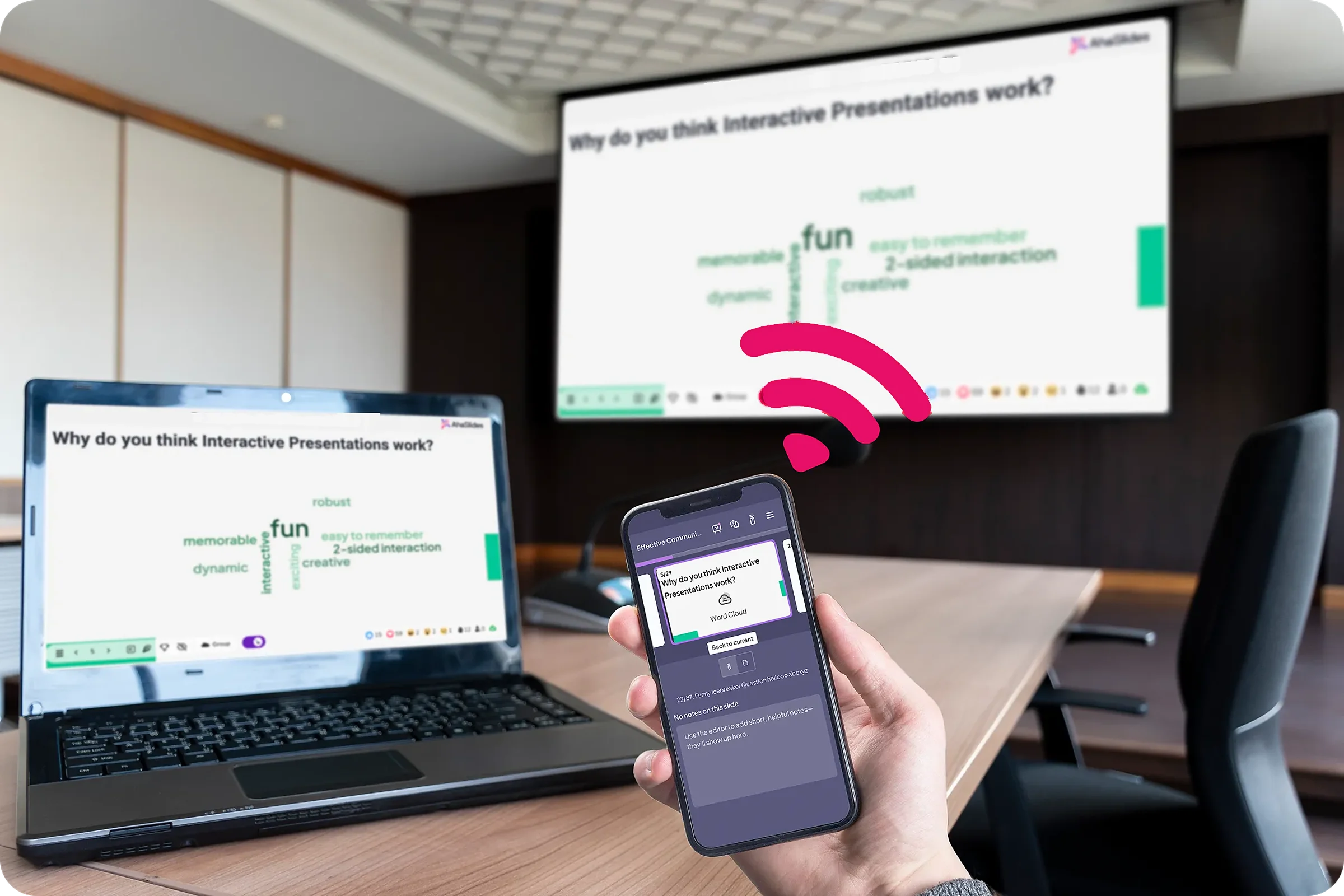
طريقتان سريعتان للبدء:
- قم بتحميل مجموعتك. قم بتحميل ملف PowerPoint الخاص بك إلى AhaSlides ويمكن للذكاء الاصطناعي إضافة استطلاعات الرأي وأسئلة الاختبار من خلالها، لتصبح جلسة تفاعلية دون الحاجة إلى البدء من جديد.صانع باوربوينت الذكاء الاصطناعي).
- أو استمر في تقديم العرض باستخدام برنامج PowerPoint. أضف مجاناً AhaSlides الوظيفة الإضافية ضع الشرائح الحية بين شرائحك. يتطلب ذلك ثلاث خطوات، موضحة أدناه.

The add-in is listed on Microsoft Marketplace as AhaSlides - Live Polls & Quizzes. It’s available on every AhaSlides plan, including the free one, and works in installed Microsoft 365, PowerPoint 2024, 2021 and 2019 (AhaSlides مركز المساعدة(تم التحقق منه في 19 نوفمبر 2026).
- Install it and log in. On the Home tab, select الوظائف الإضافية > إضافات أخرى، البحث عن AhaSlides ثم انقر إضافة. On an older Mac build, use إدراج > احصل على الوظائف الإضافية. Then log in.
- Add your slides. اختر ال AhaSlides presentation that holds your interactive slides, tick the ones you want and click إضافة الشرائح. Each one goes on its own PowerPoint slide.
- الحاضر. على AhaSlides slide, press Q to show or hide the QR code and join link. People join once for the whole deck.

A rating scale like this works well at the end of a talk: it takes a minute, and you leave with feedback on each part of the session instead of a guess. The template below has it, plus polls and open questions.
6 tips for presenting with Presenter View
- Write notes as prompts, not a script. Three or four short cues per slide are easier to glance at than paragraphs. Increase the notes text size before you start.
- Start the timer when you start talking. Pause it if you’re interrupted, so it shows your real speaking time.
- Use Black screen to pull eyes back to you. الإعلام B for a black screen and press it again to return. W gives a white screen.
- Jump, don’t click through. Type a slide number and press أدخل to go to it, or use See All Slides. It’s quicker than paging back through ten slides to answer a question.
- Plan one moment where people answer. ضع استطلاع مباشر or quick quiz where attention usually dips, around the middle. Our guide to إنشاء عرض تقديمي تفاعلي باستخدام برنامج PowerPoint shows the options, and a live Q&A in PowerPoint collects questions as you go.
- Rehearse with it on. Use Alt+F5 on one screen to practise exactly what you’ll see on the day. If you’re new to building decks, start with our step-by-step guide on how to create a PowerPoint presentation.
الأسئلة الشائعة
How do I present a PowerPoint without showing the notes to the audience?
Use Presenter View with two screens set to extend, not mirror. Your notes appear only on your screen. If they show on the projector, use Swap Presenter View and Slide Show (Windows) or Swap Displays (Mac).
How do I get PowerPoint back to normal view?
الإعلام خروج to end the slide show. If you’re in a different view while editing, select اساسي on the View tab.
What are the different types of views in PowerPoint?
Normal, Outline View, Slide Sorter, Notes Page and Reading View on the View tab, plus Slide Show and Presenter View for presenting. Presenter View is the one built to show your notes privately while you present.
How can I see my speaker notes while presenting with one monitor?
الإعلام ألت + فسنومك on Windows to open Presenter View on one screen, or choose Show Presenter View from the slide show control bar. On a video call, share only the slide show window so your notes stay private.
اجعل هذه المجموعة تفاعلية
guide to making an interactive PowerPoint shows how to get people answering, voting and asking questions in any deck. Or start from a free starter deck in our template library and add it to your next presentation.
Want to hear back from your audience in your next talk?
Add live polls, rating scales and Q&A to the deck you present with Presenter View, and see every answer on your slide. The AhaSlides add-in for PowerPoint is free to start.