
PowerPoint Presenter View shows your speaker notes, the next slide and a timer on your own screen while the audience sees only the current slide. To use it, connect a second display, tick प्रस्तुतकर्ता दृश्य का उपयोग करें on the Slide Show tab, then press F5 विंडोज पर या ⌘+शिफ्ट+रिटर्न एक मैक पर।
Every menu name and shortcut below comes from Microsoft’s Presenter View helpजिसकी हमने 19 नवंबर 2026 को जाँच की। एक खुलासा: AhaSlides is our product, and the tips at the end show how to add a live poll with our PowerPoint add-in. Everything before that works in PowerPoint alone.
What Presenter View shows you
On your screen, Presenter View gives you:
- The current slide, large, with the अगली स्लाइड इसके अलावा।
- Your speaker notes, with buttons to make the text bigger or smaller.
- एक टाइमर you can pause and reset, and the current time.
- Pen and laser pointer tools, to draw on the slide or point at it.
- See All Slides, to jump straight to any slide.
- ज़ूम, to enlarge part of a slide for the room.
- काला चित्रपट, to blank the display while you talk.
The audience sees none of this. They see the slide, full screen. If your notes are thin, our guide on पावरपॉइंट में नोट्स कैसे जोड़ें covers writing and formatting them.
How to use Presenter View in PowerPoint
विंडोज पर
- Connect your laptop to the projector or second screen. Press Windows+P और चुनें बढ़ाएँ, not Duplicate, so the two screens show different things.
- पॉवरपॉइंट में, इसे खोलें स्लाइड शो टैब दबाएं और टिक करें प्रस्तुतकर्ता दृश्य का उपयोग करें.
- में मॉनिटर list next to it, choose the screen the audience will see.
- चुनते हैं शुरूआत से, या दबाएँ F5. To start from the slide you’re on, press शिफ्ट + F5.
आप यह भी दबा सकते हैं Alt + F5 to start straight in Presenter View.
मैक पर
- Connect the second screen. In प्रणाली व्यवस्था > प्रदर्शित करता है, make sure the screens are not mirrored.
- पॉवरपॉइंट में, इसे खोलें स्लाइड शो टैब और चयन करें प्रस्तुतकर्ता देखें.
- To start from the first slide, press ⌘+शिफ्ट+रिटर्न. From the current slide, press ⌘+वापस लौटें. विकल्प+वापसी starts Presenter View directly.
With only one monitor
You can rehearse in Presenter View on a single screen. On Windows, press Alt + F5. During a normal slide show you can also use the control bar in the bottom-left corner and choose Show Presenter View.
This is useful for practice, and for presenting over a video call when you share one window and keep Presenter View on your own screen.
Swap which screen shows what
If your notes appear on the projector, swap the screens. On Windows, select सेटिंग्स प्रदर्शित at the top of Presenter View, then स्वैप प्रस्तुतकर्ता दृश्य और स्लाइड शो. On a Mac, select Swap Displays at the top of the view.
Turn Presenter View off
On Windows, clear प्रस्तुतकर्ता दृश्य का उपयोग करें on the Slide Show tab. On a Mac, choose Use Slide Show instead of Presenter View. The audience screen and yours will then show the same slide show.
Presenter View shortcuts
| यह करने के लिए | विंडोज | Mac |
|---|---|---|
| Start in Presenter View | Alt + F5 | विकल्प+वापसी |
| Start from the first slide | F5 | ⌘+शिफ्ट+रिटर्न |
| Start from the current slide | शिफ्ट + F5 | ⌘+वापस लौटें |
| Black screen, and back | B or full stop | B or full stop |
| White screen, and back | W or comma | W or comma |
| Go to slide number | Number, then Enter | Number, then Return |
| कलम | Ctrl + पी | ⌘+P |
| लेजर सूचक | Ctrl + L | ⌘ + एल |
| End the slide show | ईएससी | ईएससी |
दबाएँ ईएससी at any point to end the slide show and go back to editing.
When Presenter View doesn’t show
Most problems come from the display settings, not PowerPoint.
- Both screens show the same thing. Your computer is mirroring. On Windows, press Windows+P and pick Extend. On a Mac, turn off mirroring in Displays.
- Your notes are on the projector. Use Swap Presenter View and Slide Show (Windows) or Swap Displays (Mac).
- It’s not offered at all. Check that Use Presenter View is ticked, and that you’re in the desktop app. Microsoft says you need PowerPoint for Windows or Mac to use Presenter View; in PowerPoint for the web, you present from स्लाइड शो > शुरूआत से बजाय.
Where Presenter View stops for a live audience
Presenter View is built for you, not for the room. It tells you what’s next, how long you’ve been talking and what you meant to say. It can’t tell you whether anyone is following.
That matters most in the middle of a talk. You can see the clock, but not the attention. The audience can see your slides, but can’t answer them. The tools in your session shouldn’t get between you and the people in front of you, so the fix should live inside the deck you’re already presenting, not in another app you have to switch to.
Make the slides talk back: the AhaSlides जोड़ने में
AhaSlides is an all-in-one engagement platform for teams and classrooms. It adds live polls, quizzes, rating scales and Q&A as slides inside the deck you present with Presenter View, and your audience's answers appear on your slide.
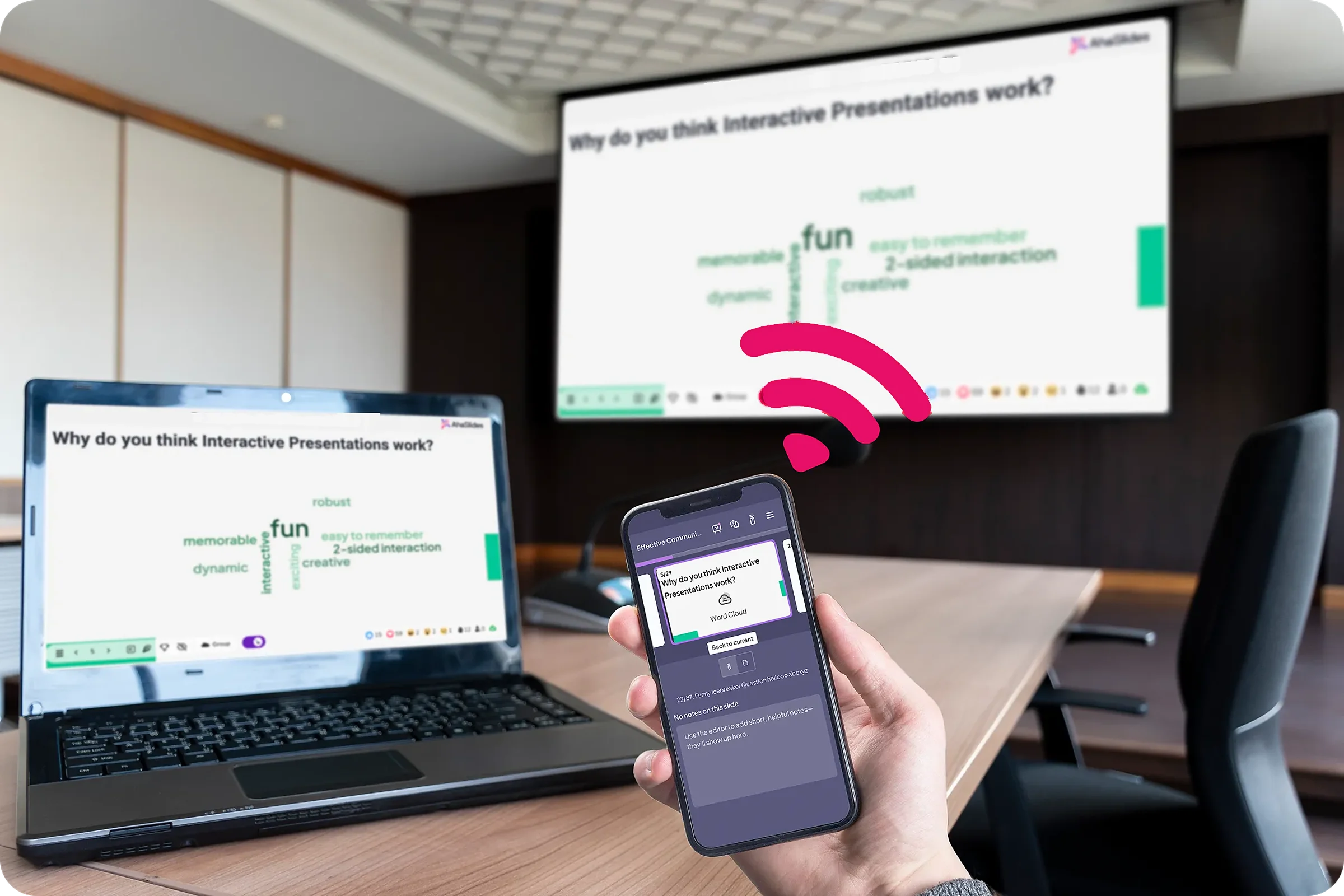
शुरू करने के दो आसान तरीके:
- अपना डेक अपलोड करें। अपनी पावरपॉइंट फ़ाइल अपलोड करें AhaSlides और एआई को इसके माध्यम से पोल और क्विज़ प्रश्न जोड़ने दें, ताकि यह दोबारा शुरू किए बिना एक इंटरैक्टिव सत्र बन जाए।एआई पॉवरपॉइंट मेकर).
- या फिर पावरपॉइंट में ही प्रेजेंटेशन देते रहें। मुफ़्त जोड़ें AhaSlides जोड़ने में और अपनी स्लाइड्स के बीच में लाइव स्लाइड्स डालें। इसके लिए नीचे दिए गए तीन चरणों का पालन करें।

The add-in is listed on Microsoft Marketplace as AhaSlides - Live Polls & Quizzes. It’s available on every AhaSlides plan, including the free one, and works in installed Microsoft 365, PowerPoint 2024, 2021 and 2019 (AhaSlides सहायता केंद्र(19 नवंबर 2026 को जांचा गया)।
- Install it and log in. On the Home tab, select ऐड-इन्स > अधिक ऐड-इन्स, निम्न को खोजें AhaSlides और क्लिक करें जोड़ना. On an older Mac build, use सम्मिलित करें > ऐड-इन्स प्राप्त करें. Then log in.
- Add your slides. उठाओ AhaSlides presentation that holds your interactive slides, tick the ones you want and click स्लाइड जोड़ें. Each one goes on its own PowerPoint slide.
- वर्तमान। एक पर AhaSlides slide, press Q to show or hide the QR code and join link. People join once for the whole deck.

A rating scale like this works well at the end of a talk: it takes a minute, and you leave with feedback on each part of the session instead of a guess. The template below has it, plus polls and open questions.
6 tips for presenting with Presenter View
- Write notes as prompts, not a script. Three or four short cues per slide are easier to glance at than paragraphs. Increase the notes text size before you start.
- Start the timer when you start talking. Pause it if you’re interrupted, so it shows your real speaking time.
- Use Black screen to pull eyes back to you. दबाएँ B for a black screen and press it again to return. W gives a white screen.
- Jump, don’t click through. Type a slide number and press दर्ज to go to it, or use See All Slides. It’s quicker than paging back through ten slides to answer a question.
- Plan one moment where people answer. डाल दिया लाइव पोल or quick quiz where attention usually dips, around the middle. Our guide to एक इंटरैक्टिव पॉवरपॉइंट बनाना shows the options, and a live Q&A in PowerPoint collects questions as you go.
- Rehearse with it on. Use Alt+F5 on one screen to practise exactly what you’ll see on the day. If you’re new to building decks, start with our step-by-step guide on पॉवरपॉइंट प्रेजेंटेशन कैसे बनाएं.
सामान्य प्रश्न
How do I present a PowerPoint without showing the notes to the audience?
Use Presenter View with two screens set to extend, not mirror. Your notes appear only on your screen. If they show on the projector, use Swap Presenter View and Slide Show (Windows) or Swap Displays (Mac).
How do I get PowerPoint back to normal view?
दबाएँ ईएससी to end the slide show. If you’re in a different view while editing, select साधारण on the View tab.
What are the different types of views in PowerPoint?
Normal, Outline View, Slide Sorter, Notes Page and Reading View on the View tab, plus Slide Show and Presenter View for presenting. Presenter View is the one built to show your notes privately while you present.
How can I see my speaker notes while presenting with one monitor?
दबाएँ Alt + F5 on Windows to open Presenter View on one screen, or choose Show Presenter View from the slide show control bar. On a video call, share only the slide show window so your notes stay private.
इस डेक को इंटरैक्टिव बनाएं
हमारे इंटरेक्टिव पॉवरपॉइंट बनाने के लिए गाइड यह दिखाता है कि किसी भी प्रस्तुति में लोगों को उत्तर देने, वोट करने और प्रश्न पूछने के लिए कैसे प्रेरित किया जाए। या फिर किसी एक से शुरुआत करें। हमारे टेम्प्लेट लाइब्रेरी में निःशुल्क स्टार्टर डेक उपलब्ध है। और इसे अपनी अगली प्रस्तुति में शामिल करें।
Want to hear back from your audience in your next talk?
Add live polls, rating scales and Q&A to the deck you present with Presenter View, and see every answer on your slide. The AhaSlides पॉवरपॉइंट के लिए ऐड-इन शुरू में मुफ्त है।