

The best Zoom presentation tips come down to one habit: give people something to do every few minutes. Keep each content block to about 8 minutes, open with a clear plan, stay on camera next to your slides, tell stories with a point, pause for conversation, and add a poll, word cloud or Q&A between blocks. In an AhaSlides survey of 1,048 US professionals who present at least once a month, 41.9% named screen fatigue and 41.7% named a lack of interactivity as leading causes of audience distraction. The tips below deal with both.
Back-to-back video calls are tiring, and your audience arrives at your presentation already worn out by the last one. You can't fix their calendar, but you can design a session that asks them to take part instead of sit and watch. Here's how.
What causes Zoom fatigue?
Zoom fatigue is the tiredness people feel after long or frequent video calls. Stanford professor Jeremy Bailenson set out four likely causes in a 2021 paper in Technology, Mind, and Behavior, and each one has a simple fix you can share with your audience:
| Veroorzaken | Why it tires people | De oplossing |
|---|---|---|
| Close-up eye contact | Faces fill the screen at a size we normally reserve for people standing very close. | Make the Zoom window smaller so faces shrink, or use an external keyboard so you can sit further back. |
| Seeing yourself all day | A constant view of your own face is like talking in front of a mirror. | Zoom lets you hide self view while others still see you. |
| Stilzitten | A camera keeps you in one small spot. | Moving the camera further back gives you room to move. |
| Extra mental effort | Reading tone and gestures on a screen takes more work than in person. | Short audio-only breaks give people a rest. |
Attention is under pressure too. Psychologist Gloria Mark told the American Psychological Association that in recent years people have stayed on one screen for about 47 seconds on average before switching, down from about two and a half minutes in 2004. Your audience has other tabs, chats and emails open while you talk.

1. Open your Zoom presentation with a clear, friendly start
The first minute matters. People join distracted, still finishing an email or arriving from another call. Greet them warmly, use names if the group is small, and give them a plan: "We've got 30 minutes. I'll cover three points, and I want to hear from you along the way."
Test your set-up before anyone joins. Check your microphone, camera angle and screen share, and open any apps you plan to use. A smooth start shows you're prepared, and it means the first thing people remember is your content, not a fumble with settings.
Say early on that this is a conversation, not a lecture. People who expect to be asked something stay more alert than people who expect to listen.
2. Keep Zoom presentation content in short blocks
With attention moving every minute or so, a 45-minute monologue asks too much of anyone. Build your talk from blocks of about 8 minutes, each with one idea, and change something when a block ends: ask a question, switch speakers, show a different kind of content or run a quick poll. A change of activity gives people a reason to look back at the screen.
If your presentation runs past 30 minutes, add a five-minute break. Let people step away, grab a drink and check messages without guilt, so they come back for the second half instead of drifting through it.
A deck built for a conference room often feels long on Zoom. Cut slides, split dense ones in two, and plan the session around the screen people will be looking at.
3. Make your Zoom presentation interactive with polls, word clouds and Q&A
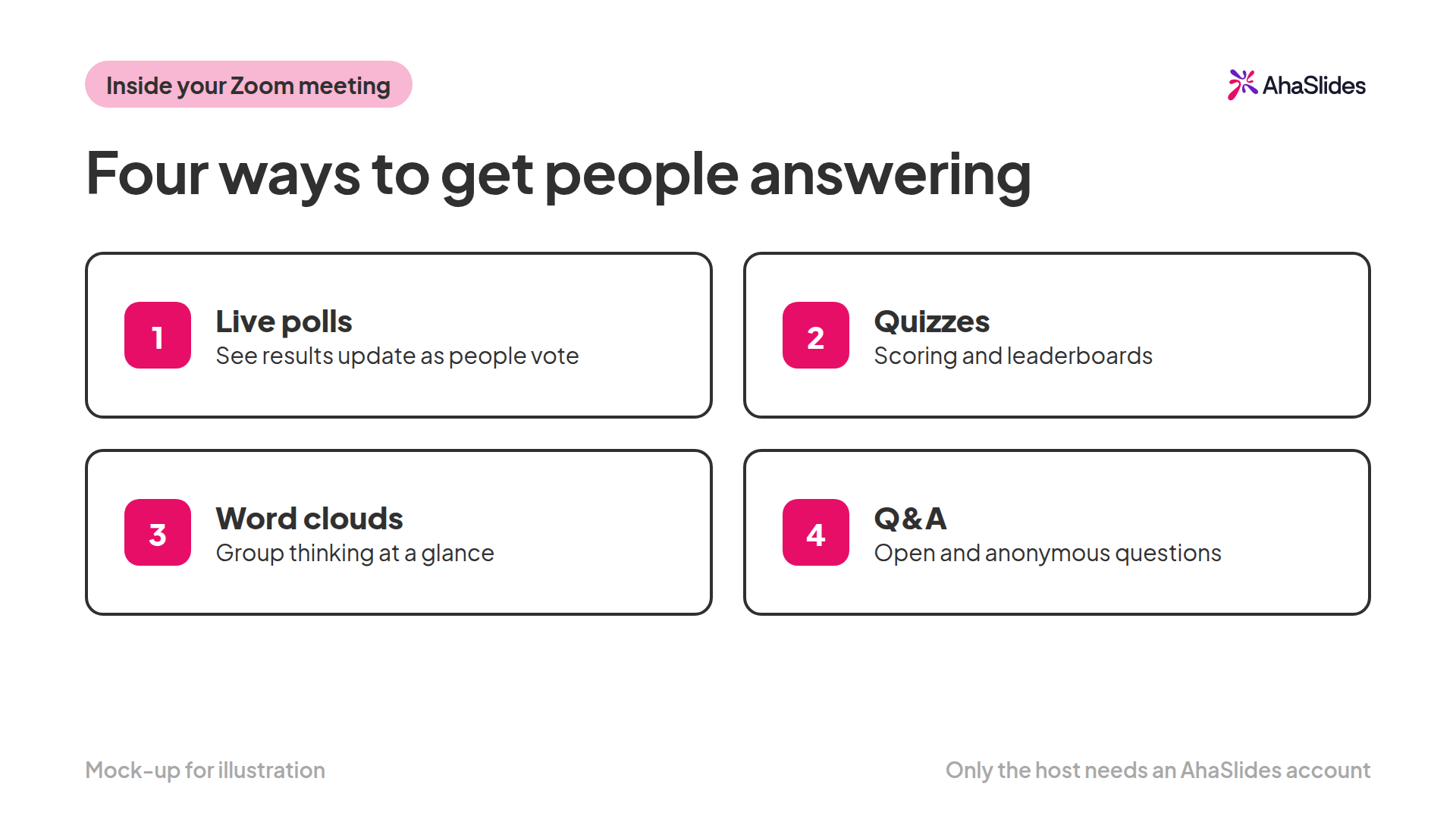
Don't save every question for the end. Spread them through the session so people think and answer rather than just watch:
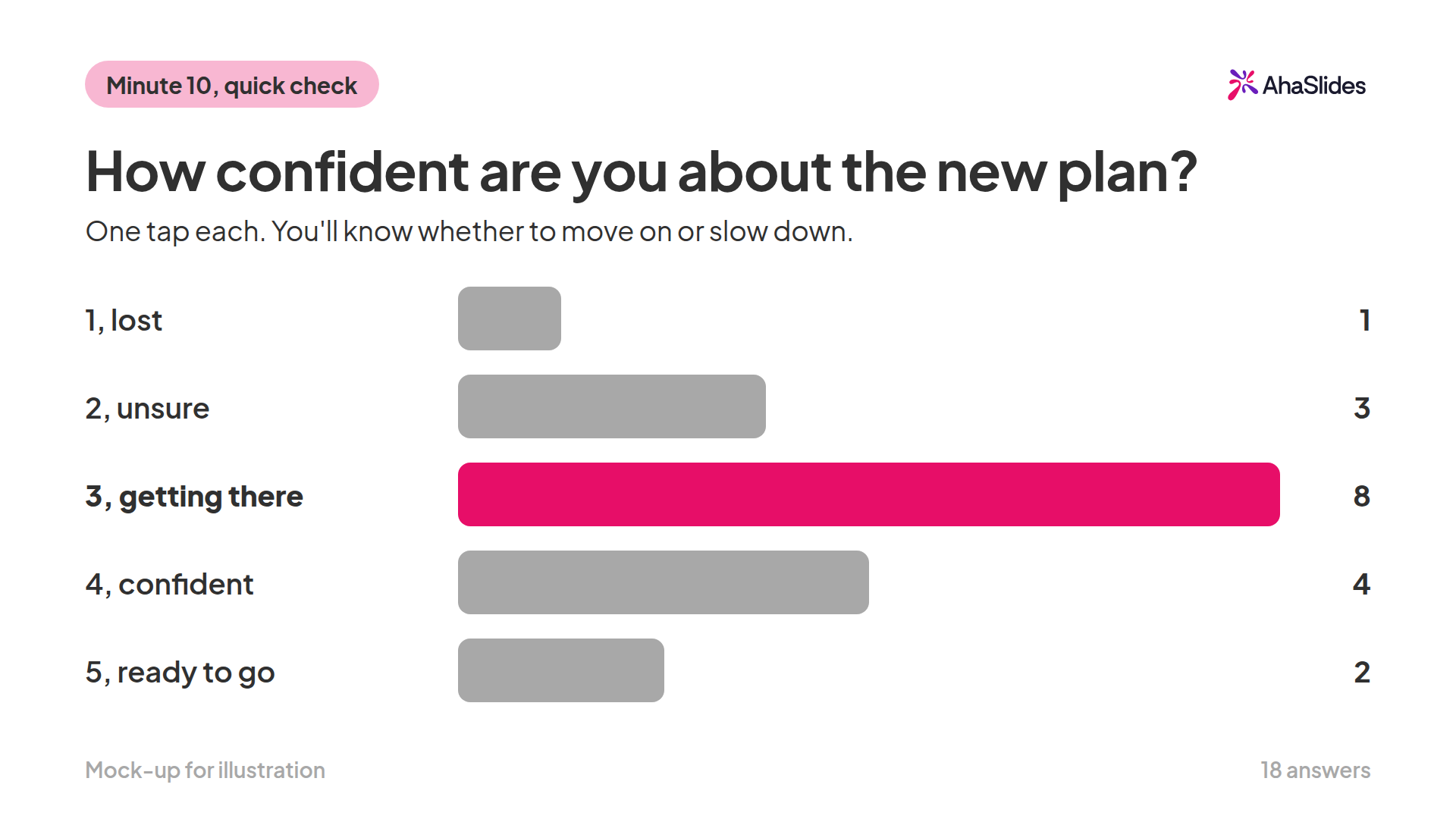
- Polls for quick checks: "On a scale of 1 to 5, how confident do you feel about this?"
- quizzen to test understanding before you move on.
- Woordwolken to see everyone's first reaction in one picture: "What's the first word that comes to mind?"
- Q & A so people can ask what they're still wondering, anonymously if they prefer.
Here's what a quick confidence check might look like after your first block:
You can run these without sending people to another tab. De AhaSlides app op de Zoom App Marketplace lets you run live polls, quizzes, word clouds and Q&A inside your Zoom meeting or webinar. Participants answer inside Zoom, and only the host needs an AhaSlides account.
To set it up, following the AhaSlides hulp gids:
- Open the Zoom desktop app on a computer (the Zoom mobile app doesn't support it), go to Apps, zoeken AhaSlides en klik op Toevoegen.
- Open tijdens uw vergadering AhaSlides from Apps, choose Geef een presentatieLog in en kies je deck.
- Allow screen sharing and invitations, so participants get an invitation to open the app.
- Participants click Open on the invitation and answer inside Zoom. Anyone on a phone can join in a browser with the access code.
The free plan supports up to 50 live participants. For a full walkthrough, read our gids voor de AhaSlides Zoomintegratie.
Every response is a moment when someone stops watching and starts doing. That matters: in the same AhaSlides survey, 41.7% of presenters named a lack of interactivity as a leading cause of distraction.
4. Tell stories with a point
Facts on their own are hard to remember. A fact inside a story is easier to hold on to, which helps on Zoom, where people also have notifications pulling at them.
Pick stories that prove the point you're making. Training new starters on company values? Tell them about a time those values changed a real decision. Presenting a new process? Describe the problem it solved, what you tried first, what went wrong and what you learned.
Keep each story tight, with a clear beginning, middle and end. Sharing a mistake or a moment of doubt makes you easier to relate to through a screen, and people are more willing to speak up for a presenter who seems human.
5. Stay on camera next to your slides
It's tempting to share your slides and disappear. But people respond to faces. When your audience can see your expressions, they feel more connected and are more likely to answer when you ask a question.
Zoom can put you and your slides in one view. With slides as a virtual background, your video sits over your PowerPoint or Keynote slides, so people see you and your content together. It needs PowerPoint (or Keynote on a Mac) installed, and people joining from the Zoom web client see a normal screen share. If that doesn't suit you, switch back to your camera between sections.
Look into the camera when you make a key point, and light your face from the front. Small details like these show your audience you value their time.
6. Plan pauzes in voor gesprekken.
A presentation goes one way. A conversation goes both ways. On Zoom, shift the balance towards conversation.
After each main point, pause and ask for reactions: "Does this match what you've seen?" or "What questions does this raise?" Give people a few seconds of silence to answer. In a large group, ask for replies in the chat. In a small one, invite people to unmute.
If you have co-presenters, swap every block. A new voice brings attention back, and a short back-and-forth between two people is easier to follow than a long monologue.
7. Vary the content type
Dense text is hard to read on a laptop screen. Use images, short videos, simple charts and interactive slides, and rotate between them so each new block looks different from the last.
Use large fonts and strong contrast, and test your slides in a screen share before the day. Slides that look fine on a projector can be unreadable in a small Zoom window.
A quiz or game is also a change of pace. Our 50 Zoom-quizideeën en Zoomspellen give you ready-made rounds, and our guide to running a Zoom quiz Dit betreft de hostingkant.
A 30-minute Zoom presentation plan
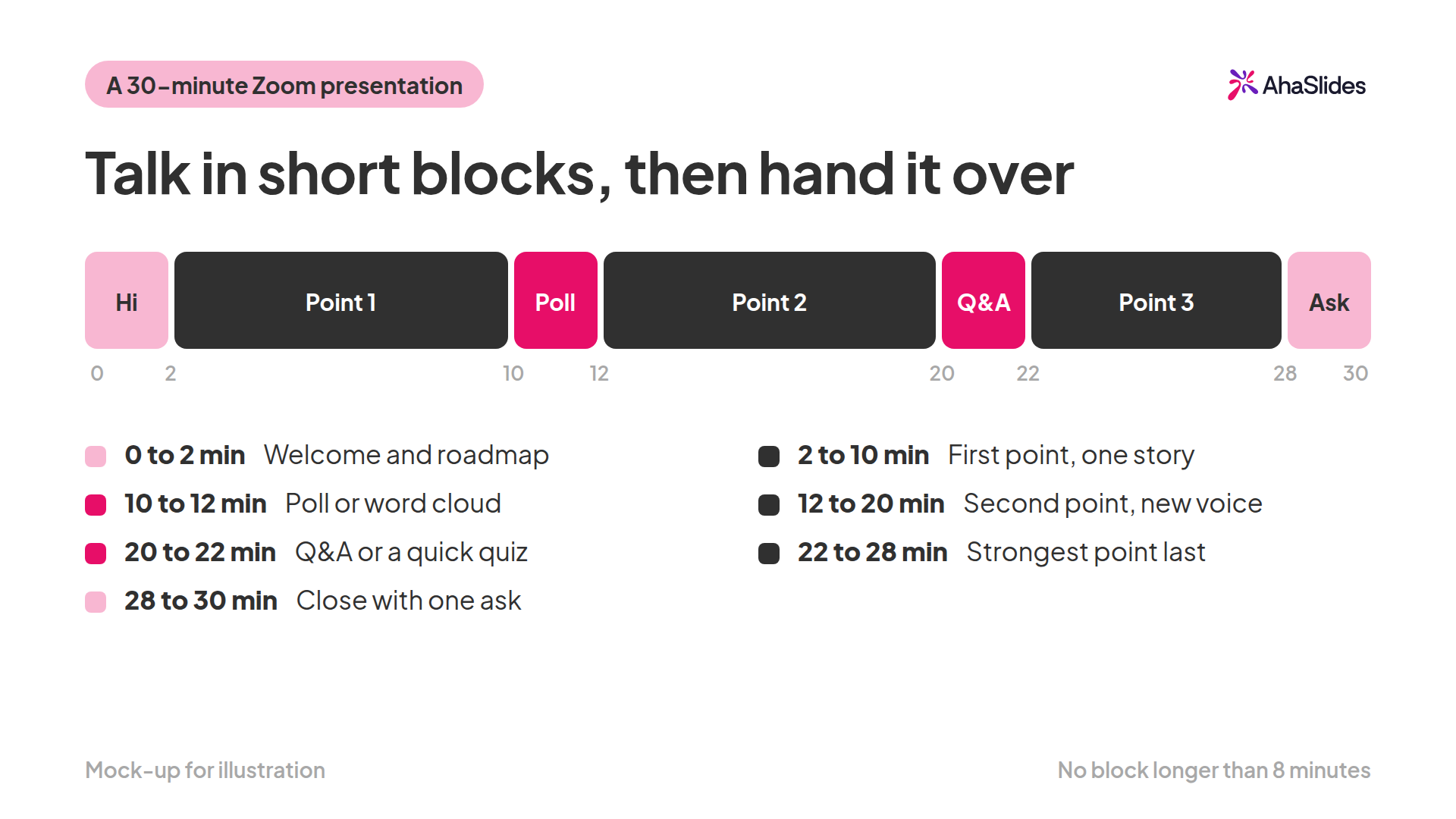
Put the seven tips together and a 30-minute session looks like this:
| minuten | Wat gebeurt |
|---|---|
| 0 tot 2 | A warm welcome and a clear plan of what's coming. |
| 2 tot 10 | Your first point, one idea, backed by a story or a visual. |
| 10 tot 12 | A poll, a word cloud or a direct question to the group. |
| 12 tot 20 | Your second point. Switch speakers if you can. |
| 20 tot 22 | Q&A, chat replies or a quick quiz. |
| 22 tot 28 | Your third and strongest point. People remember what they heard last. |
| 28 tot 30 | Close with one clear ask. What should people do, think or decide after this call? |
No content block runs longer than 8 minutes, and every one ends with something for the audience to do.
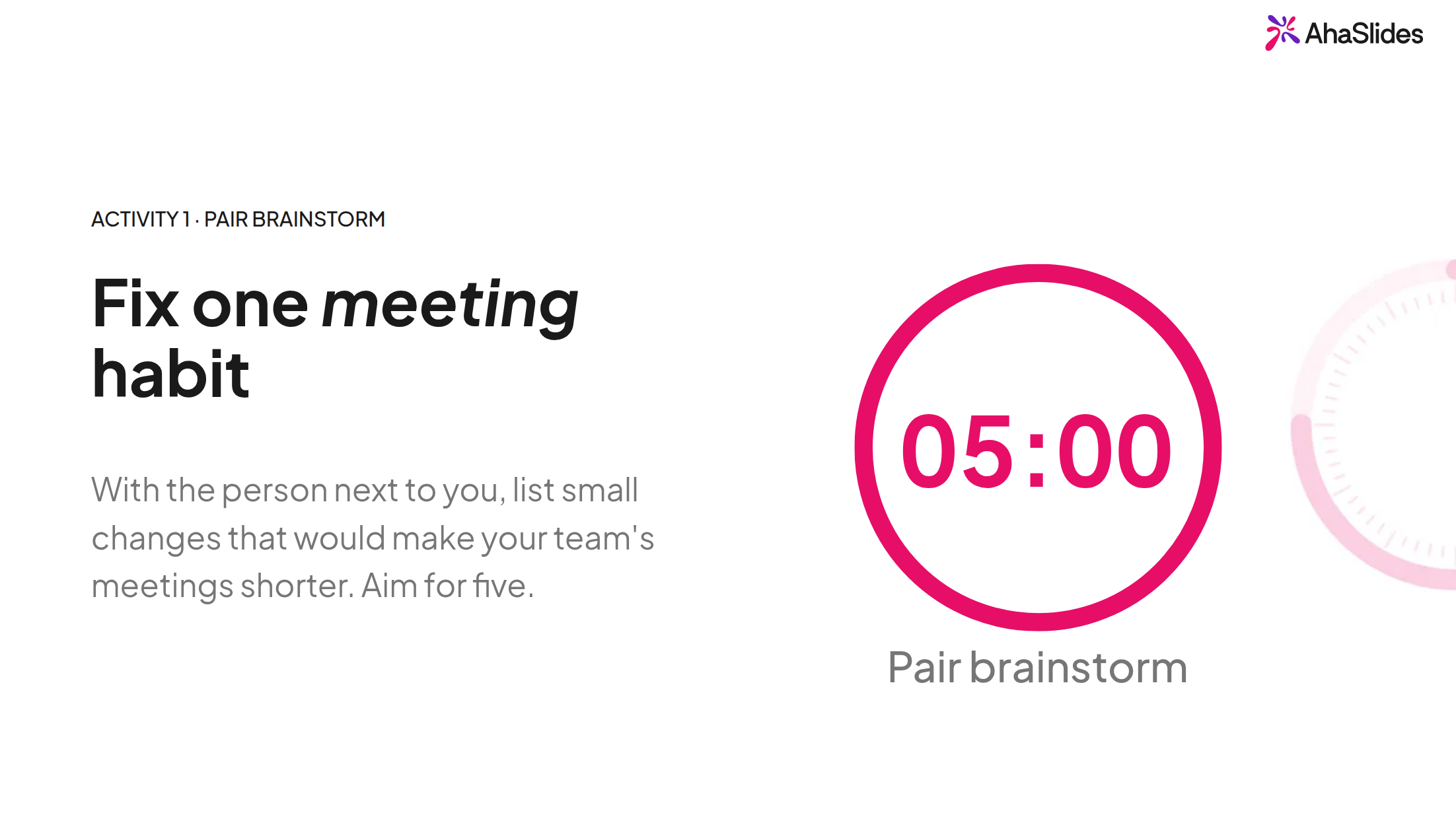
To keep every block on time, the On the Clock template puts the same countdown timer on the big screen and on every phone.
The principle behind every tip
Every tip above gives your audience a reason to stay involved. People tire fastest when they're talked at for too long, so give them something to answer, choose or ask every few minutes, and a better deck becomes a better session.
Klaar om het te proberen? Toevoegen AhaSlides Gratis naar Zoom and run a poll in your next meeting. For more ideas beyond Zoom, read hoe je een presentatie interactief maakt.
Veelgestelde vragen
What are the best tips for a Zoom presentation?
Keep content blocks to about 8 minutes and give people something to do between them. Open with a clear plan, stay on camera next to your slides, tell short stories, pause for conversation, vary your content and add polls, word clouds or Q&A every 10 minutes or so.
How do you make a Zoom presentation interactive?
Add live polls, quizzes, word clouds and Q&A between your content blocks. With the AhaSlides app from the Zoom App Marketplace, participants answer inside Zoom without opening another tab, and only the host needs an AhaSlides account.
How do you reduce Zoom fatigue in a presentation?
Keep segments short, add a five-minute break in sessions over 30 minutes and ask people to take part regularly. Suggest your audience hide self view and shrink the Zoom window, two fixes drawn from Stanford research on Zoom fatigue.
How long should a Zoom presentation be?
Around 30 minutes works well for most topics. Go longer only with a break, and keep each content block to about 8 minutes, with an interactive moment between blocks.
Can you present on Zoom and show your face at the same time?
Yes. Zoom's slides as a virtual background option puts your video over your PowerPoint or Keynote slides. It needs the presentation app installed on your computer, and people on the Zoom web client see a normal screen share.
Hoe houd je een Zoom-publiek betrokken?
Ask them to do something every 10 minutes or so: answer a poll, add a word to a word cloud, ask a question or reply in the chat. Each response brings their attention back to your session, and the results give you something to talk about next.
Wat is de beste structuur voor een Zoom-presentatie van 30 minuten?
Three content blocks of 6 to 8 minutes, each followed by an interactive moment. Open with a 2-minute welcome and plan, put your strongest point last and close with one clear ask.
Moet ik interactieve tools gebruiken in een formele Zoom-presentatie?
Yes. A confidence poll after a strategy update shows you want input, and anonymous Q&A surfaces questions people might not ask out loud. Match the tool to the moment and keep it short.
For more ways to involve your audience, see 15 ideeën voor interactieve presentaties, 10 interactieve presentatietechnieken , 15 interactieve spellen voor trainingssessies en 14 interactieve presentatie-ideeën voor studenten.