The AI course generator that starts from your file

Import a PDF, slide deck, Word document or notes. The Course Agent drafts the lessons from what your file already says, ready for you to check.

Import your first file
根據428條評論,G2評分為4.7分(滿分5分)。
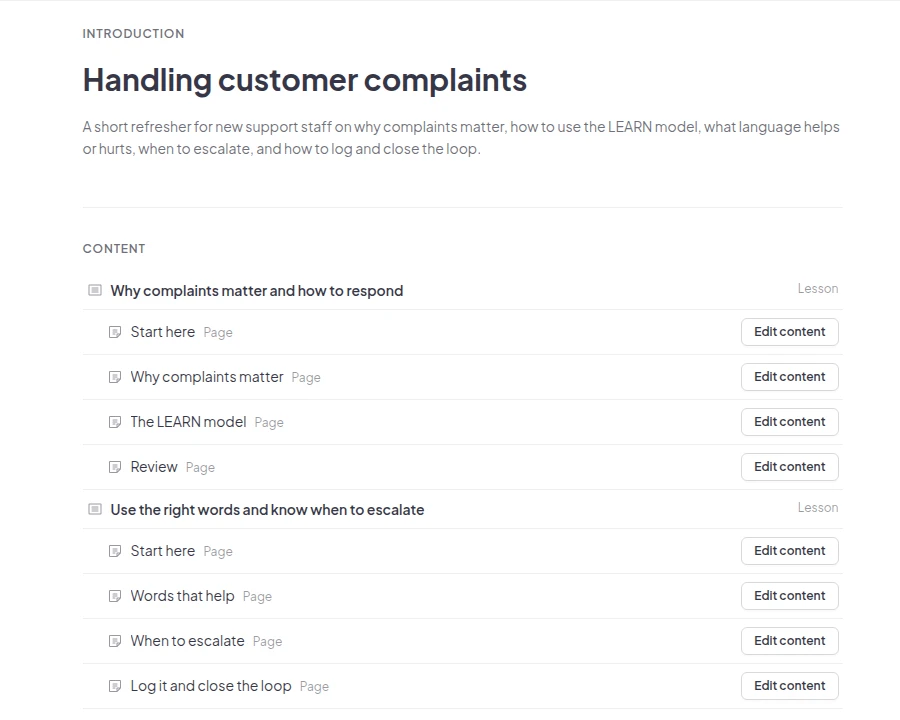
A course the Course Agent drafted from a PDF called Handling customer complaints: two lessons, each split into pages such as The LEARN model and When to escalate

深受全球團隊和學校信賴

  • 阿布達比大學標誌
  • 空中巴士標誌
  • 本德拉派恩學校標誌
  • BMC標誌
  • 博世標誌
  • Criteo 標誌
  • 費列羅巧克力標誌
  • 英特爾標誌
  • 艾維科技社區學院標誌
  • Le Quiz Show 標誌

Create a course from a PDF in three steps

  • 步驟 1 點擊導入

    On your Courses list, click Import next to New course. In an empty course, click Import a file.
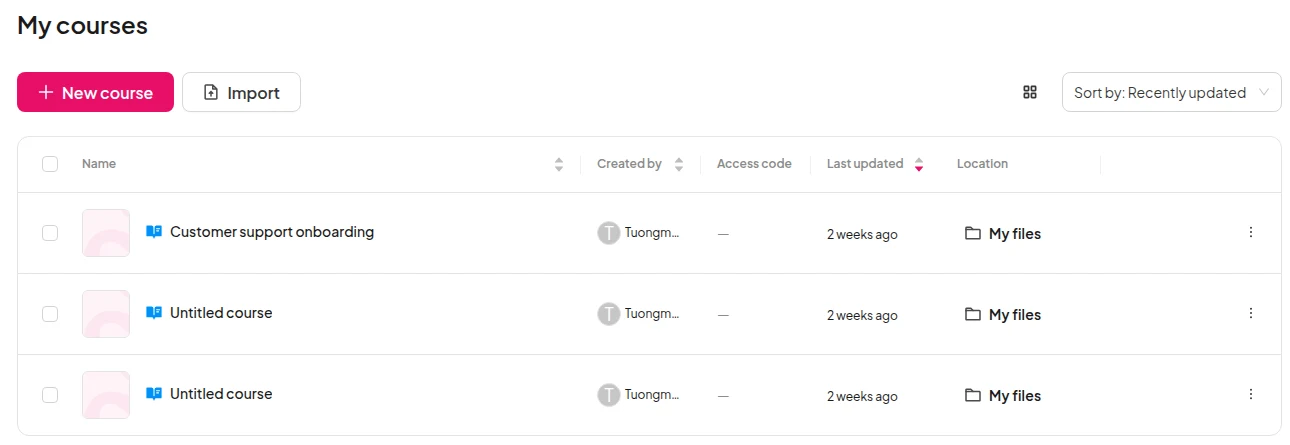
    The My courses list with the Import button next to New course
  • 步驟 2 Choose your file

    Pick one PDF, PowerPoint, Word, text, Markdown or image file, up to 50 MB and 100 slides.
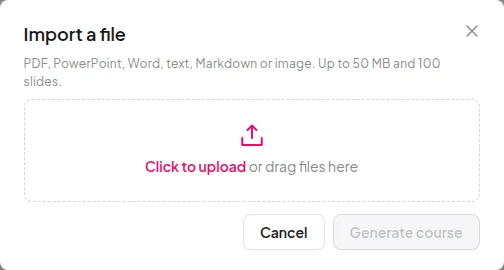
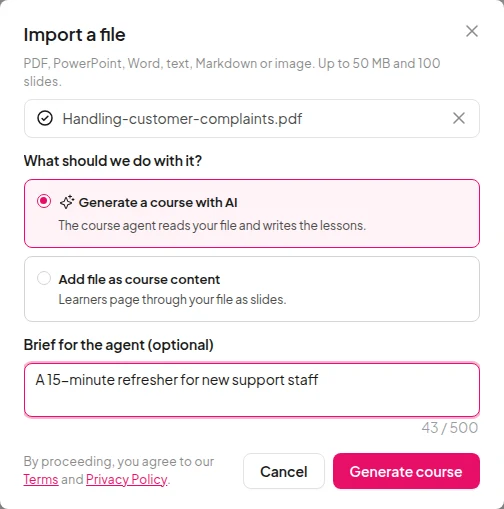
    The Import a file window listing the file types it takes, up to 50 MB and 100 slides
  • 步驟 3 Check, then publish

    Open Preview to read the course the way learners will, edit what you want, then publish.
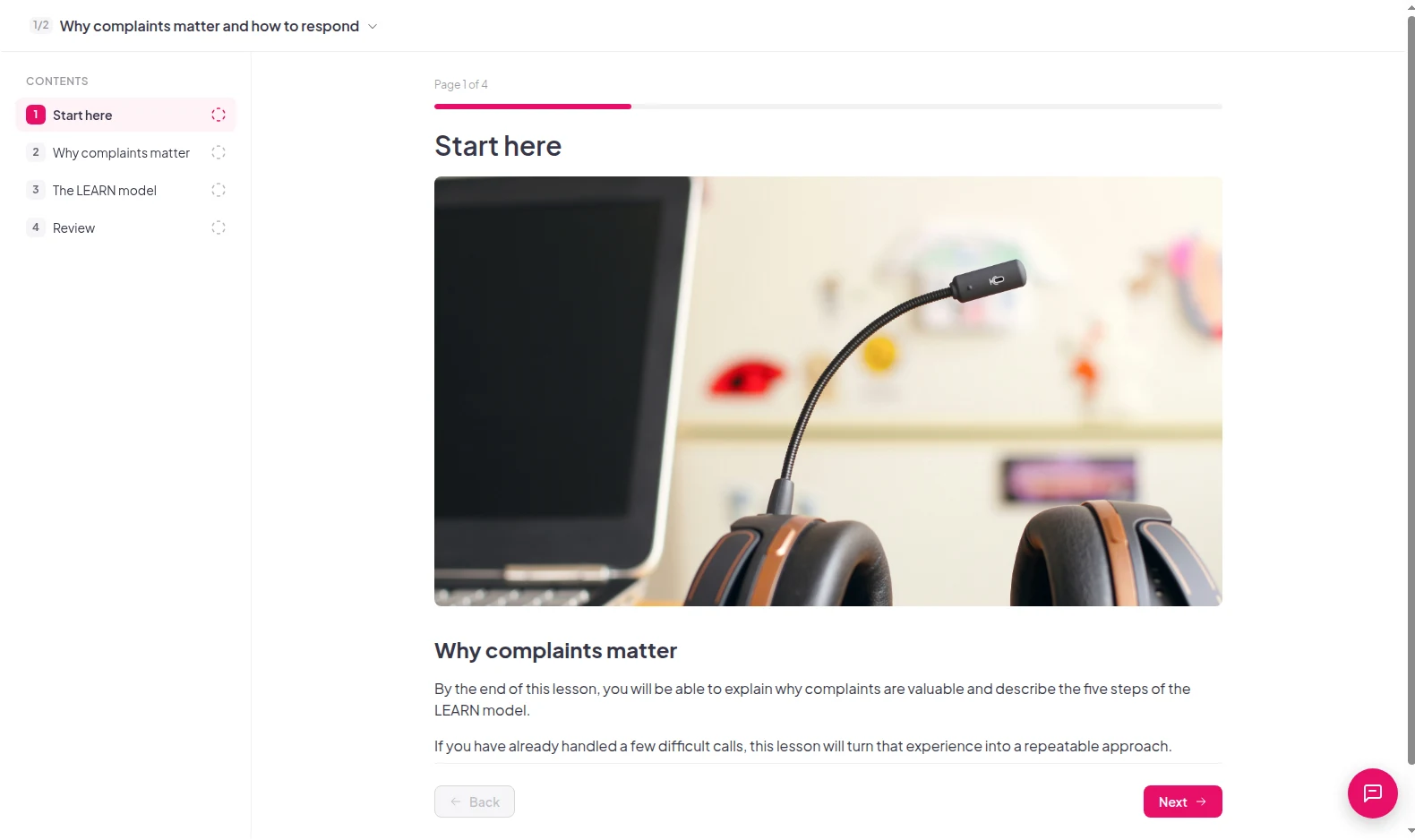
    The learner preview of a drafted lesson, page 1 of 4, with its contents list
Import your first file

Two ways to use your file

Import your first file
The Import a file window with Generate a course with AI chosen and a brief typed for the agent

See who started and who finished

  • Each learner's progress, lesson by lesson

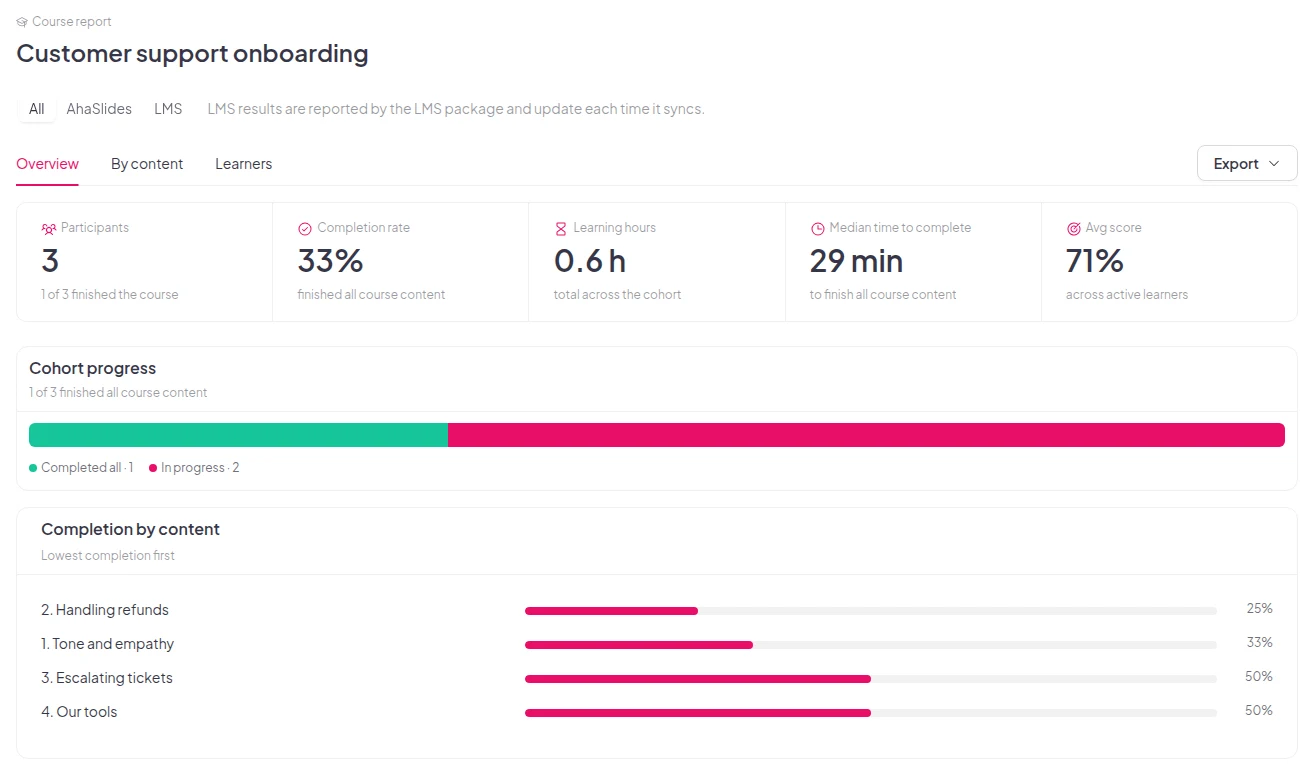
    An imported lesson shows in your course report like any other lesson. You see each learner's progress, not just whether they opened the file.
    Import your first file
    A course report showing 3 participants, a 33% completion rate and completion for each lesson

The files you already have

  • Seven file types

    PDF, PowerPoint, Word, text, Markdown, JPG and PNG.

  • 最多50 MB

    Each file can be up to 50 MB and 100 slides.

  • A brief if you want one

    Tell the Course Agent who the course is for and how long it should take.

Import your first file

Questions before you import

PDF, PowerPoint (PPTX), Word (DOCX), text (TXT), Markdown (MD), JPG and PNG. Each file can be up to 50 MB and 100 slides.

No. Choose one file at a time.

PDF and PowerPoint files. Choose Add file as course content, then Add to course, and learners click through the slides inside the course. Every supported file type works with Generate a course with AI.

The Course Agent follows the structure and facts of your file. Check the draft before you publish, and edit any lesson you want to change.

It steers the Course Agent. Type a short note, such as "a 20-minute refresher for new sales staff", then click Generate course. You can leave it empty.

Yes. Learner progress in an imported lesson shows in your course report like any other lesson, so you see who started it and who finished.

Yes. Start an empty course and add your own lessons, quizzes and slides. The 線上課程創建者 page shows how.

Not yet. Course import is on AhaSlides, but not on EU accounts yet.
閱讀文件 (在新標籤頁中打開)