



A live survey is a set of questions your audience answers on their phones while you are still in the room, with the results appearing on the shared screen as the votes come in. The whole group sees what everyone else thinks, which is what makes it different from the online survey you email out afterwards.
This guide covers when a live survey beats a form, which question formats to use, how to set one up step by step, and what to look for in a live survey tool. It is written from the way we see AhaSlides presenters run live surveys in training rooms, all-hands meetings and classrooms every day.
What is a live survey?
A live survey is an interactive survey run with a group that is gathered together, in a room, or remotely as an online real-time survey over a video call. You show one question at a time, people answer from their own devices, and a real-time survey tool counts and displays the answers instantly.
Um tradicional pesquisa on-line works the other way around. Each person fills it in alone, whenever they get to it, and you look at the data days later. Both are useful. They answer different needs:
| Live survey | Self-completed online survey | |
|---|---|---|
| When people answer | During the session, together | On their own, over days |
| Taxa de resposta | Most people present | Depends on reminders and goodwill |
| Who sees results | The whole room, straight away | Usually only the survey owner |
| Melhor comprimento | 3 a 8 perguntas | 10 a 30 perguntas |
| Destaques | Pulse checks, decisions, feedback in the moment, discussion starters | Deep research, benchmarking, anonymous HR data |
The response rate row is the one people underestimate. When you ask an audience of 40 to answer an instant survey before you move on, most of them answer, because the question is on the screen and the room is waiting. A follow-up email rarely gets that.
When should you run a live survey?
Real-time surveys earn their place when the answers are more useful to the group now than to you later. The common cases:
- Presentations and talks. Check what the audience already knows before you explain it, then check again at the end. Opening with an interactive survey for presentation audiences also tells you which parts of your talk to spend longer on.
- Team meetings and all-hands. Use a live survey for meetings to take a quick temperature read, prioritise options or collect questions before the Q&A.
- Training sessions and workshops. Ask confidence and understanding questions at the end of each module, so you can fix gaps before the session ends rather than after it.
- Classrooms and lectures. A live survey for classroom use doubles as a formative check: you see who is lost while you can still help.
- Events and conferences. Session feedback collected before people leave the room is usually more complete than a post-event email.
There is solid evidence behind involving the audience like this. A meta-analysis of 225 studies in PNAS found that students in traditional lecture courses were 1.5 times more likely to fail than students in courses with active learning (Freeman et al., 2014). A review of research on audience response systems reported benefits for attention, engagement and participation, and found that students valued being able to answer anonymously (Kay & LeSage, 2009).
Which question formats work in a live survey?
A good live survey mixes formats. Each one gives the room something different to look at when the results appear. In AhaSlides, these are the slide types that do the work:
| Formato | What the audience does | Use para |
|---|---|---|
| Votação | Picks one or more options | Decisions, preferences, quick yes/no checks |
| Escala de classificação | Rates one or more statements on a scale | Confidence, satisfaction, agreement (Likert-style) |
| Palavra nuvem | Types a word or short phrase | Mood checks, first impressions, "one word to describe…" |
| Final em aberto | Types a longer free-text answer | Reasons, suggestions, feedback in their own words |
| Posição | Drags items into order | Prioritising projects, topics or options |
| Perguntas e Respostas | Submits and upvotes questions | Collecting questions without the awkward silence |
| Survey slide | Fills in a linked multi-question survey | Longer feedback forms or registration inside the session |
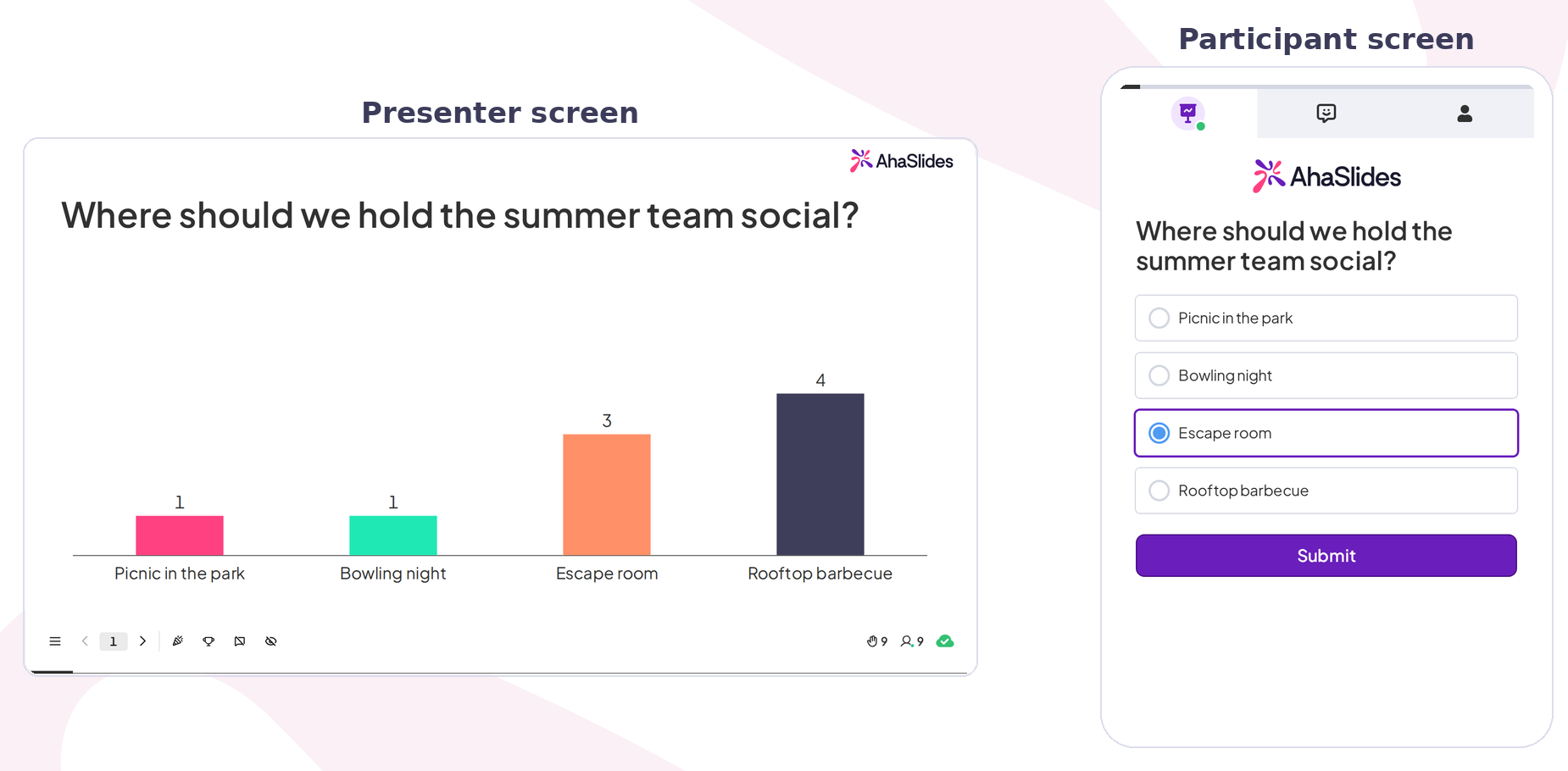
A Votação turns votes into a live bar chart:
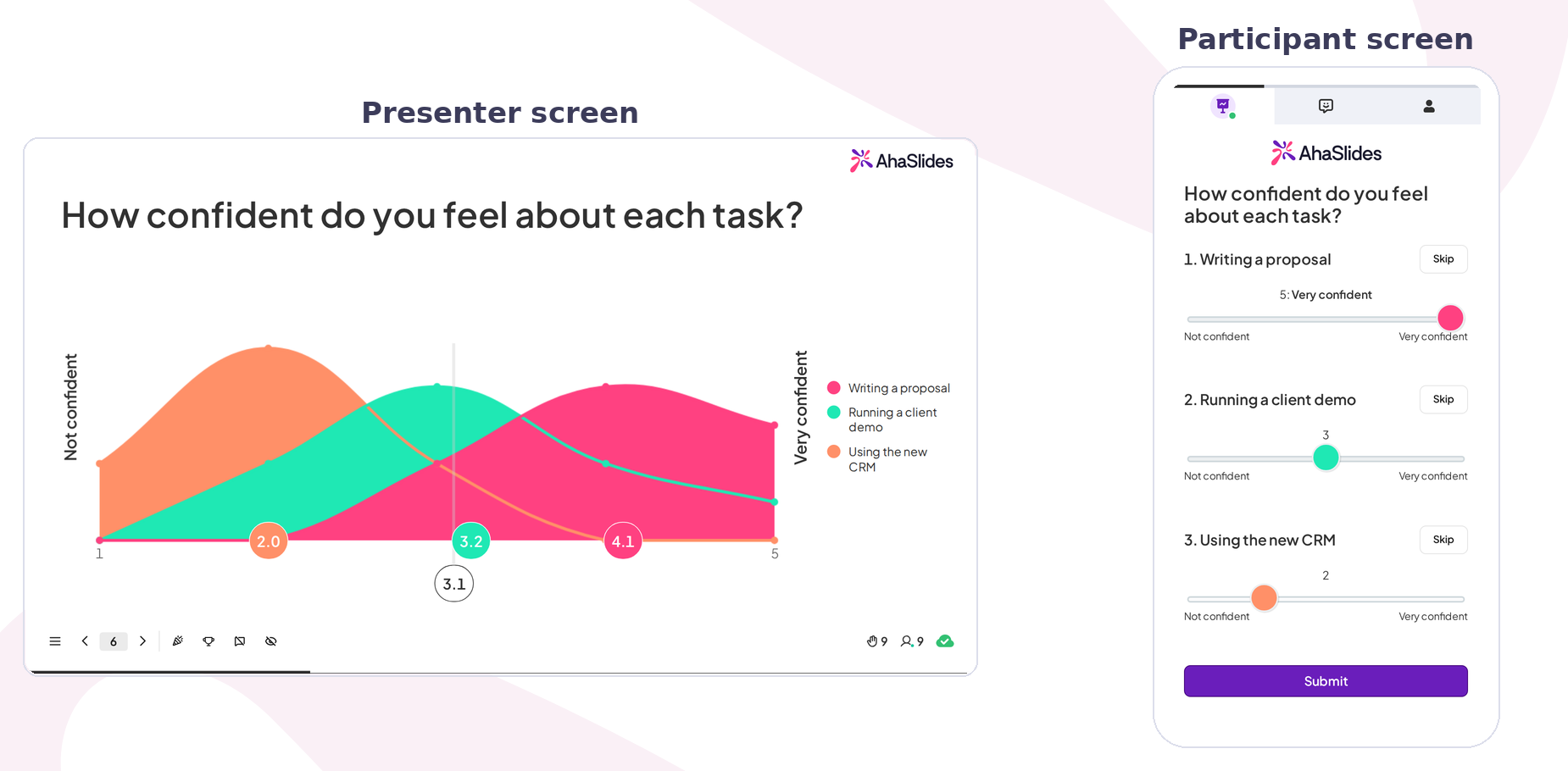
A Escala de classificação puts every statement on one scale:
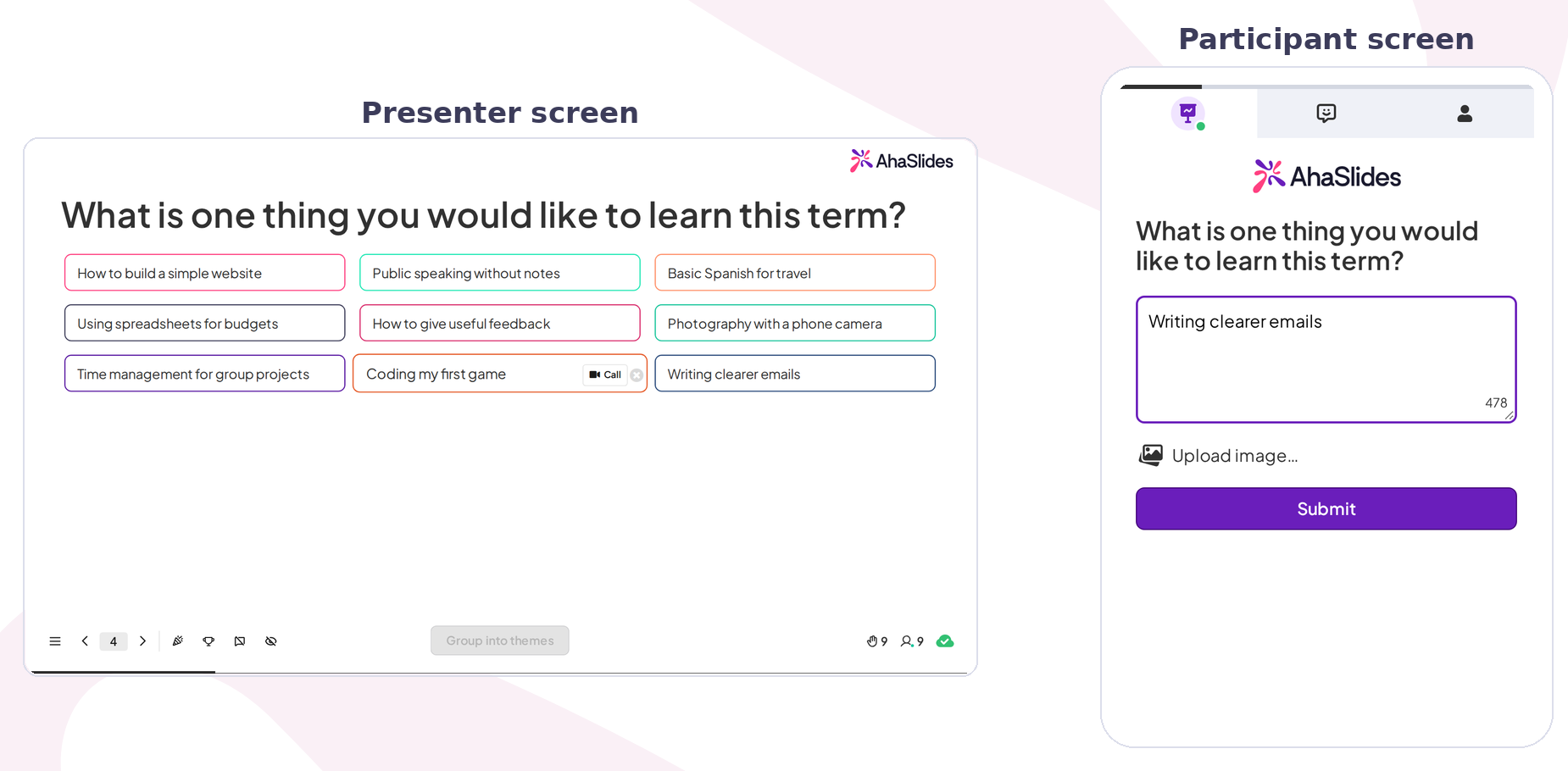
An Final em aberto slide shows each answer as a card:
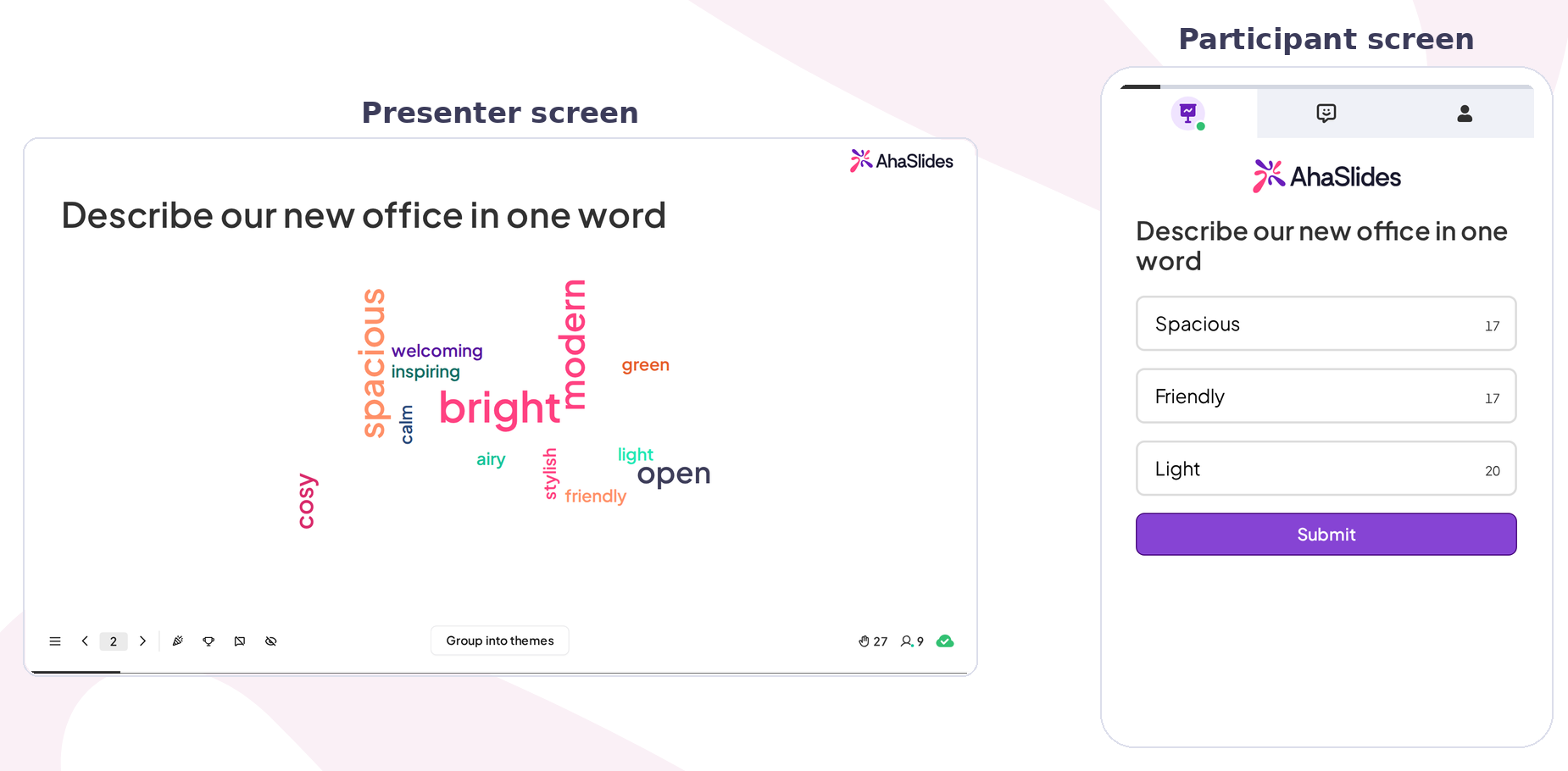
A word cloud survey question is the fastest way to warm a room up. Ask "In one word, how are you feeling about the quarter?" and the most common answers grow largest on the screen within seconds. You can run a word cloud survey free of charge: the AhaSlides free plan lets up to 50 participants join each presentation (current limits on the pricing page).
For more on picking the right question type, see our guide to tipos de perguntas de pesquisa.
How to run a live survey during a presentation: step by step
Here is the setup we recommend for a live survey during presentation sessions of any size. The first one takes about 15 minutes to build.
Step 1: Decide what you will do with the answers
Write down the decision each question feeds. "Which of these three topics should we cover in depth?" changes what you do next. "Do you like meetings?" does not. Cut any question that changes nothing.
Step 2: Keep it short
Three to eight questions is the right length for a real-time survey inside a session. Spread them out: one at the start, one or two in the middle, a few at the end. Five questions in a row feel like a form. Five questions spread across 45 minutes feel like a conversation.
Step 3: Build your questions as a Survey
In AhaSlides Pesquisas is a set of questions that people scroll through and submit once. You build it once and can run it inside your presentation or share it as a link. Open Surveys in the left-hand menu of your dashboard:
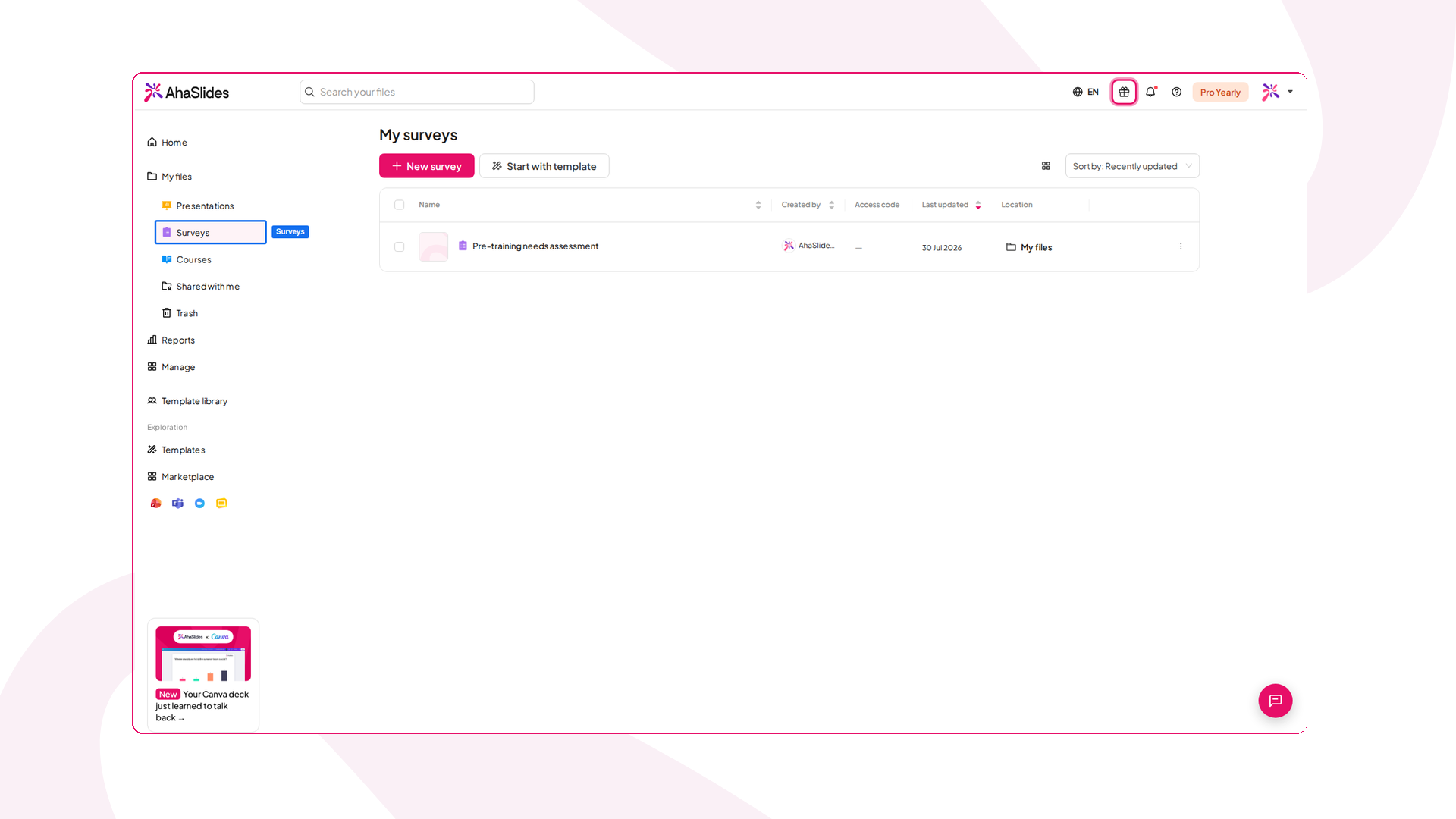
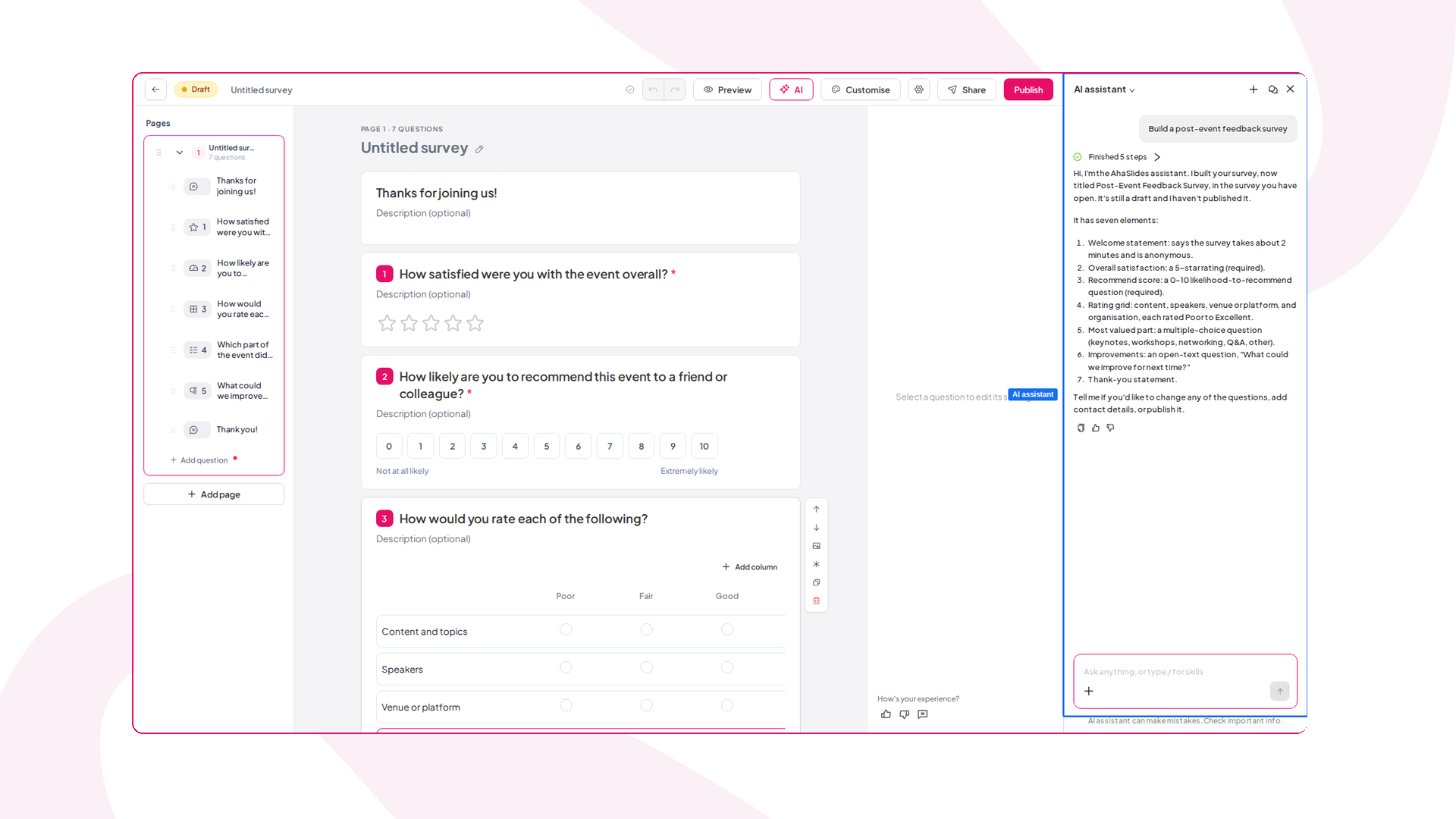
Clique New survey, então escolha Criar com IA to describe what you want and let AhaSlides draft the questions, Use um modelo, ou Adicionar uma pergunta to build it yourself. A Survey can mix multiple choice, rating scale, 5-star rating, Net Promoter Score, short and long answers, matrix, date and ranking questions:
Step 4: Add the Survey to your presentation
Open your presentation, click Novo slide e escolha Pesquisas from the slide type picker:
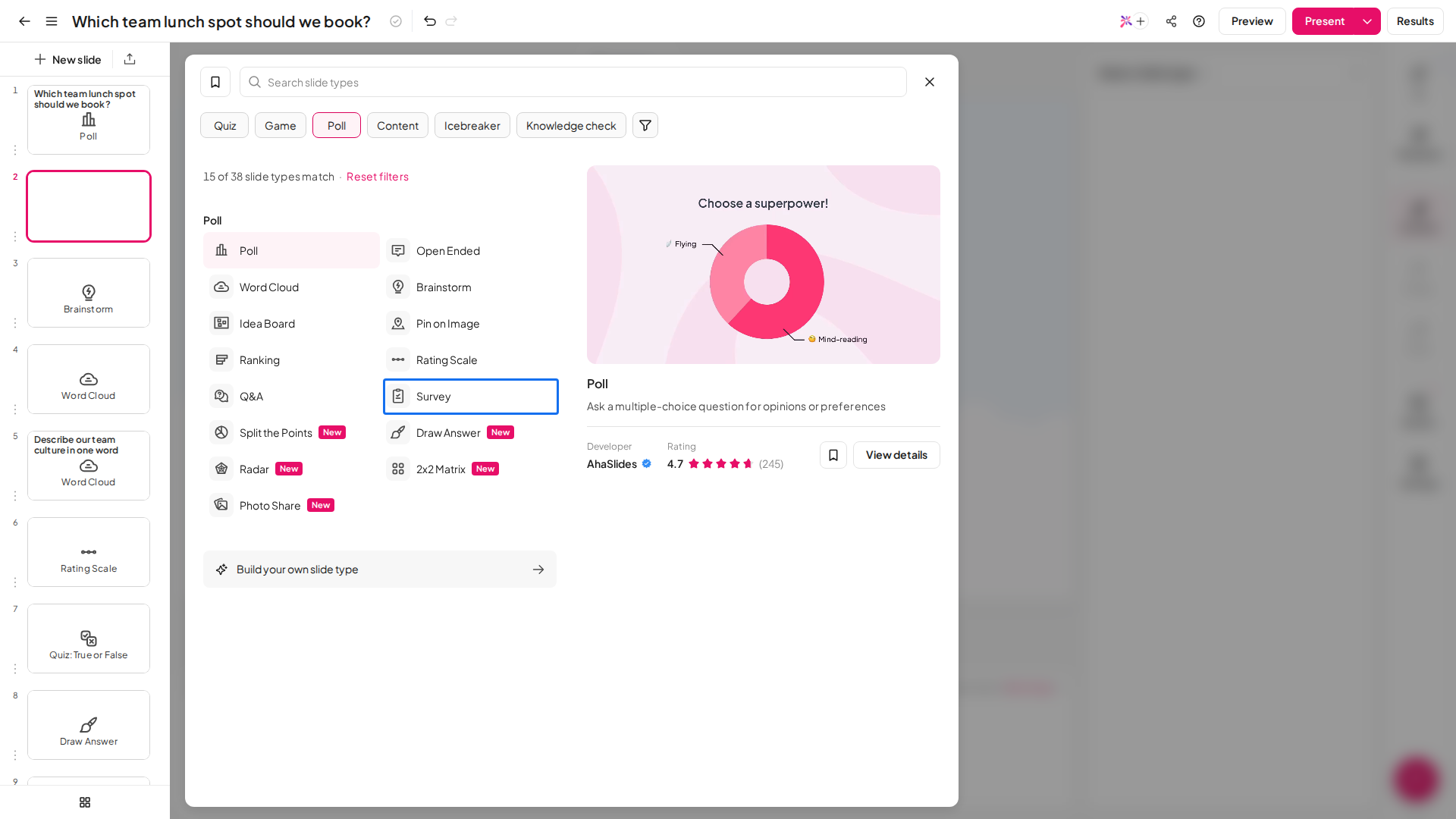
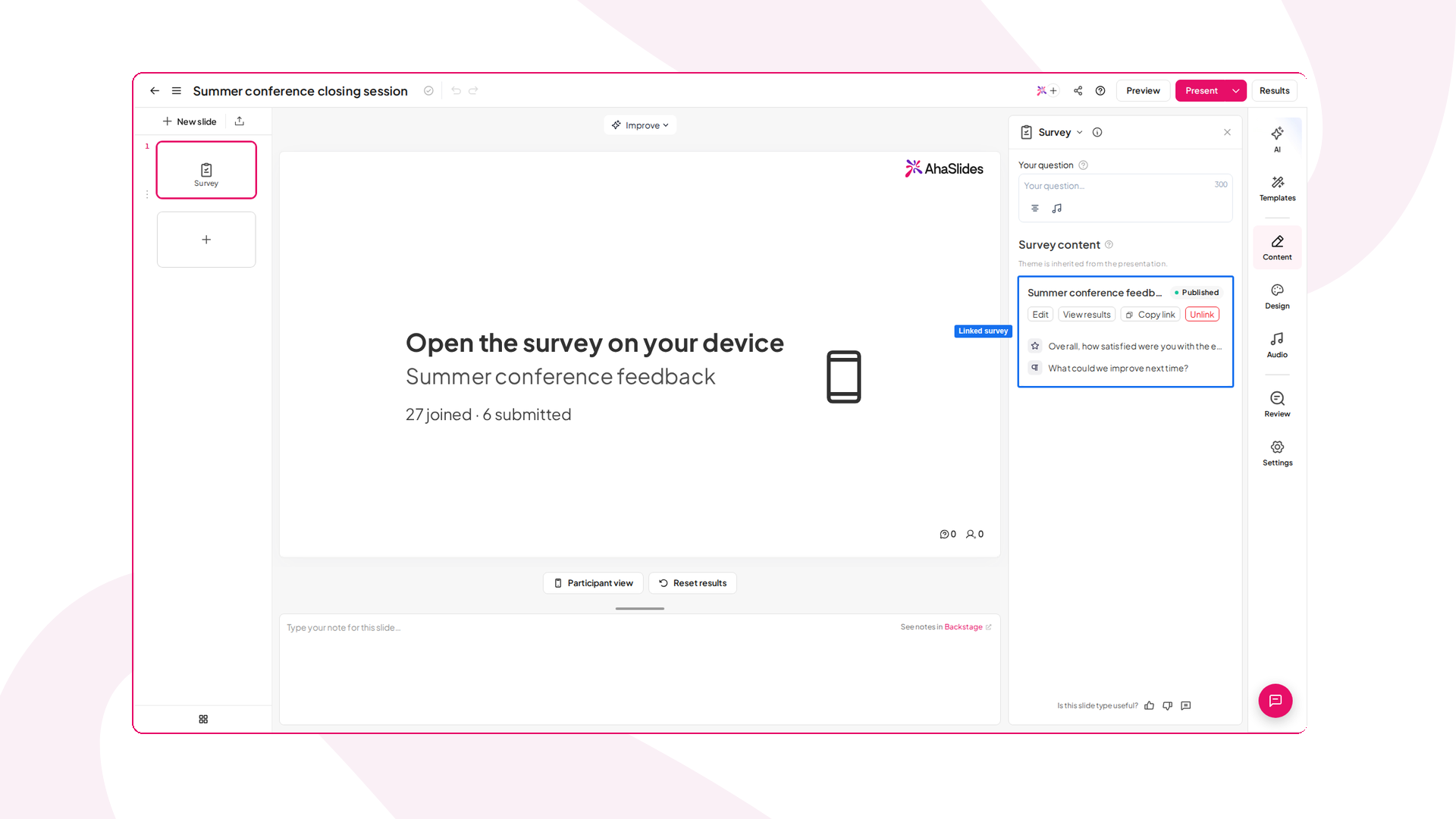
Debaixo More ways to fill this slide, clique em Add an existing survey e Selecionar yours. Linking it publishes it automatically, and the slide shows a Linked survey label with the survey name, a Ver resultados link and your questions listed below:
Step 5: Decide on anonymity
People answer more honestly when they know their name is not attached. A Survey collects anónima responses by default, and each answer shows as Anônimo in your results. For sensitive questions (workload, confidence, feedback on leadership), keep it that way and say so on the screen. Our guide to pesquisas anônimas covers how to keep that promise.
If you need to know who answered, click the Survey settings gear in the Survey editor and choose Exigir login para Respondent identity. Respondents then sign in with an AhaSlides account first, and their name and email appear in your results.
Step 6: Get everyone in with a QR code
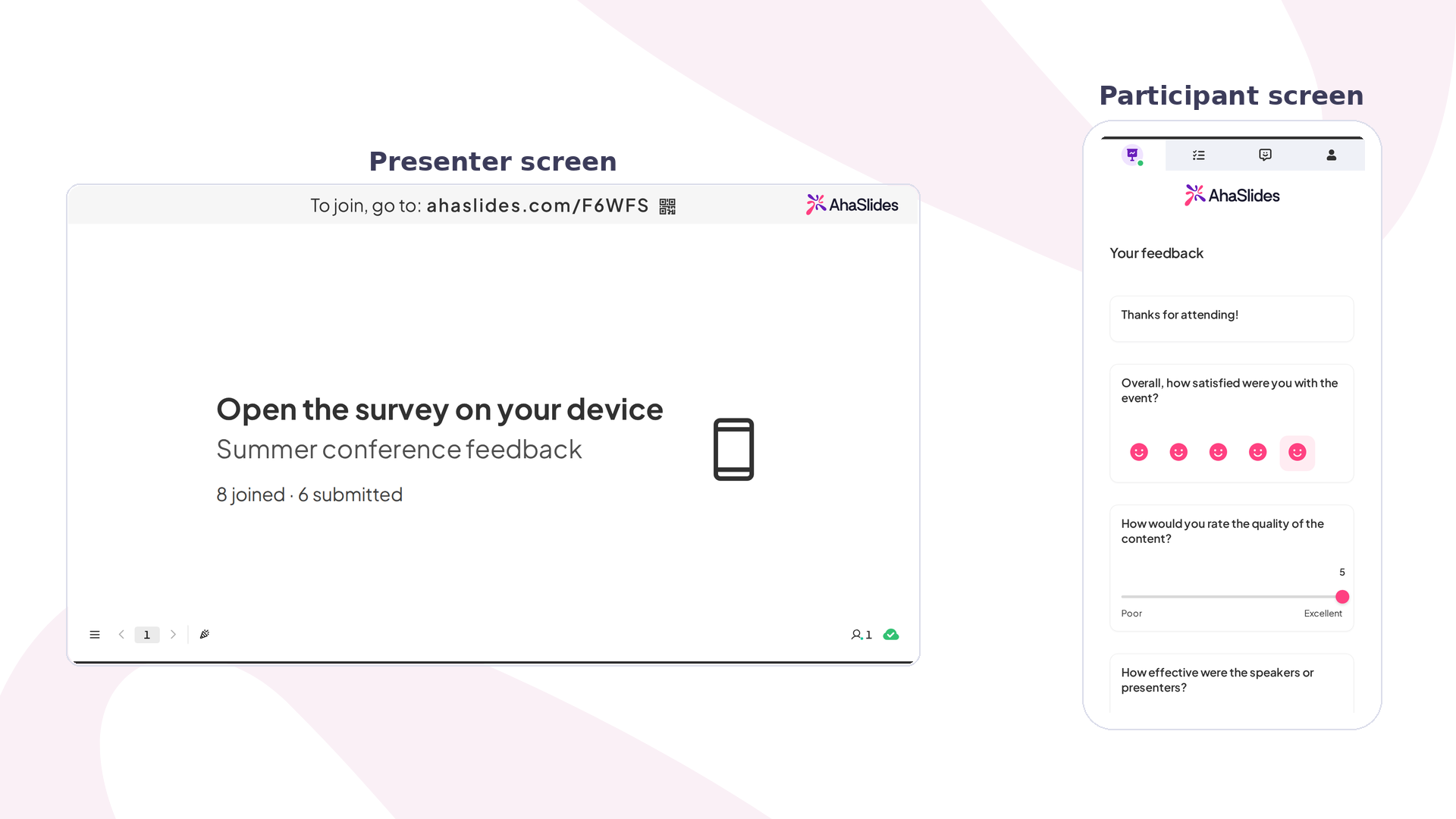
Present your deck as usual, with the join QR code and short join code on screen before you start. Participants scan, the page opens in their browser, and they are in. No app download. When you reach the Survey slide, the survey opens on every participant's phone: they scroll through the questions and press Enviar, while the presenter screen counts how many have joined and submitted.
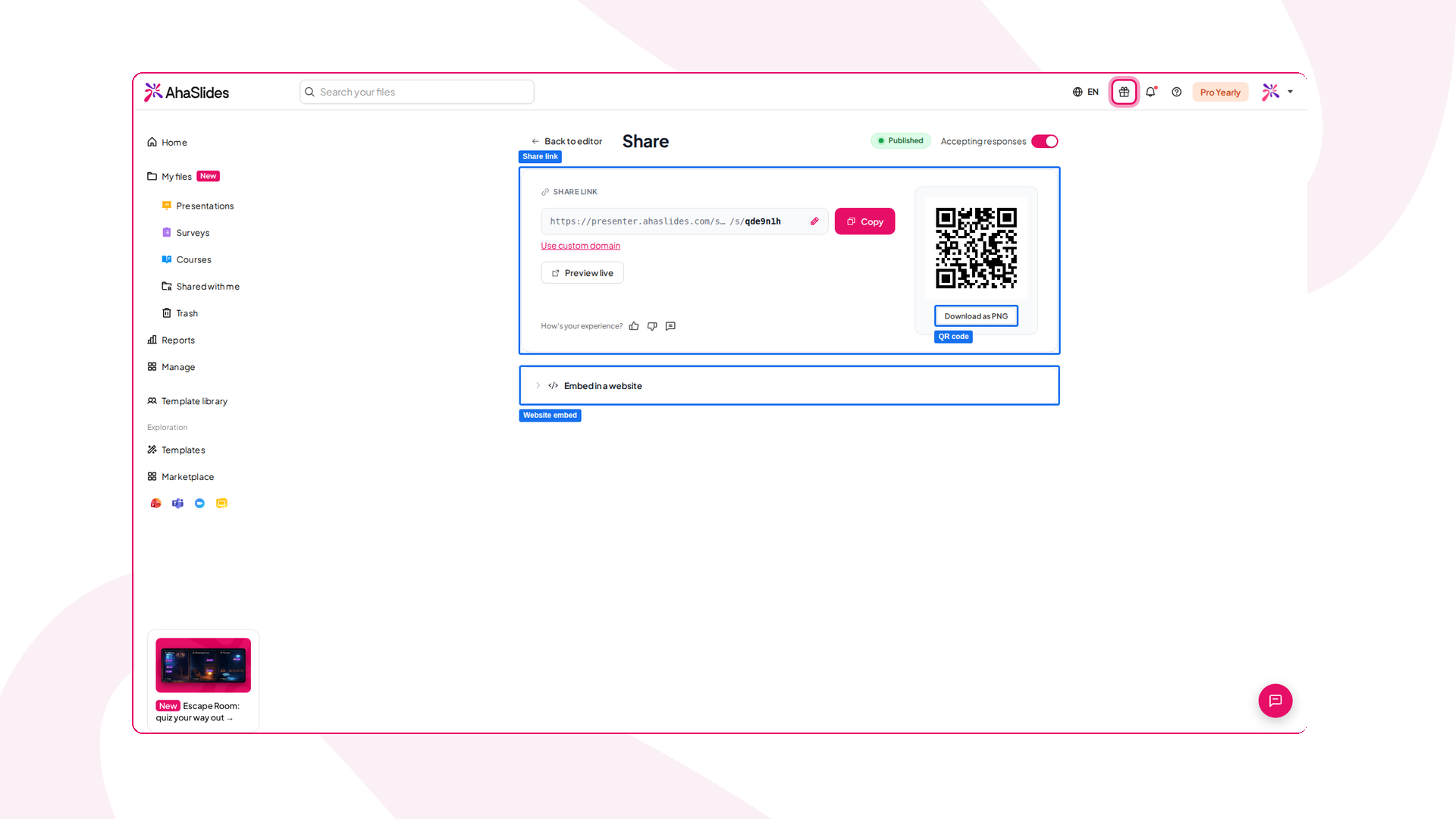
No presentation? Publish the Survey, click Compartilhar e escolha Share with respondents to get a share link, a QR code you can download as a PNG, and an Embed in a website opção:
Step 7: Talk about the results
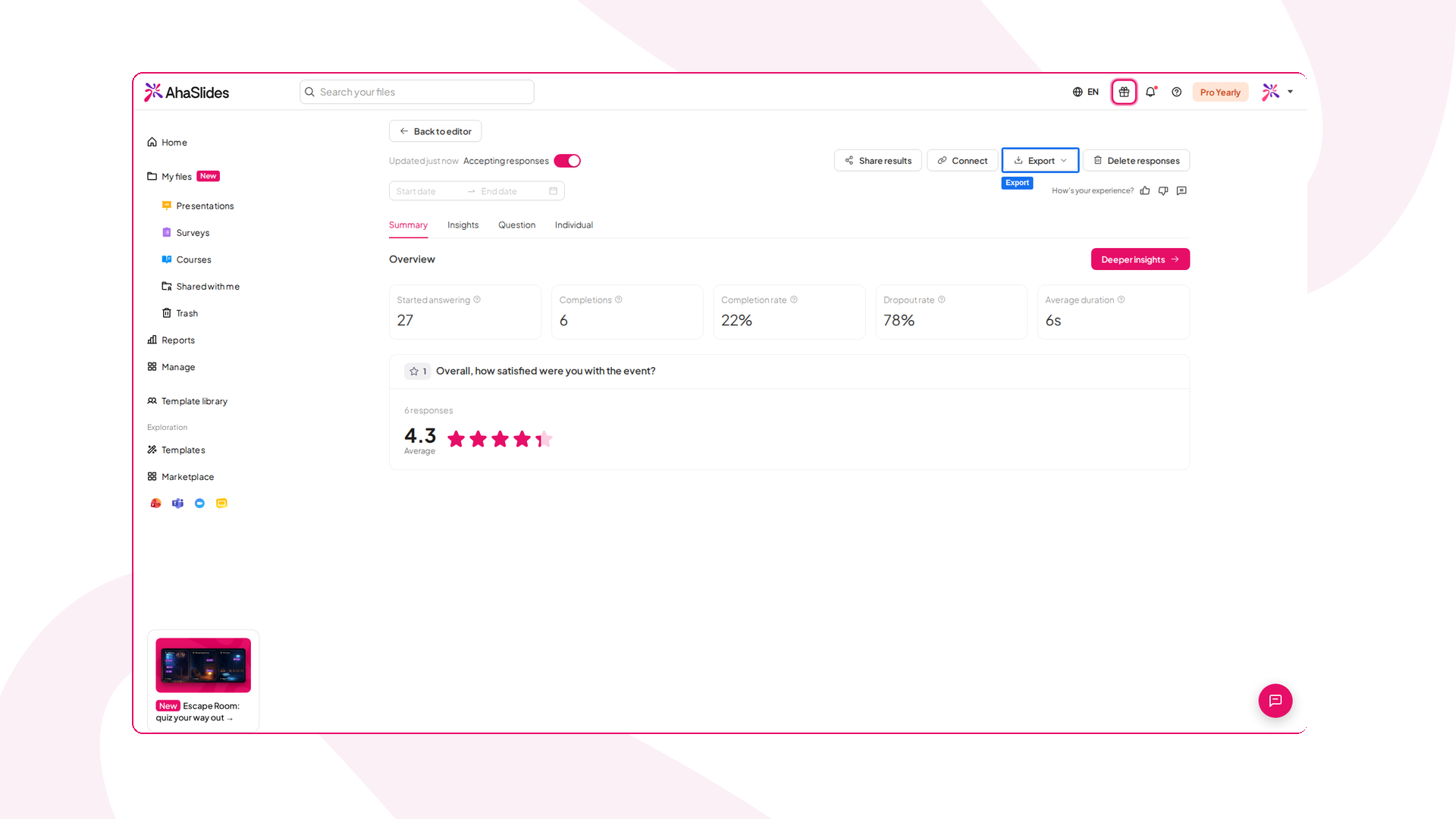
This is the step people skip. Survey results are collected as people submit, so open Ver resultados when the answers are in: a summary shows how many started, completed and dropped out, with a breakdown for each question. Say what you see ("two thirds of you rated this a 3 or lower, so let's spend another ten minutes here") and act on it. Whether it runs in a room or as an online live survey, a survey that is never discussed is just data collection with extra steps.
Running a live survey in PowerPoint, Teams, Zoom and Google Slides
- PowerPoint. O AhaSlides add-in for PowerPoint lets you insert interactive slides into your existing deck, so a live survey in PowerPoint runs from the same file you were going to present anyway. Our step-by-step guide to making a PowerPoint word cloud shows the add-in in action.
- Microsoft Teams e zoom. O AhaSlides apps for Teams and Zoom let attendees answer inside the meeting window, which suits hybrid and remote teams. For more ideas, see our guide to interactive online meetings.
- Google Slides. Use o AhaSlides add-on inside Google Slides, or publish your deck to the web and embed it in AhaSlides, then add survey questions between your slides.
The meeting survey tools built into Teams and Zoom handle quick questions well, and both now offer ratings and free-text answers. What they lack is the full presentation flow: polls, Q&A and your slides in one deck, a wider mix of formats, and one combined report of every answer.
A live survey for meetings: an example
Here is a five-question pulse survey we would use to open a monthly team meeting. It takes about six minutes, including discussion.
- Palavra nuvem: "One word for how this month felt."
- Escala de classificação: "Rate from 1 to 5: I know what my priorities are for next month" and "I have what I need to hit them."
- Enquete: "Which of these should we fix first?" (three options from last month's retrospective)
- Ranking: "Order these four projects by how much they matter to customers."
- Q&A (anonymous): "What should we talk about today that isn't on the agenda?"
Show the word cloud and the ratings live, and hide the poll results until everyone has voted. The Q&A slide stays open for the whole meeting.
A live survey for the classroom: an example
For a lecture or class, a live survey works best as a check before, during and after the lesson:
- Antes: a Poll with a quick diagnostic question on the topic, to see what students already know.
- Durante: an Open Ended prompt, "What is still unclear?", with answers shown anonymously.
- Depois: a Rating Scale, "How confident do you feel explaining this to a classmate?"
Compare the before and after answers at the end of the lesson. For more classroom ideas, read our guide to votação em sala de aula.
Reading and sharing live survey results
Live survey results do two jobs. In the room, they start the conversation. After the session, they become a record.
During the session, look for the surprise: a split vote, a low confidence score, a word that keeps coming up. Real-time survey results are most useful when they change what you say next.
Após a sessão, AhaSlides keeps a report of every response, and paid plans can export the data to Excel. If you need to turn the results into a deck for stakeholders, our guide to apresentação do resultado da pesquisa atravessa-o.
Find a Survey's results under Reports > Surveys in your dashboard, or click Ver resultados in the Survey editor. Compartilhe os resultados e Exportar sit at the top of the page, and you can export responses to Excel or CSV.
What to look for in a live survey tool
There are plenty of live survey apps and audience survey tools, and most look similar on a feature list. These are the differences that show up on the day:
- Joining without an app. Most real-time survey apps now run in the browser, and a QR code join is the minimum. An instant survey app that makes people download something loses part of your audience before the first question.
- Question variety. Polls alone are not a survey. A good interactive survey app offers rating scales, word clouds, open-ended answers and ranking in the same session.
- Control over results. You should be able to show or hide results per question and let people answer anonymously.
- Onde ele corre. If you present in PowerPoint or meet in Teams, pick a tool that works inside them.
- Tamanho do público. A group survey app built for a team of ten can stall in a conference hall. Check the participant limit on the plan you will use.
- Results you can keep. A report and an export, so the data outlives the session.
If you mainly need single-question polls, our roundup of ferramentas de votação online gratuitas compares the main options. If you are moving away from a form-based tool, see our list of SurveyMonkey alternatives.
Os erros mais comuns a evitar
- Too many questions in a row. A block of ten questions turns a live session into form-filling. Spread them out.
- Asking without acting. If you ask which topic to cover and then ignore the answer, people stop answering.
- Perguntas tendenciosas. "How much did you enjoy today's great session?" measures politeness more than opinion.
- Showing results too early on sensitive questions. Hide them until voting closes, so early answers do not sway the rest.
- Forgetting the remote attendees. In hybrid meetings, read the question aloud and keep it on screen long enough for people on a delayed video stream.
Perguntas frequentes
What is the difference between a live survey and a poll?
A poll is usually a single multiple-choice question. A live survey is a short set of questions, often mixing formats such as rating scales, word clouds and open-ended answers, run during a session to understand a group's views on a topic.
Can I run a live survey for free?
Sim. O AhaSlides free plan lets up to 50 participants join a presentation, with up to 3 poll questions and 5 quiz questions per presentation, so a longer live survey needs a paid plan. Check the página de preços for the current limits before a large session.
How do participants join a live survey?
They scan a QR code or type a short join code into their phone's browser. No app download or account is needed.
Are live survey answers anonymous?
They can be. You decide whether to collect names or other details. For honest feedback on sensitive topics, let people answer anonymously and tell them so on the screen.
What is the best survey tool for meetings?
The best survey tool for meetings is one your attendees can join in seconds, that works inside your meeting software, and that offers more than multiple choice. AhaSlides runs in PowerPoint, Teams and Zoom, and supports polls, rating scales, word clouds, open-ended questions, ranking and Q&A in the same session.
Fontes
- Freeman, S., Eddy, S. L., McDonough, M., et al. (2014). Active learning increases student performance in science, engineering, and mathematics. PNAS, 111(23), 8410–8415. https://www.pnas.org/doi/10.1073/pnas.1319030111
- Kay, R. H., & LeSage, A. (2009). Examining the benefits and challenges of using audience response systems: A review of the literature. Computers & Education, 53(3), 819–827. https://doi.org/10.1016/j.compedu.2009.05.001