
PowerPoint Presenter View shows your speaker notes, the next slide and a timer on your own screen while the audience sees only the current slide. To use it, connect a second display, tick 使用演示者視圖 on the Slide Show tab, then press F5 在Windows上或 ⌘+Shift+回車 在Mac上。
Every menu name and shortcut below comes from Microsoft’s Presenter View help我們於2026年11月19日對此進行了核實。需要說明的是: AhaSlides is our product, and the tips at the end show how to add a live poll with our PowerPoint add-in. Everything before that works in PowerPoint alone.
What Presenter View shows you
On your screen, Presenter View gives you:
- The current slide, large, with the 下一張投影片 在它旁邊。
- Your speaker notes, with buttons to make the text bigger or smaller.
- 計時器 you can pause and reset, and the current time.
- Pen and laser pointer tools, to draw on the slide or point at it.
- See All Slides, to jump straight to any slide.
- Zoom, to enlarge part of a slide for the room.
- 黑屏, to blank the display while you talk.
The audience sees none of this. They see the slide, full screen. If your notes are thin, our guide on 如何為 PowerPoint 新增註釋 covers writing and formatting them.
How to use Presenter View in PowerPoint
在Windows上
- Connect your laptop to the projector or second screen. Press Windows+P 並選擇 延長, not Duplicate, so the two screens show different things.
- 在 PowerPoint 中,開啟 幻燈片放映 選項卡和打勾 使用演示者視圖.
- 在 監控器 list next to it, choose the screen the audience will see.
- 選擇 從開始,或按 F5. To start from the slide you’re on, press SHIFT + F5.
You can also press Alt + F5 to start straight in Presenter View.
在Mac上
- Connect the second screen. In 系統設置 > 顯示, make sure the screens are not mirrored.
- 在 PowerPoint 中,開啟 幻燈片放映 選項卡並選擇 演示者視圖.
- To start from the first slide, press ⌘+Shift+回車. From the current slide, press ⌘+回車. 選項+返回 starts Presenter View directly.
With only one monitor
You can rehearse in Presenter View on a single screen. On Windows, press Alt + F5. During a normal slide show you can also use the control bar in the bottom-left corner and choose Show Presenter View.
This is useful for practice, and for presenting over a video call when you share one window and keep Presenter View on your own screen.
Swap which screen shows what
If your notes appear on the projector, swap the screens. On Windows, select 顯示設置 at the top of Presenter View, then 交換演示者視圖和幻燈片放映. On a Mac, select Swap Displays at the top of the view.
Turn Presenter View off
On Windows, clear 使用演示者視圖 on the Slide Show tab. On a Mac, choose Use Slide Show instead of Presenter View. The audience screen and yours will then show the same slide show.
Presenter View shortcuts
| 去做這個 | Windows | 免費下載 |
|---|---|---|
| Start in Presenter View | Alt + F5 | 選項+返回 |
| Start from the first slide | F5 | ⌘+Shift+回車 |
| Start from the current slide | SHIFT + F5 | ⌘+回車 |
| Black screen, and back | B or full stop | B or full stop |
| White screen, and back | W or comma | W or comma |
| Go to slide number | Number, then Enter | Number, then Return |
| 筆 | 按Ctrl + P | ⌘+P |
| 激光筆 | 按Ctrl + L | ⌘+ L |
| End the slide show | ESC | ESC |
媒體中心 ESC at any point to end the slide show and go back to editing.
When Presenter View doesn’t show
Most problems come from the display settings, not PowerPoint.
- Both screens show the same thing. Your computer is mirroring. On Windows, press Windows+P and pick Extend. On a Mac, turn off mirroring in Displays.
- Your notes are on the projector. Use Swap Presenter View and Slide Show (Windows) or Swap Displays (Mac).
- It’s not offered at all. Check that Use Presenter View is ticked, and that you’re in the desktop app. Microsoft says you need PowerPoint for Windows or Mac to use Presenter View; in PowerPoint for the web, you present from 幻燈片放映 > 從開始 代替。
Where Presenter View stops for a live audience
Presenter View is built for you, not for the room. It tells you what’s next, how long you’ve been talking and what you meant to say. It can’t tell you whether anyone is following.
That matters most in the middle of a talk. You can see the clock, but not the attention. The audience can see your slides, but can’t answer them. The tools in your session shouldn’t get between you and the people in front of you, so the fix should live inside the deck you’re already presenting, not in another app you have to switch to.
Make the slides talk back: the AhaSlides 添加
AhaSlides is an all-in-one engagement platform for teams and classrooms. It adds live polls, quizzes, rating scales and Q&A as slides inside the deck you present with Presenter View, and your audience's answers appear on your slide.
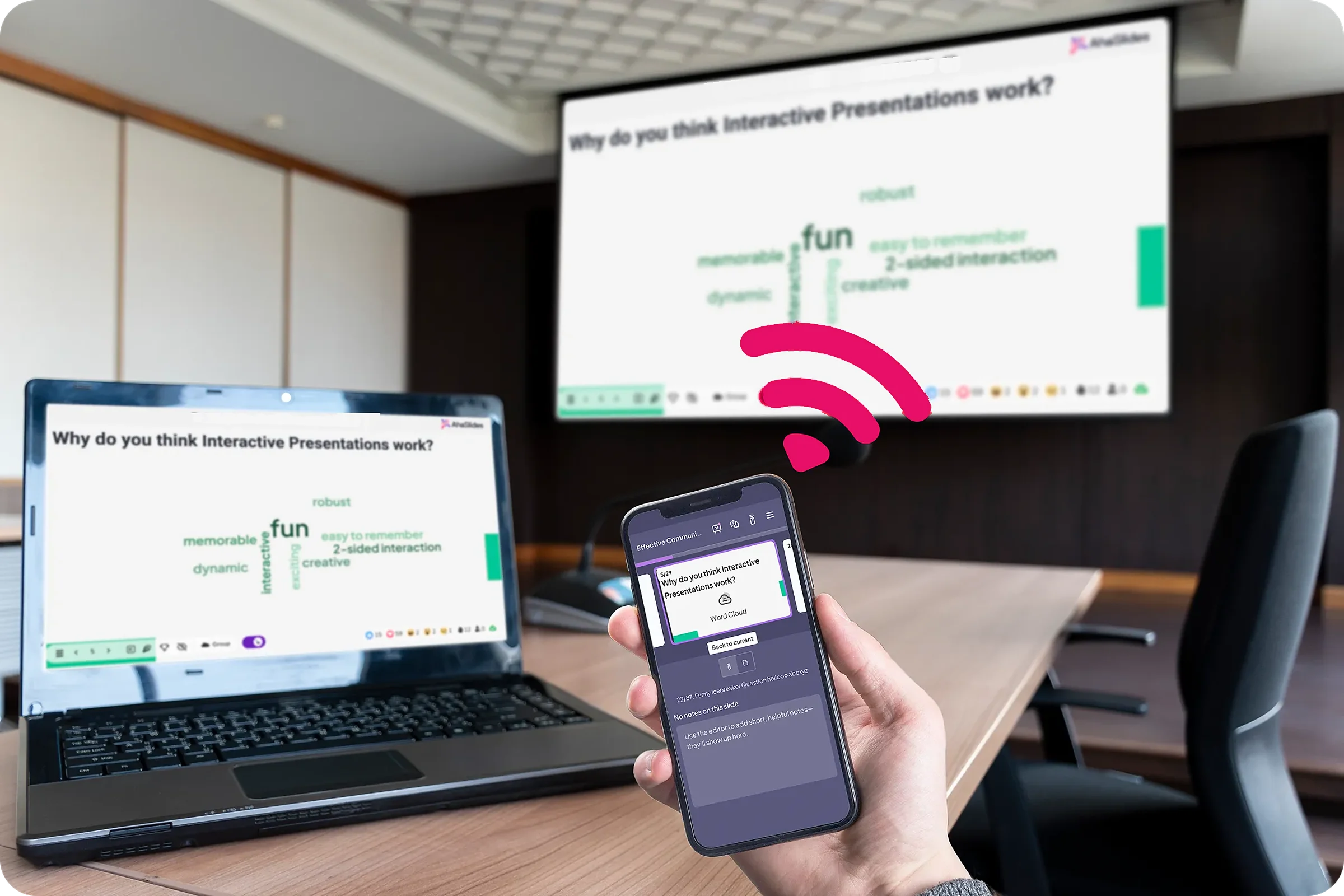
兩種快速入門的方法:
- 上傳你的牌組。 將您的 PowerPoint 檔案上傳至 AhaSlides 並讓 AI 透過它添加投票和測驗問題,從而將其變成一個互動式會話,而無需重新開始(AI PowerPoint 製作器).
- 或繼續用 PowerPoint 做簡報。 新增免費 AhaSlides 添加 並在您自己的幻燈片之間插入動態幻燈片。以下三個步驟即可完成。

The add-in is listed on Microsoft Marketplace as AhaSlides - Live Polls & Quizzes. It’s available on every AhaSlides plan, including the free one, and works in installed Microsoft 365, PowerPoint 2024, 2021 and 2019 (AhaSlides 幫助中心(2026年11月19日核實)。
- Install it and log in. On the Home tab, select 加載項 > 更多插件, 搜索 AhaSlides 並點擊 新增. On an older Mac build, use 插入 > 獲取加載項. Then log in.
- Add your slides. 選擇 AhaSlides presentation that holds your interactive slides, tick the ones you want and click 新增幻燈片. Each one goes on its own PowerPoint slide.
- 當下。 在一個 AhaSlides slide, press Q to show or hide the QR code and join link. People join once for the whole deck.

A rating scale like this works well at the end of a talk: it takes a minute, and you leave with feedback on each part of the session instead of a guess. The template below has it, plus polls and open questions.
6 tips for presenting with Presenter View
- Write notes as prompts, not a script. Three or four short cues per slide are easier to glance at than paragraphs. Increase the notes text size before you start.
- Start the timer when you start talking. Pause it if you’re interrupted, so it shows your real speaking time.
- Use Black screen to pull eyes back to you. 媒體中心 B for a black screen and press it again to return. W gives a white screen.
- Jump, don’t click through. Type a slide number and press 進入 to go to it, or use See All Slides. It’s quicker than paging back through ten slides to answer a question.
- Plan one moment where people answer. 放一個 現場投票 or quick quiz where attention usually dips, around the middle. Our guide to 製作互動式 PowerPoint shows the options, and a live Q&A in PowerPoint collects questions as you go.
- Rehearse with it on. Use Alt+F5 on one screen to practise exactly what you’ll see on the day. If you’re new to building decks, start with our step-by-step guide on 如何製作 PowerPoint 簡報.
常見問題
How do I present a PowerPoint without showing the notes to the audience?
Use Presenter View with two screens set to extend, not mirror. Your notes appear only on your screen. If they show on the projector, use Swap Presenter View and Slide Show (Windows) or Swap Displays (Mac).
How do I get PowerPoint back to normal view?
媒體中心 ESC to end the slide show. If you’re in a different view while editing, select 一般 on the View tab.
What are the different types of views in PowerPoint?
Normal, Outline View, Slide Sorter, Notes Page and Reading View on the View tab, plus Slide Show and Presenter View for presenting. Presenter View is the one built to show your notes privately while you present.
How can I see my speaker notes while presenting with one monitor?
媒體中心 Alt + F5 on Windows to open Presenter View on one screen, or choose Show Presenter View from the slide show control bar. On a video call, share only the slide show window so your notes stay private.
讓這副牌組互動起來
我們的 製作互動式 PowerPoint 的指南 展示如何讓使用者在任何卡片組中進行回答、投票和提問。或者從…開始 我們的範本庫中提供免費的入門卡片組。 並將其添加到你的下次簡報中。
Want to hear back from your audience in your next talk?
Add live polls, rating scales and Q&A to the deck you present with Presenter View, and see every answer on your slide. The AhaSlides PowerPoint外掛程式可以免費開始使用。