
La respuesta corta: the best PowerPoint presentation ideas give your audience a job, not just something to watch. Below are 50 topics and formats in 5 rounds: work meetings, training, the classroom, formats that change how a talk feels, and ways to open and close. Each one comes with a way to get people answering.
Why bother with the answering part? When researchers pooled 225 studies of undergraduate science, engineering and maths courses, students in traditional lectures were 1.5 times more likely to fail than students in classes with active learning (PNAS, 2014). Getting everyone involved isn’t about putting people on the spot. It’s about giving them something to think about and a safe way to answer.
Every round is split into 2 sets of 5, so you can pick one for your next presentation and keep the rest for later. Every round has an Nuestra selección, the one we would try first. Looking for party topics instead? See our Ideas para la noche de PowerPoint.
Round 1: ideas for work presentations
Ten topics for team meetings and updates, each with a question that gets the team talking.
Set A: team meetings
- The quarter in review. Start with a Rating Scale, “How did this quarter feel, 1 to 5?”, then show the numbers and compare.
- Inicio del proyecto. Ask everyone for the biggest risk they see, in one word, and show the answers as a Word Cloud.
- Lessons from a finished project. Collect “one thing to keep, one thing to change” as Open Ended answers before you present your own.
- Next year’s team goals. Show five candidate goals and let the team vote for their top three.
- A process change, explained. Show the before and after, then ask how confident people feel about the new way.
Set B: knowledge sharing
- A tool I use every day. A 10-minute demo, with a Q&A slide open the whole time.
- Customer story of the month. Show the problem, ask the team to guess what happened next, then reveal it.
- Three trends in our industry. Present each one briefly, then poll which will affect your team most.
- “How I work” introductions. A new team member presents five slides about themselves, then runs a short quiz on what they shared.
- Market snapshot. Ask people to guess a key figure, such as your market share, before you show it.
Our pick: customer story of the month. A guess before the reveal makes everyone care about the answer, and it turns a slide of figures into a story.
Round 2: ideas for training and onboarding
Ten ideas for trainers and HR teams, from a new starter’s first week to a refresher course.
Set A: onboarding
- Our company in 10 slides. The story from founding to today, with a quiz at the end that puts five milestones in order.
- Quién hace qué. Introduce each team, then ask new starters to match a task to the team that owns it.
- Policies through scenarios. Swap the policy text for a short situation and ask, “What would you do?”
- The tools tour. Show each system in action, with a Q&A slide open for questions, anonymous if you allow it.
- First-week questions. Collect questions before the session and answer the most common ones first.
Set B: skills training
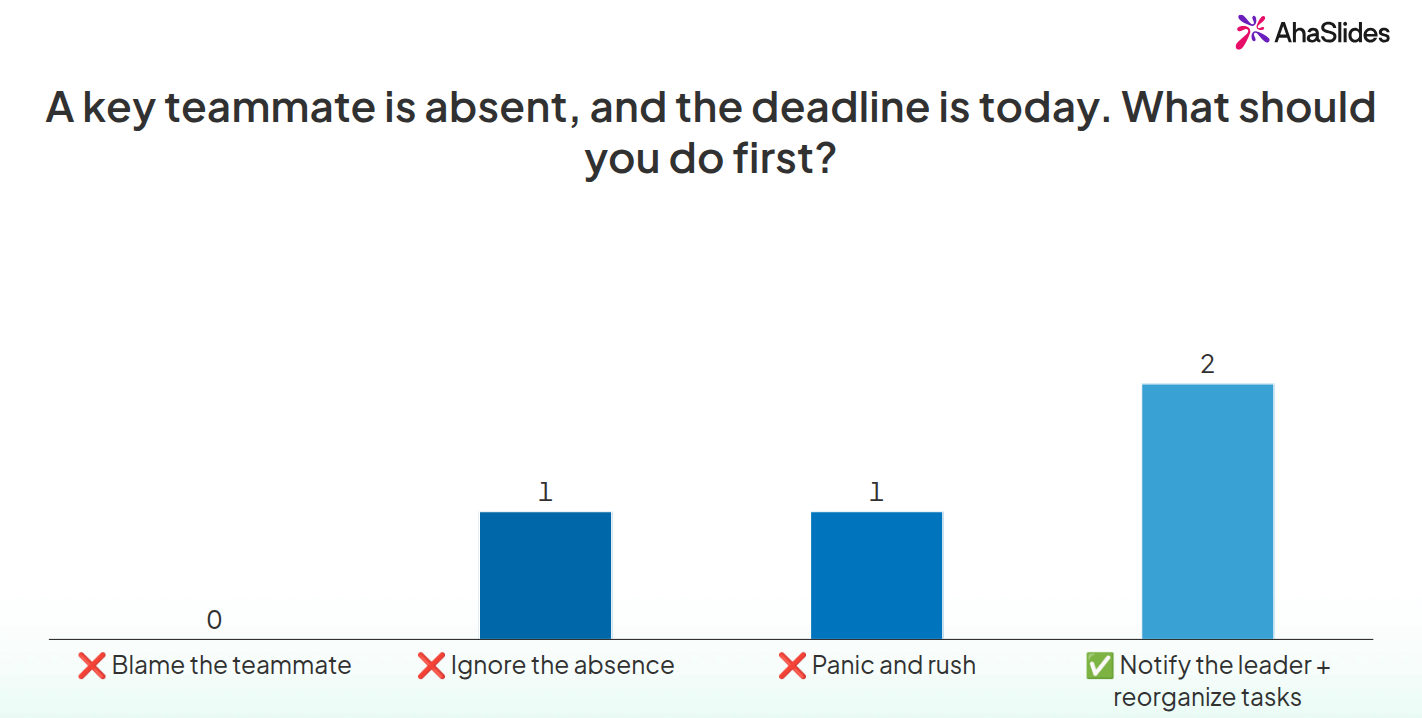
- Problem-solving scenarios. Show a real workplace problem, such as “A key teammate is absent, and the deadline is today. What should you do first?”, and let people pick an answer.
- Customer service practice. Show a real complaint and vote on the best reply out of three.
- Gestión del tiempo. Sort a list of tasks into “urgent” and “can wait”, then discuss the ones people disagree on.
- Giving feedback. Show example comments and ask people to rate how useful each one is.
- Compliance refresher. A scored quiz with a leaderboard turns a box-ticking hour into a contest.
Our pick: problem-solving scenarios. A scenario makes people apply the rule, not just recognise it, and the wrong answers show you what to cover again.
Round 3: ideas for the classroom
Ten ideas for teachers: five topics students can present and five lesson formats.
Set A: topics for student presentations
- An event that changed our town. Local history gives every student a different story to tell.
- How an everyday object is made. From a pencil to a phone, the process is the presentation.
- A scientist more people should know about. Students end with one question to check their classmates listened.
- A book review in five slides. Plot, characters, best moment, one criticism, a rating out of five.
- Fix one problem at our school. Students pitch a solution and the class votes for the best one.
Set B: lesson formats
- Starter quiz. Five quick questions on last lesson, before you teach anything new.
- Vote, debate, vote again. Poll the class on a statement, run the debate, then poll again to see who changed their mind.
- Boleto de salida. One question at the end of the lesson that tells you where to start next time.
- Vocabulary cloud. Ask for one word linked to the topic and use the Word Cloud to spot gaps.
- Student-made quiz. Groups write three questions each on the topic and quiz the rest of the class.
Our pick: vote, debate, vote again. Students see on screen whether the arguments changed anyone’s mind, which makes the debate matter.
Round 4: formats that change how a presentation feels
Ten ways to present any topic differently.
Set A: structures
- PechaKucha. 20 slides that move on every 20 seconds, so you have to cut to the point.
- Lightning talk. Five minutes, one idea, no more than five slides.
- Problem, solution, proof. The simplest pitch structure there is, and it works for internal proposals too.
- Antes y después. Two pictures of the same thing, with your story in between.
- Mito o realidad. Each slide is a statement and the audience decides which it is before you explain.
Set B: audience-led
- Elige tu propio camino. In Microsoft 365, Insert > Zoom > Summary Zoom makes a menu slide, and the audience votes on which section comes next.
- Pregúntame lo que sea. Three slides of context, then the rest of the time goes to the audience’s questions.
- Live quiz show. Turn the content into a quiz with points for fast, correct answers.
- Panel with audience questions. People submit questions and upvote the ones they most want answered.
- Mostrar y contar. Everyone shares one slide on a theme, then the group votes for a favourite.
Our pick: myth or fact. It works for any subject, and each wrong guess makes the correct answer stick.
Round 5: ways to open and close
Ten openers and closers you can add to any presentation.
Set A: openers
- One-word check-in. “How are you arriving today?” as a Word Cloud.
- Adivina el numero. Show a surprising statistic as a question before you reveal it.
- “Raise your hand if” as a poll. Everyone answers, not only the confident few.
- Picture prompt. Show one photo and ask what people think it has to do with today’s topic.
- Esta o aquella. Two options, such as “tea or coffee”, to warm people up before the real questions.
Set B: closers
- One-line takeaway. Ask each person for the one thing they will remember.
- Verificación de confianza. “How confident are you to use this tomorrow, 1 to 5?”
- Spinner prize question. Spin a wheel of names, and whoever it picks answers the bonus question.
- Q&A with upvotes. The most-wanted questions rise to the top, so you answer those first.
- Compromiso. “What will you try this week?” Read a few answers aloud.
Our pick: confidence check. It tells you in ten seconds whether the session worked, and anyone who rates low is someone to follow up with.
How to build any of these in PowerPoint
- Plan the slides. Abra View > Outline View and type one slide title per line.
- Elige un estilo. Choose a theme on the Diseño tab, then try Diseño (Llamado Sugerencias de diseño for Copilot users) on the Home or Design tab for layouts.
- Add your question slides. Use a Title Only layout with the question in large text, and the answer on the slide after it.
- Rehearse. Vaya al Slide Show > Rehearse with Coach to check your pace before the day.
For a fuller checklist, see our rules for a good PowerPoint presentation.
Where PowerPoint stops
PowerPoint can show a question, but it cannot collect answers. You are left with a show of hands, so you hear from the most confident people, count by eye and keep no record. For half the ideas above, the point is seeing everyone’s answer on screen.
Ways to host for a group
AhaSlides is an all-in-one engagement platform for teams and classrooms. It lets everyone answer the ideas above from their phone, so you see every answer, not just the hands that go up first.

Dos maneras rápidas de empezar:
- Sube tu mazo. Sube tu archivo de PowerPoint a AhaSlides y dejar que la IA añada encuestas y preguntas de cuestionario a través de ella, de modo que se convierta en una sesión interactiva sin tener que empezar de nuevo (Creador de PowerPoint con IA).
- O bien, siga presentando en PowerPoint. Añade el gratis AhaSlides complemento in three steps: install it, tick the slides you want, and present as normal.
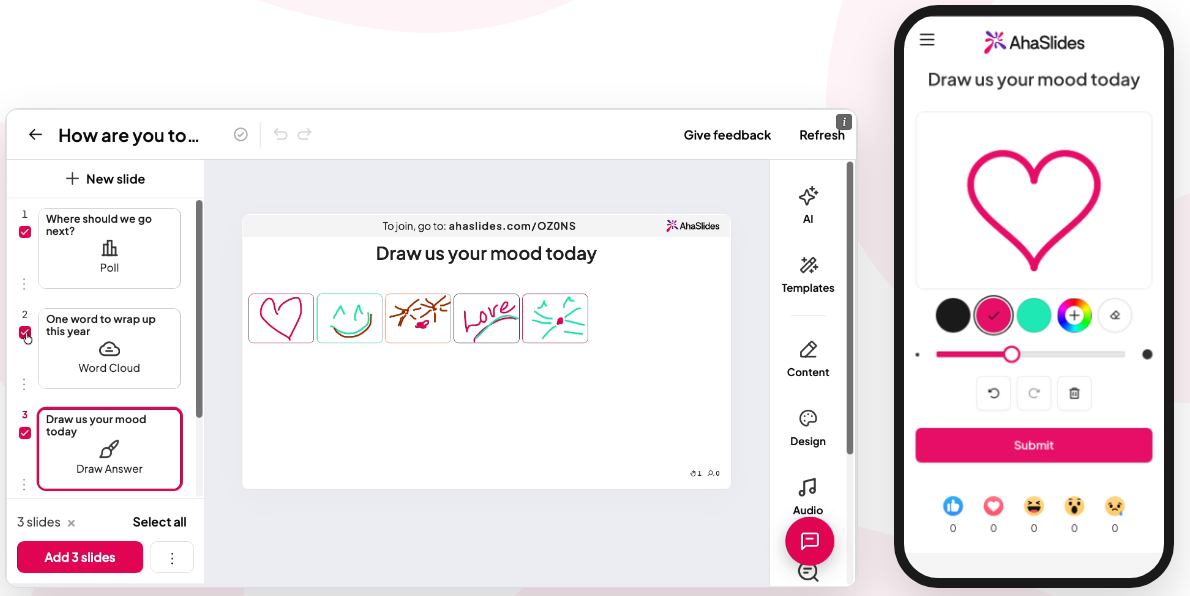
The slide types that run the ideas above:
- Elegir respuesta for scenarios, myth or fact and quizzes (ideas 16, 20, 26, 35, 38). Turn on scoring and a leaderboard shows who is ahead.
- Nube de palabras for one-word answers (ideas 2, 29, 41).
- Escala de valoración for how people feel or how confident they are (ideas 1, 19, 47).
- Abierto for longer answers (ideas 3, 46, 50).
- Q&A for questions people would rather type than ask (ideas 6, 14, 37, 39, 49).
- Rueda giratoria for picking a name (idea 48).
Here is idea 16 run live, with the answers in:
And idea 20, the scored quiz, with the leaderboard after a round:
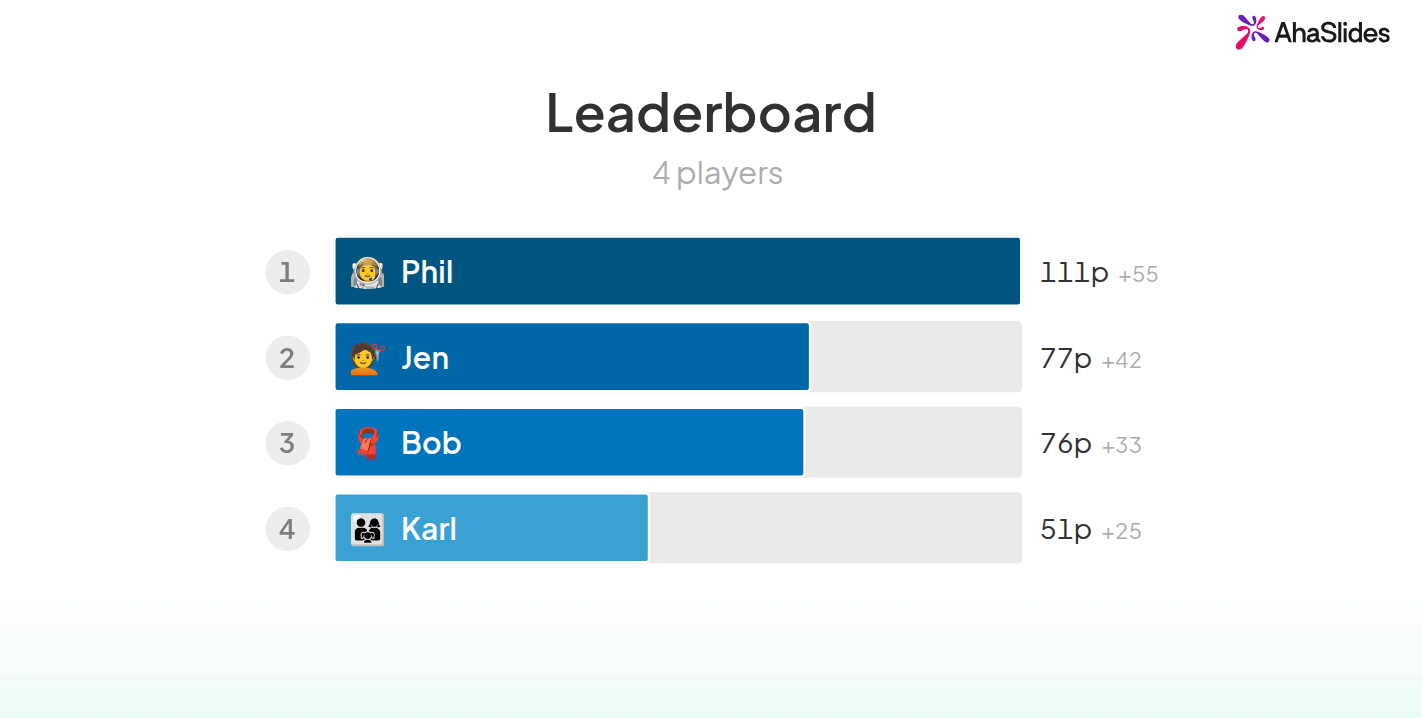
Both slides come from the Problem-Solving Scenarios template, a ready-made training workshop of scenario questions and leaderboards. Open it, edit the scenarios to fit your team, then add the slides to PowerPoint. For every quiz setting, see the creador de cuestionarios en línea.
Tips for running these ideas
- Pregunte con anticipación. Put the first question in the first five minutes, so answering becomes normal before your main content.
- Keep answers anonymous when it matters. People share honest views on confidence or problems when their name is not on the screen.
- Use the results. If a poll shows half the group is unsure, stop and explain again. That is the point of asking.
- Remember why it works. The 225 studies behind the PNAS analysis found students in traditional lectures were 1.5 times more likely to fail than those in active classes. A question every few slides is the easiest active learning there is.
Preguntas que la gente hace
What are some good topics to do a presentation on?
Pick a topic you know well and your audience cares about. A project you finished, a tool you use every day, a customer story, or how something is made all work, and the 50 ideas above are sorted by work, training and class.
What are some good topics for a 5-minute presentation?
One idea you can explain in five slides: a tool tip, a book review, a myth you can bust, or a lesson from a recent project. Lightning talks (idea 32) are built for this length.
How to be creative in a PowerPoint presentation?
Change the format before you change the design. Try myth or fact, choose your own path or a live quiz show from Round 4, and use one strong image per slide instead of bullet points.
What is a good presentation?
A good presentation has one clear message, slides that support it rather than repeat it, and an audience that does something: answers, votes or asks. If people can say your main point the next day, it worked.
Haz que este mazo sea interactivo.
Static slides only talk at people. Add a live poll or quiz and everyone answers from their phone, so you see who is following.
New to it? Our guide to Cómo crear una presentación interactiva de PowerPoint lo guía paso a paso.
Host your next presentation on AhaSlides gratis
Pick an idea, build the slides in PowerPoint, and add the questions with the add-in. Sign up free and run your first live question this week.