
La respuesta corta: a good PowerPoint presentation has one clear message, one idea per slide, short headlines that say the point, big readable text, simple visuals and a rehearsed delivery. Plan the story before you open PowerPoint, cut every word your audience can do without, and give people something to do every few slides so they stay with you.
Below are 12 rules that cover all of it. Rules 1 to 11 use nothing but PowerPoint. Rule 12 is the one most decks skip: ask your audience something.
The 12 rules, in PowerPoint alone
1. Write the one sentence you want people to remember
Before you make a single slide, finish this sentence: “When they leave, I want them to know…” If you cannot say it in one line, the audience will not be able to either. Every slide should help that sentence. Any slide that does not goes in the appendix or the bin.
2. Outline first, design later
Abra Ver > Vista de esquema (Windows and Mac). Type your slide titles as a list, one per line, and you get a slide for each. Read the titles top to bottom: if they tell the story on their own, the structure works. Only then start on layouts and images. Designing first is how you end up with 40 polished slides and no argument.
3. One idea per slide, and make the headline say it
En la opciónTen simple rules for effective presentation slides” (PLOS Computational Biology, 2021), Kristen Naegle’s first rule is to include only one idea per slide. Her third is to make use of your heading. So swap topic titles for full sentences. “Q3 sales” tells people nothing. “Q3 sales rose 12% after the price change” tells them what to look for in the chart below it.
A useful test from the same paper: design each slide so a distracted person still gets the main takeaway at a glance.
4. Cut the words
Slides are not your script. A popular guide is the Regla 5/5/5: no more than five words a line, five lines a slide, and five text-heavy slides in a row. Treat it as a ceiling, not a target. If a point needs a paragraph, say the paragraph and show a picture.
5. Make the text big enough for the back row
chico kawasaki Regla 10/20/30, first posted in 2005, says a pitch needs 10 slides, no more than 20 minutes and no font smaller than 30 points. You do not need to stop at 10 slides for a lesson or a training session, but the 30-point floor is a good habit for any deck shown on a screen. If your text will not fit at 30 points, you have too much text. Our 10/20/30 rule guide covers the rest of the rule.
6. Keep the design consistent
Pick one theme on the Diseño tab and stick to it: two fonts at most, one accent colour, the same layout for the same kind of slide. In Microsoft 365, Diseño suggests layouts for the slide you are on. Microsoft now calls it Sugerencias de diseño for Copilot users, and you will find it on the Home or Design tab. Use it as a starting point, then strip anything that does not help the message.
7. Show it, don’t list it
A chart, a photo or a simple diagram beats six bullet points. Use Insertar> Gráfico for numbers, Insert > SmartArt for a process, and one strong image for a story. Label the one number that matters on a chart and grey out the rest, so nobody has to hunt for the point.
8. Check the contrast
Dark text on a light background (or the reverse) works in every room, even with a weak projector. Pale grey on white does not. Before you present, go to Review > Check Accessibility. It flags low contrast, missing alt text and slides without titles, and each finding comes with a fix.
9. Animate with a reason
One animation is useful: revealing points one at a time so people listen to you, not read ahead. Use Animations > Appear or Desvanecer for that and skip the rest. If an animation does not change what the audience understands, cut it.
10. Rehearse out loud with Speaker Coach
Naegle’s paper suggests spending about a minute per slide, and the only way to know your timing is to say it. In PowerPoint for Windows, go to Presentación de diapositivas > Ensaya con el entrenador (in the Rehearse group). On a Mac it sits on the same Slide Show tab. Speaker Coach listens as you practise and gives you a report on your pace, filler words and whether you are reading the slide text.
11. Keep your notes in Presenter view
Put your talking points in the notes pane under each slide, not on the slide. When you present on a second screen, tick Slide Show > Use Presenter View. Your audience sees the slide; you see your notes, the next slide and a timer.
12. Ask your audience something every 10 minutes
The “attention span is 10 minutes” claim is shakier than it sounds: a 2016 review in Advances in Physiology Education found the evidence does not support a fixed 10 to 15 minute limit, and that the teacher matters more than the clock. What the evidence does support is doing something. A 2014 analysis of 225 studies in PNAS found students in traditional undergraduate science and maths lectures were 1.5 times more likely to fail than students in classes with active learning.
So don’t stop the session to create engagement. Build it in. Every 10 minutes or so, ask a question: a quick vote, a guess, a one-word answer. In plain PowerPoint, that means a show of hands.
Where PowerPoint stops for a live audience
PowerPoint can put a question on screen, but it cannot collect the answers. A show of hands has three problems:
- Only the confident answer. Hands go up for the confident few, so you hear the loudest view, not everyone’s.
- No results on screen. You count hands by eye and the number is gone the moment you move on.
- Nothing to keep. After the session you have no record of who understood what.
You could send a separate survey link, but then people leave your slides for another tab, and the moment has passed by the time results come in.
The live way: add questions to your deck with the AhaSlides complemento
AhaSlides is an all-in-one engagement platform for teams and classrooms. It lets everyone answer from their phone, so a quick poll, quiz or Q&A sits between your own slides and the results appear live.
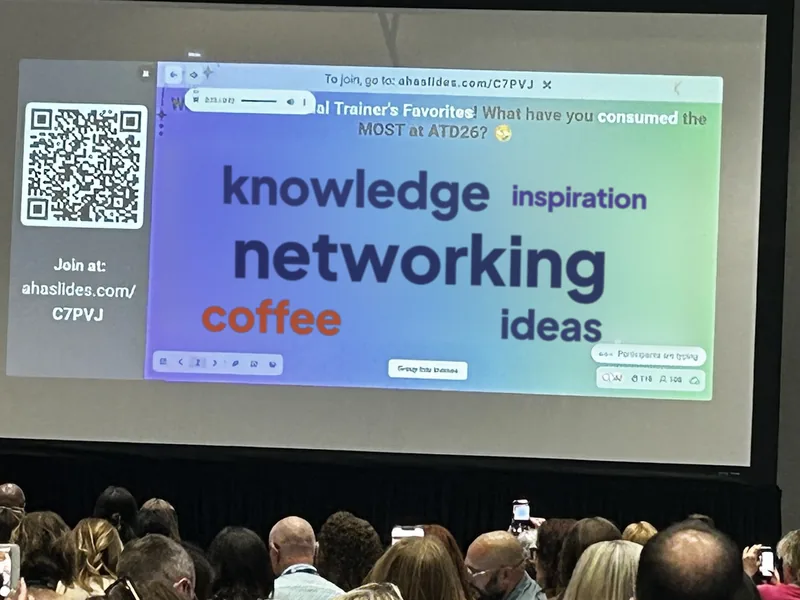
Dos maneras rápidas de empezar:
- Sube tu mazo. Sube tu archivo de PowerPoint a AhaSlides y dejar que la IA añada encuestas y preguntas de cuestionario a través de ella, de modo que se convierta en una sesión interactiva sin tener que empezar de nuevo (Creador de PowerPoint con IA).
- O bien, siga presentando en PowerPoint. Añade el gratis AhaSlides complemento y coloca diapositivas en vivo entre las tuyas. Solo se necesitan tres pasos, que se detallan a continuación.
Paso 1: instalar el complemento
En PowerPoint, vaya a Inicio > Complementos > Más complementos (en PowerPoint para la web, Insert > Add-ins > More Add-ins). Search for AhaSlides y hacer clic en Agregar . It works with Microsoft 365 and PowerPoint 2019, 2021 and 2024, on Windows, Mac and the web.
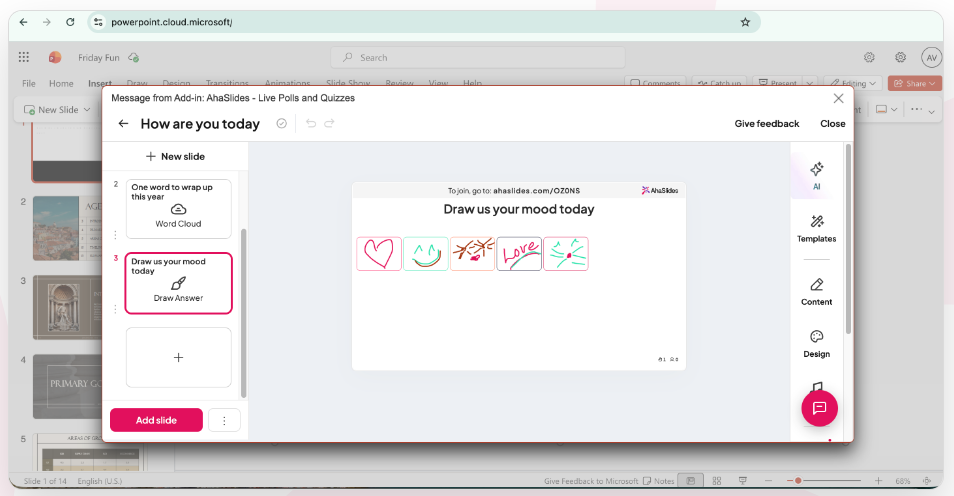
Step 2: sign in and pick your questions
Sign in (choose Continuar como with a work or school account, or choose Iniciar sesión, finish in your browser, then return to PowerPoint). Then select an AhaSlides presentation, tick the slides you want, and click Agregar diapositivas (in PowerPoint for the web, you add one slide at a time with Agregar diapositiva). The slides are added to your PowerPoint deck.
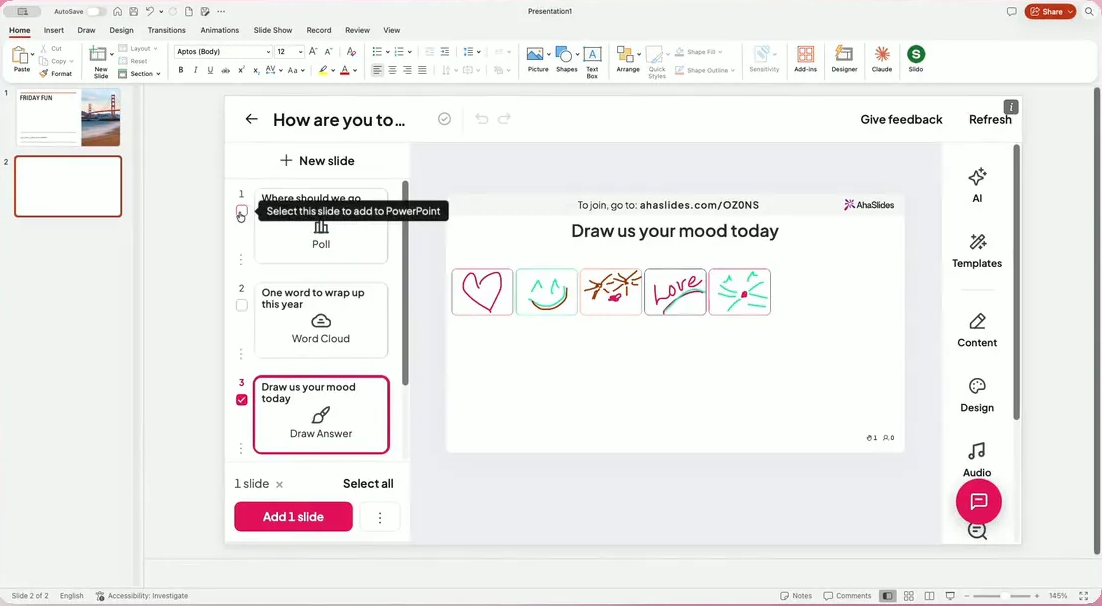
Paso 3: presentarse como de costumbre
Start the slide show. The join link and QR code appear on each AhaSlides slide (press Q to show or hide them), people answer on their phones, and the results fill in live.
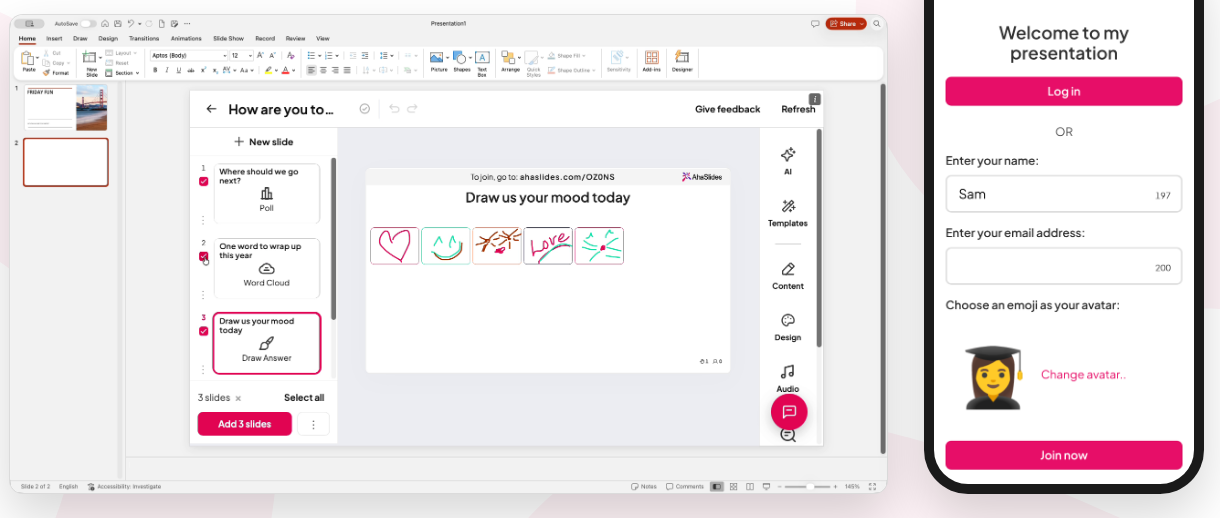
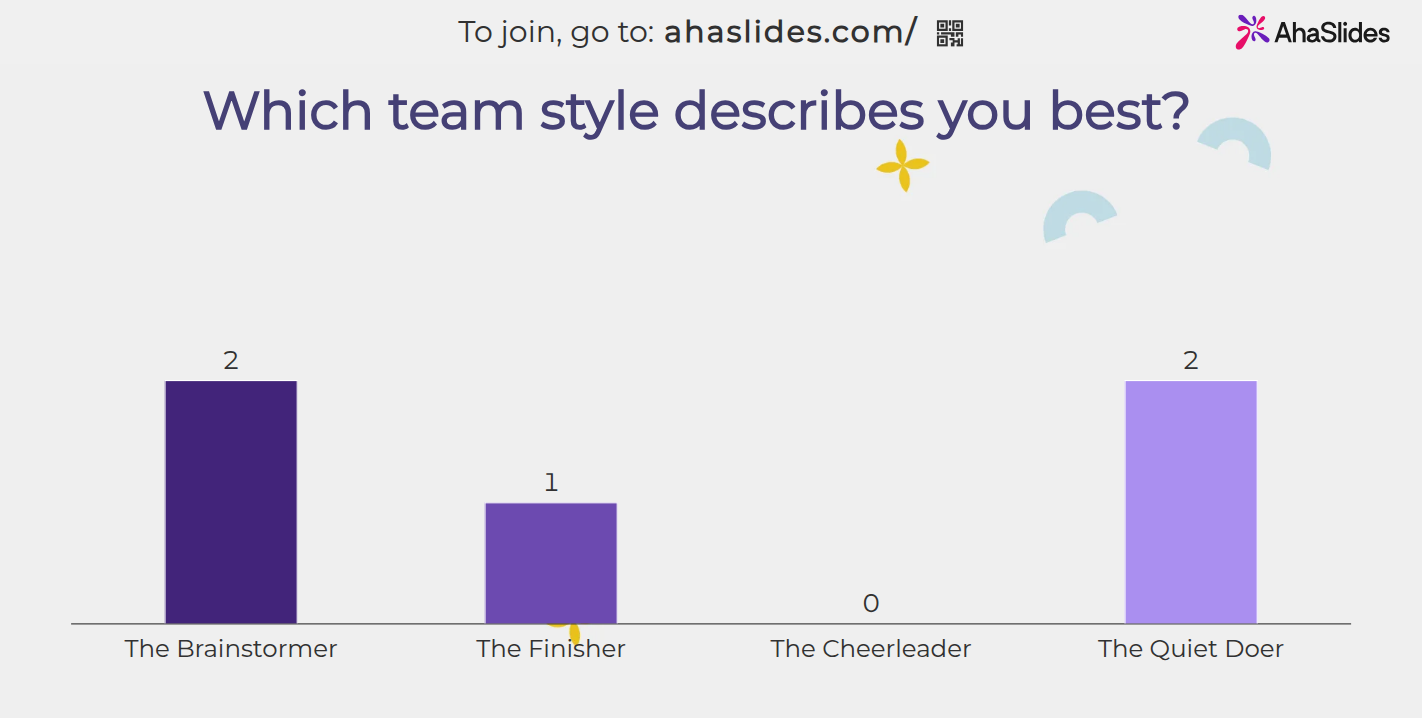
For rule 12, a poll like this one takes seconds to answer and gives the whole group a result to talk about:
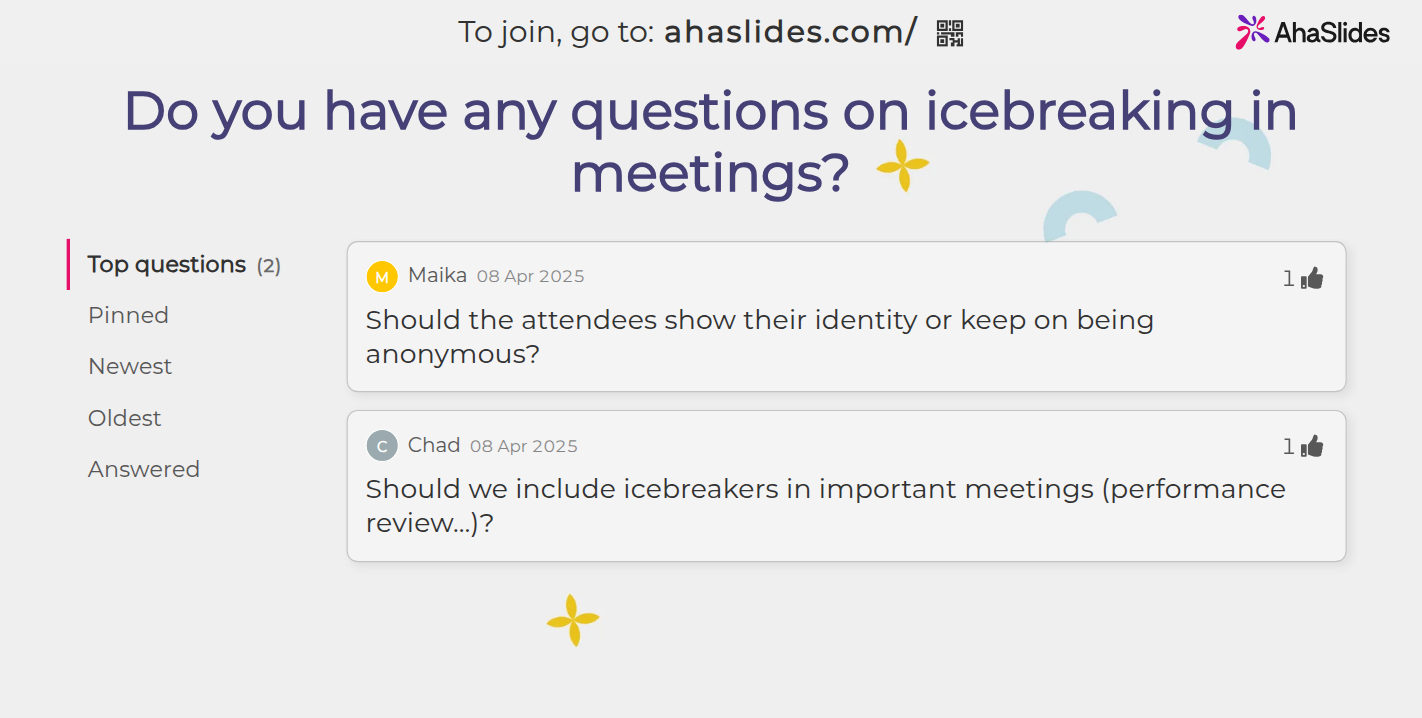
A Q&A slide works at the end, when people would rather type a question than ask it out loud:
The easiest way to start is a ready-made deck. The Engaging Icebreaker Polls template below has three image polls and a Q&A slide you can add to the start of your next meeting. Open it in AhaSlides, make it yours, then add the slides to PowerPoint with the add-in.
5 ways to use rule 12 in your next presentation
- Comienza con una encuesta. Ask “Which of these is your biggest headache with X?” before you start. You learn what people care about, and they have answered something in the first two minutes.
- Check understanding mid-way. After your main section, run one Pick Answer quiz question. If half the group gets it wrong, you know to go over it again before you move on.
- Collect ideas with a Word Cloud. Ask for one word on a problem or a goal. The biggest words on the screen are what most people said.
- Valora el plan. A Rating Scale from 1 to 5 on “How confident are you that we can hit this?” tells a team lead more than “Any questions?”.
- Close with Q&A. Leave the Q&A slide open while you speak, so questions arrive throughout and you answer the most popular ones at the end.
For more topics and formats to build around, see our list of PowerPoint presentation ideas. If a poll is all you need, our step-by-step guide shows Cómo agregar una encuesta a PowerPoint. For every poll type and setting, see the creador de encuestas en línea.
Preguntas que la gente hace
¿Qué hace una buena presentación de PowerPoint?
A clear message, one idea per slide, headlines that state the point, text big enough to read from the back, and a speaker who has rehearsed. The best ones also give the audience something to do, such as a vote or a question, so people take part instead of just watching.
What is the 5 5 5 rule for PowerPoint presentations?
No more than five words a line, five lines a slide, and five text-heavy slides in a row. It is a rule of thumb to stop slides turning into documents. Rule 4 above shows how to apply it.
¿Cuál es la regla 10/20/30 para PowerPoint?
Ten slides, no longer than 20 minutes, and no font smaller than 30 points. Guy Kawasaki wrote it in 2005 for start-up pitches. The 30-point minimum is the part worth keeping for every deck.
How to make a good 5 minute PowerPoint presentation?
Use about five slides, at roughly a minute each. Open with your one-sentence message, give three supporting points with one slide each, and finish with what you want people to do. Rehearse it out loud with a timer, since five minutes goes faster than you expect.
Can ChatGPT create a PPT?
It can write an outline and the text for each slide, which you then paste into PowerPoint. Inside PowerPoint, Copilot can create a new presentation from a prompt if your Microsoft 365 plan includes it. Either way, check every fact and apply the rules above before you present.
Haz que este mazo sea interactivo.
Las diapositivas estáticas solo hablan sin que el público se dé cuenta. Añade una encuesta o un cuestionario en directo para que todos respondan desde sus teléfonos y puedas ver quién está participando.
¿Eres nuevo en esto? Nuestra guía para Cómo crear una presentación interactiva de PowerPoint lo guía paso a paso.
Make your next presentation one people answer
Follow rules 1 to 11 for slides people can read, then add rule 12 so they take part. Sign up free and add your first live poll to PowerPoint today.