
Who sits with whom?
Let a random pair generator decide

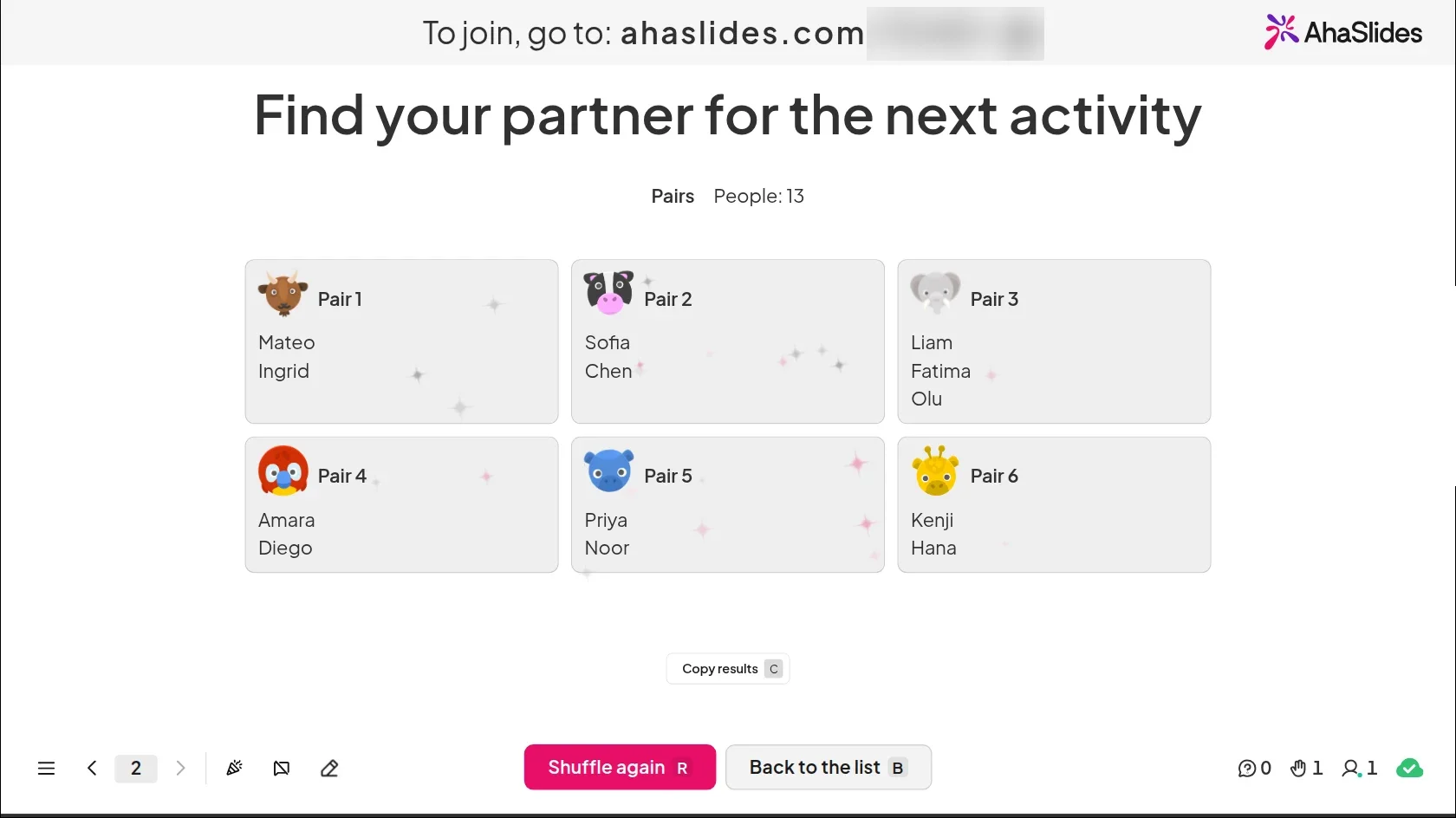
Tap Shuffle and everyone in the room is paired at random. Each person sees their partner on their own phone, so it works as a random partner generator for discussions, icebreakers and quick contests.
Use the free template (se abre en una nueva pestaña)
Random Pair Generator on the presenter screen after a shuffle: six cards named Pair 1 to Pair 6, each listing the people paired, with one pair of three

A fair random pair generator for any room

Skip counting off or drawing names from a hat. One tap splits the room, and nobody has to hunt for their name on the big screen.

  • One tap, a fair split

    Click Shuffle or press Enter. Click Shuffle again for a new random split.

  • Partner on every phone

    Each phone shows that person's partner, group or team, so nobody has to find their name on the big screen.

  • Four group types

    Choose Pairs, Groups, Teams or Tournament. Groups take 3 to 20 people each, and Teams take 2 to 20 teams.

  • An odd number is fine

    In Pairs, one pair gets 3 people, so nobody is left on their own.

  • Names you type, and people who join

    Paste up to 200 names, one per line, or import a .txt or .csv file. People who join on their phone are added to the list.

  • A knockout bracket

    With Tournament, the shuffle draws a bracket for up to 64 people. Click the winner of each match to move them on.

Pair up your room in three steps

  1. Paso 1: Choose a group type

    Add the slide, then pick Pairs, Groups, Teams or Tournament under Group type. Type or paste names, or leave the list empty for people who join.
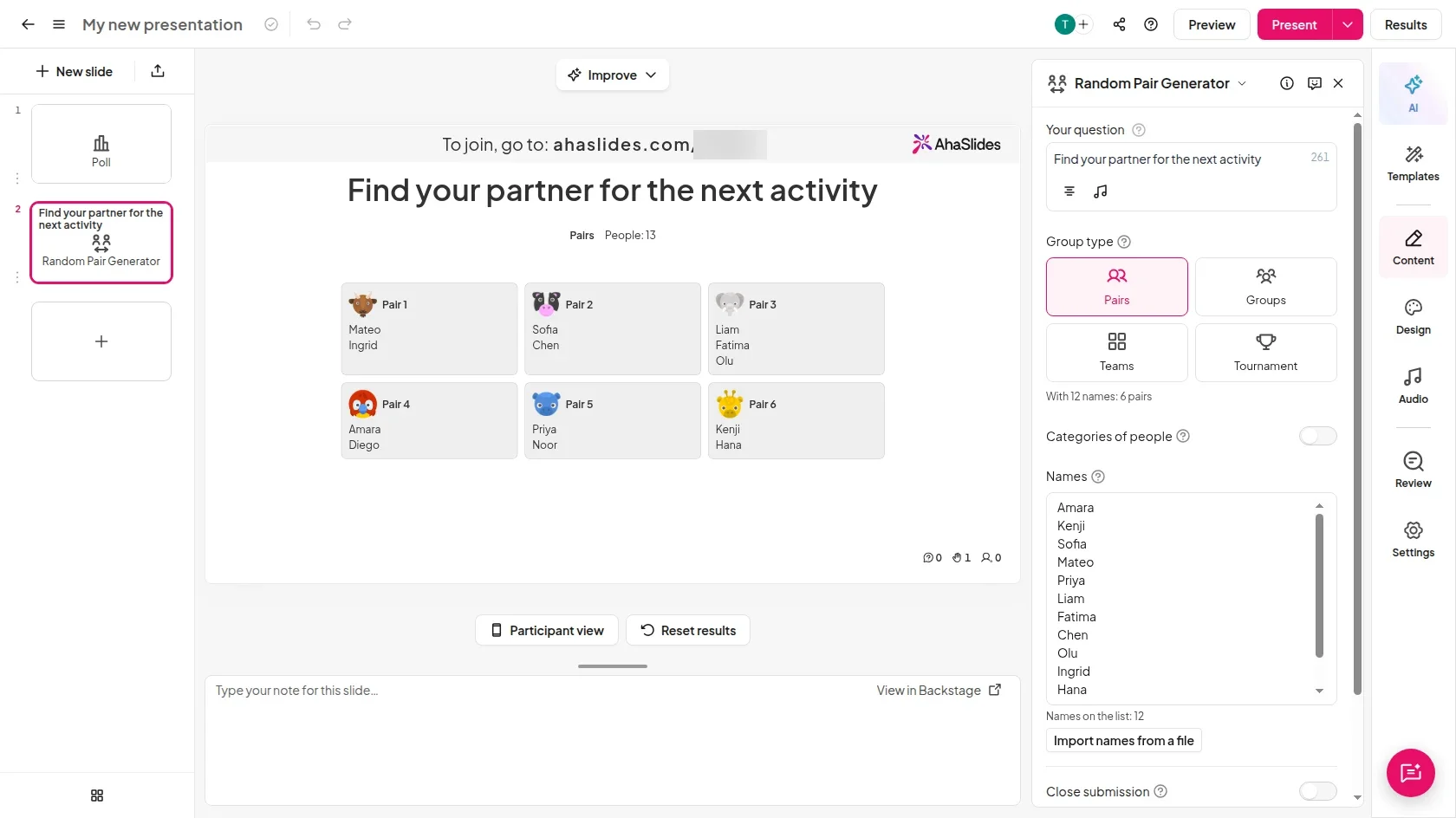
    The Random Pair Generator editor: the Group type buttons Pairs, Groups, Teams and Tournament, a Names box and the line With 12 names: 6 pairs
  2. Paso 2: Let people join, then Shuffle

    Participants join with the access code on screen, and their names appear in the list. When everyone is in, click Shuffle.
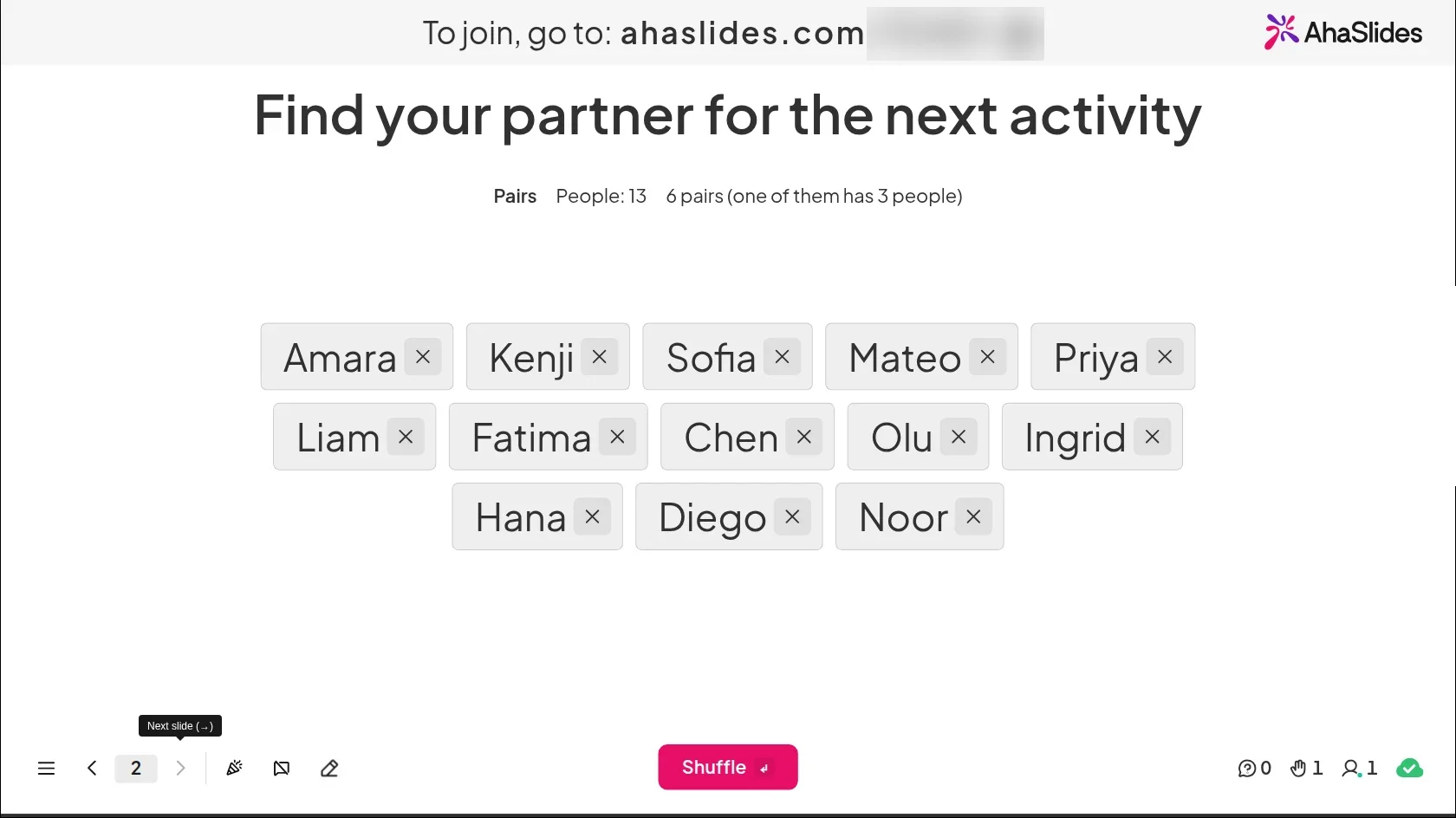
    The presenter screen before the shuffle: 13 names in a list under the line Pairs, People: 13, 6 pairs (one of them has 3 people), and a Shuffle button
  3. Paso 3: Everyone sees their partner

    Each pair appears as a card on the big screen, and each phone shows that person's partner, so nobody has to hunt for a name.
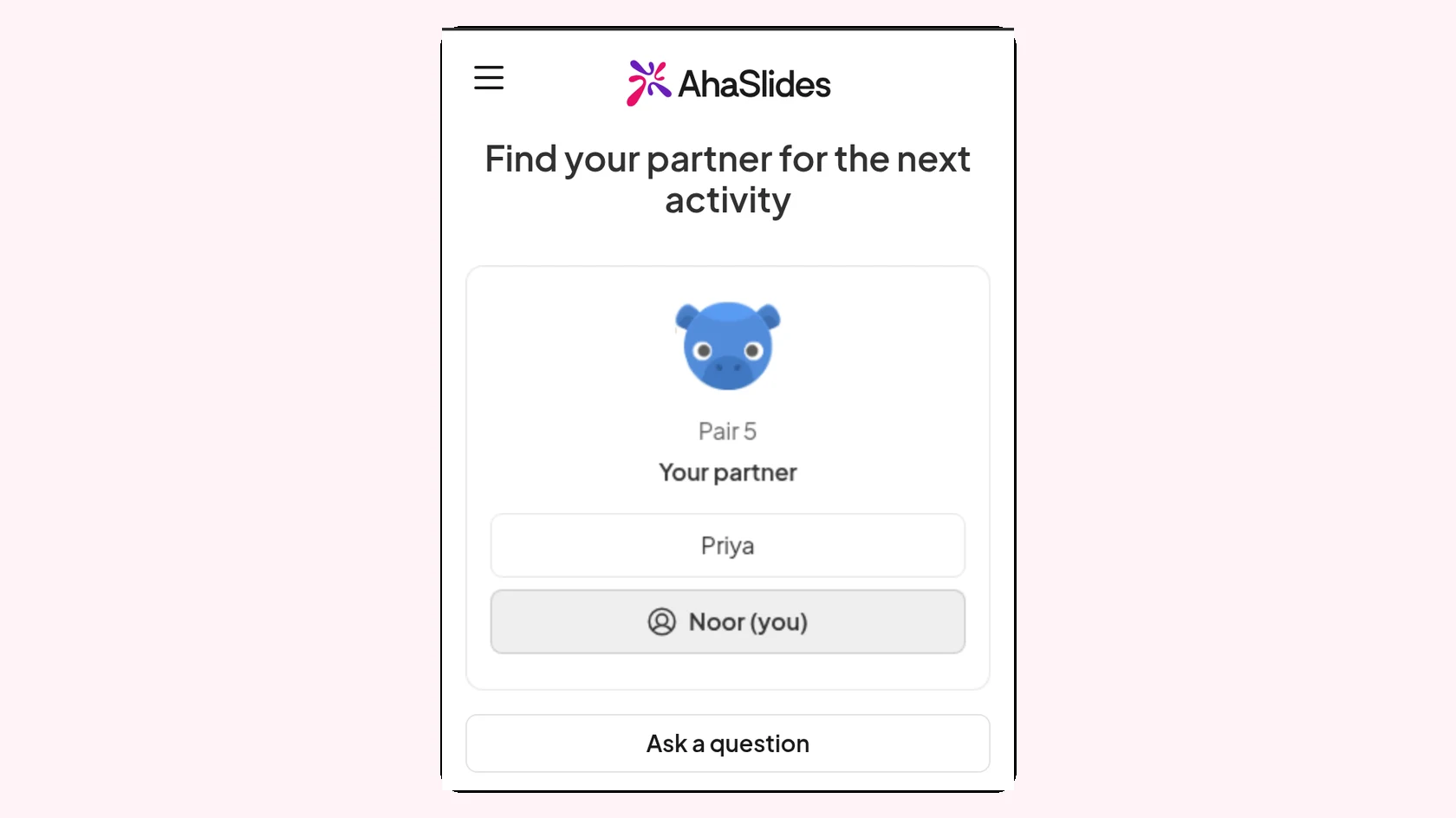
    A participant's phone after the shuffle: Pair 5, Your partner Priya, and Noor (you)
Use the free template (se abre en una nueva pestaña)

Ways to use a random partner picker

Pair people for a minute or a whole session, then shuffle again for fresh partners.

  • Aulas

    Pair students for peer marking or a think-pair-share discussion.

  • Capacitación Especializada

    Put new starters and experienced staff in mixed groups with Categories of people.

  • Talleres

    Split a room of 30 into 5 teams for a design challenge.

  • Rompehielos

    Pair strangers at an event for a two-minute introduction.

  • Fun contests

    Run a quick-fire quiz knockout or a table tennis tournament.

  • Keep the results

    Click Copy results to paste the pairs into a spreadsheet or a document.

Preguntas antes de empezar

An unscored slide that shuffles everyone in the room into pairs, groups, teams or a knockout tournament when you click Shuffle. Nothing goes to the leaderboard.

Yes. With Pairs selected, one shuffle gives everyone a random partner, and each person sees theirs on their own phone.

Random Pair Generator makes unnamed pairs, groups, teams or a tournament in one shuffle. Random Group Maker places people into groups you name, such as tasks or roles, and reveals them one group at a time.

In Pairs, one pair gets 3 people. In Groups, sizes differ by one at most and nobody ends up in a group on their own. In Teams, team sizes differ by one at most.

No. The Tournament Bracket slide lets the audience vote on options in a knockout. In Random Pair Generator the players are the people in the room, and you click the winner of each match.

Up to 64. With more than 64 people on the list, the slide shows a warning and the shuffle does not start.

The big screen shows how many people joined late, and they are added the next time you click Shuffle. The full steps are in the artículo de ayuda.

It is rolling out to EU accounts later. It is available now on global and US accounts.

In the editor, click New slide, then search for Random Pair Generator in the slide type picker.
Use the free template (se abre en una nueva pestaña)