One clock the
whole room can see

Group tasks, breaks and quick writing exercises all need a clock everyone can see. Timer puts one shared countdown on your screen and on every phone, so nobody has to ask how long is left.

Try the ready-made Timer template

A shared clock, and a view of who has finished

Timer is an unscored slide, so the room focuses on the task and you keep control of the pace.

  • One countdown on every screen

    Your screen and every phone show the same time. Before you press Start, phones say "Waiting for the presenter".

  • Four looks for the room

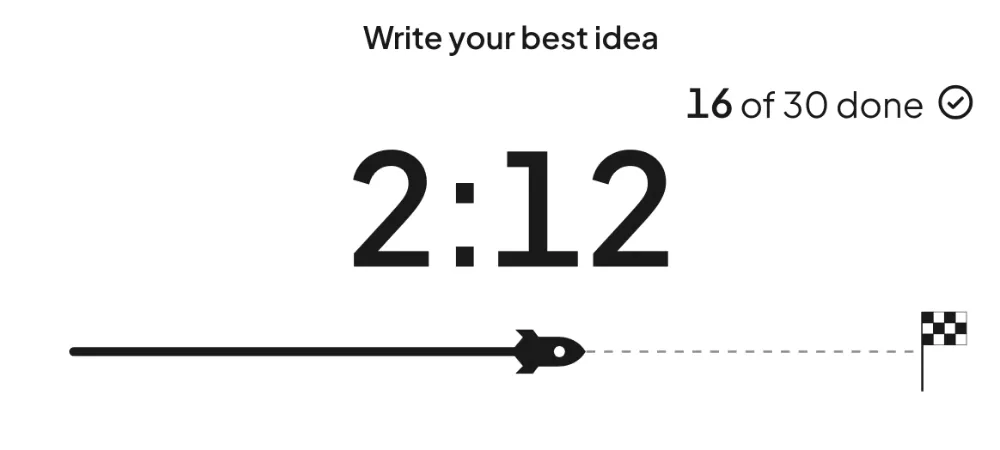
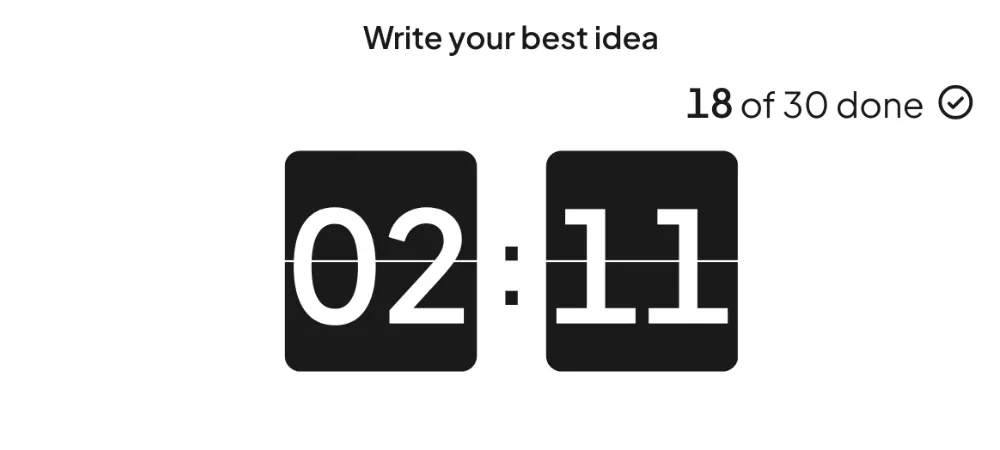
    Choose Ring, Hourglass, Rocket race or Flip clock. Each has its own music and sounds on your presenting screen, and you can switch them off.

  • Any length up to 60 minutes

    Set minutes and seconds, from 1 second to 60 minutes. A new Timer slide starts at 5:00.

  • See who has finished

    People tap "I'm done" on their phone. You see a count such as 3 of 12, and move on when the room is ready.

  • Stay in control live

    Pause, resume, add a minute or reset while the clock runs. Adding a minute changes this run only, not your saved time.

  • Nothing to score or set up

    There are no points, answers or leaderboard. People join with the access code and follow the clock.

Run your first Timer

  1. Bước 1: Add it and choose a look

    Click New slide and search for Timer (Content group, Beta tag). Type what people should do, set the length and pick one of four looks.
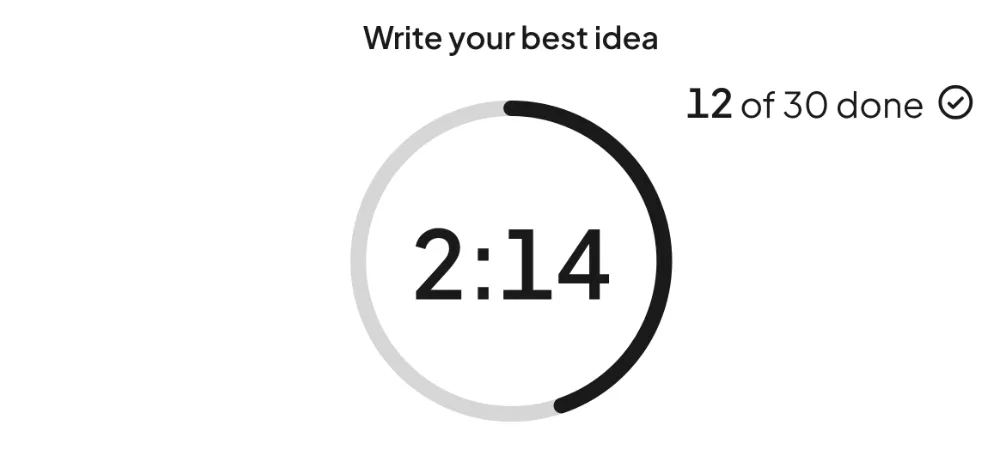
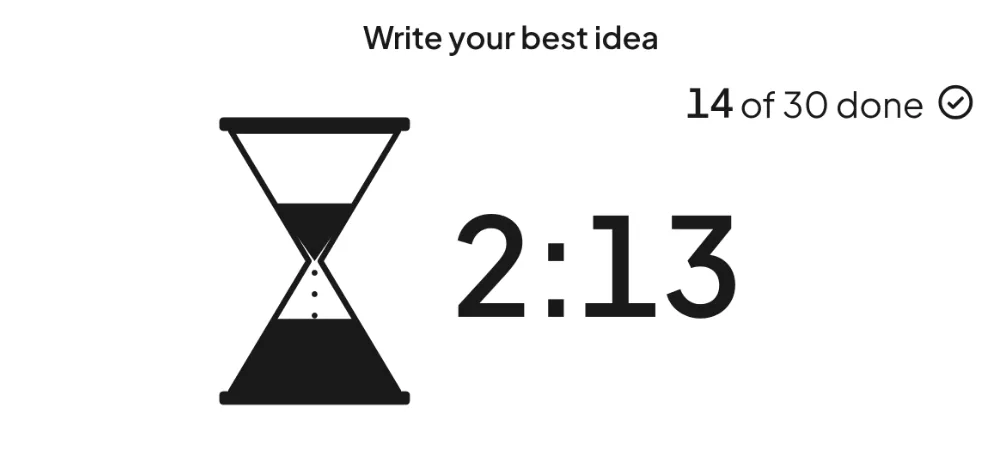
    The four Timer looks in turn: Ring, Hourglass, Rocket race and Flip clock, each counting down with a done count at the top right
  2. Bước 2: Share the code and press Start

    Participants join with the access code and see the same countdown as your screen. Pause, add a minute or reset whenever the room needs it.
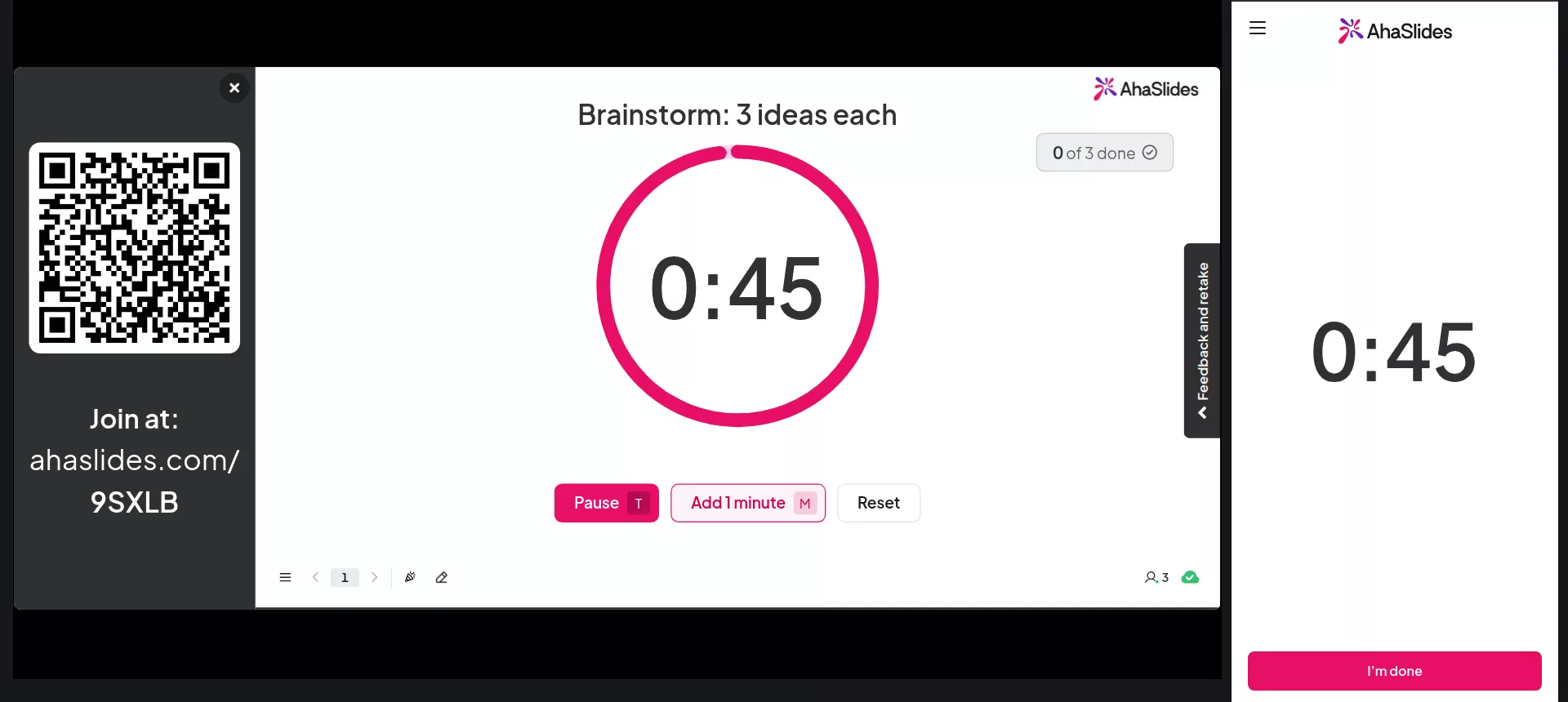
    The Timer slide on the presenter screen counting down from 0:45 in the Ring look, next to a participant phone showing the same time and an I'm done button
  3. Bước 3: Watch the done count rise

    Each tap on "I'm done" adds to your count, so you can end early. When time is up, every screen shows "Time's up".
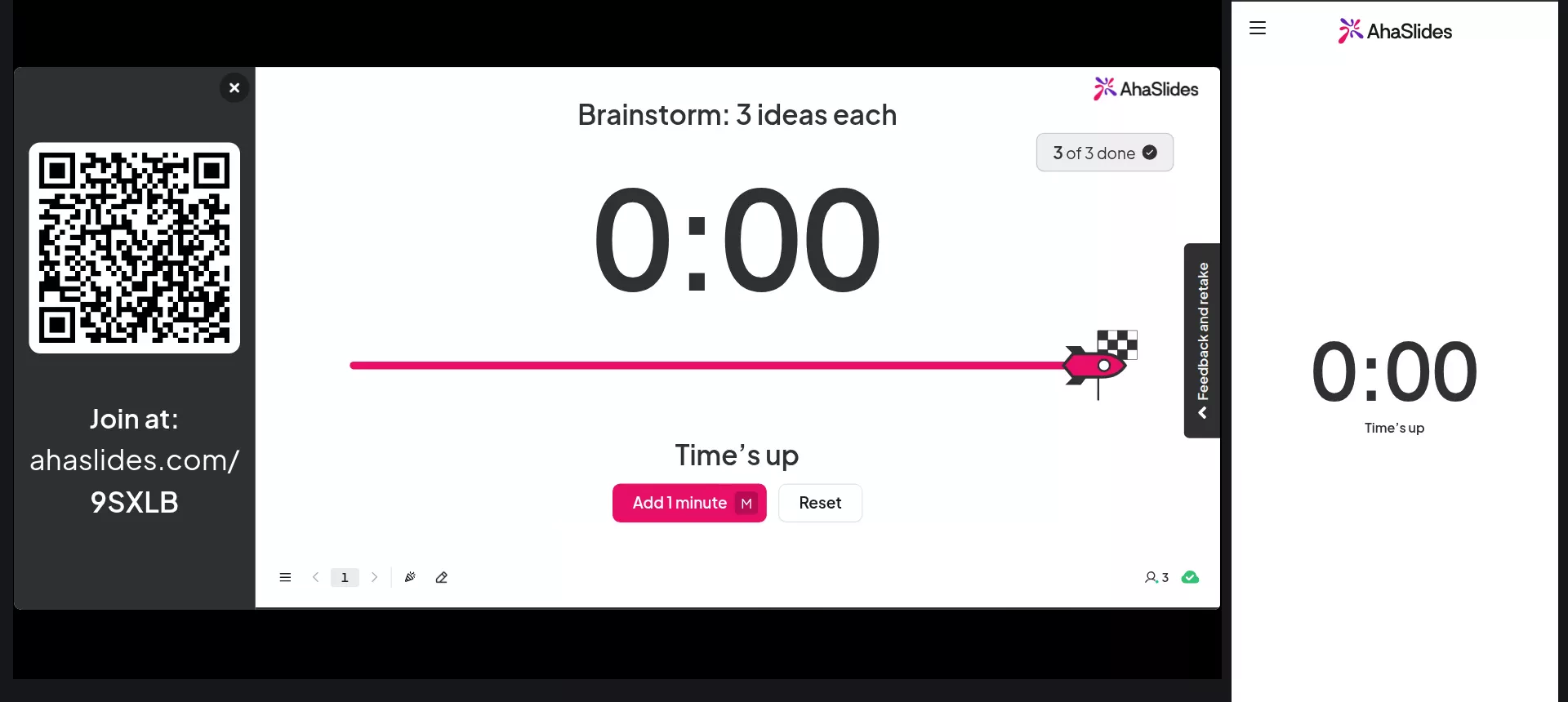
    The Timer slide at 0:00 in the Rocket race look with Time's up shown, the done count at 3 of 3, and a participant phone also showing 0:00
Try the ready-made Timer template (mở trong một tab mới)

Where a Timer fits

Any activity with an end time works better when everyone can see the clock.

  • Ấm lên

    Give the room two minutes to write down one thing they hope to learn.

  • Brainstorm

    Time a burst of ideas, then add a minute if the energy is still high.

  • Breakout

    Give each group the same fixed time, with the same clock on every phone.

  • Quiz round

    Keep a round of questions to time between scored slides.

  • Retro

    Keep each retro step short, so every voice gets heard.

  • Nghỉ giải lao

    Count down a coffee break so everyone is back on time.

Câu hỏi trước khi bắt đầu

An unscored slide that puts one shared countdown on your screen and on every participant's phone, in four looks with their own music and sounds.

Yes. Timer is included on all plans.

No. There are no points, answers or leaderboard.

From 1 second to 60 minutes. A new Timer slide starts at 5:00.

Pause and resume, add a minute, or reset to the saved time. Adding a minute changes only the current run.

When it is on, each phone shows an I'm done button while the clock runs. Your screen shows how many people have tapped, for example 3 of 12 done.

They play on the presenting screen, not on phones, and follow your presentation's volume, music and sound effects settings.

In the editor, click New slide and search for Timer. It sits in the Content group with a Beta tag. The full guide is at docs.ahaslides.com, under Using the Timer slide.

Yes. Each person gets their own countdown, which starts when they reach the slide. There are no presenter controls and no I'm done button.
Try the ready-made Timer template (mở trong một tab mới)