



You have a PowerPoint deck that took hours to build. Now you want to run it live, ask the room a question halfway through, and keep tweaking the slides as you go. Until now, getting that deck into AhaSlides meant importing each slide as a flat picture. You could present it, but you could not change a word.
Editable PowerPoint import changes that. Import your PowerPoint, keep its formatting and animations, and keep editing in AhaSlides. It is available on every AhaSlides plan, the free one included, and it is labelled Beta while we refine it.
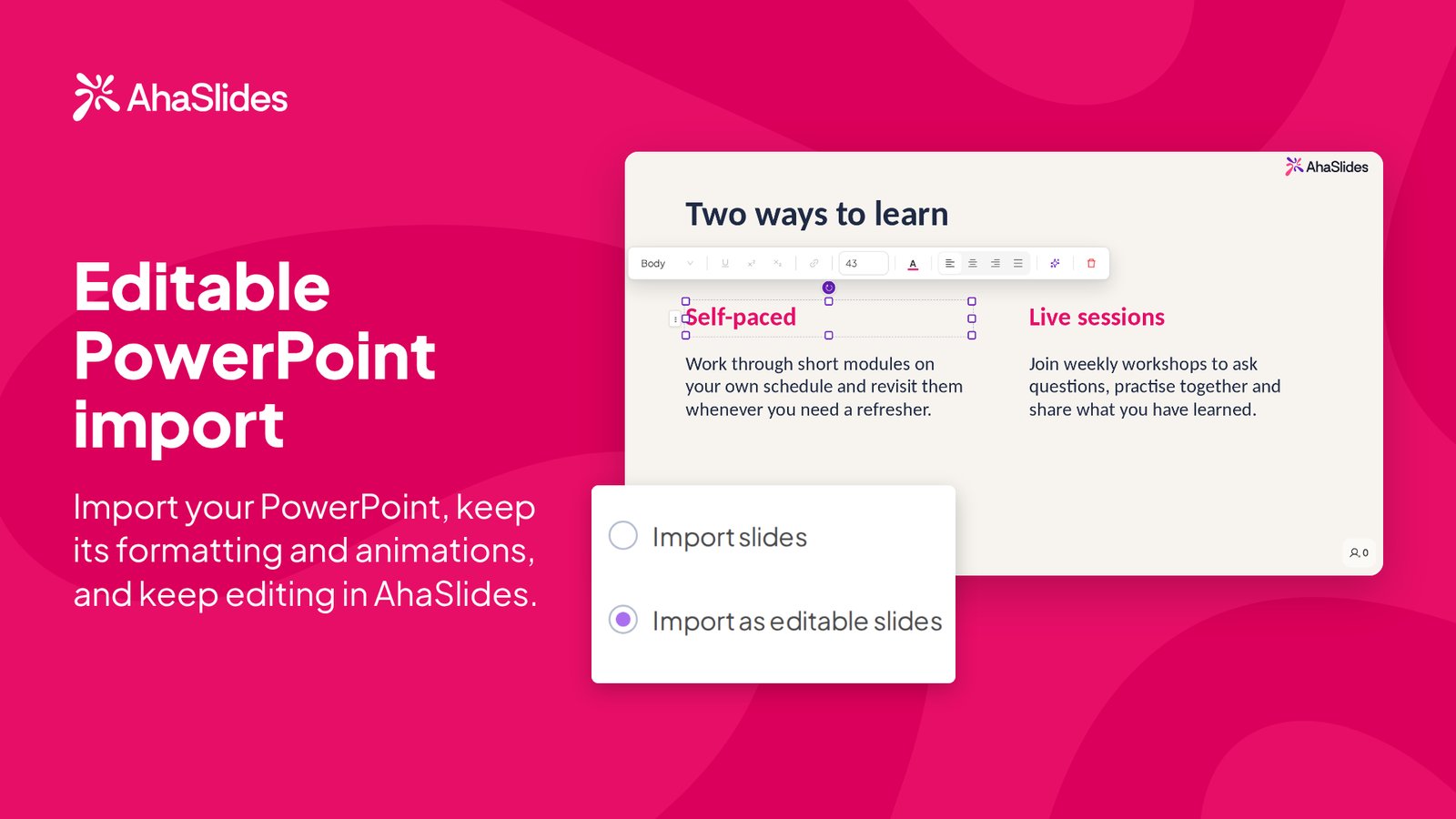
What is editable PowerPoint import?
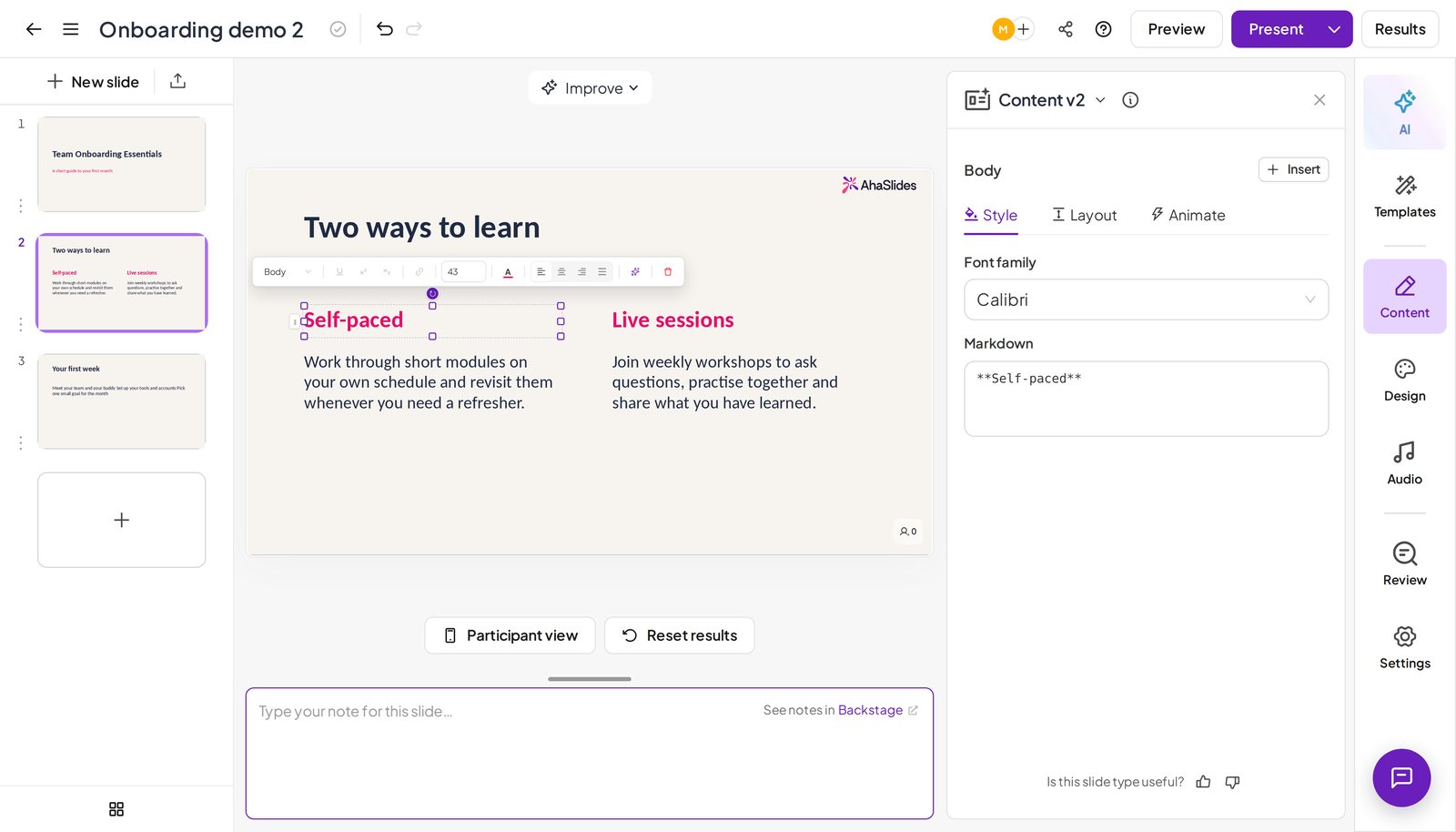
When you upload a .pptx file to AhaSlides, you now choose between two ways to bring it in. The new one, Import as editable slides, turns each slide into normal AhaSlides content. Text, shapes and layout arrive as things you can click on and change, the same as if you had built the slide in AhaSlides in the first place.
That makes it a practical way to edit a PowerPoint online without rebuilding the deck from scratch, and then to turn it into an interactive presentation by adding polls, quizzes and word clouds between your slides.
How to import a PowerPoint into AhaSlides in three steps
- Upload your .pptx. Open a presentation, click the import icon next to New slide and pick your PowerPoint file.
- Choose Import as editable slides. Pick the editable option in the import window, then press Start.
- Edit and add interaction. Click any text or shape to change it, then add your interactive slides.
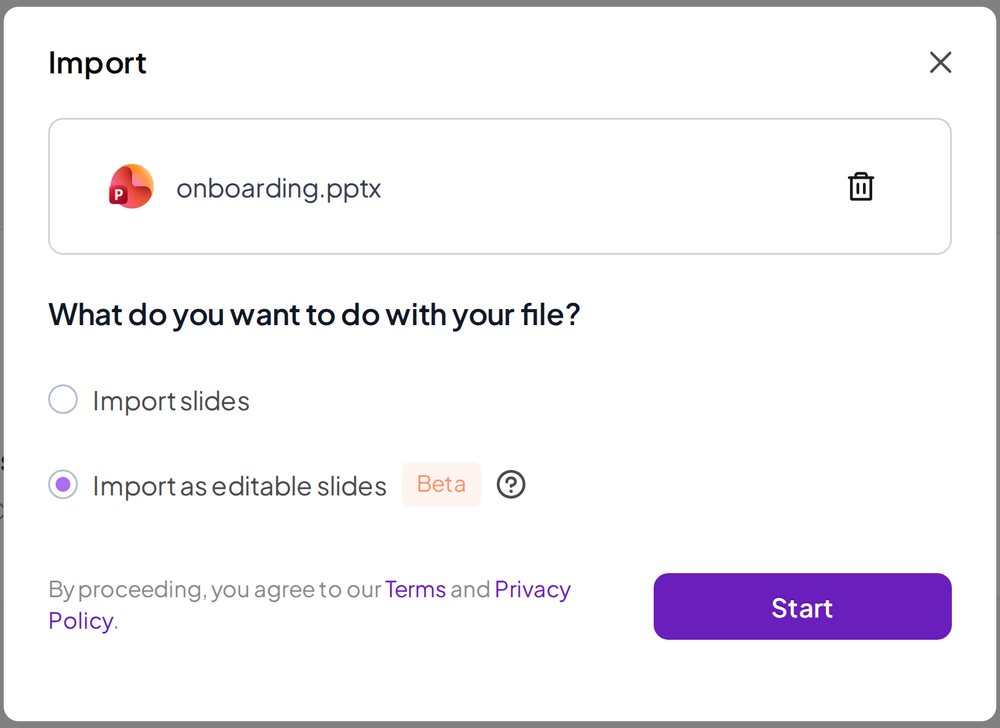
The two import choices, side by side
When you upload a .pptx, the import window offers two choices. Neither replaces the other, so you can pick per deck.
| Import slides | Import as editable slides | |
|---|---|---|
| Best for | A deck that must look exactly as designed | A deck you will keep working on |
| What you get | Each slide comes in as an image of your design | Each slide comes in as AhaSlides content |
| Can you edit it? | No. You can present it as it is, but you cannot edit it in AhaSlides | Yes. Change the words, move things around and build on it |
| Label | None | Beta |
Use Import slides when a deck must look exactly as designed and you only need to present it. Use Import as editable slides when it is a deck you will keep working on. Only .pptx files get the editable option. Other file types you upload keep the import options they have today.
What carries over from your PowerPoint
Here is what you can expect to see in AhaSlides after an editable import:
- Editable text and layout. Text boxes, shapes and layout land as AhaSlides content you can click and change.
- Your formatting. Fonts, colours and text styles come with it, so your slides still look like your slides.
- Animations. Animations come with your slides, and the Animate tab lets you fine-tune them.
What does not carry over yet
Editable import is in Beta, so it is not a perfect copy of every deck. Some PowerPoint Morph effects do not carry over yet, and complex elements may come in as images. After you import, look through your deck and check each slide before you present. Your original .pptx file is untouched, because the import builds new AhaSlides slides from it.
If a particular deck needs to look exactly as it did in PowerPoint, use Import slides for that one instead.
Make your imported deck interactive
Once your slides are editable, the interesting part starts. You can drop a poll, a quiz or a word cloud between your imported slides. Your audience answers on their own phones and the results appear live on screen.
A few ways to use it:
- Open with a question. Put a poll right after your title slide to find out what the room already knows, then adjust the slides that follow.
- Check understanding. Add a short quiz after a dense section of the deck instead of asking “any questions?” and waiting for silence.
- Gather ideas. Follow a content slide with a word cloud so everyone can add their view in a few words.
If you are weighing up whether to stay with PowerPoint or move your decks over, our guide to PowerPoint alternatives covers how to switch without losing your deck.
Questions people ask
Which files can I import as editable slides?PowerPoint files saved as .pptx. Other files you upload keep the import options they have today.
Does everything in my deck carry over?Text, shapes, layout, formatting and animations come across. Some PowerPoint Morph effects do not carry over yet, and complex elements may come in as images, so look through your deck after the import.
Which plans include it?Every AhaSlides plan, the free one included.
What happens to my original PowerPoint file?Nothing. The import builds new AhaSlides slides from it, and your .pptx stays exactly as it was.
Try editable PowerPoint import
Take a deck you already have, import it as editable slides and add one poll. It is the quickest way to find out how much of your deck comes across and what a live question does for the room. Sign up free or log in to AhaSlides to try it with your own deck.