



You give the room five minutes for an exercise. Eleven minutes later two groups are still talking, one group finished six minutes ago, and you are the person who has to interrupt everybody. A countdown on the screen fixes this, because the clock does the interrupting instead of you.
The catch is that PowerPoint has no countdown timer for the audience. Presenter View has a clock, but it counts up, and only you can see it. There is no menu item anywhere that puts a countdown on the slide itself, so every method below is either an animation trick or a third-party add-in. Knowing that up front explains why each one behaves the way it does.
So there are three real answers to how to add a timer in PowerPoint. Here is each one, what it costs you, and what to use instead when you need a timer you can pause.
Why a visible timer is worth the setup
- It moves the enforcement off you. Nobody argues with a clock. Ending an activity stops being a judgment call you have to make out loud.
- It changes how people work. A group with four minutes left compresses. A group with no stated end time expands to fill whatever you give them.
- It gives the room a shared reference. Everyone is looking at the same number, so "two more minutes" means the same thing to all of you.
3 ways to add a timer in PowerPoint
1. Animate a bar that fills across the slide
This is the method Microsoft documents in its own on-screen timer guide, and it is the fastest of the three to build.
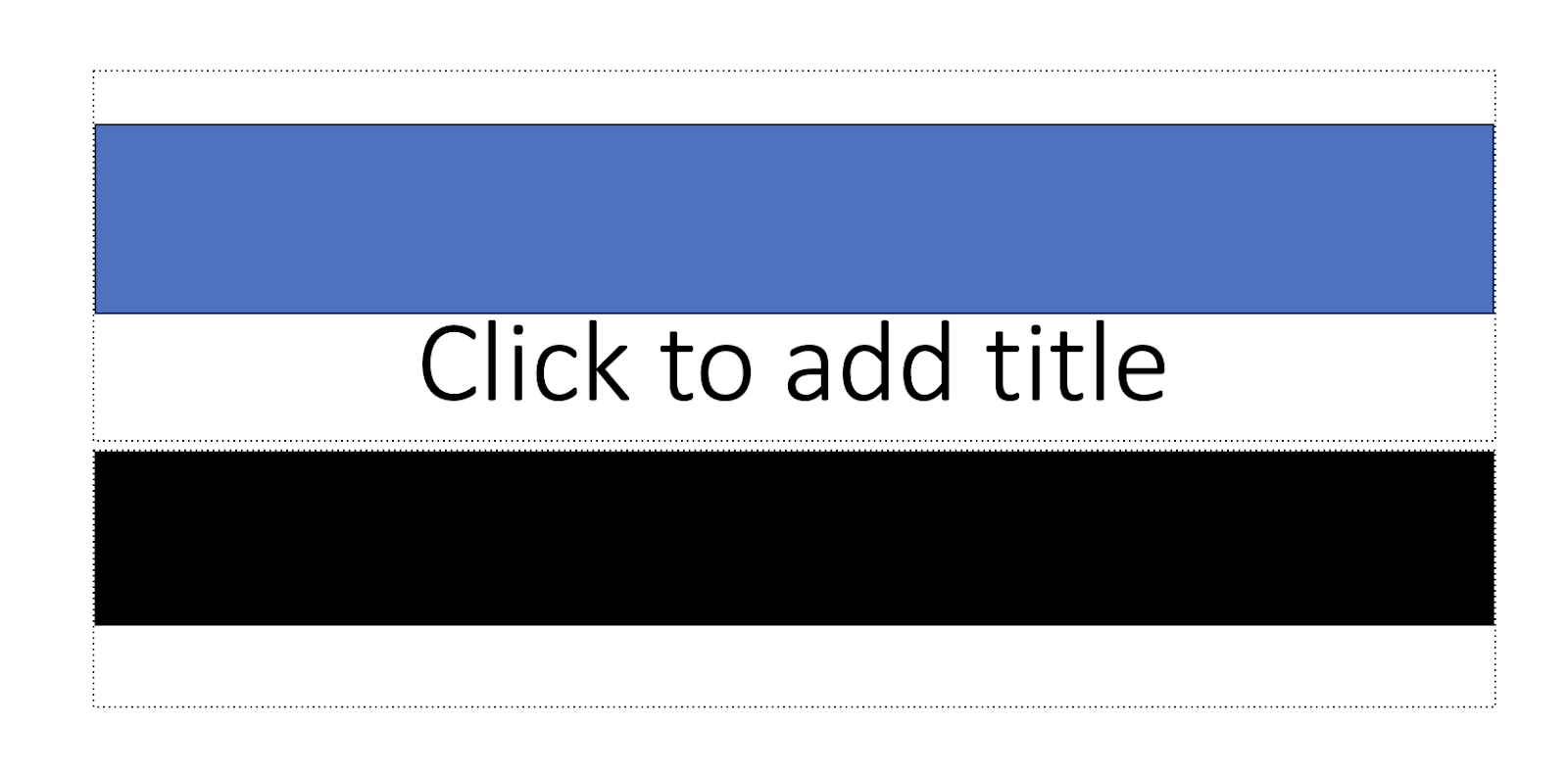
- On the Insert tab, open Shapes and draw a rectangle across the slide where you want the bar.
- Right-click it, choose Format Shape, then Fill and Solid fill, and pick a color that reads from the back of the room.
- On the Animations tab, apply Fly In.
- Open Effect Options and choose From Left.
- In the Timing group, set Duration to the length of your activity and Start to On Click.
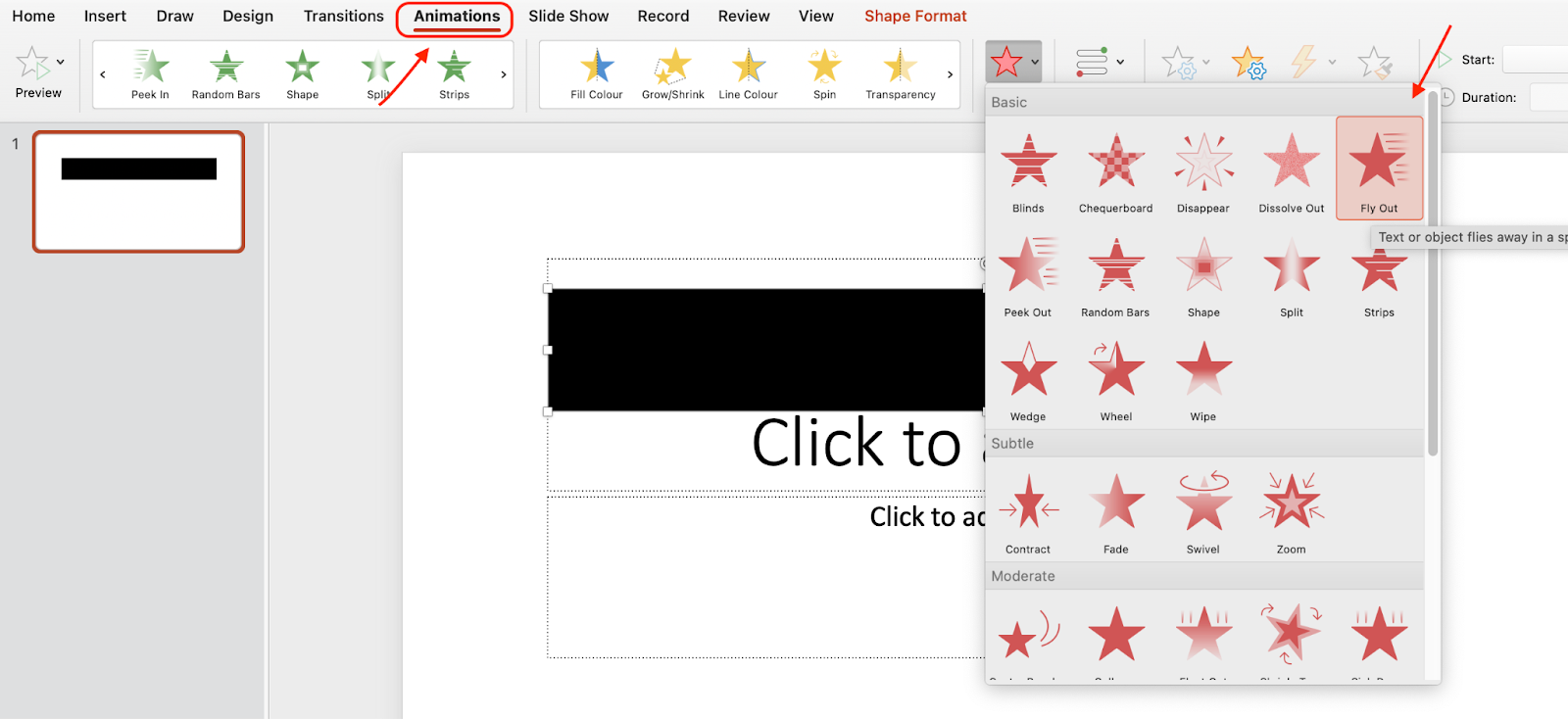
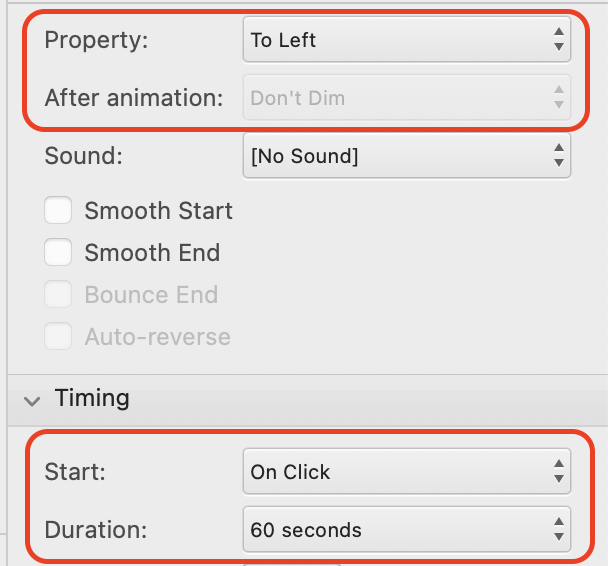
The bar now crosses the slide over that duration, so the room can see roughly how much time is left. Run Slide Show from the current slide to test it.
What it gets you: a visual with no downloads, no account, and no internet connection. It stays inside the .pptx, so it survives being emailed to somebody else.
What it costs you: the bar shows progress, not numbers, so nobody knows whether "about a third left" means two minutes or ten. Once it starts you cannot pause it, extend it, or restart it without leaving the slide and coming back.
2. Build a numbered countdown by hand
If you want actual digits ticking down, Microsoft's guide describes building them one at a time.
On the Insert tab, add a text box for each number in your countdown: 5, 4, 3, 2, 1. Stack them in the same spot so only one is visible at a time.
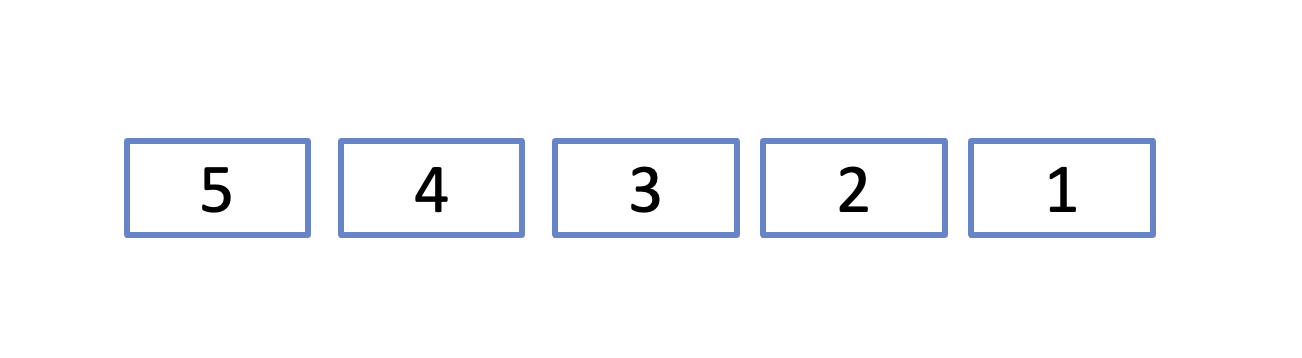
Select the box for the highest number. On the Animations tab, open Add Animation, go to Exit, and choose Disappear. Repeat for every box.
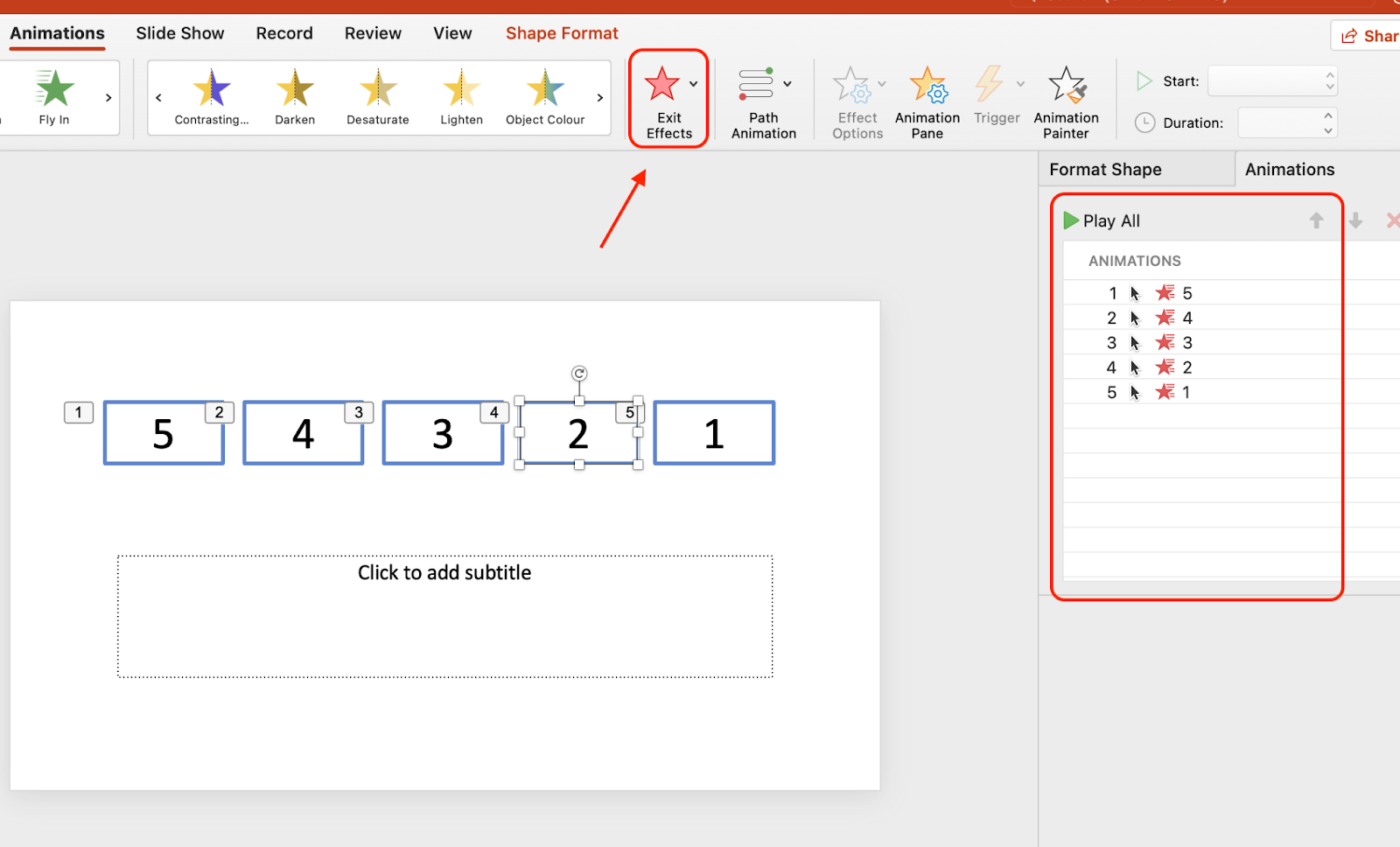
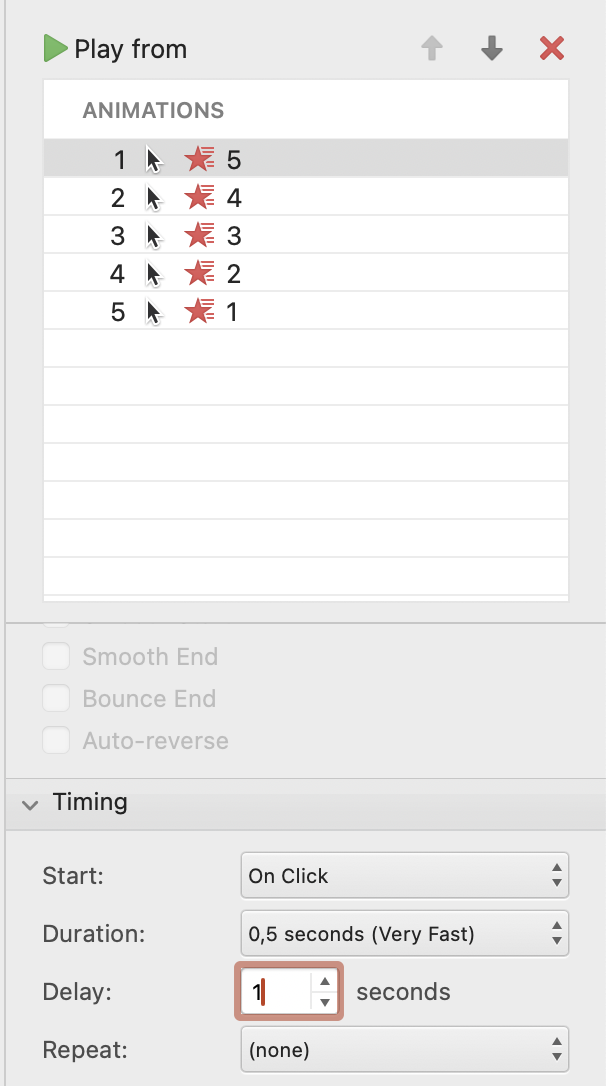
Open the Animation Pane. For the first box, set Start to On Click, Duration to .01, and Delay to 01.00.
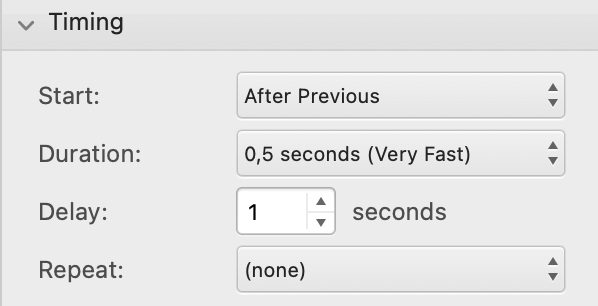
For every remaining box, set Start to After Previous, Duration to Auto, and Delay to 01.00.
Finally, click Play All in the Animation panel to test the countdown.
What it gets you: a real countdown with real numbers, styled however you like, still entirely inside the file.
What it costs you: one text box per second. A five-second countdown is five boxes and about four minutes of work. A ten-minute countdown is 600 boxes, which is why nobody builds one. This method is for a dramatic final countdown, not for timing an activity.
3. Install a timer add-in
PowerPoint can load small apps from Microsoft Marketplace, the store formerly called the Office Store, and AhaSlides is an interactive presentation add-in for PPT that offers a built-in timer.
- On the Home tab, choose Add-ins, then More Add-ins. In older builds this lives under Insert, Get Add-Ins.
- Search for "AhaSlides".
- Click Add.
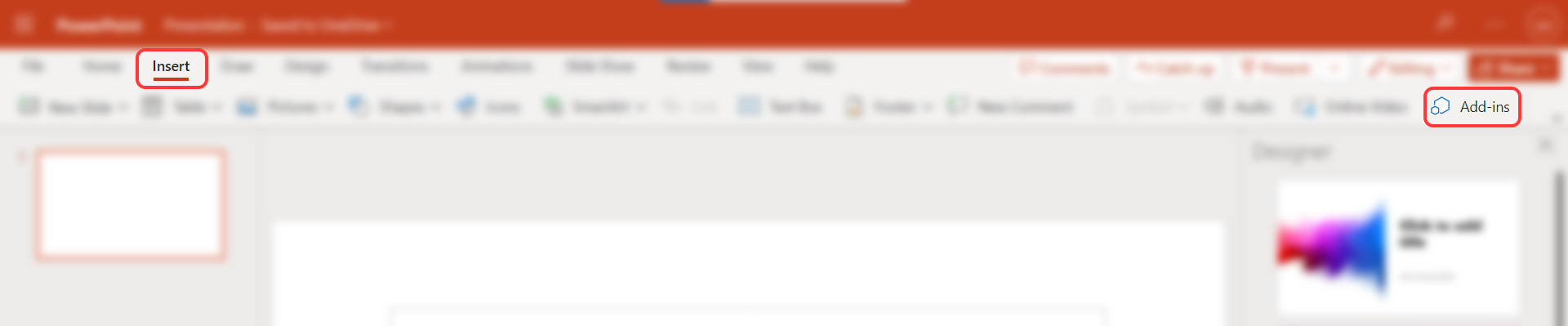
The add-in sits on your slide as an object and runs its own clock, usually with start and reset buttons you can click while presenting.
What it gets you: a genuine countdown of any length, and in most cases the ability to pause it mid-activity.
What it costs you: a dependency. The add-in has to be installed on whichever machine you present from, most add-ins load over the internet, and the free ones vary a lot in quality. If you hand the deck to a colleague, they have to install it too.
What all three have in common
None of them are under your control while you present. Once an animation starts it runs to the end on its own schedule, so the moment a group asks for one more minute you are stuck: either you let the timer lie, or you leave the slide and restart the whole thing. And the timer exists only on the projector. Anybody looking at their laptop or phone instead of the screen has no idea how long is left.
That is the problem worth solving, and it is where a tool built for live audiences beats an animation.
A live timer you control, on AhaSlides
AhaSlides is presentation software with a live audience layer: people join on their phones, and what you do on the presenting screen shows up on theirs. It has a Timer block you drop straight onto a content slide, which makes it the closest thing to a countdown you can run rather than just launch.
1. Add the timer block
Open a presentation, add a Content slide, and in the Content panel on the right click + Insert. Under Media, choose Timer.
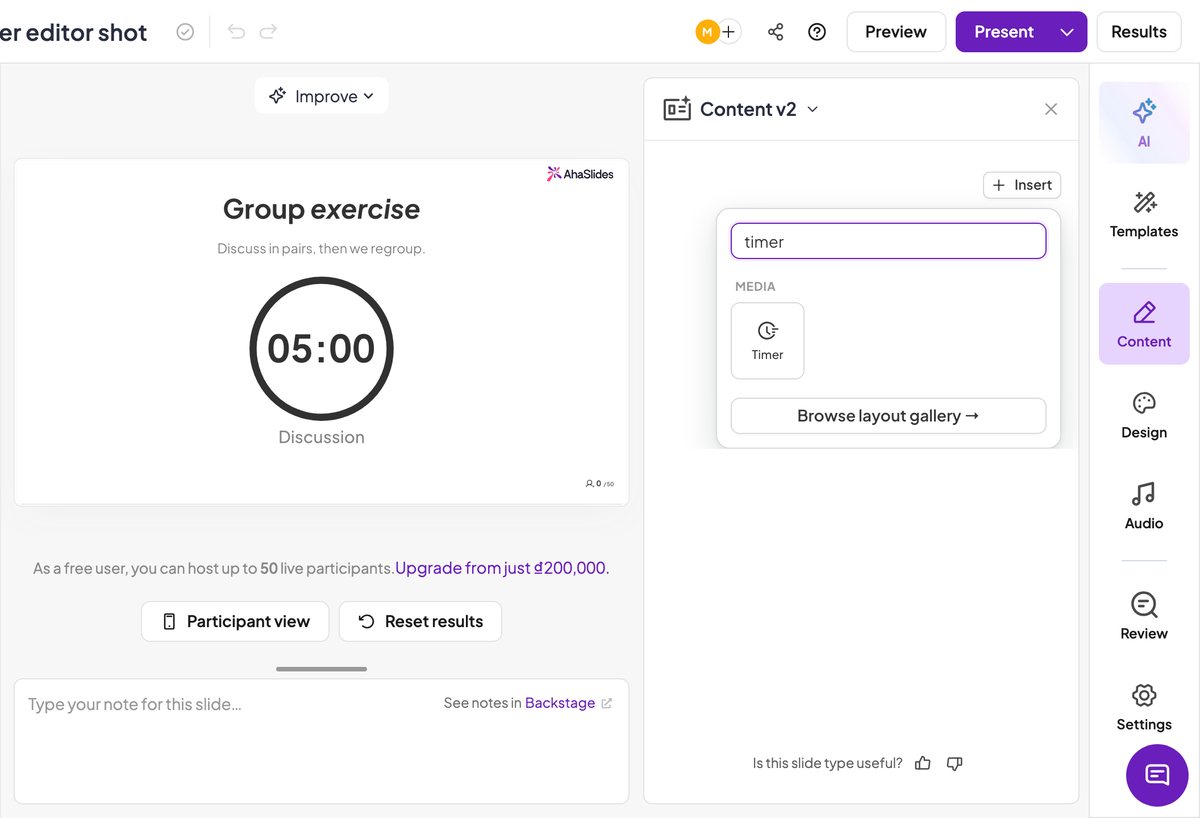
The block lands in the middle of the slide as a circular ring with a five-minute countdown inside it.
2. Set the duration and the labels
With the timer block selected, the Style tab gives you everything the block does:
- Duration, entered as minutes and seconds
- Label, the word underneath the digits, so the slide says what the time is for
- When finished, the text that replaces the label at zero. It defaults to "Time's up"
- Color for the digits and the ring
- Auto-start when slide opens
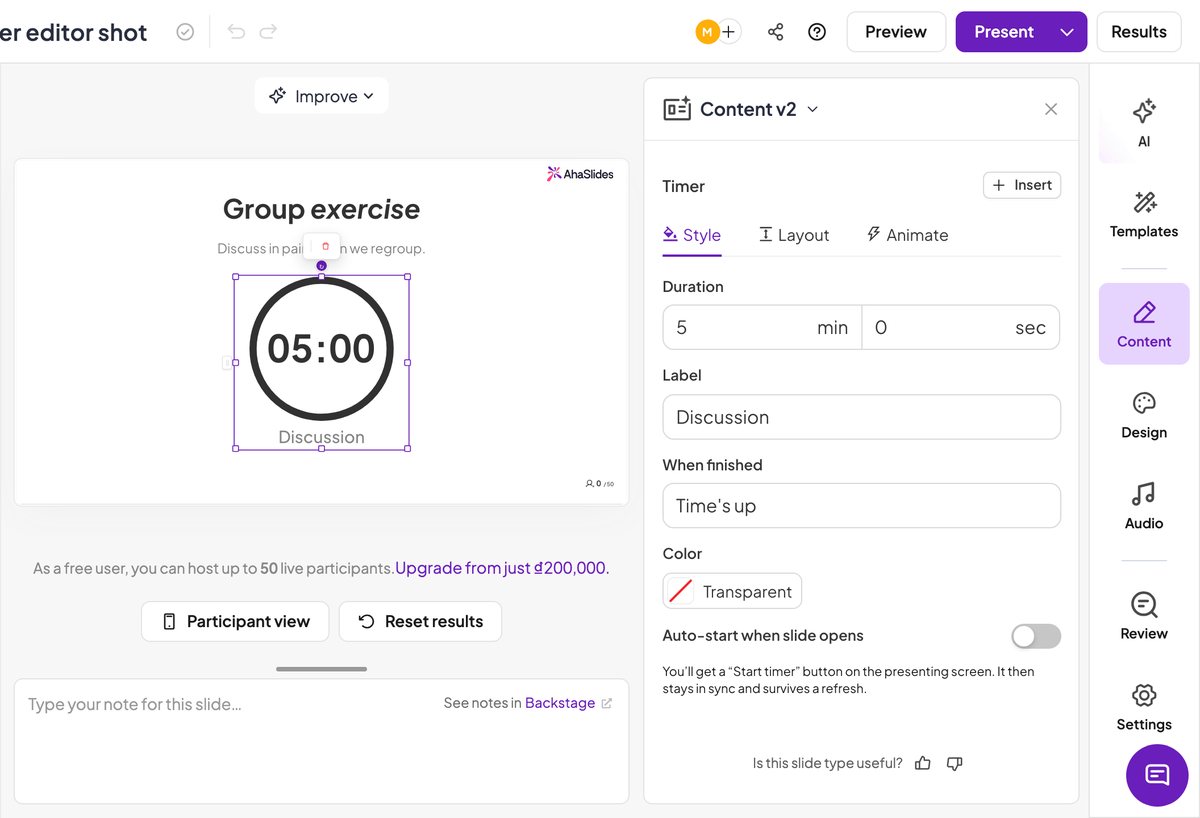
The auto-start toggle is the decision worth thinking about. Leave it on and the countdown begins the moment you reach the slide, which suits a scheduled break. Leave it off, as it is by default, and you get a Start button on the presenting screen instead, so the clock starts when the room is ready rather than when you happened to arrive at the slide.
3. Run it from the presenting screen
With auto-start off, the slide sits at its full duration waiting for you.
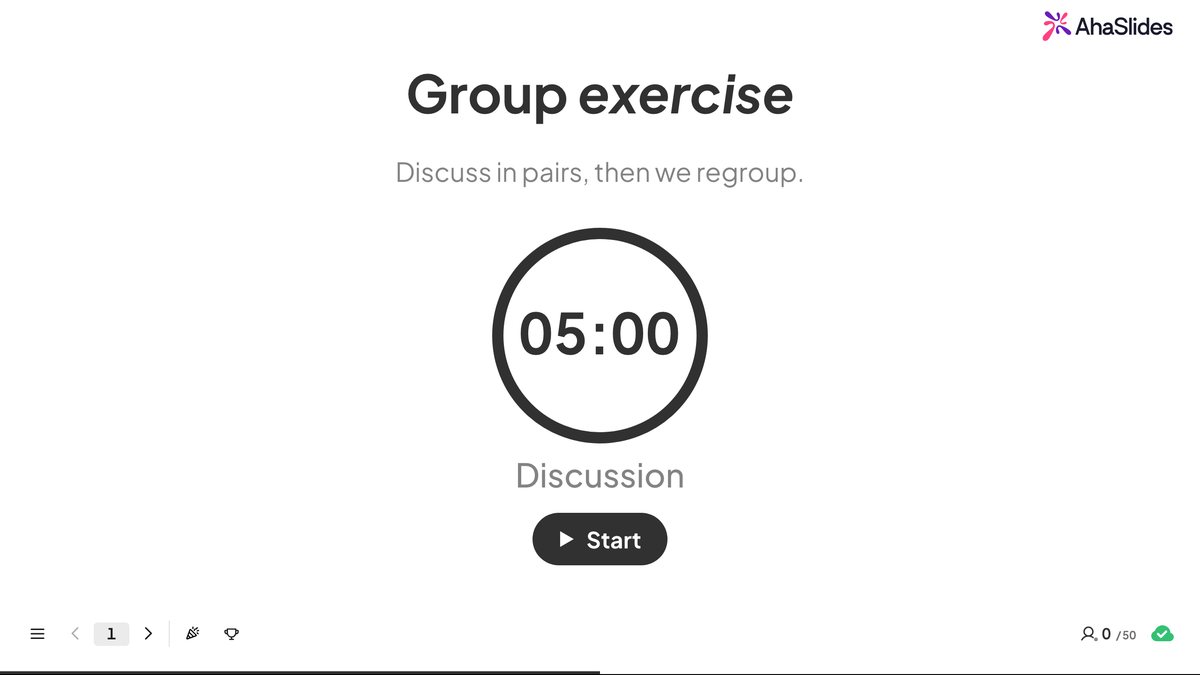
Press Start and the ring begins to deplete, with Pause and a reset control in its place.
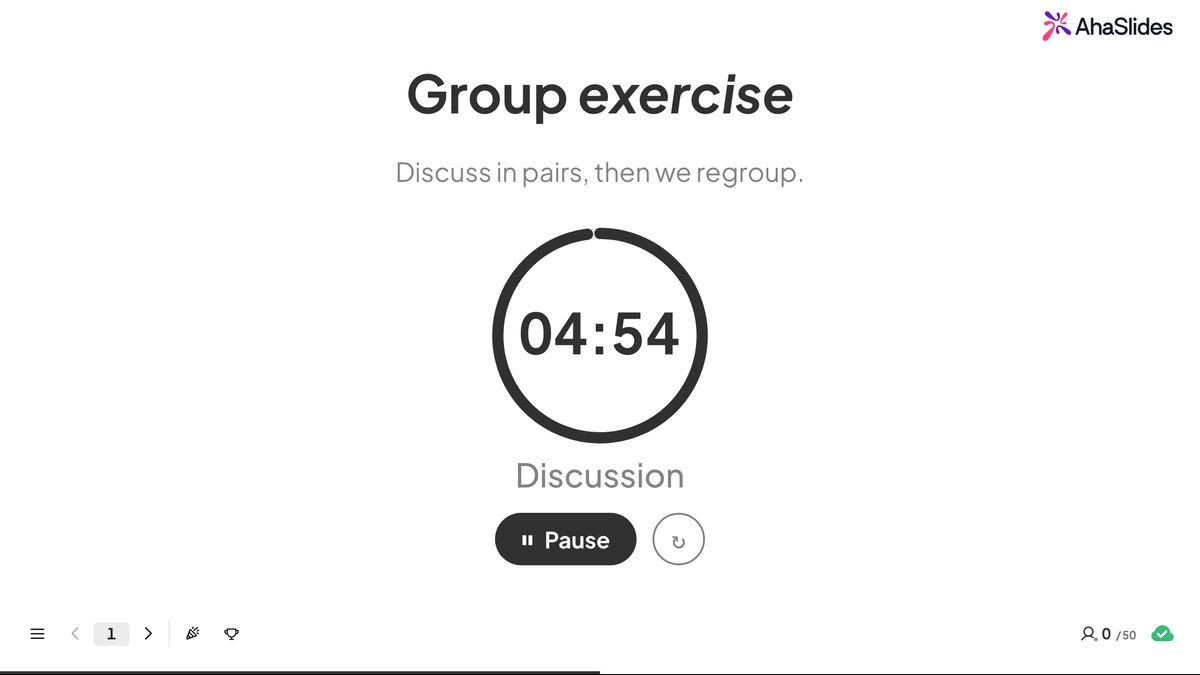
Those controls are the point. When a group asks for another minute you pause, talk, and resume, instead of pretending the animation on screen still means something.
Two details make it usable in a real room. The countdown is derived from a start timestamp rather than a ticking counter, so every screen shows the same remaining time and a mid-activity refresh does not reset it. And because AhaSlides mirrors the presenting screen to everyone who joined, the people on their phones see the clock too.
The other AhaSlides timer: a clock on quiz questions
The timer block is for time on a slide. There is a separate, older setting for a different job: putting a clock on a question people are answering.
On a quiz slide, Time limit sets how many seconds each person has to answer. Turning on Faster answers get more points makes speed part of the score, which is what turns a quiz into a race.
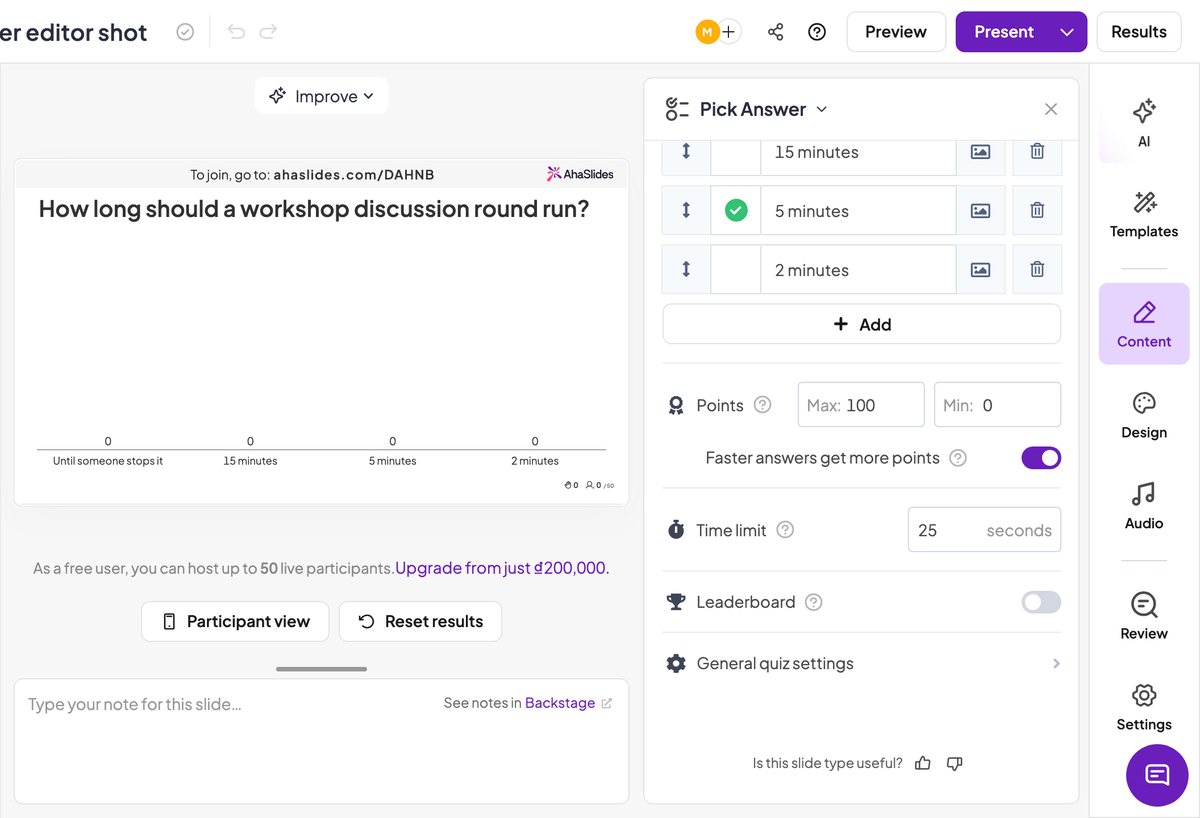
AhaSlides can also show a five-second countdown before each question so people get a moment to read it, and you can hover the running timer and hit End now when everyone has clearly answered. None of these timing settings is behind a paid plan; the free plan caps audience size and question count, not the clock.
Use the quiz time limit when you are timing answers. Use the timer block when you are timing an activity.
If the deck has to stay in PowerPoint
You do not have to move your whole presentation. AhaSlides has a PowerPoint add-in that embeds live AhaSlides slides inside your existing deck.
On the Home tab, choose Add-ins, search for "AhaSlides", and click Add. Once it is installed you can embed individual slides or a whole AhaSlides presentation and control it from inside PowerPoint. Per the AhaSlides documentation, it works with installed Microsoft Office 2019 and later and with PowerPoint for the web (on the web, slides are added one at a time), and each presenter needs their own copy, since the shared Presenter role does not work through the add-in.
Which method should you use
- You need something in the next five minutes and the file must stay a .pptx. Use the animated bar.
- You want a dramatic 5-4-3-2-1 before a reveal. Build it by hand. Ten seconds of counting is worth the ten text boxes.
- You need a real countdown but cannot change tools. Install a timer add-in and remember to install it wherever you present.
- You run workshops or training and the timer comes back every session. Use the AhaSlides timer block, where the clock is a normal part of the slide and you can pause it.
- You are timing how fast people answer, not how long an activity runs. Use the quiz time limit.
Time pressure only works when the room believes it. A bar that cannot be paused stops being believable the first time you override it, which is usually the first time you use it.
Try the timer on AhaSlides for free
Frequently asked questions
Does PowerPoint have a built-in countdown timer?
Not one your audience can see. Presenter View shows an elapsed-time clock, but it counts up and appears only on your screen. Nothing in PowerPoint puts a countdown on the slide itself, so every on-slide timer is either an animation you built or an add-in you installed.
How do I insert a countdown timer in PowerPoint?
There are three ways. Animate a rectangle with Fly In from the left and set its duration, which gives you a progress bar. Stack one text box per second and give each an Exit animation, which gives you real digits for short countdowns. Or go to Home, then Add-ins, search for "AhaSlides", and use the Content V2 slide for the timer.
How do I create a 10-minute countdown timer in PowerPoint?
Use an add-in. The hand-built method would need 600 text boxes, and the animated bar shows progress without numbers. Go to Home, then Add-ins, search for "timer", add one, and set it to 10 minutes. Alternatively, put a 10-minute timer block on an AhaSlides slide, which takes about thirty seconds and can be paused.
Can I pause a timer during a PowerPoint presentation?
Not with either animation method: once started they run to completion, and restarting means leaving the slide and coming back. Some add-ins support pausing, and the AhaSlides timer block has Start, Pause, Resume, and Reset controls on the presenting screen.
Can the audience see the timer on their own devices?
Not with a PowerPoint animation or add-in, which exist only on the presenting screen. On AhaSlides the timer is mirrored to everyone who has joined the presentation, so people looking at their phones see the same countdown.
Do I need a paid plan for a timer on AhaSlides?
No. The timer block on a content slide and the time limit on quiz slides are both available on the free plan. The free plan limits audience size and the number of quiz questions, not the timing controls.