



Canva makes good-looking slides easy. Getting the room to join in is harder. A lot of presenters design the deck in Canva, then leave it halfway through the talk to open a polling tool in another tab, and the energy drops while everyone waits.
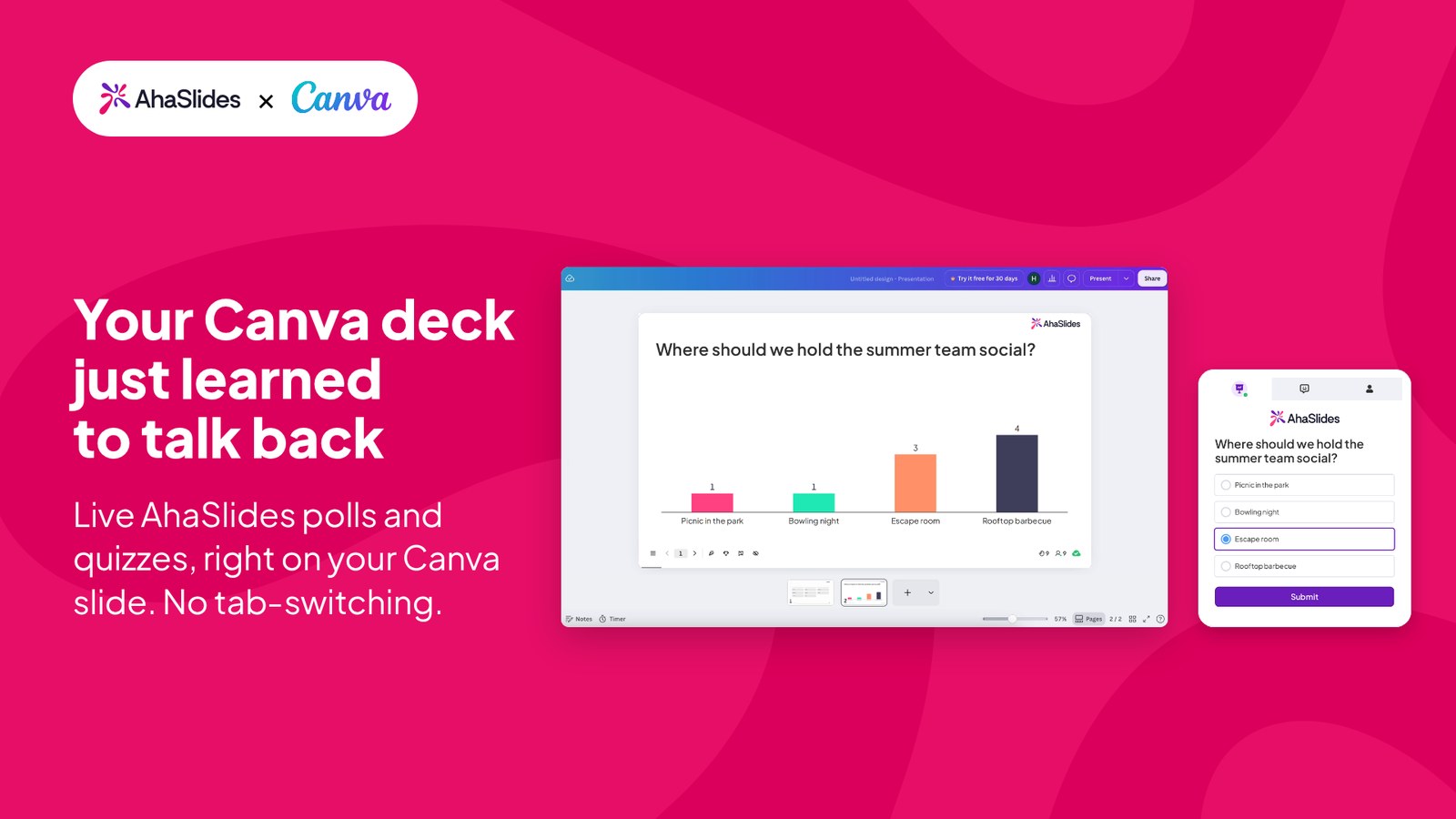
For a long time, Canva topped the wish list in our integrations marketplace, by a wide margin. You asked. Again. And again. So AhaSlides now runs live inside your Canva presentation, and it is available to everyone. There’s no app to install and no tab-switching. This guide shows how to make a Canva presentation interactive with it, and what you can run on the slide.
What makes a Canva presentation interactive?
“Interactive” can mean two different things in a Canva deck:
- Clickable navigation. Links and buttons that jump between slides. This helps when someone clicks through the deck alone, such as a self-paced lesson.
- Audience participation. People answer, vote and ask questions while you present. This is what keeps a live room awake.
Canva has interactive features of its own, including Canva Live for audience questions. This guide covers the second kind with AhaSlides: running the polls, quizzes and word clouds you build in AhaSlides directly on your Canva slide, so your design stays exactly as you made it.
What you can run on a Canva slide
Once your AhaSlides presentation sits inside a Canva slide, you present it as you normally would. That includes:
- Live polls to check opinions or let the room choose what comes next.
- Quizzes with a leaderboard, so a training recap or a team social turns into a game you can play right on the Canva slide.
- Word clouds that grow as people submit answers.
- Q&A, so people can send questions without raising a hand.
Your audience joins on their phones with the code or QR code on screen, the same way they join any AhaSlides session. They don’t need a Canva account. Results update live on your Canva slide.
How to add AhaSlides to your Canva presentation
Before you start, you need an AhaSlides account that can present the deck (you own it, or you’re a collaborator who can present), and the deck must not be in private mode. A private deck shows in Canva as a link card instead of the live presentation.
1. Build your activities in AhaSlides
Create your polls, quiz questions or word cloud in AhaSlides. Not sure where to start? Our interactive presentation ideas have plenty to pick from.
2. Copy the link for presenting from another app
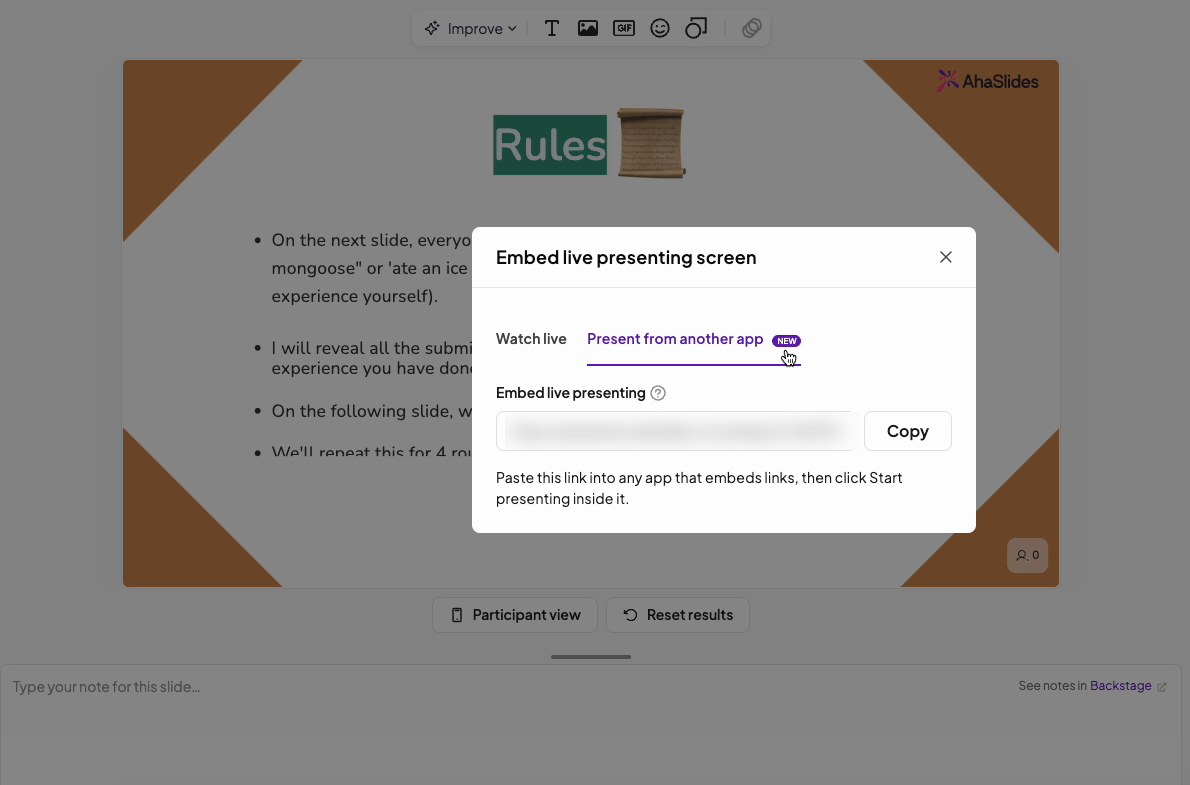
Open the presentation, go to Share, then Embed, and choose Present from another app. Copy the link it gives you.
3. Paste it into Canva’s Embed app
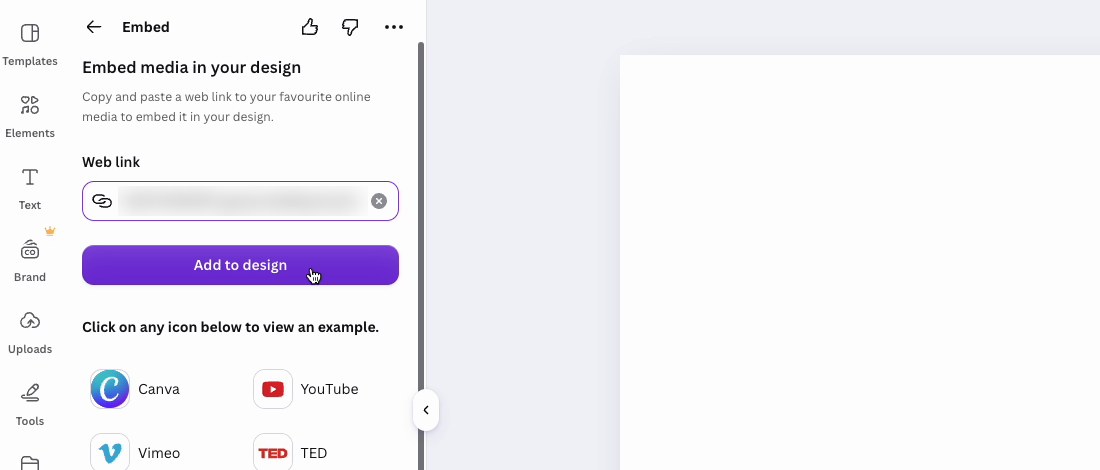
In Canva, open your design and go to the slide where you want the activity. Open Apps in the side panel, search for Canva’s Embed app and open it, paste your link and add it to the design. Resize the embed to fill the slide.
4. Present from Canva
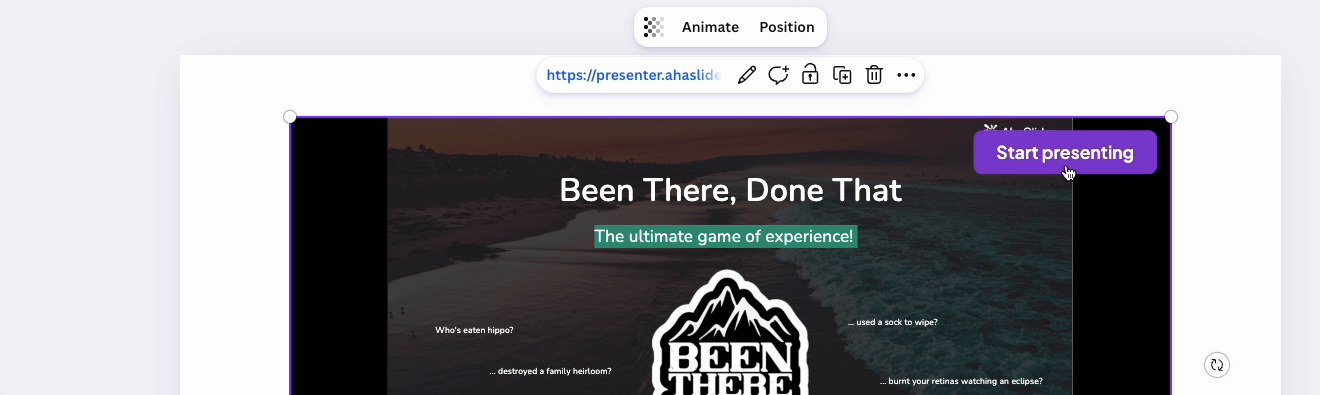
Present your Canva design as usual. When you reach the slide, click Start presenting on the embed. The first time, you’ll be asked to log in to AhaSlides. From there you move through your AhaSlides slides as normal while the room responds on their phones.
We keep improving this feature, so some steps may change. Our help guide always has the latest version.
Only want to show your slides?
If you just want people to see your AhaSlides content without running a live session, paste the ordinary share link into Canva’s Embed app instead. It shows a live, view-only version of your deck on the slide.
Good to know
- Nothing goes live by accident. Opening or editing the Canva design never starts your AhaSlides session. It starts only when you click Start presenting.
- Only presenters see the button. People who can present the deck see Start presenting. Anyone else viewing the design just sees your slides.
- Reloading resets the slide. If you reload the Canva slide, the embed goes back to its Start presenting screen.
Tips for an interactive Canva presentation
- Open with a quick poll. A one-question warm-up in the first two minutes tells people this talk is not a lecture.
- Spread the activities out. One interaction every 10 to 15 minutes keeps attention up without slowing you down.
- Match the look. Pick an AhaSlides theme close to your Canva colours, so the embedded slide feels part of the deck.
- Log in before the session. Do the one-time login during your run-through, not in front of the room.
- Close with a word cloud. Ask “What’s one thing you’ll take away?” and let the answers become your summary slide.
Frequently asked questions
Can you make a Canva presentation interactive?
Yes. You can add clickable links between slides in Canva, use Canva’s own interactive features, or embed AhaSlides on a slide to run live polls, quizzes and word clouds that your audience answers on their phones.
Do I need to install an app to use AhaSlides in Canva?
No. You paste an AhaSlides link into Canva’s built-in Embed app. There’s nothing to install.
Does my audience need Canva or AhaSlides accounts?
No. They join with the code or QR code on screen and respond in their phone’s browser.
Can you make an interactive quiz in Canva?
Yes. Build a Kahoot-style quiz in AhaSlides, embed it on a Canva slide and present it. Players answer on their phones, and the leaderboard shows who is ahead after each question.
Why does my deck show as a link card in Canva?
The deck is probably in private mode, or the link didn’t come from the Present from another app option. Turn off private mode and copy the link again.
Try it in your next Canva deck. Build a poll in AhaSlides and present it from Canva.