

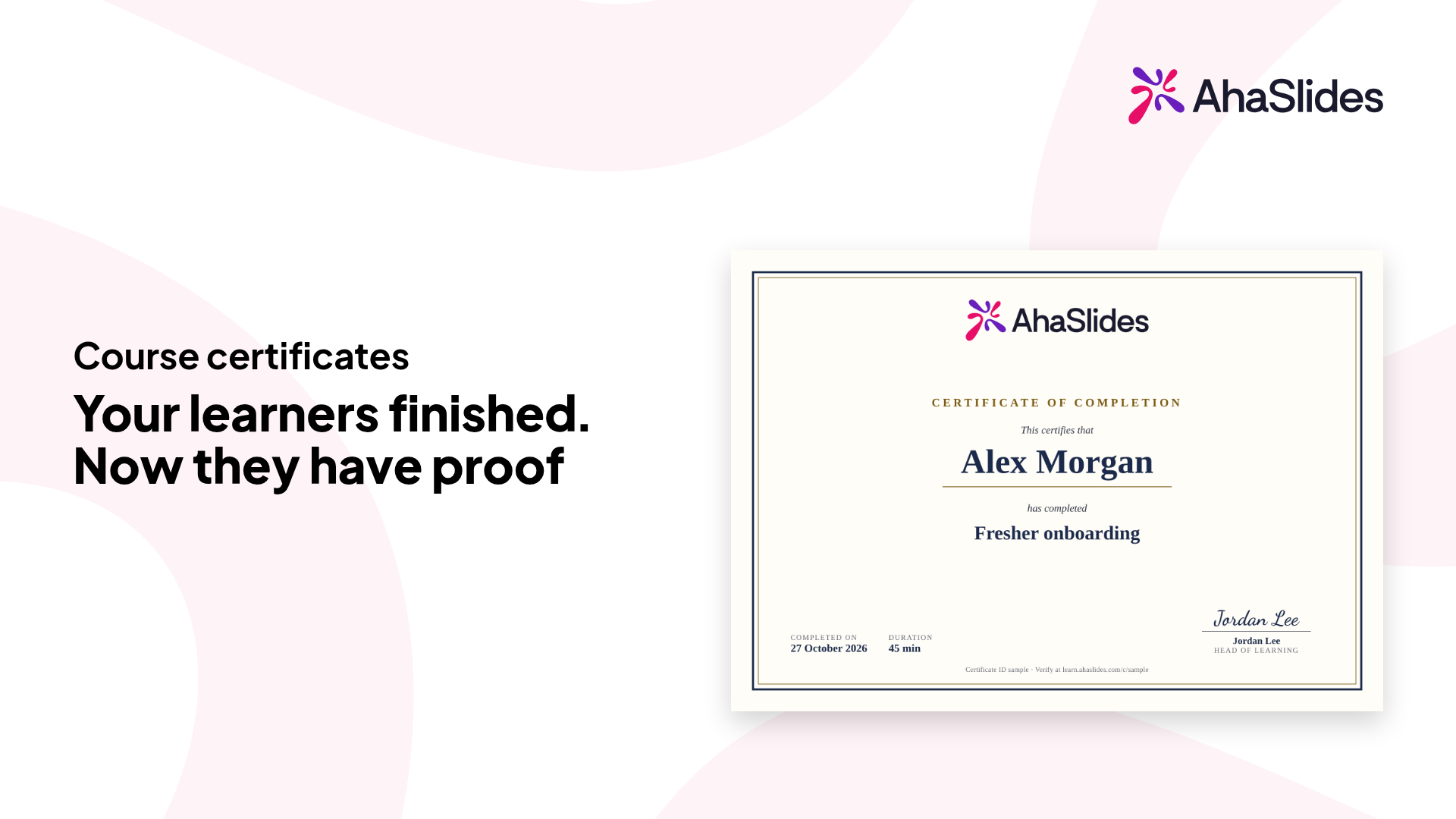
Design a certificate once and turn it on for a course. Every learner who completes it gets a certificate they can download, share and add to LinkedIn.
.webp)
.webp)
.webp)
.webp)

.webp)
.webp)
.webp)
.webp)
.webp)
In Manage > Certificates, start from the Standard certificate and pick one of six themes. Add your logo, signature, course duration and score, and check the live preview.
Switch it on for each course in Course settings > General, or assign courses from the certificate editor.
The course report has a Certificate column, so you can see who has one.
When a learner completes the course, they see "You earned a certificate" and can use it straight away.
Keep a copy to print, file or send on.
Copy the link and share it. Anyone can check the certificate without an account.
Add the certificate to a LinkedIn profile as a certification.
Learners who completed the course before you turned the certificate on get one too.
The Certificate column in your course report shows who has one, and lets you manage it.
Open or withdraw a learner's certificate. A withdrawn certificate's link shows "No longer valid".
Changed your mind? Restore a withdrawn certificate and its link works again.
Resend the certificate email to a learner whenever they need it.
No. Exported packages do not issue certificates.
Your changes show on certificates that learners have already earned.
On the course card at learn.ahaslides.com. They can open it there any time.
Only the course owner.
Certificates that learners have already earned stay valid.
Pick one of six themes (Standard, Classic, Heritage, Modern, Botanical or Midnight), then add your logo, signature, course duration and score. A live preview shows the result as you go.