
Short answer: PowerPoint can’t show a whole PDF on a slide, but it can insert one in three ways. Add it as an object that opens when clicked (Insert > Object > Create from file), take a screenshot of one page, or save the PDF pages as images and insert them as pictures. Pick by what your audience needs to see.
Each way suits a different job. An object keeps the full file inside your deck to open during the talk. A screenshot is fastest for one chart or table. Page images put every page on its own slide, so you can talk through the document page by page. All three work in the PowerPoint desktop app, with Windows and Mac differences noted below.
Way 1: insert a PDF as an object
Use this when you want the whole PDF inside your presentation, for example a report you might need to open while you present. The slide shows the PDF’s first page or an icon, and the file opens in your PDF reader when you double-click it in Normal view.
- Close the PDF file if it’s open on your computer.
- In PowerPoint, select the slide, then go to Insert > Object.
- Choose Create from file, then Browse, and pick your PDF.
- To show an icon instead of the first page, tick Display as icon. Select OK.
Open it during the slide show. To open the PDF while you present, give it an action. In Normal view, select the object, go to Insert > Action, choose the Mouse Click tab, select Object action, pick Open and select OK. A click on the object during the show now opens the PDF.
On a Mac: PowerPoint’s Insert > Object dialog has a From File option, but Microsoft doesn’t document it for PDFs. Try it on a copy of your deck, or use way 2 or 3.
The first-page preview is lower quality than the PDF itself, and the PDF opens in a separate window, outside your slides. PowerPoint for the web can’t insert a PDF object, so use way 2 or 3 there.
Way 2: insert one PDF page as a screenshot
Use this when you need a single page, chart or table from the PDF on your slide.
On Windows:
- Open the PDF and go to the page you want. Make sure the PDF window is the last window you used before switching to PowerPoint.
- In PowerPoint, select the slide and go to Insert > Screenshot > Screen Clipping.
- The screen turns frosted and the pointer becomes a crosshair. Drag to select the part of the page you want. It’s added to your slide as a picture.
On a Mac:
- Open the PDF at the page you want and press Cmd+Ctrl+Shift+4.
- Drag to select the area. It’s copied to the clipboard.
- Switch to PowerPoint and paste with Cmd+V.
Zoom in on the PDF before you take the screenshot. A bigger capture stays sharp when you stretch it across the slide.
Way 3: insert PDF pages as pictures
Use this when you want to walk through the PDF page by page, each page on its own slide. You save the pages as images first, then insert them.
Save the pages as images:
- Adobe Acrobat: open the PDF, choose Export a PDF (called Convert in newer versions), pick Image and then PNG or JPEG, and select Export. Each page becomes its own image file.
- Preview on a Mac: open the PDF, select the page in the thumbnail sidebar, go to File > Export, choose PNG as the format and save. Preview saves the page you’re on, so repeat for each page you need.
Insert them into PowerPoint:
- Go to Insert > Pictures > This Device (on a Mac, Insert > Picture > Picture From File).
- Select the page images and choose Insert.
- To put one page on each slide in one go on Windows, use Insert > Photo Album > New Photo Album instead, add the images and select Create.
Page images keep the PDF’s layout exactly, but the text in them can’t be edited. If you need to edit the content, Adobe Acrobat’s Export a PDF tool can also convert a PDF into a PowerPoint file.
Where a PDF in PowerPoint stops
Every way above turns the PDF into something people look at. A policy, a report or a set of results on a slide gets read, or skimmed, and you can’t tell which.
That’s fine when the document is background. It’s a problem when the point of the session is that people understand what’s in it: a new policy in a team briefing, the findings of a report, the key pages of a training manual. You read out the important part, ask “any questions?” and the silence tells you nothing.
The fix is to ask a question straight after the page that matters, and see every answer before you move on.
Add live questions between your PDF pages with AhaSlides
AhaSlides is an all-in-one engagement platform for teams and classrooms. Instead of reading a page out and asking "any questions?", you ask one question after the page that matters and see every answer.

Two quick ways to start:
- Upload your document. Bring your PDF into AhaSlides, then add a poll or quiz question after the pages that matter. Have it as a PowerPoint file instead? Upload that and let AI add the questions (AI PowerPoint maker).
- Or keep your deck in PowerPoint. Insert the PDF pages as pictures and add the free AhaSlides add-in between them. It takes three steps, below.
Option 1: import the PDF into AhaSlides
Present the PDF from AhaSlides and put interactive slides between its pages.
In AhaSlides, select Import on the My presentations page, or inside the editor to add the file to the end of a presentation you already have.

Start an import from the My presentations page. In the Import dialog, keep Import slides selected, then upload or drag your PDF. AhaSlides imports PPT, PPTX and PDF files up to 50 MB.
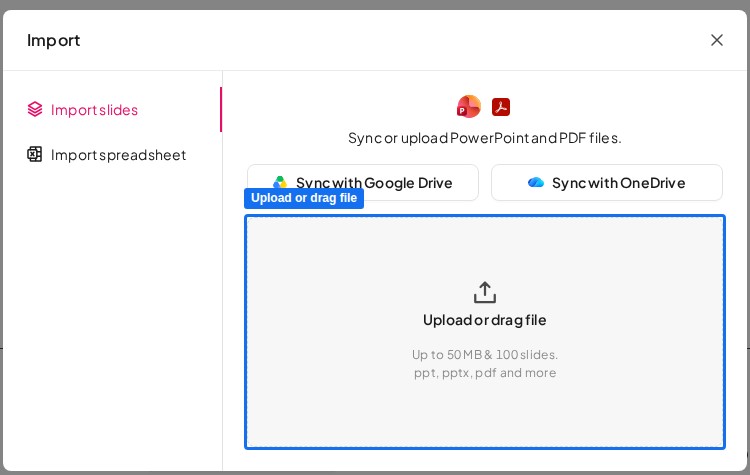
Upload or drag your PDF into the Import dialog. Start the import. Each page of the PDF becomes its own slide, exactly as it looks in the file.
- Add a slide after any page that matters: a Poll to check opinions, a Pick Answer quiz question to check understanding, or an Open Ended slide for questions.
- Present, and people join on their phones with the QR code or join code on screen.
Option 2: keep your deck in PowerPoint and use the add-in
If your presentation lives in PowerPoint, insert the PDF pages as pictures (way 3 above), then add AhaSlides slides between them with the AhaSlides add-in for PowerPoint. The add-in is available on every AhaSlides plan, the free one included, and it works in PowerPoint for the web too.
- In PowerPoint, go to Home > Add-ins > More Add-ins (in PowerPoint for the web, Insert > Add-ins > More Add-ins). Search for AhaSlides and select Add, then open the add-in, sign in and choose an AhaSlides presentation.
Add a blank slide after the PDF page you want to ask about and select it. Tick the slides you want and select Add slides. The first one goes on the blank slide you’re on, and each of the others gets a new slide after it. On the web, you add one slide at a time.
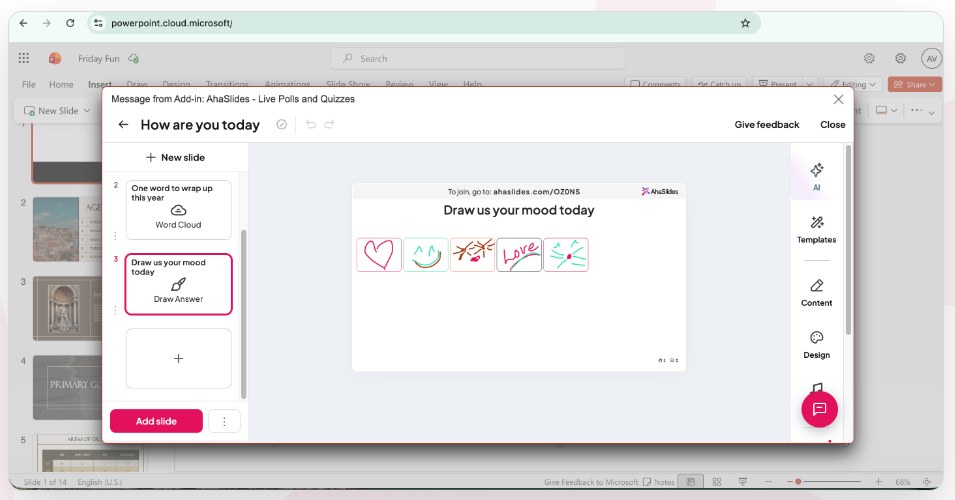
The add-in also works in PowerPoint for the web, one slide at a time. In Slide Show, press Q to show the QR code so people can join.
5 ways to use a PDF with live questions
- Policy briefings. After the page with the key change, run a quick Pick Answer question on what the new rule means in practice. Wrong answers show you what to explain again.
- Report readouts. Show the chart from the report, then ask people to guess the number before you reveal it. A guess makes the real figure stick.
- Training manuals. Import the manual’s key pages and put a short quiz after each section, instead of one long test at the end.
- Board or client packs. Put a Poll after each proposal page to see where people stand before the discussion starts.
- Lessons from a worksheet. Show the worksheet page, then collect answers live with an Open Ended slide and discuss the best ones.
FAQ
Can I embed a PDF in PowerPoint?
Yes, as an object. Go to Insert > Object > Create from file, browse to the PDF and select OK. The slide shows the first page or an icon, and the full PDF opens in your PDF reader.
How do I convert a PDF to PowerPoint?
Use Adobe Acrobat’s Export a PDF tool (Convert in newer versions) and choose Microsoft PowerPoint as the format. Your pages become slides. Check the layout afterwards, because complex pages don’t always convert cleanly.
How do I turn a PowerPoint into a PDF?
Go to File > Save As (or File > Export on a Mac) and choose PDF as the file format. On Windows, File > Export > Create PDF/XPS Document does the same.
How can I present a PDF as a slideshow?
Insert the pages as pictures in PowerPoint, one per slide (way 3), or import the PDF into AhaSlides, where each page becomes a slide and you can add live questions between them.
Why can’t I insert a PDF in PowerPoint for the web?
Microsoft doesn’t support inserting PDF content in PowerPoint for the web, so it can’t embed a PDF file. Insert screenshots or page images instead, or use the desktop app.
Make this deck interactive
Polls, quizzes and Q&A inside PowerPoint, set up in minutes. Our step-by-step guide shows how, from installing the add-in to reading the results.
Keep reading
If your source is a PowerPoint file rather than a PDF, editable PowerPoint import keeps the slides editable in AhaSlides. For other tools that add features to your deck, see our list of PowerPoint add-ins. To ask questions between your pages without PowerPoint at all, try the AhaSlides online poll maker.