


To make a YouTube video interactive, pick a short video, trim it to the part you need, choose the moments where it should pause, write a question for each pause and play it to a group who answer on their phones. With the YouTube Quiz slide on AhaSlides, the video stops by itself at each question, everyone answers, the right answer appears and the video carries on. Scores add up on a leaderboard at the end.
Why bother? Because people drift off during a video, and a few questions bring them back. In a study of online lectures, students who had short tests between lecture segments let their minds wander less, took more notes and learned more than students who watched the same lecture without them (Szpunar, Khan and Schacter, 2013). A video on its own can deliver the content. It can’t check who is following, and it can’t pause when people stop following.
This guide is for trainers, teachers and anyone who shows videos to a group, in a training room or a classroom.
What an interactive YouTube video is
An interactive video asks something of the viewer instead of only playing. There are a few kinds:
- Quiz videos pause at set points and ask a question. This is what most trainers and teachers want, and what this guide covers.
- Branching videos let the viewer choose what happens next, like a choose-your-path story.
- Clickable videos add buttons or links on top of the picture.
YouTube itself doesn’t pause a video to ask quiz questions: its info cards and end screens link to other content. You need a tool that plays the video and handles the questions around it. The steps below use YouTube Quiz, a scored quiz slide on AhaSlides, which is built for a live session where everyone watches the same screen together.
How to make an interactive YouTube video in 5 steps
1. Pick a short video that teaches one thing
Choose a video you are allowed to show your group: your own, your organisation’s or one made for teaching. The best ones explain one idea, one process or one story. If you can’t say in a sentence what people should know by the end, the video is probably too broad for a quiz.
Shorter is easier to work with. In a study of 6.9 million video sessions in four edX courses, shorter videos were much more engaging: viewers’ median engagement time was never more than 6 minutes, however long the video ran (Guo, Kim and Rubin, 2014). You can still use a longer video. You’ll trim it in step 3.
2. Add a YouTube Quiz slide
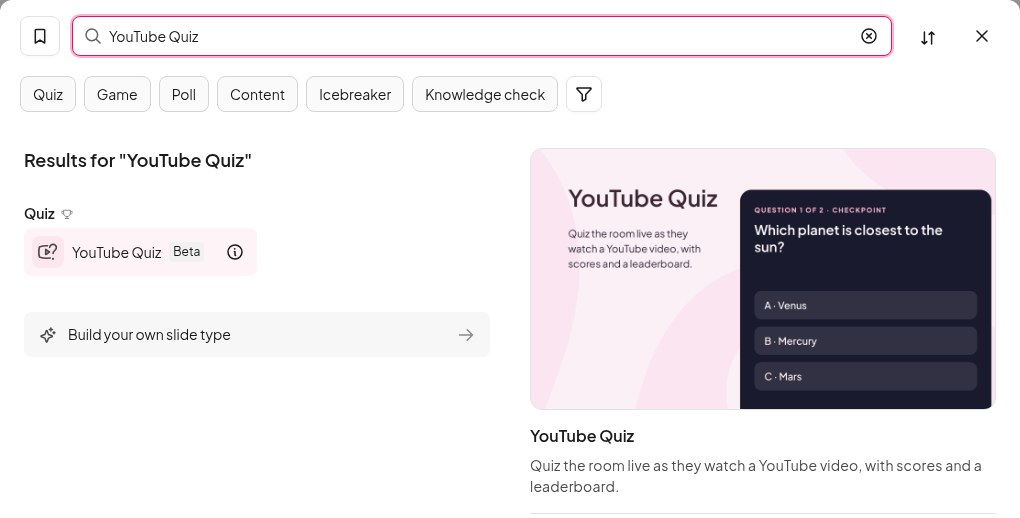
In the AhaSlides editor, click New slide and find YouTube Quiz in the Quiz group, or type its name into the search box. Paste your video’s address into Paste a YouTube link. The video appears in the slide with a timeline underneath.
3. Trim the video to the part you need
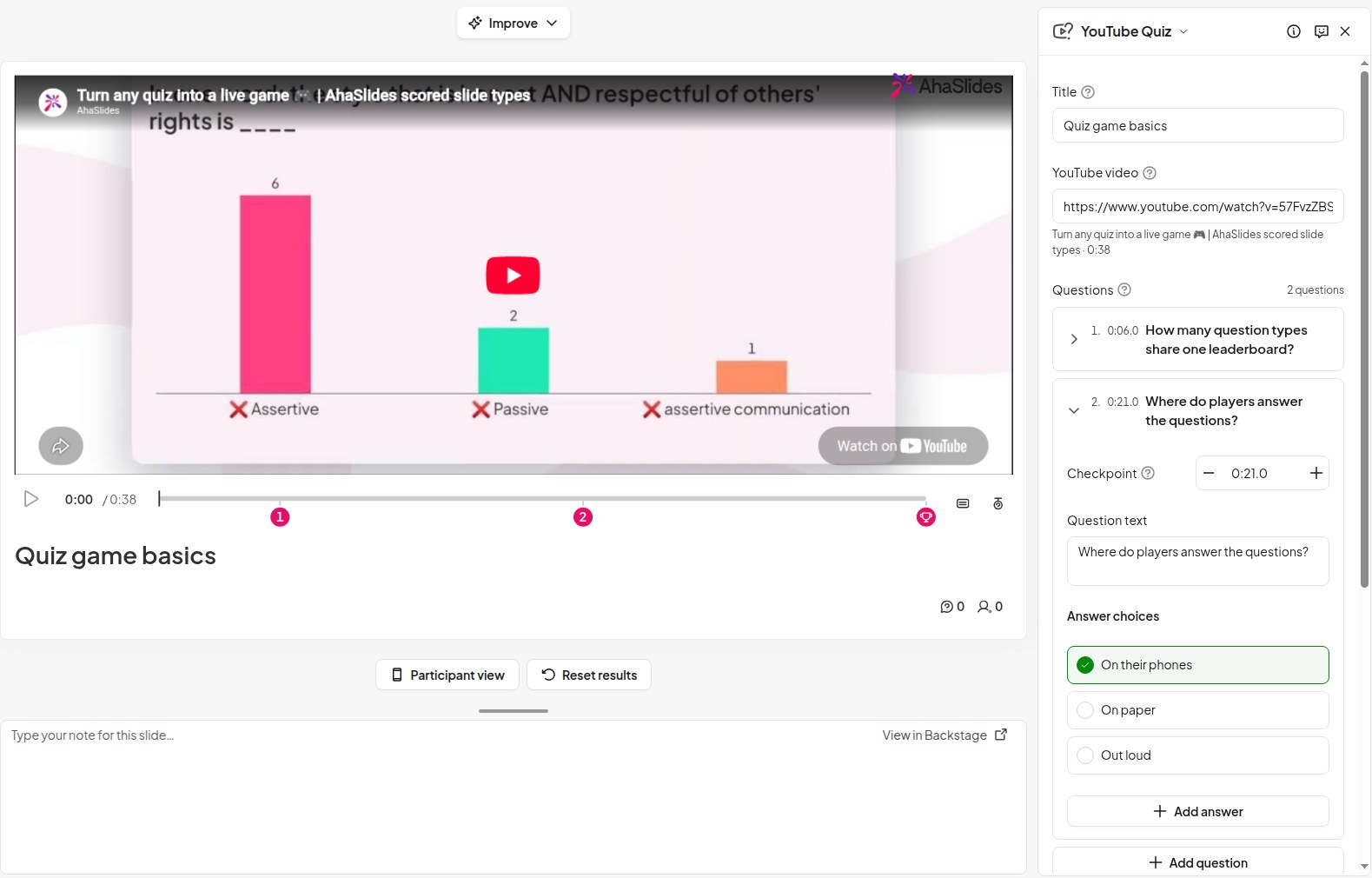
Open Trim & cut and drag the two ends of the timeline to the start and finish you want. To skip something in the middle, such as a long intro or an aside, add a New cut. Your group only sees what is left.
4. Pause it where you want a question
Play the video and pause it at the moment you want to ask something, then click Add question. A numbered pin appears on the timeline at that point. Each pin is a Checkpoint: the video stops there and the question opens. Use the minus and plus buttons next to the checkpoint time to move it a second earlier or later.
Write the question, fill in the Answer choices (2 to 6 of them) and use Mark as correct on the right one.
Good places for a pause:
- After a key point, to check it went in (“Which step comes first?”)
- Before a reveal, so people predict what happens next
- At the end of a section, to recap before the video moves on
Two or three questions in a 5-minute video is plenty. Any more and the video stops feeling like a video.
5. Choose the settings, then present
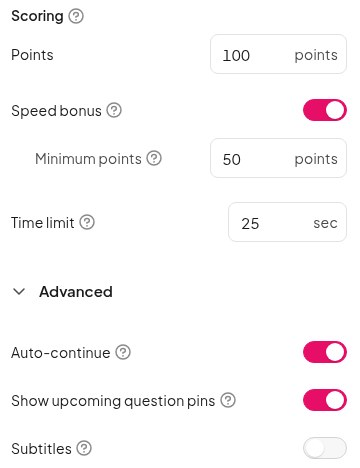
Each question is worth Points (100 by default), and a Speed bonus gives quicker correct answers a little more. The Time limit is 25 seconds unless you change it. Under Advanced, with Auto-continue on, the video plays on by itself once a question is done. Show upcoming question pins lets people see on the timeline where the next question is coming, and you can turn on Subtitles for the video.
Before you present, play the video through once. YouTube can show ads, and you’d rather find that out before the session than during it.
What your group sees
Everyone joins on their phone with the session code and you start the video on the main screen. The video only plays there, so the room watches together while their phones tell them to keep an eye on the screen.
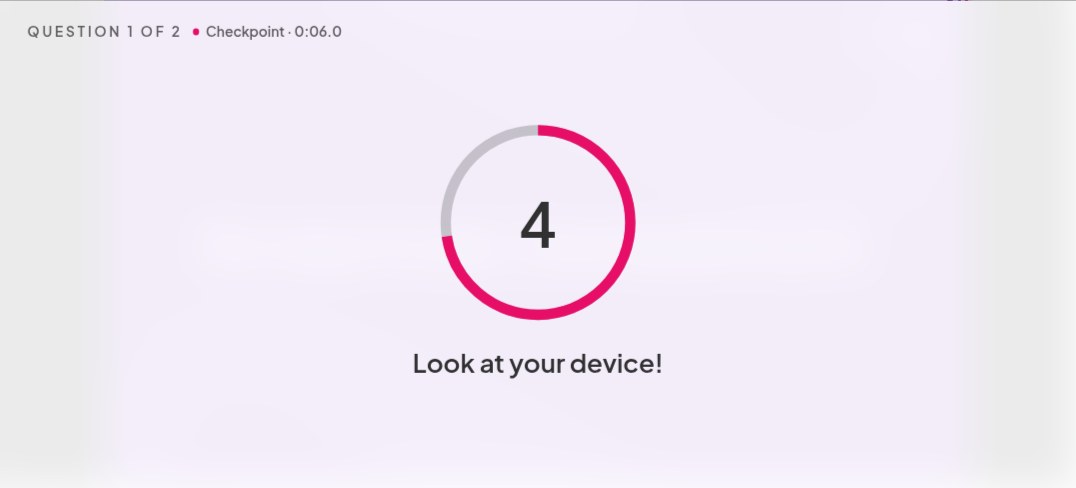
When the video reaches a checkpoint, it pauses and a short countdown tells everyone to look at their device.
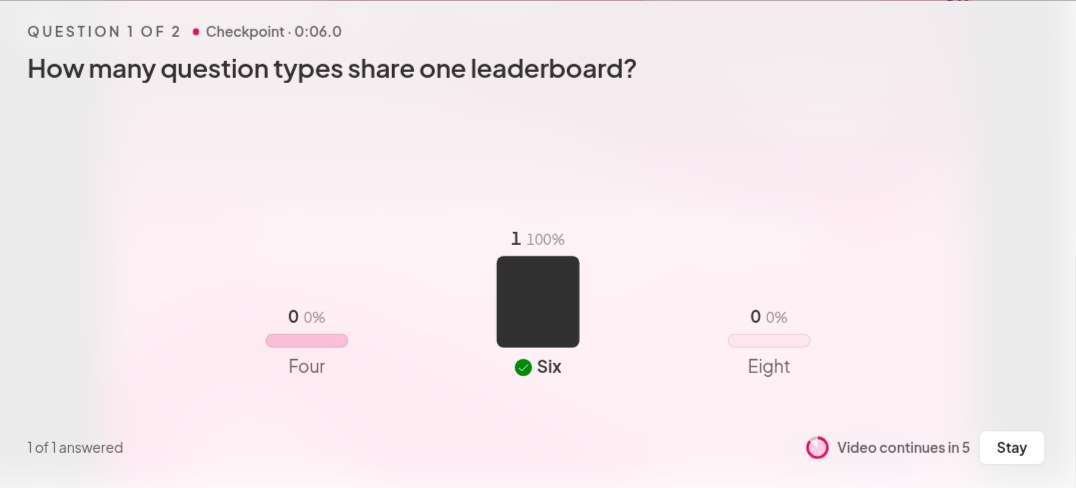
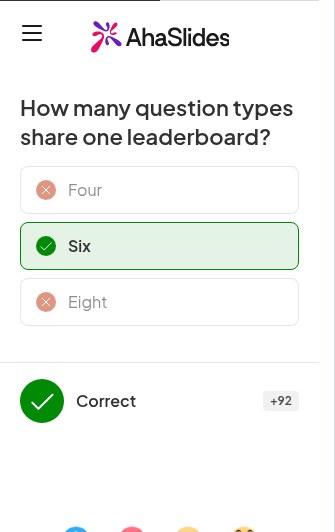
The question then opens on the main screen and on every phone, with the timer running and a live chart of answers. When time is up, or everyone has answered, the right answer is revealed. You can also click Reveal answer to move on sooner. Each person sees their own points, and the video picks up where it stopped.
When the video finishes, the leaderboard shows who scored the most across all the questions.
5 ways to use an interactive video
- Training sessions. Show a short safety, product or process video and check the key points as you go, so you know before the session ends whether the steps went in.
- New employee onboarding. Play a welcome or company-values video and pause on the things every new employee should know.
- Lesson recaps. Replay a short explainer from last week and ask a question at each main idea. It’s a quick way to see what the class remembers before you build on it.
- Predict what happens next. Pause a science experiment or a nature clip just before the result and ask the group to call it. Once everyone has made a guess, the rest of the clip gets far more interesting to watch.
- A quiz round. Add a video round to a team quiz, between your picture and general knowledge rounds. A nature or science clip works well, as everyone starts on equal footing.
Tips for a better video quiz
- Ask about what’s on screen. The best questions can only be answered by someone who watched closely, not by someone who already knew.
- Keep the questions short. People are reading on a phone with a timer running, so one line is ideal.
- Use the pause to talk. When the answer is revealed, stop for a moment and explain why it’s right. Short tests between segments helped learners in the Szpunar study, and your explanation makes each one count.
- Don’t quiz every minute. Leave a good stretch of video between checkpoints, or it starts to feel like an exam.
- Only want to play a video? Use the plain YouTube slide instead. It plays the video without questions or scores.
For every setting and step in detail, see the YouTube Quiz help article.
Start with a ready-made YouTube quiz
The quickest way to try it is with our “Watch and answer” template for training and class. Open it, swap in your own video and questions, and you’re ready to present.
YouTube Quiz is in beta.
Frequently asked questions
Can you make a YouTube video interactive?
Yes, with a tool that plays the video and adds questions around it. YouTube doesn’t have a built-in way to pause a video for a quiz question: its info cards and end screens link to other content. The YouTube Quiz slide on AhaSlides pauses the video at points you choose and asks your group a question on their phones.
How do you add a quiz to a YouTube video?
Paste the video link into a YouTube Quiz slide, pause at the moment you want to ask something and click Add question. Write the question, add 2 to 6 answer choices and mark the correct one. Repeat for each question, then present.
How many questions should an interactive video have?
About 2 or 3 for a 5-minute video. That’s enough to keep people watching closely without the video feeling like a test.
Do people need to watch the video on their own devices?
No. The video plays only on the main screen. Phones are only for answering, so people watch together and answer on their own phone.
What is the difference between a live video quiz and a self-paced one?
In a live video quiz, everyone watches the same video at the same time and answers together, with a leaderboard at the end. A self-paced video lesson is watched by each person alone, whenever they like. YouTube Quiz is built for the live kind.
Related reading
- Making your own video first? Read our guide on how to make a training video.
- Looking for something to show? Here are some educational YouTube channels worth a look.
- Building a full quiz around it? See how to make a quiz.
- More ways to get a group involved: interactive presentation ideas.