



Mac users face a unique advantage when choosing presentation tools. Whether you're running Apple silicon (M1 or later) or an Intel processor, macOS offers native-optimized apps alongside access to the entire web-based ecosystem. But that abundance creates a real decision: do you go with Keynote, the deeply integrated Apple solution? Stick with Microsoft PowerPoint for cross-platform consistency? Or explore modern alternatives built for interactivity and collaboration?
We've tested over a dozen presentation tools that work seamlessly on Mac, and we've narrowed down the best options for different use cases, budgets, and team sizes. Whether you're presenting to a classroom, pitching to investors, or running a company all-hands meeting, this guide will help you choose the right tool.
Quick comparison table
| Tool | Type | Price | macOS support | Best for |
|---|---|---|---|---|
| Keynote | Native app | Free | macOS 15.6+ | Apple ecosystem users |
| Microsoft PowerPoint | Native app | $9.99/month | macOS 15+ | Cross-platform teams |
| FlowVella | Native app | Free / $20/month Pro | Mac, iPad and iPhone | Interactive kiosk presentations |
| AhaSlides | Web-based | Free / from $7.95/month | All macOS versions | Interactive classroom and team meetings |
| Canva | Web-based | Free / $15/month Pro | All macOS versions | Design-forward presentations |
| Google Slides | Web-based | Free | All macOS versions | Teams in Google Workspace |
| Prezi | Web-based | Free / $7/month | All macOS versions | Storytelling and sales pitches |
| Zoho Show | Web-based | Free | All macOS versions | Minimalist teams using Zoho CRM |
| Slidebean | Web-based | Free / $7/month | All macOS versions | Startup pitch decks |
| Gamma | Web-based | Free / $9/month | All macOS versions | Fast AI-generated decks |
| Powtoon | Web-based | Free / $15/month | All macOS versions | Animated training and marketing |
Prices are each tool's lowest paid plan, billed annually where the vendor offers it, checked in October 2026.
Native Mac presentation apps
Keynote: the Apple-native choice
Keynote is free on every Mac, and the current version needs macOS Sequoia 15.6 or later. It's optimized for Apple silicon at the hardware level. If you already live in the Apple ecosystem, Keynote is hard to beat. You get seamless iCloud synchronization across your Mac, iPad, and iPhone, which means you can start a deck on your MacBook, refine it on your iPad, and present from your iPhone if needed.
The design tools in Keynote are sophisticated: custom animations, object interactions, and the ability to layer media make professional-grade presentations accessible to non-designers. Export to PowerPoint format is straightforward, so collaborating with teams on Windows or Linux machines isn't problematic. The app runs natively on every Apple silicon Mac with excellent performance.
Keynote's main limitation is that it's Mac-only for the full feature set. While iCloud.com offers a web version, it lacks some capabilities of the native app. If your team needs Windows users to edit presentations natively, you'll need to export files and ask them to use PowerPoint instead.

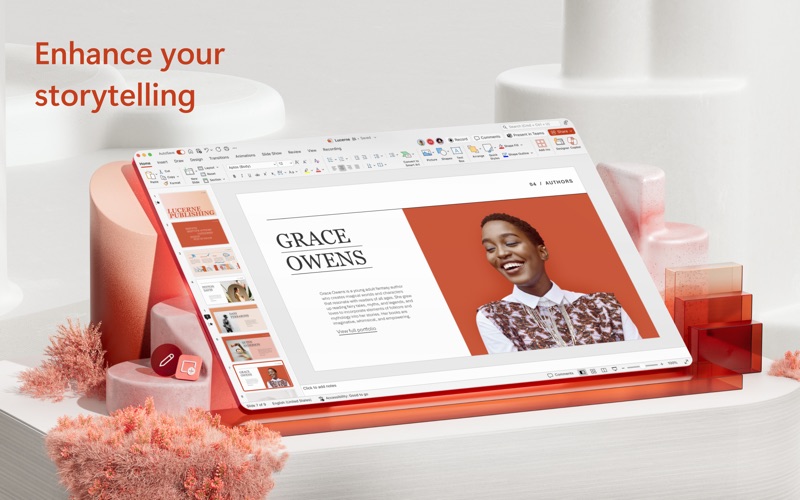
Microsoft PowerPoint: the universal standard
PowerPoint for Mac is part of Microsoft 365 and costs $9.99 per month for individuals or $12.99 per month for families. It requires macOS 15 Sequoia or newer, since Microsoft supports only the three most recent macOS versions and dropped Sonoma in October 2026. It runs on Apple silicon and on Intel Macs that can install Sequoia or Tahoe. If your organization already uses Microsoft 365, PowerPoint is likely already included, which makes it a zero-additional-cost option.
The strength of PowerPoint lies in universal compatibility. Every template, animation, and custom feature you create works identically on Windows, Mac, and the web. For teams with mixed operating systems, this consistency eliminates headaches. The desktop app is fully featured: advanced animation libraries, data integration, and robust formatting options that Keynote either lacks or handles differently.
Microsoft 365 also includes cloud storage (OneDrive) with real-time collaboration, similar to Google's offering. You can present from the web if you're away from your Mac. The main downside is the subscription cost and the perception among some Mac users that Office on Mac never feels quite as native as apps built specifically for macOS.
FlowVella: the interactive alternative
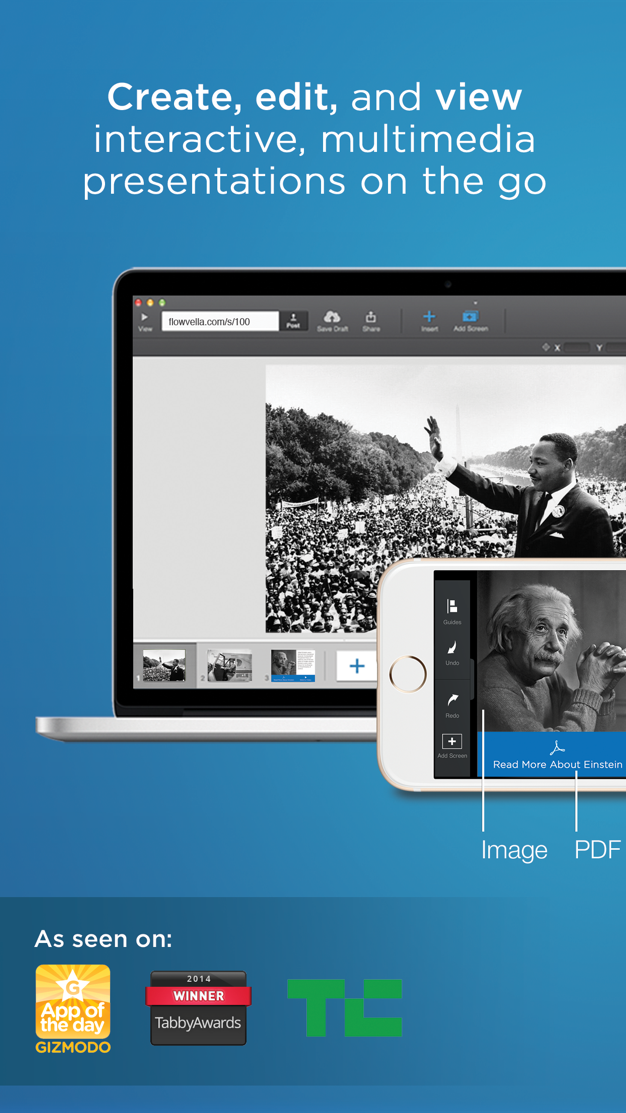
FlowVella (free plan, Premium at $10 per month, Pro at $20 per month) is a Mac, iPad and iPhone app that takes a different approach to presentations. Instead of slides, you build interactive flows with galleries, links, and embedded content. It's designed for kiosk-style presentations where the audience interacts with the content rather than passively watching, and kiosk mode is part of the Pro plan.
If you're creating interactive product demos, interactive portfolios, or educational presentations where engagement matters, FlowVella's unique format forces you to think about interactivity from the start. The free plan is limited to four public presentations of up to 10 screens each, so most professional users will need a paid plan.
The trade-off is that FlowVella's format is non-standard. Sharing presentations with people unfamiliar with the tool can be confusing, and there's no direct PowerPoint export. If your audience expects traditional slide decks, FlowVella may feel too unconventional.
Web-based presentation tools: flexibility and collaboration
AhaSlides: live engagement and interactive features
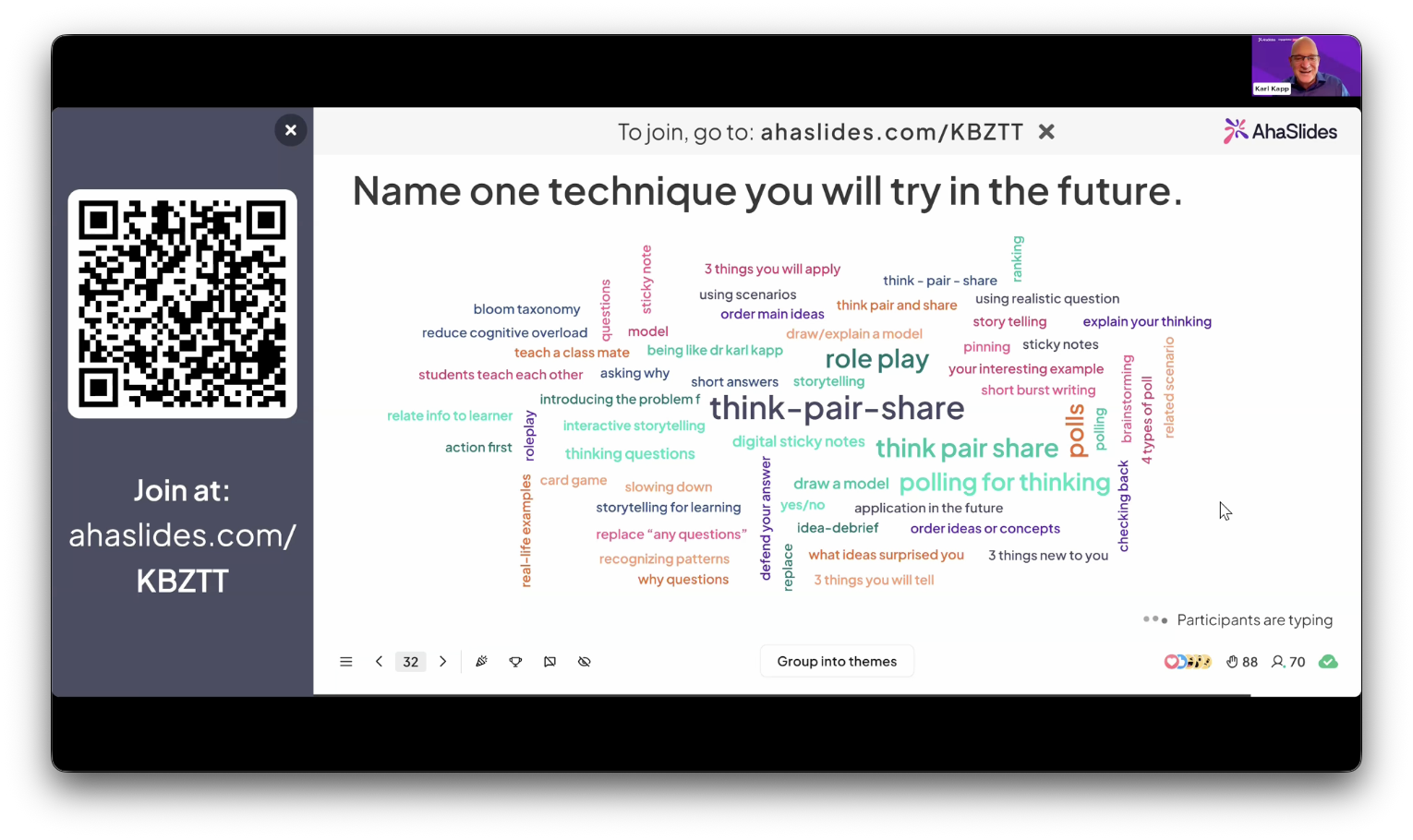
AhaSlides has a free plan that includes up to 5 quiz questions and 3 poll questions per presentation, and paid plans start at $7.95 per month. This platform specializes in interactive presentations: live polls, quizzes, word clouds, and Q&A features are built into the core product, not bolted on as add-ons.
If you're teaching a class, running a team meeting, or presenting at a conference where audience participation matters, AhaSlides eliminates the friction of switching between a presentation tool and a polling tool. Responses appear in real-time on your screen and on the audience's devices. The platform works on any Mac running any modern version of macOS, since it's entirely browser-based.
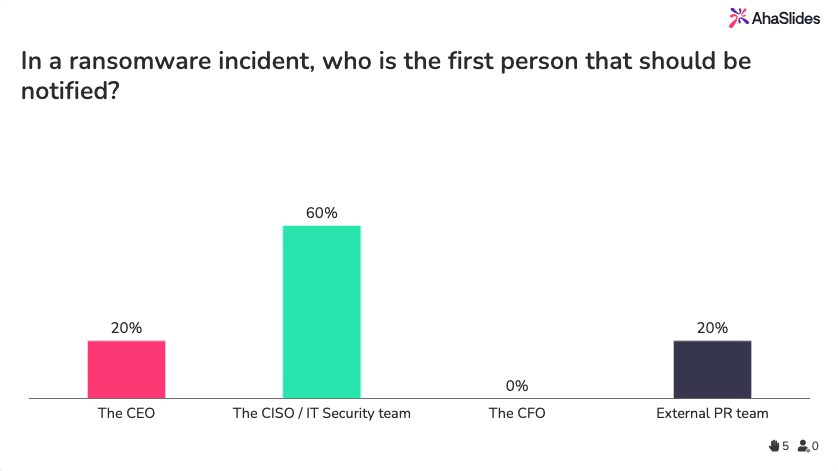
AhaSlides is particularly strong for virtual and hybrid presentations. With the Zoom and Microsoft Teams integrations, remote participants answer the same polls and questions as the people in the room. If your goal is engagement over polish, AhaSlides is the fastest path.
Canva: design-forward presentations
Canva's free plan gives you access to thousands of templates and basic design tools. The Pro plan ($15 per month billed annually, or $18 billed monthly) unlocks premium templates, brand kit features, and access to premium images and icons. Canva works entirely in your browser, so it works on any Mac.
Canva's strength is template diversity and design quality. If you're not a designer and don't want to start from a blank canvas, Canva's templates accelerate the process dramatically. The drag-and-drop interface is intuitive, and the design suggestions are helpful without being intrusive.
Canva presentations are web-based and responsive, which means they look good on any device. However, if you need advanced animation timing or complex slide interactions, Canva's capabilities are more limited than PowerPoint or Keynote. It's best suited for straightforward decks where design matters more than technical complexity.
Google Slides: collaboration without friction
Google Slides is free and requires only a Google account. If your team already uses Google Workspace (formerly G Suite), Slides integrates seamlessly with Gmail, Google Drive, and Google Meet. Real-time collaboration is built in: multiple people can edit the same presentation simultaneously, and version history is automatic.
For distributed teams or organizations with limited IT infrastructure, Google Slides removes barriers to collaboration. There's no software to install, no version control nightmares, and no compatibility issues across operating systems.
The trade-offs are familiar: Slides has fewer animation options than PowerPoint or Keynote, and design customization is more basic. If your presentations are content-heavy or require sophisticated design, you'll feel the limitations. But for working documents and collaborative planning, Slides is unbeatable.

Prezi: non-linear storytelling
Prezi ($7 per month billed annually for paid plans, free limited tier) builds presentations on a zoomable canvas rather than a linear slide sequence. You can structure your deck non-linearly, zoom in to detail, and create a visual narrative that traditional slide decks can't match.
Prezi excels for sales pitches and storytelling presentations where you want to show how ideas connect. The zooming effect feels modern and keeps audiences engaged. Since it's browser-based, it works on any Mac.
Prezi's learning curve is steeper than PowerPoint, and the non-linear format can feel gimmicky if overused. Some audiences find the excessive zooming distracting. It's a strong choice if your presentation benefits from spatial organization, but it's not ideal for data-heavy or traditional corporate presentations.

Zoho Show: minimalist and integrated
Zoho Show is free and part of the Zoho suite of business tools. If you're already using Zoho CRM or other Zoho products, Show integrates directly into your workflow. The interface is clean and minimalist, and collaboration features are solid.
Zoho Show includes useful integrations with Giphy and Unsplash, so adding visual content is effortless. The platform works entirely in your browser and is accessible from any Mac.
Zoho Show is less feature-rich than Canva or Google Slides, and it has a smaller user base, which means fewer templates and a smaller community for learning. It's best suited for teams already committed to the Zoho ecosystem.

Slidebean: AI-assisted startup pitch decks
Slidebean ($7 per month billed annually, free limited tier) is purpose-built for startup pitch decks and investor presentations. The platform includes AI-assisted layout suggestions that help you create professional-looking slides quickly, even if you're not a designer.
Slidebean includes pitch-specific templates, financial charts, and investor metrics that other tools don't emphasize. If you're fundraising, Slidebean's focused feature set can save time. The platform works in your browser on any Mac.
Outside of pitch decks, Slidebean is more limited than general-purpose tools. The templates are optimized for venture pitches, not classroom lectures or product training.
Gamma: AI-generated decks from text
Gamma ($9 per month billed annually, free limited tier) takes AI assistance further: you can generate an entire presentation outline from a simple text prompt, and Gamma creates the slides for you. This is the fastest way to create a deck if you're starting from zero.
The AI-generated output is surprisingly professional and requires minimal editing. If speed is your priority, Gamma is unmatched. It works entirely in your browser on any Mac.
The downside is that AI-generated presentations sometimes lack the specific customization your brand needs. You'll likely spend time adjusting colors, fonts, and messaging. Gamma is best for quick internal decks or rapid prototyping, not for polished client presentations where brand consistency is critical.
Powtoon: animated video-style presentations
Powtoon ($15 per month billed annually, free limited tier) generates animated presentations that look like short marketing videos. The animations are smooth and eye-catching, making Powtoon ideal for training videos, marketing presentations, and product demos.
If you need to create engaging video-style content but don't have video editing skills, Powtoon bridges that gap. The library of stock footage, music, and animations is extensive. You present Powtoon decks by playing them like videos, not by advancing traditional slides.
Powtoon is overkill for internal team meetings or straightforward data presentations. The animation style, while engaging, can feel out of place in corporate environments. It's best suited for marketing, training, and external communications where you want high production value.
Mac compatibility and technical considerations
Native Mac apps in this guide need recent macOS versions: Keynote requires macOS 15.6 (Sequoia) or newer, and PowerPoint requires macOS 15 (Sequoia) or newer. Apple's current release is macOS 27 (Golden Gate), released on September 14, 2026, and it runs only on Apple silicon Macs. macOS 26 (Tahoe) is the last version for Intel Macs, so if you're using an older Intel Mac, check that it runs Sequoia or Tahoe before choosing a native app.
Web-based tools work on any Mac running any version of macOS, as long as you have a modern browser (Safari, Chrome, Firefox). If you're working with older hardware or older operating system versions, web-based tools are your safest bet.
For offline work, native apps (Keynote, PowerPoint, FlowVella) let you build presentations without an internet connection. Most web-based tools require an active connection, though some offer offline editing with cloud sync when you reconnect.
How to choose the right presentation software for Mac
Consider: native app versus browser-based
Native Mac apps (Keynote, PowerPoint, FlowVella) feel snappier and integrate with macOS features like Spotlight search and iCloud. They work offline and take full advantage of your hardware. If you're doing heavy design work or working with large files, native performance matters.
Browser-based tools (AhaSlides, Canva, Google Slides, Prezi, and others) require internet, but they offer easier sharing, automatic cloud backup, and instant collaboration. They're lighter on storage and work identically whether you're on Mac, Windows, or Linux.
Consider: collaboration needs
If your team needs to edit presentations together in real-time, Google Slides is purpose-built for this, and AhaSlides lets you invite collaborators to work on the same presentation. Keynote and PowerPoint both support collaboration through iCloud and OneDrive, but the experience is not as seamless as Google's.
For solo presentations or small team handoffs, native apps are fine. For large teams or distributed work, web-based tools reduce friction.
Consider: audience engagement
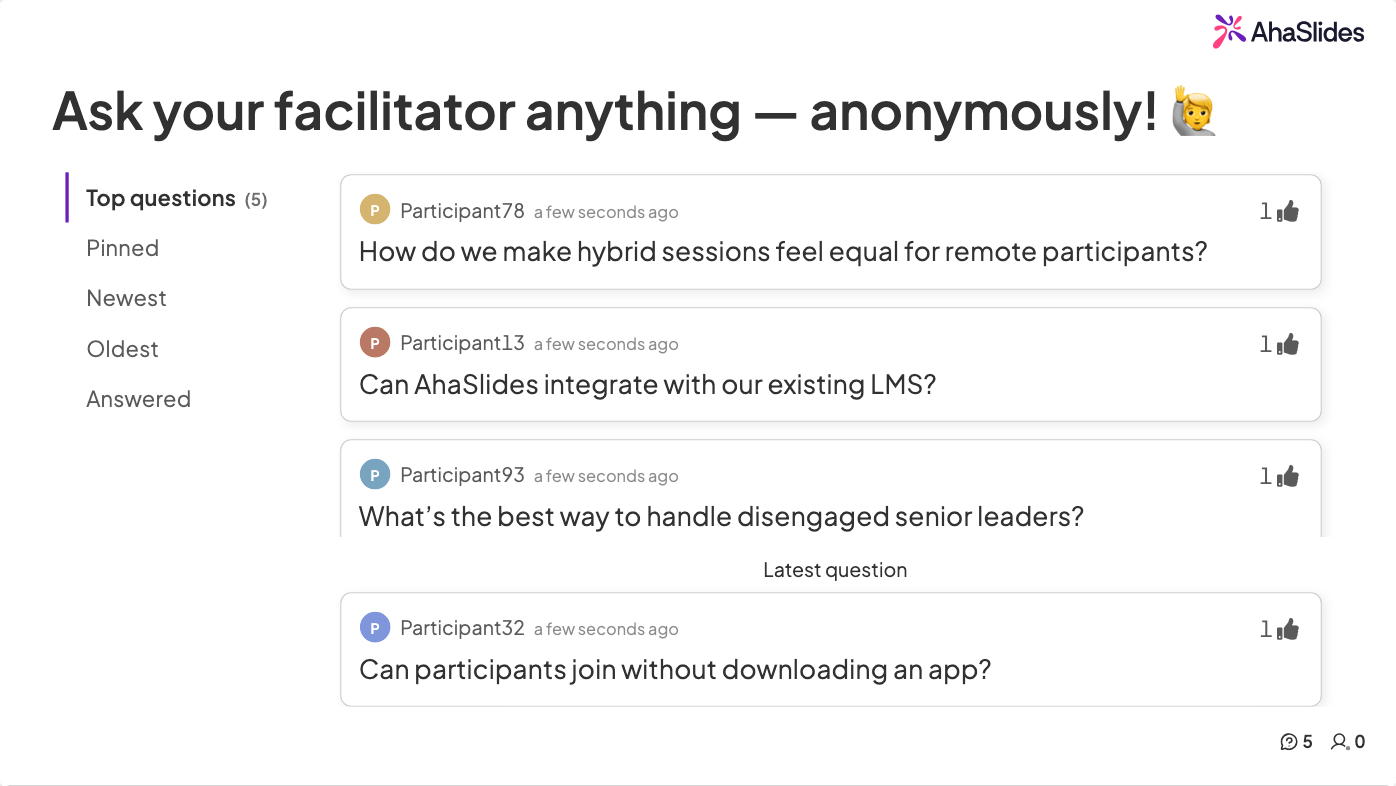
If your presentations depend on audience interaction, interactive presentation tools like AhaSlides make engagement frictionless. Traditional tools require you to supplement with external polling or Q&A tools.
Consider: budget
Keynote is free. Google Slides is free. AhaSlides offers a free tier. If you're budget-conscious, these are strong starting points. Canva's free plan is also generous. Paid plans for the tools in this guide start at roughly $7 to $20 per month and unlock more templates and features, but they are optional for most use cases.
Consider: ecosystem lock-in
If you're deeply invested in Apple products, Keynote's iCloud sync is compelling. If your team uses Microsoft 365, PowerPoint is likely already included. If you're in Zoho CRM, Zoho Show integrates naturally. Consider whether you want to consolidate tools in your existing ecosystem or diversify.
Free presentation software for Mac: your options
We've mentioned several free options throughout this guide. Keynote, Google Slides, AhaSlides (free tier), Zoho Show, and Powtoon (limited free tier) all offer no-cost starting points. Canva's free plan is also robust for simple designs.
The trade-off with free tiers is usually template variety or advanced features like AI assistance or animation libraries. But if you're learning or building presentations for internal use, free tools are absolutely sufficient.
PowerPoint alternatives for Mac users
If you're looking for PowerPoint alternatives, the best options are Keynote (if you're in the Apple ecosystem), Google Slides (for collaboration), and Prezi (for non-linear storytelling). Each solves different problems PowerPoint doesn't address.
Keynote matches PowerPoint's power but with Mac-first design. Google Slides prioritizes real-time collaboration. Prezi prioritizes visual storytelling. Choose based on what PowerPoint's missing for your specific use case.
Frequently asked questions
Can I use PowerPoint on Mac without buying Microsoft 365?
Partly. The full PowerPoint app for Mac requires a Microsoft 365 subscription, starting at $9.99 per month. PowerPoint for the web is free with a Microsoft account and covers basic editing and presenting in your browser, but it lacks many desktop features. Keynote (free) and Google Slides (free) are your best no-cost alternatives.
Does Keynote work on Windows?
Keynote is Mac-only for the full-featured native app. iCloud.com offers a limited web version of Keynote that works in any browser, but it lacks features of the Mac app. If you need to edit Keynote files on Windows, export them to PowerPoint format and use Microsoft Office instead.
Which presentation tool is best for remote presentations?
AhaSlides, Google Slides, and Prezi are all excellent for remote work because they're web-based and support real-time collaboration. AhaSlides is particularly strong for interactive remote presentations with live polls and Q&A. If you're using Zoom or Teams, the AhaSlides integrations let remote participants respond without leaving the call.
Final thoughts
The best presentation software for your Mac depends on your specific needs, budget, and workflow. If you value deep integration with Apple's ecosystem and free software, Keynote is unbeatable. If cross-platform compatibility matters, PowerPoint is the safe choice. If you want to add interactivity without switching tools, AhaSlides brings live engagement to your presentations. And if design-forward presentations are your priority, Canva and Prezi offer modern alternatives.
We recommend starting with your ecosystem's native tool (Keynote for Mac users, PowerPoint for Microsoft 365 subscribers) and exploring alternatives if you hit limitations. Most tools offer free tiers or trials, so test a few before committing to a subscription.
To add live polls, quizzes, word clouds, and Q&A to your next session, AhaSlides handles all of it from a free account, across PowerPoint, Google Slides, or its own editor. For the full guide covering techniques, tools, and ideas for every context, see: How to make a presentation interactive: the complete guide.