
A free Christmas PowerPoint template is already in PowerPoint: go to File > New and search "Christmas". That gives you the festive look. To turn it into games and a quiz everyone plays from their phones, add the AhaSlides add-in and drop live slides into the same deck. It works on the free plan.
This guide covers both: the PowerPoint-only way for a deck you present to people, and the live way for a deck people play. Keep the deck you already have. Add the participation.
How to get a Christmas template in PowerPoint
PowerPoint's template gallery usually includes festive designs, so you may not need to download anything to start.
On Windows
- Open PowerPoint and go to File > New.
- Type "Christmas" in the search box and press Enter.
- Click a design to preview it, then click Create.
- To restyle a deck you already have, open it, go to the Design tab and pick a theme or a variant.
On a Mac
- Go to File > New from Template.
- Search or browse for "Christmas". The designs on offer vary by PowerPoint version.
- Select a design and click Create.
- For an existing deck, use the Design tab, the same as on Windows.
Other free sources
If PowerPoint's own designs feel too plain, SlidesCarnival and Canva both list free Christmas presentation templates that download as PowerPoint files (checked 19 Nov 2026). Some Canva designs are Pro only, so check the label, and check each template's licence before you use it at work.
Build a simple Christmas quiz game in PowerPoint
You can make a basic quiz with animation triggers, so the answer appears when you click it.
- Add a question slide with four answer boxes.
- Add a "Correct!" shape and give it an entrance animation from the Animations tab.
- With the shape selected, choose Trigger > On Click of on the Animations tab and pick the right answer box. Windows and Mac both have this option.
- Repeat for each question, and keep score on a whiteboard or a sheet of paper.
For a longer walkthrough, our guide to an interactive quiz on PowerPoint covers both the trigger method and the live method.
Where a PowerPoint-only deck stops
A Christmas template makes the deck look festive. It does not let anyone else play. With PowerPoint alone:
- One person answers for everyone. Whoever shouts first wins, and the shyer half of the group never gets a turn.
- Scoring is by hand. Someone has to count points, settle arguments and add them up between rounds.
- Remote guests watch. People joining a call can see the slides but cannot answer on them.
- Nothing comes back. There is no word cloud of everyone's favourite film, no vote on the best jumper and no record of who won.
For a party, a class or a team call, the game is the point. That needs everyone's phone, not only the presenter's mouse.
The live way: add games to your Christmas deck with the AhaSlides add-in
AhaSlides is an all-in-one engagement platform for teams and classrooms. Add it to your Christmas deck and every guest plays from their own phone: a festive quiz, a best-jumper vote or a duck race for the prize draw, with the results on your slide.
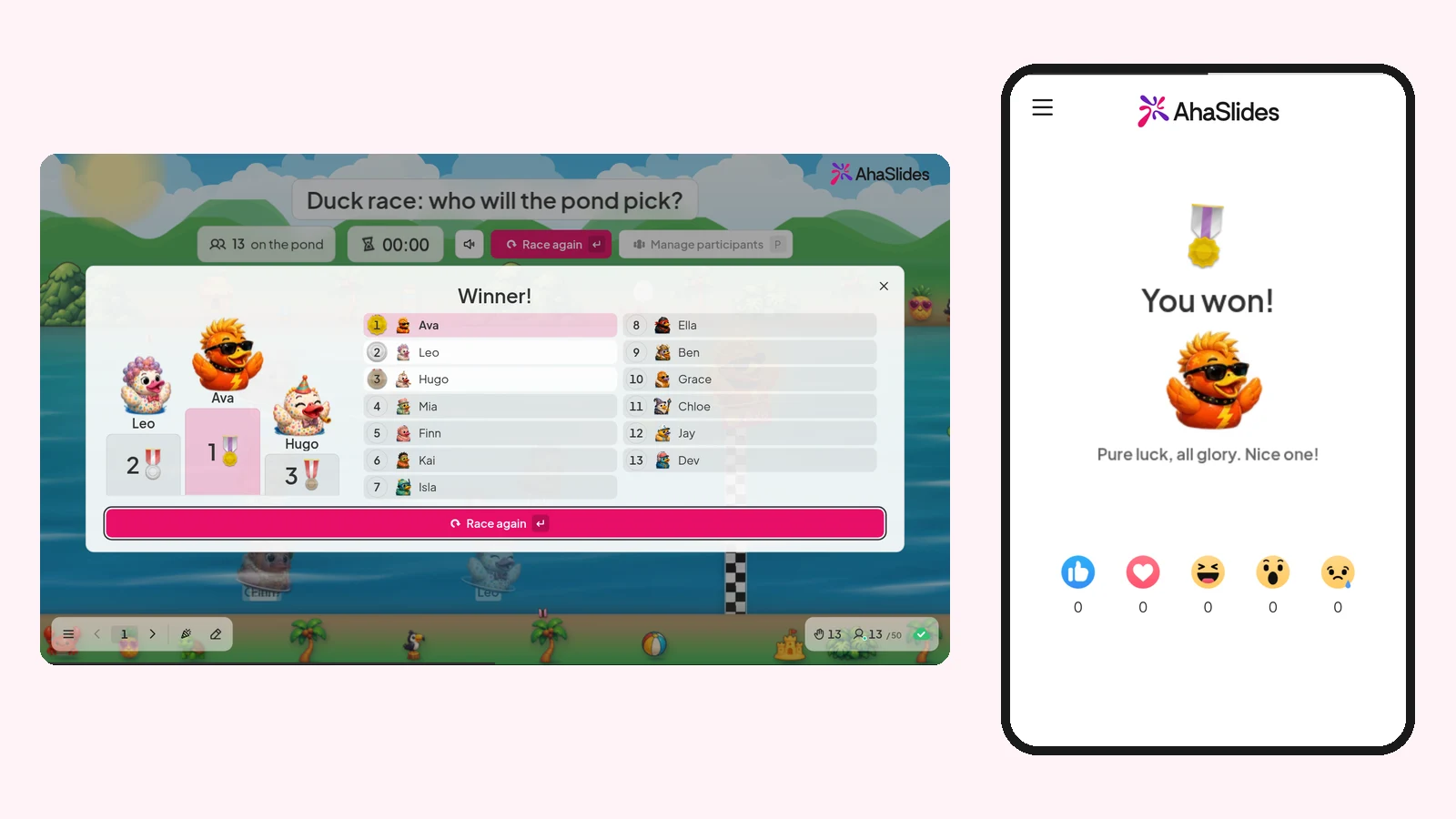
Two quick ways to start:
- Upload your deck. Upload your PowerPoint file to AhaSlides and let AI add polls and quiz questions through it, so it becomes an interactive session without starting again (AI PowerPoint maker).
- Or keep presenting in PowerPoint. Add the free AhaSlides add-in and put live slides between your own. It takes three steps, below.
Step 1: install the add-in
In PowerPoint, go to Home > Add-ins > More Add-ins (in PowerPoint for the web, Insert > Add-ins), search "AhaSlides" and click Add. It opens on your slide.
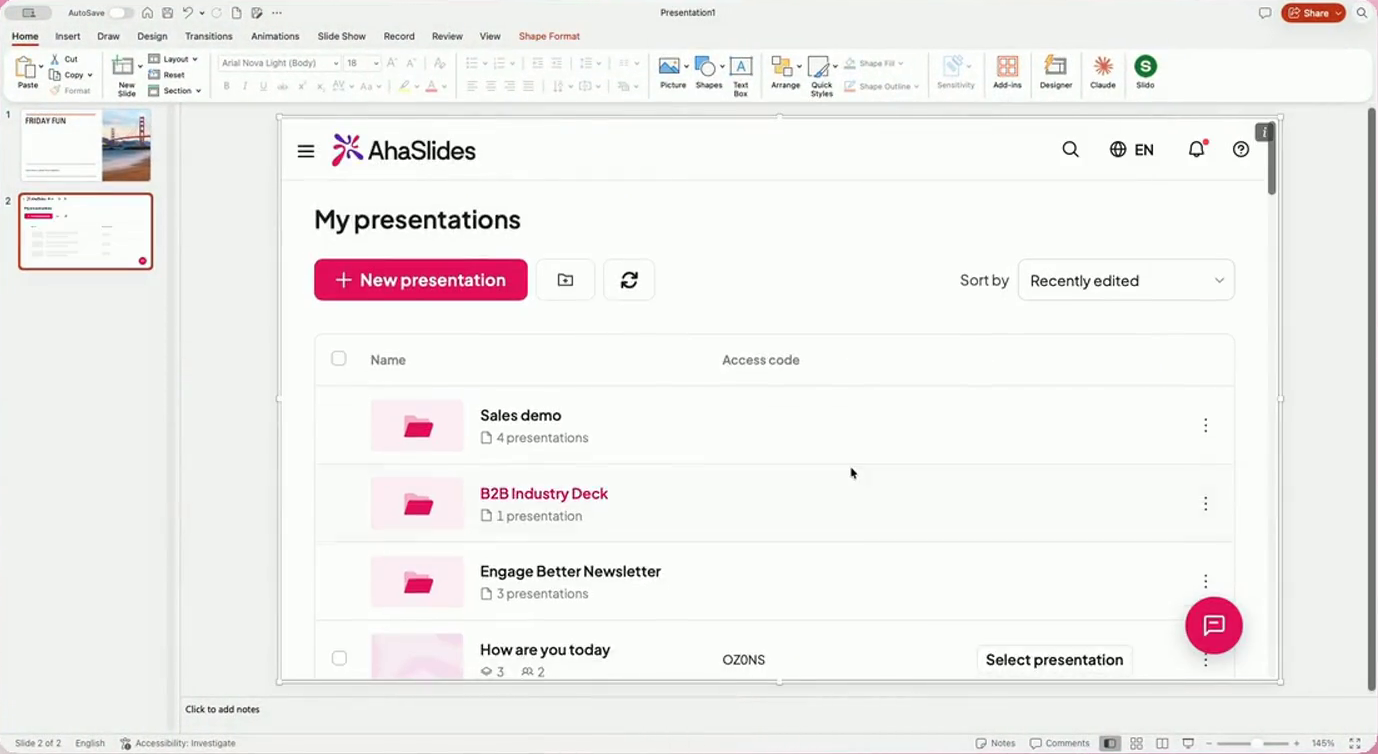
Step 2: sign in and pick your Christmas slides
Sign in, or sign up for free from the same panel. Click Select presentation, choose the deck with your Christmas games, tick the slides you want and click Add slides. PowerPoint for the web adds one slide at a time.
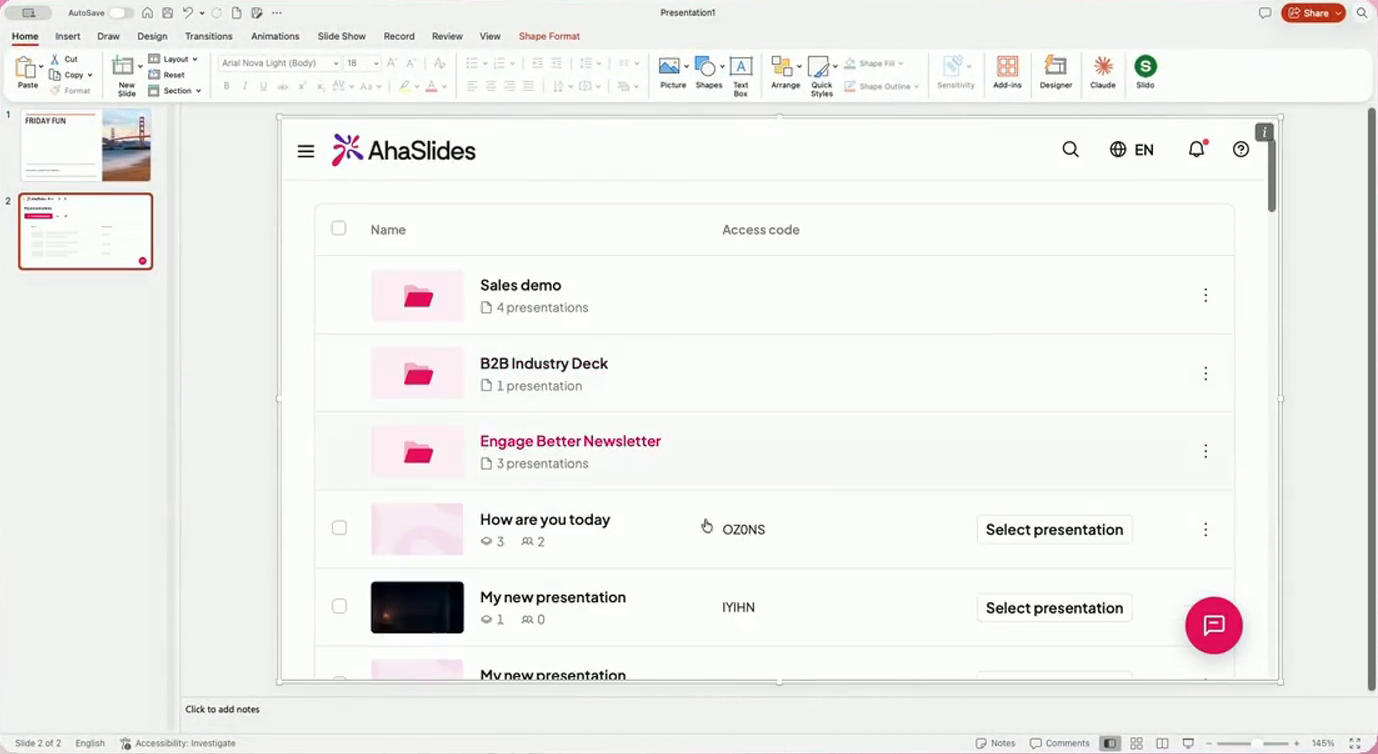
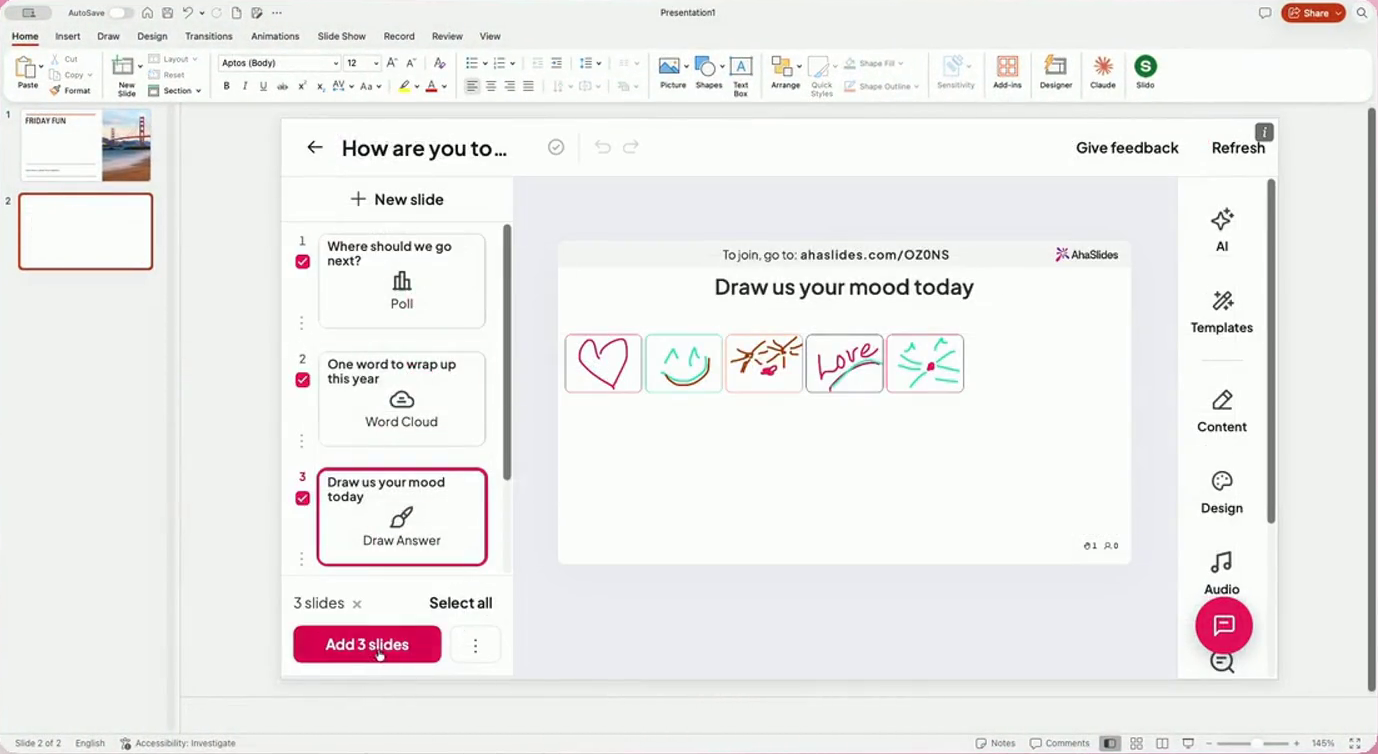
Step 3: present as normal
Start Slide Show. When you reach a live slide, the join link and QR code show at the top of it (press Q to show or hide the join panel). Guests scan the code and play on their phones, with no download. The AhaSlides help guide to the add-in has every setting.
Christmas templates to start from
You do not need to write the games from scratch. These AhaSlides templates are ready to add to your Christmas deck.
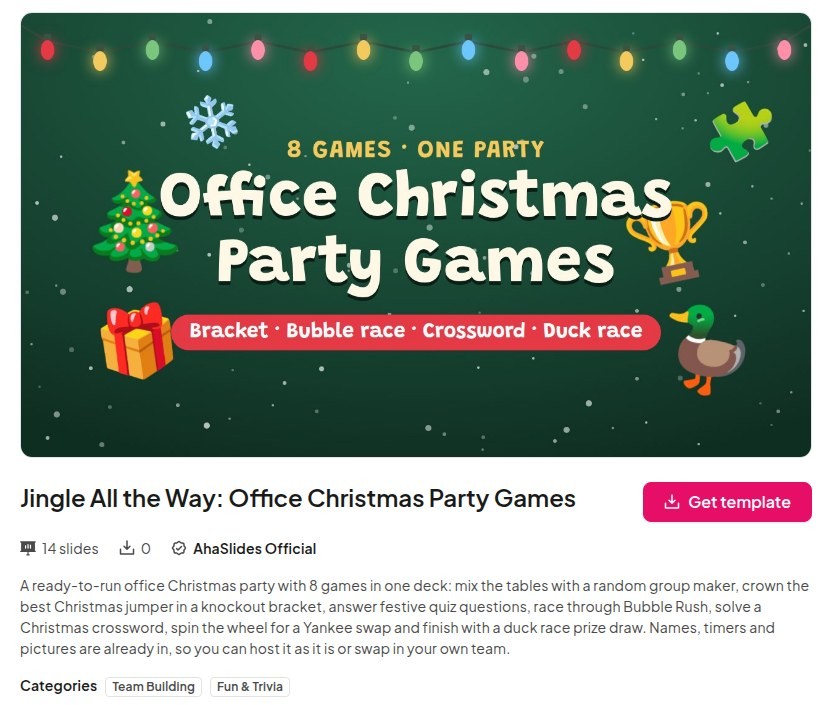
Jingle All the Way: Office Christmas Party Games has 14 slides and 8 games: a random group maker, a word cloud, a Christmas jumper knockout, festive quiz questions, Bubble Rush, a Christmas crossword, a spinner wheel and a duck race prize draw.
If your account does not show Bubble Rush, Duck Race, Tournament Bracket or Crossword yet, swap in a Pick Answer question or a Spinner Wheel.
Family Christmas Quiz has 37 slides of festive questions for all ages, made for a family gathering or a class before the holidays.
6 Christmas PowerPoint game ideas
Each one is a live slide you can drop between your own Christmas slides.
- Christmas jumper knockout. Put everyone's jumper photo into a Tournament Bracket and let the group vote each pairing until one wins.
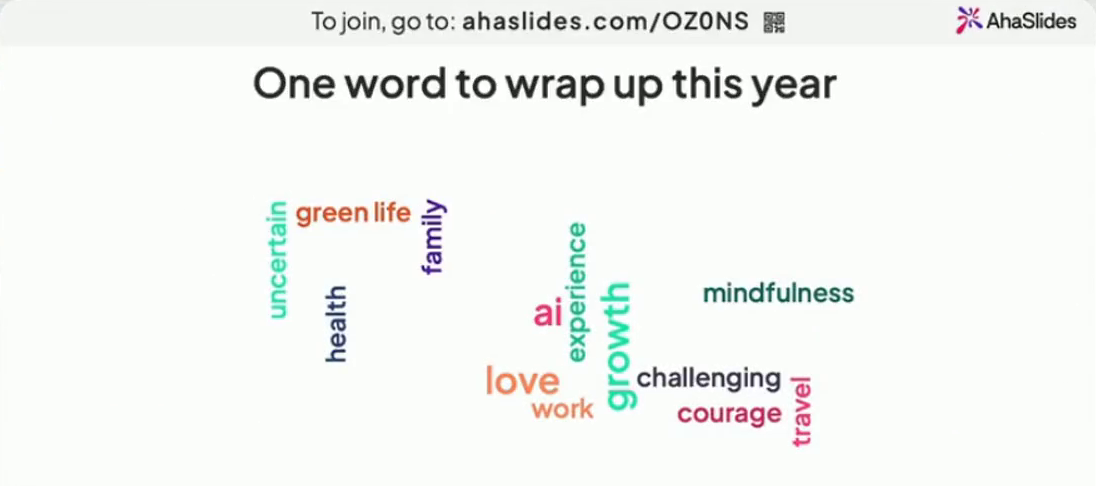
- Sum up your year in one word. A Word Cloud fills with everyone's answers, and the biggest word makes a good toast.
- Festive picture round. Show a close-up of a decoration or a film still and ask a Pick Answer question. Our Christmas picture quiz has questions ready to use.
- Christmas film round. Ten questions on the classics, with a leaderboard after each one. Take your pick from our Christmas movie quiz.
- Secret Santa or Yankee swap order. Spin a Spinner Wheel with everyone's names to decide who picks next.
- Would you rather. Two festive choices per slide, such as "Snow on Christmas Day or no washing up", and the group's split shows live. The Christmas Would You Rather template has the questions written.
For a round built on a game show, the Jeopardy PowerPoint template works for a Christmas category board, and our round-up of PowerPoint games has more formats for any time of year. Running the quiz for children? Our family Christmas quiz for kids has questions pitched for them.
Frequently asked questions
How do I add a Christmas theme to PowerPoint?
Open your deck, go to the Design tab and pick a theme or variant. For a ready-made festive design, go to File > New (on a Mac, File > New from Template), search "Christmas" and click Create.
Where can I get free templates for PowerPoint?
PowerPoint itself is the first place: File > New lists free templates, including Christmas designs. SlidesCarnival and Canva also offer free Christmas presentation templates you can download as PowerPoint files (checked 19 Nov 2026).
How do I make a Christmas activity for a group?
Pick a format everyone can join at once, such as a quiz, a vote or a word cloud. With the AhaSlides add-in, people answer on their phones from inside your PowerPoint deck, so the whole group plays, not only the person nearest the screen.
What is the 5 5 5 rule for PowerPoint?
It is a rule of thumb for text: no more than 5 words per line, 5 lines per slide, and 5 text-heavy slides in a row. For a Christmas deck it is a good reminder to let pictures and games carry the slides.
How do I make a PowerPoint?
Open PowerPoint, choose File > New, pick a blank deck or a template and add slides from the Home tab with New Slide. Our guide on how to make a good PowerPoint presentation covers structure and design.
Make this deck interactive
A Christmas deck people only watch leaves them as spectators. Add a quiz, a vote and a prize draw, and it becomes the part of the party people join in.
For the full method, read our guide on how to make an interactive PowerPoint.
Host your Christmas games on AhaSlides for free
Keep your Christmas template, add the games, and let everyone play from their phones.