

The fastest way to hear from your team is to ask where they already talk. To create a survey in Slack with AhaSlides for Slack, type /ahaslides create, add your questions and press Post. Your team answers with buttons right in the channel, one question at a time, and every answer is saved in your AhaSlides report.
When to use a survey in Slack
A survey in Slack works best when you want a few honest answers from a group that already talks in a channel. Say you want to know how the last sprint felt. Instead of booking a meeting or emailing a form, you post three questions in #team-product, and people answer between tasks.
Other good moments for it:
- Feedback straight after a team event, a workshop or an all-hands
- A quick check on workload or wellbeing, with anonymous answers
- Choosing between options when you also want to know why people chose them
- A short eNPS check with a follow-up question
Keep Slack for short surveys: that's what makes a survey in Slack quick to answer. A long, formal survey with dozens of questions is easier to answer from a full survey link, which AhaSlides can also give you.
Why run your survey in Slack
You shouldn't have to chase people just to find out what they think. A survey in the channel cuts most of that chasing out:
- People answer where they already are. No new tab, no login and no email to dig out, so answering takes seconds.
- You can see how many have answered. The survey sits in the channel, so people spot it as they catch up, and the count on the post keeps you up to date.
- The answers don't scroll away. A Slack thread soon disappears up the channel. Every answer to your survey stays in your AhaSlides report, ready to read or share later.
What you need
- A Slack workspace with AhaSlides for Slack installed
- An AhaSlides account for the person who creates the survey (any plan works, including Free)
- Nothing for the people answering: they don't need an AhaSlides account
How to create a survey in Slack, step by step
Step 1: Add AhaSlides for Slack
Open the AhaSlides for Slack install page and add the app to your workspace. The first time you press Post, AhaSlides asks you to sign in to your AhaSlides account and keeps your draft while you do. You only sign in once.
Step 2: Open the Create window
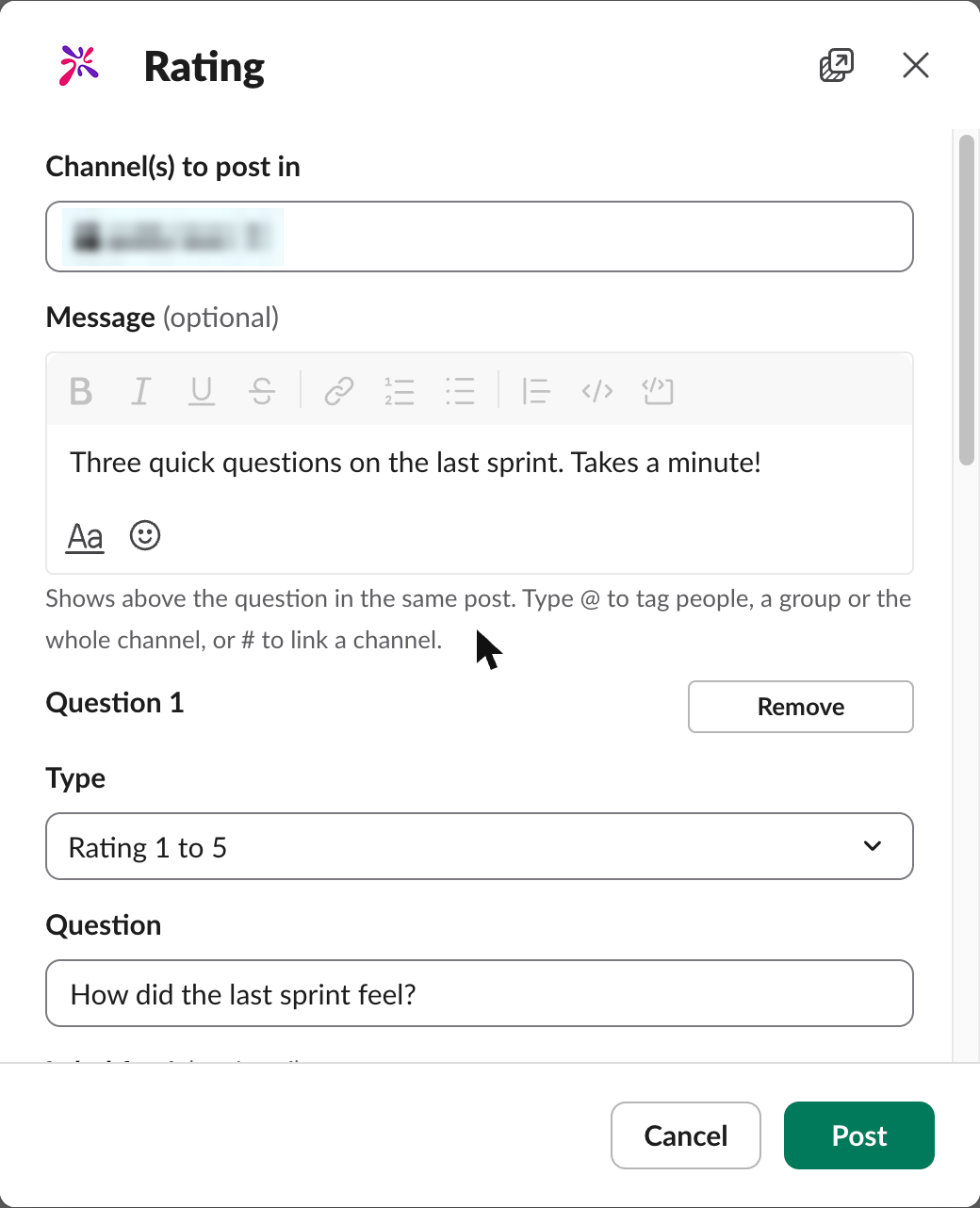
In the channel you want to survey, type /ahaslides create. The Create window opens. Pick a starting point: a ready-made check-in under Check in with team (Weekly pulse, eNPS or Wellbeing, with more under All templates), or a single question under Ask a question (Poll, Rating or Brainstorm). Each check-in comes with its questions already written, plus a follow-up question people can skip.
Step 3: Write your questions
Under Channel(s) to post in, the channel you're in is already picked, and you can add more. In Message, add a line so people know why you're asking; it shows above the question. Write your first question, then press + Add question for each one after it, up to 10 in one post. Pick each question's type from its Type menu:
- Multiple choice
- Rating 1 to 5
- Score 1 to 10
- Yes or no
- Short answer
For a multiple choice question, put the options one per line, up to six. For a rating or score, you can change the words at each end of the scale.
Step 4: Choose anonymous answers and who sees results
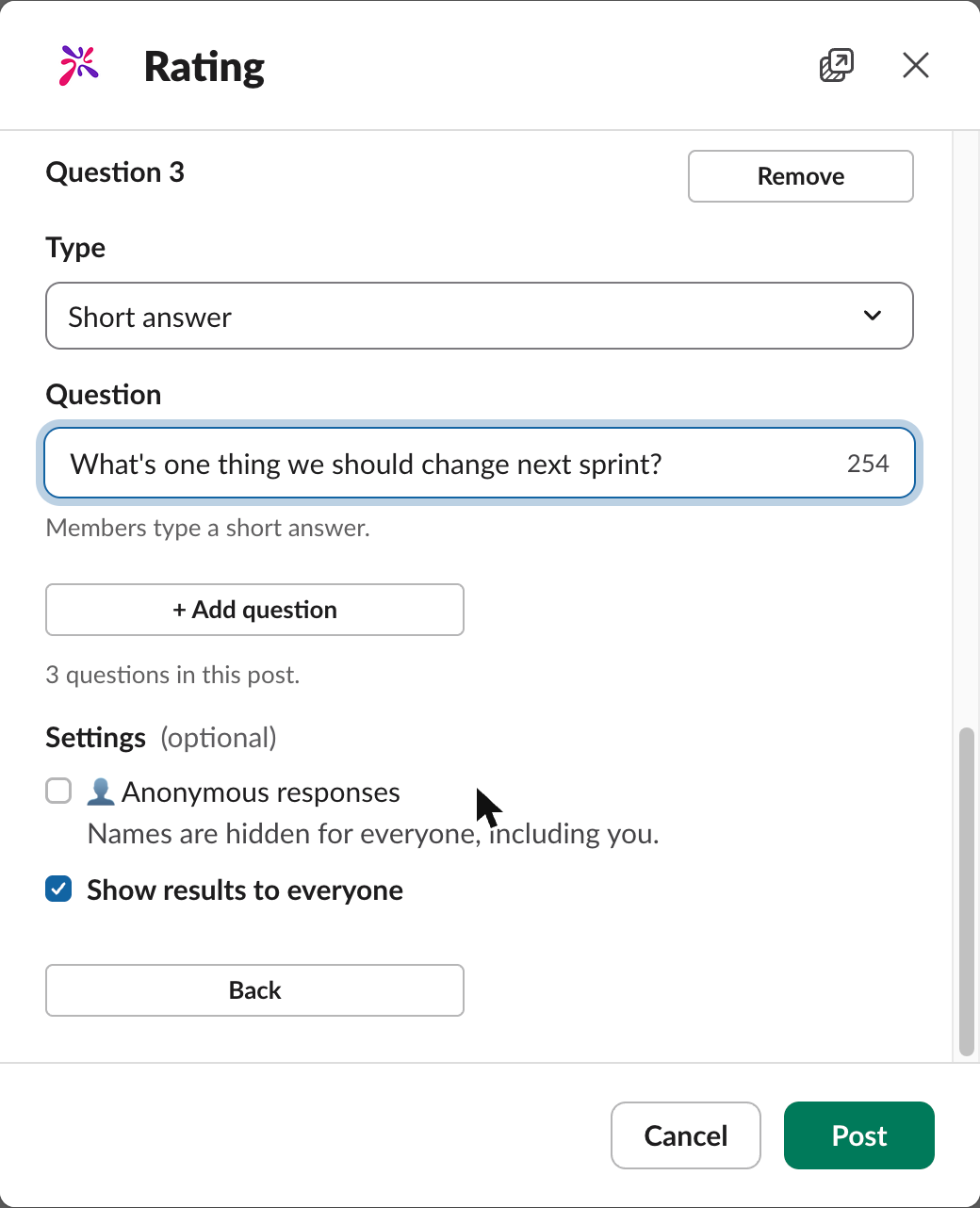
Under Settings, tick Anonymous responses if you want honest answers without names. eNPS and Wellbeing start with it ticked. Names are then hidden for everyone, you included, in Slack and in AhaSlides. Show results to everyone is ticked to start with, so the whole channel can see the results. Untick it to keep them to yourself.
Step 5: Post it and watch the answers come in
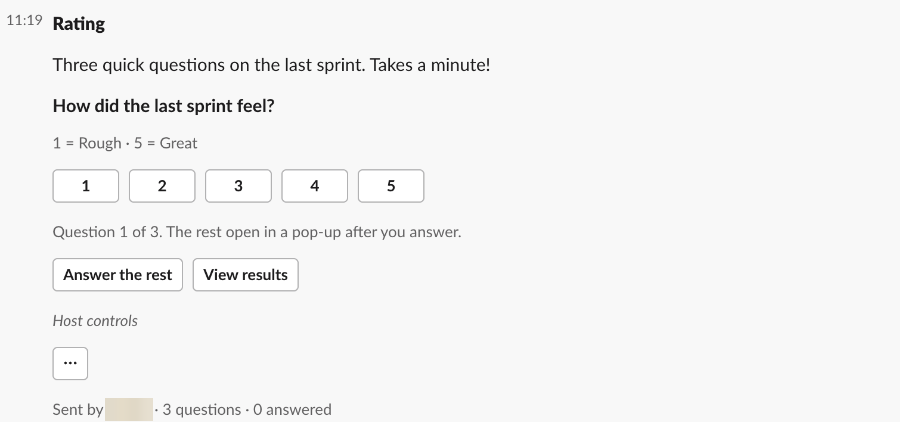
Press Post. AhaSlides creates the survey in your account and posts it to the channel. The first question sits right in the post: people tap an answer, or type one and press Enter. Answer the rest then opens the other questions in a pop-up, one at a time. Until they finish, they can tap a different answer or press Back to change an earlier one. The bottom of the post shows how many people have answered.
Step 6: Read the results
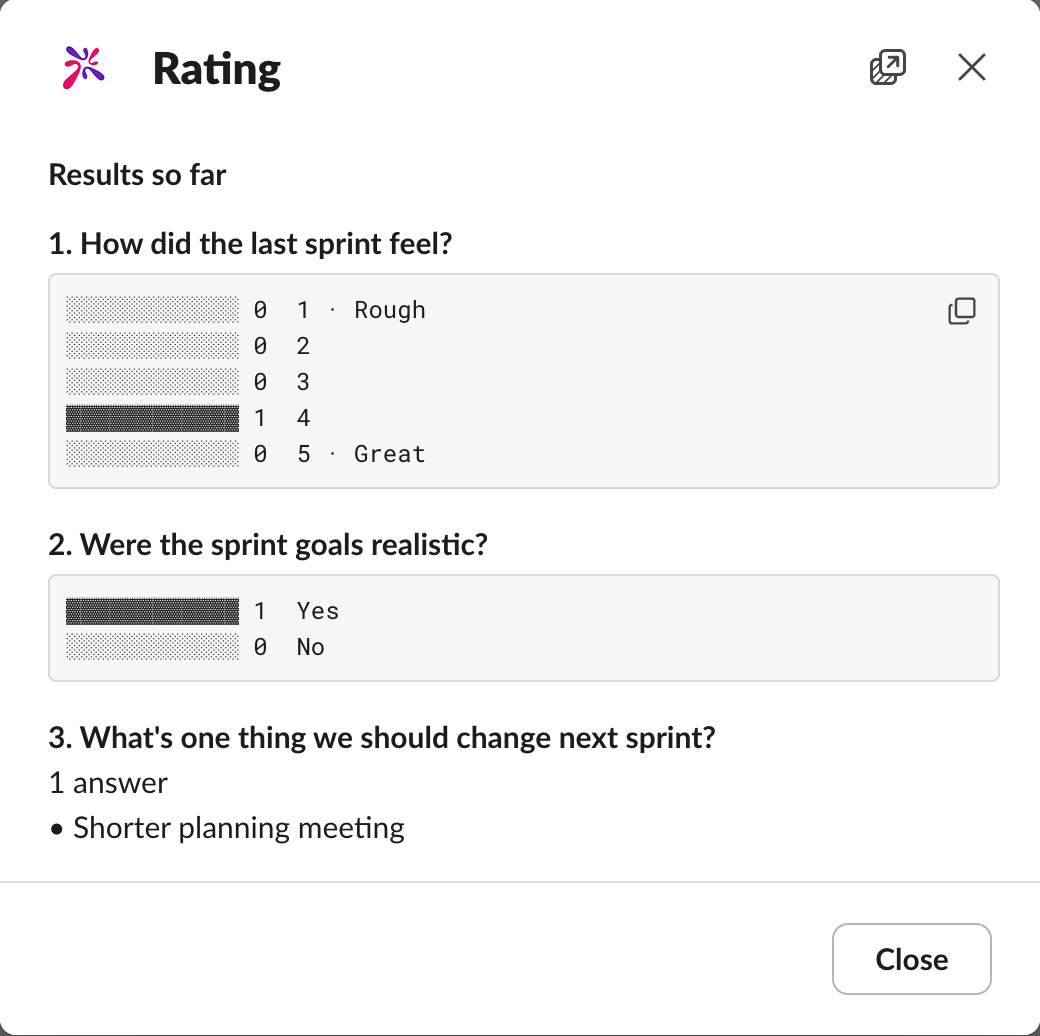
As the host, press the … button under Host controls to View results, End answering or Open in AhaSlides. If you left Show results to everyone on, everyone else gets a View results button too. When you end answering, the survey also closes in AhaSlides. Your AhaSlides report has every answer.
Stuck on a step? The AhaSlides for Slack guide covers every option and the most common fixes.
Already have a survey in AhaSlides?
You don't need to build it again. Type /ahaslides run. Under What do you want to run?, choose Survey, then pick it from your list or paste its link. Choose the channel and settings and press Run. If the survey is still a draft, it is published when you run it. Slack can't show date, grid or contact detail questions, so those are skipped, and AhaSlides sends you a direct message listing them.
Five tips to get more people answering
- Keep it short. Three to five questions is plenty for a channel. People answer between tasks, so a survey they can finish in a minute is an easy one to say yes to.
- Say why you're asking. One line in the message ("We'll use this to plan next quarter's offsite") tells people their answer will change something.
- Go anonymous for sensitive topics. On workload, wellbeing or feedback about managers, people may feel safer being open when their name isn't attached.
- End with an open question. A short answer question such as "What's one thing we should change?" can give you the most useful reply of the lot.
- Close the loop. Post a short summary of the results and what you'll do next. Seeing the last survey change something gives people a reason to answer the next one.
FAQ
Can you create a survey in Slack?
Yes. Slack's Workflow Builder can collect answers with a form. For ratings, scores and multiple choice that people answer right in the channel post, with every answer saved in a report, use AhaSlides for Slack: type /ahaslides create, add your questions and press Post.
Do people need an account to answer?
No. Only the person who creates the survey signs in to AhaSlides. Everyone else answers with buttons in Slack.
Can you make an anonymous survey in Slack?
Yes. Tick Anonymous responses before you post. Names are hidden for everyone, including you, in Slack and in your AhaSlides report.
Can I send the same survey to several channels?
Yes. Pick more than one channel in the Create window before you post.
Is AhaSlides for Slack free?
Yes. It works on every AhaSlides plan, including Free.
What if my workspace needs apps approved first?
Slack asks you to send an install request, and a workspace owner or app manager approves it.
Related read: How to create a poll in Slack, for a single quick question.
Find out what your team thinks, right where they work. Add AhaSlides for Slack and post your first survey in a few minutes.