

A quiz gets a spread-out team playing together, and in Slack nobody has to join a call to take part. To run one with AhaSlides for Slack, type /ahaslides create, choose Quiz, write your questions and mark the right answers. Your team plays with buttons in the channel, sees straight away whether they got each one right, and can check where they rank on the leaderboard.
When to run a quiz in Slack
A Slack quiz is a good fit when your team is spread across offices, homes or time zones and you can't get everyone into one call. Take a five-question Friday trivia in Slack, posted in #random. Nobody has to turn up at a set time: people play when they see it, and the leaderboard fills up through the afternoon.
A few other ways teams use it:
- An icebreaker for a new project channel or a team that has just been reorganised
- A light check on what people remember after training or a product launch
- "How well do you know the team?" questions to welcome new starters
- Holiday or end-of-year trivia for the whole company
For a live quiz with a countdown that everyone plays together on a big screen, run it as a live AhaSlides session instead. The Slack version is built for playing in your own time.
Why run your quiz in Slack
Nobody wants to schedule another call just to play a game. A quiz in the channel gives you:
- A fair chance for everyone. There's no meeting to schedule, so people in every time zone get the same chance to play.
- More people join in. Tapping a button in a channel can feel easier than answering out loud on a call, so colleagues who rarely speak on calls can play too.
- A game in minutes. You write the questions in Slack and post. There's no separate tool for players to open.
What you need
- A Slack workspace with AhaSlides for Slack installed
- An AhaSlides account for the quiz host (any plan works, including Free)
- Nothing for the players: they don't need an AhaSlides account
How to run a quiz in Slack, step by step
Step 1: Add AhaSlides for Slack
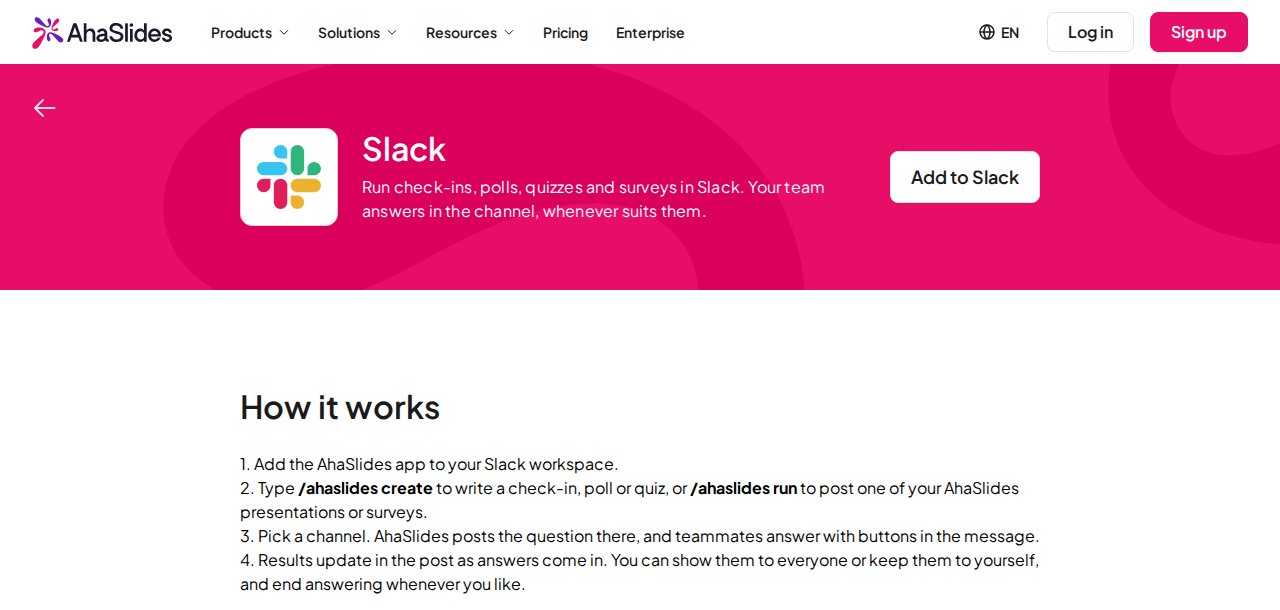
Open the AhaSlides for Slack install page and add the app to your workspace. The first time you press Post, AhaSlides asks you to sign in to your AhaSlides account and keeps your draft while you do. You only sign in once.
Step 2: Choose Quiz in the Create window
Type /ahaslides create in the channel where you want to play. In the Create window, choose Quiz under Engage your team.
Step 3: Write the questions and mark the right answers
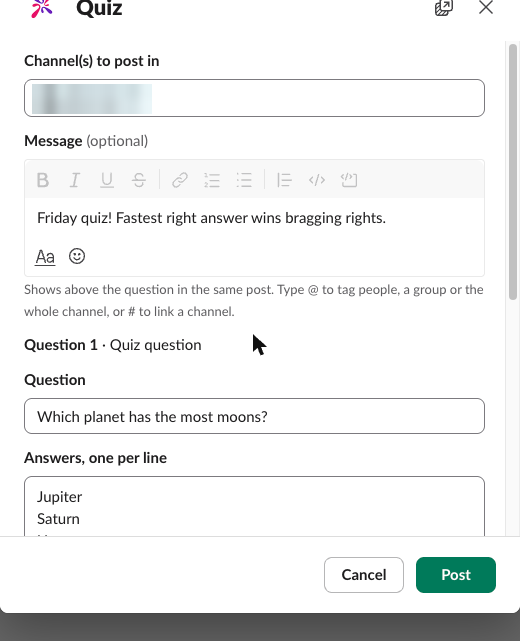
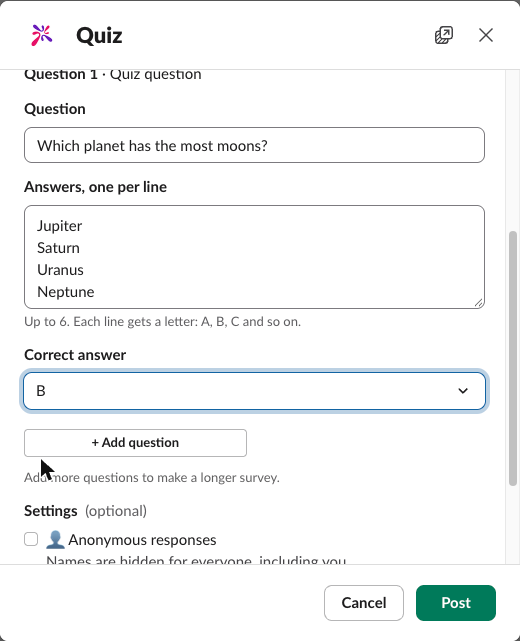
Choose the channel (or several) and add an optional message, such as "Friday trivia: five questions, top three on the leaderboard win bragging rights." For each question, write the question, put the answers in Answers, one per line (up to six), then pick the letter of the Correct answer. Press + Add question for the next one, up to 10 in one quiz.
Step 4: Decide who sees the leaderboard
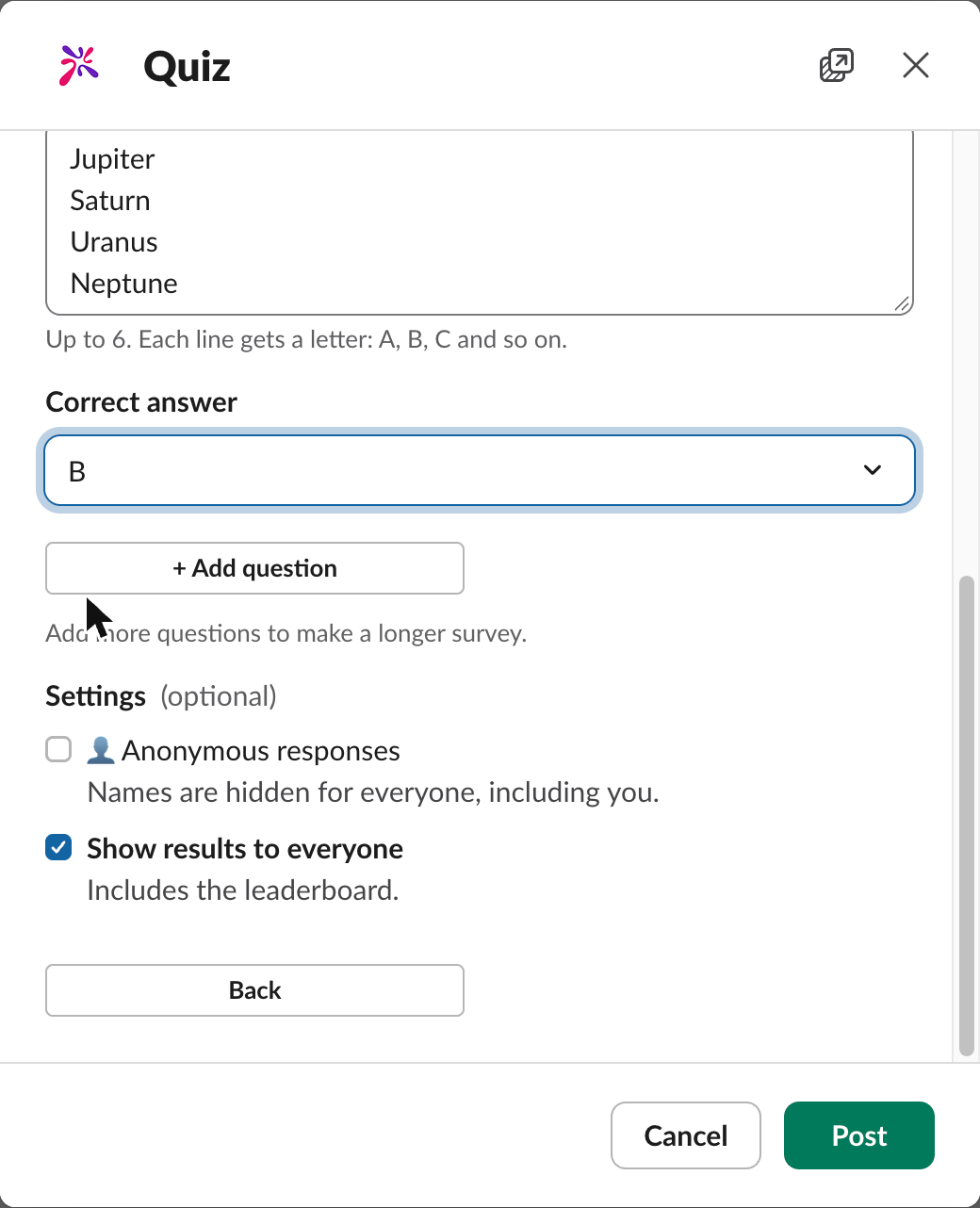
Under Settings, Show results to everyone is ticked to start with, and for a quiz it includes the leaderboard. Untick it to keep the results to yourself. Tick Anonymous responses if you'd rather nobody's name appears, you included; the leaderboard then shows players by alias.
Step 5: Post the quiz and let people play
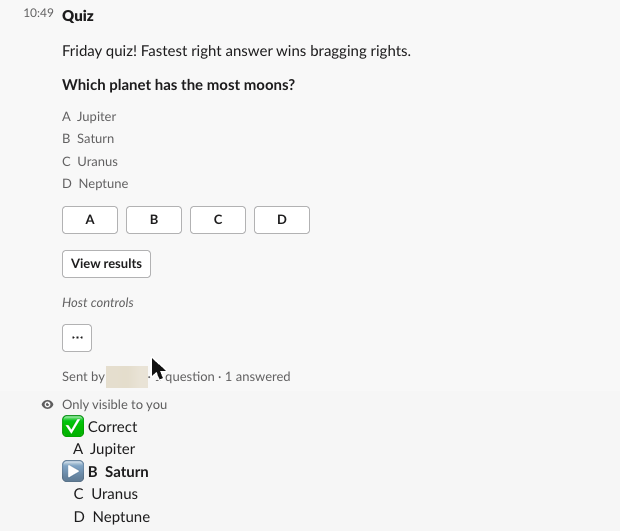
Press Post. The first question sits right in the post, so people tap an answer to play. Answer the rest opens the other questions in a pop-up, one at a time. After each answer, players see straight away whether they were right, and the correct answer if they weren't. A quiz answer counts the moment it's tapped.
Step 6: Check the leaderboard and results
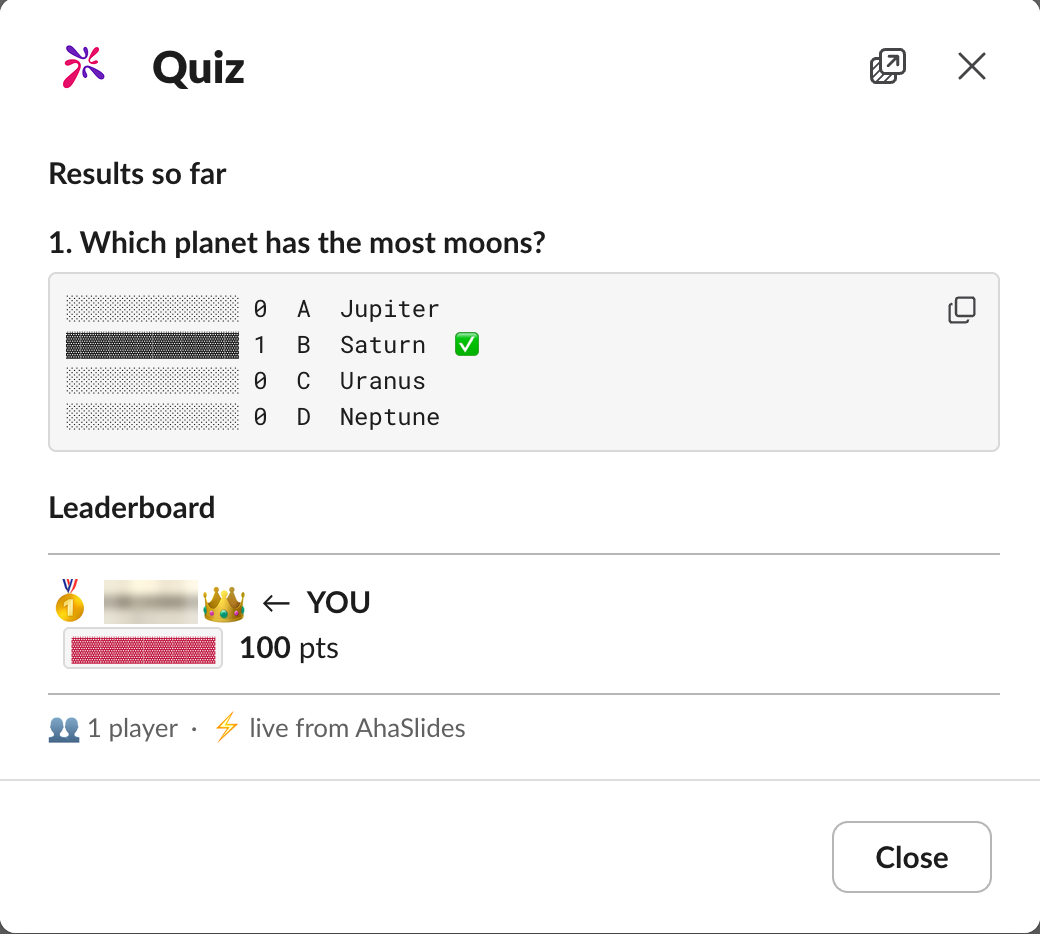
If you left Show results to everyone ticked, players get a View results button, which shows the leaderboard, ranked by points. As the host, press the … button under Host controls to View results, End answering when the quiz is over, or Open in AhaSlides to see every answer in your report.
Stuck on a step? The AhaSlides for Slack guide covers every option and the most common fixes.
Already built a quiz in AhaSlides?
Type /ahaslides run. Under What do you want to run?, choose Presentation, then pick your quiz from the list or enter its presentation ID. Choose the channel and settings and press Preview, which shows exactly how the post will look, then press Post. Pick Answer, Pick Image and Short Answer quiz questions work in Slack, along with the leaderboard.
Tips for a quiz people want to play
- Keep it to five to eight questions. Long enough to be a game, short enough to finish over a coffee.
- Mix easy and hard. Start with a question almost everyone gets right, so nobody gives up after question one.
- Make it about your team. Questions about your own product, office or in-jokes tend to feel more fun than general trivia.
- Say when it closes. "Answers close at 4pm" gives people a reason to play today, and you can press End answering when the time comes.
- Celebrate the winners. Post the top three from the leaderboard in the channel afterwards, and give the winner first pick of the next quiz topic.
FAQ
Can you run a quiz in Slack?
Yes, with a quiz app. With AhaSlides for Slack, type /ahaslides create, choose Quiz, add your questions and post. Players answer with buttons in the channel.
Do players need an account?
No. Only the quiz host signs in to AhaSlides. Players just press buttons in Slack.
Does a Slack quiz have a leaderboard?
Yes. Leave Show results to everyone ticked when you post, and the channel can see the results, leaderboard included.
Do players find out if they were right?
Yes. After each answer, players see whether they got it right, and the correct answer if they didn't.
Is AhaSlides for Slack free?
Yes. It works on every AhaSlides plan, including Free.
What if my workspace needs apps approved first?
Slack asks you to send an install request, and a workspace owner or app manager approves it.
Related read: How to create a poll in Slack, for a single quick question, such as choosing next month's quiz theme.
Bring your team together without booking another call. Add AhaSlides for Slack and post your first quiz today.