

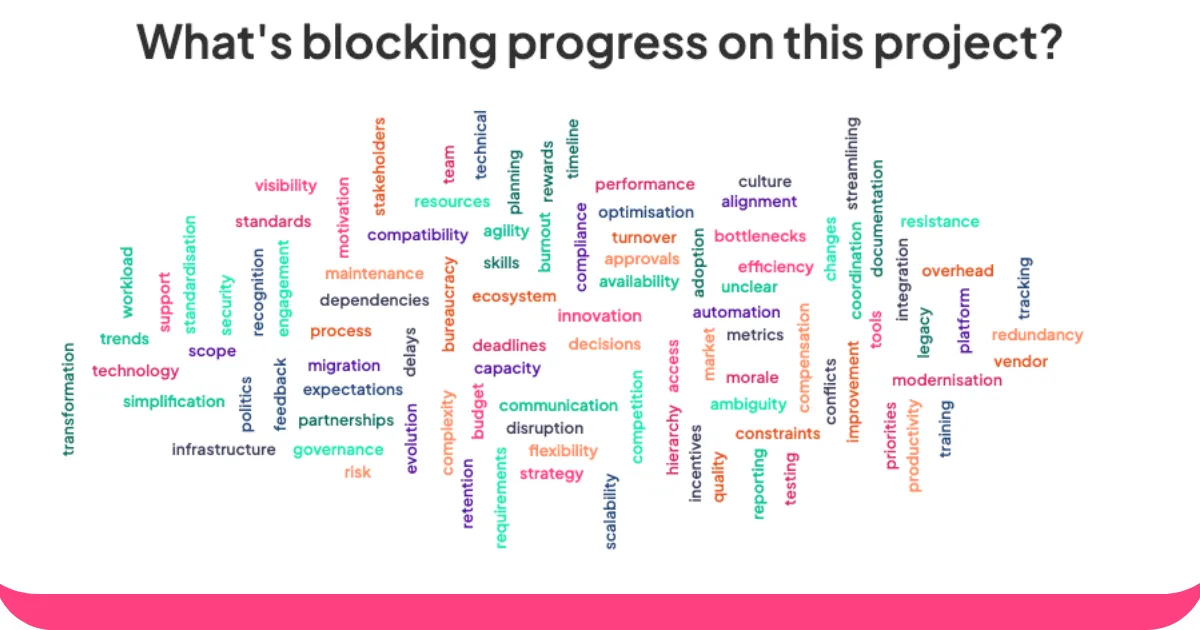
Live word cloud generators are like magic mirrors for group thoughts. They turn what everyone’s saying into vibrant, colorful visuals, with the most popular words getting bigger and bolder as they pop up.
Whether you’re a teacher getting students to share ideas, a manager brainstorming with your team, or an event host trying to get the crowd engaged, these tools give everyone a chance to speak up and actually be heard.
This is where AhaSlides comes in. People just type in their responses on their phones, and you get instant visual feedback that updates in real time as more thoughts come in.
Here's how to create word clouds using AhaSlides word cloud maker:
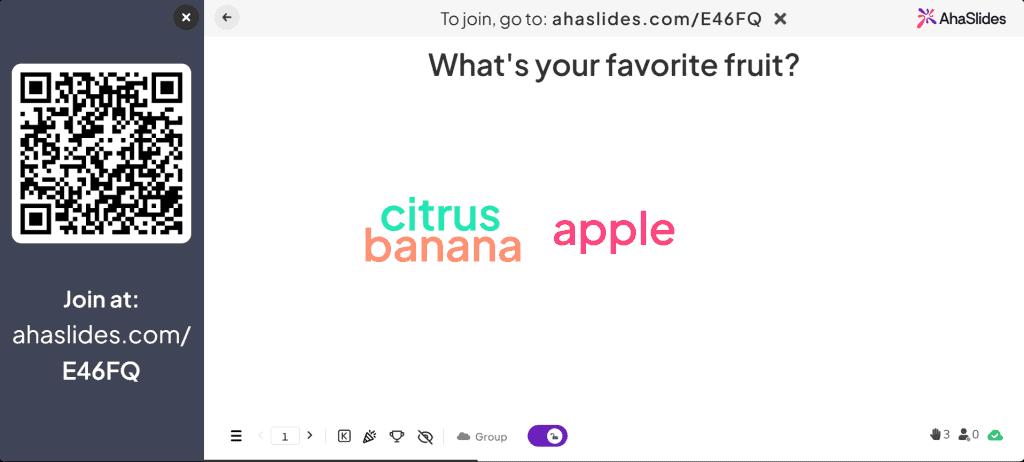
- Ask a question. Set up a word cloud on AhaSlides. Share the room code at the top of the cloud with your audience.
- Get your answers. Your audience enters the room code into the browser on their phones. They join your live word cloud and can submit their own responses with their phones.
How to Host a Live Word Cloud: 6 Simple Steps
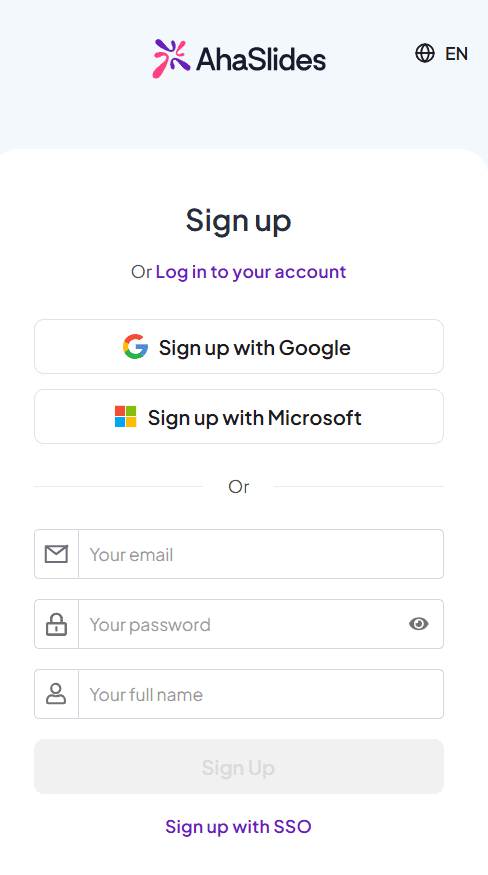
Step 1: Create your account
Go to this link to sign up for an account.
Step 2: Create a presentation
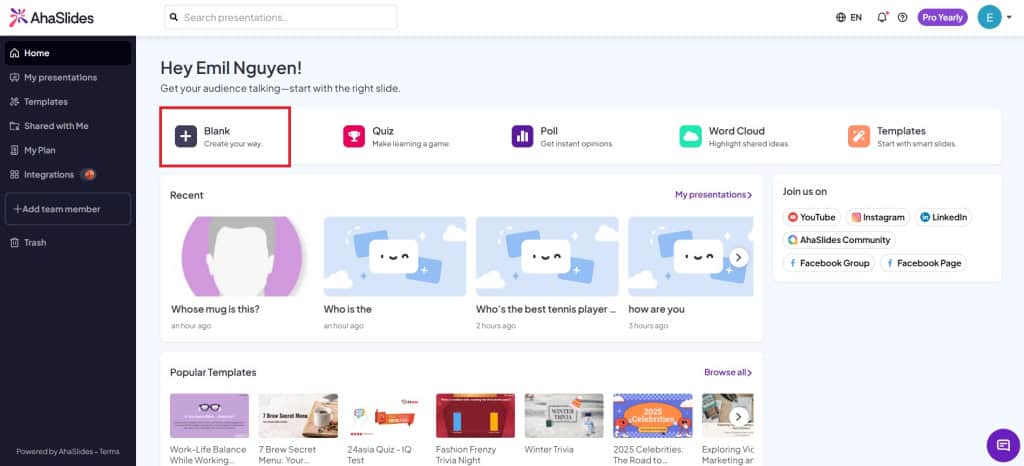
At the home tab, click on "Blank" to create a new presentation.
Step 3: Create a Word Cloud slide
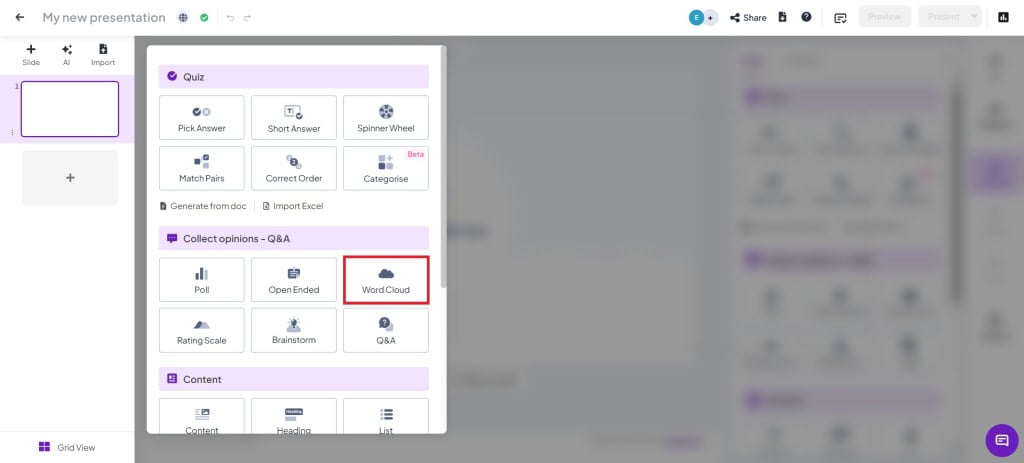
In your presentation, click on the "Word Cloud" slide type to create one.
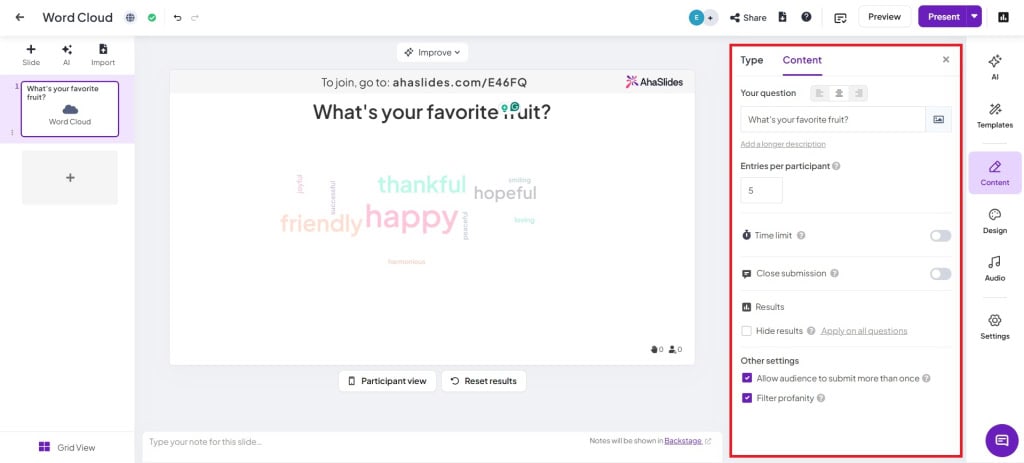
Step 4: Type in a question and change settings
- Entries per participant: Change the number of times a person can submit answers (up to 10 entries).
- Time limit: Turn on this setting if you want participants to submit their answers within a required time.
- Close Submission: Manually turn on submission during the presentation.
- Hide results: Submissions will automatically be hidden to prevent voting bias.
- Allow audience to submit more than once: Turn off if you want the audience to only submit once.
- Filter profanity: Filter out any inappropriate words from the audience.
Step 5: Show the presentation code to the audience
Show your audience your room's QR code or join code (next to the / symbol). The audience can join on their phone by scanning the QR code.
Step 6: Present!
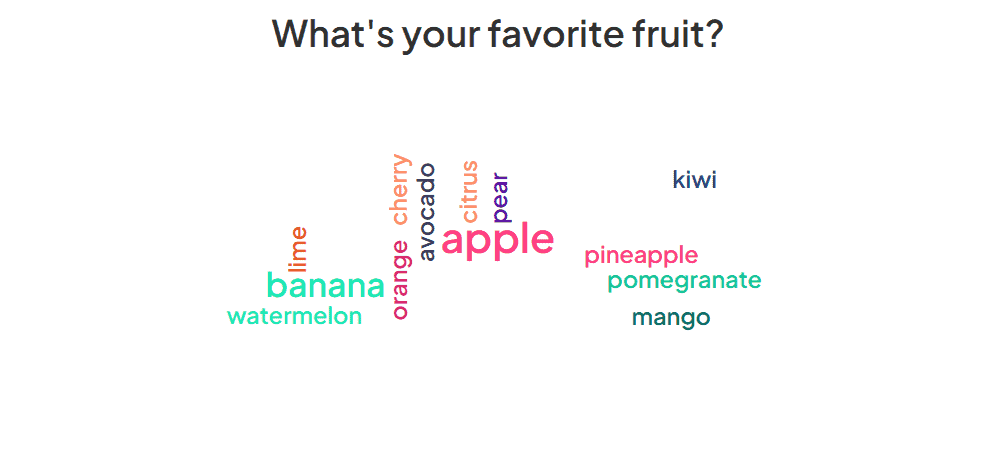
Simply click present and go live! The audience's answers will be displayed live on the presentation.
Word Cloud Activities
Word clouds are one of the most versatile tools in your arsenal. They can be used across a bunch of different fields to elicit a bunch of different responses from a live (or not live) audience.
1. Imagine you're a teacher trying to check students' understanding of a topic you've just taught. You can offer up a word cloud where students give one-word responses.

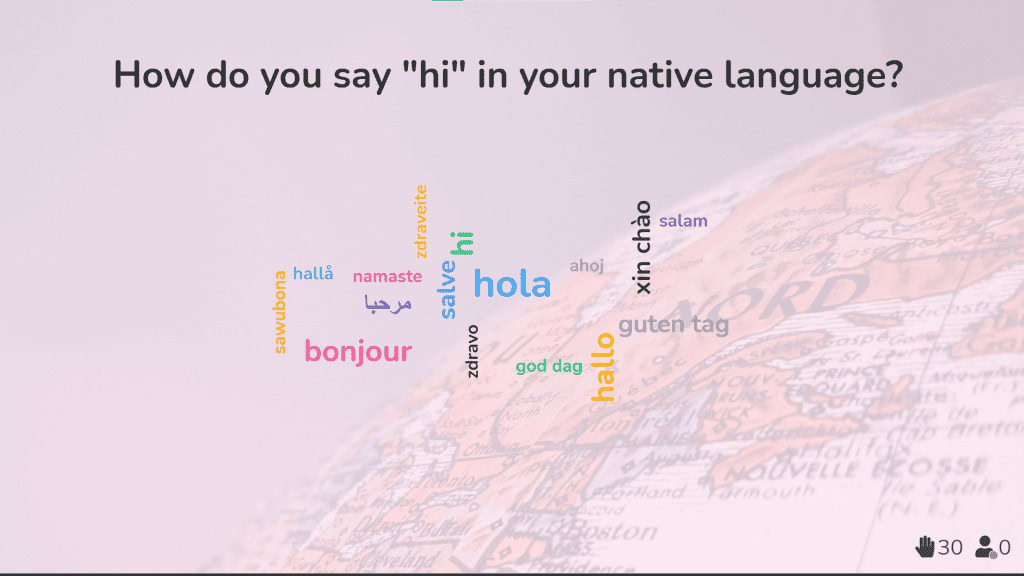
2. As a corporate trainer working with international teams, live word clouds help break down cultural and language barriers and get everyone feeling connected from the start.
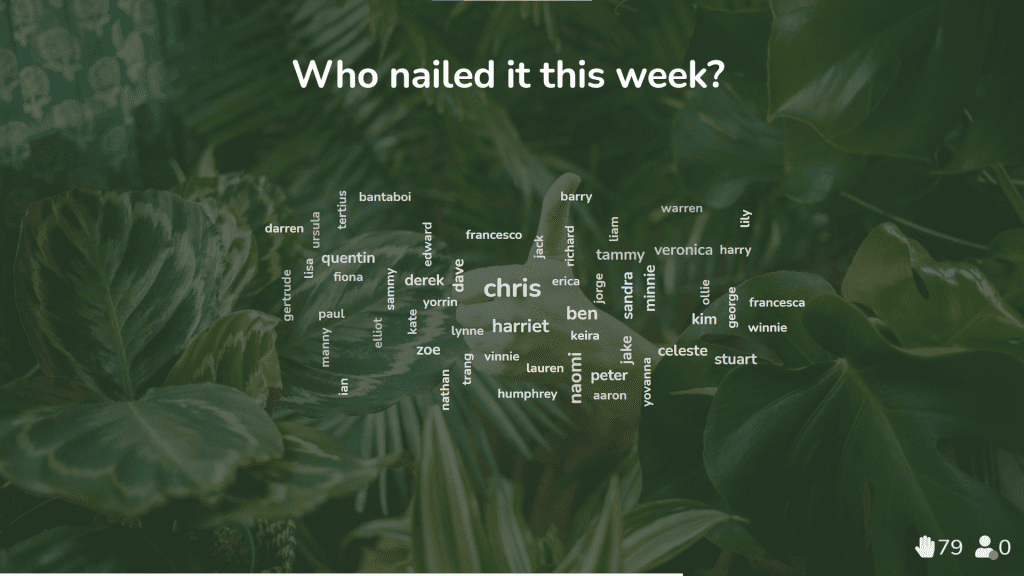
3. As a team leader in a remote or hybrid work setup, the live word cloud is a fantastic way for your team to show appreciation for one another and give morale a nice boost.
Grab Some Word Cloud Templates
Discover our word cloud templates and engage people better.