Compliance training people want to finish

Ask your AI assistant to turn a course into an escape room. Each lesson becomes a room, and learners open its door by answering the lesson's knowledge check.

See how to set it up
Rated 4.7 out of 5 on G2, based on 428 reviews
  • Abu Dhabi University logo
  • Airbus logo
  • Bend La Pine Schools logo
  • BMC logo
  • Bosch logo
  • Criteo logo
  • Ferrero Rocher logo
  • Intel logo
  • Ivy Tech Community College logo
  • Le Quiz Show logo

A different lock for each kind of question

  1. Step 1: Turn the lock

    A multiple choice or multiple response question becomes a padlock that shows the answer options.
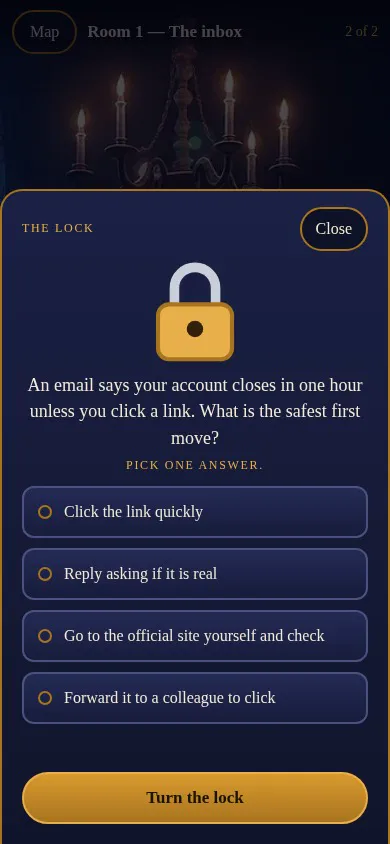
    A padlock above a question about the safest first move when an email says an account closes in one hour, with four answers and a Turn the lock button
  2. Step 2: Connect the wires

    A matching question becomes wires that join each item to its match.
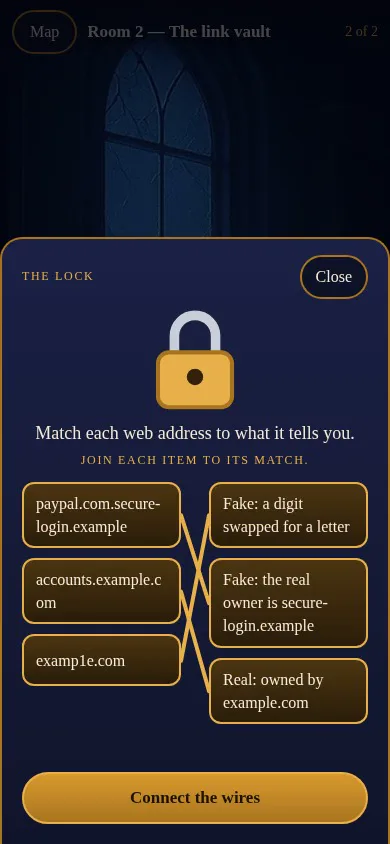
    A padlock above a matching question, with wires joining three web addresses to what each one tells you and a Connect the wires button
  3. Step 3: Enter the code

    A fill in the blank question becomes a keypad for typing the answer.
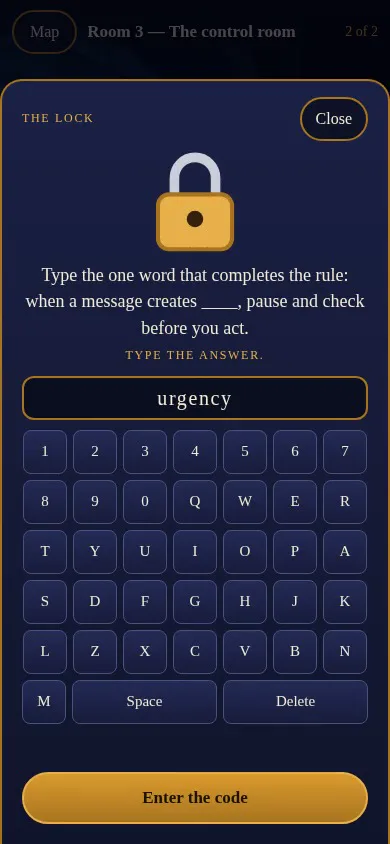
    A padlock above a fill in the blank question, with the word urgency typed in and a keypad below it with an Enter the code button
Read the guide (opens in a new tab)

Clues to find, a lock to open

Learners explore a room, read the clues and prove they took them in before the next room opens. The lesson itself is what gets them through.

  • A map of rooms

    One room for each lesson. A room opens once the one before it is escaped.

  • Second chances

    A wrong answer can be tried again, and a hint appears after two wrong tries.

  • Three themes

    Pick the look of the map and rooms, and show a timer in each room if you want one.

  • An optional finale

    Add a closing card that learners walk to after the last room.

Read the guide (opens in a new tab)

Turn a course into an escape room in four steps

Step 1: Connect the AhaSlides server

Add the AhaSlides MCP server to your AI assistant, such as Claude or ChatGPT, and sign in with your AhaSlides account.

Step 2: Ask for the Escape Room plugin

Name your course, for example: Use the Escape Room plugin on my course Phishing basics.

Step 3: Preview it as learners will

Open the course in My files, click Courses and then Preview to play through the rooms.

Step 4: Publish and share

Publish the course and share its link like any other course.

Follow the full steps (opens in a new tab)

Made for training people usually skim

  • Security awareness

    Learners spot a fake link to get past the lock, such as in a course on phishing basics.

  • Safety induction

    Give new starters a walk through the rules, one room at a time.

  • Classroom revision

    Turn a revision lesson into a short game that students can play on a phone or a big screen.

Create a free account

Questions before you start

Not yet. Escape Room is applied by an AI assistant connected to the AhaSlides MCP server. Once the course has the style, you can still edit its lessons by hand in the course editor.

The AhaSlides MCP server, at https://mcp.ahaslides.com/mcp. Claude and ChatGPT both support it.

Give each lesson a few short blocks of text or images and one knowledge check at the end. The knowledge check becomes the lock, and everything before it becomes the clues.

Only the first multiple choice, multiple response, fill in the blank or matching question becomes the lock. Any other question in that lesson shows as a clue card, so keep one knowledge check per lesson.

Yes. Ask your assistant to set the course back to the standard style, then publish it again.

Not yet. SCORM export is not available for courses that use a course style such as Escape Room. To export a course, keep it in the standard style.

No. Escape Room is made for short, game-like courses. For exams or certification, use a standard course. See the online course creator.
Read the guide (opens in a new tab)