



A digital escape room is a short story with locked doors. Players read a clue, work out a code or a word, and only move on when they type the right answer; a wrong answer shows your hint and keeps them in the room. Google Forms can do this for free.
This guide shows how to make a Google Forms escape room step by step, using sections as rooms and response validation as the lock, with a four-room example to rebuild. Then it compares Forms with a live escape-room slide, so you can pick the one that suits how your group will play.
In short: To make a Google Forms escape room, create one section per room, add a clue and a required short answer question with response validation as the lock, then add a final exit section. Test every answer in Preview.
What do you need for a Google Forms escape room?
- A Google account and a few minutes in Google Forms.
- A story and 3 to 5 puzzles (our suggestion for a first game, not a Forms limit). A haunted library, a lab break-in or a locked classroom all work.
- An answer for every puzzle that is short and unambiguous: a number, a single word or a short phrase.
Write the puzzles and answers on paper first. Changing a lock later means editing validation rules question by question.
How to make a Google Forms escape room, step by step
- Create the form. In Google Forms, start a blank form and give it your story title. Put the setting in the description, such as "You are locked in the school library. Find the three-digit code."
- Add a section for each room. Choose Add section to create a new page of the form, then name it ("Room 1: The library"). Google's help describes this as a section break, and you choose where people go at the bottom of each one (Google Docs Editors Help: Create a form). Leave each room on the default, going on to the next section: the required, validated answer is what holds players back.
- Put the clue in the room. Add the story text, a picture or a riddle to the section. You can add an image as its own item, or to a multiple choice or checkbox question or answer. You cannot add a video to a question, but you can place one before or after it (Google Docs Editors Help: Add images or videos).
- Add a short answer question as the lock. Under the clue, add a Short answer question such as "What is the door code?". Switch on Required so an empty answer cannot pass.
- Turn on response validation. Open the question's More menu and choose Response validation, then pick the type of rule first (Google Docs Editors Help: Set rules for your form). For a short answer question the rule types are:
- Number, for a numeric code such as 4721: choose Equal to so that only that value is accepted, and test it in Preview. The help page does not name the Number options; Google's Apps Script reference lists this rule as requireNumberEqualTo.
- Text, to check for certain text, such as an answer that contains a word.
- Length, for a minimum or maximum number of characters.
- Regular expression, to match a pattern with Contains, Doesn't contain, Matches or Doesn't match. Use it when several spellings are fine.
- Write the hint as the error message. In Custom error text, type what a player sees when the answer is wrong. A good message nudges instead of scolding: "Not quite. Look at the third book on the shelf again."
- Repeat for each room. Each section gets its own clue and its own locked question. Check in Preview that a wrong answer shows your error text and does not let you go on, so the rooms run in order.
- Add a final section. Make the last section the exit: a message ("You escaped!"), a final image or a certificate. Reaching it means the player passed every lock.
- Test it in Preview. At the top right, choose Preview (Google Docs Editors Help: Create, send and share a form). Try every right answer, every wrong answer and a few awkward ones: capital letters, extra spaces, a different spelling.
- Publish and share. Choose Publish, then Manage to decide who can respond. You can allow anyone with the link or limit access, and Limit to 1 response is under Settings > Responses and makes respondents sign in to a Google account. Leave that off for a game people may replay.
The Google Forms details here follow Google's help pages, checked 14 October 2026. This guide has no Forms screenshots, so compare each menu name with your own form.
If a lock misbehaves
| Problem | What to check |
|---|---|
| Next lets players through without the right answer | Required is on, response validation is on for that question, and the rule is Matches or Equal to, not Contains |
| The right word is rejected | Capital letters: use a pattern such as [Cc][Ll][Oo][Cc][Kk] and ask for one word |
| Players are asked to sign in | Limit to 1 response is on under Settings > Responses, or Manage limits who can respond |
Google Forms escape room example (four rooms)
This example follows the steps above: every room is a section with one required short answer question, and the final code uses earlier answers, so tell players in the form description to note each answer. It is written from Google's help pages and has not been built and tested as a live form, so there is no make-a-copy link. The two word locks match the exact word with no spaces: Google's Forms help shows only one pattern example and does not document how spaces are handled, so the patterns stay strict and the clues say "one word". Change the story and the numbers to suit your group.
| Room | Clue | Answer | Validation rule | Custom error text | After a right answer goes to |
|---|---|---|---|---|---|
| Room 1: the library door | Three books on a shelf: the red one has 12 pages, the blue one 9 and the green one 7. The lock for this door is the total number of pages. | 28 | Number, Equal to, 28 | Not quite. Add the pages of all three books. | Room 2 |
| Room 2: the reading desk | A note reads: "I have a face and two hands, I hang on the wall and I tick. What am I?" Type one word. | clock | Regular expression, Matches, [Cc][Ll][Oo][Cc][Kk] | Look at the wall. | Room 3 |
| Room 3: the locked drawer | A note says the drawer opens with the word KHOS, but every letter has moved three places forward in the alphabet. Type the real word, as one word. | help | Regular expression, Matches, [Hh][Ee][Ll][Pp] | Move each letter three places back. | Room 4 |
| Room 4: the vault | The final code is the Room 1 answer followed by the number of letters in the Room 3 answer. | 284 | Number, Equal to, 284 | Use your answers from the earlier rooms. | Exit section ("You escaped!") |
Can you lock a room with multiple choice instead?
Yes. Response validation needs players to type; if you would rather have them choose, use Go to section based on answer. Google's help says this option is only available for Multiple choice and Dropdown questions, so it does not work on short answer questions (Google Docs Editors Help).
Each choice can send the player to a different section: the right answer opens the next room, and a wrong one sends them to a hint section whose "After section" setting points back to that room, so they can try again. It makes branching stories possible, with different endings for different choices. The trade-off is that a multiple choice question can be guessed, so give it four or five plausible options.
Tips and common mistakes
- Test capital letters. Players type "Candle", "candle" and "CANDLE". Check how your rule treats them in Preview. If a rule treats capital letters as different, a regular expression such as
[Cc]andleaccepts Candle and candle but not CANDLE, while[Cc][Aa][Nn][Dd][Ll][Ee]accepts all three. - Remember the rules differ by question type. Short answer offers Number, Text, Length and Regular expression, and paragraph offers Length and Regular expression. Google's help lists no rules for multiple choice or dropdown questions, which is why the locks here are short answer (Google Docs Editors Help: Set rules for your form).
- Write one useful hint per room. Forms shows the same custom error text after every wrong answer, so make it a nudge that helps without giving the answer away.
- Keep answers short. A single word or a number leaves less room for typos than a sentence.
- Treat it as a game, not a secure test. Players can retry a wrong answer as often as they like. Who can respond depends on your account and organisation settings; open the link signed out to check. That is fine for a classroom game, but not for anything graded.
- Expect no live view and no timer. Responses appear in the form's Responses tab. Google's documented controls include no live view of who is in which room and no native timer. If the race matters, run the clock yourself.
- Explain the rules in the intro. Tell players that a wrong answer shows a message, and what the message means.
Google Forms vs a live escape room slide
The right choice depends on whether your group plays together or alone.
| Feature | Google Forms | Live escape room slide (AhaSlides) |
|---|---|---|
| Cost to start | Free with a Google account | Needs an AhaSlides account |
| Play style | Self-paced, each person on their own time | Everyone plays at once, led by a host |
| Homework or remote use | Google Forms: send the link and they play any time | AhaSlides is host-led, so everyone joins one session |
| Answer type | Typed answers: numbers, words, patterns | Multiple choice clues (2 to 4 answers each) |
| Setup | Section and validation rule per lock | Rooms, clues on a picture and one door code |
| Clues | Text and images in the section | Clue hotspots placed on a room picture |
| Host view | Google Forms shows responses after submission | AhaSlides shows players moving between rooms, live |
| Timer | Google Forms has no native timer | AhaSlides time limit you set, 5 seconds to 1 hour |
| Ending | Final section | Door code, then a results board with escape times |
Pick Forms when people play alone, on their own schedule, or you want typed answers. A live slide suits a room or a call where everyone should start together and the host wants to watch.
How the live version works in AhaSlides
AhaSlides, an interactive presentation platform, has a host-led Escape Room slide type, listed under Game. Here is how it is built, so you can compare the effort with the Forms method above.
- Add the slide and set up the rooms. Choose a concept (Haunted Manor, Space Station, Ancient Temple, Christmas or Halloween) or keep Classic and use your own room pictures. A slide holds 1 to 6 rooms, each with a name and a picture.
- Place the clues on the pictures. Click a room image to add a clue. Each clue is a multiple choice question with 2 to 4 answers and one correct answer, and a room can hold up to 15 clues.
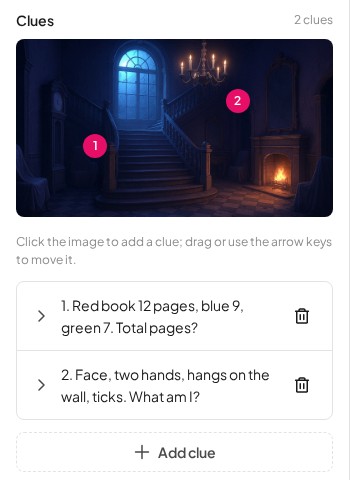
- Set the door code and timer, then present. Type a door code of up to 6 digits and a time limit in seconds. Players join on their phones; press Start and the presenter screen shows every player move between rooms.
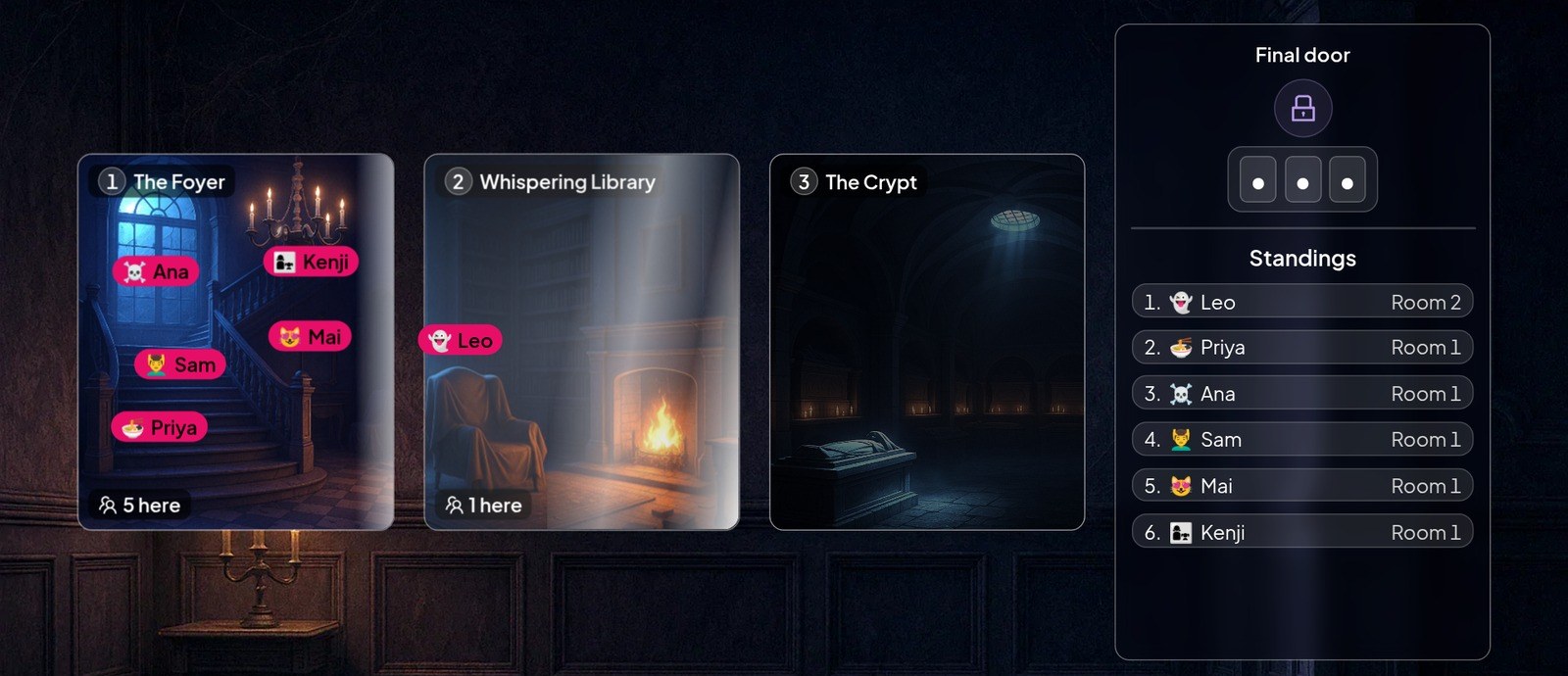
Some solved clues hand out code pieces as symbols; at the Final Door, a chart turns each symbol into a digit and players type the code to escape. When the round ends, the results board lists who escaped and how fast, then who is still trapped, closest first. Ranking is by escape time, not points. Because a host leads it, it fits a classroom, a training session or a team event, not a form someone completes alone at home. Running everyone together? Build an Escape Room slide in AhaSlides.
Product details verified in AhaSlides on 14 October 2026.
FAQ
Can you make an escape room in Google Forms?
Yes. Use a section for each room and a required short answer question with response validation as the lock.
Can Google Forms check a typed answer?
Yes, with response validation on a short answer question: a number, text, length or regular expression rule, with custom error text shown when the answer breaks the rule.
Is there a Google Forms escape room template?
There is no ready-made copy to download here. The four-room example above lists every clue, answer and rule, so you can rebuild it and then change the story. Build your own from the steps first, so you know how each lock works before you reuse someone else's.
Can Google Forms show who is winning?
Not live: you see responses in the Responses tab after people submit. Google's documented controls include no live view.
Can you add a timer to a Google Forms escape room?
Not in Forms itself: there is no native timer in Google's documented controls, so run the clock yourself on a screen or phone.
How many rooms should a Google Forms escape room have?
Three to five is our recommendation for a first game, not a Forms limit. Each room is one section with one lock, and every extra room is another validation rule to test in Preview.
Can players see the right answers?
Not by default. With response validation, Forms asks players to answer a blank lock and shows your custom error text if the answer is wrong. If you set the form up as a quiz instead, Google's help says you can choose whether people see missed questions, correct answers and point values in the quiz settings (Google Docs Editors Help: Create and grade quizzes with Google Forms). For an escape room, keep that off so the answers stay hidden.
More escape room ideas
If you only want the free route, the steps above are all you need. If you are comparing form tools more widely, our list of free alternatives to Google Forms covers the options. For puzzle ideas to put in your rooms, see these riddles with answers and lateral thinking puzzles, and for in-person variations try scavenger hunt ideas.
More on running escape rooms: escape room riddles, escape rooms for the classroom and escape room themes.