

You can run a pulse survey in Slack with AhaSlides for Slack: type /ahaslides create, pick Weekly pulse and press Post. Your team answers with one tap in the channel, and every answer is saved in your AhaSlides report.
When to use a pulse survey in Slack
A pulse survey is a short check-in you send on a regular rhythm, to see how people are feeling before small problems turn into big ones. Say you lead a design team and want to know how the week went. On Friday afternoon you post two questions in #team-design, and people answer between tasks. (New to the idea? Read What is a pulse survey? A guide for teams for the background.)
Other good moments for a pulse in Slack:
- A weekly mood check with your team
- A workload check when a busy stretch starts
- An eNPS check once a quarter
- A quick read a week after a change or an announcement
Keep Slack for short pulses: that is what makes them quick to answer. A long, formal engagement survey is easier to answer from a full survey link, which AhaSlides can also give you.
Why run your pulse survey in Slack
- People answer where they already are. No new tab, no login and no email to dig out, so answering takes seconds.
- You can see how many have answered. The pulse sits in the channel, and the count on the post keeps you up to date.
- The answers don't scroll away. Every answer stays in your AhaSlides report, ready to read or share later.
What you need
- A Slack workspace with AhaSlides for Slack installed
- An AhaSlides account for the person who runs the pulse (any plan works, including Free)
- Nothing for the people answering: they don't need an AhaSlides account
How to run a pulse survey in Slack, step by step
Step 1: Add AhaSlides for Slack
Open the AhaSlides for Slack install page and add the app to your workspace. The first time you press Post, AhaSlides asks you to sign in to your AhaSlides account and keeps your draft while you do.
Step 2: Open the Create window
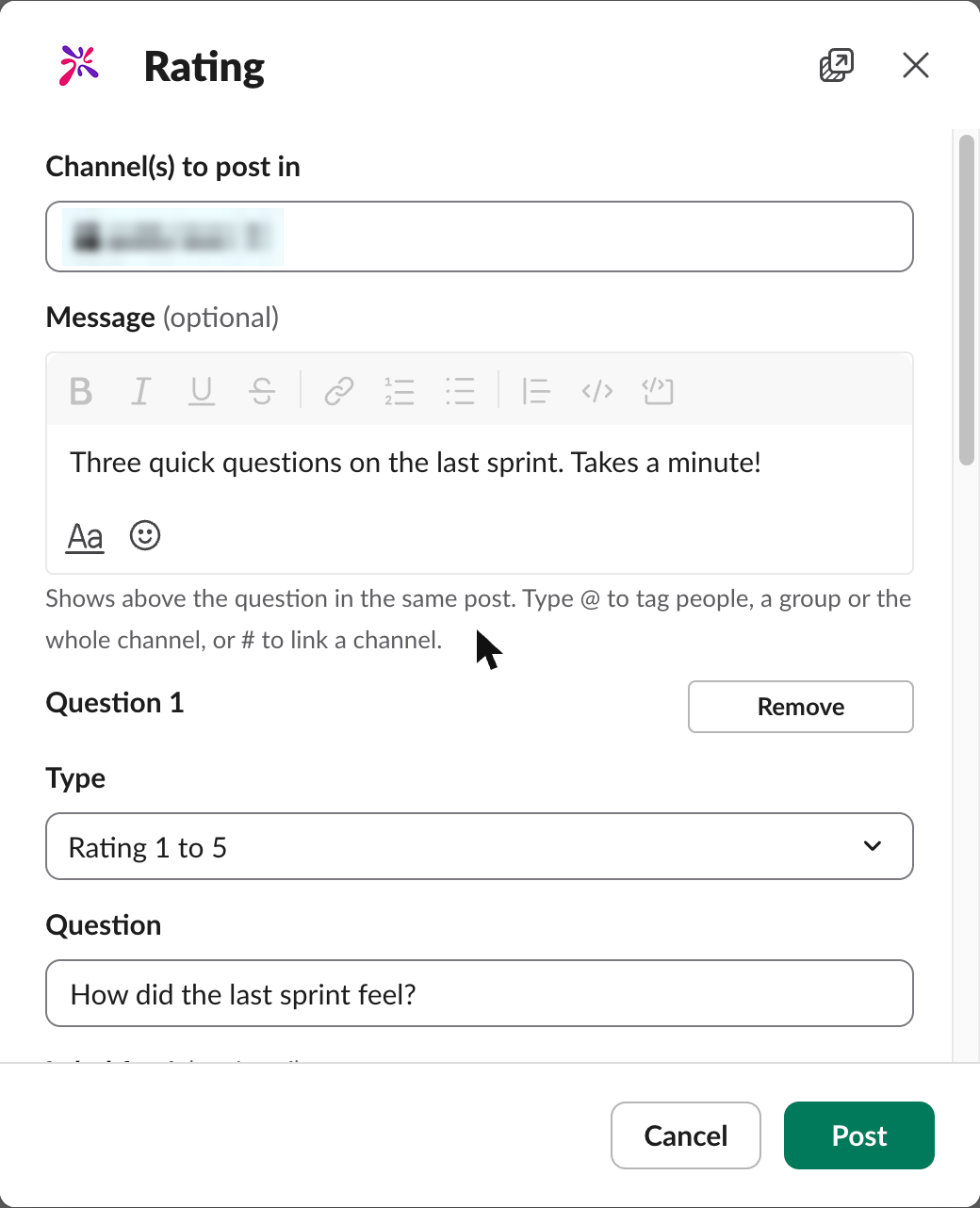
In the channel you want to check in with, type /ahaslides create. The Create window opens.
Step 3: Pick Weekly pulse
Under Check in with team, press Weekly pulse. It comes ready to post with two questions: How was your week?, answered on a 1 to 5 scale from Very poor to Great, and a follow-up, What made it that way?, which people can skip. The window notes that it is best sent every Friday. For a different kind of pulse, Wellbeing and eNPS sit next to it, and All templates lists more, such as Workload, Manager support and Team connection.
Under Channel(s) to post in, the channel you're in is already picked, and you can add more. In Message, add a line so people know why you're asking. Change any question or the words at each end of the scale, or press + Add question if you want one more. Two or three questions is plenty for a pulse.
Step 4: Choose anonymous answers and who sees results
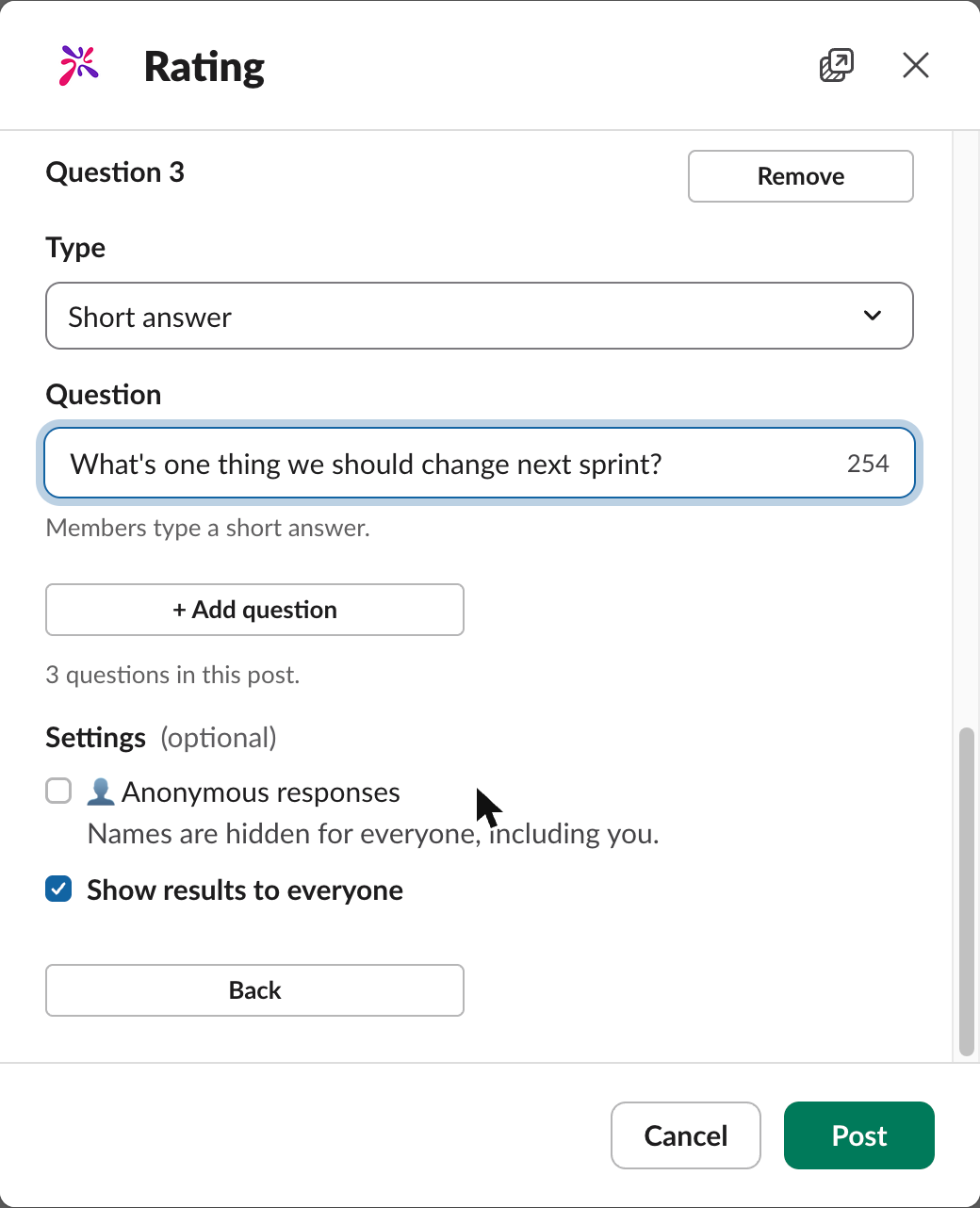
Under Settings, tick Anonymous responses if you want honest answers without names. Wellbeing and eNPS start with it ticked; Weekly pulse starts with it off. Names are then hidden for everyone, you included, in Slack and in AhaSlides. Show results to everyone is ticked to start with, so the whole channel can see the results. Untick it to keep them to yourself.
Step 5: Post it and watch the answers come in
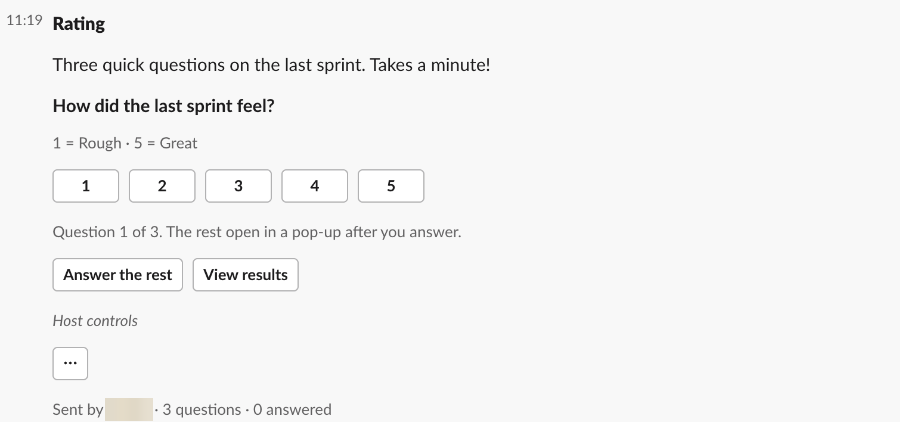
Press Post. AhaSlides creates the survey in your account and posts it to the channel. The first question sits right in the post: people tap an answer. Answer the rest opens the follow-up in a pop-up, and they can skip it. The bottom of the post shows how many people have answered.
Step 6: Read the results
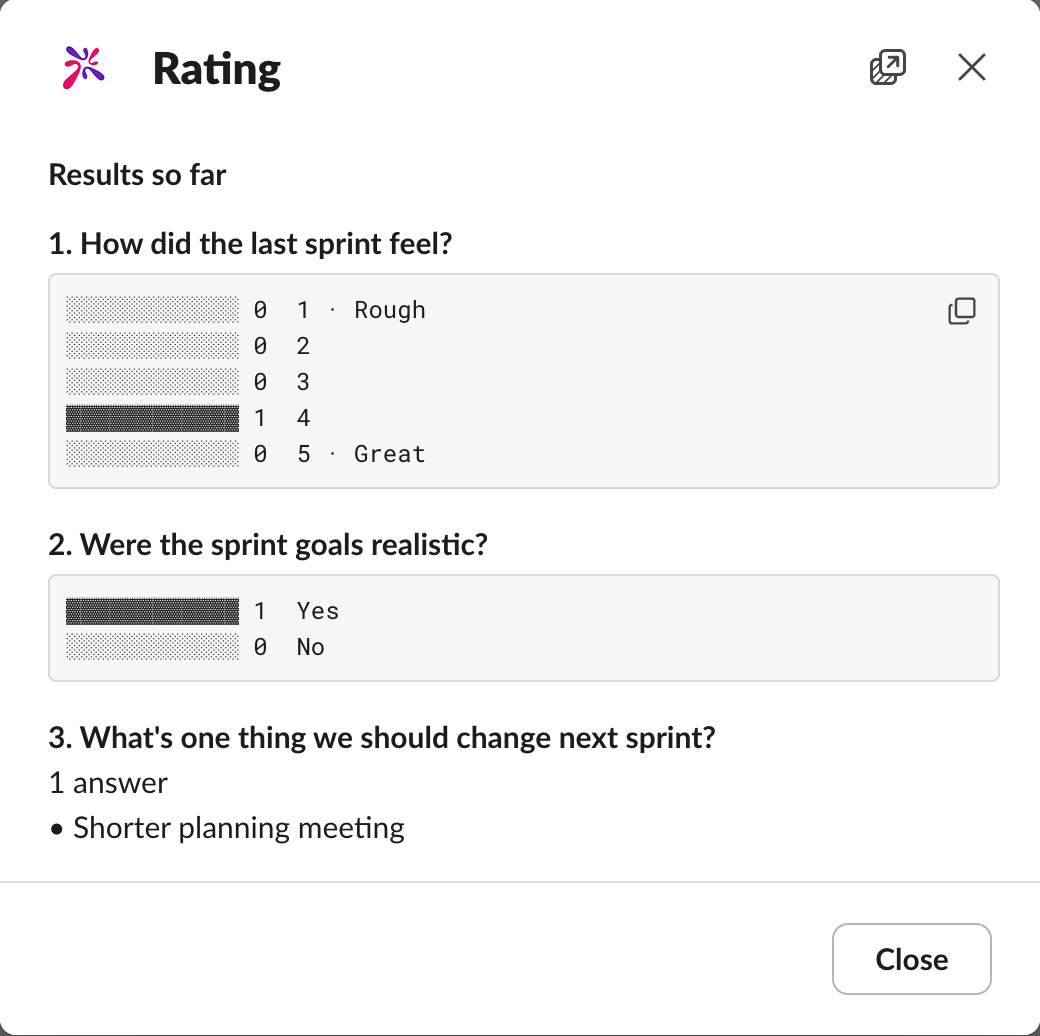
As the host, press the … button under Host controls to View results, End answering or Open in AhaSlides. If you left Show results to everyone on, everyone else gets a View results button too. The rating shows as a bar chart and the follow-up answers are listed. Your AhaSlides report has every answer.
Stuck on a step? The AhaSlides for Slack guide covers every option and the most common fixes.
Sending the pulse again
A pulse is worth most when you repeat it, and you post each one yourself, which takes a minute. Next time, type /ahaslides create and pick Weekly pulse again. To post a survey you already made, type /ahaslides run, choose Survey, pick it from your list and press Run. For the full tour of the Create window, read How to create a survey in Slack.
Five tips for a pulse survey people answer
- Keep it to two or three questions. A pulse people can finish in under a minute is one they will answer every time.
- Send it at the same time each week. A steady rhythm makes it a habit, and makes changes easier to spot.
- Go anonymous for sensitive topics. On workload or wellbeing, people may feel safer being open when their name isn't attached.
- Keep one open question. "What made it that way?" often gives you the most useful reply of the lot, and skipping it costs nothing.
- Close the loop. Post a short summary of the results and what you'll do next. Seeing the last pulse change something gives people a reason to answer the next one.
FAQ
What is a pulse survey?
A pulse survey is a short, regular check-in, usually one to three questions, that shows how a team is feeling over time. See What is a pulse survey? A guide for teams for more.
Can you run a pulse survey in Slack?
Yes. With AhaSlides for Slack, type /ahaslides create, pick Weekly pulse and press Post. People answer with buttons right in the channel.
Do people need an account to answer?
No. Only the person who runs the pulse signs in to AhaSlides. Everyone else answers with buttons in Slack. The guide covers setup questions.
Can the pulse be anonymous?
Yes. Tick Anonymous responses before you post. Names are hidden for everyone, including you, in Slack and in your AhaSlides report.
Is AhaSlides for Slack free?
Yes. It works on every AhaSlides plan, including Free.
What if my workspace needs apps approved first?
Slack asks you to send an install request, and a workspace owner or app manager approves it.
Related read: How to create a survey in Slack, for every option in the Create window.
Find out how your team is really doing, right where they work. Add AhaSlides for Slack and post your first pulse in a few minutes.